Fixed – An error occurred when processing the security tokens in the message:You are using Ws-Tust authentication which has been deprecated and no longer supported in your environment. Please use oAuth2.0 authentication in Dynamics 365 / CDS


While trying to connect to Dynamics 365 instance through Online Federation authentication type (deprecated) using CDS/ CRM connection manager of KingswaySoft

For Console App – https://nishantrana.me/2020/11/09/sample-code-to-connect-to-cds-dynamics-365-ce-using-oauth/
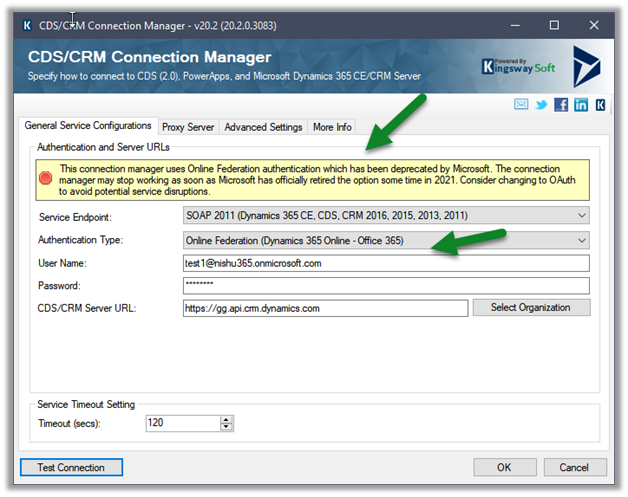
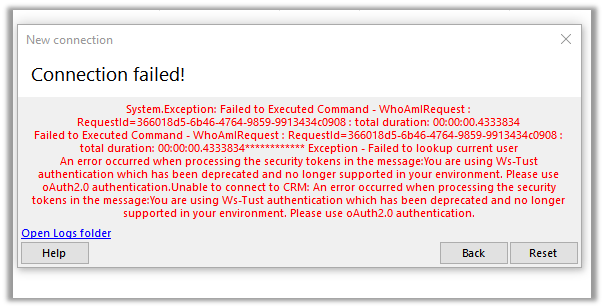
you would get the below error –

KingswaySoft.IntegrationToolkit.DynamicsCrm.CrmServiceException: CRM service call returned an error: An error occurred when processing the security tokens in the message:You are using Ws-Tust authentication which has been deprecated and no longer supported in your environment. Please use oAuth2.0 authentication. (SSIS Integration Toolkit for Microsoft Dynamics 365, v20.2.0.3083 – devenv, v15.9.28307.905)System.ServiceModel.FaultException

: An error occurred when processing the security tokens in the message:You are using Ws-Tust authentication which has been deprecated and no longer supported in your environment. Please use oAuth2.0 authentication.

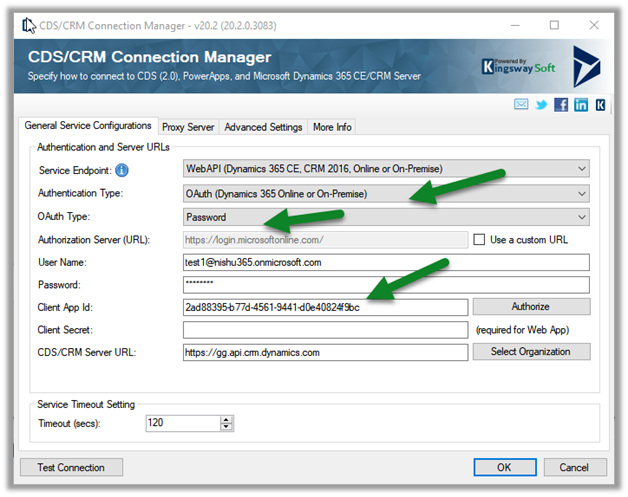
The solution is to use the OAuth connection type as shown below.

More on OAuth 2.0 – https://nishantrana.me/2019/08/30/oauth-2-0-with-dynamics-365-ce-web-api/

Here we have selected Password as OAuth type.

And specified username and password, and for Client App Id we have specified the default client app id.

2ad88395-b77d-4561-9441-d0e40824f9bc
https://nishantrana.me/2019/08/23/connect-to-dynamics-365-web-api-using-oauth-2-0-resource-owner-password-credential-ropc/

This connection succeeds this time.

The same will be the experience with XrmToolBox while trying to create a new connection using the connection wizard

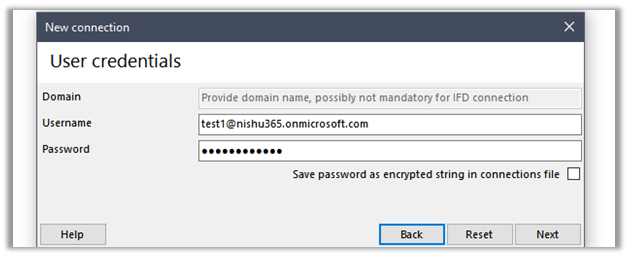
Microsoft.Xrm.Tooling.Connector.CrmServiceClient    Error    2    06/11/20 07:18:46 Unable to connect to CRM: An error occurred when processing the security tokens in the message:You are using Ws-Tust authentication which has been deprecated and no longer supported in your environment. Please use oAuth2.0 authentication.

Error    : An error occurred when processing the security tokens in the message:You are using Ws-Tust authentication which has been deprecated and no longer supported in your environment. Please use oAuth2.0 authentication.

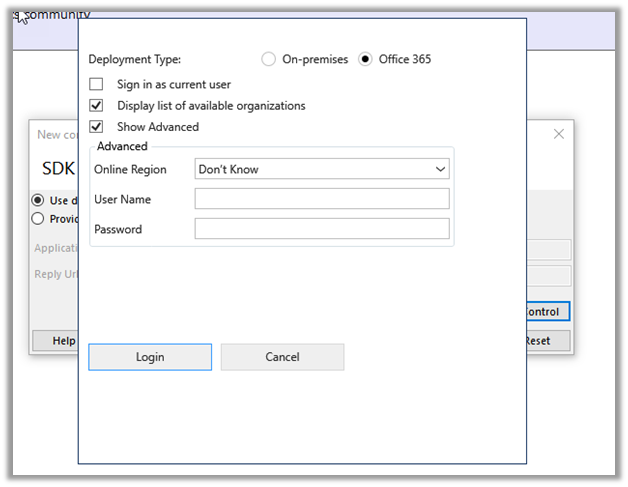
Try the alternate connection method like SDK Login Control, Client ID secret, etc.

https://www.xrmtoolbox.com/documentation/for-users/connecting-to-an-organization/
Please refer to the below articles to get more details –

Use of Microsoft 365 authentication with the WS-Trust security protocol

Deprecation of Office365 authentication type and OrganizationServiceProxy class for connecting to Common Data Service

https://colinvermander.wordpress.com/2020/02/09/cds-crm-sdk-ws-trust-auth-and-organizationserviceproxy-deprecated-what-does-it-mean/

Hope it helps..
Advertisements

Traffic information in the map component – 2020 Release Wave 2


The interactive Map component (preview) can now be enabled to show traffic information like traffic congestion, incidents, traffic flow using red, yellow, and green colors.

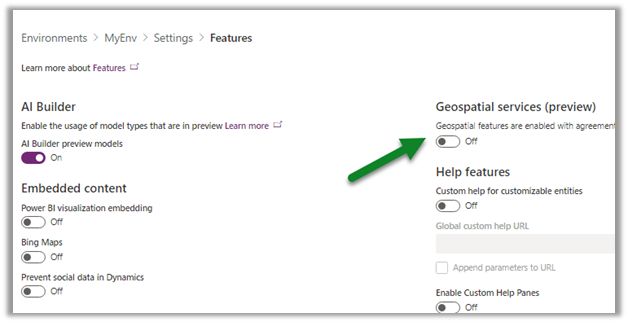
Before we can use the Map component (preview), we need to first enable it for the environment.

Navigate to the admin portal –

https://admin.powerplatform.microsoft.com/

Within features, enable the Geospatial services and save the setting.

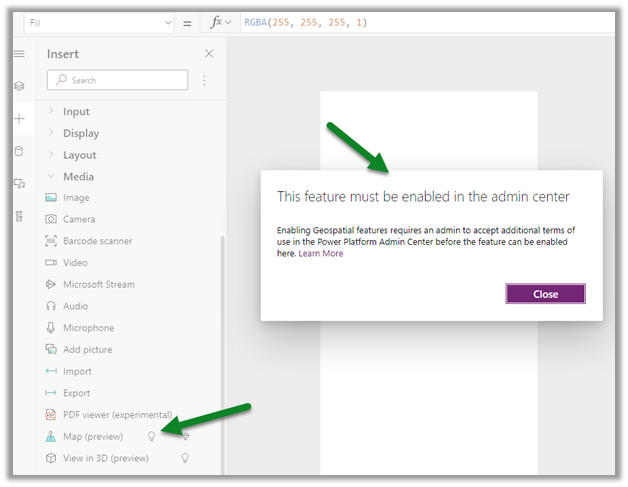
Else we would be getting the below error while trying to add the map component to the canvas app screen.

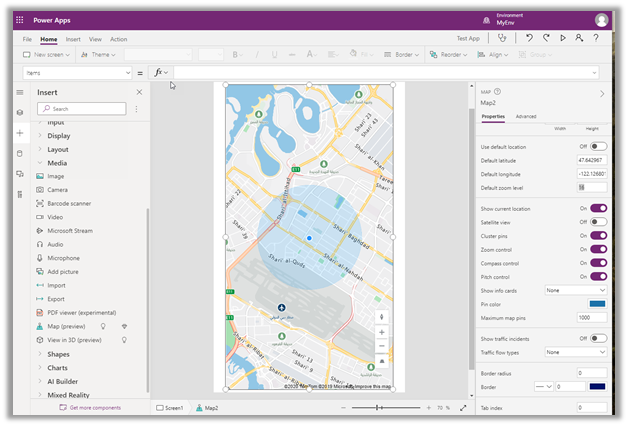
Here we have added the map component.

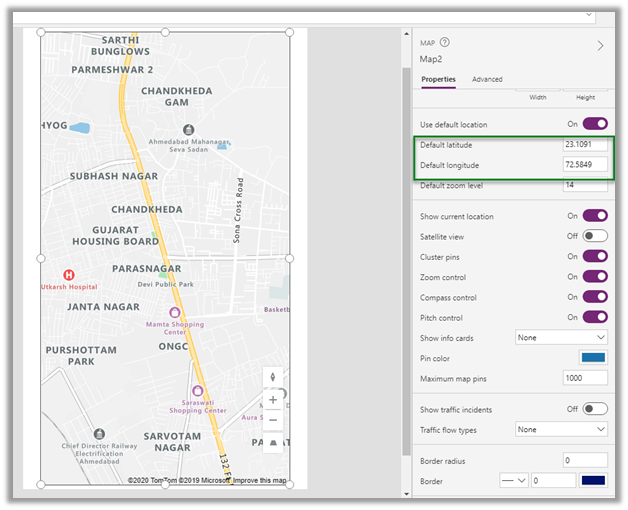
And updated the default location.

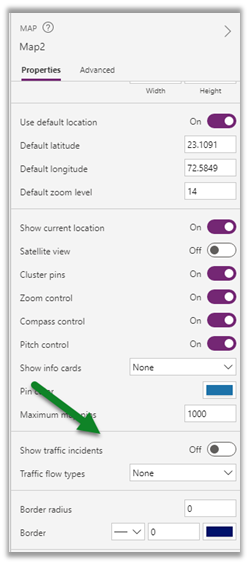
Scrolling down within the properties pane, we can see the properties specific to traffic information.

  • Show traffic incidents – On / Off.
  • Traffic flow types – None, Relative, Relative Delay only.

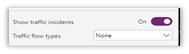
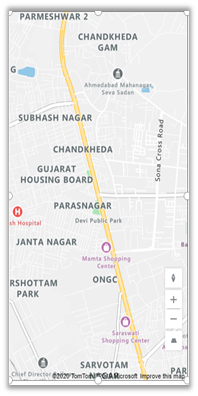
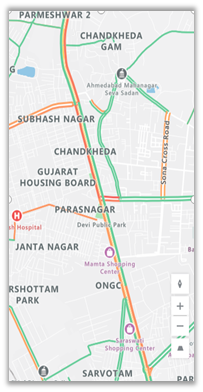
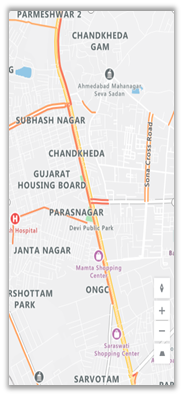
Below is how it renders for different values for traffic flow types.

Traffic flow type = none

No data is shown

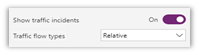
Traffic flow type = relative

Relative data to the free-flow of the road

Traffic flow type = relative-delay

Areas that are slower than average expected delay

More on Map component –https://docs.microsoft.com/en-gb/powerapps/maker/canvas-apps/geospatial-component-map

Hope it helps..
Upcoming updates to Azure Synapse Link / Export to Data Lake Service – 2020 Release Wave 2


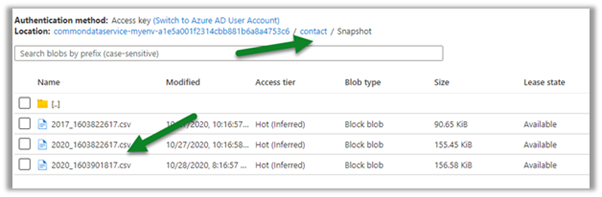
As we know – Export to Data Lake service enables continues replication of CDS entity data to Azure Data Lake Gen 2

Below are some the interesting update coming to it –

Configurable Snapshot Interval – currently the snapshots are created hourly– which will be configurable.

Cross Tenant Support – Currently Azure Data Lake Gen2 and CDS environment needs to be in same tenant. With the new update we will be able to use Azure Storage part of a different tenant.

Dashboard support that will show the count and visual trend of records especially helpful for large data sets.

Parquet format support – currently the CDS entity data is exported in .csv format, going forward with 2020 Release wave 2, the support for Parquet format will be added for improved efficiency terms of storage and performance.

Support for exporting Audit data that can be used for analysis and reporting.

Support for entities with attachments

Soft Delete – Deleting data from source but still keeping it in the Data Lake.

Get all details here –

https://docs.microsoft.com/en-us/power-platform-release-plan/2020wave2/cdm-data-integration/export-data-lake

Posts on Azure Data Lake

Hope it helps..

Advertisements

Child flows in Power Automate Compared to Child Workflows


Great article- comparing child workflow and child flow

Sara Lagerquist's avatarSara Lagerquist

The child flow feature in Power Automate differs from how the child workflow feature from the classic workflow engine in Dynamics 365 works. This article will take you through how you can build your first child flows in Power Automate and what to expect to be different from what you might be used to.


View original post 828 more words

Manage Parent Child Cases in CRM


anilambadan's avatarcrmcooking

In Microsoft Dynamics CRM you can manage multiple cases efficiently using parent and child cases. If you want to records same issue for multiple customers, you can open a primary case called parent case and then create a secondary case called child case.

Please consider the following scenario. Multiple customers are calling about to report ‘No water supply’ in an area/postcode related to burst pipeline. Instead of creating a new case for each customer , you can create a master case to record the pipe burst incident and then create child cases when customers call in about to report ‘water supply’ issue in the same area.

Before creating the parent child cases, We can set Parent and Child case settings like the attributes to be copied from parent case to child case and case closure preferences.

Setting–>Service Management–>Parent and Child case Settings

Case Settings

Using Case Settings screen, we will be able…

View original post 273 more words

Improved duplicate detection and merge experience in Dynamics 365 for Sales– 2020 Release Wave 2


2020 Release Wave 2 brings improvement in duplicate detection and merge capabilities.

Check other posts on Release 2020 Wave 2

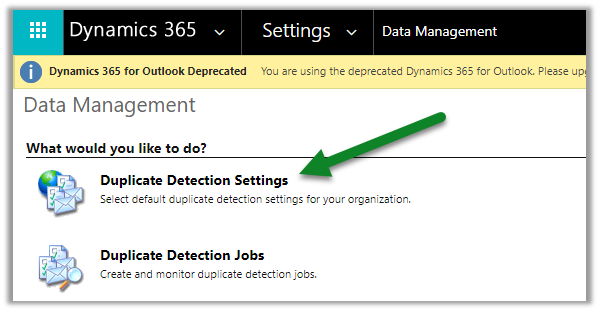
To enable it, navigate to – Settings > Data Management > Duplicate Detection Settings

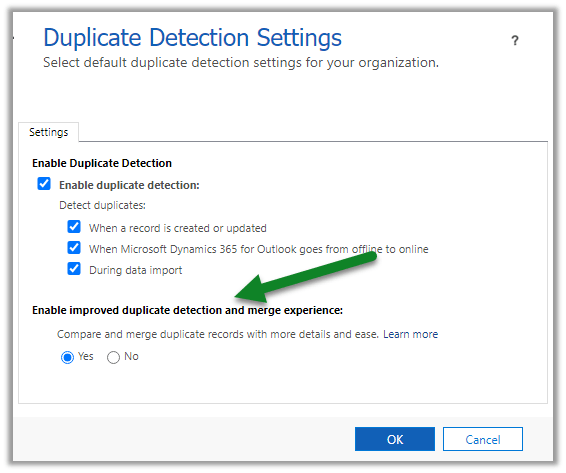
Enable it –

With this enabled, the user can see why a record is being flagged as duplicate, it also allows users to merge the record using the improved Merge dialog box while the record is being added, updated, or quailed as in case of lead.

On creating a duplicate contact record with the same last name and first name, the dialog box opens up.

We can select any of the matched records and click on the Merge button to merge it.

We can see the different options within the merge dialog box.

Selecting the appropriate options, and clicking on Ok merges the record.

Hope it helps ..

Advertisements

Nishant Rana's Weblog

Everything related to Microsoft .NET Technology

Skip to content ↓