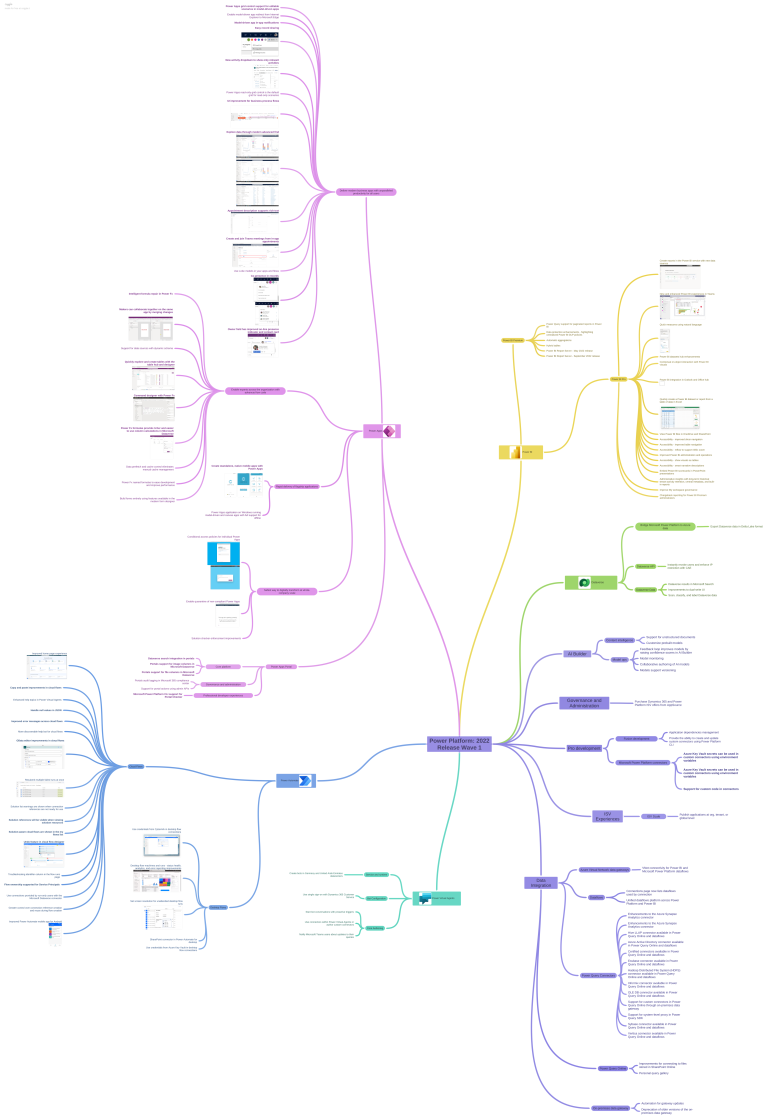
Check out the Mind Map for the 2022 Release Wave 1 Power Platform by Khoa Nguyen
https://dyncrmexp.com/2022/03/05/power-platform-2022-release-wave-1-overview/
Advertisements

Check out the Mind Map for the 2022 Release Wave 1 Power Platform by Khoa Nguyen
https://dyncrmexp.com/2022/03/05/power-platform-2022-release-wave-1-overview/

In the previous post, we saw how to use Field Level Security and JavaScript to disable field/column in the Editable Grid Control.
We can also use Business Rules to achieve the same.
Here we will be disabling the email field.
Below is our sample business rule to lock the email field.

The result – we have the field locked/disabled in the editable grid control.
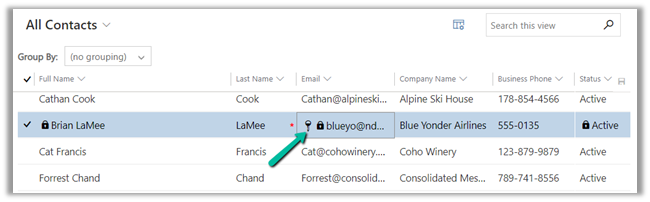
Couple of things we need to take care of
1st the field that we are using in the condition inside business rule, last name in our case, should be there in the view.
And the Scope of the Business Rule should be either – Entity or All Forms.

Also check – https://nishantrana.me/2022/02/15/power-apps-grid-control-in-model-driven-apps-dynamics-365-crm/
Hope it helps..

Recently we saw File usage for one of the environments reaching around 68 GB.
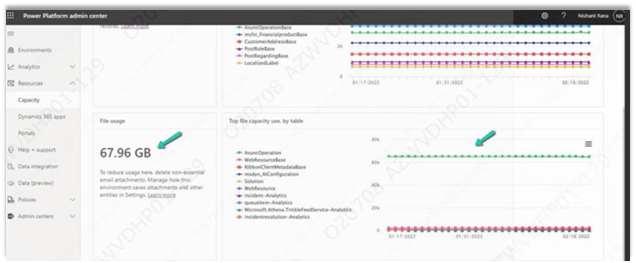
We managed to bring it down to around 10 GB or so by (Microsoft Support quickly helped us by sharing the required details here)
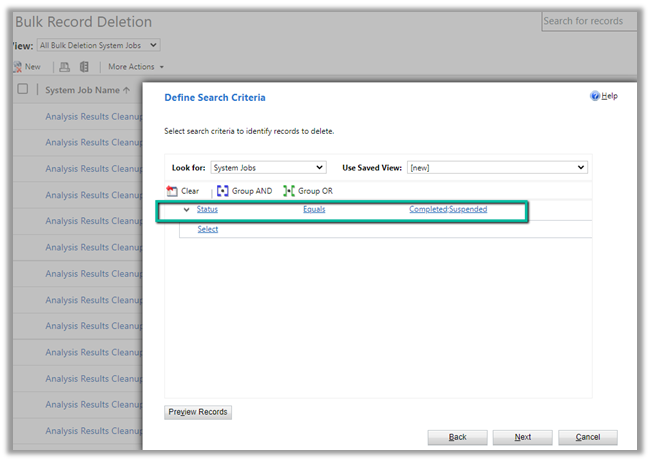
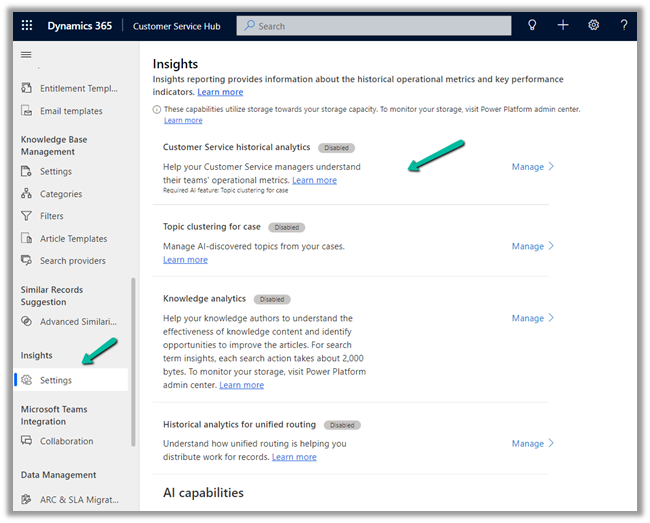
Settings >> Data Management >> Bulk Record Deletion
Customer Service Hub >> Service Management >> Insights (Settings)
Nicely explained here –
Also, check
https://docs.microsoft.com/en-us/power-platform/admin/free-storage-space
Hope it helps..

Recently we noticed File usage of some of our environments reaching around 50 GB, and most of it was because of the AsyncOperation table.

So to quickly delete the AscyncOperation records the option we can choose is –
Create a new Bulk Record Deletion job from Settings >> Data Management

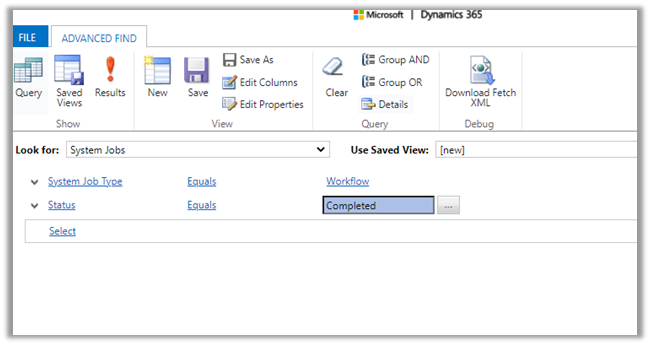
Select System Jobs table and filter as System Job Type equals Workflow

Select Bulk deletion job start time as Immediately
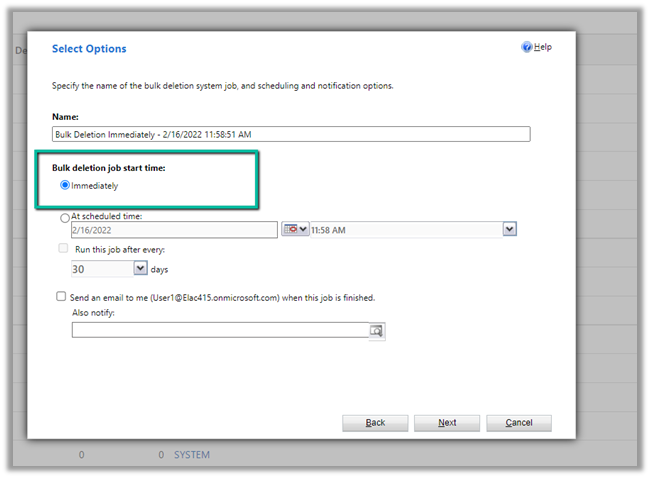
The Immediately option will only be available –
This will only delete the AsyncOperation records that are in the completed state of system job type workflow.
It will delete 1 million records whenever it is run. If there are more than 1 million records, it will have to be run again.
The key part is that it will delete the records through direct SQL Execution, so the records will be deleted immediately, rather than each record going through the delete pipeline, thus improving the performance immensely.
Back to our bulk deletion job, we can click on Submit to initiate the deletion.

We encountered a few errors when submitting, the solution was to keep trying, and eventually it will get submitted successfully.

After successful submission, we can see all our completed workflow system job records deleted immediately.
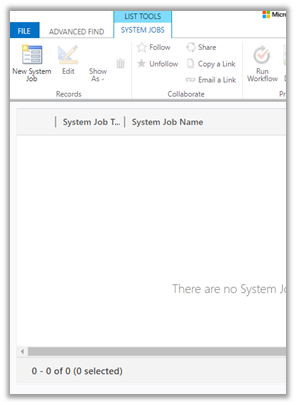
Also as it is Sync Job, we will not see it listed in Bulk Record Deletion views.
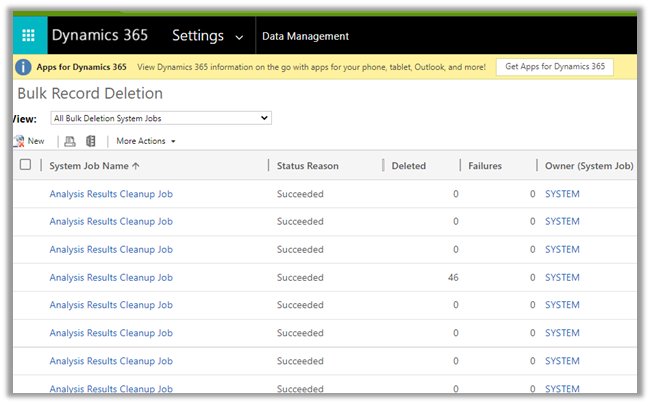
Get more details here –
https://docs.microsoft.com/en-us/power-platform/admin/free-storage-space#reduce-file-storage
Hope it helps..

At times we may have a requirement to update the format of the Auto Number dynamically / programmatically so that the new set of records take up the new format.
Let us understand through a simple example.
Right now for the below field, we have the auto-number format set as
{SEQNUM:4}
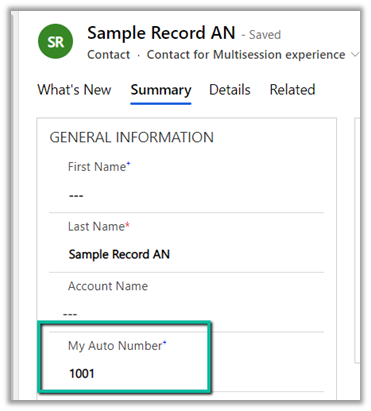
Below is the sample code to update the auto-number format programmatically.
It makes use of our RetrieveAttribute and UpdateAttribute requests.
We have retrieved the attribute then have specified a new auto number format, followed by update request.

After executing the above code successfully, and creating a new contact record we can see the new number generated as per the specified format.
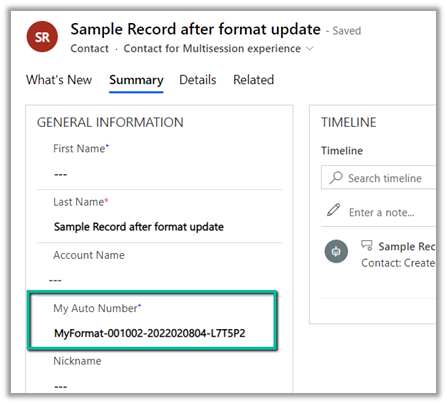
Sample Code –
        string ConnectionString = "AuthType = OAuth; " +
              "AppId=51f81489-12ee-4a9e-aaae-a2591f45987d; " +
              "Username=test@test.onmicrosoft.com; " +
              "Password=test; " +
              "RedirectUri=app://58145B91-0C36-4500-8554-080854F2AC97;" +
              "Url = https://test.crm.dynamics.com/;";


        CrmServiceClient svc = new CrmServiceClient(ConnectionString);

        if (svc.IsReady)
        {
            var retAttributeRequest = ((RetrieveAttributeResponse)
                             svc.Execute(new RetrieveAttributeRequest
                             {
                                 EntityLogicalName = "contact",
                                 LogicalName = "cr59f_myautonumber",
                                 RetrieveAsIfPublished = true
                             })).AttributeMetadata;

            retAttributeRequest.AutoNumberFormat = "MyFormat-{SEQNUM:6}-{DATETIMEUTC:yyyyMMddhh}-{RANDSTRING:6}";

            var updateAttrRequest = new UpdateAttributeRequest
            {
                EntityName = "contact",
                Attribute = retAttributeRequest
            };

            var updateAttrResponse = (UpdateAttributeResponse)
                svc.Execute(updateAttrRequest);
Check other posts on Auto Number attribute –
Hope it helps..

Power Apps grid control is a new read-only control, now auto-enabled as part of 2022 Release Wave 1 for Model-driven apps.
We can also enable it by navigating to Customization, selecting the entity, then the Controls tab, and clicking on Add Control option.

Select the Power Apps Grid control.

Here we have enabled it for the Web.
The different properties that can be set for the control are –
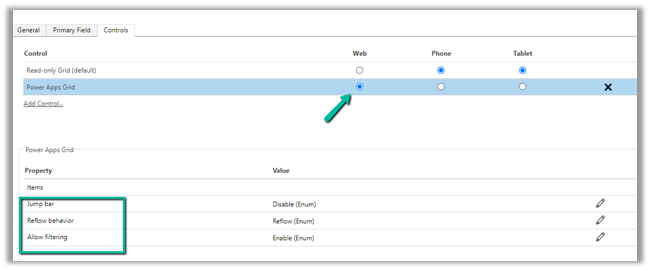
With Jump bar disabled –
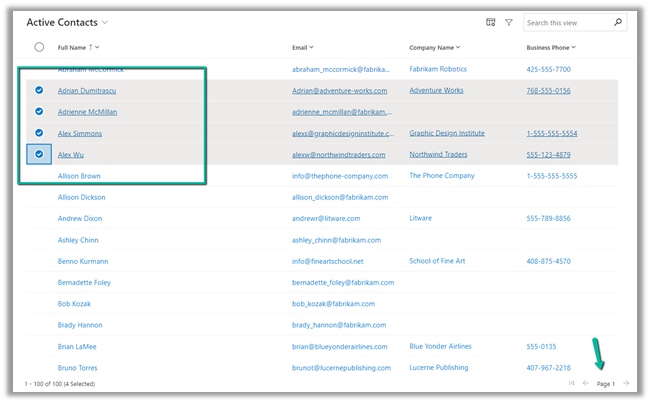
Enable the jump bar.

After enabling the jump bar, we get the option to filter by alphabets.

It will also support Infinite Scrolling
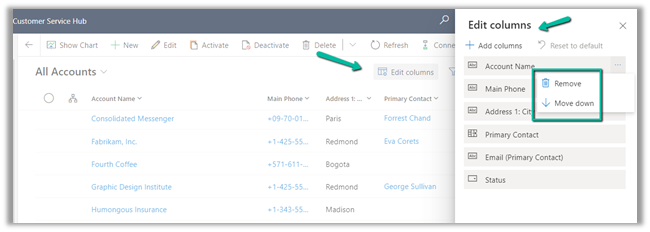
We can use Edit Columns to add, remove and order the columns for the view
Edit Filters allows us to edit the filters.
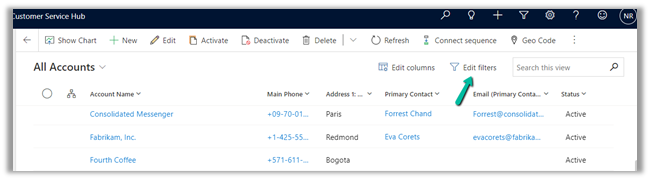

Any changes made to the column or filter can be saved as a personal view.

Also, Grid remembers the context, here we have filtered the record by search text = “Blue”

Let us open the first record.

On navigating back, the context is retained.

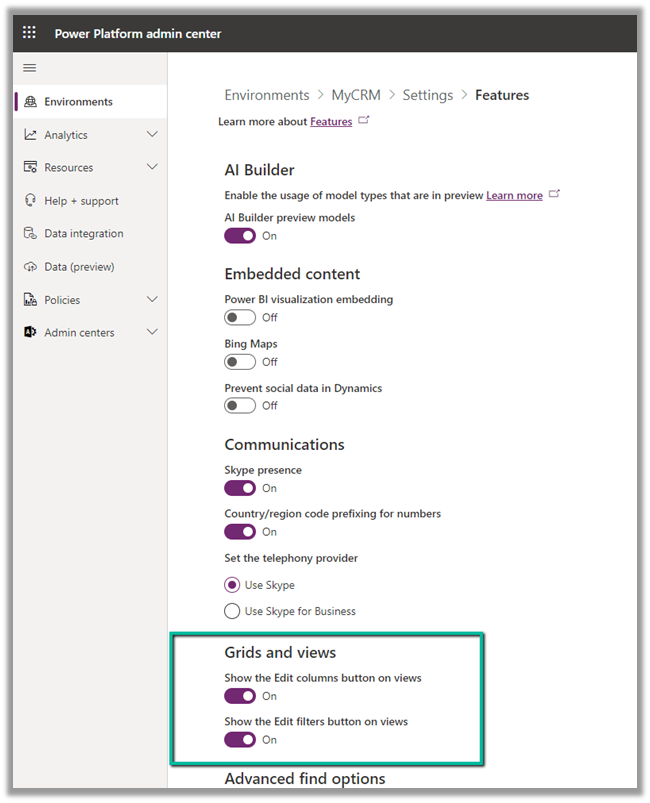
We can also show and hide the Edit Columns and Edit filters option on views from Power Platform Admin Center >> [Environment] >> Settings >> Features >> Grid and Views section
Hope it helps ..






 Nishant Rana's Weblog