Fixed – Unable to process template language expressions for trigger. In the template language function ‘convertToUtc’, the value provided for the time zone id ‘Gulf Standard Time’ was not valid while using Delay Until property– Power Automate


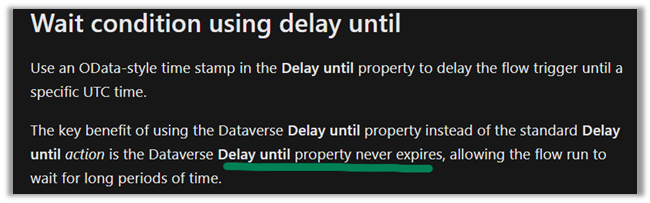
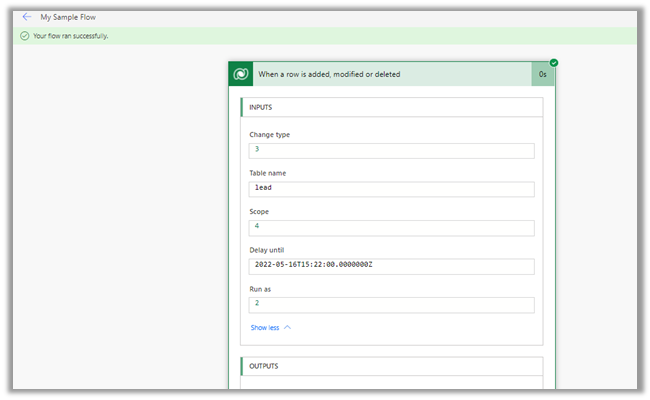
Recently while using Delay until property of the trigger, in one of the flows, we got the below error

“Unable to process template language expressions for trigger ‘When_a_row_is_added,_modified_or_deleted’ at line ‘1’ and column ‘16344’: ‘In the template language function ‘convertToUtc’, the value provided for the time zone id ‘Gulf Standard Time’ was not valid. ‘.”

Usage of Delay until is nicely explained here by Debajit –

https://debajmecrm.com/how-to-delay-a-power-automate-flow-execution-till-a-specified-date-and-time/

https://debajmecrm.com/replicate-dynamics-365-workflow-timeout-wait-condition-in-microsoft-flows/


Delay until = convertToUtc(‘2022-05-16T17:22:00′,’Gulf Standard Time’)

It turns out that Gulf Standard Time is not a valid time zone id.

Changing it to Arabian Standard Time resolved the issue for us.

i.e.

convertToUtc(‘2022-05-16T19:22:00′,’Arabian Standard Time’)


Also check – https://nishantrana.me/2022/01/19/how-to-use-do-until-and-delay-in-power-automate/

Hope it helps..

Advertisements

Fixed – Authorization failed. The client with object id does not have authorization to perform action ‘Microsoft.Authorization/roleAssignments/write’ over scope ‘/subcriptions’ while configuring Azure Synapse Link for Dataverse


Recently while configuring Azure Synapse Link for Dataverse, for exporting data to Azure Data Lake we got the below error –

{“code”:”AuthorizationFailed”,”message”:”The client ‘abc’ with object id ‘d56d5fbb-0d46-4814-afaa-e429e5f252c8’ does not have authorization to perform action ‘Microsoft.Authorization/roleAssignments/write’ over scope ‘/subscriptions/30ed4d5c-4377-4df1-a341-8f801a7943ad/resourceGroups/RG/providers/Microsoft.Storage/storageAccounts/saazuredatalakecrm/providers/Microsoft.Authorization/roleAssignments/2eb81813-3b38-4b2e-bc14-f649263b5fcf’ or the scope is invalid. If access was recently granted, please refresh your credentials.”}


As well as the below error –


As the error suggests the error was because the user account used was not having the appropriate role(s) assigned.

The user needs to have the Owner as well as Blob Storage Data Contributor role on the Azure Data Lake Storage Gen2 account.

Also check –

https://nishantrana.me/2020/09/07/error-access-to-the-resource-is-forbidden-while-trying-to-connect-to-azure-data-lake-storage-gen2-using-power-bi-desktop/

https://nishantrana.me/2021/06/24/fixed-authorizationfailed-the-client-with-object-id-does-not-have-authorization-to-perform-action-microsoft-authorization-roleassignments-write-over-scope-storageaccou/

https://docs.microsoft.com/en-us/power-apps/maker/data-platform/azure-synapse-link-synapse#prerequisites

Hope it helps..

Advertisements

Autonumber field values in case of exception in Dynamics 365 / CRM


Recently in one of our projects, where we were using the auto number attribute (with sequential numbers), we realized that it gets incremented even in case of an exception thrown during Pre Stage of the Plugin Execution. We were assuming the number gets incremented only after the record gets created i.e. on post-stage.

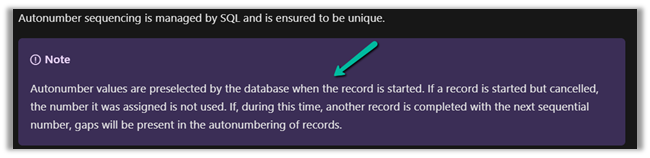
But as the documentation mentions, the number gets pre-selected as soon as the record is started.

https://docs.microsoft.com/en-us/power-apps/maker/data-platform/autonumber-fields

Let us see it in action also –

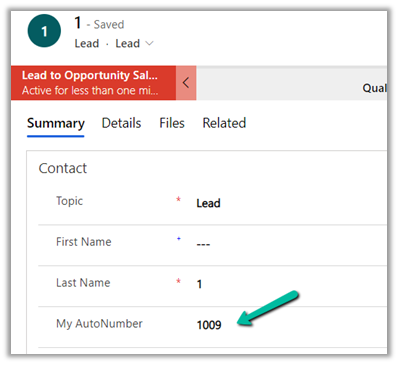
Here we have the lead record created with My Autonumber as the auto number column with seed as 1000

The auto number field has a value of 1009 currently.

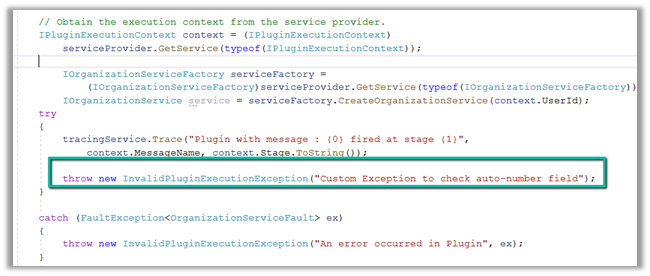
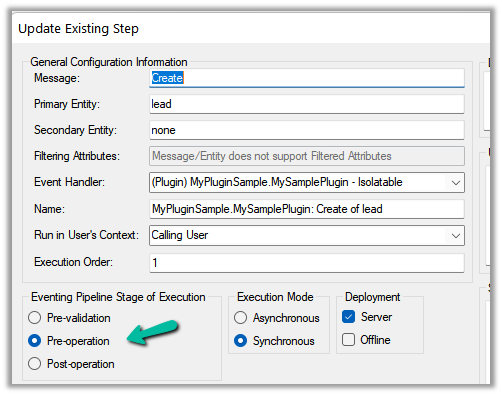
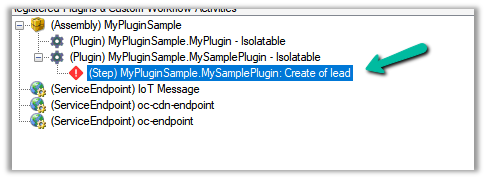
Now let us register a plugin on the Pre-Create stage that throws the exception.

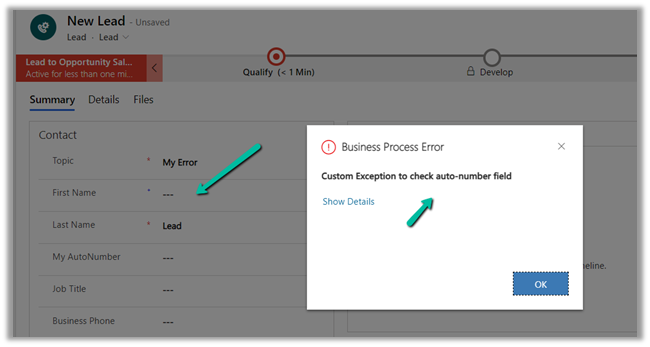
Let us try creating a new lead record, which as expected will throw the exception.

Let us try saving the record 3 times more, triggering the record creation as well as the plugin along with the exception.

Now let us disable the plugin step and save/create the record.

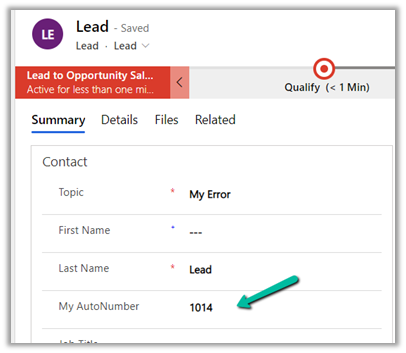
As expected the record gets created, and the auto number field has a value of 1014.

The same behavior was observed in case of Pre-Validation stage.

Hope it helps..


Advertisements

Fixed – Sorry, we need additional information to verify your identity. Please Contact Support error while creating Dynamics 365 Trial


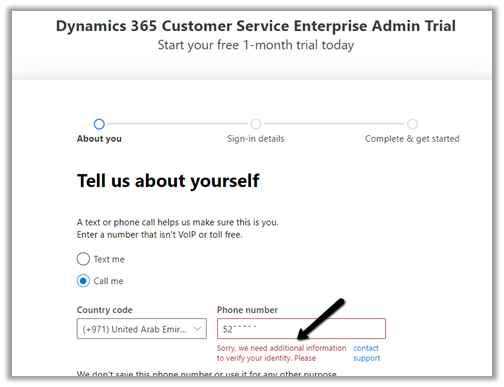
Recently while creating a Dynamics 365 Trial, https://dynamics.microsoft.com/en-us/dynamics-365-free-trial/, we were getting the below error, during the verification step

“Sorry, we need additional information to verify your identity. Please Contact Support”


This error could be related to the same phone number being used multiple times to create the Dynamics 365 trial or could be related browser cache.

Before trying with a new phone number, we should first try creating a trial in the In-Private mode (or clear cache in the browser).

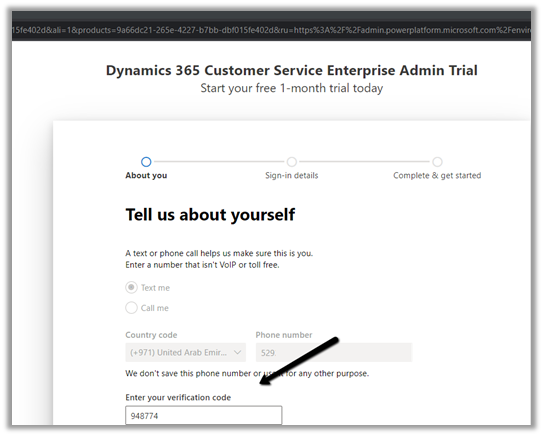
In our case, the In-Private mode worked as shown below, and we were able to create the trial.

Hope it helps..

Advertisements

How to – Create Administrative User Account for managing user / security roles, in Dynamics 365 / CRM


We recently wanted to create user accounts in CRM for managing users and their roles inside CRM, without accessing any of the data or functionality.

Below are the steps we can follow to achieve the same –

Login to Microsoft 365 Admin Center

https://admin.microsoft.com/#/homepage

Add a user
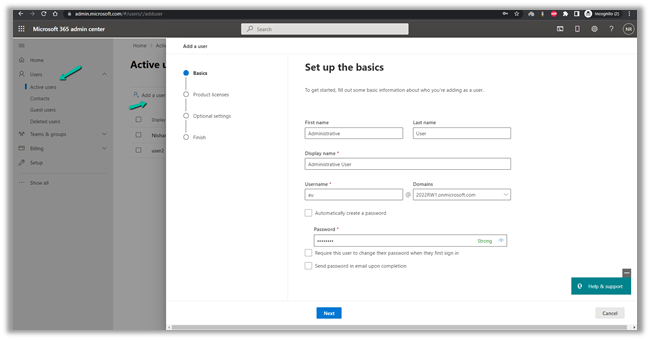
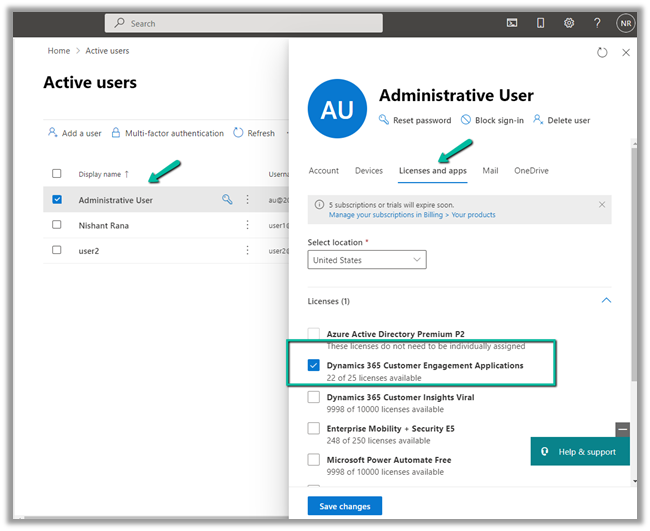
Temporarily assign the license to the user

In optional settings, specify either Global Admin or Dynamics 365 Administrator / Power Platform admin role.
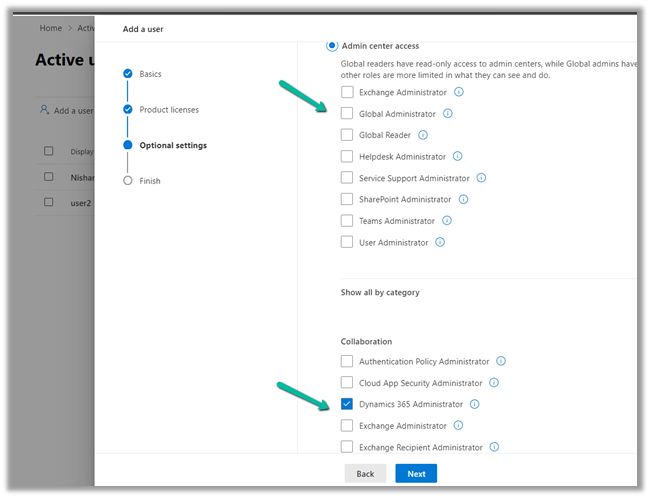
And create the user.

Next,

Login to Power Platform Admin Center

https://admin.powerplatform.microsoft.com/

and navigate to [Environment] >> Settings >> Users

If the users is not yet synced try- https://nishantrana.me/2021/12/14/the-trick-to-force-trigger-user-sync-power-platform-dynamics-365/

Select the User and click on Client Access License (CAL) Information
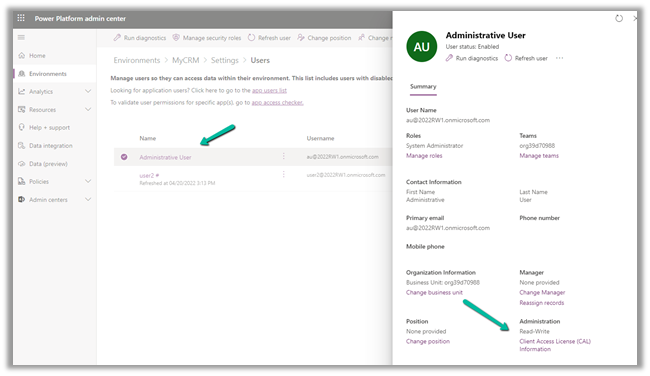
Change it to Administrative and save the change.
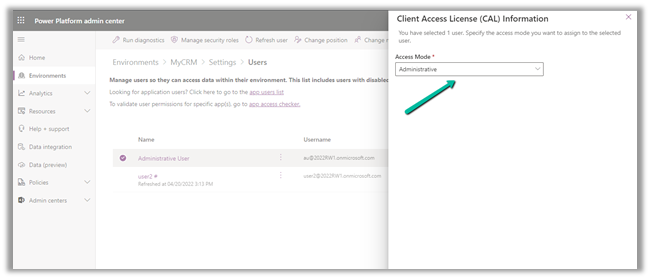
Now back in Microsoft 365 Admin Center we can remove the license and the roles from the user’s account.
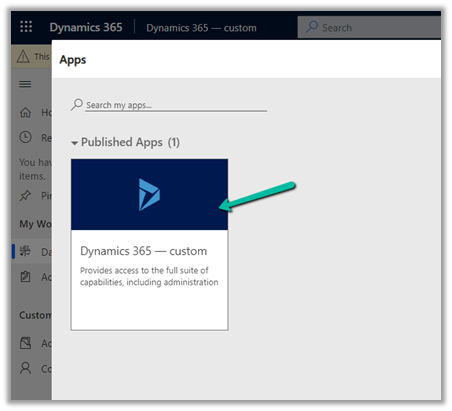
Back inside CRM the user will only have access to the Dynamics 365 – Custom app.
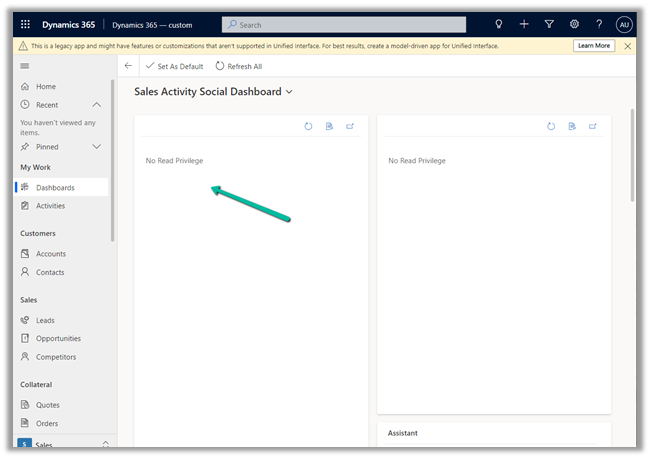
Inside app he gets the message No Read Privilege for data.
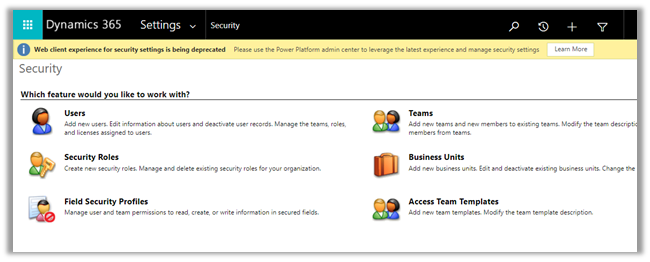
User will have access to following area within Settings
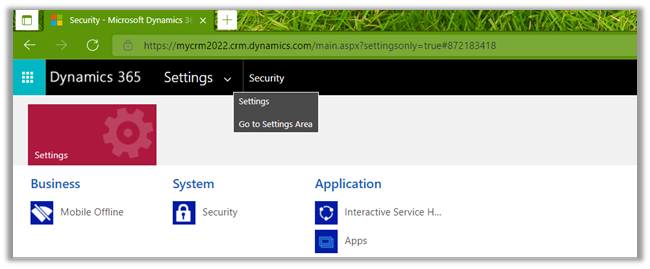
Inside Settings >> Security

The administrative user can see the users –
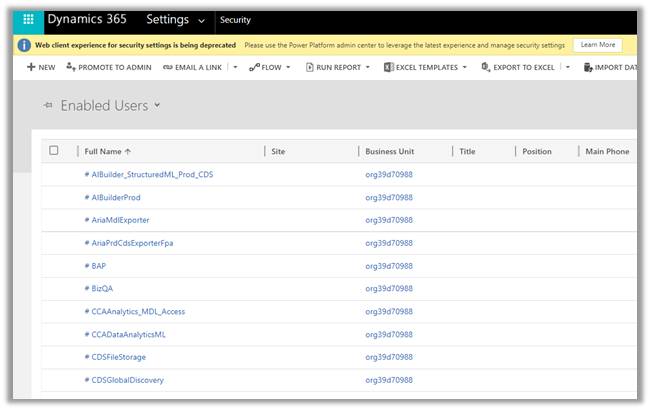
Basically when a Global or Power Platform admins having license are synced to the environment, they get the access mode of Read-Write and also System Administrator security role is assigned to them.

That is the reason why we need to change the access mode to Administrative after sync.

If they do not have license assigned, there access mode is still “Read-Write” after sync but no security roles assigned. Also the unlicensed Global and Power Platform admin will have access to the administrative areas.

Also we could create a new custom security role having access to “Security Role” table instead of assigning System Administrator or copy of system admin role.

https://docs.microsoft.com/en-us/power-platform/admin/prevent-elevation-security-role-privilege#assign-the-new-security-role-to-an-administrative-user

Get all the details here –

https://docs.microsoft.com/en-us/power-platform/admin/global-service-administrators-can-administer-without-license

Hope it helps..

Advertisements

How to – Share read-only links to records with any user in your organization – Dynamics 365 / CRM (Dataverse)


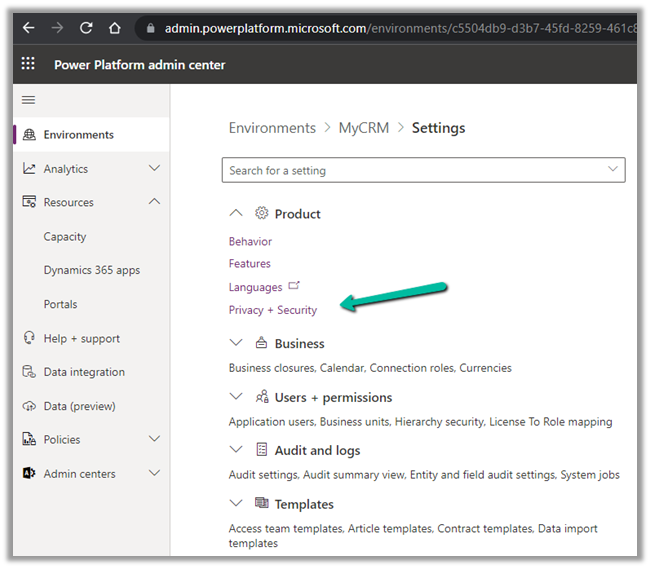
To enable quick sharing of the read-only link of the records to any users within the organization, log in to Power Platform Admin Center

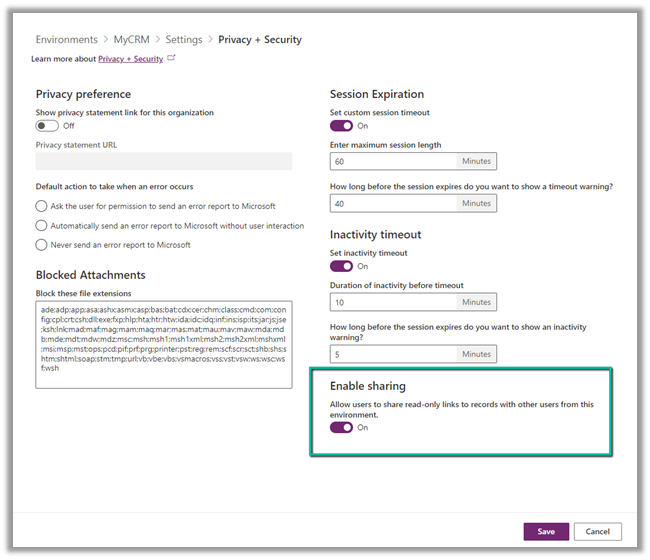
Select the Environment > Settings > Privacy + Security


Switch On the Enable Sharing option


This option currently works on the Contact, Account, Opportunity, and Case table.

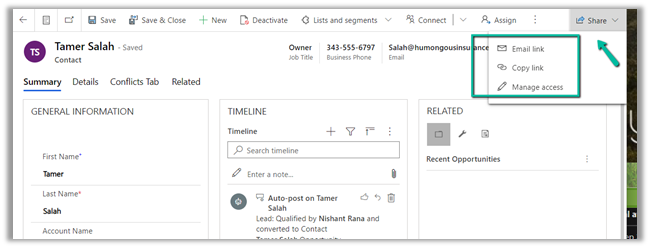
It enables the option of sending the link to the record with

  • People in the organization with the link
  • Specific People

apart from

  • People with existing access.

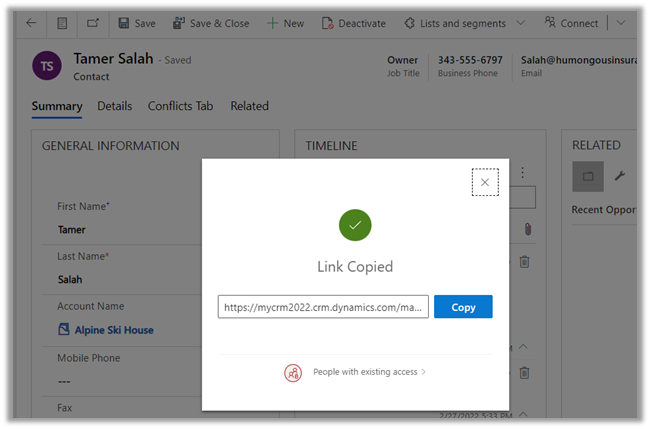
Clicking on the Copy link opens the below model dialog box –

Clicking on People with existing access opens the below options –

  • People in your organization with the link
  • Specific people (disabled)

Here we have selected “People in your organization with the link

This enables any user (even if he has no CRM License or Dynamics 365/ Power Platform Role assigned) with the link to open the record as read-only.

This is how the record has opened for the user having no access to CRM but having the link to the record. (read-only)

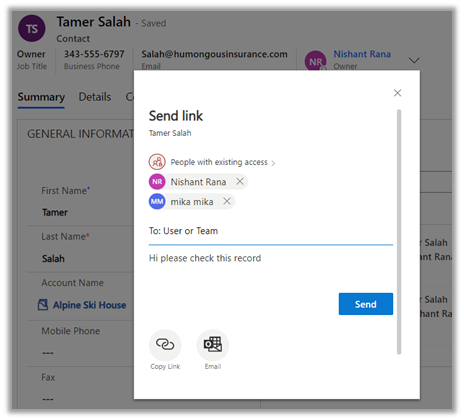
Similarly, Email Link opens the Send Link dialog box, which allows us to select either a User(s) or Team(s) and define the content of the message as shown below

Clicking on Send opens the email in the default Mail Client associated

Here also we have the option to select either People in your organization with the link and Specific People


Get more details –

https://docs.microsoft.com/en-us/power-platform-release-plan/2022wave1/power-apps/easy-record-sharing

Hope it helps..

Advertisements