In the previous post, we covered key features and capabilities of Kupp Code Analytics – the powerful Visual Studio Extension for Power Platform and Dynamics 365 Developers.
You can refer to it here
In this blog post, we’d cover the installation and setup of the Kupp Code Analytics extension.
To get the extension, inside Visual Studio Marketplace, we can search for it and download the appropriate extension.
Below we can see that there are 2 versions of the extension available, one for Visual Studio 2022 and the other for Visual Studio 2019.

Visual Studio 2022 – https://marketplace.visualstudio.com/items?itemName=KuppSoftware.kca2022
Visual Studio 2019 – https://marketplace.visualstudio.com/items?itemName=KuppSoftware.KuppCodeAnalytics2019
We can also install it from inside Visual Studio, navigate to Extension, search for Kupp Code Analytics, and download the extension.

Click on Install / Modify (if already existing) to start/modify the installation.
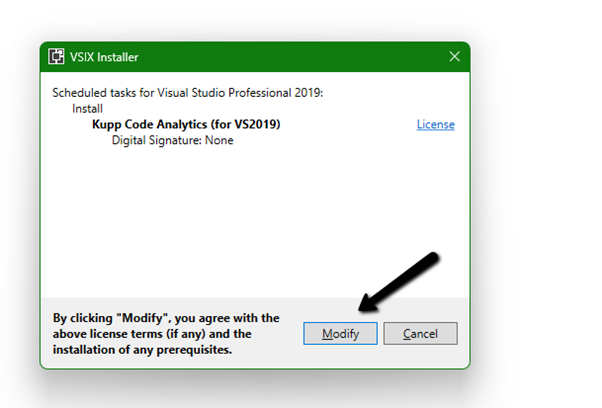
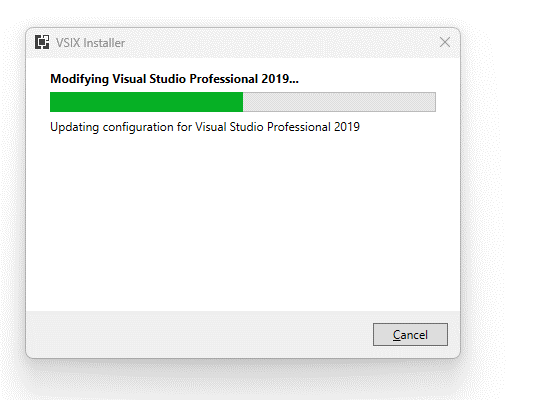
Below we have successfully installed the extension for Visual Studio 2019.

Next, we need to specify and activate the License
We have 2 types of licenses available for the extension.
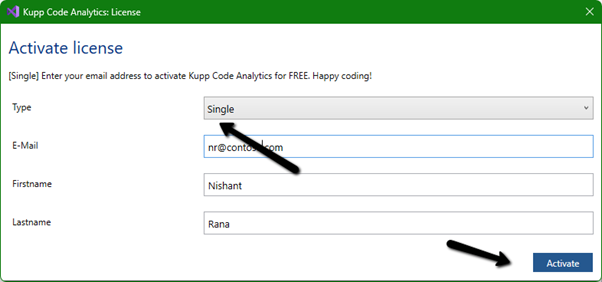
Community License (free)– Select type Single, enter the contact details and click on Activate to apply for the community license. Clicking on Activate activates the license instantly.
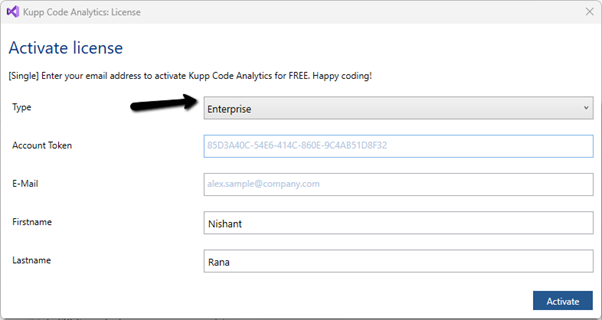
Enterprise License – This is paid license for the enterprise, that comes with additional features and capabilities not available in the Community license.
We can contact the sales team of Kupp for it – https://kuppsoft.com/contact/
Once added, we can see and manage the license information in Tools >> Options >> Kupp Code Analytics >> License

With Extension Installed, and the license activated, the next step is to configure the tool to connect to our Power Platform / Dynamics 365 Environment.
Navigate to Extensions >> Kupp Code Analytics >> Connection >> Configure

Select the appropriate connection or deployment type
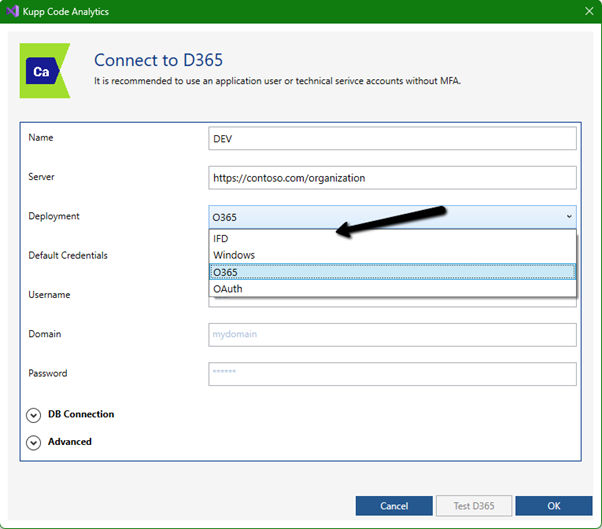
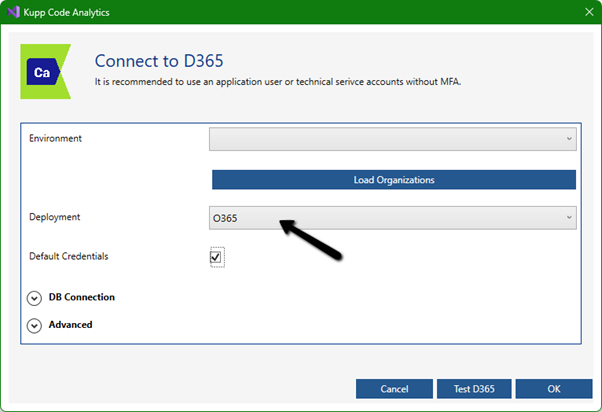
Here to connect to Dynamics 365 Online, we keep the Deployment type as O365 and click on Load Organization
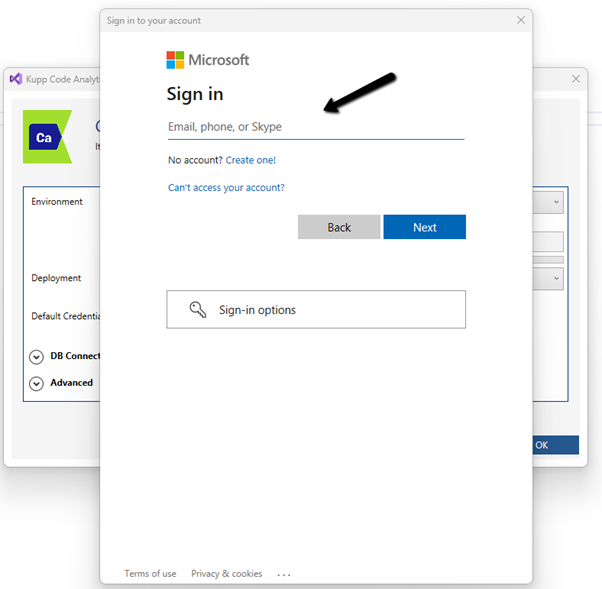
This opens the sign-in dialog where we can provide the appropriate account details.
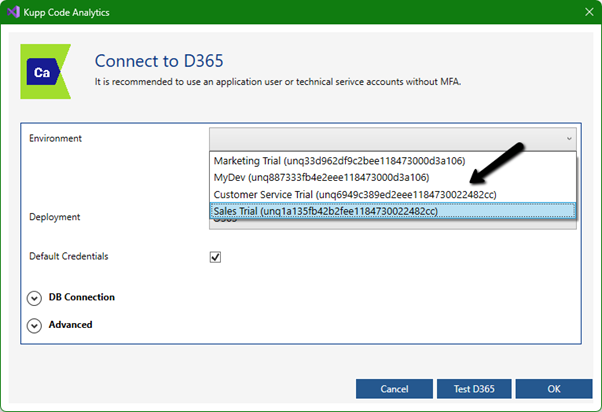
After successful sign-in, we see all the environments populated to which the user has access. Select the environment, we want to connect to.
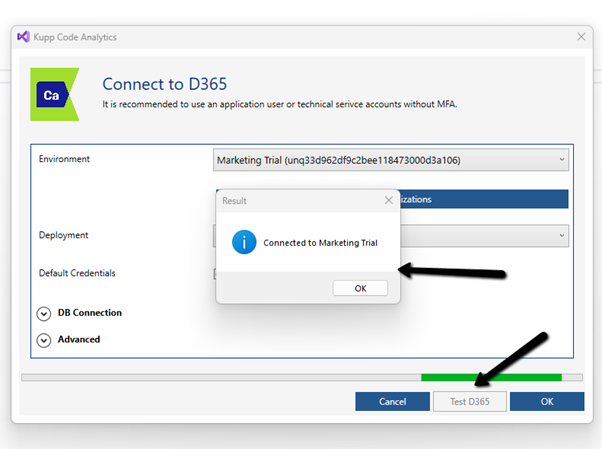
After selecting the environment, we can click on the Test D365 button and test the connection.
On a successful connection, we will get the success message as shown below.
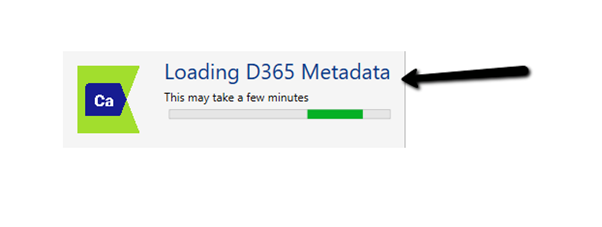
Clicking on OK will close the connection dialog box, and the tool will start the process of downloading the metadata for the environment connected. The download should be complete in a matter of a few seconds.
This completes the installation and configuration part of the extension. In the next blog post, we’d cover the key features of the extension in detail.
Also don’t forget to check out the other intuitive products developed by Kupp Software GmbH –https://kuppsoft.com/our-products/
Hope it helps..






 Nishant Rana's Weblog