How to remove contact and customer validation on Cases– Dynamics 365


By default, we can only specify the contact associated with the customer for the case record. If we try specifying a contact record that is not associated with the Customer selected, we will get the below error message.

Invalid Contact – The specified contact doesn’t belong to the account selected as the customer. Specify a contact that belongs to the selected account, and then try again.

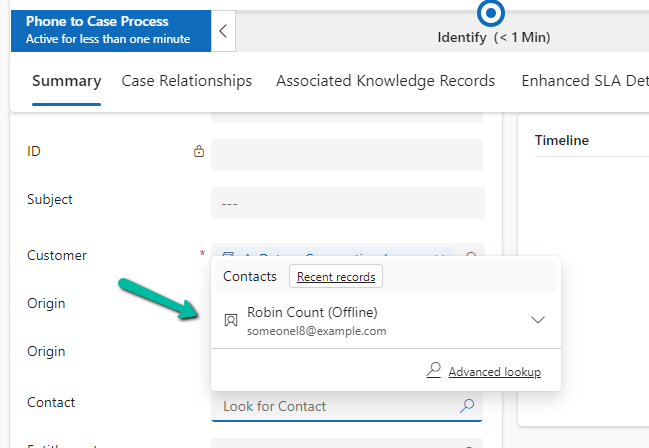
Also, CRM will filter the lookup to show only the associated contact record

A screenshot of a computer

Description automatically generated

However, if we do not want this validation, we can remove it using the environment variable.

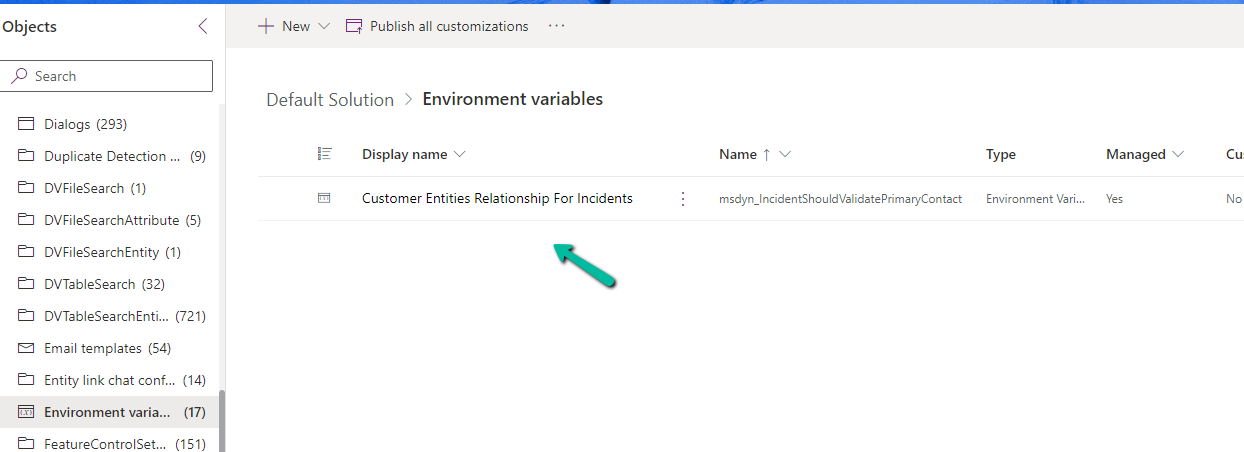
Search for Customer Entities Relationship For Incidents / msdyn_IncidentShouldValidatePrimaryContact

A computer screen shot of a computer screen

Description automatically generated

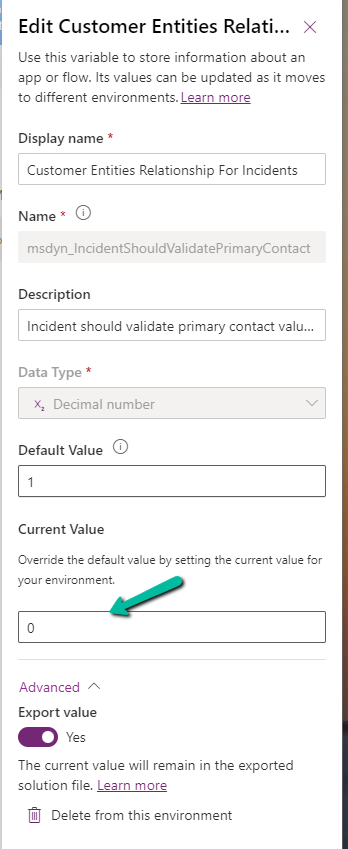
Set the new value as 0.

A screenshot of a computer

Description automatically generated

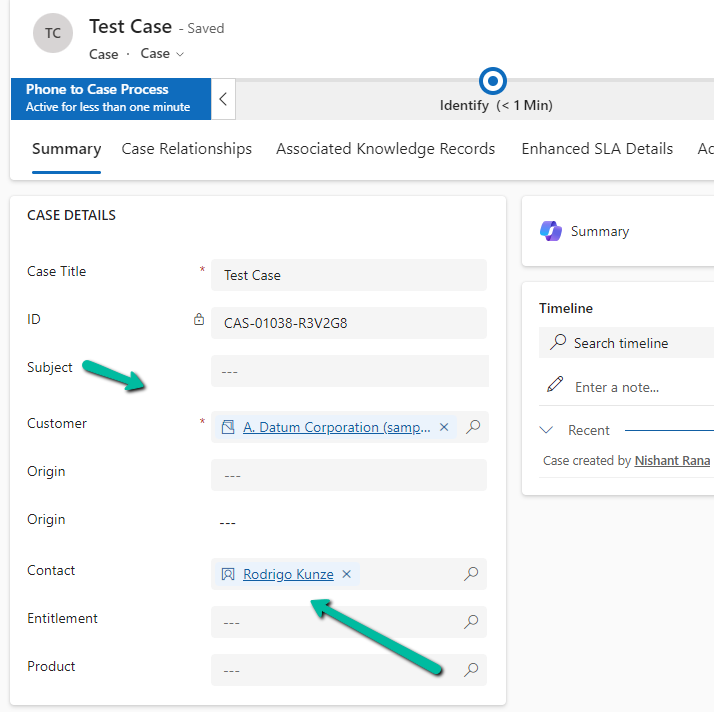
Now we will be able to save the record using an unassociated contact.

A screenshot of a test case

Description automatically generated

Get all the details here

Hope it helps..

Enable Copilot for the Rich Text Control – Dataverse / Dynamics 365


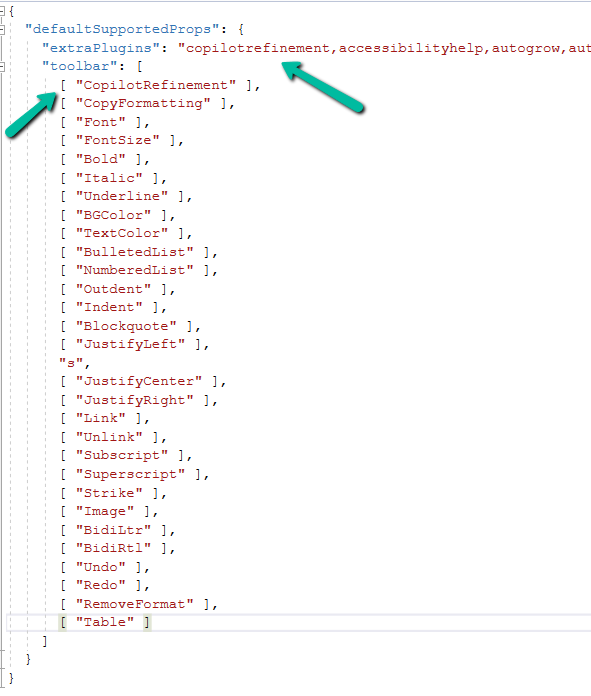
To enable Copilot for a specific instance of a Rich Text editor field, we first need to create a Web Resource where we need to specify the property we want to update/override as specified in the RTEGlobalConfiguration_Readonly.json, the base read-only configuration file for the Rich Text editor control.

We have created a JavaScript Web Resource file named rtecustom.js.

Added the copilitrefinement and CopilotRefinement values to the extraPlugins and toolbar properties existing values as shown to enable copilot.

Refer to the sample configuration file for all the properties and their corresponding values.

A screenshot of a computer program

Description automatically generated
{
  "defaultSupportedProps": {
    "extraPlugins": "copilotrefinement,accessibilityhelp,autogrow,autolink,basicstyles,bidi,blockquote,button,collapser,colorbutton,colordialog,confighelper,contextmenu,copyformatting,dialog,editorplaceholder,filebrowser,filetools,find,floatpanel,font,iframerestrictor,indentblock,justify,notification,panel,panelbutton,pastefromword,quicktable,selectall,stickystyles,superimage,tableresize,tableselection,tabletools,uploadfile,uploadimage,uploadwidget",
    "toolbar": [
      [ "CopilotRefinement" ],
      [ "CopyFormatting" ],
      [ "Font" ],
      [ "FontSize" ],
      [ "Bold" ],
      [ "Italic" ],
      [ "Underline" ],
      [ "BGColor" ],
      [ "TextColor" ],
      [ "BulletedList" ],
      [ "NumberedList" ],
      [ "Outdent" ],
      [ "Indent" ],
      [ "Blockquote" ],
      [ "JustifyLeft" ],
      [ "JustifyCenter" ],
      [ "JustifyRight" ],
      [ "Link" ],
      [ "Unlink" ],
      [ "Subscript" ],
      [ "Superscript" ],
      [ "Strike" ],
      [ "Image" ],
      [ "BidiLtr" ],
      [ "BidiRtl" ],
      [ "Undo" ],
      [ "Redo" ],
      [ "RemoveFormat" ],
      [ "Table" ]
    ]
  }
}

Note down the URL of the Web Resource created.

A screenshot of a computer

Description automatically generated

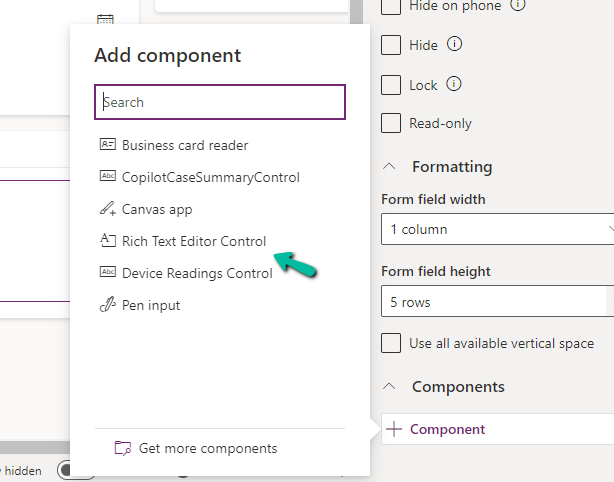
Next, we opened one of the Contact’s forms for Customization, selected the description field, and added the component – “Rich Text Editor Control” to it.

A screenshot of a computer

Description automatically generated
A screenshot of a computer

Description automatically generated

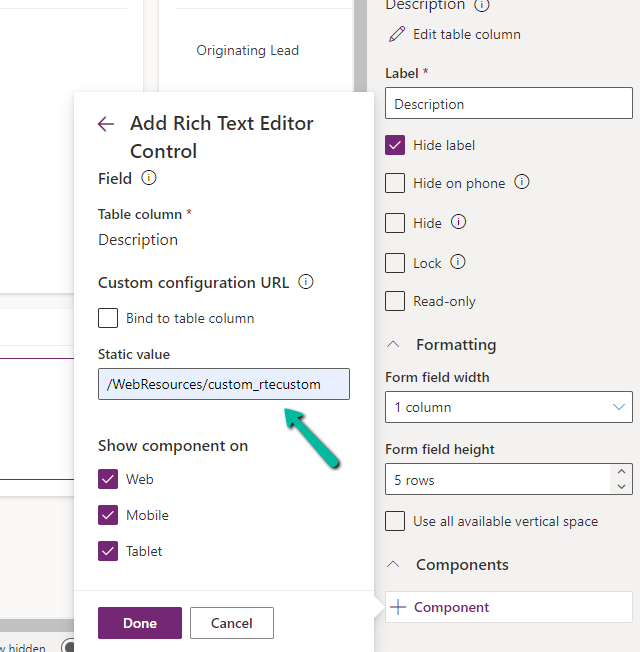
In the Static value property, we specified the relative URL of the Web Resource file. We can also specify the full path but then we would need to update it each time we move it to other environments.

A screenshot of a computer

Description automatically generated

Save and publish the changes.

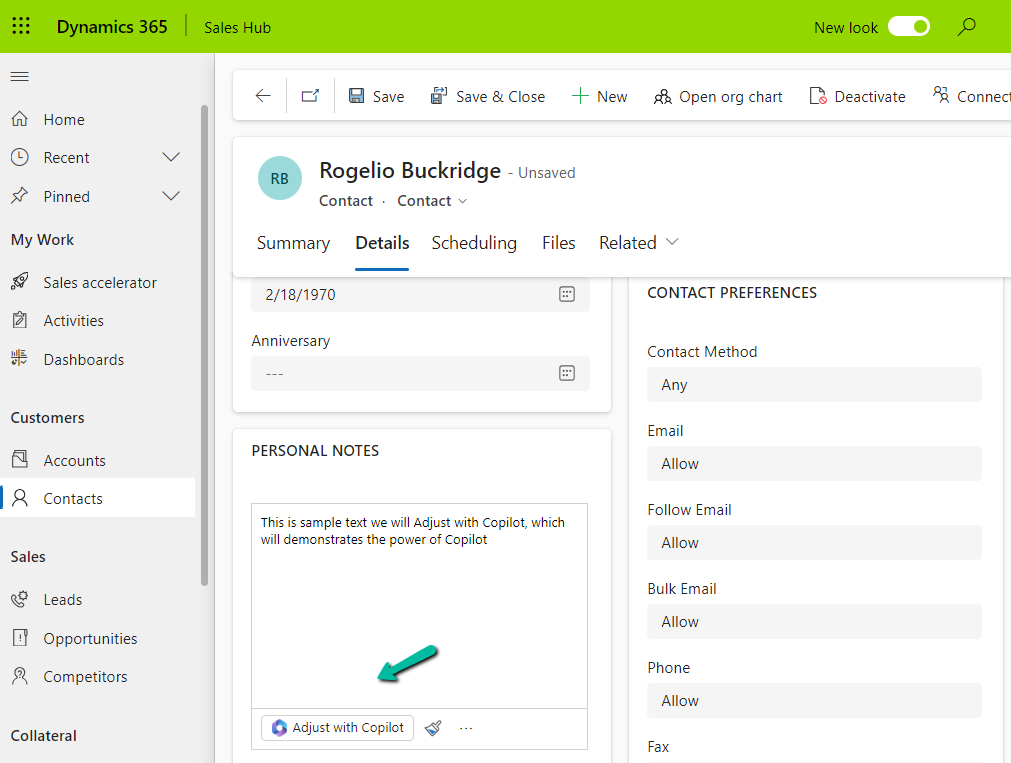
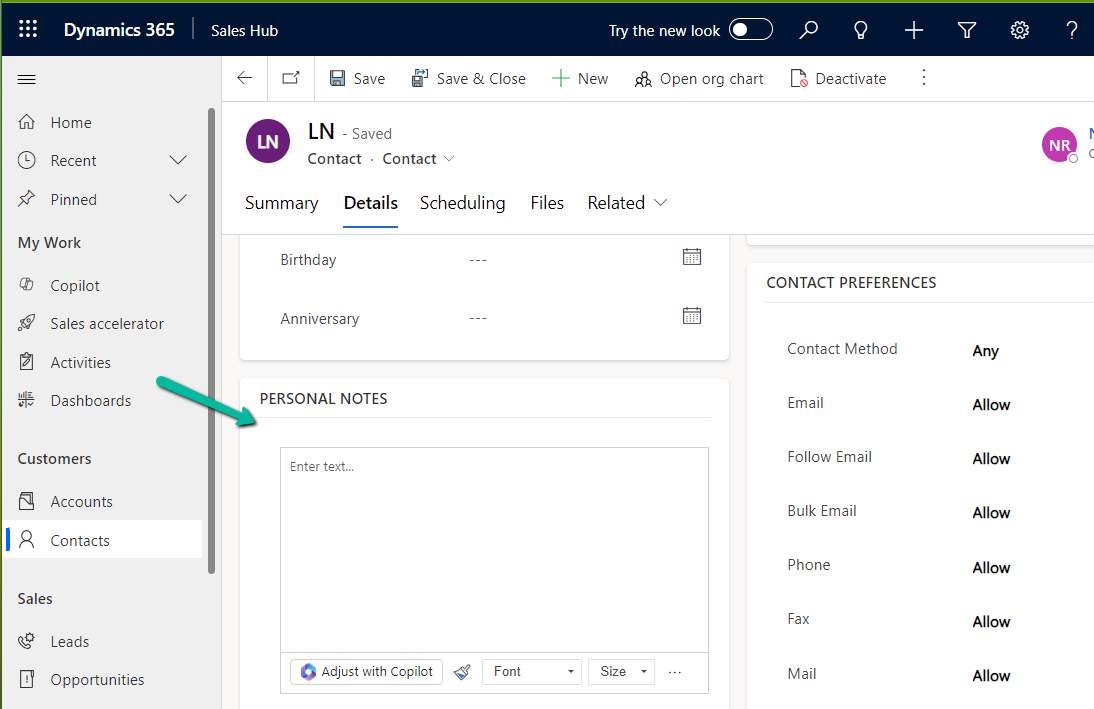
We can see the option Adjust with Copilot added to the toolbar for the control.

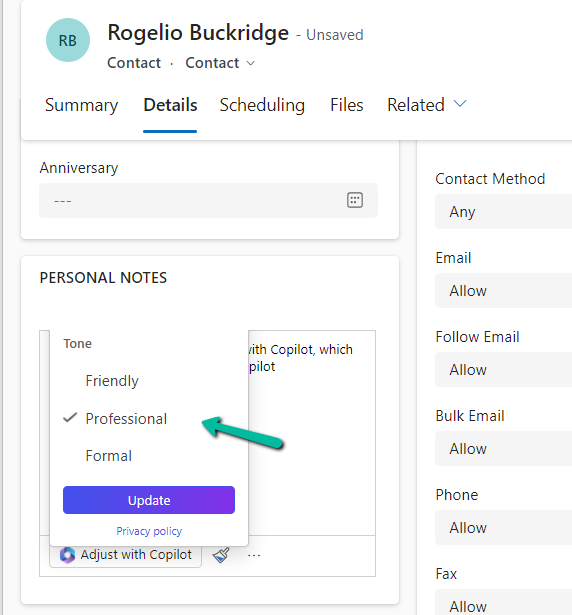
On selecting the text, and clicking on “Adjust with Copilot”, we get the option to update the Tone of the content.

A screenshot of a computer

Description automatically generated

On selecting a Professional tone, the text is updated in the control.

A screenshot of a computer

Description automatically generated

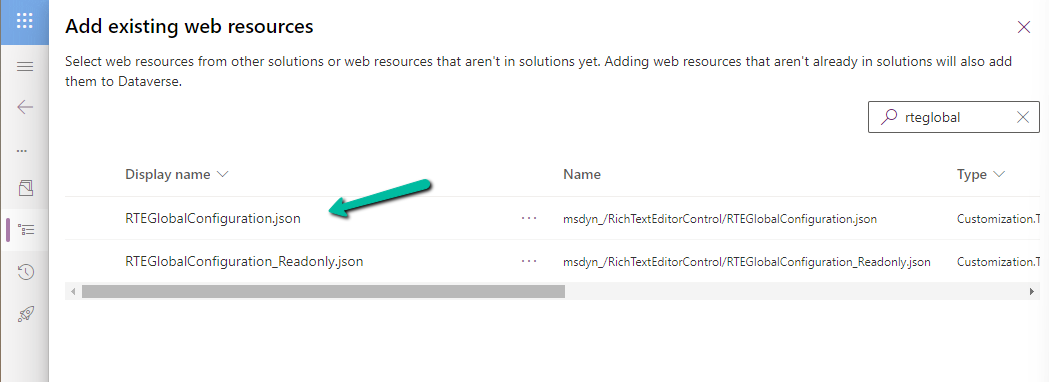
In case we want to apply to all the fields that are using Rich Text Editor Control instead of specifying it for individual fields, we need to update and add the same JSON to the existing RTEGlobalConfiguration.json file.

A screenshot of a computer

Description automatically generated

The file is blank by default, and we can specify properties to it that we want to override.

A green screen with black text

Description automatically generated

We updated the RTEGlobalConfiguration.json file, to use the same definition we used earlier for our custom web resource.

A screen shot of a computer

Description automatically generated

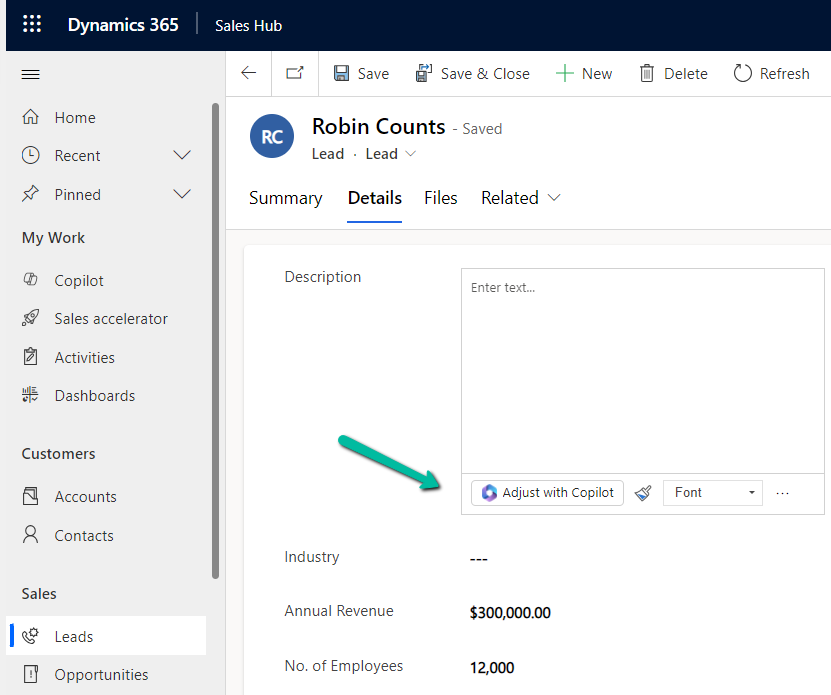
We can see the “Adjust with Copilot” added to the form even without specifying the URL in the static value while customizing the form.

On saving and publishing the changes, we can then see it rendered for all the Rich Text Editor fields.

A screenshot of a computer

Description automatically generated
A screenshot of a computer

Description automatically generated

Also, check – Copilot Control

Hope it helps..

Advertisements

Set an app (Model-driven or Canvas App) as a startup app – Power Apps Mobile


Microsoft has introduced a new feature, through which we can now specify a particular app as a start-up app, that will open up when we launch the Power Apps mobile, instead of waiting for the home page / or selecting it from favorites.

Below we can select the option Open at Startup to specify the Customer Service Hub app as the startup app as an example.

A screenshot of a phone

Description automatically generated

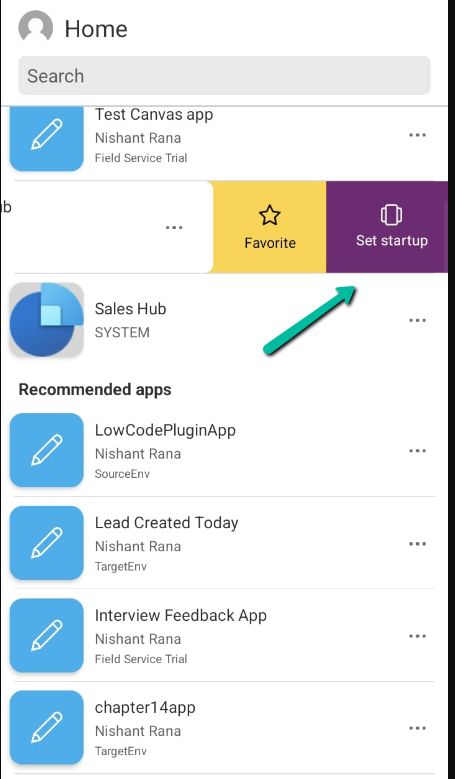
Or we can swipe left to mark an app as “Startup App

A screenshot of a phone

Description automatically generated

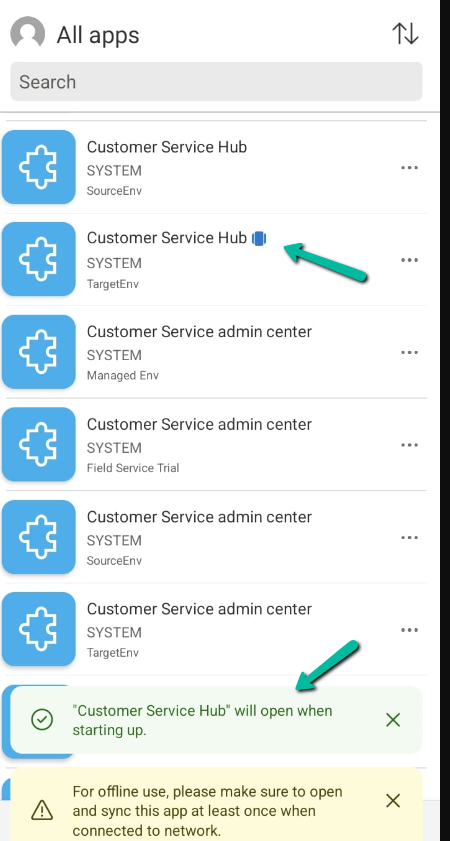
We can see an icon next to the app.

Now launching the Power Apps mobile app will directly open the Customer Service Hub app.

A screenshot of a phone

Description automatically generated

Using the Remove from startup option we can remove it as the startup app

A screenshot of a phone

Description automatically generated

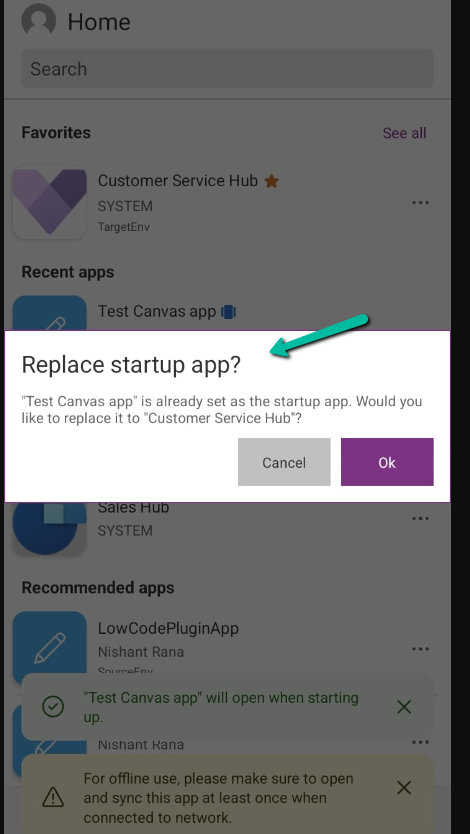
We can only have one app set as a startup app, if we try setting up another app as a startup we get the notification that it will replace the existing app.

A screenshot of a phone

Description automatically generated

Get all the details here

Hope it helps..

Advertisements

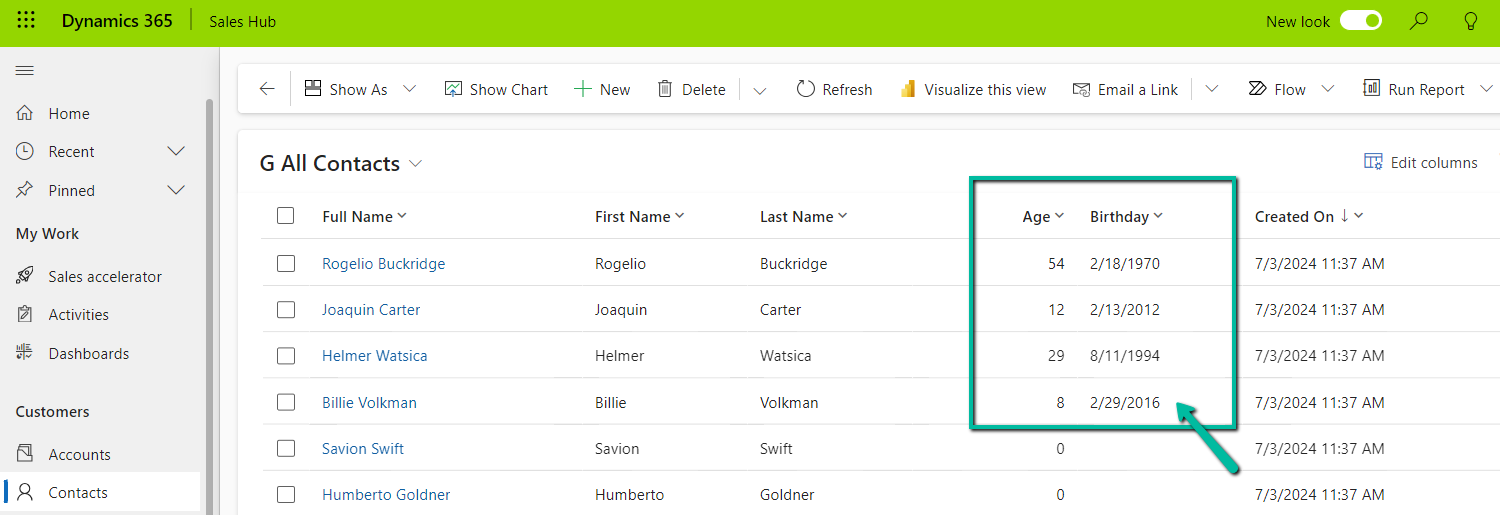
Perform Age calculation using Formula Columns in Dataverse / Dynamics 365


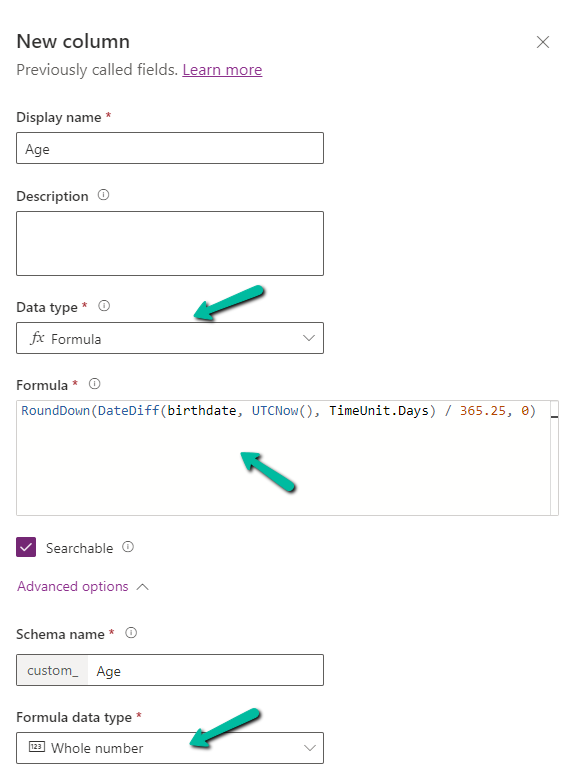
Below we have created a new field of Data Type Formula and Formula Data Type as Whole Number

A screenshot of a computer

Description automatically generated

Specify the following formula.

RoundDown(DateDiff(birthdate, UTCNow(), TimeUnit.Days) / 365.25, 0)

  • DateDiff calculates the difference in days between birthdate and current UTC Date.
  • Dividing by 365.25 takes care of converting the days to years, considering the leap year into account.
  • Roundown takes care of rounding the result to a nearest integer.

Below we see the field in action.

UTC current date is 10th Wednesday July 2024 for the below example.

A screenshot of a computer

Description automatically generated

Also checkout the helpful video –

and the forum – https://powerusers.microsoft.com/t5/Microsoft-Dataverse/Calculating-age-in-CDS-entity/td-p/495528

Hope it helps..

Advertisements

Force Sync users from Azure AD Security Group / Microsoft 365 Group to Dataverse environment – Power Automate


For Microsoft 365 Group we can use – List Group members action of Office 365 Group connector.

Also check – https://nishantrana.me/2022/06/23/how-to-force-user-sync-power-platform-dynamics-365/

Hope it helps..

ILMerge / Dependent Assemblies in Plugin – System.IO.FileNotFoundException: Could not load file or assembly ‘System.Memory.Data’ – Dynamics 365 / Dataverse


Recently in one of our Plugins, which was using Azure.Storage.Blobs and Azure.Storage.Common libraries to move attachments from notes to Azure Blob Storage suddenly started throwing the below exception. The Plugin had been working fine and had been deployed long back to the production environment.

System.TypeInitializationException: The type initializer for ‘Azure.Response’ threw an exception. —> System.IO.FileNotFoundException: Could not load file or assembly ‘System.Memory.Data, Version=1.0.2.0, Culture=neutral, PublicKeyToken=cc7b13ffcd2ddd51’ or one of its dependencies. The system cannot find the file specified.

We raised the Microsoft Support for it and were informed that the reason for this was there was a platform update over that particular weekend to stop loading the “System.Memory.Data” assembly on the plugin server. And as we hadn’t included that assembly in our package (ILMerge), we started getting the exception.

Also as per Microsoft Docs


So the quick fix at that time was to include (set Copy Local as True) for that System.Memory.Data along with Azure assemblies.

Also now we can look into using Plugin Package to package the dependent assemblies.

Hope it helps..

Advertisements