Using Coalesce Function to handle null value in Power Automate – Dataverse


Recently in one of our flows, we were getting the below error –

InvalidTemplate. Unable to process template language expressions in action ‘List_rows_:_Region’ inputs at line ‘0’ and column ‘0’: ‘The template language function ‘replace’ expects its first parameter ‘string’ to be a string. The provided value is of type ‘Null’. Please see https://aka.ms/logicexpressions#replace for usage details.’.

One or more fields provided is of type ‘Null’, a different type is expected.

This was because the replace function that we were using for the Filter rows property of List Rows (Dataverse) had the variable value as null.

Below was our dynamics expression where we replaced apostrophe with 2 single quotes – https://nishantrana.me/2023/02/27/how-to-handle-single-quote-apostrophe-in-filter-rows-in-power-automate-dataverse/

replace(replace(variables(‘varFieldData’)?[‘myVariable’],‘_’,’ ‘),””,”””)

The solution was to use coalesce function, to replace null with a blank string as shown below.

replace(replace(coalesce(variables(‘varFieldData’)?[‘myVariable’],”),‘_’,’ ‘),””,”””)

Similarly, we can use coalesce function to provide a default value.

The coalesce function will evaluate its arguments in order and will return the first non-blank or non-empty value. If all the arguments are blank or empty strings, the function will return blank.

After using the coalesce function, our flow was successful.

More on COALESCE

A similar example in SQL –

Hope it helps..

Advertisements

How to – Handle single quote/apostrophe in Filter Rows in Power Automate (Dataverse)


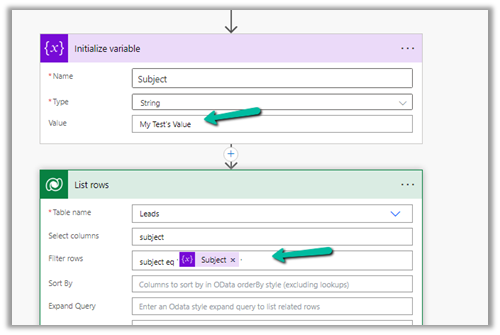
Say for e.g. we have the below flow, which finds the lead having subject as “My Test’s Value”

On running it we get the below error

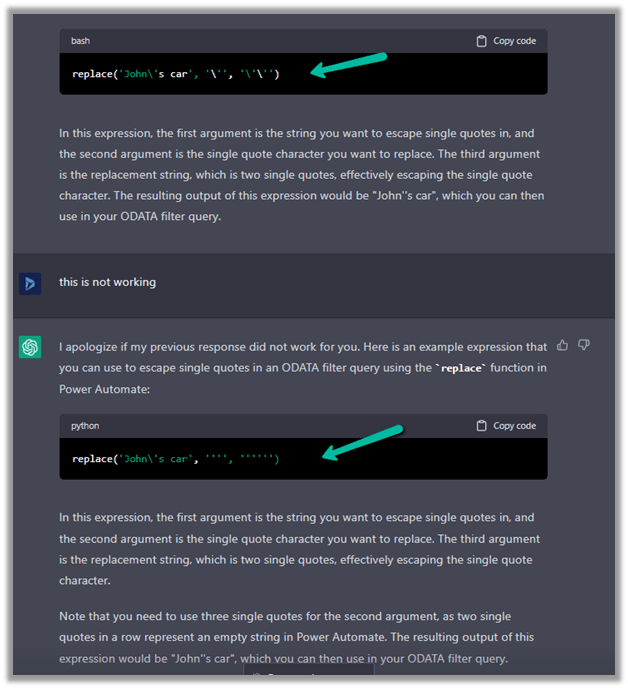
To make it work we can make use of replace function here.

replace(variables('Subject'),'''','''''')

= to espace

= special character

replace(variables(‘Subject’),,)

Please refer to the helpful post- https://techcommunity.microsoft.com/t5/power-apps-power-automate/how-to-handle-single-quotes-in-the-filter-property-with-get/m-p/2617747

This time it works successfully.

ChatGPT – quick to correct and give the right answer.

Hope it helps..


Advertisements

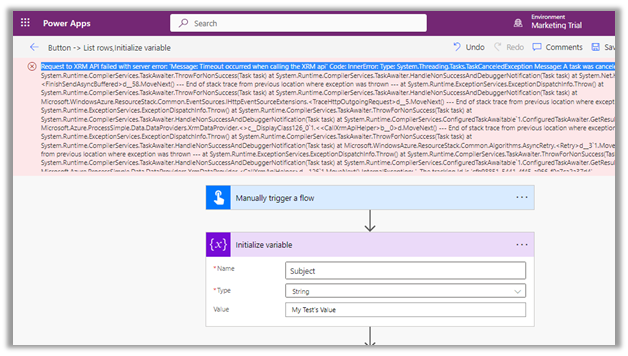
Resolved – Request to XRM API failed with server error: ‘Message: Timeout occurred when calling the XRM api’ Code: InnerError: Type: System.Threading.Tasks.TaskCanceledException Message: A task was canceled in Power Automate


We were getting below Timeout error while trying to save our Power Automate flow.

Request to XRM API failed with server error: ‘Message: Timeout occurred when calling the XRM api’ Code: InnerError: Type: System.Threading.Tasks.TaskCanceledException Message: A task was canceled. 

It could be because of some issues at the product end – some outage or server load. It lasted for around 15-20 minutes for us, after which we were able to save and test our flow successfully.

Hope it helps..
Advertisements

How to – configure Facebook Webhook Validation with Power Automate Flow (Dataverse / Dynamics 365)


Recently we were working on Facebook Leads integration with Dynamics 365. Webhook for Leads can be configured to send real-time notifications of the Leads ads changes.

The first step of setting up Webhook requires creating an HTTPS endpoint that can process 2 types of HTTP Requests – Verification and Event notifications.

Here we will see how to configure the Power Automate flow for verification.

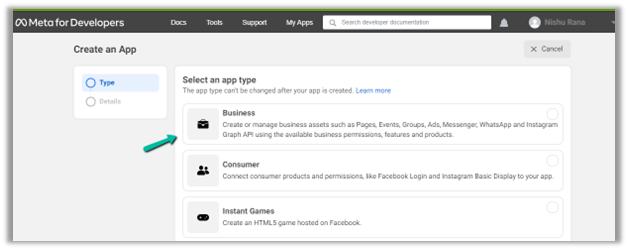
Login to Meta for Developers – Facebook and create an app.

https://developers.facebook.com/

Select Business for the app type.

After the App is created, select Webhooks to be added to the app. Click on Set up.

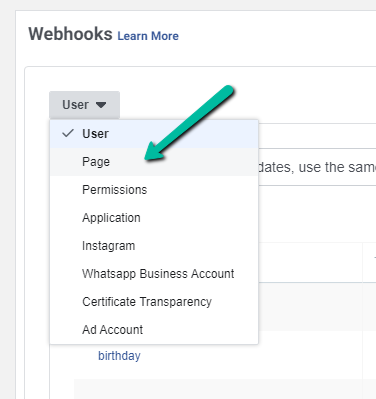
Next click Subscribe to this object. Here we have User selected.

For getting leads notification we need to select Page 

FBPagePreview in new tab

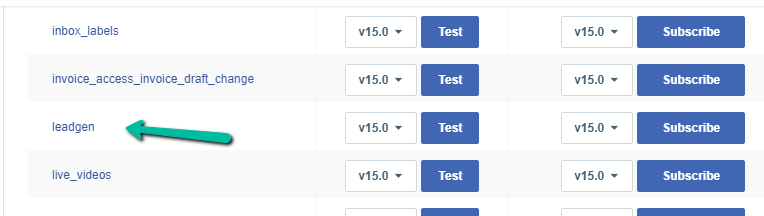
And subscribe to leadgen object

leadgen

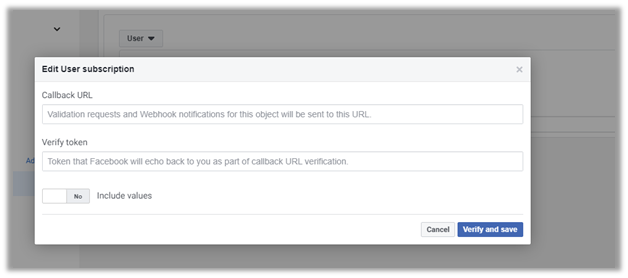
It asks us to specify the Callback URL and Verify token.

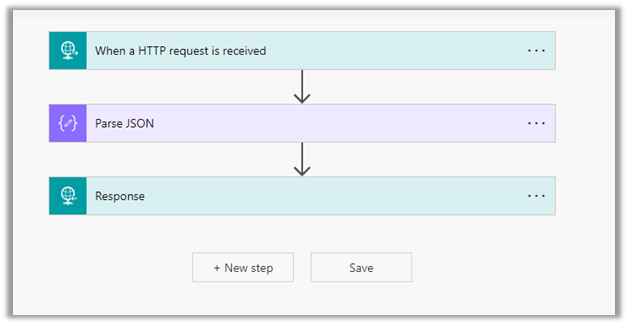
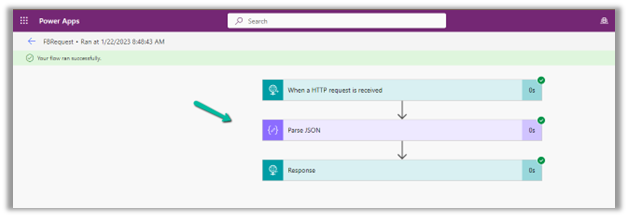
Back in Power Automate create a Flow with Request type Trigger, followed by Parse JSON and Response actions.

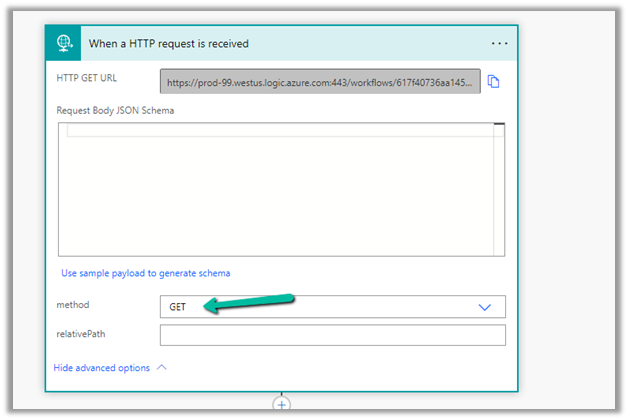
For HTTP Request, select GET as the method, as FB will send a GET request to the endpoint URL, with the verification requests included in the endpoint of the URL.

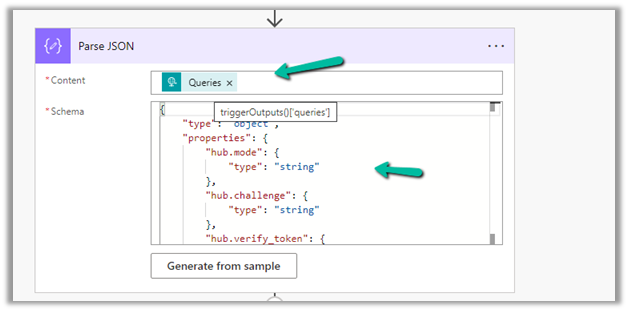
Next, Parse the JSON and specify the Content and Schema

Content – 

 triggerOutputs()['queries']

Schemajson


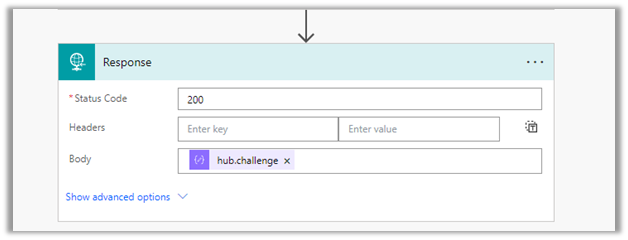
Lastly in Response, set Status Code as 200 and Body as hub.challenge.

Here FB expects the Endpoint to verify the hub.verify_token (which we haven’t set up yet) and respond with hub.challenge value after verification.

Save the Flow, and copy the URL generated for the HTTP Request trigger.

Back in Meta for Developers, in edit user subscription paste the Callback URL and for now in place of token specify any value and click on Verify and Save.

We should now have a Webhook endpoint (Flow) successfully configured

We can also see our Flow ran successfully.

Here in the example we configured the webhook validation for User events, for Facebook Lead we need to configure it for Page, the other options available are Permissions, Application, Instagram etc.

Please check – 

https://powerautomate.microsoft.com/nl-nl/blog/connect-facebook-workplace-to-sharepoint/


Hope it helps..
{
    "type": "object",
    "properties": {
        "hub.mode": {
            "type": "string"
        },
        "hub.challenge": {
            "type": "string"
        },
        "hub.verify_token": {
            "type": "string"
        }
    }
}
Advertisements

How to – Use Do until and Delay in Power Automate


Let us take a simple example to understand the usage of the Do unit with Delay control in Power Automate.

“When a Case Record’s Priority is updated to High until the case is resolved we want to perform certain action e.g. send a notification email or call an action etc. every 2 minutes or so.”

This is how the final flow looks like –

First is the trigger, when the case record is modified, i.e. priority code field with value as 1.

Next, initialize a Boolean type variable as false, this will be used within the Do until loop condition.

  • Next, add the Do until control with the condition – ConditionMet i.e. the variable is equal to true.
  • Followed by Delay action, here we have specified a 2-minute delay.
  • Next, we are retrieving the same record to check the condition, this is required to get the updated value within the loop.
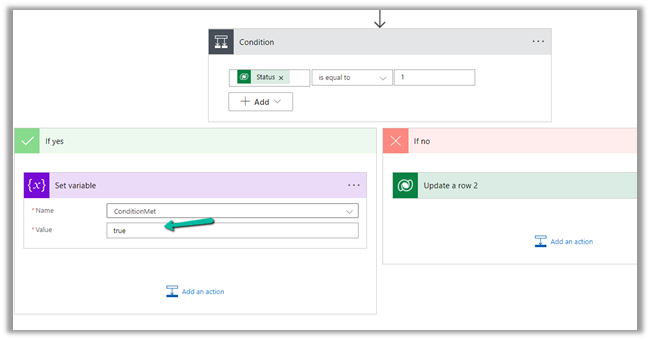
  • Condition is – is the case resolved? i.e. Status is equal to 1.
  • If Yes then we are setting the variable as true to come out of the do until loop.
  • If No then we perform any action, like send an email notification, reminder or call any action, etc.

The Current Iteration Index of Do unit holds the value of the current index starting from 0. Here we are updating the case title with the index just for testing.

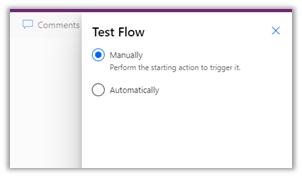
To see it in action, let us Test the flow.

Updating the priority of the case to high triggers the flow.

After a delay of 6 minutes, we can see the Case Title updated with the current index i.e. 2 as it has iterated 3 times starting from 0.

Let us now resolve the case.

We can see our flow successfully completed after the 4th iteration after the case is resolved.

Also refer –

https://techwizard.cloud/2018/05/20/microsoft-flow-mystery-of-do-until-loop/

https://www.futurelearn.com/info/courses/cloudswyft-msft-dynamics-365-power-platform-auto/0/steps/208142

Hope it helps.

Advertisements

Solved – Flow run timed out. Please try again in Power Automate (Microsoft Flow)


While testing one of the flows which was having “Do until” action in it, we ran across the below error.

Error – Flow run timed out. Please try again.

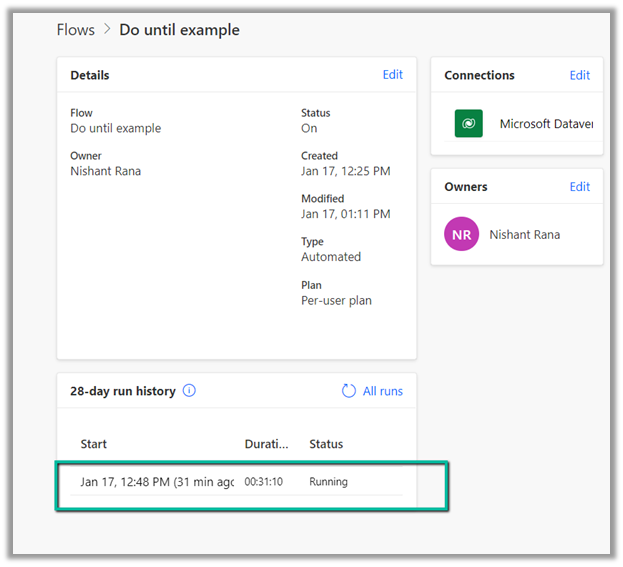
However, while navigating to the run history we can still see the flow running, and has run for over 30 minutes. That’s the default behavior.

Refer to this – https://powerusers.microsoft.com/t5/General-Power-Automate/Flow-run-timed-out/m-p/713628#M58900

Hope it helps..

Advertisements