Send bulk email / direct email to Customers – Dynamics 365


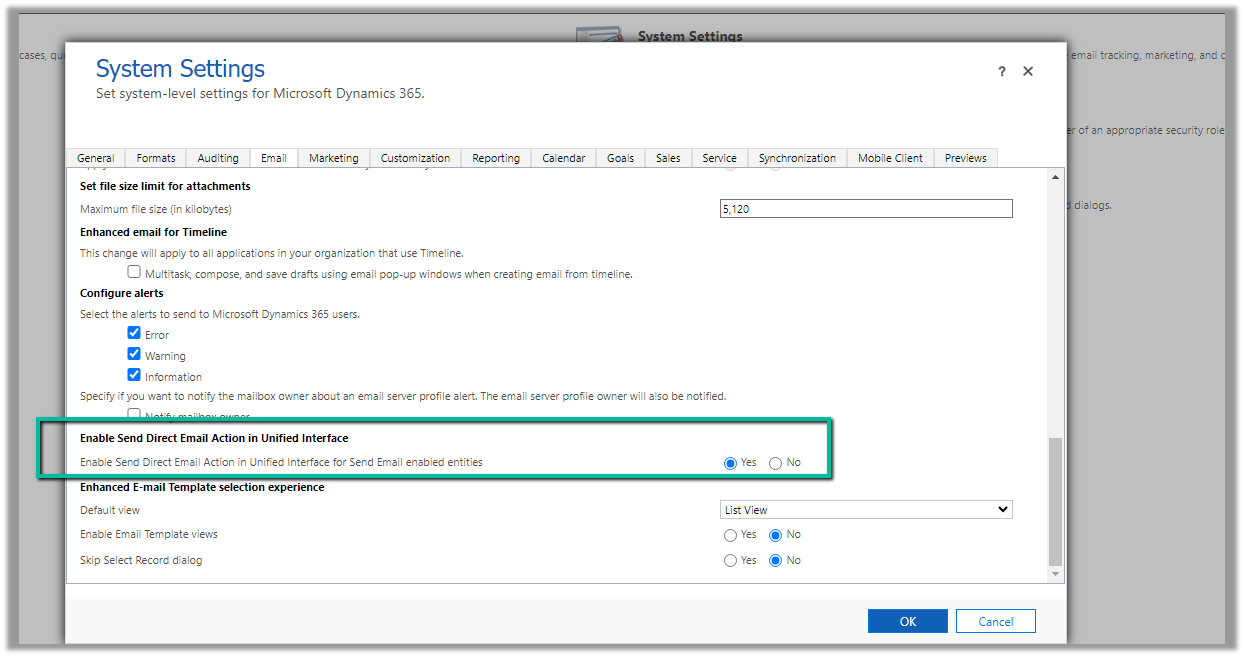
To enable the option of sending bulk email / direct mail in Unified Interface, we can navigate to Settings >> Administration >> System Settings >> Email >> Enabled Send Direct Email Action in Unified Interface
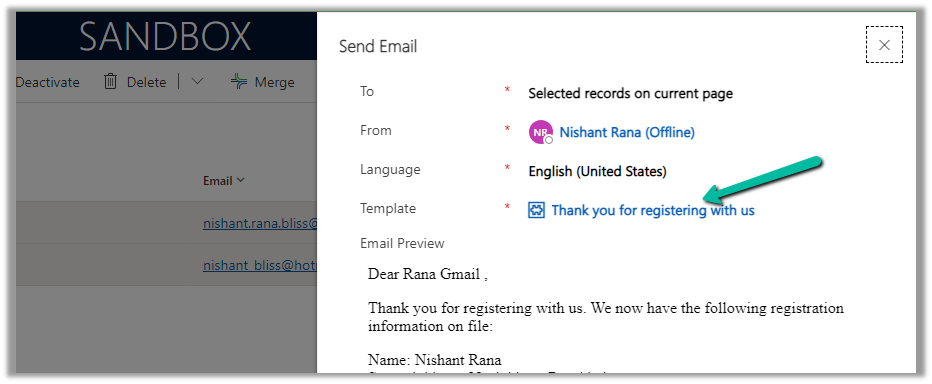
Now on selecting the record(s) of email enabled table, we get the option “Send Direct Email”

We can also specify the Email Template and preview the content before sending.
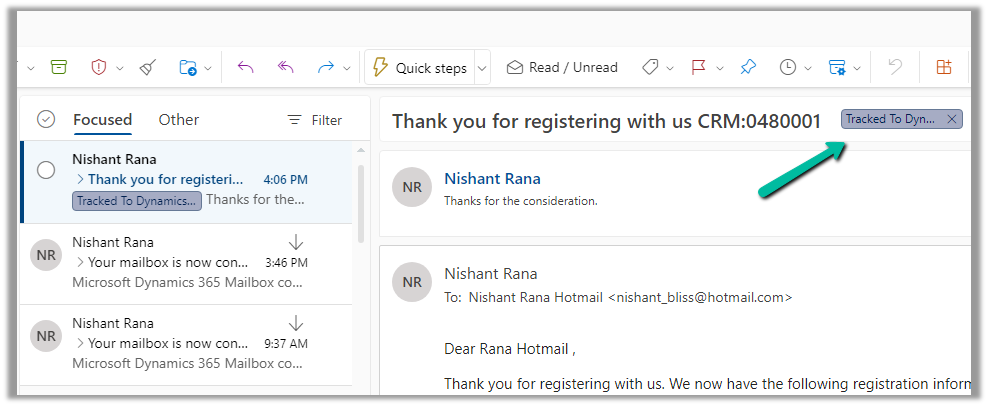
We can see the mail received in the Hotmail account from the CRM user’s email id/mailbox configured.

Here the end-user has also replied to the email.
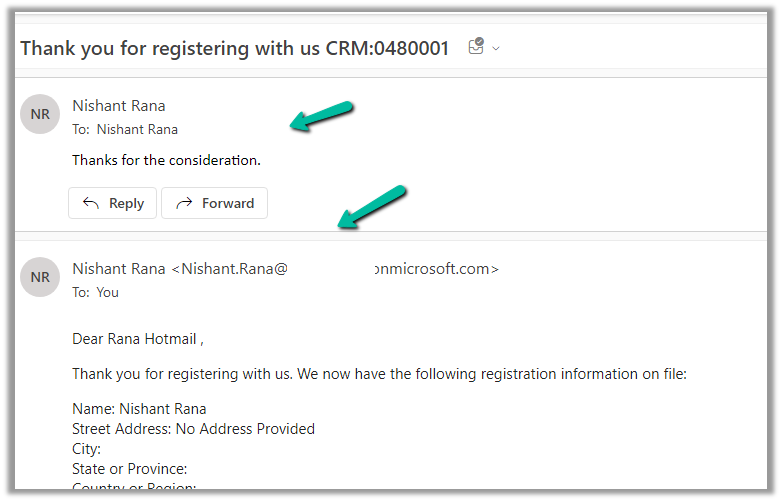
We can see the response / reply automatically “Tracked to Dynamics 365” in the CRM user’s outlook. (based on the CRM user’s Personal Options setting)
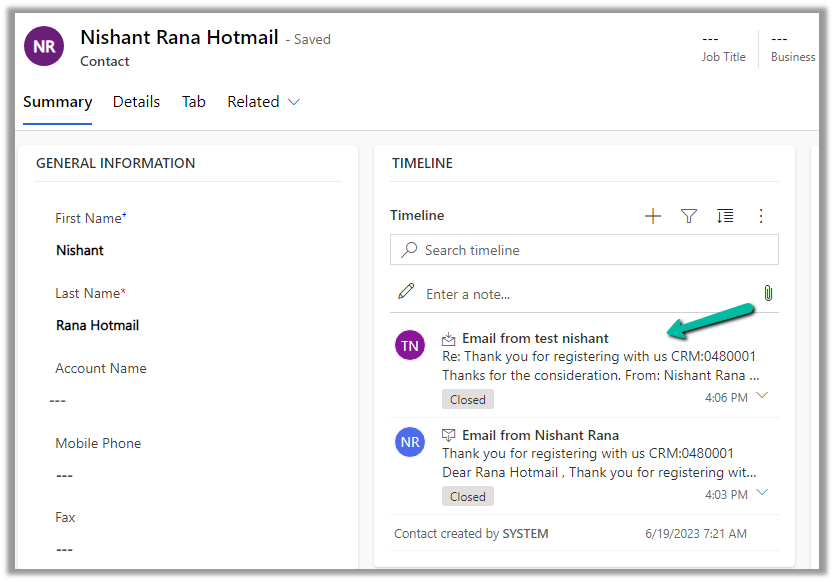
Which creates Email activity (closed status) in the corresponding contact record inside CRM.
More on Tracking Email

Hope it helps..

Advertisements

Attachment Control – Dynamics 365


The new attachment control allows users to upload , download, delete, and view attachments that are added to a table through notes or emails or directly (for Case Table).

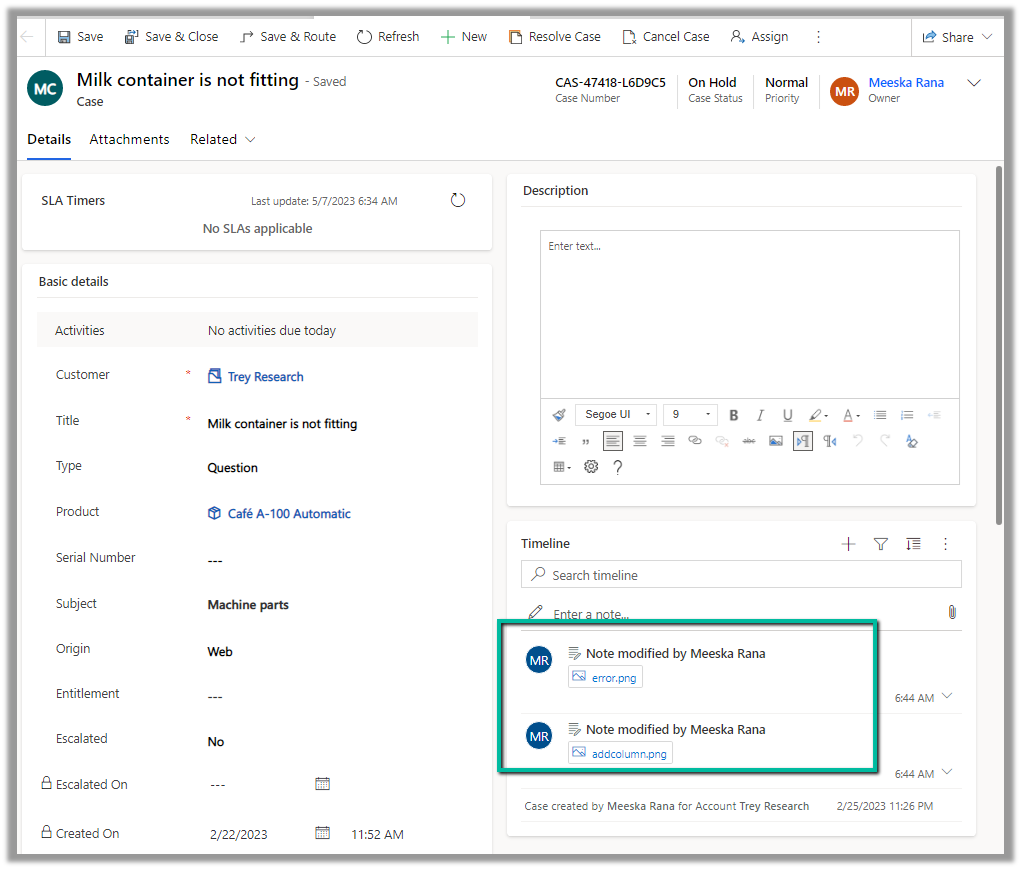
Below we have 2 attachments added to the case record.

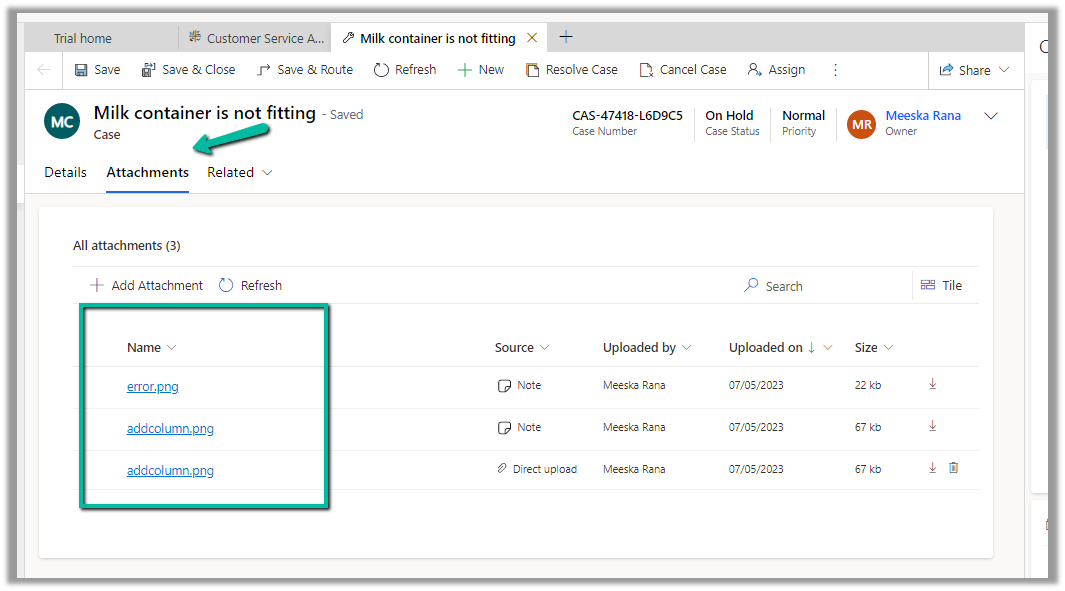
We can see both the attachments there in the Attachments control along with an additional attachment directly added (Direct Upload) .

We can perform a search as well as change the view.

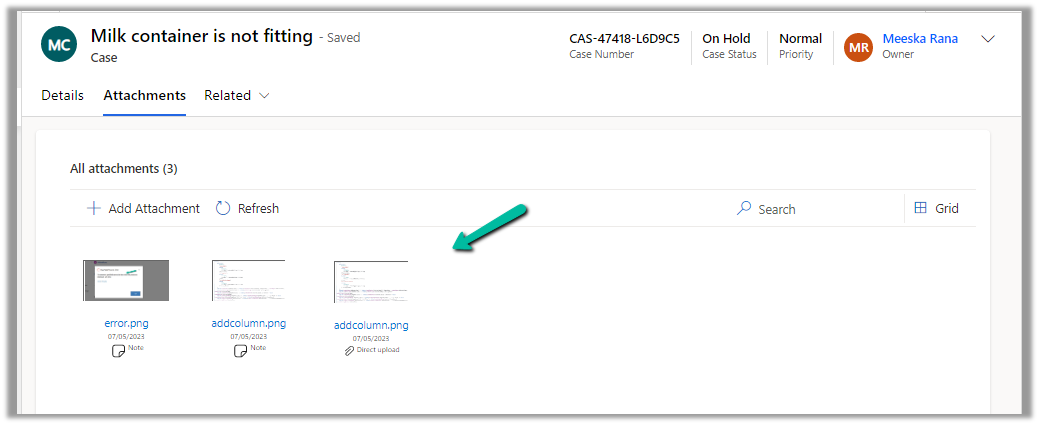
The Tile view –

The Delete option is only available in the case of files directly uploaded not the ones showing up from notes / emails.

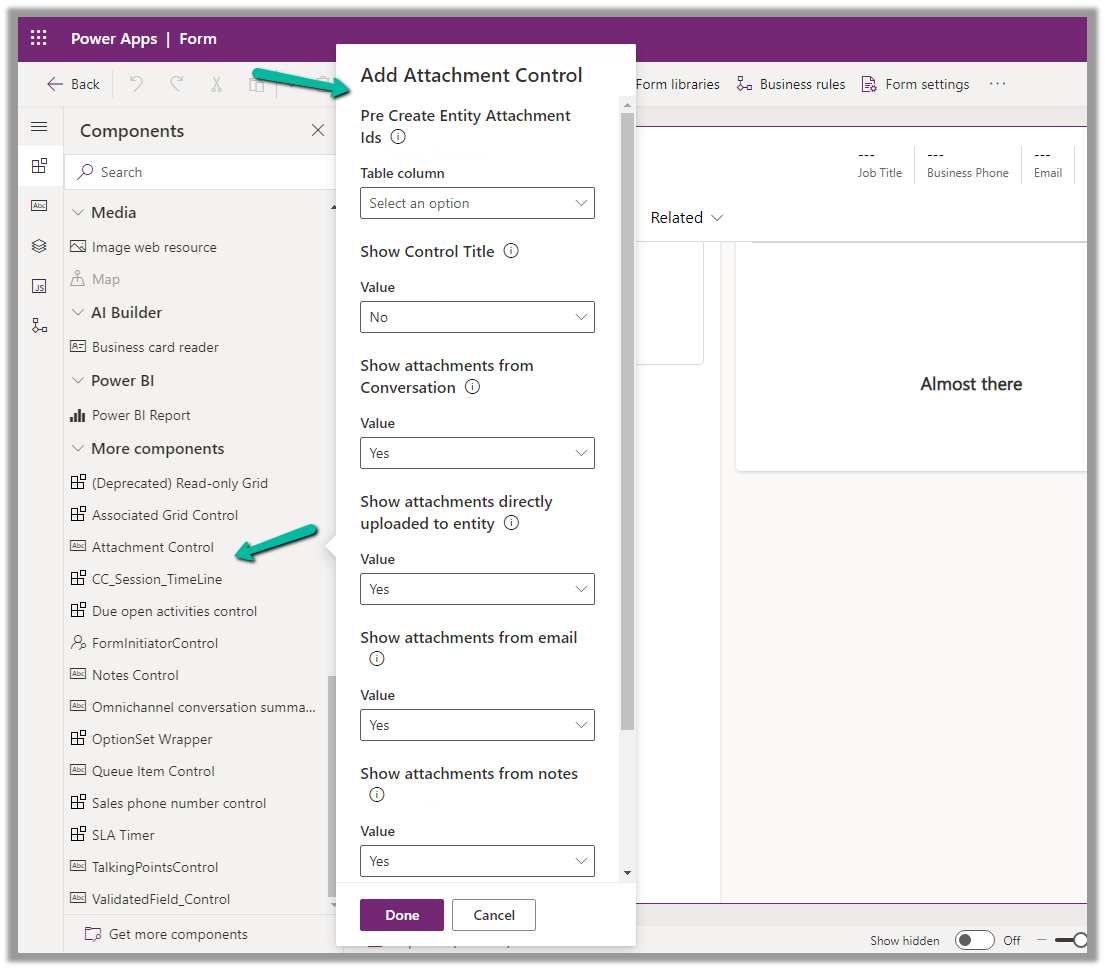
For the Case table, the table column property is mapped to the Pre Create Entity Attachments Id field, which allows uploading attachments even before saving or creating the case record. (This is only available for the Case table)

Below we have uploaded attachments to a new case record.

We can add the Attachment Control to other tables as well.

Below we are adding it to the Contact form.

For tables other than Case, it can only be used to View the Attachments, we do not get the option to upload there.

Get all the details here

Due Open Activities Control – https://nishantrana.me/2023/05/09/due-open-activities-control-dynamics-365/

Notes Control – https://nishantrana.me/2023/05/10/notes-control-dynamics-365/

Hope it helps..

Advertisements

Fixed – The product cannot be added because it is not active while creating Quote Product – Dynamics 365 / Dataverse


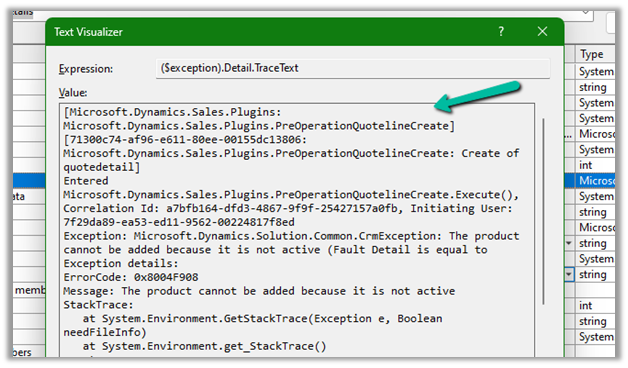
We got the below error while trying to create a quote product programmatically.

As the error message specifies, this is because we are trying to add/associate a DRAFT product to the Quote Product.

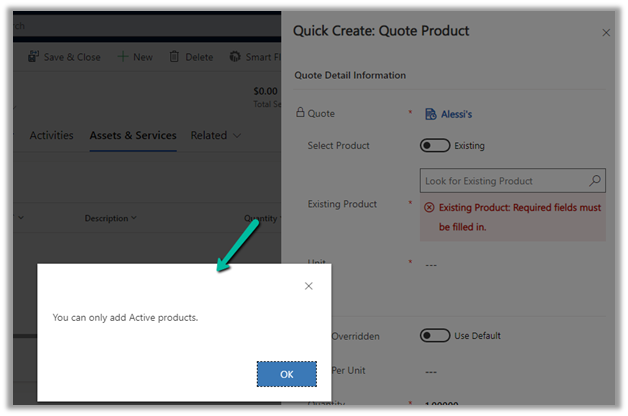
We will get a similar error from the application as well if we try adding a draft product as an existing product to either a quote product or an opportunity product.

Below is the product in the Draft status.

Publish the product to make it Active.

Hope it helps..


Advertisements

InvalidPluginExecutionException error dialog not showing up – Dynamis 365 / Dataverse


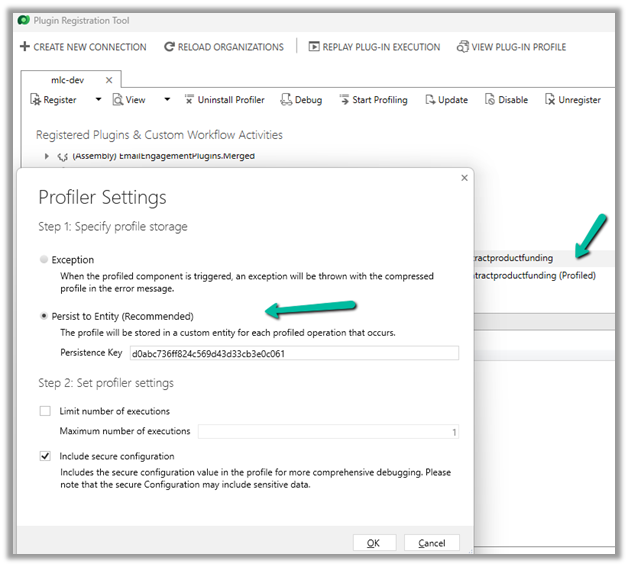
One of the reasons why throwing the InvalidPluginExecutionException doesn’t show up error dialog could be that you would have Profiled that step with profile storage as Persist to Entity.


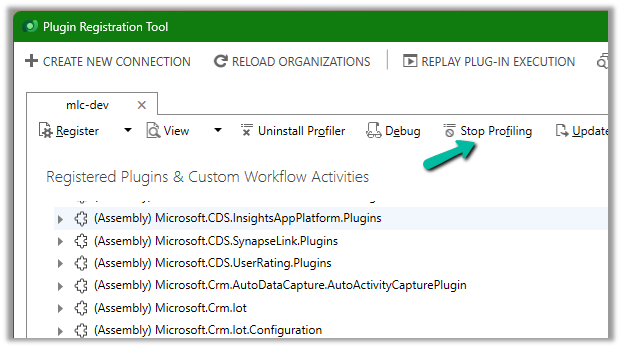
Stop Profiling and it should work as expected.

error

Check for more details on InvalidPluginExecutionException

https://learn.microsoft.com/en-us/power-apps/developer/data-platform/handle-exceptions#cancelling-the-current-operation

https://learn.microsoft.com/en-us/power-apps/developer/data-platform/best-practices/business-logic/use-invalidpluginexecutionexception-plugin-workflow-activities

Hope it helps..

Advertisements

Fix- Multiple levels of many-to-one relationship expansion aren’t supported in PowerApps


We would get this error while trying to get the value of a related entity (lookup) through a related entity (lookup) in the current record using the incorrect formula.

For e.g. here Region is a lookup in the Village, which in turn is a lookup in the Product record (ThisItem).

The solution here is to use the LookUp function

Before

After

ThisItem.Village.Region.Name

LookUp(Villages, Village = ThisItem.Village.Village).Region.Name


Search the Villages table, using the GUID of the Village, and fetch the name of the region lookup field in it.

Hope it helps..

Advertisements

Import from Excel / Import Wizard updates Record Created On (overriddencreatedon) – Dynamics 365


When we are creating new records and need the created on field to take the value provided instead of system generated, we can map it to the Record Created On field during Import from Excel option.

In fact in the Import Data Wizard also, although it doesn’t show the Record Created On field for mapping, we can map to Created On field and the behavior will be same. (and in the case of the Import from Excel in the Grid, we do not get the Created On field for mapping)

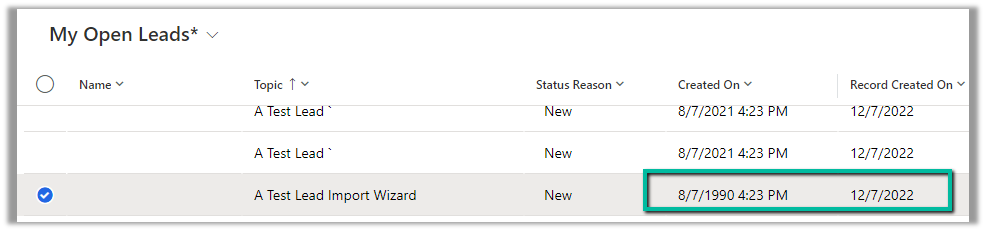
Below is the record we have created through Import Data Wizard, and we can see the values of Created on and Record Created On for it.

Read more –

https://debajmecrm.com/override-createdon-modifiedon-createdby-modifiedby-in-dynamics-365-crm-crm-tips-from-the-vault/

https://nishantrana.me/2018/10/16/using-overriddencreatedon-or-record-created-on-field-to-update-created-on-field-in-dynamics-365/

Hope it helps..

 

Advertisements