Sample AppId / ClientId and RedirectUri for quick prototyping (Dataverse / Dynamics 365)


At times we want to quickly try out few things (PoC) by writing a console application or running an SSIS package etc., there we can use the sample ClientId and RedirectUri provided by Microsoft, instead of registering the application in Azure AD / creating Application User 
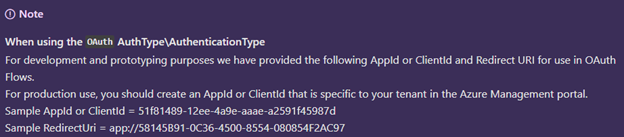
  • Sample AppId or ClientId = 51f81489-12ee-4a9e-aaae-a2591f45987d
  • Sample RedirectUri = app://58145B91-0C36-4500-8554-080854F2AC97

https://docs.microsoft.com/en-us/powerapps/developer/data-platform/xrm-tooling/use-connection-strings-xrm-tooling-connect

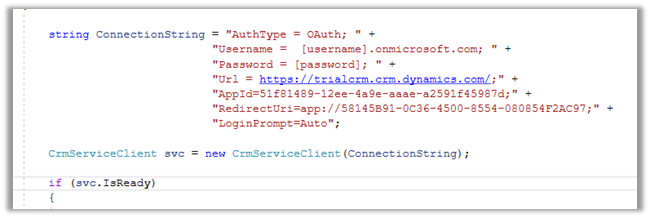
Connection String within a console app à
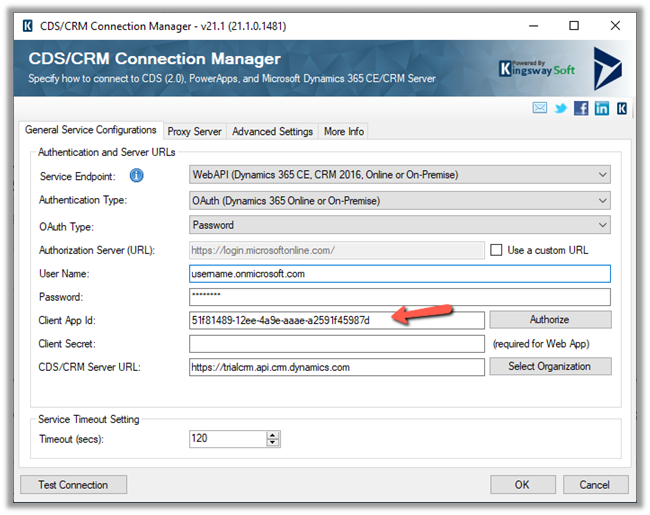
CDS /CRM Connection Manager of KingswaySoft ->
or use Interactive Login –  https://nishantrana.me/2021/07/01/interactive-login-option-in-cds-crm-connection-manager-in-kingswaysoft-dynamics-365-integration-toolkit/

Also check out -Sample Code (Dynamics 365 Web API) https://nishantrana.me/2021/01/06/sample-code-dynamics-365-web-api-organization-service/

Hope it helps..

 private void Form1_Load(object sender, EventArgs e)
        {

           string ConnectionString = "AuthType = OAuth; " +
           "Username =  [username].onmicrosoft.com; " +
           "Password = [password]; " +
           "Url = https://[org].crm.dynamics.com/;" +
           "AppId=51f81489-12ee-4a9e-aaae-a2591f45987d;" +
           "RedirectUri=app://58145B91-0C36-4500-8554-080854F2AC97;" +
           "LoginPrompt=Auto";

            CrmServiceClient svc = new CrmServiceClient(ConnectionString);

            if (svc.IsReady)
            {
              
                 // do the needful

            }
        }
Advertisements

How to – use HTTP Action to call DataVerse / Dynamics 365 Web API in Power Automate


Let us take a simple example, to see the steps involved.

Here we will be manually triggering a flow, getting the token, and calling the WhoAmI request in Microsoft Dataverse / Dynamics 365.

This is how our final Flow looks like.

Inside the first HTTP action, we are calling OAuth 2.0 token endpoint v1. We have MyCrmApp registered in Azure AD and have generated the client secret for it.

Also we have created an Application User using the above application details and have given the appropriate security role.

Below is how our HTTP request looks like.


Method

POST

URI

https://login.microsoftonline.com/489f9a0f-1326-42ae-a00c-0dd3cd16e6e9/oauth2/token

Headers


Content-Type

application/x-www-form-urlencoded

Body

grant_type=client_credentials&

client_id=ad7a1cc4-123f-4270-9c11-29eb1686e203&

client_secret=m7.xyzsdfsdfe.jZ0odh-C-85qg70QPfnsI&

resource=https://[orgname].crm.dynamics.com/

Next, we have added the Compose action to get the token from the output of the HTTP request.


Inputs (Expression) = outputs(‘HTTP’).body.access_token

Next, we have added the HTTP action again to calls the WhoAmI request using the above token.

Method

GET

URI

https://trialcrm.api.crm.dynamics.com/api/data/v9.2/WhoAmI

Headers


Content-Type

application/json

Authorization

Bearer [Output of the previous step]

On triggering our Flow succeeds as shown below.

The output of the first HTTP request.

Compose step has the access token

And the final step has the result of the HTTP Get request to WhoAmI

The helpful post –

https://carinaclaesson.com/2019/11/24/using-power-automate-to-trigger-on-create-or-update-in-the-cds-and-make-http-requests-with-oauth-2-0-authentication/

https://sharepointmadeeasy.blogspot.com/2018/02/microsoft-flow-http-rest-api-invalid.html

Hope it helps..

Check other posts on Power Automate

Advertisements
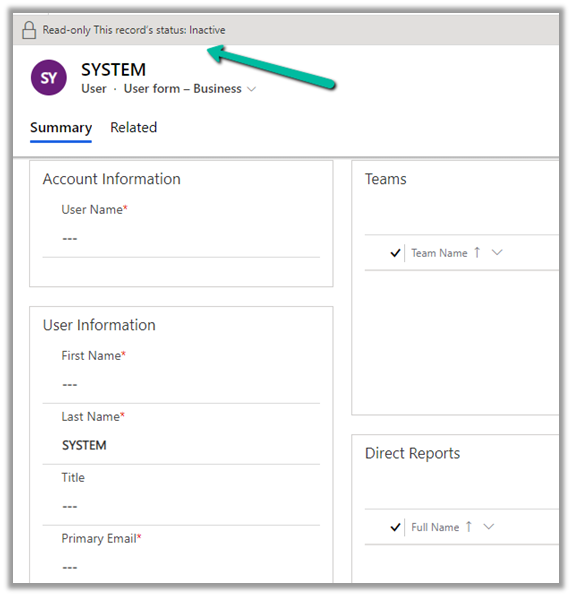
Can we update ‘SYSTEM’ user in Dynamics 365 / Dataverse?


We recently were asked to check the possibility of updating the SYSTEM user specifically the primary email field of it.

https://docs.microsoft.com/en-us/power-platform/admin/system-application-users

Usually, we use SYSTEM user to specify the plugin’s execution context for business requirements that needs elevation of privileges.

And also we can neither update it from the user interface nor it is recommended to update the SYSTEM user.

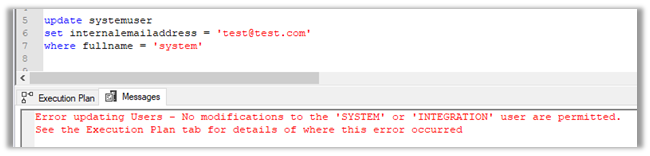
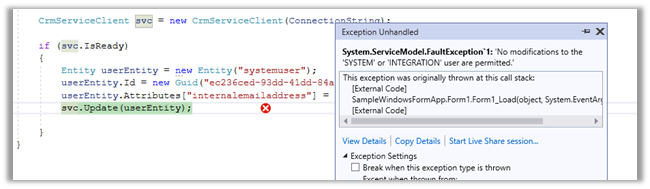
If we try to update the user through code, we’d get the below error message

Error updating Users – No modifications to the ‘SYSTEM’ or ‘INTEGRATION’ user are permitted. [See the Execution Plan tab for details of where this error occurred]


Hope it helps..


Advertisements
How to – Read OptionSet Labels from CDS/Dataverse Triggers or Action Steps in a Flow | Power Automate


Triggers triggeroutputs()?[‘body/_optionsetname_label’]

Get a row by id outputs(‘action_name’)?[‘body/optionsetname@OData.Community.Display.V1.FormattedValue’]

List Rows – items(‘action_name’)? [‘body/optionsetname@OData.Community.Display.V1.FormattedValue’]

priyeshwagh777's avatarD365 Demystified

Retrieving OptionSet Labels from CDS data in a Cloud Flow / Power Automate / Flow is an extra step than just picking from the Dynamic Values. Check this post!!

Scenario

While working with data that is either a result of a Dataverse Trigger (on Create/Update) or Action like (Get record, list record), the OptionSet fields from CDS/Dataverse return the Values of the OptionSet instead of the Text Labels –

  1. Let’s say this is the OptionSet in Dynamics
  2. And when you pick the OptionSet field from CDS either from an Action or a Trigger like this
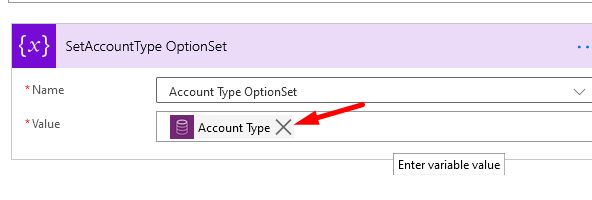
    Let’s say I’m capturing this in a variable to show you

    I’m storing this in a variable for this example to show you

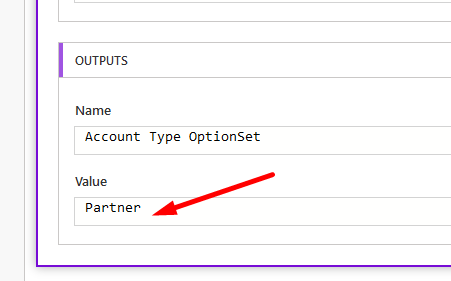
  3. I’ll capture the Value of the OptionSet i.e. the Value part

    Result –

  4. What needs to be displayed is the Label of the OptionSet! Let’s see how we can do this –

View original post 660 more words

[Step by Step] Canvas App using on-premise SQL server as Data Source


Easy to understand and follow article – thanks Rajeev.

Rajeev Pentyala's avatarRajeev Pentyala – Technical Blog on Power Platform, Azure and AI

In this post, lets see how to build a Canvas App with data from on-premise SQL Server.
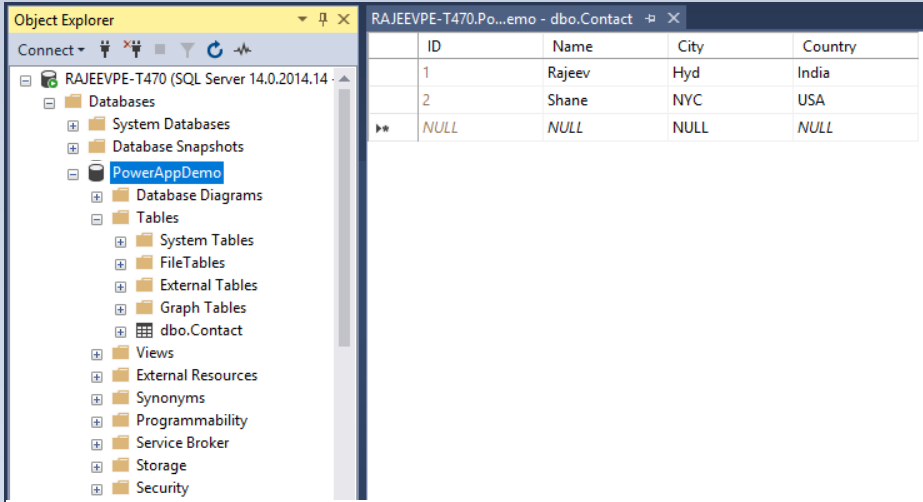
Using Gateways ,data can be transferred quickly and securely between a canvas app and an on-premises data source, such as an on-premises SQL Server database or an on-premises SharePoint site.

Lets get started to configure a Gateway and read the on-premises SQL Data which acts as a Canvas App’s ‘Data Source’.

Prerequisites:

  • SQL Server with a Database and a simple table.

Gateway_13

  • Dynamics 365 subscription. Subscribe to 30 days trail here.

Configure a ‘Gateway’ to on-premise SQL Server:

We need to install ‘On-Premises Data Gateway’ service on the machine with ‘SQL Server’.

  • Connect to PowerApps maker portal using your Dynamics 365 credentials.
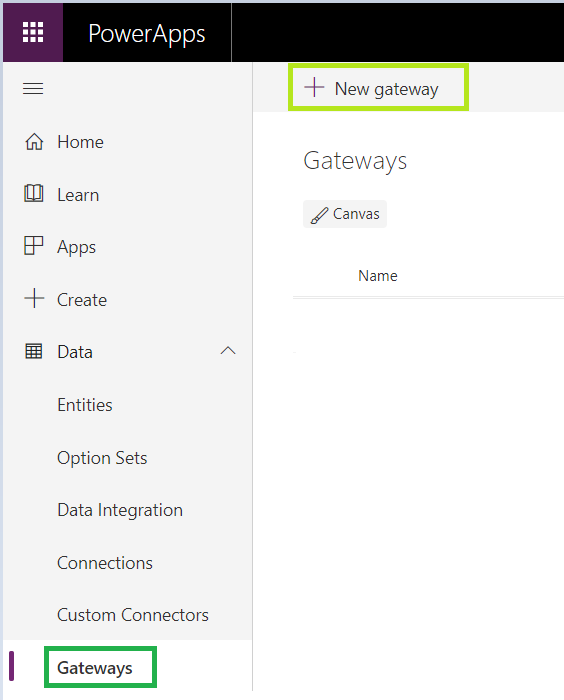
  • Go to Data -> Gateways and click on ‘+New gateway’ button.

Gateway_15.PNG

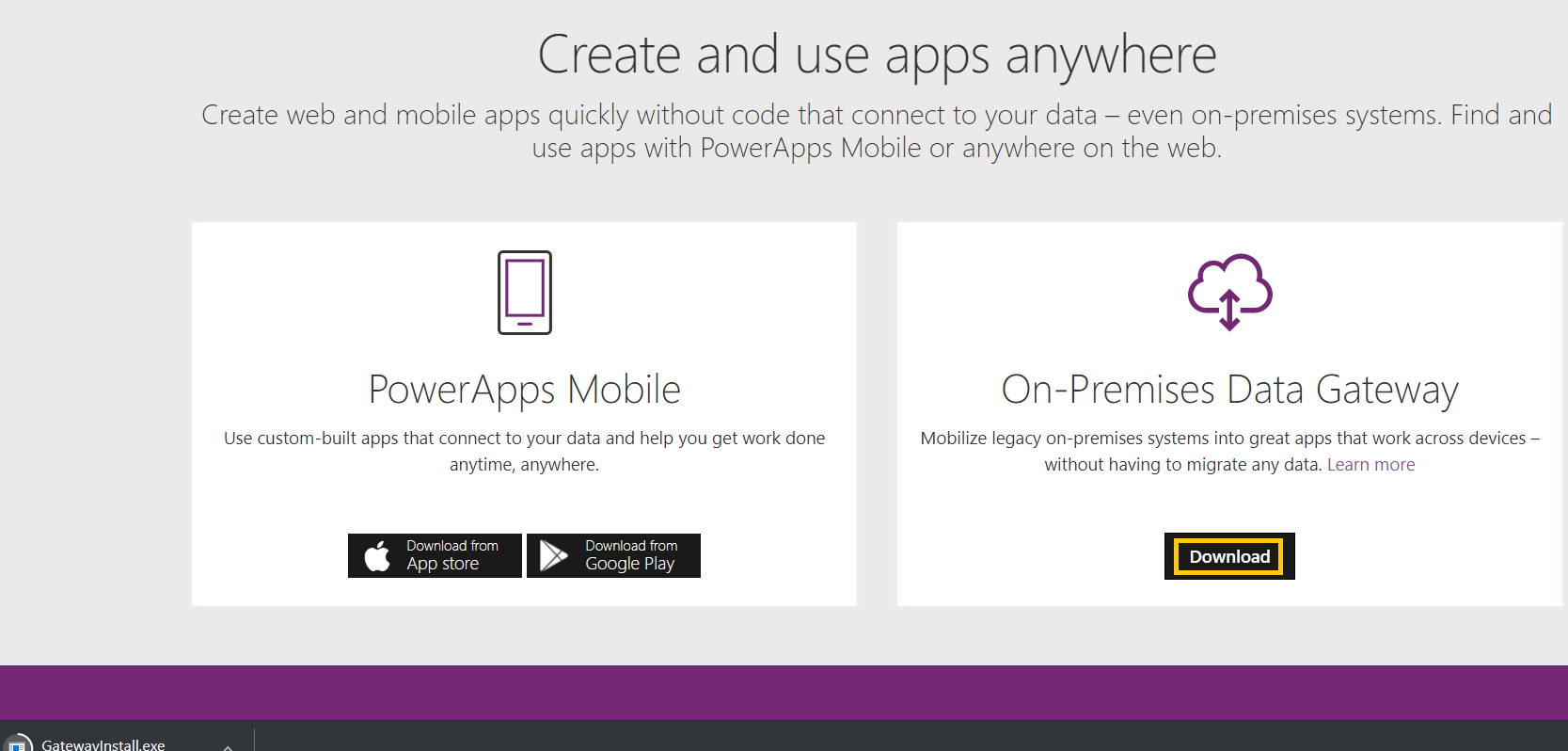
  • You will be redirected to downloads page and click on ‘Download’ under ‘On-Premises Data Gateway’ section.

Gateway_1

  • Download and click on the…

View original post 239 more words

Update Personal Options / Personalization Settings using UpdateUserSettingsSystemUser Request – Dynamics 365


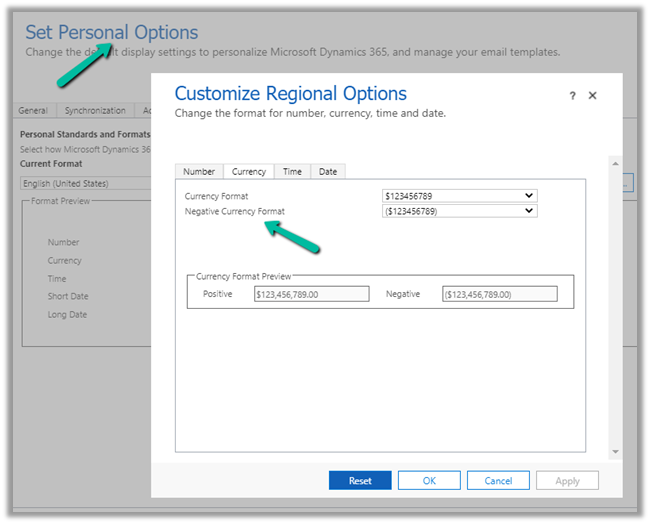
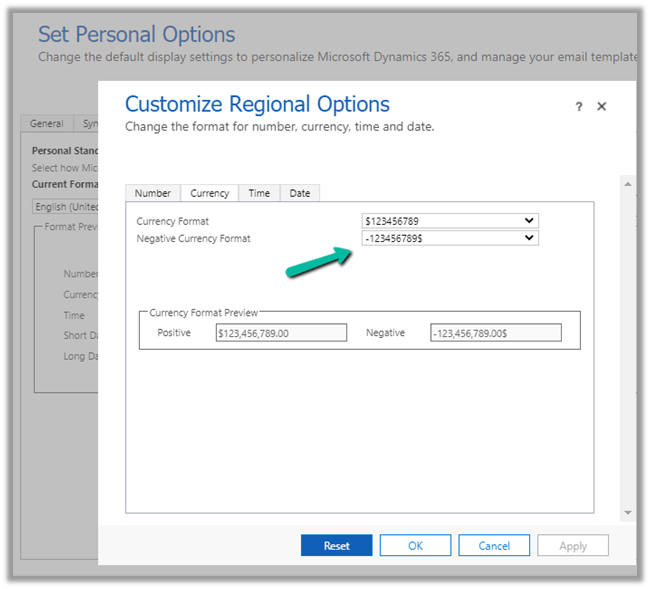
Recently we had a requirement to update the “Negative Currency Format” – Regional Options for all the users.

We could not find this option in our favorite plugin – User Settings Utility.

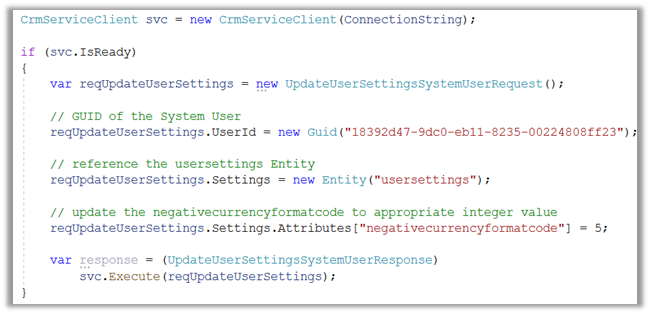
So to programmatically update it we use the below code.

Or using our most favorite plugin – SQL 4 CDS

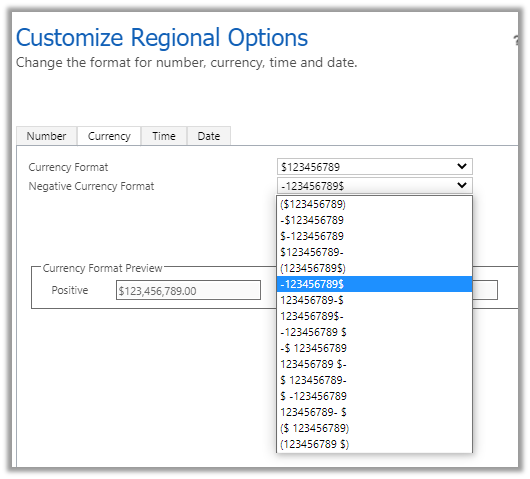
Updating it to the required format – 5

The Result –

Get more details here-

https://docs.microsoft.com/en-us/dynamics365/customer-engagement/web-api/usersettings?view=dynamics-ce-odata-9

Hope it helps..

C# Code –

  CrmServiceClient svc = new CrmServiceClient(ConnectionString);
            
            if (svc.IsReady)
            {
                var reqUpdateUserSettings = new UpdateUserSettingsSystemUserRequest();

                // GUID of the System User
                reqUpdateUserSettings.UserId = new Guid("18392d47-9dc0-eb11-8235-00224808ff23");

                // reference the usersettings Entity
                reqUpdateUserSettings.Settings = new Entity("usersettings");

                // update the negativecurrencyformatcode to appropriate integer value
                reqUpdateUserSettings.Settings.Attributes["negativecurrencyformatcode"] = 5;

                var response = (UpdateUserSettingsSystemUserResponse)
                    svc.Execute(reqUpdateUserSettings);
            }

SQL –

update usersettings 
set negativecurrencyformatcode = 5
where systemuserid = '18392d47-9dc0-eb11-8235-00224808ff23'
Advertisements