How to – manage who can create environments in Power Platform


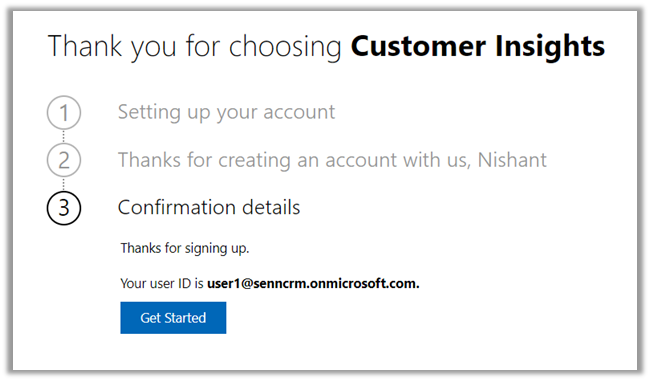
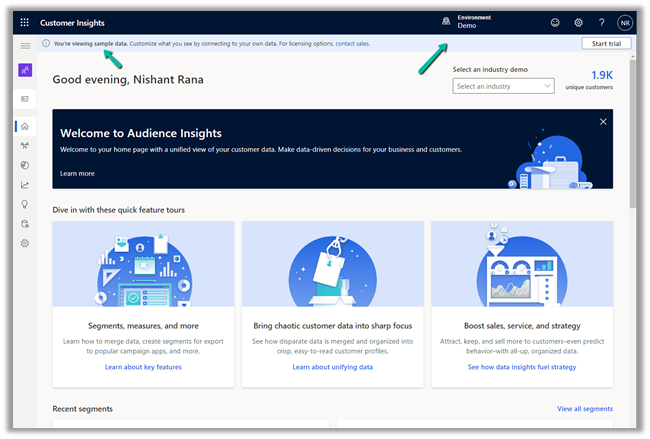
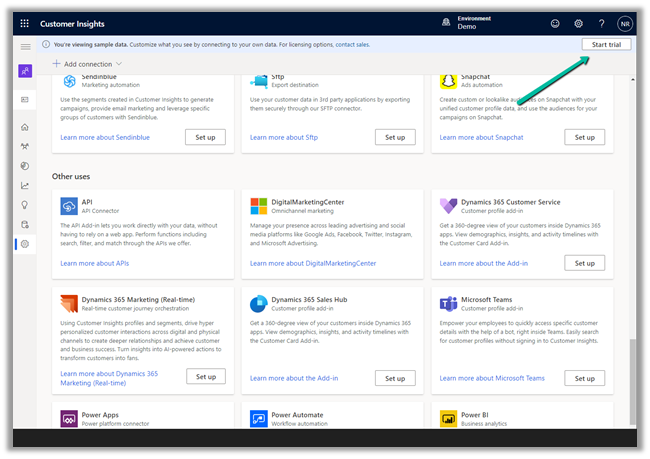
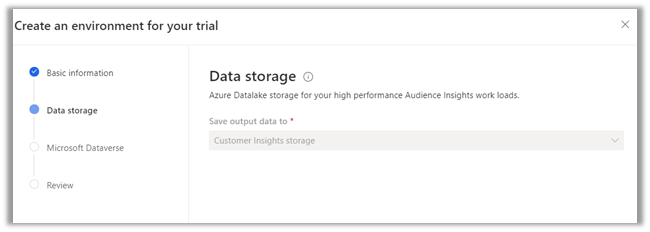
Through the Power Platform admin center, the administrator can control who can create an environment in the Power Platform.

Click on Gear Icon >> Power Platform settings

There we can specify who can create production and sandbox environments & trial environments.

Let us set it as Only specific admins and save the settings.

With this particular setting now only the following admins will be able to create environments.

Global admin, Dynamics 365 Admin, and Power Platform admins.

The non-admin user will get the below error

Your tenant’s administrators have disabled trial environment creation for non-admin users. You need permission to create a trial environment in your tenant

In case of Everyone, the below license determines who can create environments.

https://docs.microsoft.com/en-us/power-platform/admin/create-environment#who-can-create-environments

Hope it helps..

Advertisements

How to – Use AlwaysMoveRecordToOwnerBusinessUnit setting in Dynamics 365 / PowerApps/ Dataverse


The setting – AlwaysMoveRecordToOwnerBusinessUnit allows us to move a user to another business unit without moving all his owned records to that unit.

This makes sure that other users in the new business unit cannot access the user’s records from his previous business unit (unless they have organization-level access / or have a role in that unit / or records are shared)

Also Check –

EnableOwnershipAcrossBusinessUnits setting https://nishantrana.me/2022/01/05/how-to-change-users-business-unit-without-removing-the-security-roles-in-dynamics-365-powerapps-enableownershipacrossbusinessunits-setting/

Modernize Business Units https://nishantrana.me/2022/01/04/modernize-business-units-matrix-data-access-structure-record-ownership-across-business-units-preview-in-dynamics-365-dataverse/

By default this setting is true.

Get the Organization Settings Editor – https://github.com/seanmcne/OrgDbOrgSettings/releases

Let us see the default behavior first, below are the 2 contact records created by User 2 who belongs to BU 1.

Now let us change the Business Unit of User 2 to BU 2.

After changing the BU of the user 2 we have assigned the same security role to the user which he has had in BU 1 that gave him BU level access on the Contact records.

We can see both Owner and Owning Business Unit getting updated as expected.

Now we’d see what will happen if we update the setting AlwaysMoveRecordToOwnerBusinessUnit to False.

But before doing that let us change the business unit of User 2 back to BU 1.

As expected Owning Business Unit is updated back to BU 1

Now let us update the setting to false

This time changing the business unit of User 2 to BU 2 should not update the Owning Business Unit of the contact records owned by User 2 to BU2.

As expected this time the Owning Business Unit remained BU 1.

Based on the true or false value set for AlwaysMoveRecordToOwnerBusinessUnit , we can see the checkbox “Move records to new business unit” either checked or unchecked – but always DISABLED.

If AlwaysMoveRecordToOwnerBusinessUnit is true than – the disabled checkbox is checked – 

cbu

Get more details below –

https://docs.microsoft.com/en-us/powerapps/developer/data-platform/configure-entity-relationship-cascading-behavior#allowed-record-ownership-across-business-unites-is-enabled

Hope it helps..

Advertisements

How to – change user’s business unit without removing the security roles in Dynamics 365 / PowerApps (EnableOwnershipAcrossBusinessUnits setting)


When we change the user’s business unit, all the current security roles of the users are removed and we need to assign the roles again to the user. This has always been the default behavior. 

Also check – Modernize Business Units –  https://nishantrana.me/2022/01/04/modernize-business-units-matrix-data-access-structure-record-ownership-across-business-units-preview-in-dynamics-365-dataverse/

For E.g. below user User 2 belongs to Business Unit – BU 1 and has the following security roles assigned.

Now changing the user’s business unit to BU 2

will remove all his security roles assigned.

We can now override this behavior by updating the new option /setting added

DoNotRemoveRolesOnChangeBusinessUnit(this property determines if roles are removed when the principal changes business units) through the
Organization Settings Editor tool

After we have installed the managed solution, we can update the setting and set it as true

Let us assign the security roles to User 2 in BU 2.

Let us now change the BU of user 2 back to BU 1.


As expected after updating that setting – DoNotRemoveRolesOnChangeBusinessUnit– as true – we can see the security roles still intact, even on the change of Business Unit for the user.

What happens if user 2 is assigned a security role – BU2 Security Role, which is created in BU 2 Business unit and is not available in BU 1.

Let us change the business unit to BU 1.

As expected BU2 security role is not available in BU 1, so that role is not assigned, only the common security role coming from parent BU remains intact.

Hope it helps..

Advertisements

Modernize Business Units / Matrix data access structure -Record ownership across business units (Preview) in Dynamics 365 / Dataverse


To enable this preview feature, log in to the Power Platform admin center, switch on the

Environment >> Settings >> Features >> Record ownership across business units (Preview)

It took around 5 minutes to enable.

Now let us say we have a BU structure like below.

And custom security roles with BU level access to Contact – BU Contact Role.

Both user 2 and user 3 have only the BU Contact Role of BU 1 and BU 2 business unit respectively assigned.

Below is the Contact record created by User 2.

As expected User 3 does not have access to the above record.


Now let us provide the same BU Contact role to User 3 but this time from BU 1.

Select the User 3 in Settings >> Users >> Manage Security Roles

The user has already has BU Contact Role in BU 2. Let us change the Business Unit and assign the same role for BU 1.

Click on Save.

On refreshing the All Contacts view for user 3 now we can see both the records, showing the corresponding owner and the owning business unit the records belong to.

This makes it easy to provide required access to the users across the business unit, without the need of sharing the record or using team access or teams ownership concept here.

With this preview, we can also update the Owning Business Unit field.

Below the User 2 is creating a new contact record and setting Business Unit as BU 2.

Here it fails because User 2 only has BU level access for Contact Create Rights, and he is trying to create at BU 2.

Let us update one of the existing contact records, by setting Owning Business Unit as BU 2, this time through System Administrator user which belongs to the root Business Unit.

As expected the record is available to User 3, as we have set BU 2 as the owing business unit.

Get all the details here

https://docs.microsoft.com/en-gb/power-platform/admin/wp-security-cds#matrix-data-access-structure-modernize-business-units—preview

Hope it helps..

Advertisements

Queues in Case Management: Part 1


Vrushali Ranjalkar's avatarVrushali's Techno Blog

Customer service management may require different type of attentions and monitoring depending on parameters such as the different types of customer, priority, different products or services, different subscription levels (regular, premium customers), various activity categories, different geography etc.

Defining Queues is helpful to organize, monitor and prioritize the work by having a centralized list of pending work that needs attention and sorting tasks by type or by the people assigned to complete them

A queue is created by default for each and every user in D365 customer service, we can define additional queues based on our requirements as mentioned above. Let us define a queue and check further details. we have to define paramers for the queue

  • Name: Name of the queue
  • Type – Private or Public : Private queue is having access to limited members and we have to add the members to it. Where as public queues are…

View original post 476 more words

How to – Invoke Power Automate from Dynamics 365 Or Model Driven Apps using Form Scripts


clavinfernandes's avatarClavin's Blog - PPUG.ORG

In this blog post, we will Invoke a Power Automate from Dynamics 365 Or Model-Driven Apps using Form Scripts.

Scenario

A person fills up the Form and saves it in the Model-Driven app. The Script captures the items(column) values, passes the values to Power Automate which generates a PDF, and sends it as an Email Attachment.

This article is broadly devide into two main part

  • Configuring Form Scripts in model-driven apps.
  • Invoking a Power Automate from Form Scri

Basics of Client API object modelfor Model-Criven apps

The Client API object model for model-driven apps provides you objects and methods that you can use to apply custom business logic in model-driven apps using JavaScript, such as Get or set column values, show and hide user interface elements, etc. For details on the Client API, object model see the link.

We will Trigger our code whenever a Form is saved(OnSave). We…

View original post 592 more words