Publishing Bot to Azure and adding it to Skype (Microsoft Bot Framework)


Let us continue with our previous posts on using Microsoft Bot Framework to create a simple bot application that creates a lead in CRM.

In this post, we will be publishing our Bot application to Azure and also test it on Skype. Skype is one of the channel already configured for us.

Open the Azure Portal (Create a free trial if you do not have an account)

https://portal.azure.com

Right click on the application and select Publish.

Select Microsoft Azure App Service as the publish target.

Create the app service

Validate the connection and on successful connection click on Publish.

The published Bot Application –

Now to register our bot go to bot framework developer site

https://dev.botframework.com/

Sign in and Click on Register a bot

Enter all the required details.

Here URL will be the Destination URL of Azure where the Bot Application was published.

Click on Manage Microsoft App ID and Password

Click on Generate an Microsoft App ID and password.

Save the password and app id which will be used for configuration later.

Enter the App Id and click on Register to register the Bot.

We will get the message “Bot created” on successful registration.

Back in our bot application, open its web.config and specify value for app id and password and republish the app.

Once it is published successfully, inside our bot we can click on Test to check the connection.

We’d get the message “Endpoint authorization succeeded”.

Scrolling down we can see two channels web and skype already configured.

Click on Add to Skype to add the bot as a contact to skype.

Click on “Add to Contacts”

Sign in with your Skype Credentials.

Launch Skype.

We can see the Bot added to our contacts.

This is how we can easily publish the Bot to azure and add it to Skype.

Hope it helps..
Using LUIS AI in Microsoft Bot Framework – Part 2


Let us continue with our previous posts on using Microsoft Bot Framework

In our previous post we had configured, tested and trained our LUIS application.

Here we will update our bot application code and see how it works.

Add a new Dialog class named LUIS Dialog

The class implements LuisDialog interface and has attribute Serializable to it.

We also need to add an attribute LuisModel that takes in model id and subscription key.

To get the model id and subscription key, open the LUIS application we had created. (https://www.luis.ai/)

Get App Id from the Dashboard.

And API key from My Keys section.

Now one by one we will implement logic for each of our Intent, for this we will use LuisIntent Attribute.

Here we have wrote a method for each of the intent that we had configured earlier.

We would need to make following changes to our ModelController.cs to call the LUISDialog

Let us look at the Intent one by one

For Luis Intent – None :-

i.e. when no Intent found or Intent is None.

Here bot will reply with Sorry I do not understand if the intent is none.

Here the work meeska (utterance) is associated to None Intent.

Inside Bot emulator –

For Luis Intent – Greeting :-

If the user types in Hi or Hello the bot will respond with “Please let me know…” as it will figure out that the intent is Greeting.

For Luis Intent – QueryProduct:-

If the user types in “Do you have product1?” the Bot associates it to our Query Product intent as we had trained our LUIS app for this. Here if user asks for Product1, Product2 or Product3 the bot responds that it has those products else it responds with “Sorry we do not have that product”.

QueryProduct Intent associated to Product Entity –

Inside Bot Emulator –

For Luis Intent – Interest:-

For Intent Interest, we call our Form Dialog that we had created in the following post Using FormFlow in Microsoft Bot Framework.

It basically asks user about the product he is interested in, name and description and creates a lead record in CRM.


Interest intent –


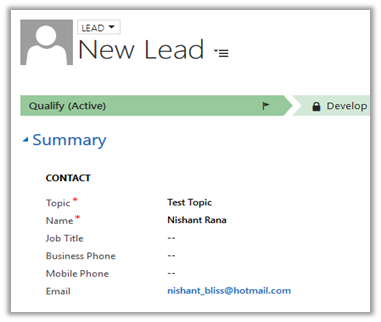
The lead record created in CRM.


In the next post, we will see how to publish the application to Azure.

Hope it helps..
Using LUIS AI in Microsoft Bot Framework – Part 1


Let us continue with our previous posts on using Microsoft Bot Framework

In this post, we will add natural language processing to our Bot Application through LUIS i.e. Language Understanding Intelligent Service.

LUIS intercepts the User requests and converts it to comparable action for the bot.

The 3 most important aspects of LUIS Framework are

  • Intents – Identifies what actions you want your bot to take.
  • Entities – What things your bot is taking action on.
  • Utterances – Identifies phrases that links intents and entities.

Go to LUIS web site and Sign in

https://www.luis.ai/

After completing the sign up and finishing other details. Click on My apps link and select New App to create and register the app.

Provide the Name and culture as English and click on Create button.

Now as our app is created, we will now create the intent.

Go to the Dashboard of the app and select Create an intent.

Here we will create “Interest” as our first intent. Next, we define Utterances that points/associates to our intent.

Here we have defined want, interested and like as utterances associated to Interest.

So, for e.g. if we have following statement or response it will all point to the Interest intent.

  • I am interested to know about the product.
  • I want to know about the product
  • I like to know about the product.

Let us create a new Intent named Greeting and associate 2 utterances Hi and Hello to it.

Once we are done specifying our Intents the next important step is to Train and Test the application.

Select Train and Test and click on Train Application button.

Once the training is completed, we can make use of Interactive Testing interface to do the testing of our utterance and their score.

For e.g. hi utterance had full score i.e. 1 with Greeting intent and 0.19 and 0.13 with the other intent like Interest and None respectively.

Similarly, with “want” utterance we had .77 score for Interest intent.

Next, we test with meeska utterance for which we get the score of .66 with None Intent as this utterance is not associated to any of the intent we had defined nor it is understood by the application.

Now as we are done with testing let us publish it.

Once published, it will provide us with Endpoint URL.

We can append the text to the query string q in the above URL to get the JSON result. (as testing)


Now let us play around with Entity.

Select Entities link and click on Add custom entity button.

Here we are adding an entity named Product.

Now create one more intent that we will associate to this Entity Product named QueryProduct.

Let us add a new utterance, “do you have product1?” and here we will associate the product1 word with the Product entity.

To do so left click on the Product1 word, and select Product from the drop down.

This associates “Do you have [[xyz]]?” with Product entity.

We can quickly test it. Type any utterance like “Do you have x?” and in the result, we can see it being associated to QueryProduct1 intent with full score (1).

Now as we are done with all our configuration, training and testing, we need to train and publish the application again to have all the changes reflected.

In the next post we’d update our bot application to incorporate LUIS AI to it.

Hope it helps..

Using FormFlow in Microsoft Bot Framework (Creating lead in CRM)


Let us continue with our previous posts on using Microsoft Bot Framework

Getting Started with Microsoft Bot Framework.

Using Dialogs in Microsoft Bot Framework

To better understand the FormFlow refer to the below article.

https://docs.botframework.com/en-us/csharp/builder/sdkreference/forms.html

Here we will update our Bot Application to use the FormFlow instead of Dialog.

As FormFlow are bound to a model, we will create a model class first.

Create a new folder named Model and a new class named LeadModel in it.

The class has an enum for selecting Product Type. It defines property for capturing Name and Description.

Here we define a static method named BuildForm that returns the IForm of type LeadModel.

The message defines the initial message that will be shown to the user and oncompletion we are defining a callback method that will be called on completion which we will be using to create lead record in CRM.

Next update the MessageController.cs to call this Lead Model instead of dialog which we did in our previous post.

The conversation between the Bot and the User.

The lead record created in CRM.

Source Code –


using Microsoft.Bot.Builder.FormFlow;
using System;
using Microsoft.Bot.Builder.Dialogs;
using System.Threading.Tasks;
using Microsoft.Xrm.Sdk.Client;
using Microsoft.Xrm.Sdk;

namespace Bot_Application1.Models
{

public enum InterestOptions { Product1 = 1, Product2 = 2, Product3 = 3};

[Serializable]
public class LeadModel
{
public InterestOptions Product;
public string Name;
public string Description;
public static IForm<LeadModel> BuildForm()
{
return new FormBuilder<LeadModel>()
.Message("Welcome to the CRM bot !")
.OnCompletion(CreateLeadInCRM)
.Build();
}
private static async Task CreateLeadInCRM(IDialogContext context, LeadModel state)
{
await context.PostAsync("Thanks for showing your interest we will contact you shortly.");
Entity lead = new Entity("lead");
lead.Attributes["subject"] = "Interested in product " + state.Product.ToString();
lead.Attributes["lastname"] = state.Name;
lead.Attributes["description"] = state.Description;
GetOrganizationService().Create(lead);
}

public static OrganizationServiceProxy GetOrganizationService()
{
IServiceManagement<IOrganizationService> orgServiceManagement =
ServiceConfigurationFactory.CreateManagement<IOrganizationService>(new Uri("https://nishantcrm365.crm.dynamics.com/XRMServices/2011/Organization.svc"));
AuthenticationCredentials authCredentials = new AuthenticationCredentials();
authCredentials.ClientCredentials.UserName.UserName = "nishant@nishantcrm365.onmicrosoft.com";
authCredentials.ClientCredentials.UserName.Password = *****";
AuthenticationCredentials tokenCredentials = orgServiceManagement.Authenticate(authCredentials);
return new OrganizationServiceProxy(orgServiceManagement, tokenCredentials.SecurityTokenResponse);
}
}
}


using System.Net;
using System.Net.Http;
using System.Threading.Tasks;
using System.Web.Http;
using Microsoft.Bot.Builder.Dialogs;
using Microsoft.Bot.Connector;
using Microsoft.Bot.Builder.FormFlow;
using Bot_Application1.Models;

namespace Bot_Application1
{
[BotAuthentication]
public class MessagesController : ApiController
{
/// <summary>
/// POST: api/Messages
/// Receive a message from a user and reply to it
/// </summary>
public async Task Post([FromBody]Activity activity)
{
if (activity.Type == ActivityTypes.Message)
{
// call MyDialog
// await Conversation.SendAsync(activity, () => new Dialogs.MyDialog());

// Call our FormFlow by calling MakeRootDialog
await Conversation.SendAsync(activity, MakeRootDialog);

}
else
{
HandleSystemMessage(activity);
}
var response = Request.CreateResponse(HttpStatusCode.OK);
return response;
}

internal static IDialog<LeadModel> MakeRootDialog()
{
return Chain.From(() => FormDialog.FromForm(LeadModel.BuildForm));
}

private Activity HandleSystemMessage(Activity message)
{
if (message.Type == ActivityTypes.DeleteUserData)
{
// Implement user deletion here
// If we handle user deletion, return a real message
}
else if (message.Type == ActivityTypes.ConversationUpdate)
{
// Handle conversation state changes, like members being added and removed
// Use Activity.MembersAdded and Activity.MembersRemoved and Activity.Action for info
// Not available in all channels
}
else if (message.Type == ActivityTypes.ContactRelationUpdate)
{
// Handle add/remove from contact lists
// Activity.From + Activity.Action represent what happened
}
else if (message.Type == ActivityTypes.Typing)
{
// Handle knowing tha the user is typing
}
else if (message.Type == ActivityTypes.Ping)
{
}

return null;
}
}
}

The next posts in this series

Hope it helps

Using Dialogs in Microsoft Bot Framework (Creating lead in CRM)


Let us continue with our previous post on Bot Framework

https://nishantrana.me/2017/04/18/getting-started-with-microsoft-bot-framework/

Here we will implement our own dialog.

Dialogs are basically a class which implements IDialog interface. Dialog sends a message to the user and is in suspended state till it waits for the response from the user. The state is saved in State Service provided by Bot Connector Service.

Here MyDialog is our dialog class which implements the IDialog Interface i.e. implement StartAsync method which would be the first method called. We also need to mark our class as Serializable.

Next we need to update our controller class to point it to our new MyDialog class.

Here we will ask the user about the product in which he is interested, then get the name and description and finally using this information we will create a Lead record inside CRM.

The lead record created in CRM.

Here we are making use of PromptDialog type for managing interactions with the user. Using PromptDialog we can easily prompt user for text, choice, attachment, confirmation etc.

The context here is the IDialogContext. In resume parameter, we can specify which dialog methods to be called next after the user has responded. The response from the user is passed to the subsequent dialog methods.


using Microsoft.Bot.Builder.Dialogs;
using Microsoft.Bot.Connector;
using Microsoft.Xrm.Sdk;
using Microsoft.Xrm.Sdk.Client;
using System;
using System.Collections.Generic;
using System.Threading.Tasks;

namespace Bot_Application1.Dialogs
{

public enum InterestOptions
{
Product1,
Product2,
Product3
}

// Decorate the class with Serializable attribute
[Serializable]
// Implement IDialog Interface
public class MyDialog : IDialog
{
InterestOptions interestOptions;
string name;
string description;

// Start Sysnc is the first method which is called
public async Task StartAsync(IDialogContext context)
{
await context.PostAsync("Hi how may i help you?");
// wait for the user's response
context.Wait(MessageRecieveAsync);
}

public virtual async Task MessageRecieveAsync(IDialogContext context, IAwaitable argument)
{
// get the message
var message = await argument;

if (message.Text.Contains("interested"))
{
PromptDialog.Choice(
context: context,
resume: ResumeGetInterest,
options: (IEnumerable<InterestOptions>)Enum.GetValues(typeof(InterestOptions)),
prompt: "Which product are your interested in :",
retry: "I didn't understand. Please try again.");
}

}

public async Task ResumeGetInterest(IDialogContext context, IAwaitable result)
{
interestOptions = await result;

PromptDialog.Text(
context: context,
resume: ResumeGetName,
prompt: "Please provide your name",
retry: "I didn't understand. Please try again.");
}

public async Task ResumeGetName(IDialogContext context, IAwaitable result)
{
name = await result;

PromptDialog.Text(
context: context,
resume: ResumeGetDescription,
prompt: "Please provide a detailed description",
retry: "I didn't understand. Please try again.");
}

public async Task ResumeGetDescription(IDialogContext context, IAwaitable result)
{
description = await result;
PromptDialog.Confirm(
context: context,
resume: ResumeAndConfirm,
prompt: $"You entered Product :- '{interestOptions}', Your Name - '{name}', and Description - '{description}'. Is that correct?",
retry: "I didn't understand. Please try again.");
}

public async Task ResumeAndConfirm(IDialogContext context, IAwaitable result)
{
bool confirm = await result;

if (confirm)
await context.PostAsync("Thanks for showing your interest we will contact you shortly.");

// Create a lead record in CRM
CreateLeadinCRM();

}

private void CreateLeadinCRM()
{
Microsoft.Xrm.Sdk.Entity lead = new Microsoft.Xrm.Sdk.Entity("lead");
lead.Attributes["subject"] = "Interested in product " + interestOptions;
lead.Attributes["lastname"] = name;
lead.Attributes["description"] = description;
GetOrganizationService().Create(lead);
}

public static OrganizationServiceProxy GetOrganizationService()
{
IServiceManagement<IOrganizationService> orgServiceManagement =
ServiceConfigurationFactory.CreateManagement<IOrganizationService>(new Uri("https://nishantcrm365.crm.dynamics.com/XRMServices/2011/Organization.svc"));

AuthenticationCredentials authCredentials = new AuthenticationCredentials();
authCredentials.ClientCredentials.UserName.UserName = "nishant@nishantcrm365.onmicrosoft.com";
authCredentials.ClientCredentials.UserName.Password = "*****";
AuthenticationCredentials tokenCredentials = orgServiceManagement.Authenticate(authCredentials);
return new OrganizationServiceProxy(orgServiceManagement, tokenCredentials.SecurityTokenResponse);
}
}

}

The next posts in this series

Hope it helps..

Getting started with Microsoft Bot Framework


To get started with Bot Framework, download the visual studio template for Bot Application from the following location

http://aka.ms/bf-bc-vstemplate

Extract it and put the content at the following location. (Visual Studio 2017 in my case)

C:\Users\<<ComputerName>>\Documents\Visual Studio 2017\Templates\ProjectTemplates\Visual C#

Open Visual Studio and select Bot Application template to create a new project

This is how the basic structure of the bot application looks like

The most important part here being the MessageController class.

The class has the Post method which handles the message sent by the user/client termed as Activity. The Post method handles the Activity of type Message.

Below is the list of different type of Activities

DeleteUserData is when the client\user requests for Deletion of all the user data, ConversationUpdate is when a new member is added or removed from the conversation, Typing is when user is typing the message etc.

Now to test this sample application, we need to first download the Bot Emulator.

https://emulator.botframework.com/

Now run the bot application.

And next start the emulator

Enter the URL and click on Connect. We will leave App ID and Password as blank as we are testing it locally.

Just type in the message and we’d get the response back.

Details section shows the JSON message which could be useful for debugging and testing purpose.

Apart from sending message we can simulate other Activity Type from within the emulator

The next post in this series

Hope it helps..