Fixed – User Presence not working – Customer Service Workspace / Omnichannel (Dynamics 365/CRM)


Recently while exploring Customer Service Workspace we could not see the presence being loaded for the users.

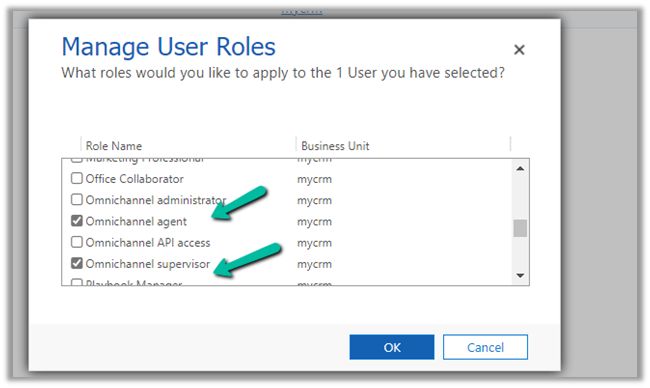
The first thing we need to check here is if the user has either the Omnichannel Agent / Supervisor role or Customer Service Representative role assigned. (it will not load even if you are a system admin or Omnichannel Administrator role only)

The next thing to check is the omnichannel record (Channel Integration Framework V2.0 Providers entity/table)

Check the value for the Channel URL field –

It should be

https://oc-cdn-ocprod.azureedge.net/convcontrol/ChatControl.htm?uci=true&clientName=zfp&cloudType=Public&env=prod&ocBaseUrl=https://unq0c996fcff27241fb845216a48ece6-crm.omnichannelengagementhub.com&ucilib=https://org749544d7.crm.dynamics.com/webresources/Widget/msdyn_ciLibrary.js

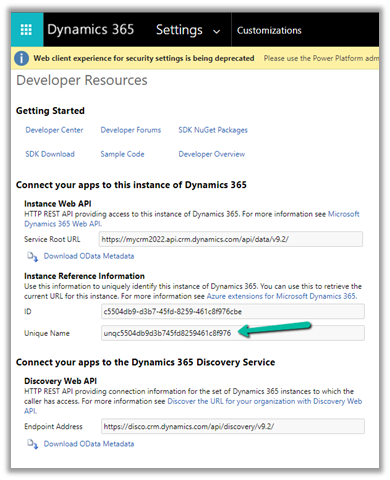
Replace the first part in ocBaseUrl with your organization’s Unique Name (Customization > Developer Resources)

and second is the organization base url in the uclib.

If it still doesn’t work or gets stuck at 25 or 57 percent, check if you have security defaults enabled in the tenant if so either disable it.

Disable Security Defaults while login into Power Platform / Dynamics 365 – Nishant Rana’s Weblog

Or make sure the users have the multi-factor authentication set up on their account.

After we made sure all the above settings – we had the presence working for the users.

Get all the details here-

Troubleshoot issues in Omnichannel for Customer Service

Hope it helps..

Advertisements

Solved – Disabled Turn on unified routing option in Dynamics 365 Customer Service Hub


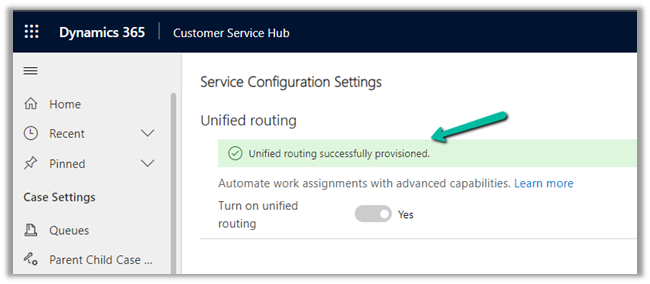
Recently while trying to provision Unified Routing from Dynamics 365 Customer Service Hub in one of our trial environments (Service Management >> Service Configuration >> Unified Routing – Turn on unified routing.),

even after providing the consent multiple times (by clicking on Provide consent, with Global Admin role)

it kept coming as disabled and kept asking for providing the consent.

Opening in in-private browsing or a different browser didn’t fix it.

Clearing the cache also didn’t help – Empty Cache and Hard Reload
https://nishantrana.me/2018/02/28/empty-or-disable-cache-while-working-with-web-resources-in-dynamics-365-chrome/

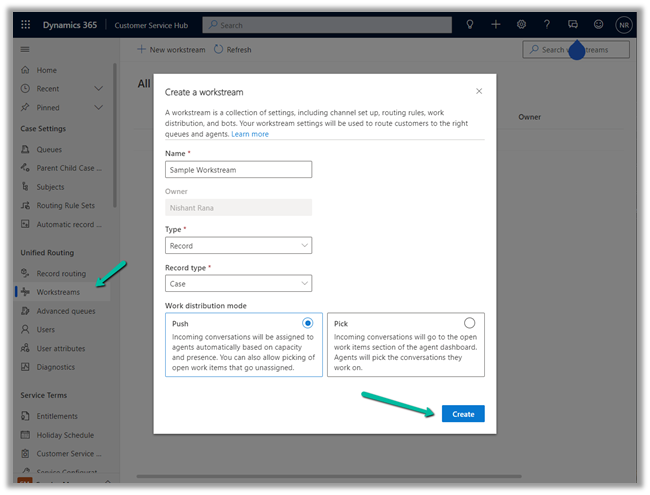
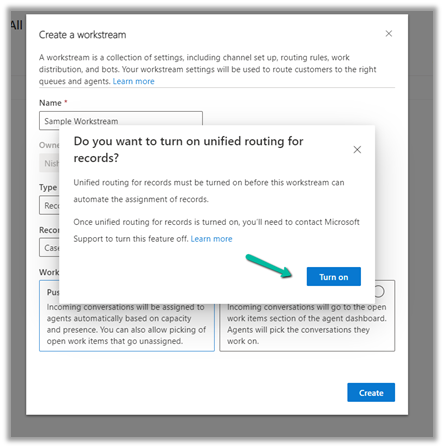
The trick that worked here was creating a workstream record

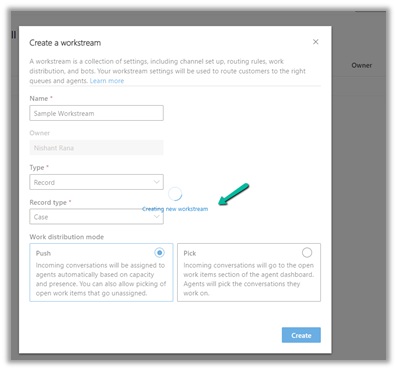
which also triggered the provision of Unified Routing 

And after our workstream record got created,

we could see the unified routing enabled successfully.

Hope it helps..

Advertisements

How to – Unify (Map, Match and Merge) Entities in Dynamics 365 Customer Insights


In the earlier posts, we set up the trial of Dynamics 365 Customer Insights, configured our data sources, one from Microsoft Dataverse and the other from a local excel file.

In this post, we will unify the contact in our different data sources and create the Customer Profile.

Navigate to Unify, and click on +Select entities to select our contact entities from the different data sources for creating the customer profile.

We have selected all the fields from ContactsLocal Excel Data Source.

We have selected Id, emailaddress1, first name, gender code, last name, mobile phone field selected from the contact entity of CRMDataSource.

Click on Apply.

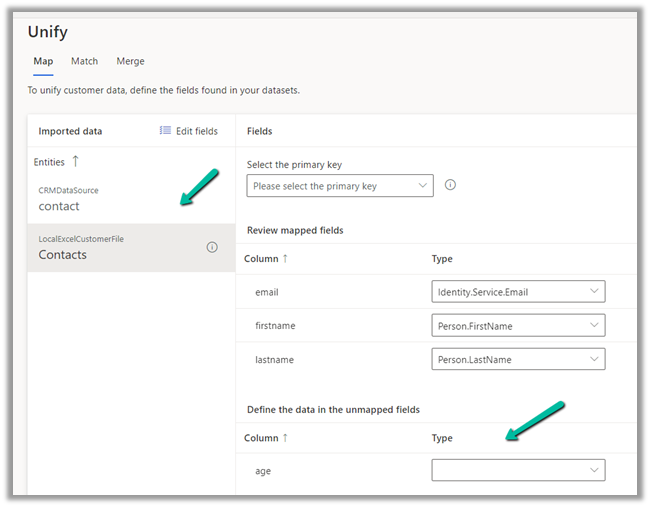
For CRM Data Source – Contact, we can see the field auto mapped as we have Intelligent mapping on by default.

For the primary key, we have specified ID as the primary key.

For Contact – Local Excel Data Source, we can see one field not mapped.

As we cannot find the field in the existing list of fields, we can type in and that will create the new field.

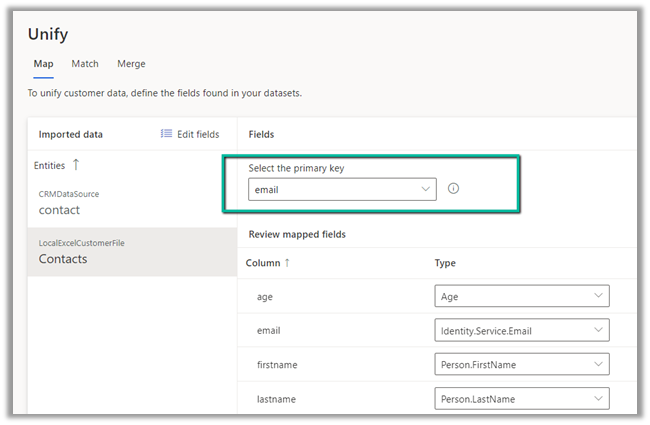
For the primary key, we have selected email.

Save the mapping.

Now let us move to Match.

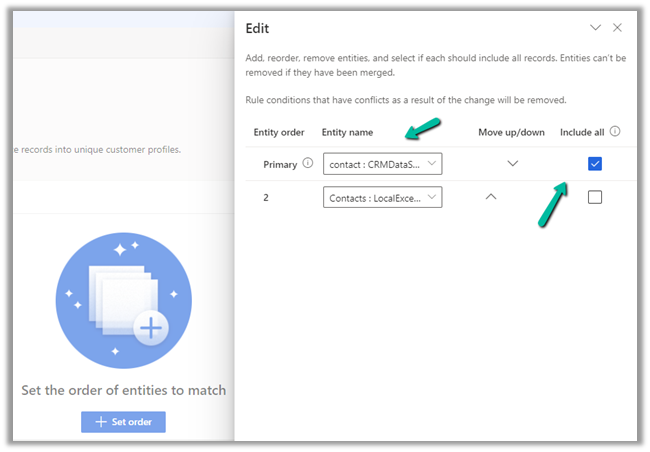
Here we will define the order first.

Here we have specified our CRM’s Contact as the primary data source and specified that all the records from it should be included.

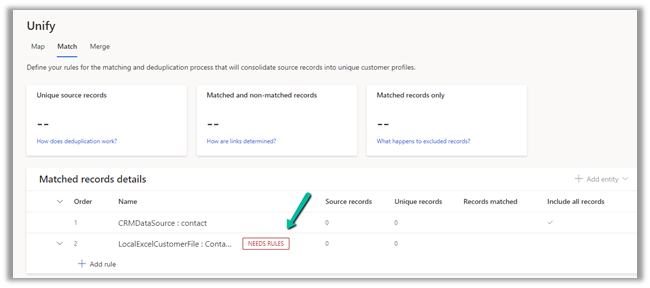
Next, we need to define the rules for matching the records between the data sources.

We have selected the email field and set the precision as Basic – Medium.

The other option for Precision is Custom, where a value between 1 to 100 can be specified and we can also add additional rules.

For now, we’d only keep the email address rule with precision as a basic – medium.

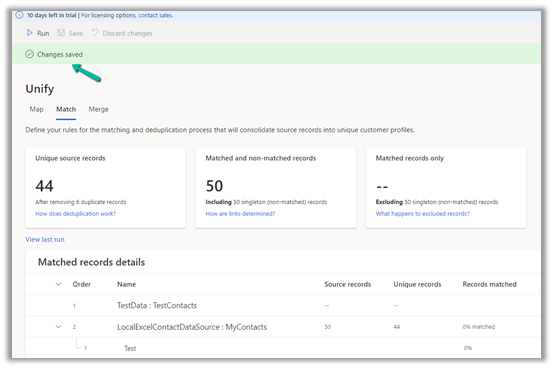
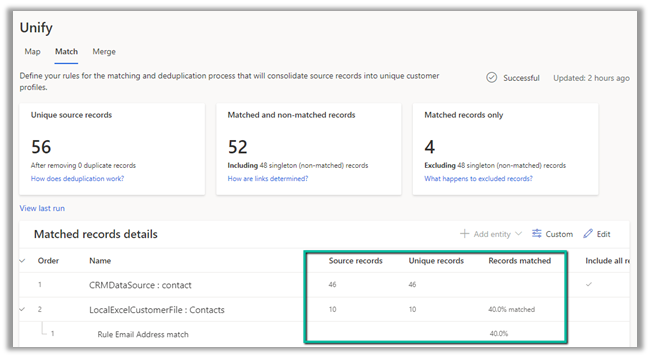
Save the changes and Run the rule.

We can see the results after some time.

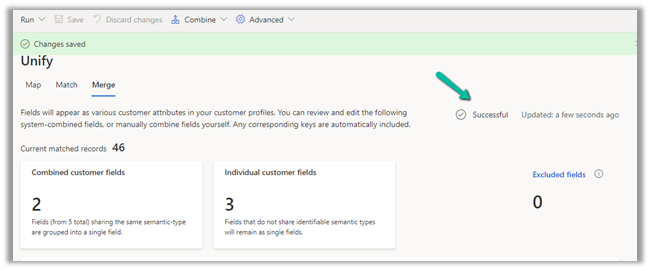
Time for Merge now. Clicking on Merge, we can see that it has auto-combined 2 fields first name and last name.

We have the option of Editing, renaming, separating, excluding, moving fields up and down.

We’d save and run the Merge.

For Run, we have 2 options –

Run Only Merge will affect the unified customer entity, whereas Run Merge and downstream processes will run enrichment, segments, measures process followed by changes in the customer profile.

Here we have selected Run Only Merge.

After around 5 minutes we can see the Merge successful.

Clicking on Customers asks us to configure the last step – Search & filter index.


Click on Add fields to define fields for searching and filtering.

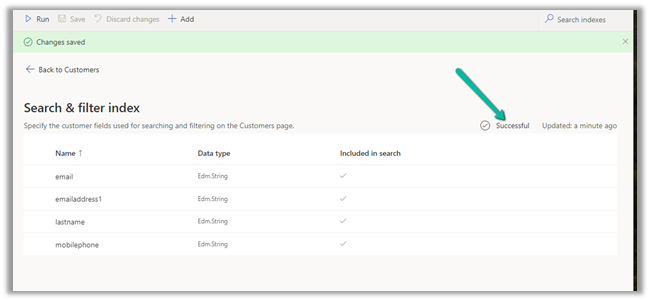
We have selected below fields for indexing

Save and Run.

After a couple of minutes, we can see the indexing is successful.

Click on Back to customers to see our customer profile ready.

We will explore other features of Customer Insights in the coming posts.

Hope it helps..

Advertisements

How to – Delete Data Source in Dynamics 365 Customer Insights


While trying to delete a data source we might below error if we have already used it for Match and Merge for defining the customer profile.

“Couldn’t delete data source. To process, remove its entities from: Match, Merge.”

Click on Enrichment

Navigate to Match.

Here also we cannot remove the entities in Unify as we have already used them in Merge.

So let us navigate to Merge.

Select all the fields from the DataSource (CRMDataSource in our case) which we want to delete, and click on Exclude.

Save the changes.

Now navigate back to Match and we will get the option to remove the CRMDataSource.

However, we will still not see the option to save the change as we just have 2 entities there.

Here we can add a different data source’s entity, e.g. we added the contact from our test data source.

And saved the changes.

Now as the last step we need to remove the entity from the Map also.

Click on Edit fields and unselect the entity, followed by Apply.

Navigating back to Data Sources, we were able to delete the Data Source successfully now.

So in short, if we need to delete a data source, which we have configured for customer profile, we need to first remove its references from Merge, Match and than Map.

Hope it helps..

Advertisements

How to – Delete Audit data by entity / table, date, user access, and specify retention duration – updates in Dataverse (Dynamics 365 / CRM)


Recently we saw a new update in our sandbox environments with regards to Audits.

Login to Power Platform Admin Center, select an environment.

We can see a new section Auditing added.

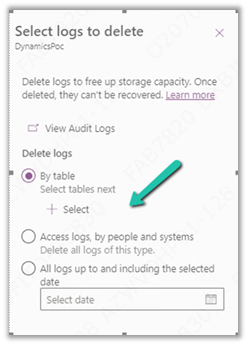
Click on Delete logs allows us to –

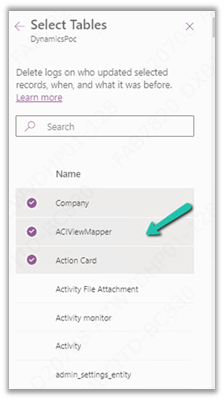
  • Delete logs by Table

We can select the tables there.

  • Delete only access logs data.
  • Delete logs up to the selected date.

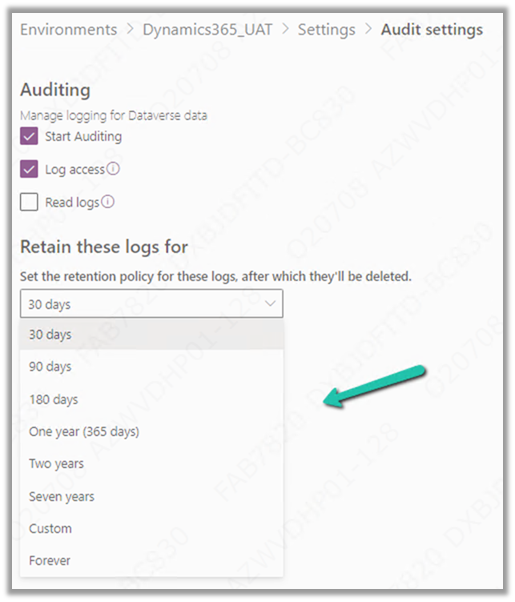
And now we can also manage or specify the retention duration for the audit log.

These are very useful updates to the Audit feature in the platform which more or less have been similar since CRM 3.0 days.

Check other posts on Audit – 

https://nishantrana.me/2021/08/31/audit-entity-table-few-key-points-dynamics-365-power-apps/

https://nishantrana.me/2021/05/17/how-to-export-the-audit-history-values-from-dynamics-365/

https://nishantrana.me/2018/10/08/using-kingswaysofts-cds-crm-source-component-to-get-audit-information-in-dynamics-365-ce-ssis/

How to – Use RetrieveAttributeChangeHistoryRequest to get audit data for an attribute (Dataverse/ Dynamics 365/ CRM) – Nishant Rana’s Weblog

Hope it helps..

Advertisements
How to – Import Data from Dataverse / CRM to Dynamics 365 Customer Insights

In the last post, we had set up the trial version of Dynamics 365 Customer Insights.

https://nishantrana.me/2022/01/26/how-to-set-up-dynamics-365-customer-insights-trial/

Currently, our trial instance has no data.

We can ingest data into Dynamics 365 Customer Insights from Microsoft Dataverse either using Microsoft Power Query (Dataverse Connector)

or Microsoft Dataverse import method.

The Microsoft Dataverse import method doesn’t copy the data into the Customer Insights / Audience Insights Data Lake, however, it doesn’t allow for Extract, Transform, Load (ETL) as in the case of Microsoft Power Query data source.

Select Audience Insights >> Data >> Data Sources >> Choose your import method – Microsoft Dataverse

Provide a name to the data source and click on Next.

Enter the Server address, Sign in, and click on Next.

Select the Entity, here we have selected the contact entity for now.

We can see the data source is being refreshed.

We have the option of stopping the refresh.

We are having 100 records in our contact entity inside CRM.

It took around 5 hours for the refresh to complete successfully.

We have the option of Edit, Refresh and Delete on the Data Source after the successful refresh.

We can see the contact entity available within Data >> Entities section

Clicking on contact, we can see the Attributes used and Data in it as well as the option to download the data.

The download will be downloading the first 100K records.

Now when it comes to creating a unified customer profile through (MMM) i.e. mapping, matching, and merging, it requires a minimum of 2 entities to be there, to generate the Customer Profile.

In the next post, we will import some sample contact data from a local excel file and use it for further configuring our customer profile.

How to – Import Data from local data files to Dynamics 365 Customer Insights

How to – Unify (Map, Match and Merge) Entities in Dynamics 365 Customer Insights

Hope it helps..

Advertisements