Configure Facebook Channel – Omnichannel (Dynamics 365 Customer Service)


To set up the Omnichannel –

To setup Facebook Channel,

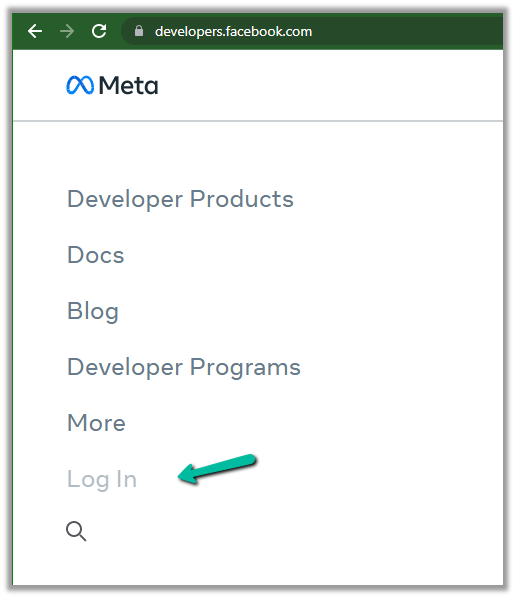
Login to https://developers.facebook.com/, create a new account or use an existing developer account
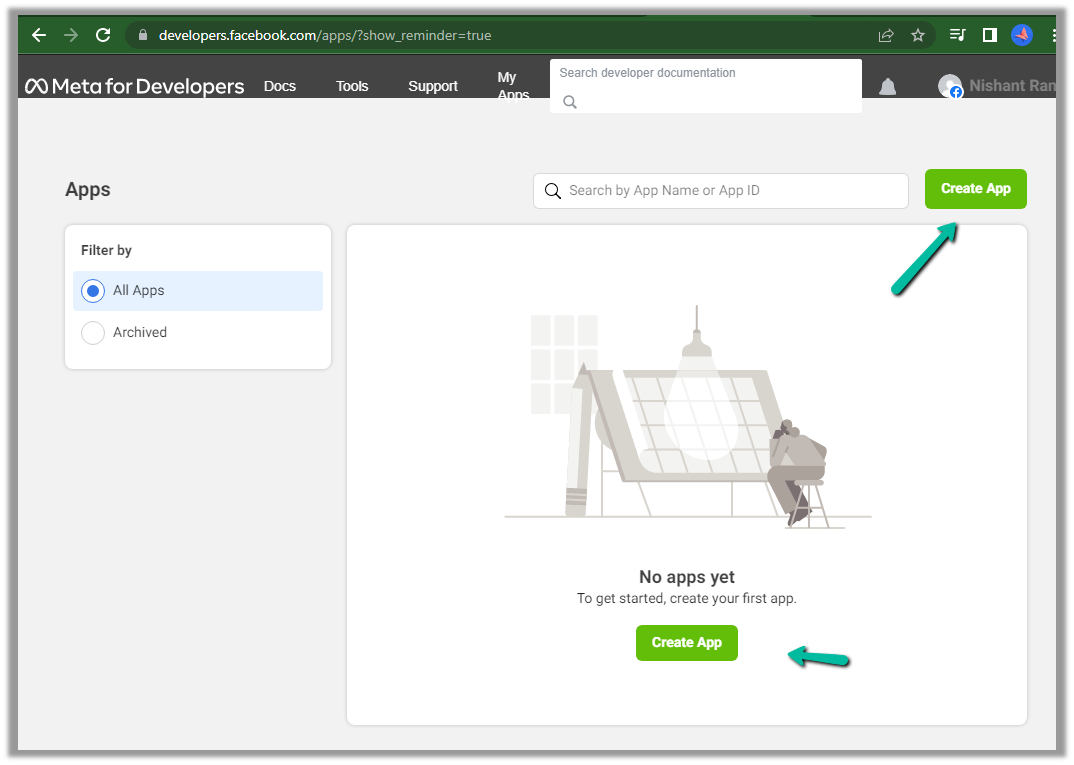
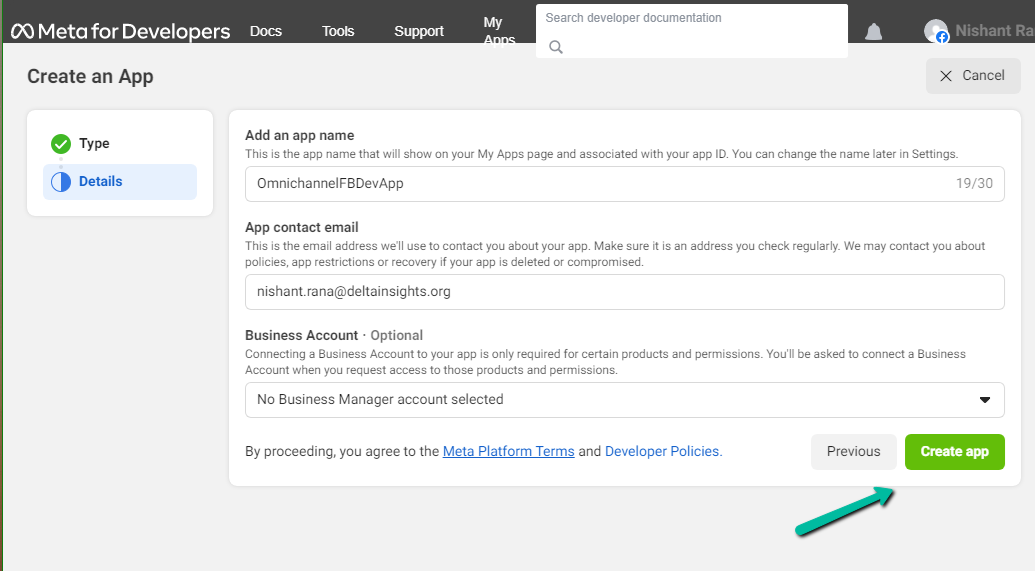
Create a new Facebook App
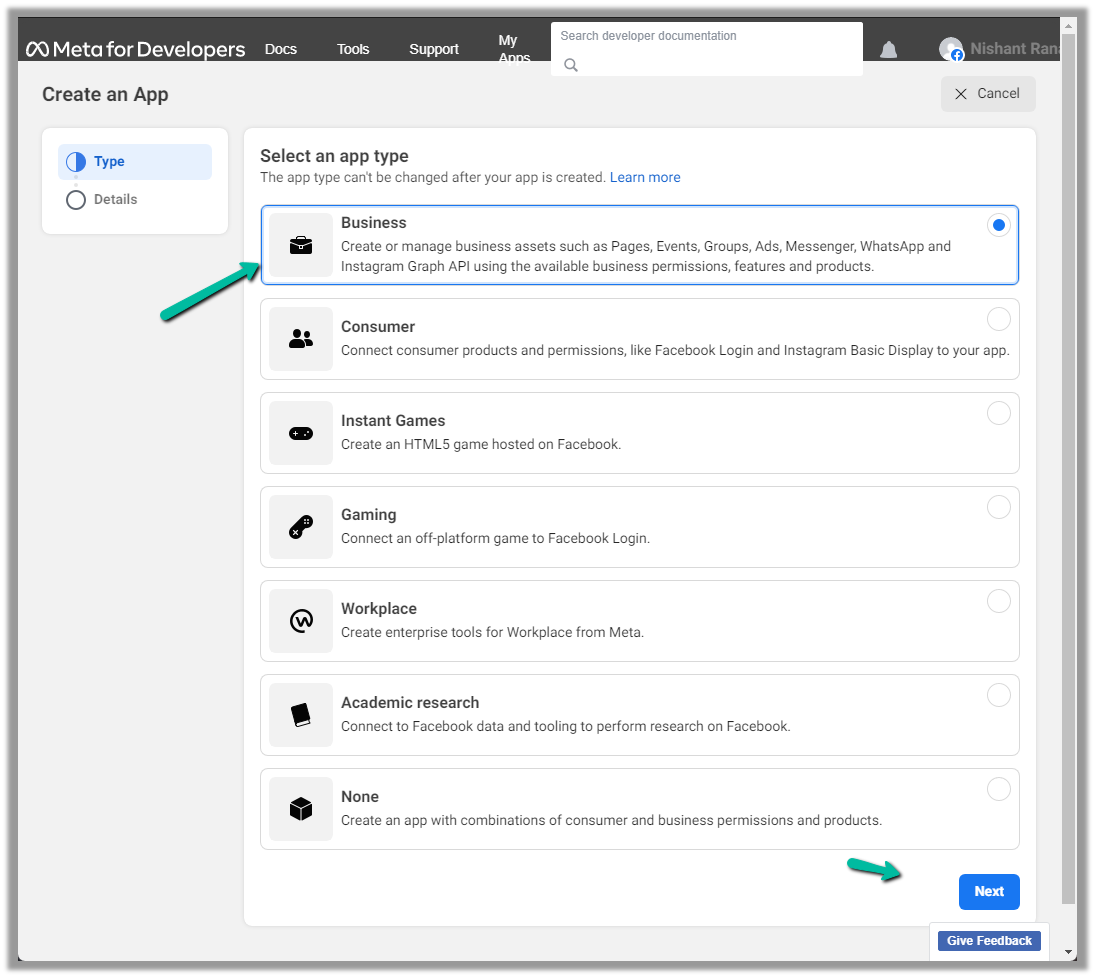
Select the app type as Business
Provide an appropriate name and create the app.
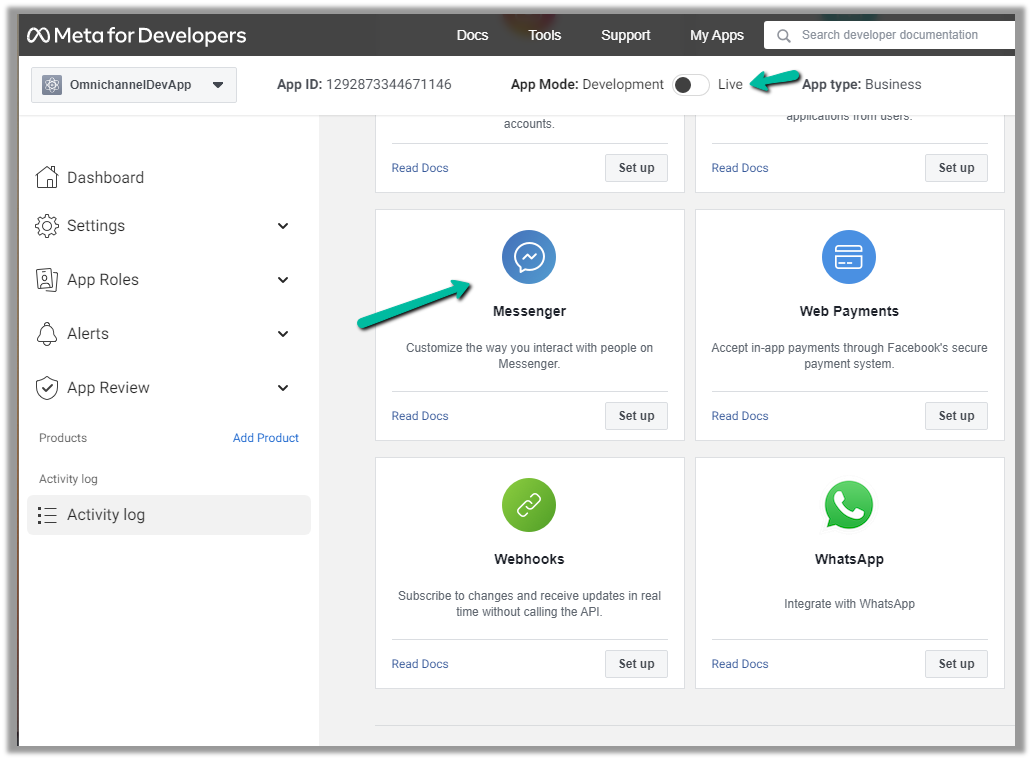
Select Messenger as the Product for the app.
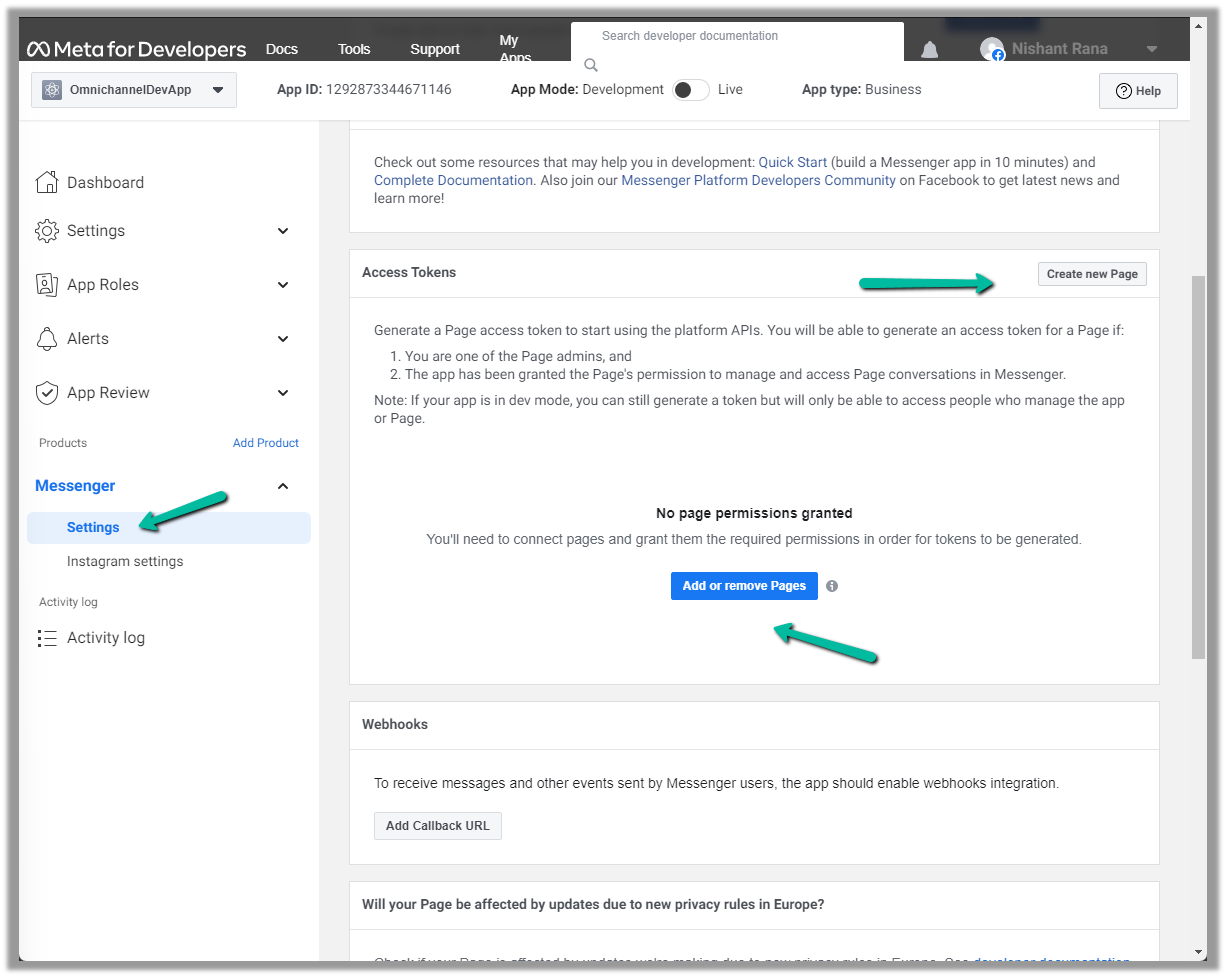
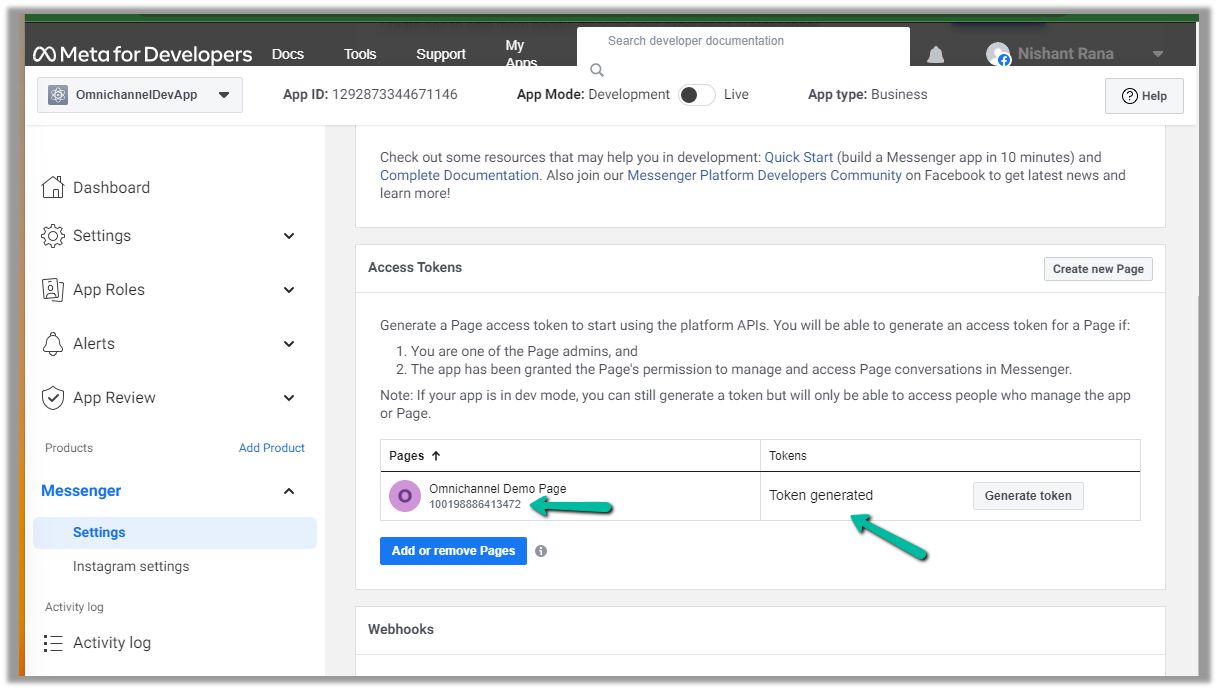
Next either  add an existing page or create a new one and then add the newly created page in the Messenger >> Settings

Here we created a new page and have added that page.
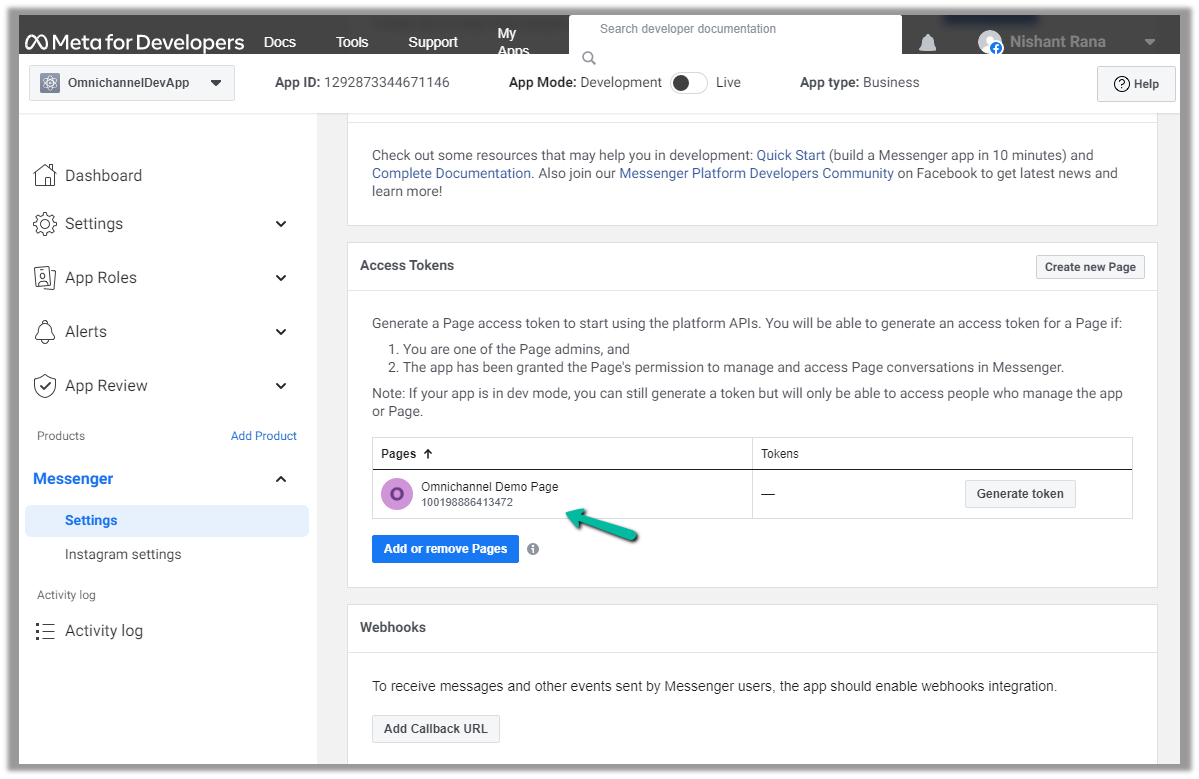
We can also Generate token for the page, which we will use while configuring Facebook Channel in Dynamics 365.

Click on Generate token and copy the token. Also, save the Page Id below the name of the page.
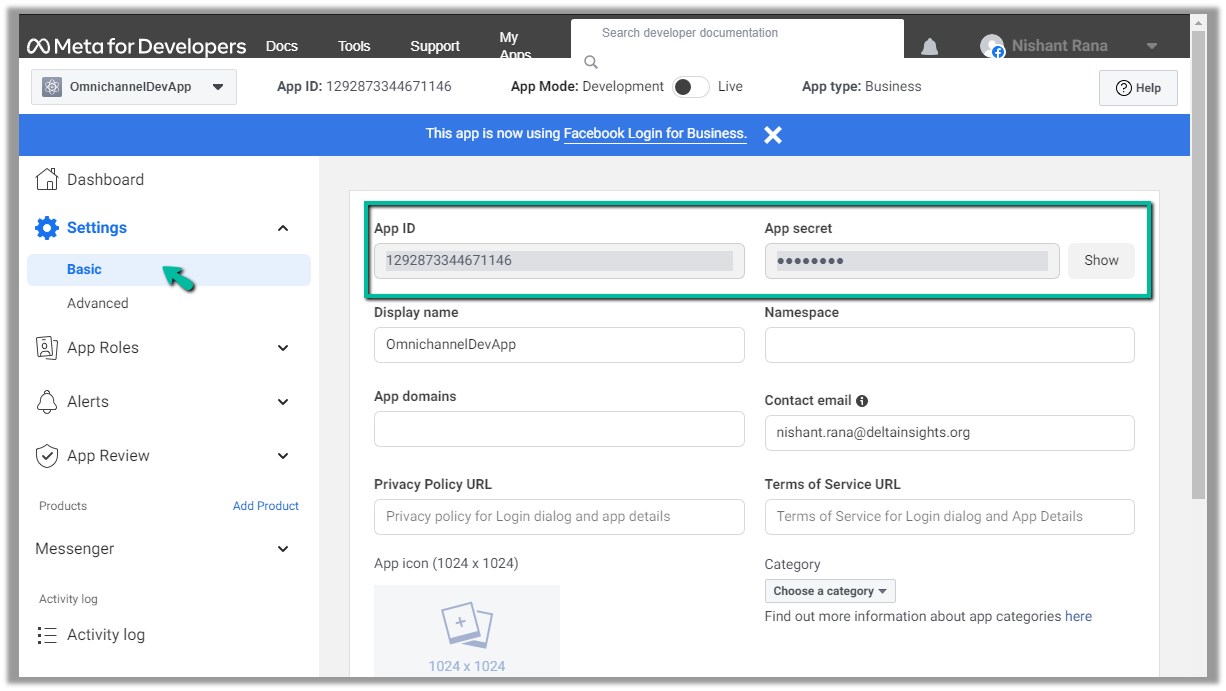
We will also need App ID and App Secret, which we can get from – Settings >> Basic
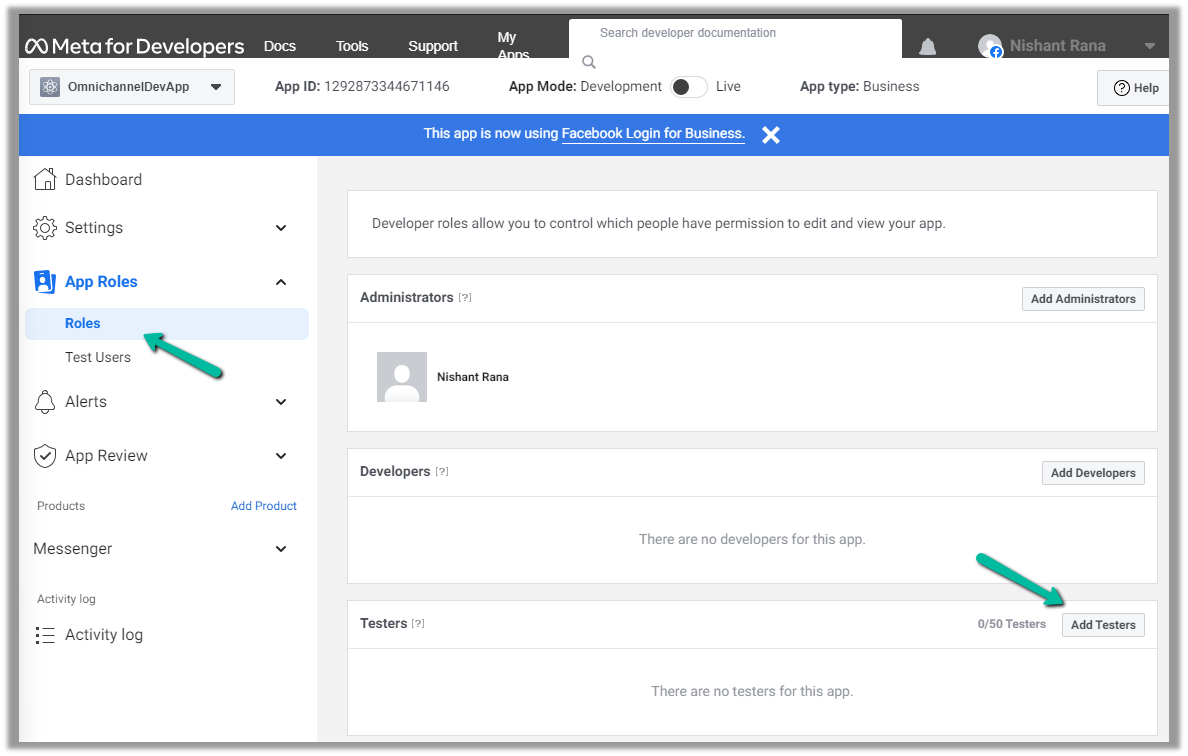
Next, we add a few test accounts to the app for testing/using the app. (we are not making the app publicly available or live, which would require and approval process)

Navigate to App Roles >> Roles >> Testers (Add Testers)
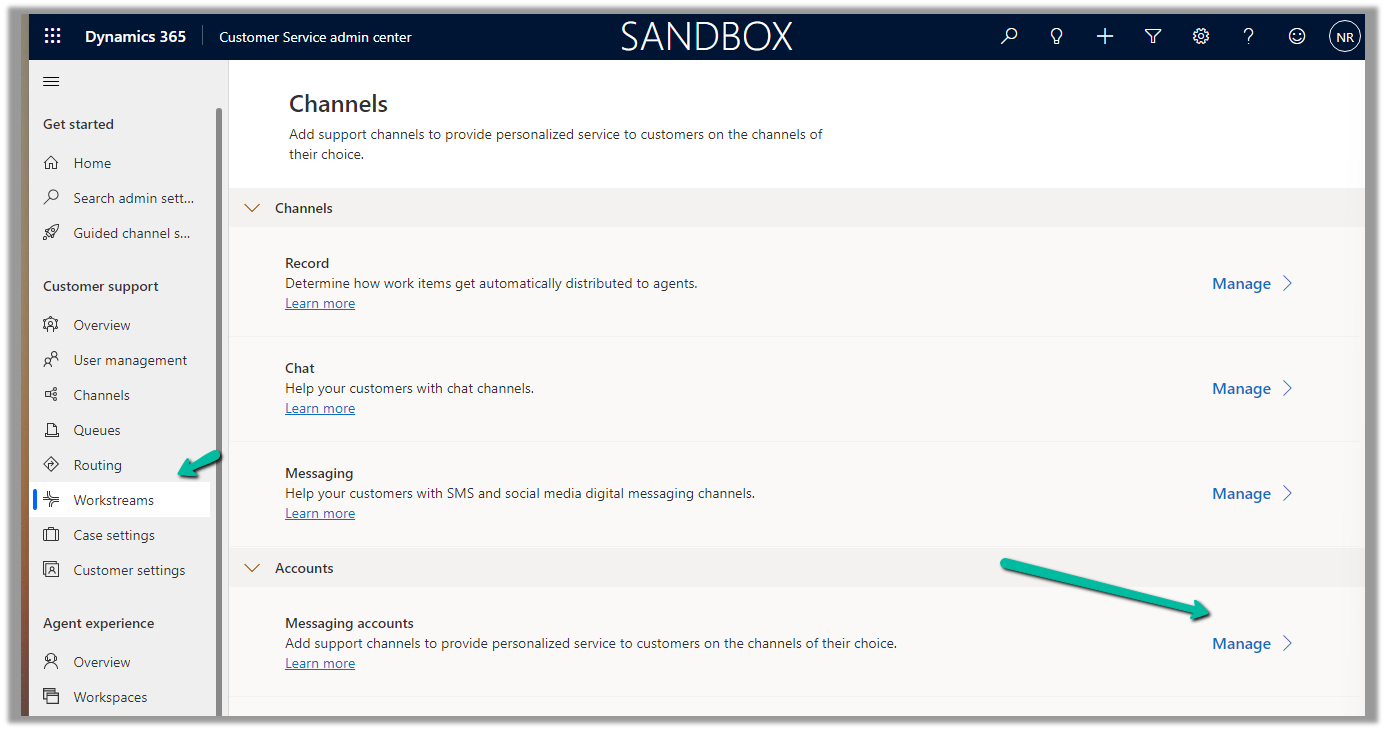
Back in Customer Service Admin Center, navigate to Customer Support >> Channels >> Messaging Accounts (Manage)
Add a New Account
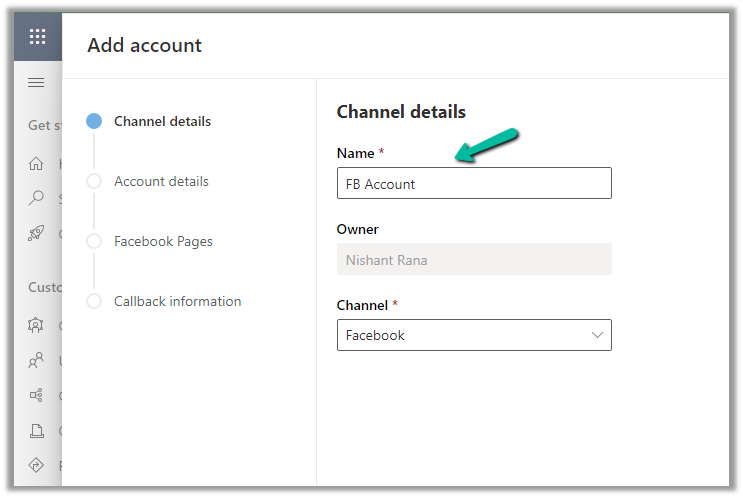
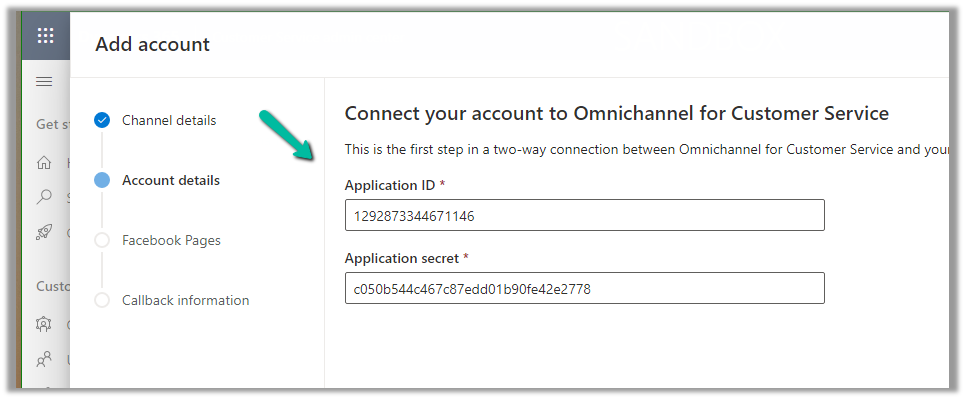
Click Next and provide the App ID and Application Secret
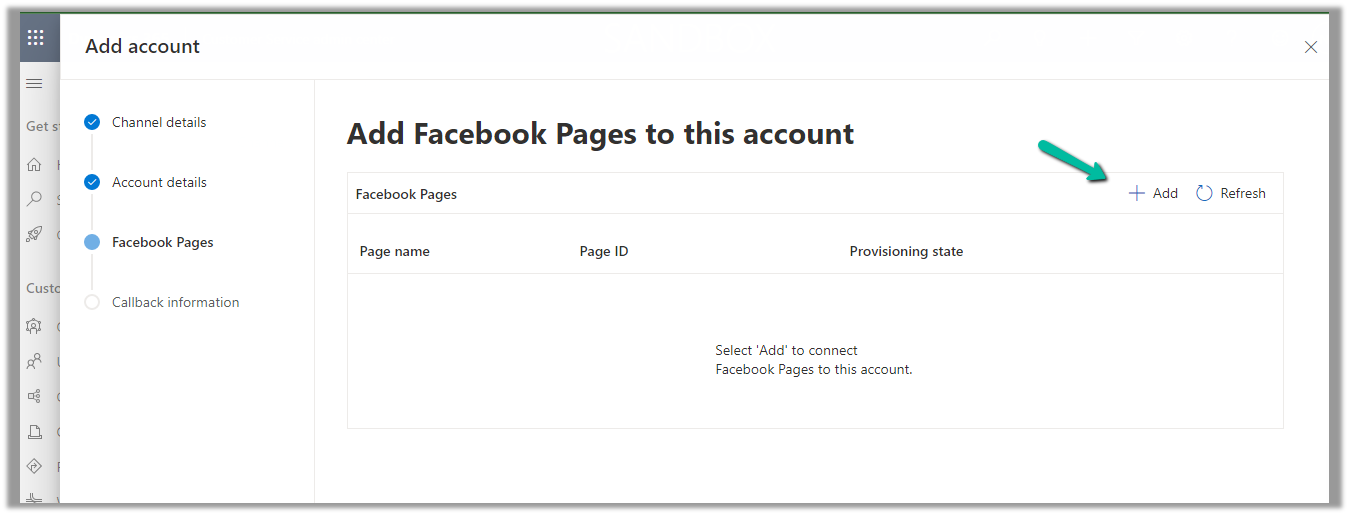
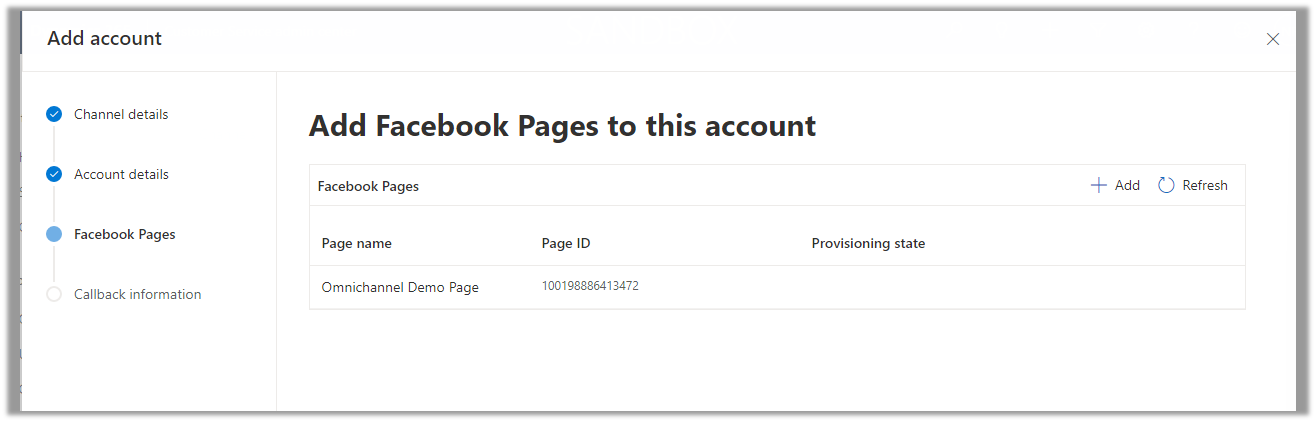
Add Facebook Page to the account
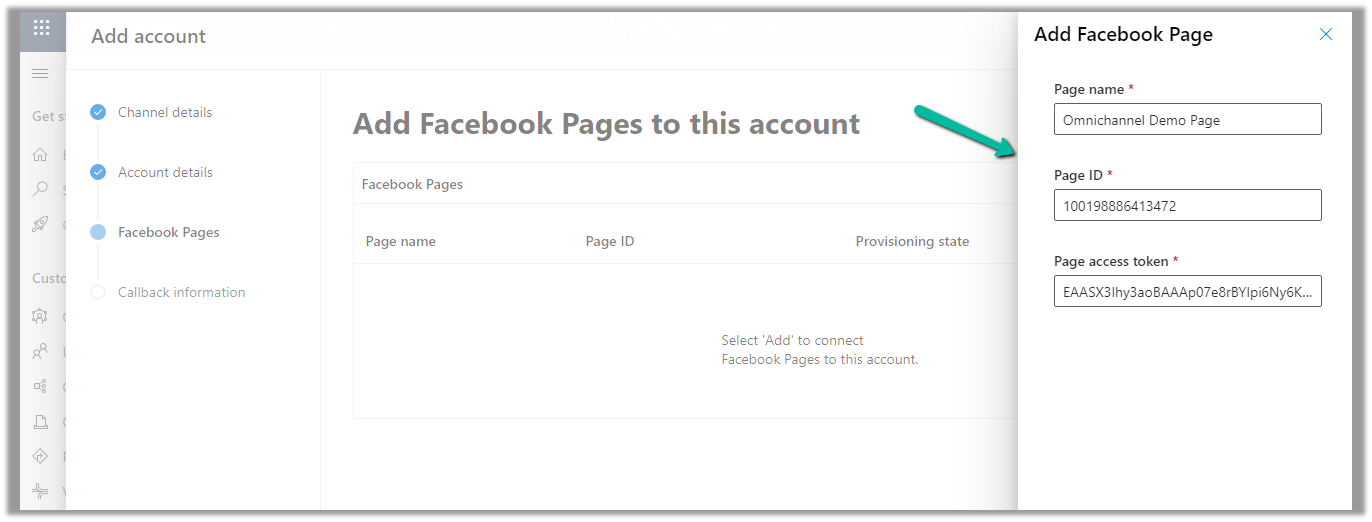
Provide the Page name, Page ID, and the Page access token.
With the page successfully added, click on Next
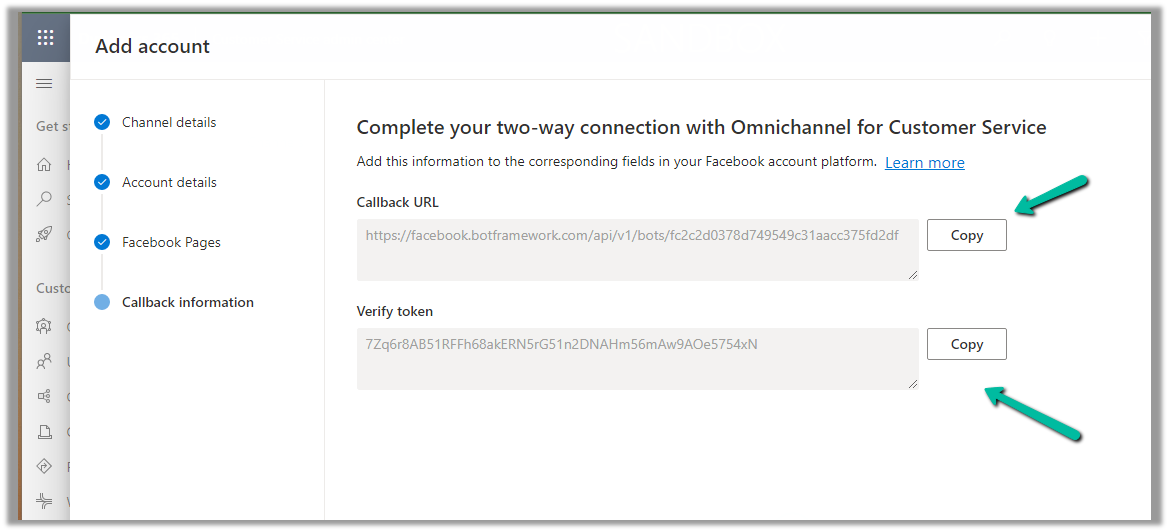
Copy the Callback URL and the Token.
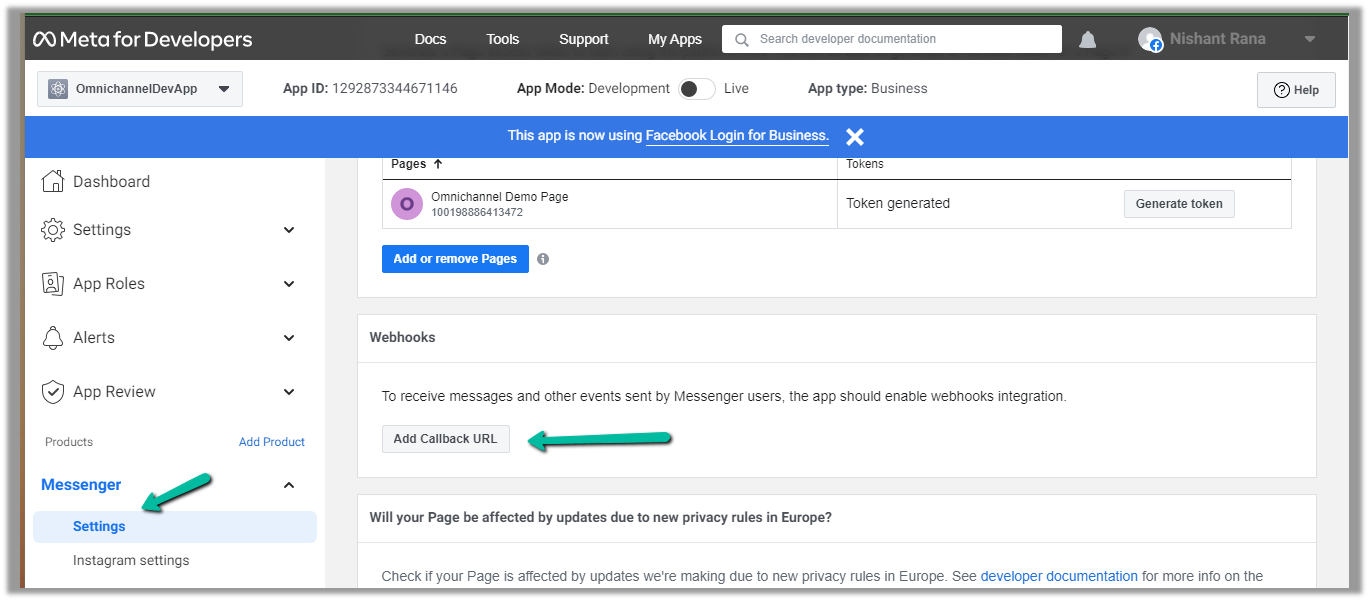
Paste this information in the Messenger product added.

Click on Add Callback URL.
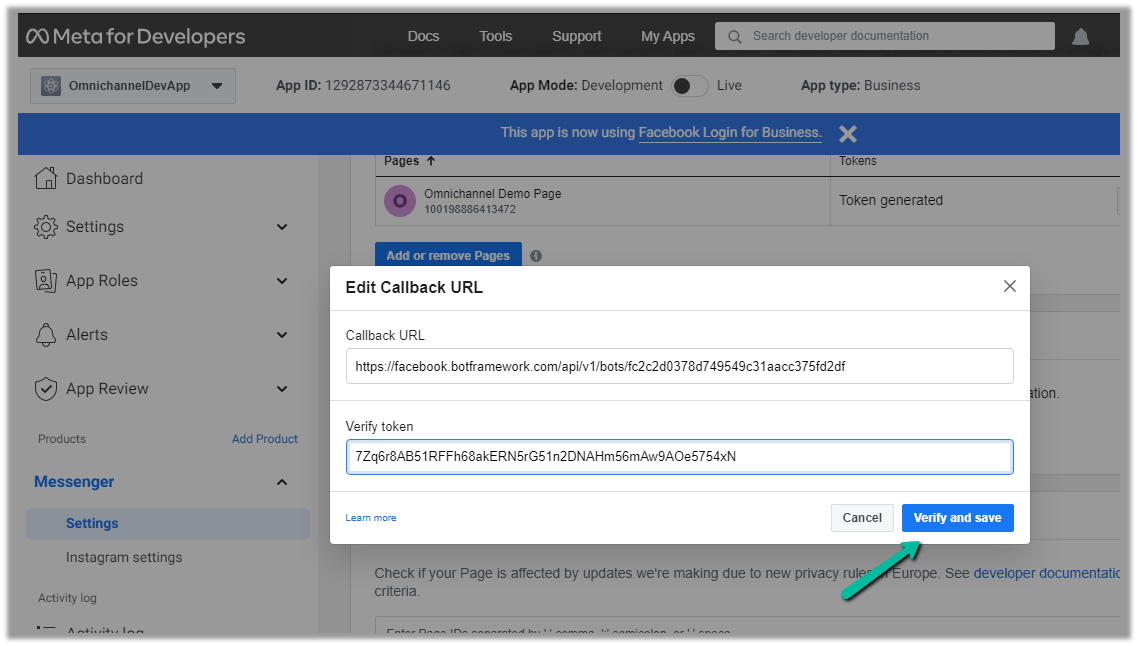
Click on Verify and save
This adds the Webhooks details, click on Add Subscriptions for the Page added.
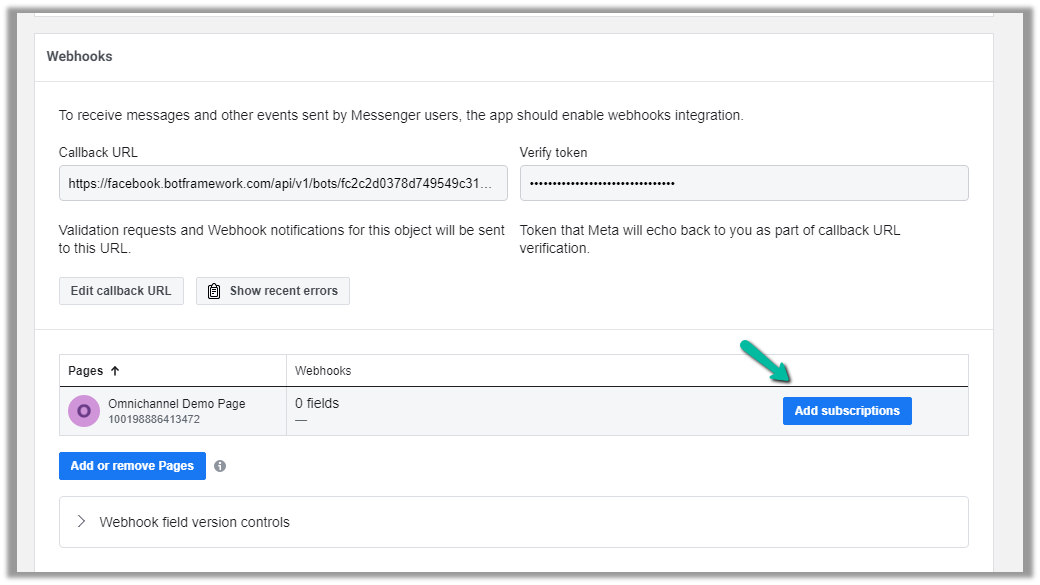
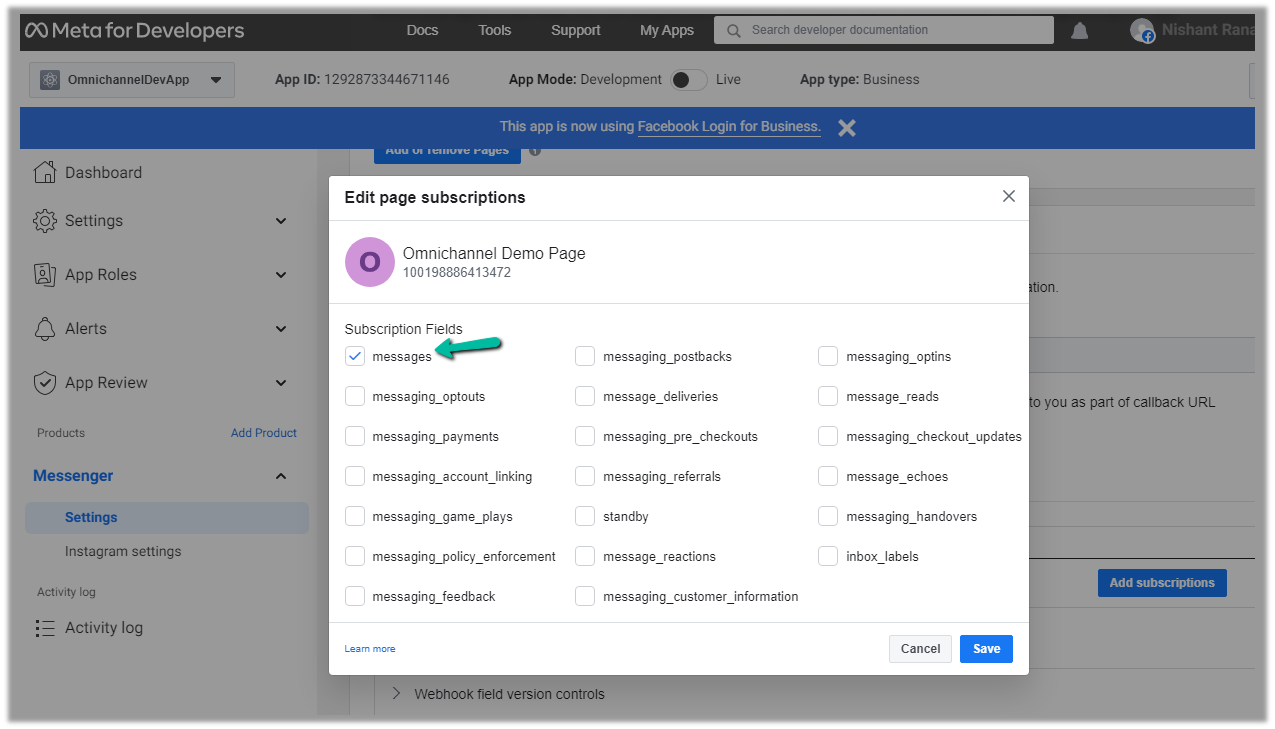
Select messages
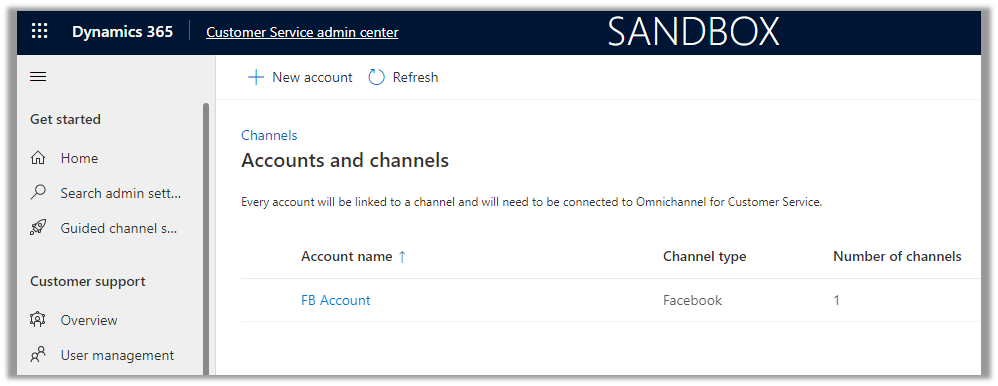
We can see the account added.
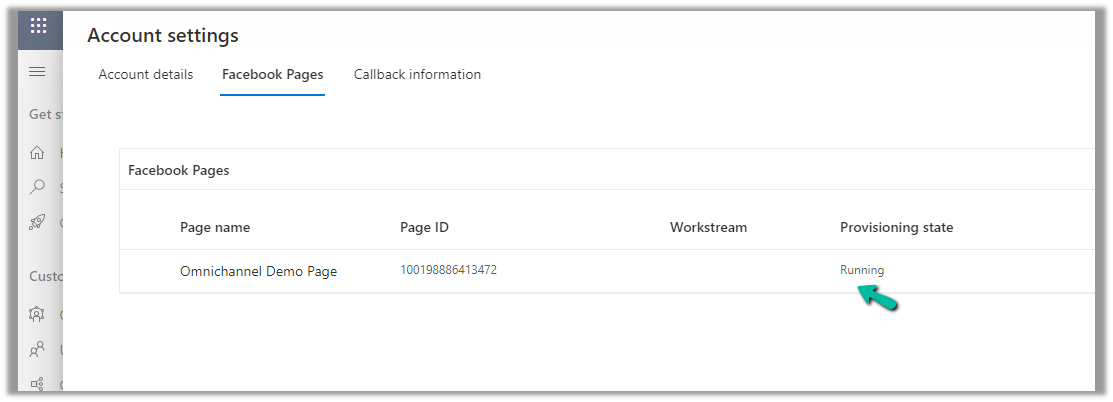
Open the record, and navigate to the Facebook Pages tab, there we can see the Provisioning state as Running.
Next, we will create a Channel for this Facebook Account.

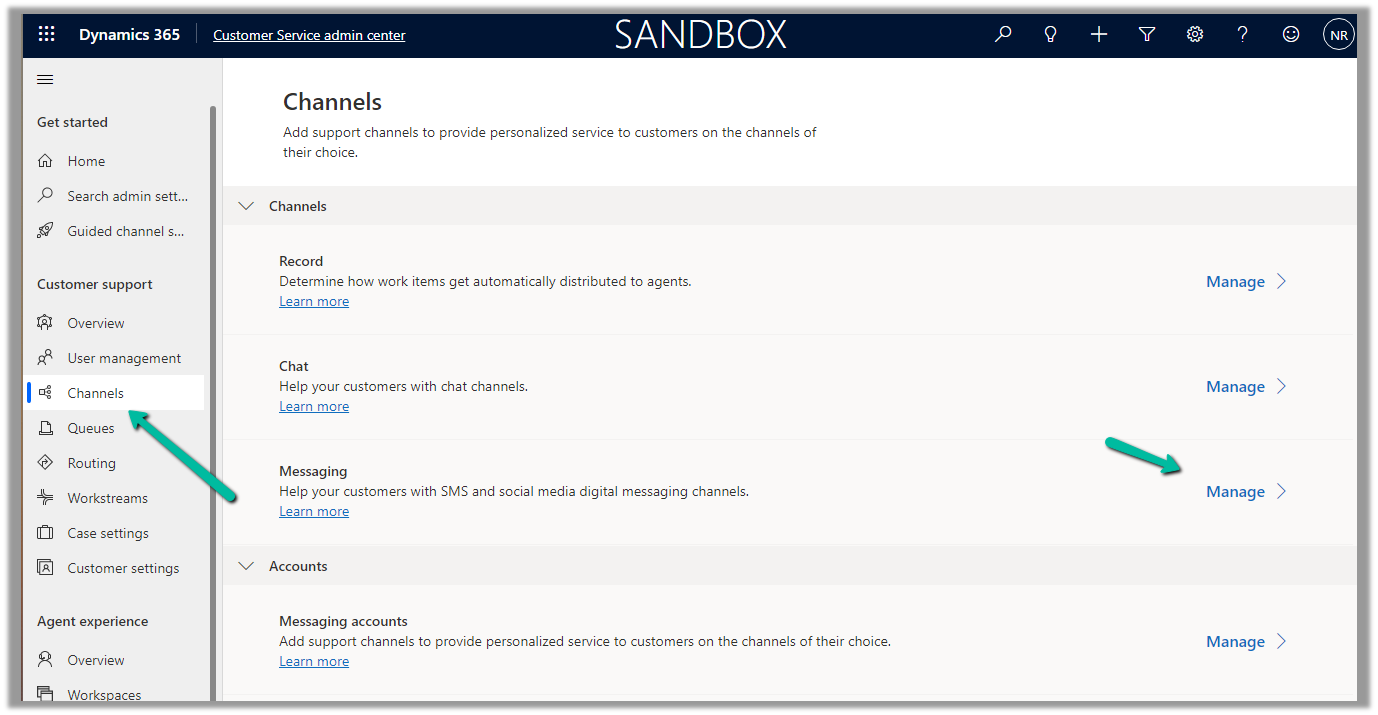
Navigate to Customer Support >> Channels >> Messaging (Manage) >> Add Channel
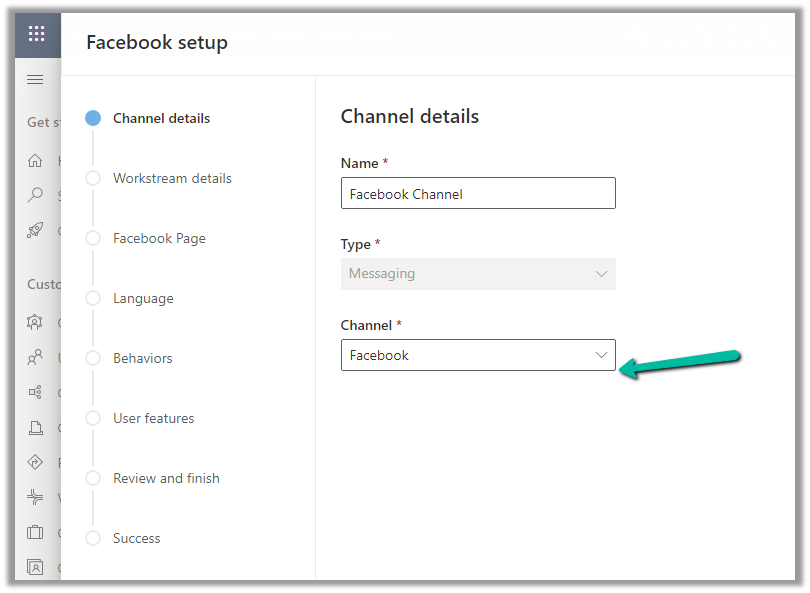
Select Channel as Facebook.
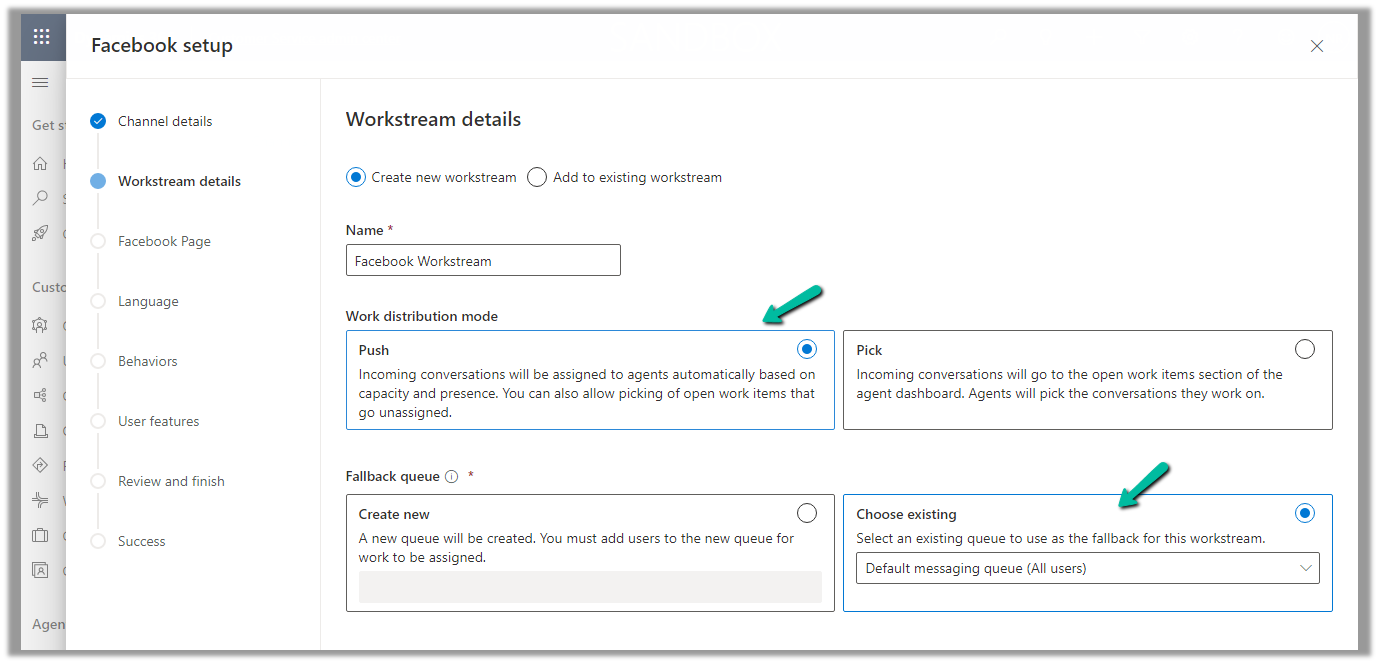
Add an existing workstream or create a new workstream.
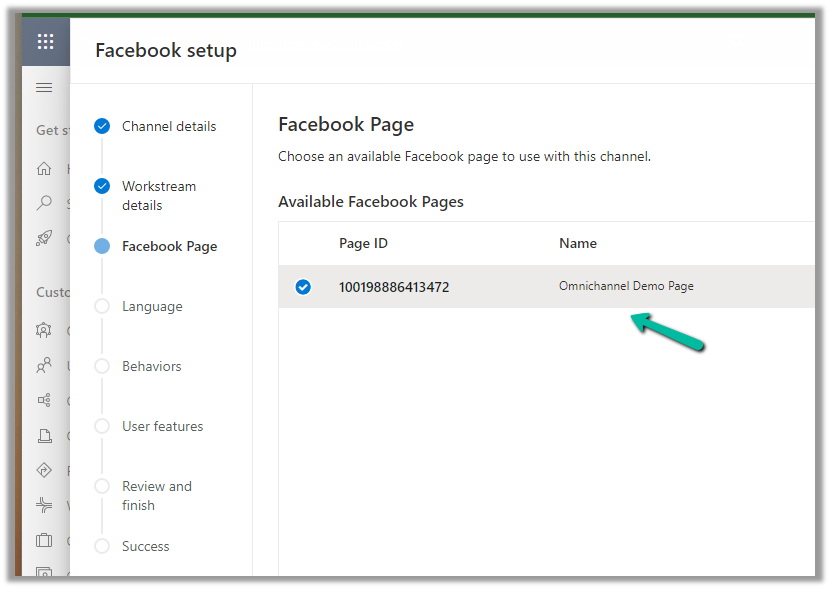
Next, select the Facebook Page configured in the previous steps.
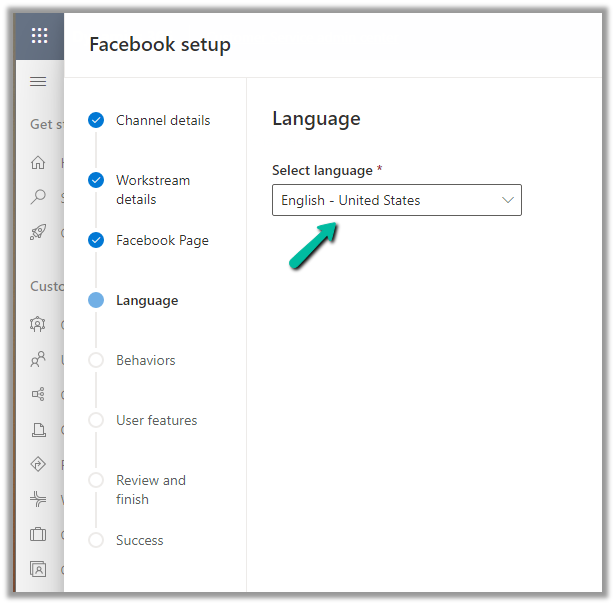
Language as English.
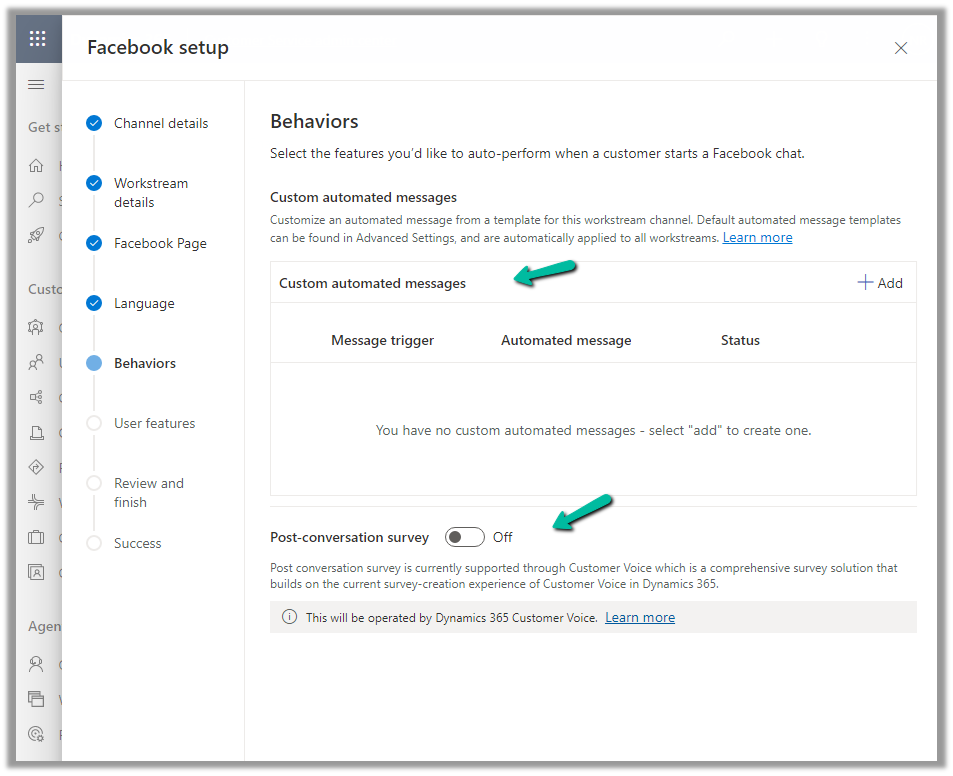
We can specify custom automated messages and Post Conversation survey settings here.
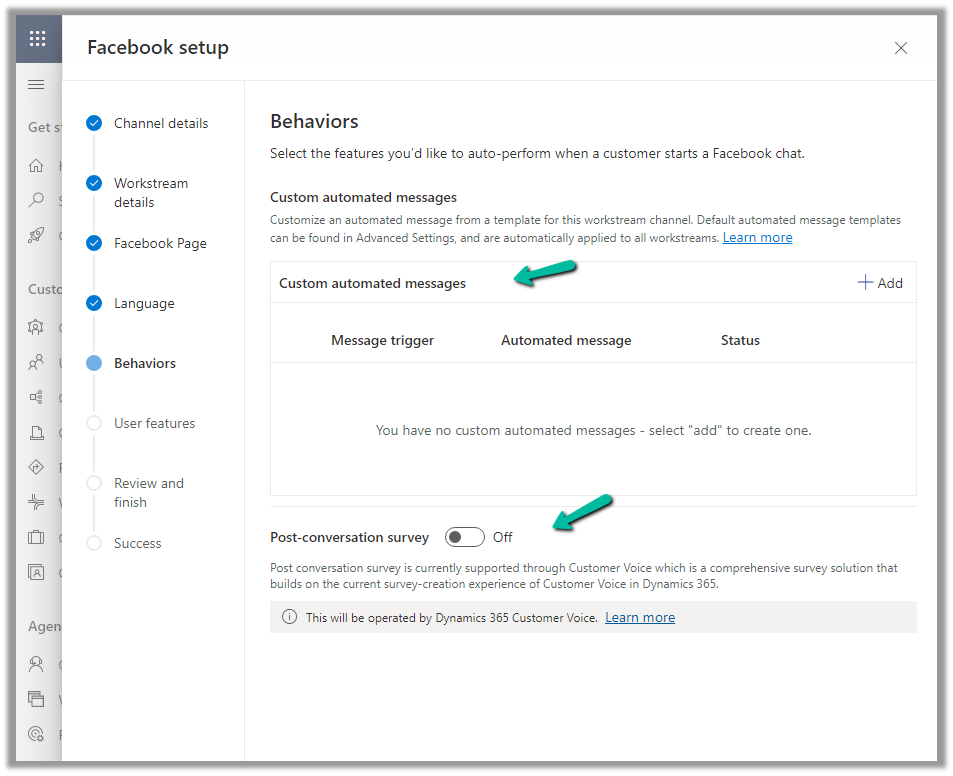
Specify the File attachments setting and message tag.
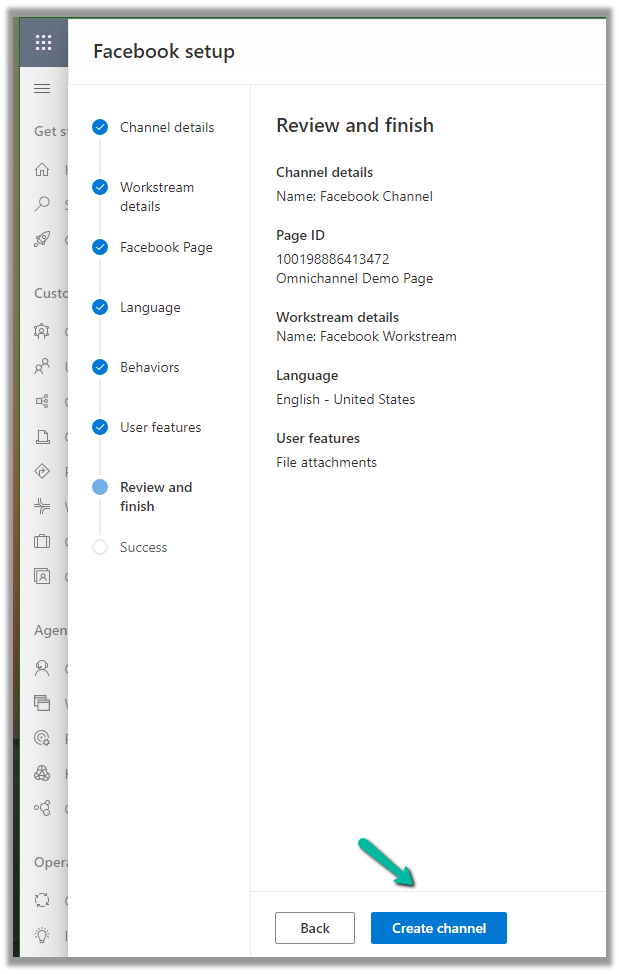
Review and if required edit the details and finally click on Create channel to create the Facebook channel
Next open the workstream created, to specify routing rules, work distribution, bot, etc. to route the customers to the queues/agents.
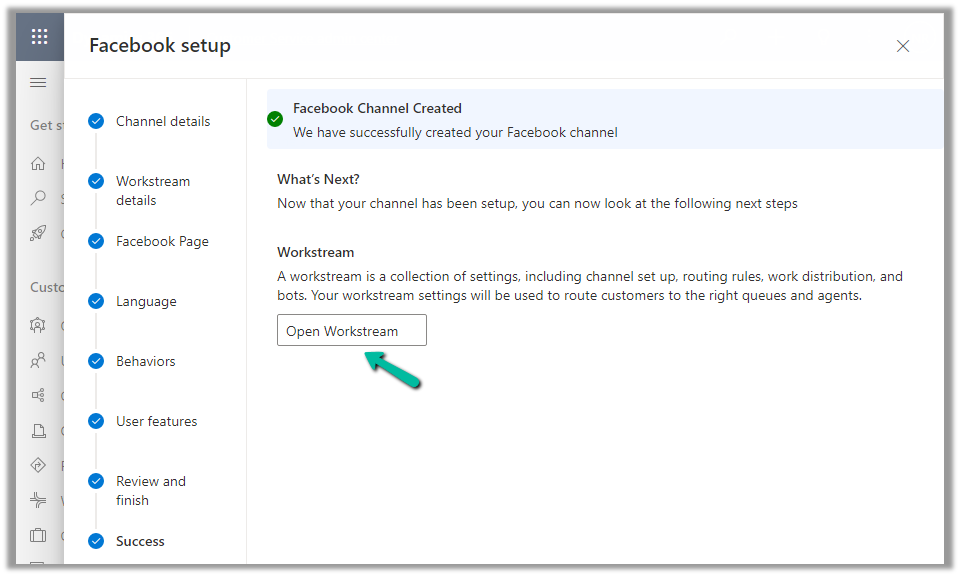
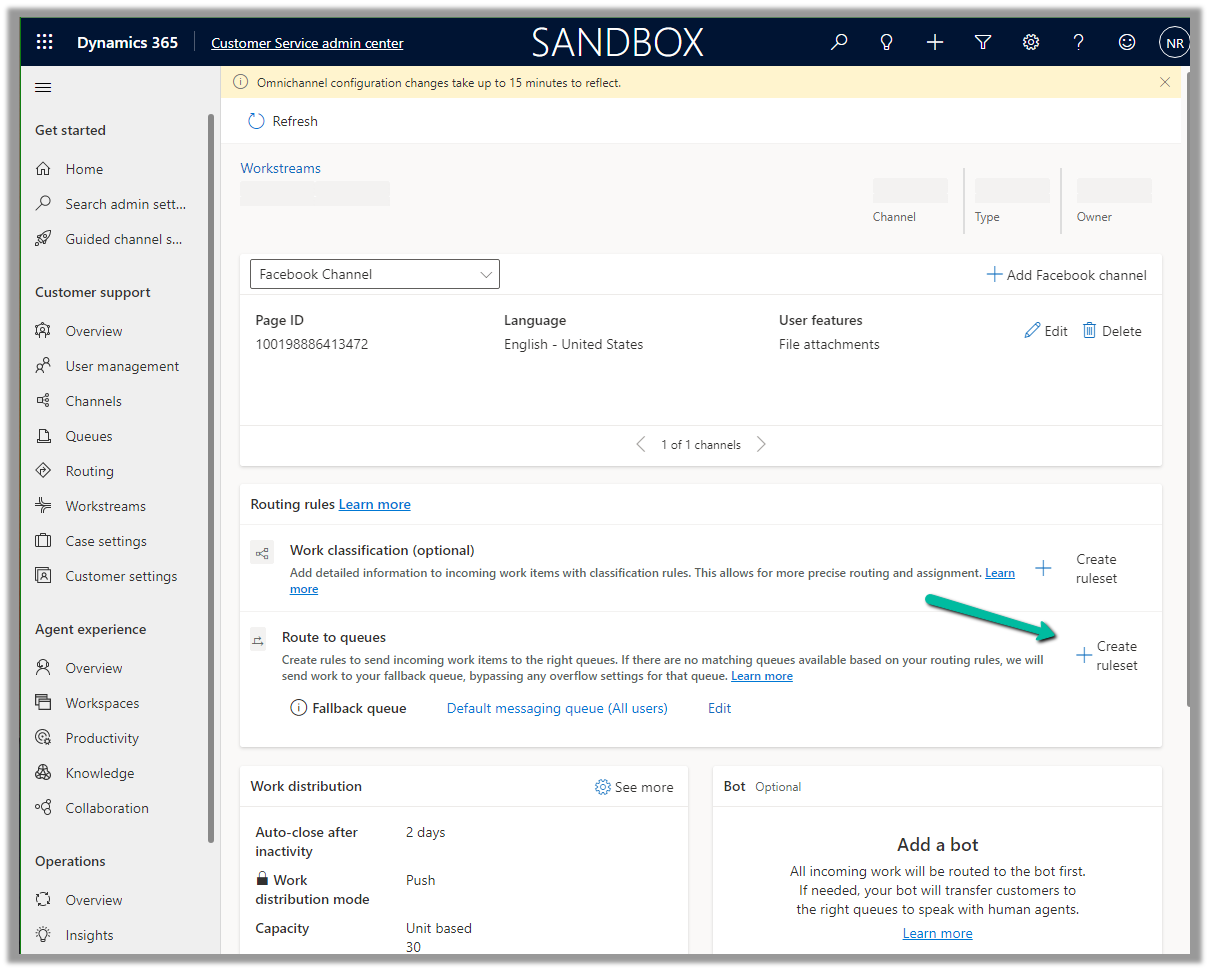
Here we can create a Route to Queue ruleset to route the messages on the Facebook page to a specific Queue.
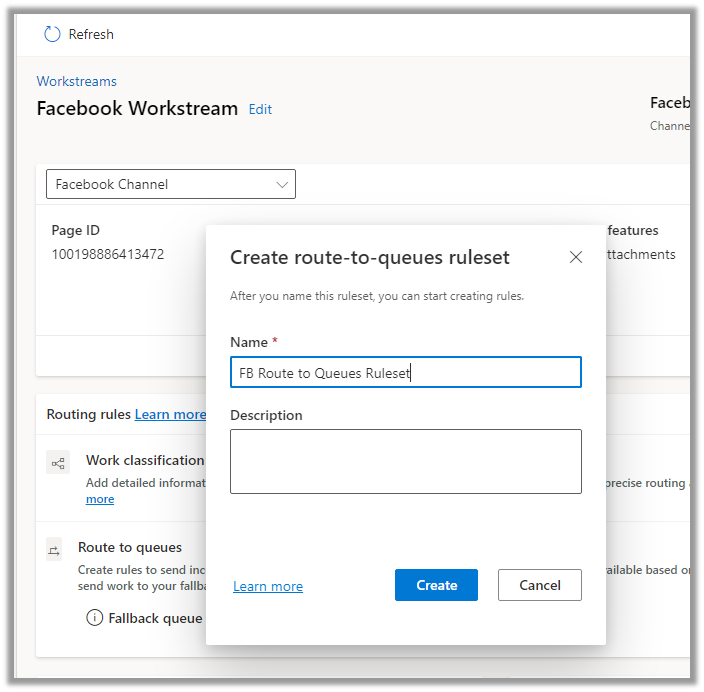
Create the ruleset record.
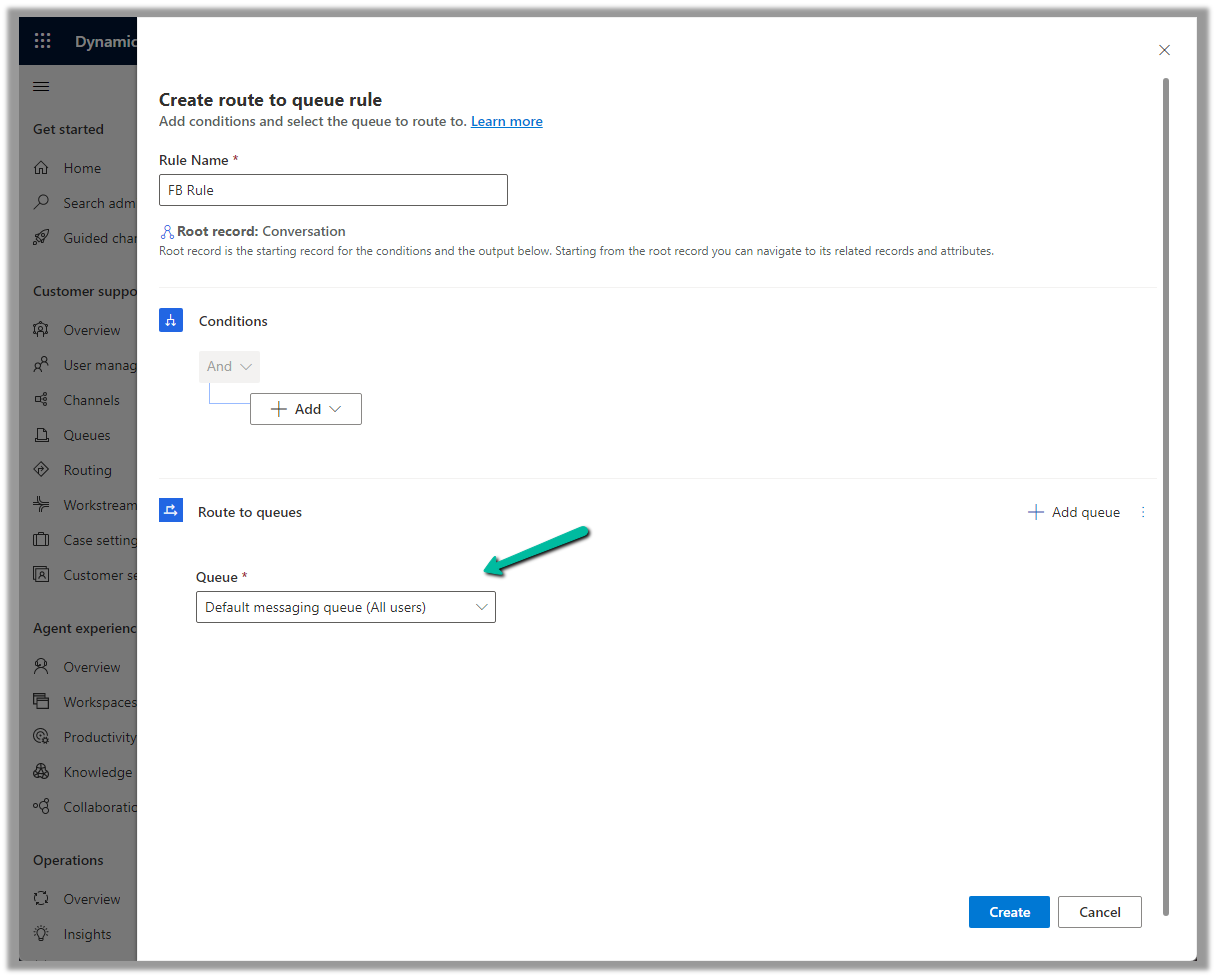
Next, Create a rule. We can define the conditions here (right now we are keeping it blank) and routing to the Default messaging Queue (we can create a specific queue and add only the required users).

Make sure you have added users to the Queue and assigned Omnichannel Agent security roles.
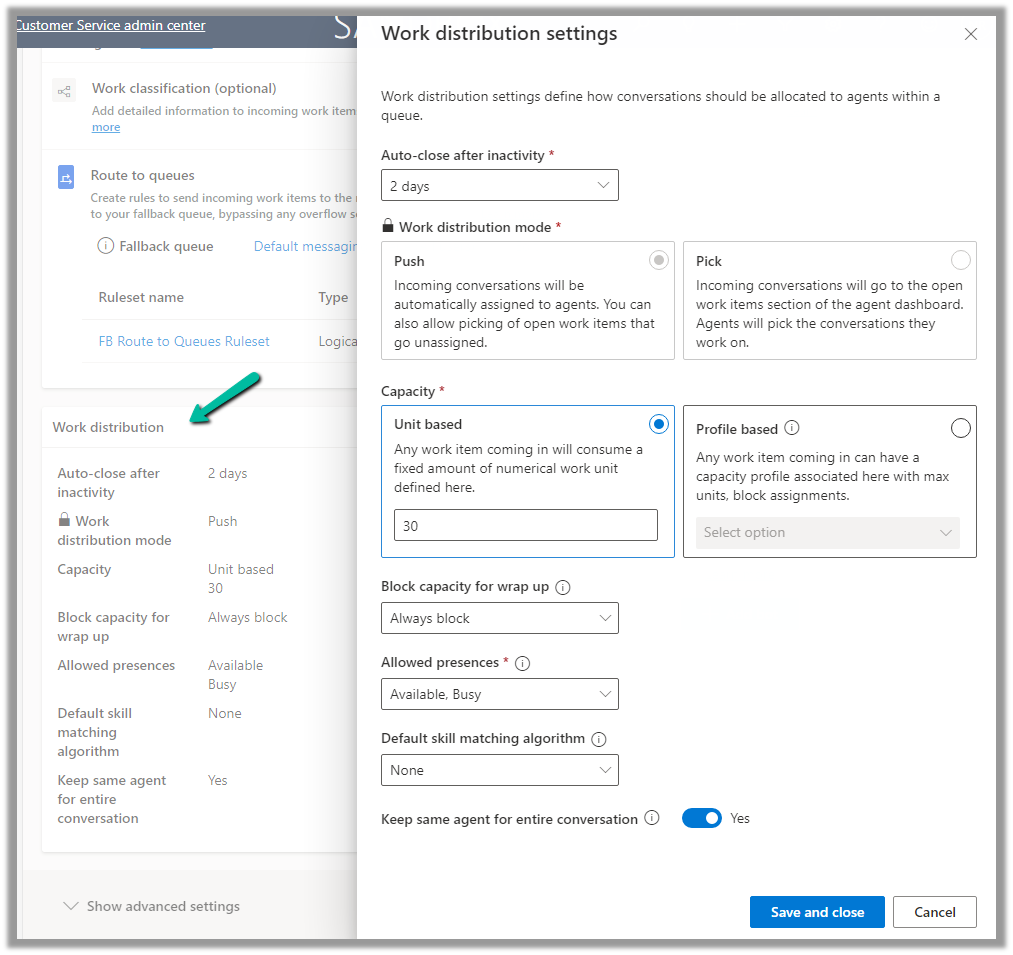
We can update the default Work distribution properties.
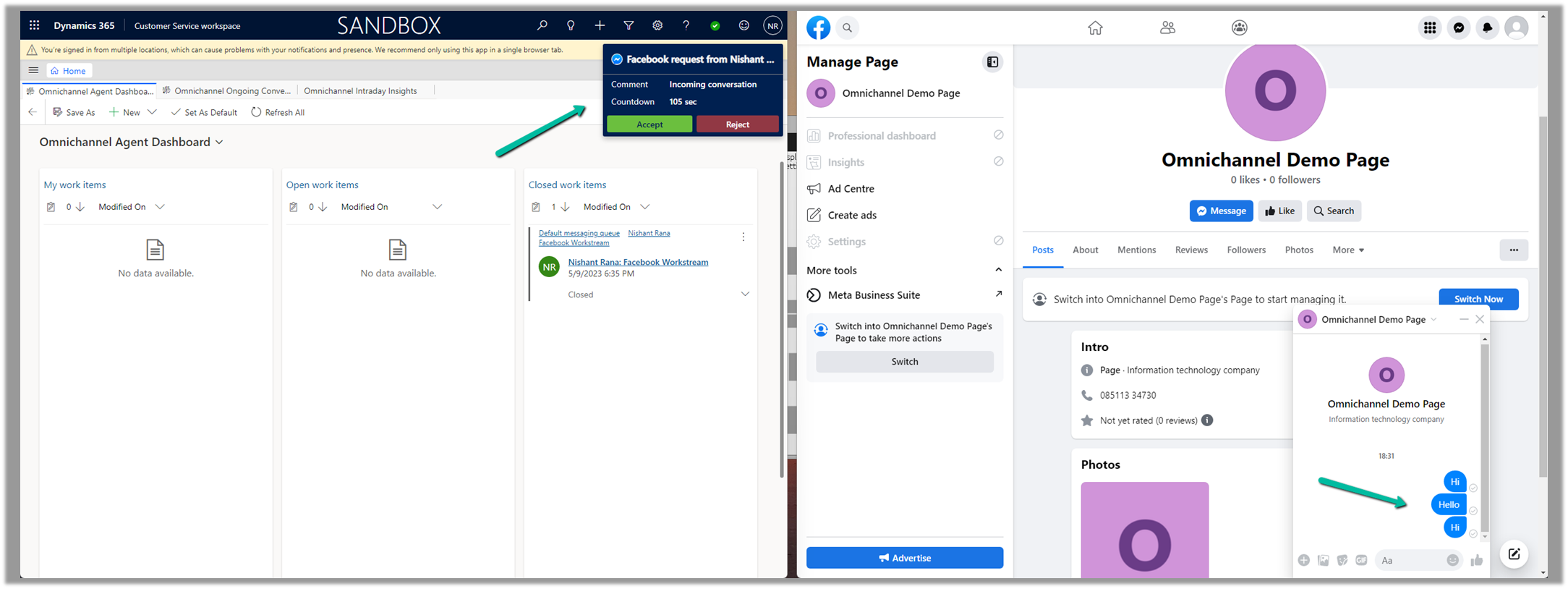
Now sending the message from the Facebook Messenger, will pop up the notification for the agent logged into Customer Service Workspace.
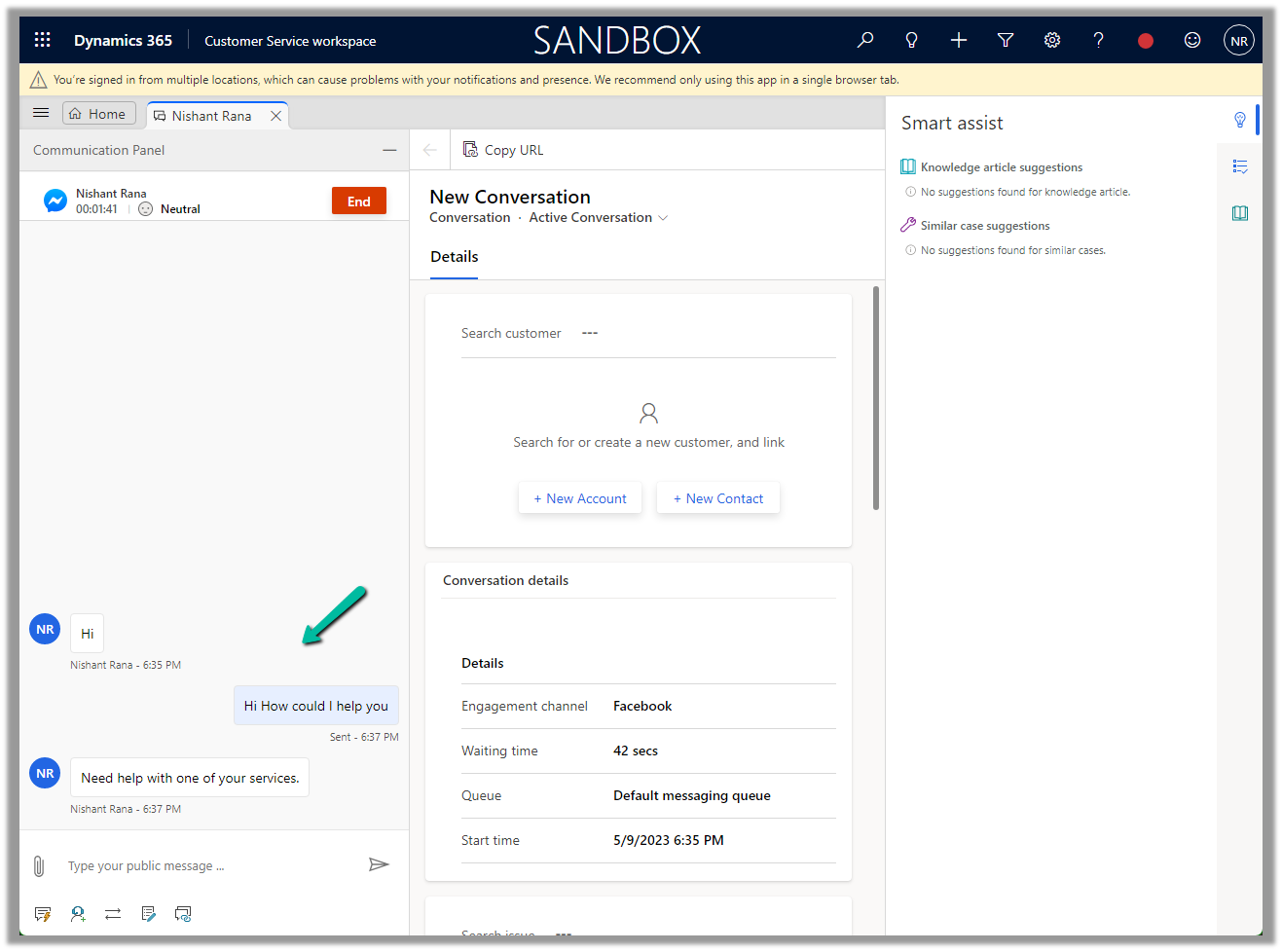
Accept the notification to start the conversation.
Refer to the below articles-

https://learn.microsoft.com/en-us/dynamics365/customer-service/configure-facebook-channel?tabs=customerserviceadmincenter

Hope it helps..

Advertisements

Fix – Missing dependencies error while importing solution (Dynamics 365)


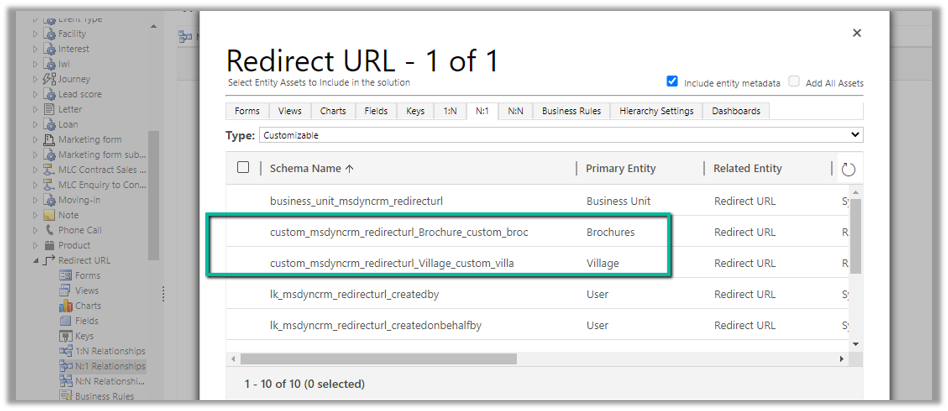
Recently while importing the solution in our UAT we got the below error –

It was showing the above entity relationships missing in the solution. We could not find them inside the Power Apps Maker Portal, to add them in the source solution.

Interestingly enough we were able to find them from the classic solution explorer.

Adding them to the source solution and trying the import fixed the issue for us.

Hope it helps..

Advertisements

Enhanced Case experience – Full case form – Dynamics 365 Customer Service


Enhance Case Experience is currently available only for the Customer Service Workspace app which targets to increase the productivity of the agent.

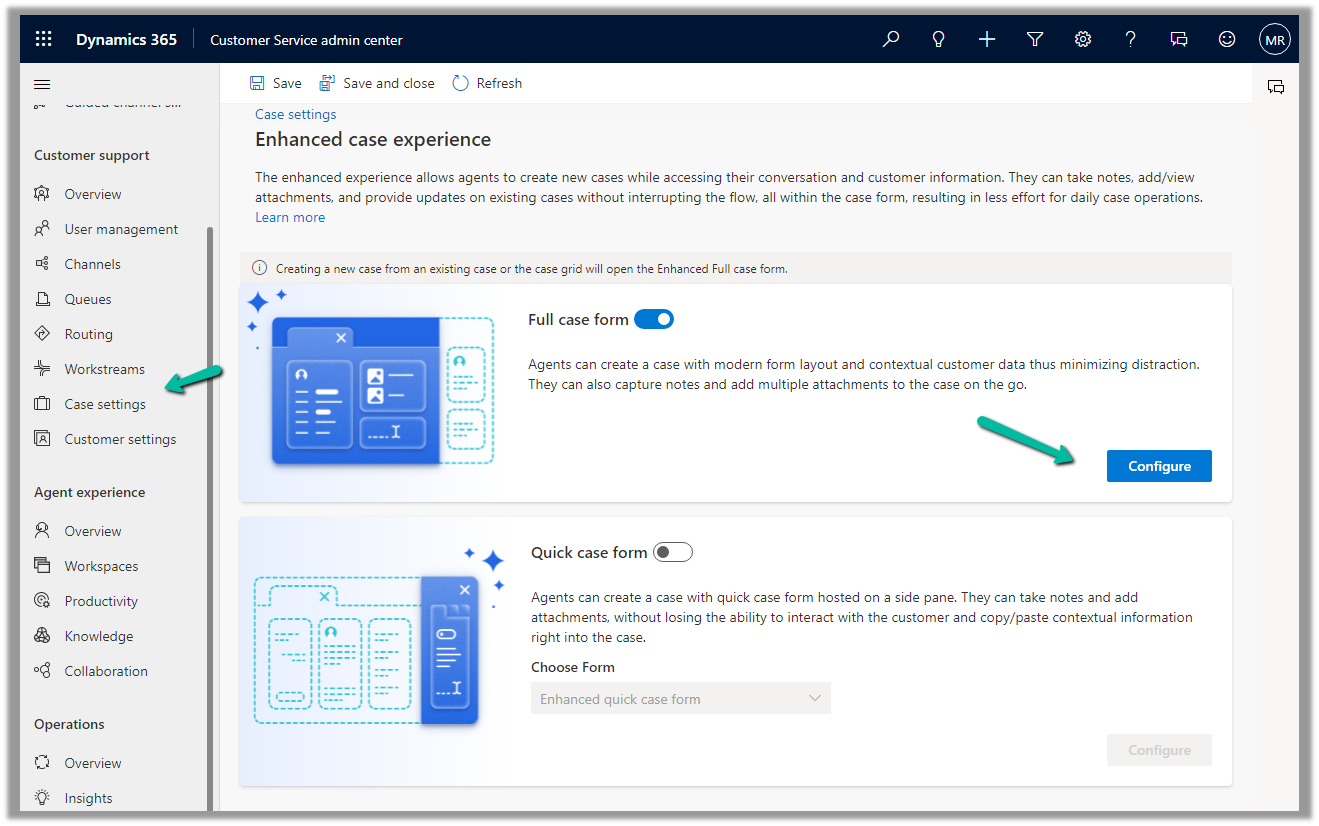
To enable it, navigate to Customer Service Admin Center >> Customer Support >> Case Settings >> Enhanced case experience (Manage)

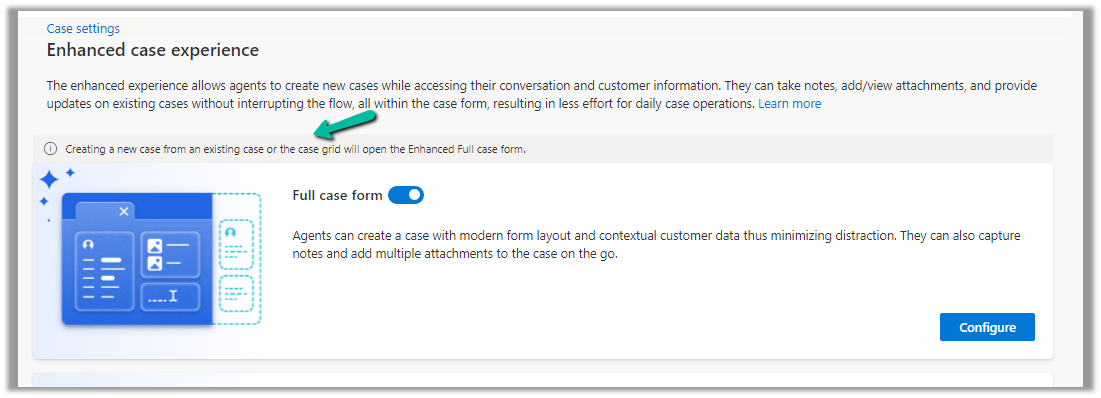
Enable the options – Here we have enabled the Full case form experience.

The new case form will show up while creating a new record from an existing case or the case grid.

Clicking on Configure opens the form in the Maker Portal.

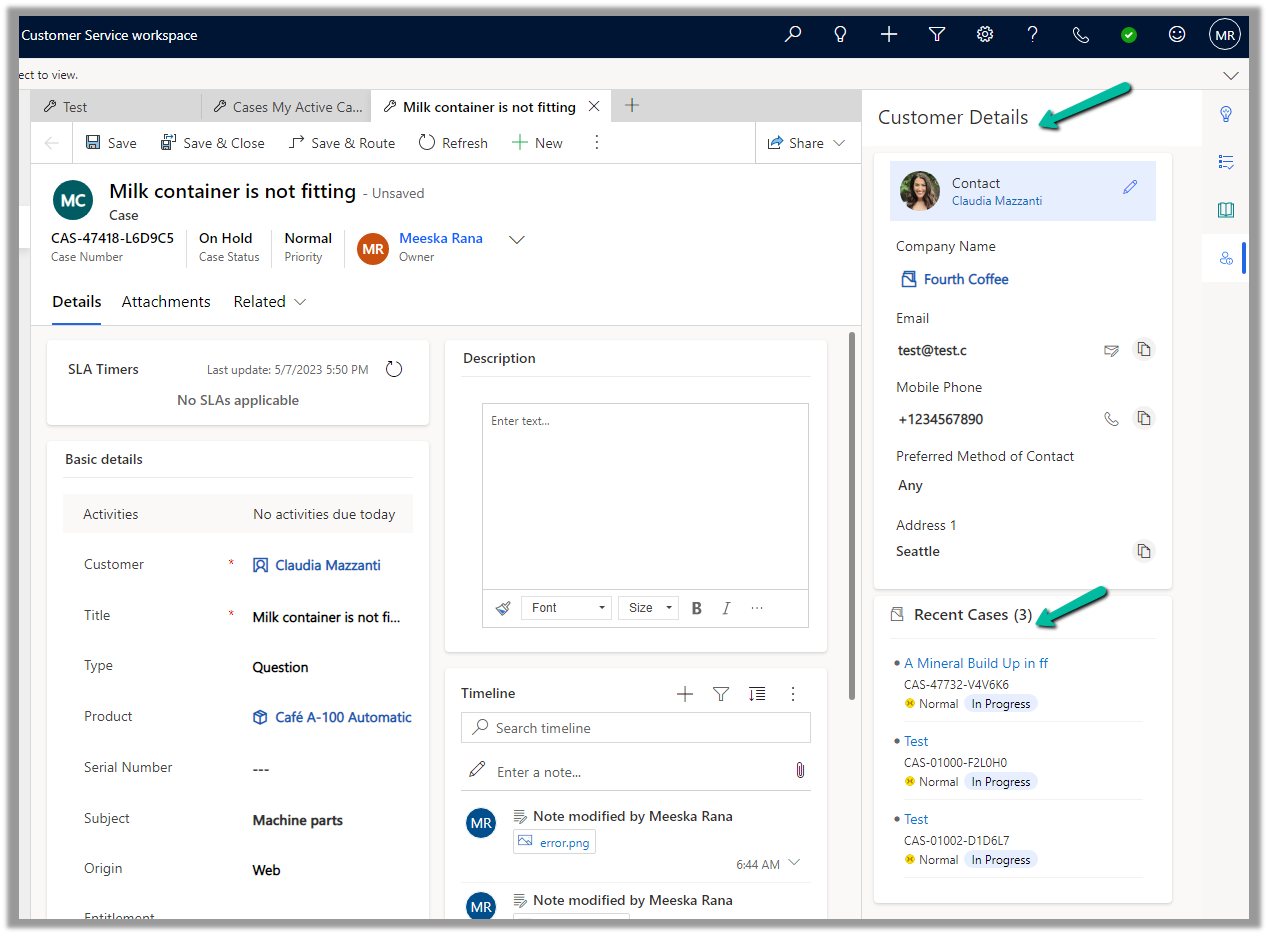
The new Full Case form has the following new components added to it –

Grid Control – Case Associations (showing associated knowledge articles, similar cases, merged cases, and child cases)

  • Attachment Control – For the Case table, the new attachment control gives the option to directly upload the attachment as well as shows all the attachments either uploaded directly or associated with the notes or emails of the case record.

More on Attachment control:https://nishantrana.me/2023/05/08/new-attachment-control-dynamics-365/

  • Shows Priority and Case Status as color-coded options.

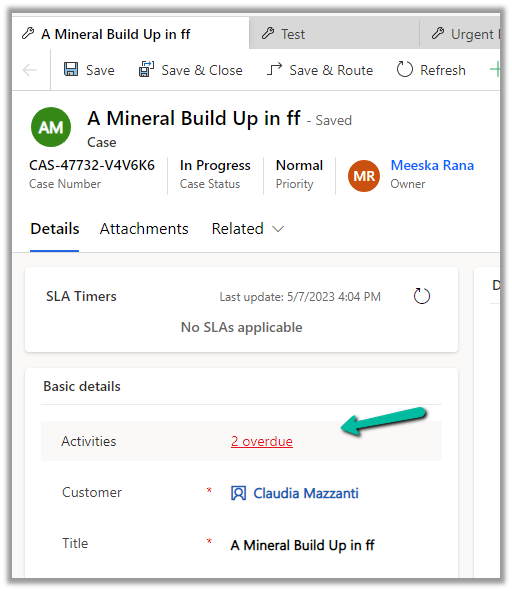
Due Activities Control – shows activities due today or overdue

More on Due Open Activities Control - https://nishantrana.me/2023/05/09/due-open-activities-control-dynamics-365/

It shows the activities overdue

  • Queue control shows the details of the Queue the record belongs to along with Worked By field.
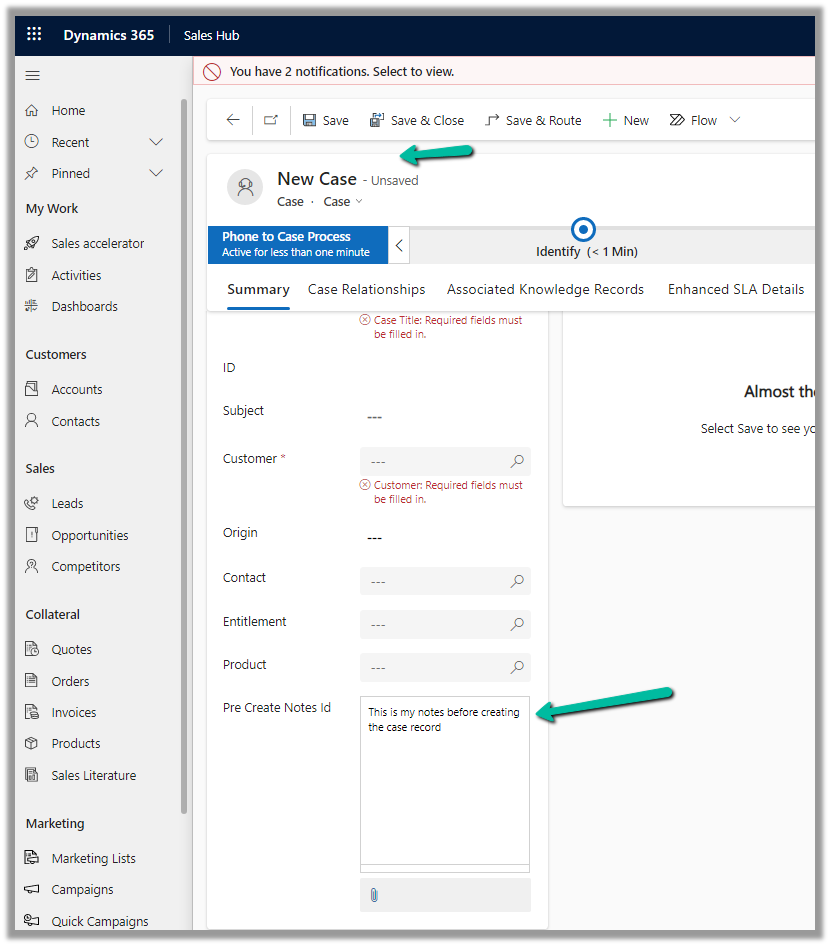
  • Notes control that allows taking notes before saving i.e. in a new record.

More on Notes control - https://nishantrana.me/2023/05/10/notes-control-dynamics-365/

  • It also displays the Customer Details section based on the Customer selected in the case, as well as recent cases created.

Get more details on Enhanced Case Form

Hope it helps..
Advertisements

Notes Control – Dynamics 365


We now have new Notes control for the Case table.

The new notes control allows us to associate/create note without the need to create the case record first.

Here we are adding the Notes control in our Case form.

Specify Pre Create Notes Id (Text) as Table Column for Bound Attribute.

Save and publish the changes.

On creating the record we can see notes added to the timelines.

Also, we can observe that the control now shows – “No Data Available”.

In the case of the Enhanced Case Form, we have a script that hides that section after creation.

Due Open Activities Control – https://nishantrana.me/2023/05/09/due-open-activities-control-dynamics-365/

Attachment Control  – https://nishantrana.me/2023/05/08/new-attachment-control-dynamics-365/

Hope it helps..

Advertisements

Due Open Activities Control – Dynamics 365


The due open activities control shows the activities due today or overdue. It is added by default in the Enhanced Case form but can be added in the forms of other tables.

Hovering over it shows the details of the records.

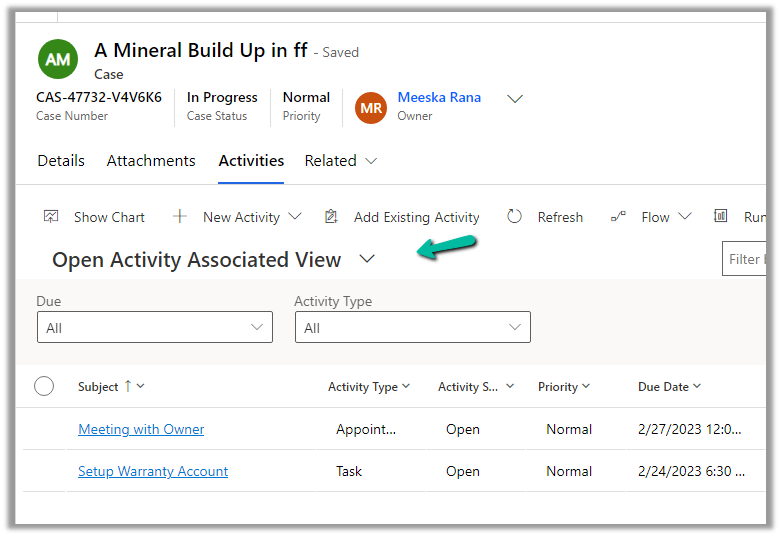
Clicking on it opens the Associated Activity view (tab).

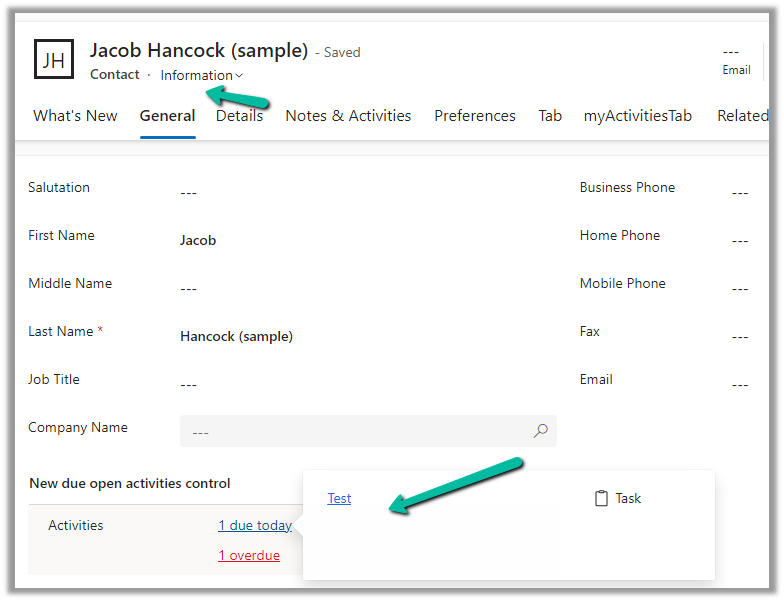
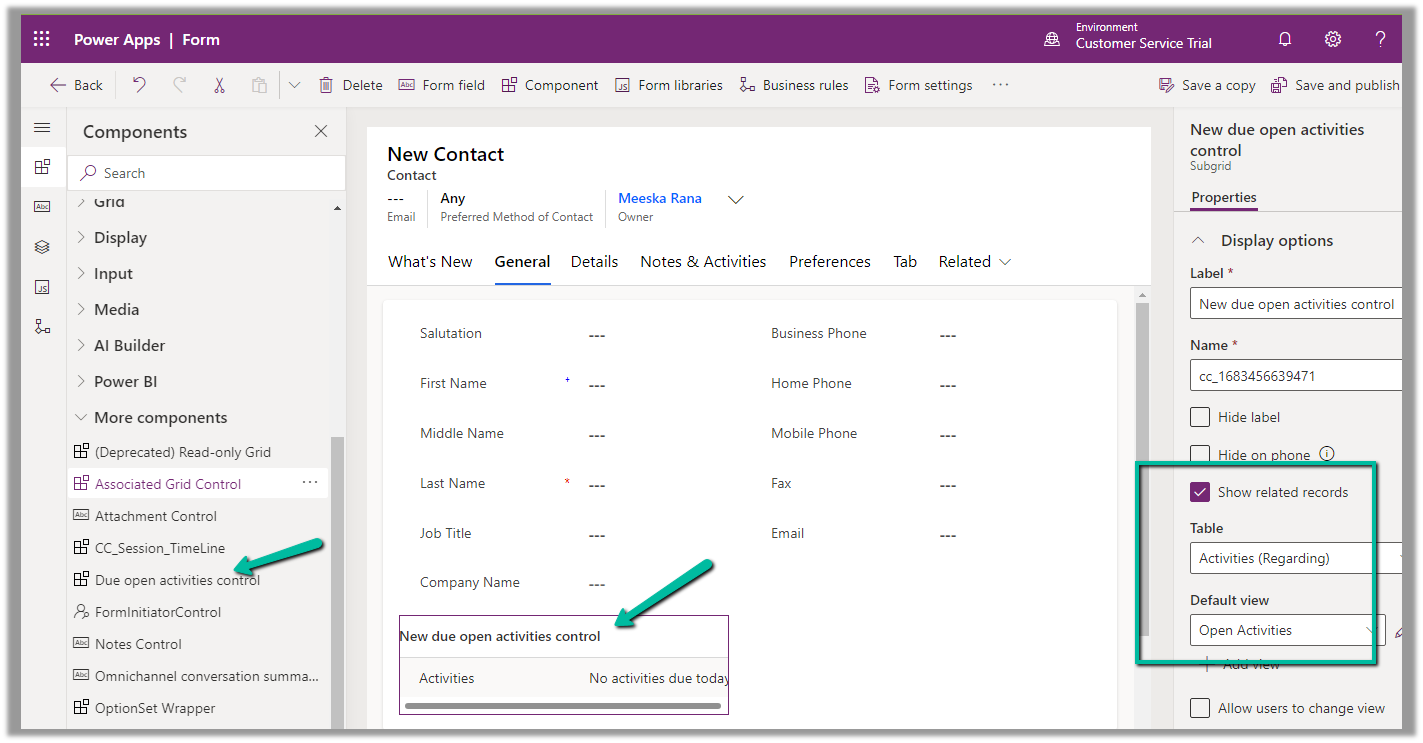
Below we are adding the Due open activities control to the Contact’s form.

Check Show related records, set table to Activities (Regarding) and Default view to Open Activities.

Set Static value Property as navActivities to open the Activities tab on click of the link.

Save and Publish the changes, and we can see the Due Date Activities control in our Contact form.

Clicking on the Test (Subject) link in the popup takes us to Open Activity Associated View

Get all the details here

Also check – Attachment Control  

Hope it helps..
 

Advertisements

Manage Security Roles using the new modern UI (preview) – Power Platform Admin Center


Security roles can be now managed using the new modern UI (preview).

Select Security Roles (See all) for an environment, within Power Platform Admin Center.

Select Edit for a security role.

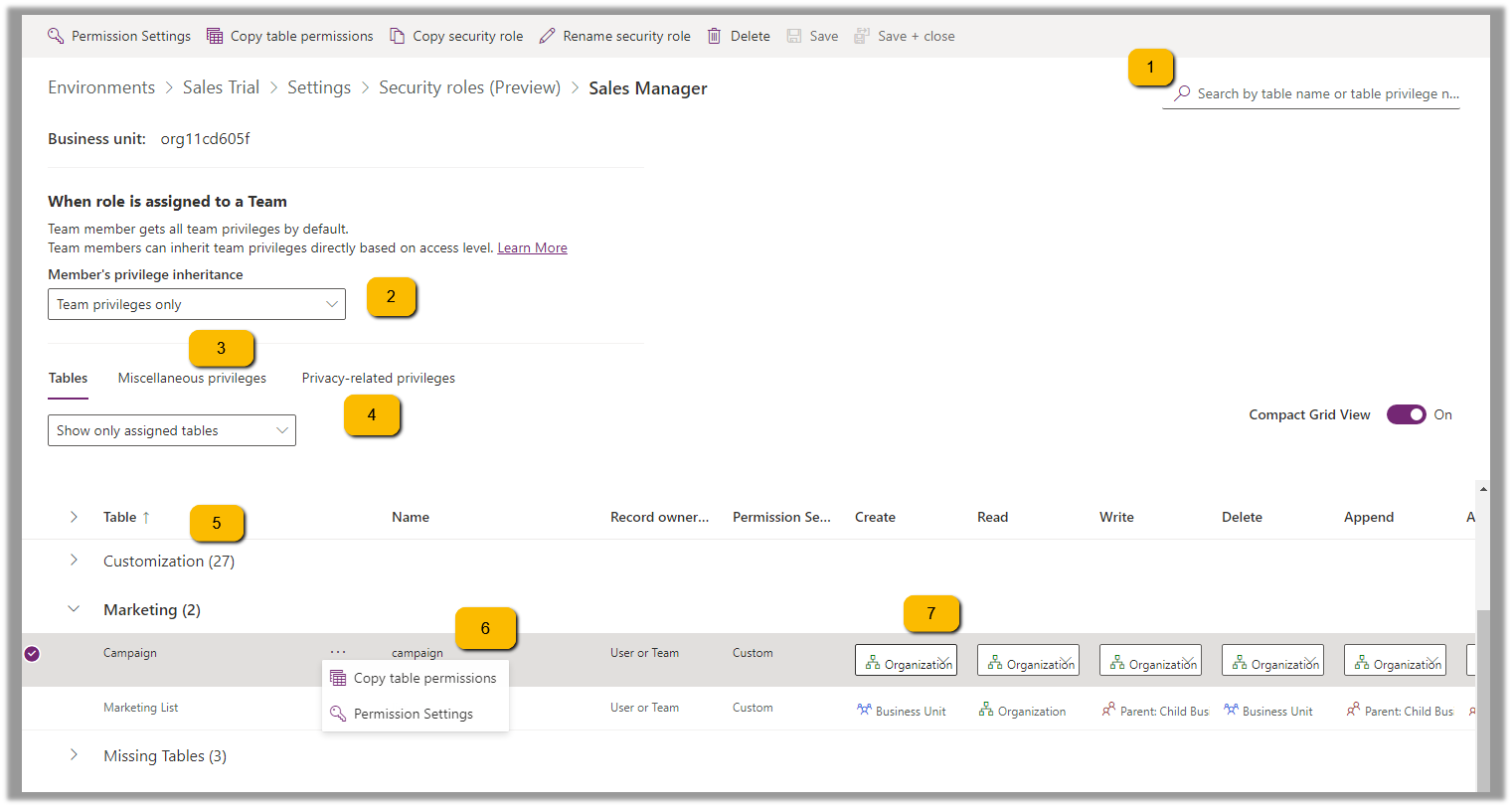
We can see here Display only parent security roles option is On by default.

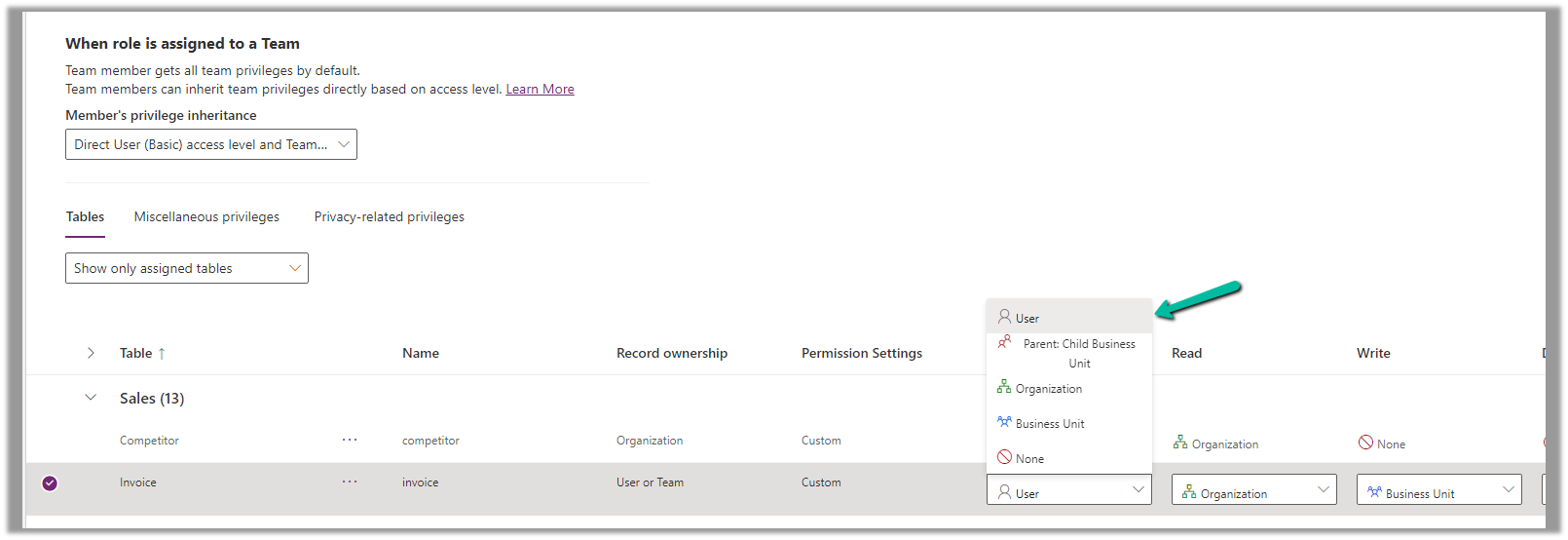
We can see the different options.

  1. Filter based on table or privileges

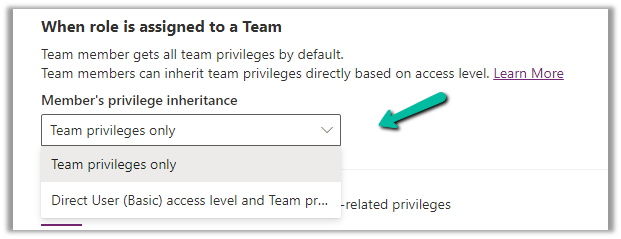
2. Specify Member’s privilege inheritance option

https://learn.microsoft.com/en-us/power-platform/admin/security-roles-privileges#define-the-privileges-and-properties-of-a-security-role

Nicely explained here –

https://debajmecrm.com/team-members-privilege-inheritance-what-is-this-doing-in-security-role-screen-of-dynamics-365/

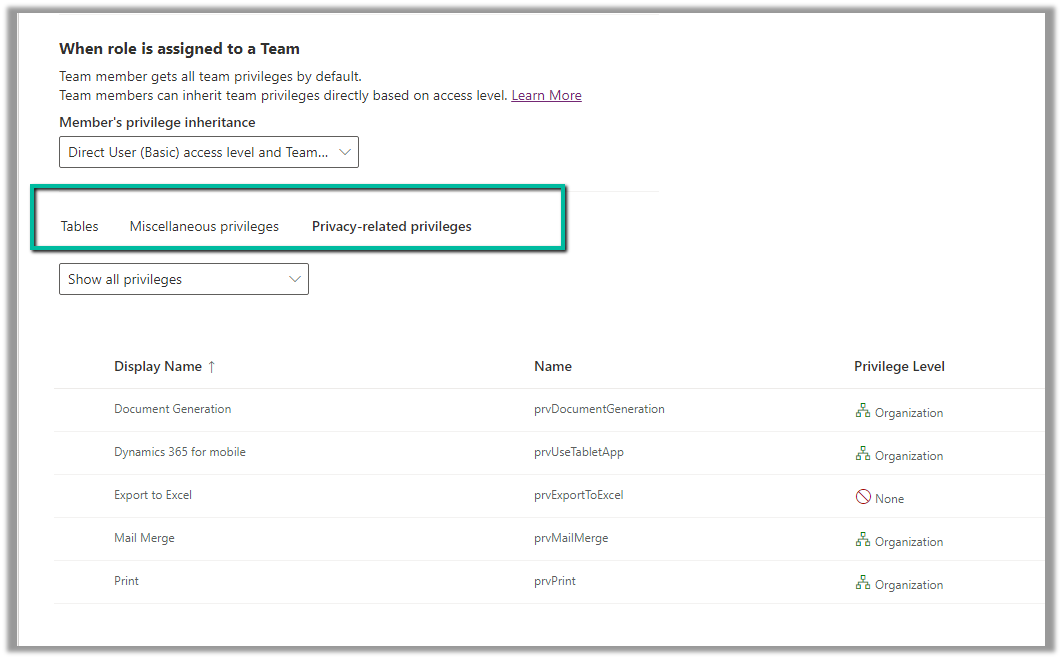
3. Tabs for Table specific, Miscellaneous, and Privacy-related privileges

4. Filter privileges further by all, assigned or unassigned.

5. Collapsible

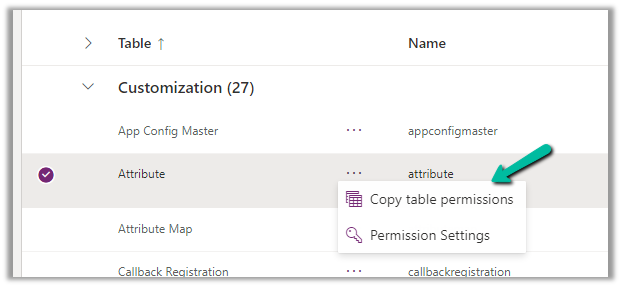
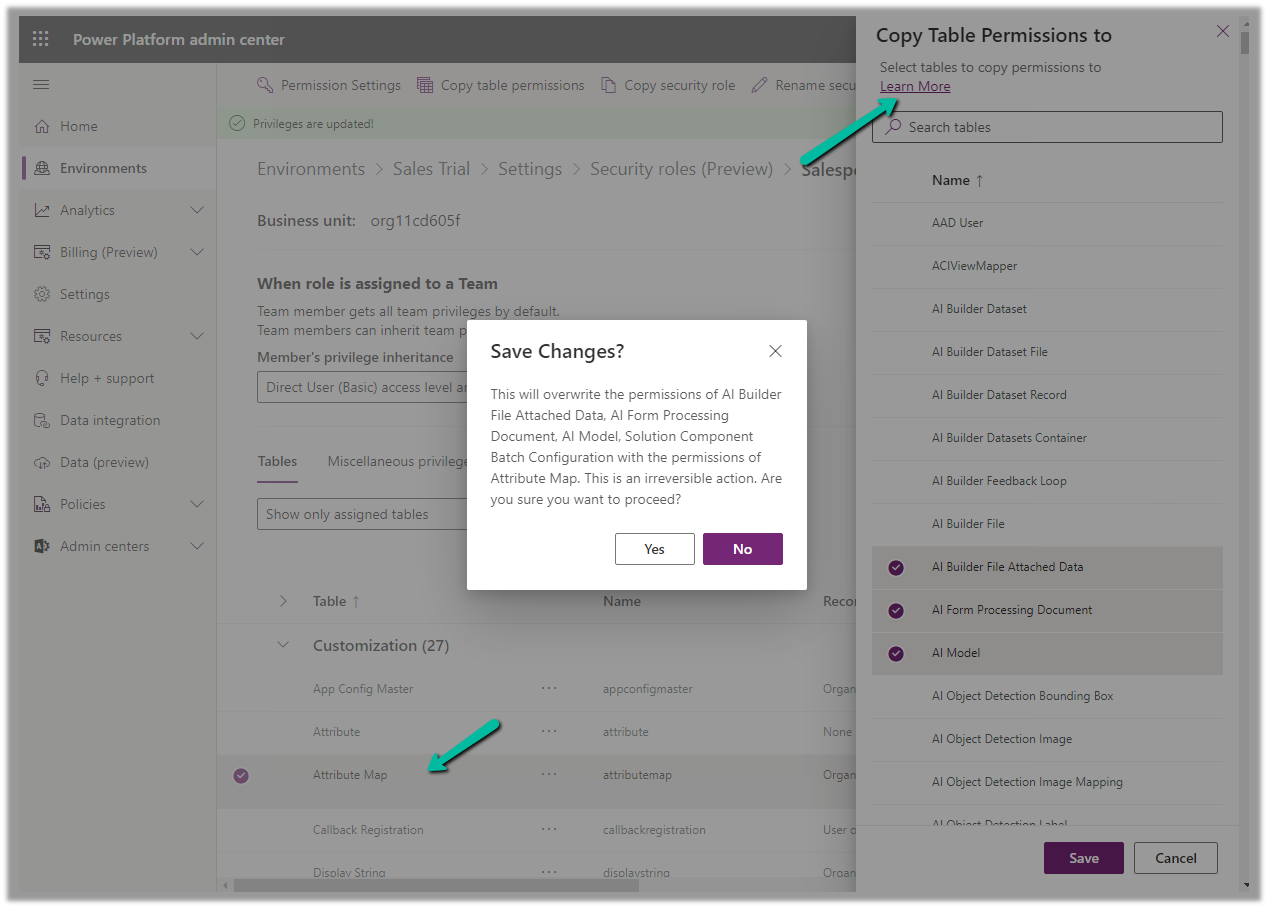
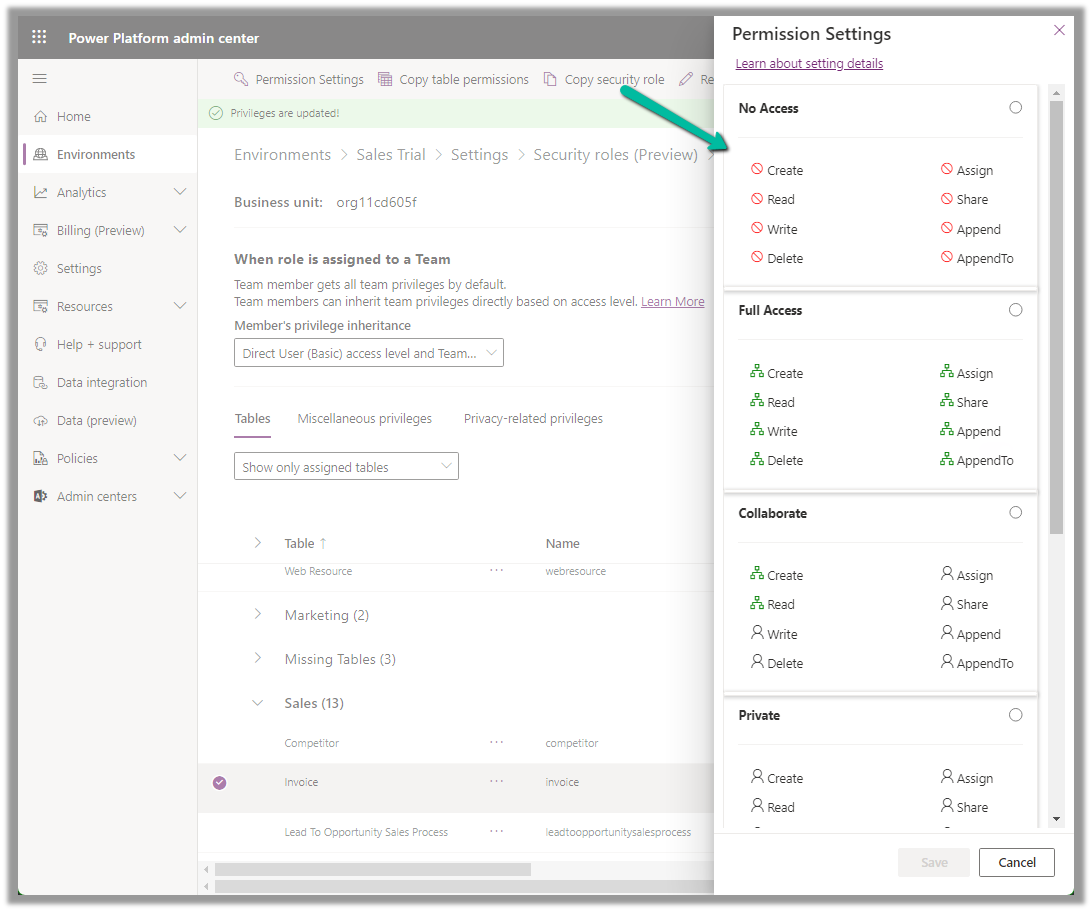
6. Option to Copy Table Permission to another table(s) and apply predefined Permission Settings i.e. Access Levels.

Copy table permissions to multiple tables

Permission Settings (Access Levels)

7. Specify Access Level for Privileges

Get all the details here – Security Roles and new modern UI

Hope it helps..
Advertisements