Fixed – Real-time marketing form’s Standalone page submitting to a different environment – (Dynamics 365 Customer Insights – Journeys)


Recently we migrated the Real-time marketing forms from our Dev environment to UAT environment using the Configuration Migration Tool. Here what we noticed was on submitting the form using the standalone page in UAT, the submissions were going back to the Dev environment instead of UAT.

A screenshot of a computer

Description automatically generated

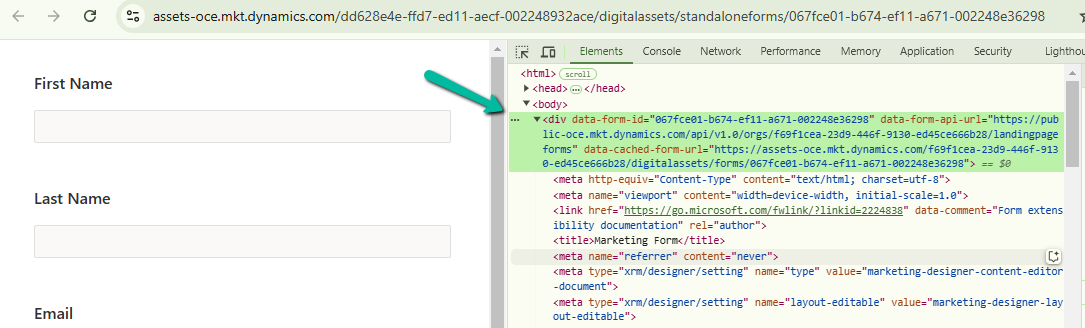
This was because the data-form-api-url and data-cached-form-url property of msdynmkt_standalonehtml field of msdynmkt_marketingform record was still referencing the organization id of the Dev environment instead of UAT.

A computer screen shot of a computer screen

Description automatically generated
<div data-form-id='167fce01-b674-ef11-a671-002248e36298'
data-form-api-url='https://public-oce.mkt.dynamics.com/api/v1.0/orgs/f69f1cea-23d9-446f-9130-ed45ce666b28/landingpageforms'
data-cached-form-url='https://assets-oce.mkt.dynamics.com/f69f1cea-23d9-446f-9130-ed45ce666b28/digitalassets/forms/xxxfce01-b674-ef11-a671-002248e36298' ></div>

The f69f1cea-23d9-446f-9130-ed45ce666b28 is the development environment’s organization ID.

This information is stored in the msdynmkt_standalonehtml field of msdynmkt_marketingform record.

select msdynmkt_marketingformid,msdynmkt_standalonehtml,* from msdynmkt_marketingform where msdynmkt_marketingformid = ‘formGUID’

A screen shot of a computer

Description automatically generated

A screenshot of a computer
Description automatically generated

To fix we replaced the Dev’s Organization ID = f69f1cea-23d9-446f-9130-ed45ce666b28 with UAT’s Organization ID = dd628e4e-ffd7-ed11-aecf-002248932ace

<div data-form-id='167fce01-b674-ef11-a671-002248e36298'
data-form-api-url='https://public-oce.mkt.dynamics.com/api/v1.0/orgs/dd628e4e-ffd7-ed11-aecf-002248932ace/landingpageforms'
data-cached-form-url='https://assets-oce.mkt.dynamics.com/dd628e4e-ffd7-ed11-aecf-002248932ace/digitalassets/forms/xxxfce01-b674-ef11-a671-002248e36298' >

And updated the marketing form record.

Red text on a white background

Description automatically generated
update msdynmkt_marketingform
set msdynmkt_standalonehtml = '<div data-form-id=''067fce01-b674-ef11-a671-002248e36298''
 data-form-api-url=''https://public-oce.mkt.dynamics.com/api/v1.0/orgs/dd628e4e-ffd7-ed11-aecf-002248932ace/landingpageforms'' 
 data-cached-form-url=''https://assets-oce.mkt.dynamics.com/dd628e4e-ffd7-ed11-aecf-002248932ace/digitalassets/forms/067fce01-b674-ef11-a671-002248e36298'' >
 </div><script src = ''https://cxppusa1formui01cdnsa01-endpoint.azureedge.net/oce/FormLoader/FormLoader.bundle.js''></script>'
where msdynmkt_marketingformid = '067fce01-b674-ef11-a671-002248e36298'

After the update we can see submission reflecting back to the correct UAT environment.

A screenshot of a computer

Description automatically generated

The query we used to update all the forms with UAT’s Id

-- replace Dev Org ID with UAT Org ID in all the marketing forms 
UPDATE msdynmkt_marketingform
SET msdynmkt_standalonehtml = REPLACE(msdynmkt_standalonehtml, 'dd628e4e-ffd7-ed11-aecf-002248932ace', '2deea9c2-77e5-ed11-a809-0022489424c2')
where msdynmkt_standalonehtml LIKE '%dd628e4e-ffd7-ed11-aecf-002248932ace%' 

Hope it helps..

Advertisements

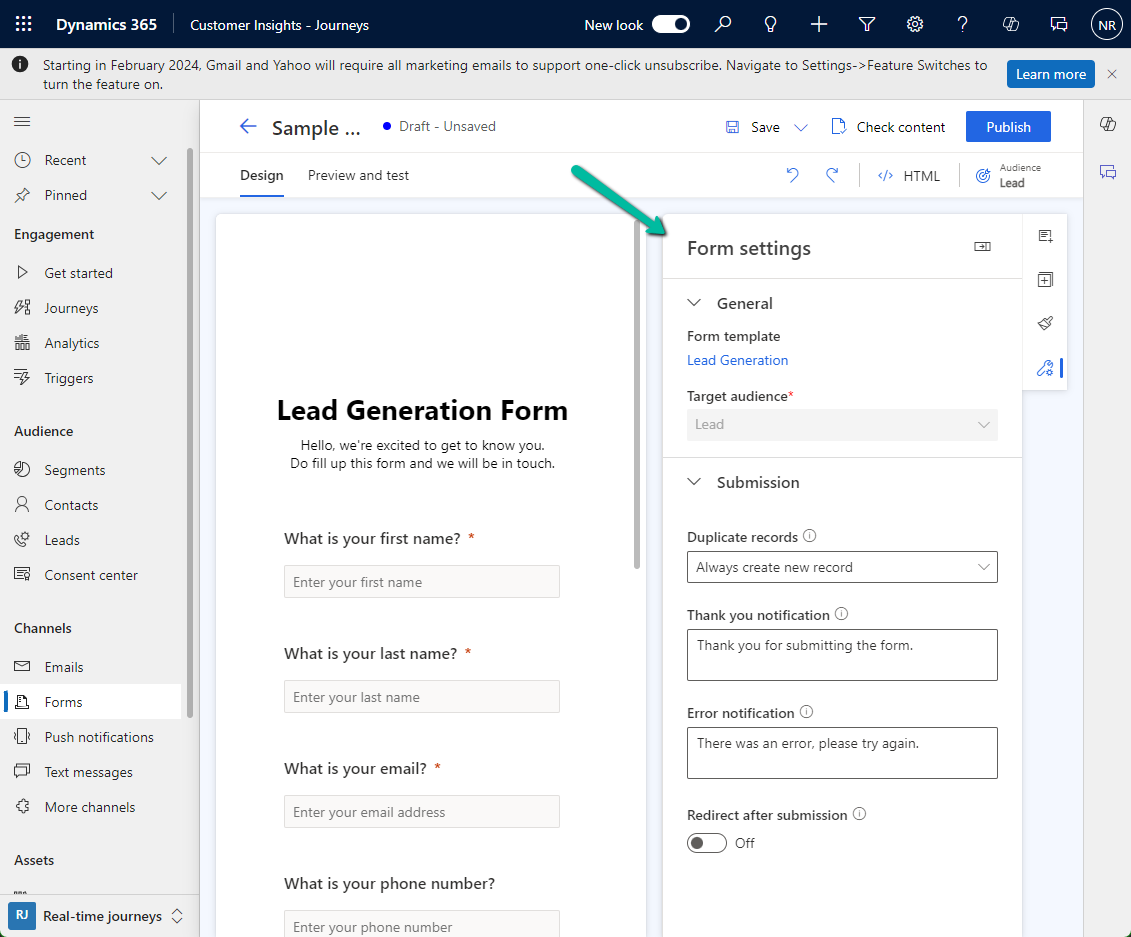
Customize the Real-time Marketing Form form / Form Editor to add field (Dynamics 365 Customer Insights – Journey)


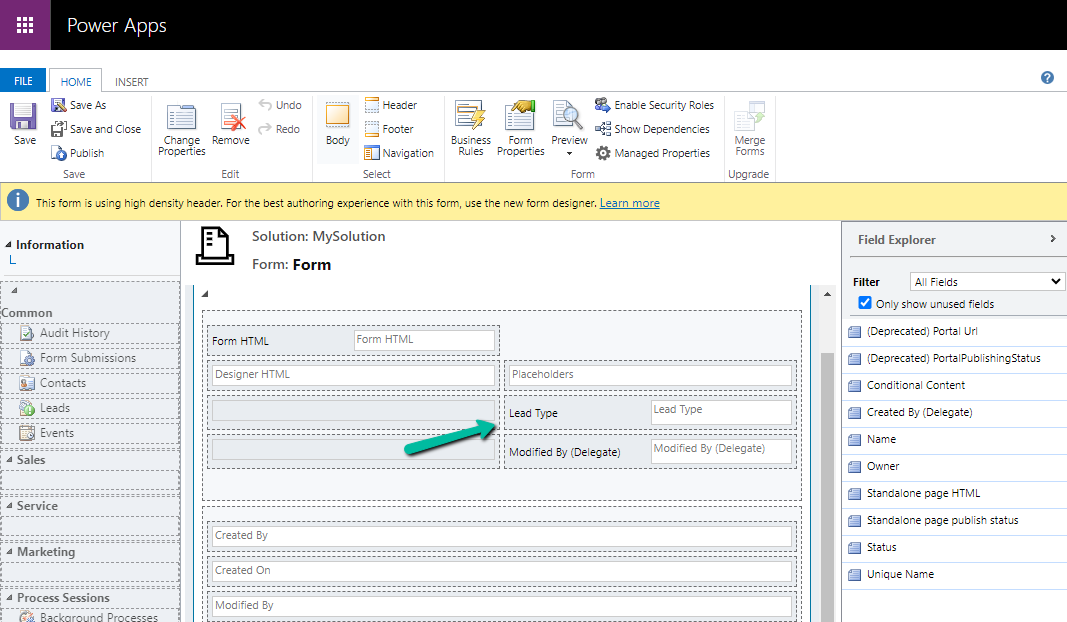
Suppose we want to add the Lead Type (a custom choice field) to the Marketing Form’s form / form settings (RTM).

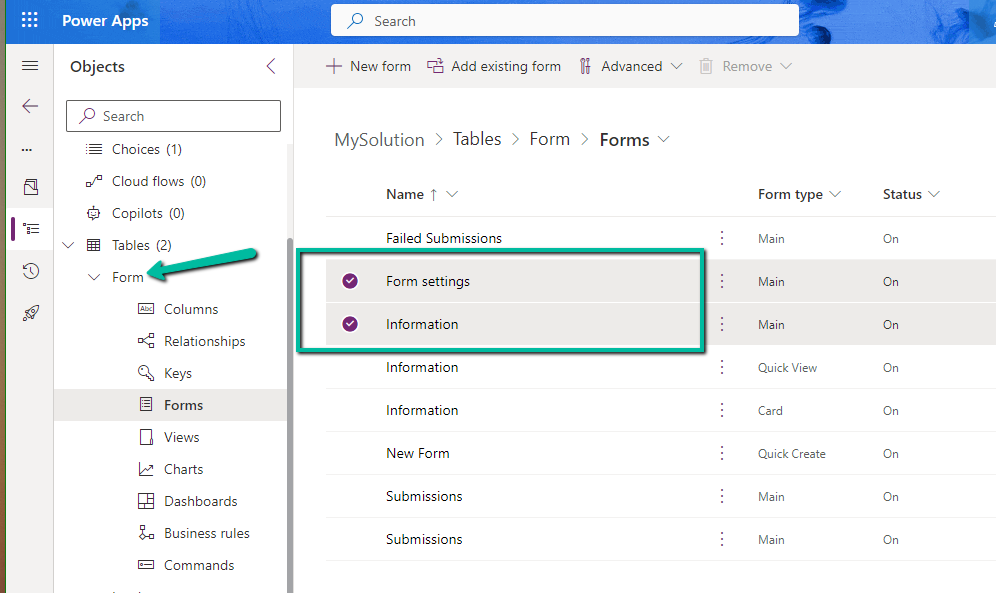
Open the Form table for customization, here we need to add the field to below 2 forms.

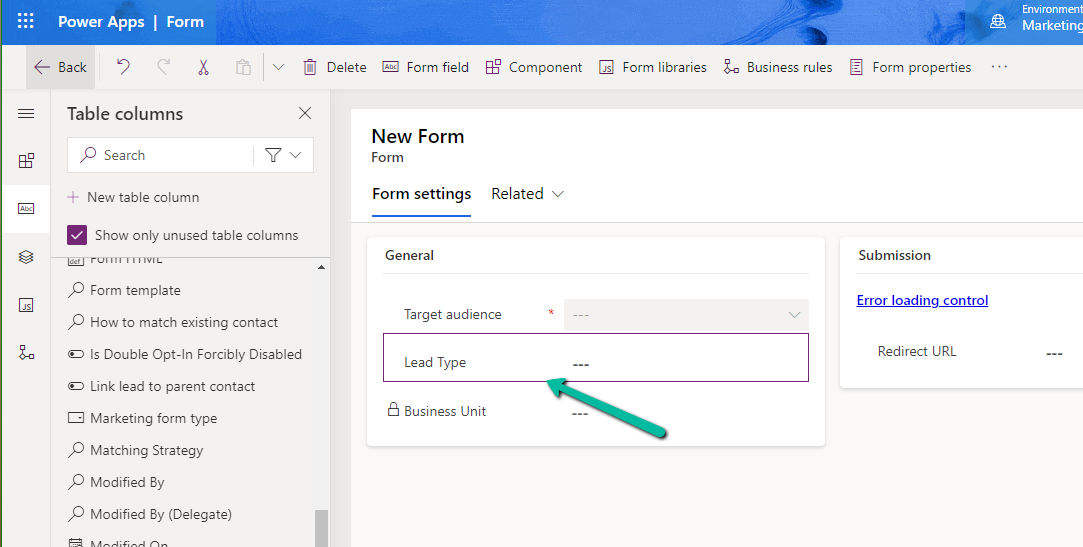
Starting with the Form Settings form, drag the field to the form.

A screenshot of a computer

Description automatically generated

If we check the form now, it will ask us to add it to the main form.

A screenshot of a computer

Description automatically generated

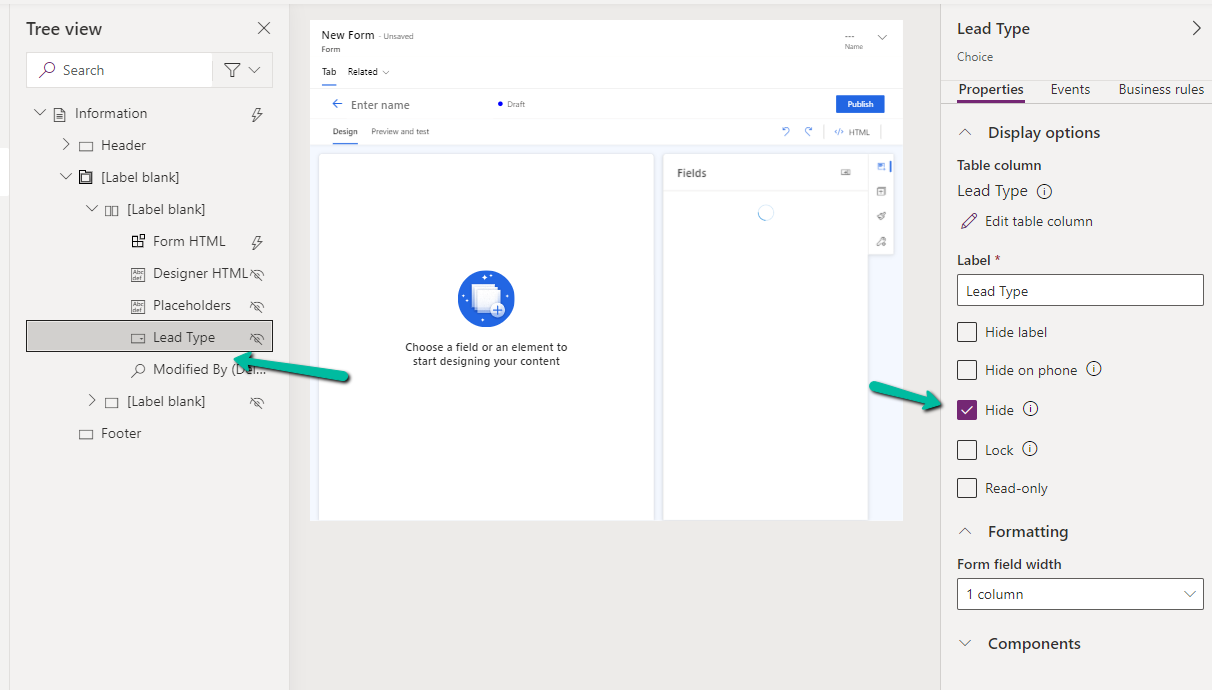
Open the Information (Main) form, double click the field to add it. As the field will not render in the form designer, select the field from the Tree View, and Hide it.

A screenshot of a computer

Description automatically generated

Or we can also open the form in the classic designer, there we will be able to see the field.

A screenshot of a computer

Description automatically generated

On saving and publishing the change, we can see our Lead Type field appearing on the Form Designer.

Please refer for more information –

Customize the form editor

Hope it helps..

Advertisements