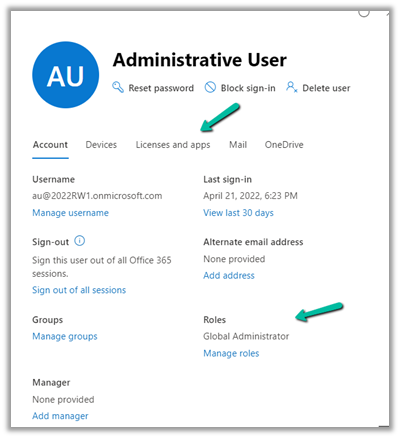
At times we would assign or update the licenses and roles assigned to the users in Microsoft 365 Admin Center, and these changes would take time to reflect inside the Dynamics 365 applications.
A background system process takes care of synchronizing the user state in Azure AD to the System User table in Dataverse.
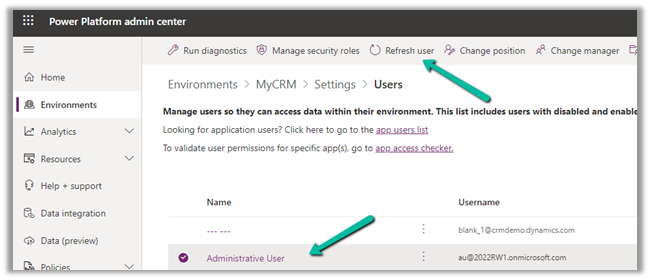
However, here we can also use the Refresh User option in Power Platform Admin Center to force the synchronization instead of waiting.
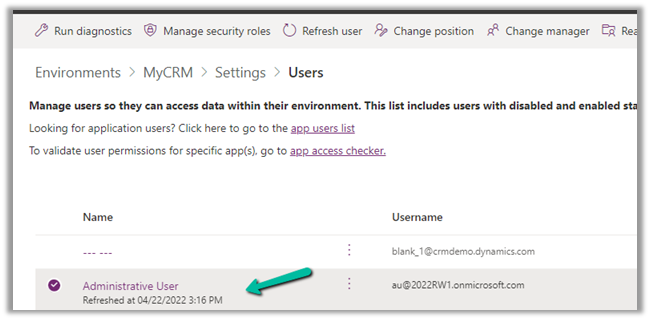
Inside Power Platform Admin Center – Navigate to Environment >> [Env]>> Settings >> Users and select the user and click on Refresh user option.
This will immediately start the synchronization process.
However, we can still override the default Azure AD Session policy, by setting the session timeout and/or inactivity timeout for the individual environment.
To set the same navigate to –
Environments > [Environment] > Settings > Privacy + Security in Power Platform Admin Center.
Suppose we want to Test & Enable Mailbox of the below user programmatically.
We can see the below notification for the disabled mailbox.
This mailbox is disabled for email processing. For more information, see the alerts.
Below is the sample code –
On running the code, we can see the notification removed and the mailbox for the user enabled successfully.
C# Code –
      CrmServiceClient svc = new CrmServiceClient(ConnectionString);

            if (svc.IsReady)
            {
                var mailBox = new Entity("mailbox", new Guid("C88A539A-F493-EC11-B400-000D3A4F37D3"));

                // testemailconfigurationscheduled = Indicates if the email configuration test has been scheduled for a mailbox record
                mailBox.Attributes["testemailconfigurationscheduled"] = true;

                svc.Update(mailBox);
Suppose we want to Approve the Email for the mailbox of the user(s) programmatically.
We’d see the below notification for the user whose mailbox is not yet approved.
Email won’t be processed for this mailbox until the email address of the mailbox is approved by an Office 365 Global Administrator or by an Exchange Administrator. For more information, contact your system administrator.
Below is the sample code –
On running the code, we can see the notification for the email address approval removed or the mailbox approved for the user.
C# Code –
            CrmServiceClient svc = new CrmServiceClient(ConnectionString);

            if (svc.IsReady)
            {

                var systemUser = new Entity("systemuser", new Guid("C48A539A-F493-EC11-B400-000D3A4F37D3"));

                // emailrouteraccessapproval - status of the primary email address
                //0	= Empty, 1 = Approved, 2 = Pending Approval, 3 = Rejected
                systemUser.Attributes["emailrouteraccessapproval"] = new OptionSetValue(1);

                svc.Update(systemUser)
The code should run under the context of the user who has either Global Admin or Exchange Admin role.
In this post, we will how to use the wonderful Sync Filter Manager (XrmToolBox Plugin) for managing the outlook filters.
Suppose we don’t want Tasks to be synced for some of the users.
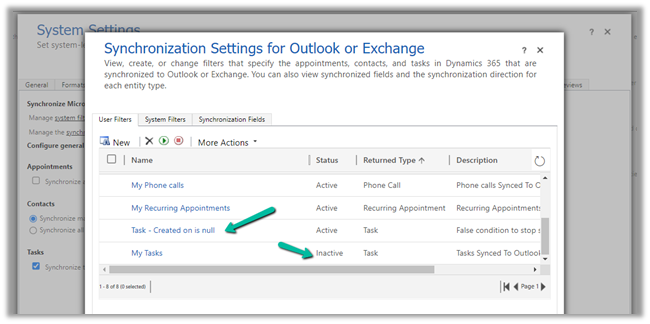
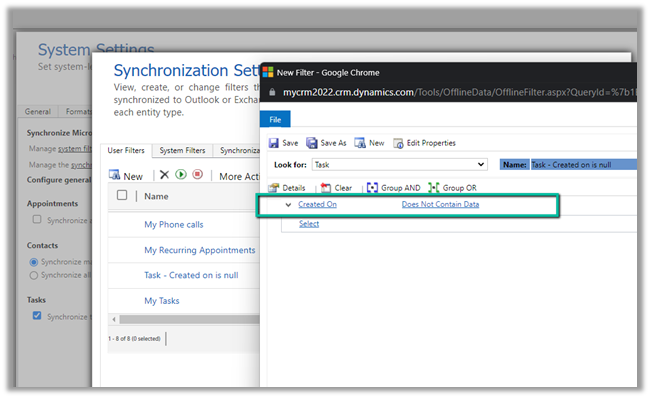
Here we already have a custom user filter (Task- Created on is null) defined for one of the users, specifying the condition which will always be false.
We have also disabled the default filter on tasks – My Tasks for that user.
For that particular user, now we do not see any tasks getting synced.
Now to apply the same setting to the others users, we can use the wonderful Sync Filter Manager – XrmToolBox plugin.
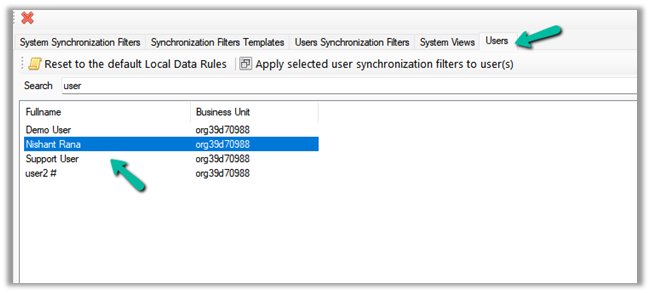
Navigate to the Users tab, search for the user whose setting we want to apply to other users, and select it.
Here we have selected the source user record
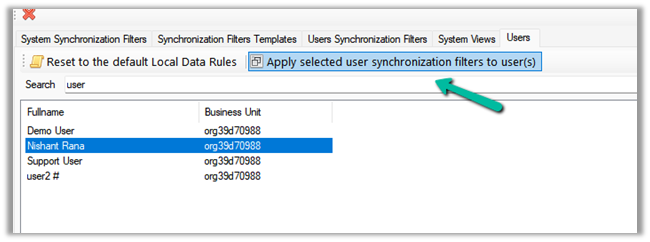
Click on Apply selected user synchronization filer to user(s) button.
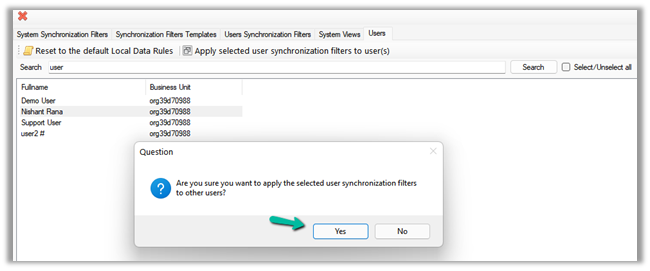
For Question Dialog Box – “Are you sure want to apply the selected user synchronization filters to other users ?” – select Yes
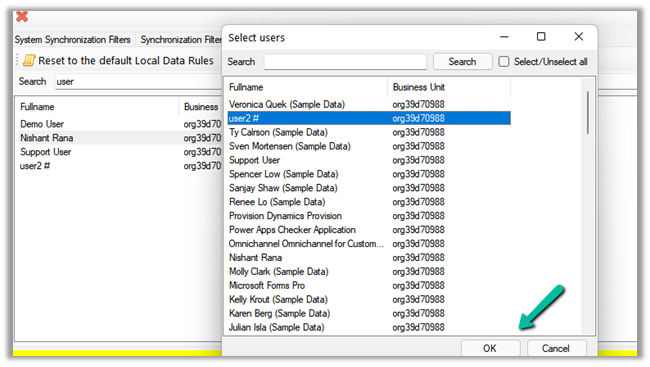
For now, we have selected only User 2. We can select multiple users or select / unselect all the users.
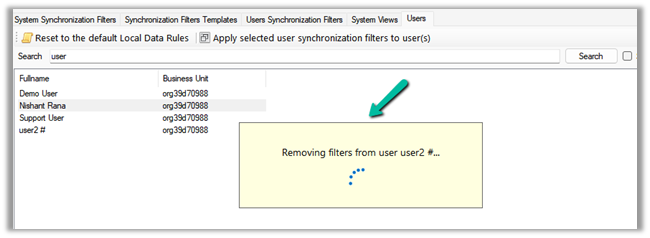
It will remove the default / or existing filters from users. User 2 in our case.
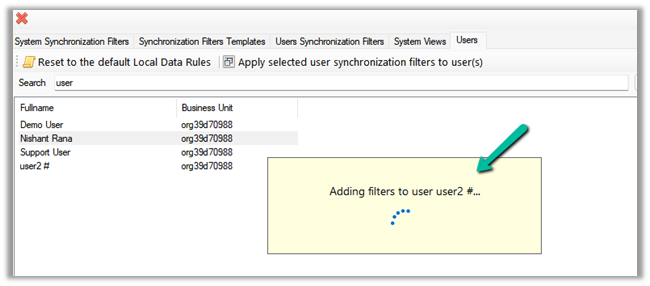
And will add the filters from the selected user to it.
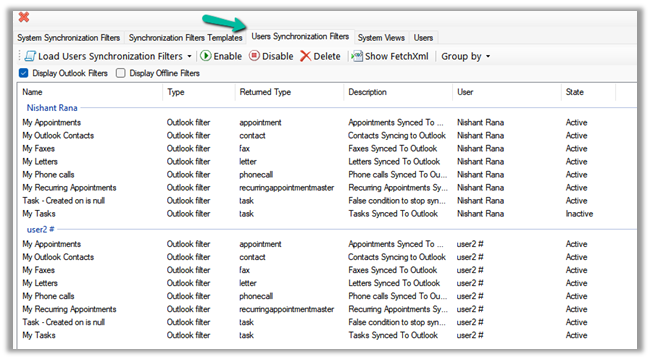
After some time, we can see the filters updated for User 2, with the Task – Created on is null filter added.
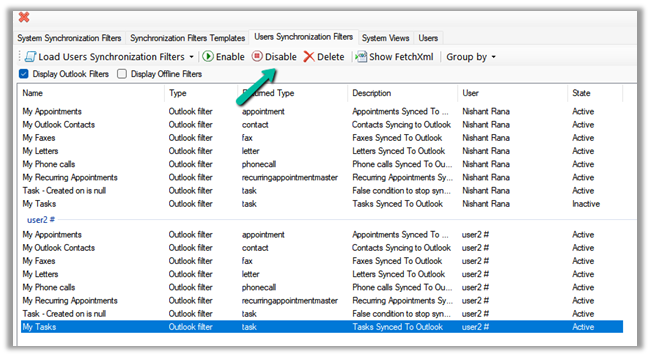
We can also verify it from the User Synchronization Filters tab, where we can load the synchronization filters for all the users.
As a last step we just need to deactivate/delete the default My Tasks filter for User 2 also(or all the other users for who we want to disable task sync) and we are done.













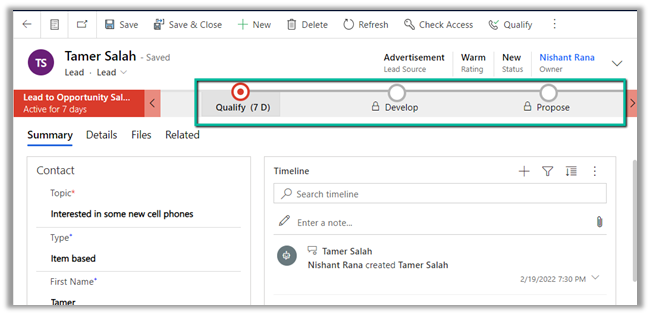

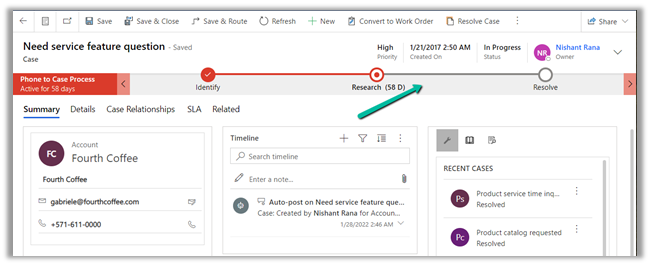 making it easy for an agent to understand the stages to be followed in the business process flow.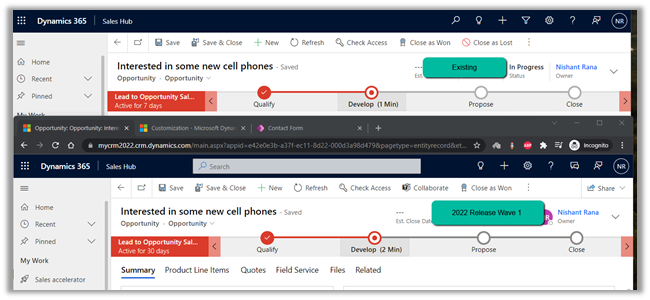

 Nishant Rana's Weblog