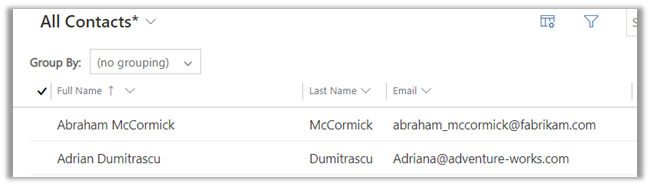
Here we will be cloning the below contact record –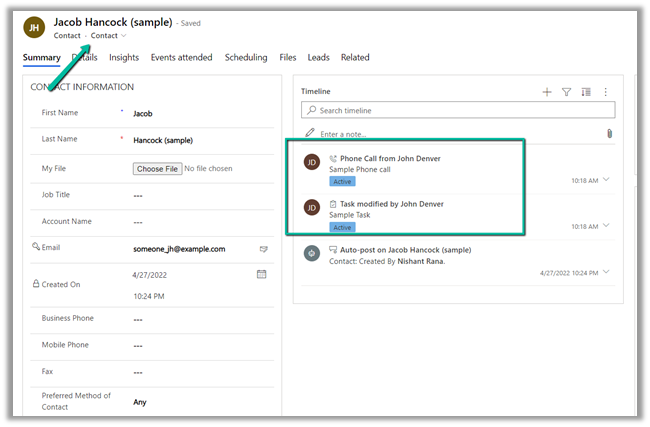
For it, we can make use Clone method of EntityExtensions class

If we run the below code, we will get the “Cannot insert duplicate key” exception.
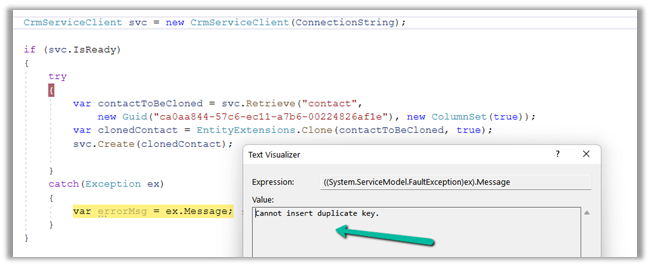
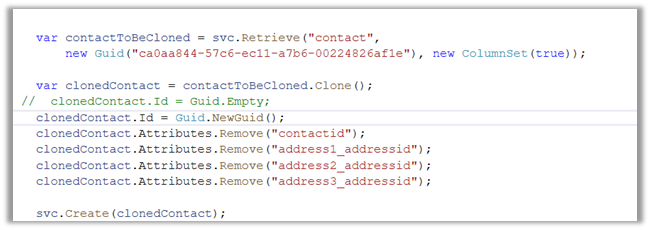
Because we need to set the ID for the newly cloned record to either empty or a new GUID.
Also, we need to remove the contactid attribute or entity’s id field else we will get the below exception – “Entity Id must be the same as the value set in property bag“
Also if we are retrieving all the attributes we need to make sure we remove those attribute which can cause below unique constraint errors.
Sql error: The operation attempted to insert a duplicate value for an attribute with a unique constraint. CRM ErrorCode: -2147012606 Sql ErrorCode: -2146232060 Sql Number: 2627
In case of contact, we had to remove the address id attributes, to get the record cloned.
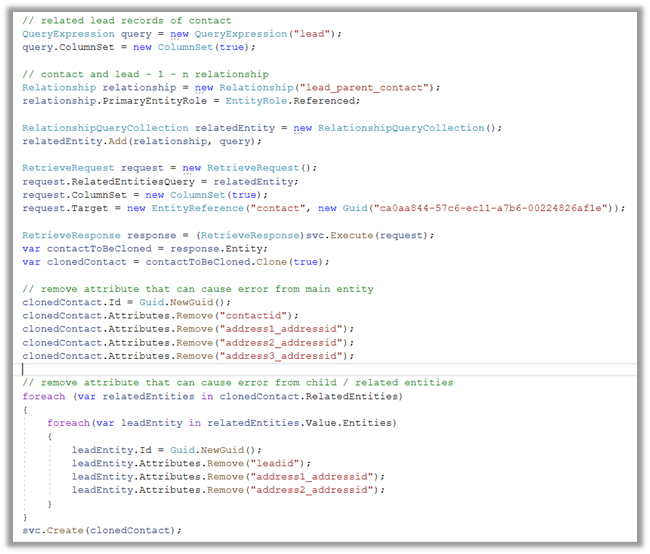
Now let us clone the same contact record with its related leads.
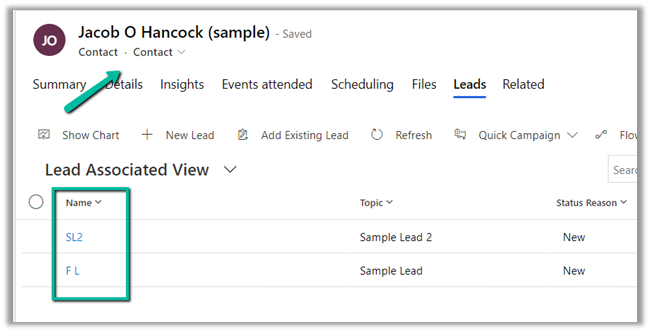
- Here first we need to retrieve contact along with its associated lead record.
- Then remove the id attribute that could duplicate issues in the child lead records also.
Please refer the helpful posts –
https://debajmecrm.com/clone-record-dynamics-crm-clone-method/
https://www.inogic.com/blog/2014/08/clone-records-in-dynamics-crm/
https://dyncrmexp.com/2017/10/24/retrieve-primary-entities-along-with-related-entities-with-one-queryexpression/comment-page-1/
https://dynamict.eu/2016/08/09/create-record-with-related-records-in-a-single-request-using-c/
Hope it helps..
 // related lead records of contact
                    QueryExpression query = new QueryExpression("lead");
                    query.ColumnSet = new ColumnSet(true);

                    // contact and lead - 1 - n relationship
                    Relationship relationship = new Relationship("lead_parent_contact");
                    relationship.PrimaryEntityRole = EntityRole.Referenced;

                    RelationshipQueryCollection relatedEntity = new RelationshipQueryCollection();
                    relatedEntity.Add(relationship, query);

                    RetrieveRequest request = new RetrieveRequest();
                    request.RelatedEntitiesQuery = relatedEntity;
                    request.ColumnSet = new ColumnSet(true);
                    request.Target = new EntityReference("contact", new Guid("ca0aa844-57c6-ec11-a7b6-00224826af1e"));

                    RetrieveResponse response = (RetrieveResponse)svc.Execute(request);
                    var contactToBeCloned = response.Entity;
                    var clonedContact = contactToBeCloned.Clone(true);

                    // remove attribute that can cause error from main entity
                    clonedContact.Id = Guid.NewGuid();
                    clonedContact.Attributes.Remove("contactid");
                    clonedContact.Attributes.Remove("address1_addressid");
                    clonedContact.Attributes.Remove("address2_addressid");
                    clonedContact.Attributes.Remove("address3_addressid");

                    // remove attribute that can cause error from child / related entities
                    foreach (var relatedEntities in clonedContact.RelatedEntities)
                    {
                        foreach(var leadEntity in relatedEntities.Value.Entities)
                        {
                            leadEntity.Id = Guid.NewGuid();
                            leadEntity.Attributes.Remove("leadid");
                            leadEntity.Attributes.Remove("address1_addressid");
                            leadEntity.Attributes.Remove("address2_addressid");
                        }
                    }
                    svc.Create(clonedContact);






















 Nishant Rana's Weblog