We can get the ‘get_code’ error if we are using Assign Step in Action/Workflow and the value is null for the field selected.
Here we need to use If condition to check if the value exist for that particular field before using Assign Step.

We can get the ‘get_code’ error if we are using Assign Step in Action/Workflow and the value is null for the field selected.
Here we need to use If condition to check if the value exist for that particular field before using Assign Step.

Business rules were added to CRM 2013 and a way to provide client side scripting/validating/field or section hiding without having to write any JavaScript. For context server side customization’s are plugins/workflows (e.g. code written in C# is executed on the server)
Business rules are also known as portable business logic (although I don’t know anyone who calls them that) because they also work on the mobile app.
All the features above were usually done using Javascript in CRM 2011.
I have written a quick guide to business rules here
Business rules are useful because they allow non developers to provide the functionality mentioned above on forms. Business rules can be used on Main and…
View original post 1,180 more words

As you use fields in your customizations the first thing you need to understand are the types of fields you can create and edit and some of the system fields an entity may have. The following table summarizes field types available in Dynamics CRM 2013.
| Field data type | Description |
| Single Line of Text | Up to 4000 characters of text can be in this field. You can set a maximum length to less than this. This field has several format options that will change the presentation of the text. These options are Email, Text, Text Area, URL and Ticker Symbol and Phone. For more information check Single line of text format options below. |
| Multiple Lines of Text | Up to 1,048,576 characters of text can be in this field. You can set a maximum length to less than this. When you add this field to the form you can specify the… |
View original post 1,247 more words

Sample code: Using jqGrid in ASP.NET page to show CRM data
Just sharing a simple ASP.NET page that uses jqGrid to show contact records in CRM and allows user to search.

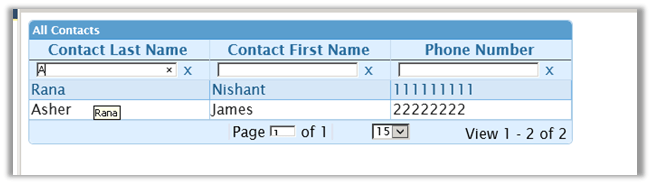
Here is the code SampleJQGrid.zip (remove .doc)
Hope it helps ..

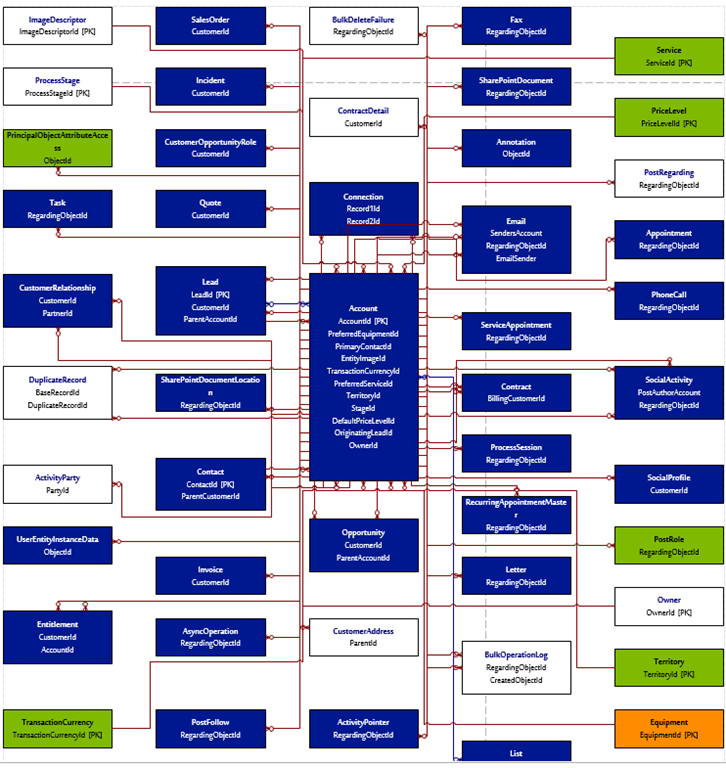
ERD Generator for Dynamics CRM 2011/2013 is a Windows Form application that is can be used for Dynamics CRM 2011 or Dynamics CRM 2013.
URL:
This tool allows you to build ERD (Entity relationship diagrams) that are dynamically updated based on the published CRM entities and Fields. You can pick a source entity and build ERD around it. It generate a VISIO output but also lets you pick CSV to document Entity relationships.
It generates a CSV having details like:

It generates ERD in VISIO:
Hope it helps!


