In the previous post, we saw how we can use the SuppressDuplicateDetection parameter to throw errors in case of duplicates when creating or updating a record.
Here instead of relying on exception, we can make use of the RetrieveDuplicatesRequest message to detect the duplicates.
Let us take the “Leads with the same e-mail address” duplicate detection rule to see it in action.
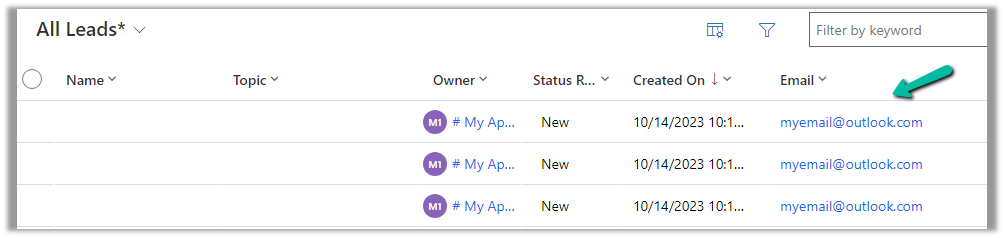
We can see 3 lead records already existing in the system with the same email address.
Below is our code that is trying to create a new lead record with the same email address and using the RetrieveDuplicatesRequest to check for the duplicates.
Below we can see that not only do we get the total number of duplicates found, but we can also get the details of the duplicate records found.
We can make use SuppressDuplicateDetection optional parameter of the Request if we want the configured duplicate detection rules to run and throw an exception while creating or updating the record.
We will use the below out-of-the-box duplicate detection rule, that checks for lead having same email address.
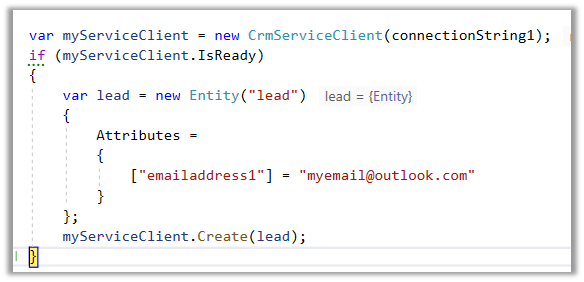
Below is our code and we can see the lead records with the same email address getting created without any exception.
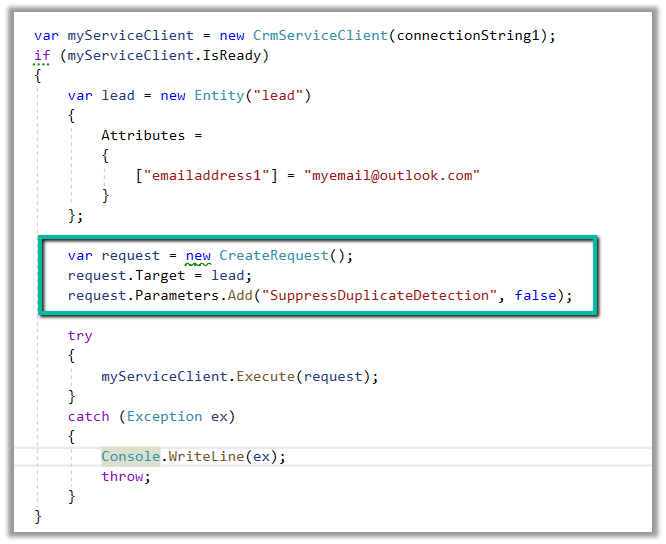
Now we have updated the code to use the SuppressDuplicateDetection optional parameter. We have set it as false.
As expected this time we get the exception.
“The record was not created or updated because a duplicate of the current record already exists.”
With the preferred solution (preview), now we can specify a solution to which all our changes, that are made outside of the context of the unmanaged solution, should get automatically added.
To enable it, navigate to Settings >> Features >> Preferred solution (Preview)
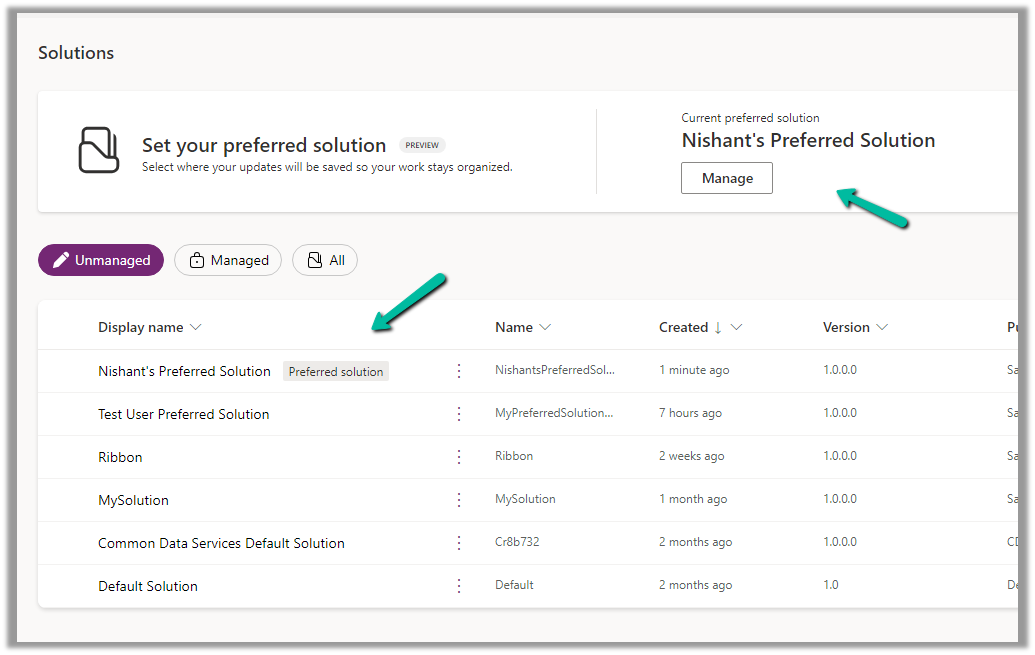
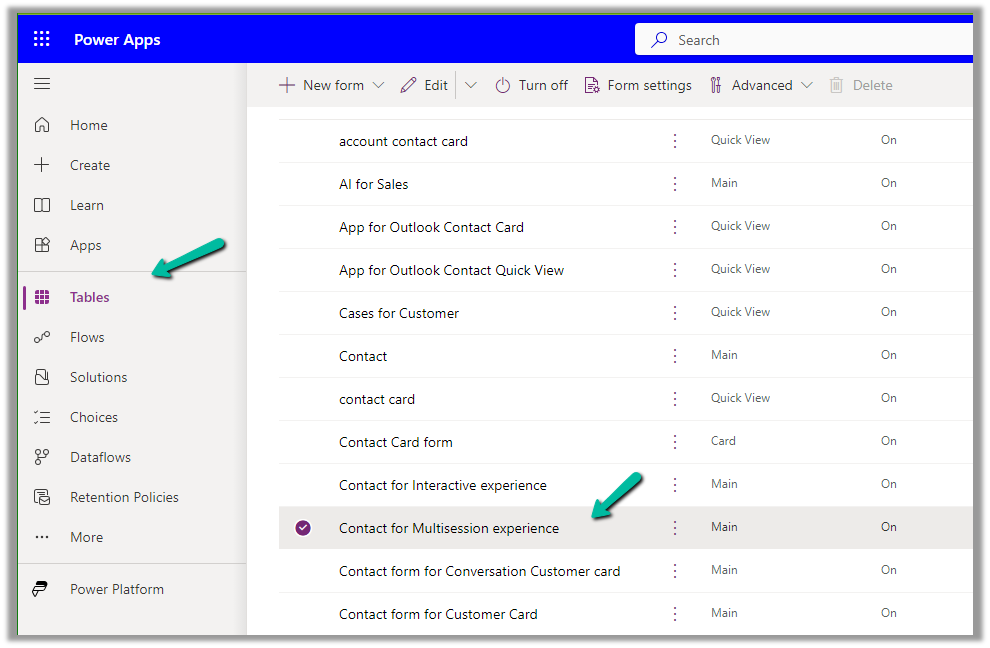
Inside the Maker Portal, now we can see a new section added, asking us to specify the preferred solution, and we can see Common Data Services Default solution set as the preferred solution as default.
We can click on Manage to specify any of the existing unmanaged solutions as the preferred solution or to create a new solution.
Here we have set one of the solutions as the preferred solution.
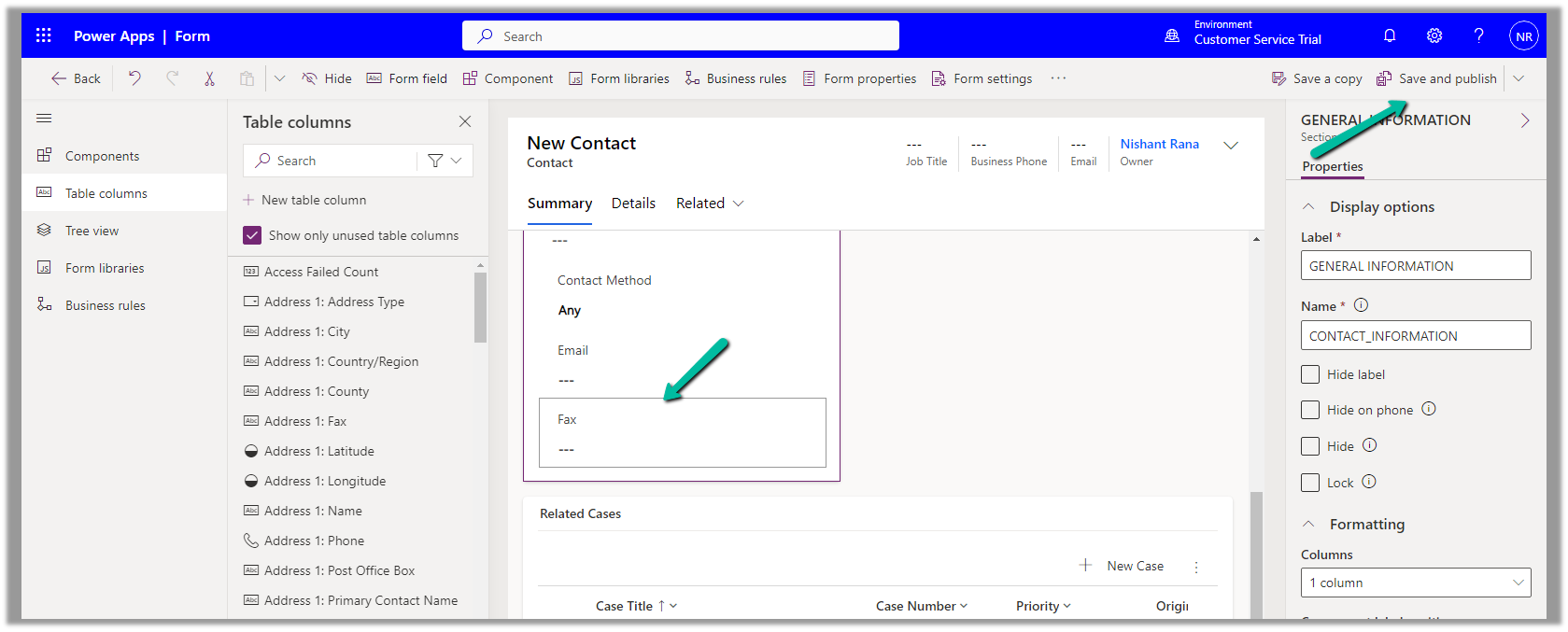
Now let us add an update existing table outside the context of the solution. Here we are updating its form by rearranging some of the fields in it.
We have moved the Fax field to be the last field in that General Information section and have published the changes.
Back in our preferred solution, we can see the form we updated, automatically added.
Similarly, any other changes, i.e. any solution components added or updated, outside the context of the unmanaged solution, will be added to the preferred solution. (apart from changing the Default Solution where all the solution components reside).
Also, other users/makers can specify their preferred solution.
To add the cloud flows or canvas apps, created outside the context of the solution, in the preferred solution, we can enable the below features.
Here we have created this sample flow from outside the solution and also a canvas app.
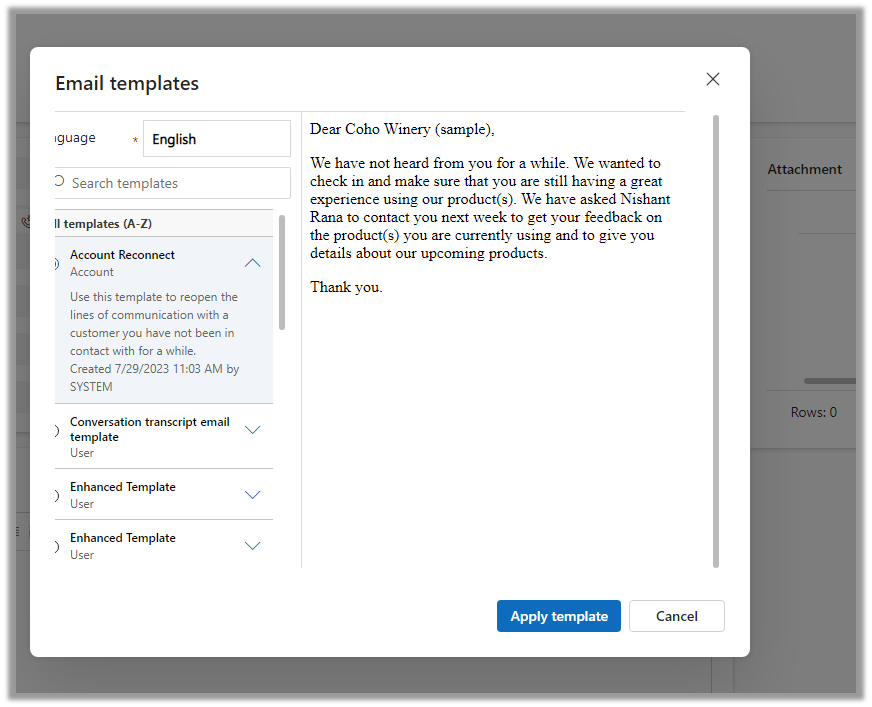
The new insert template dialog box adds features to quickly find and insert the appropriate email template.
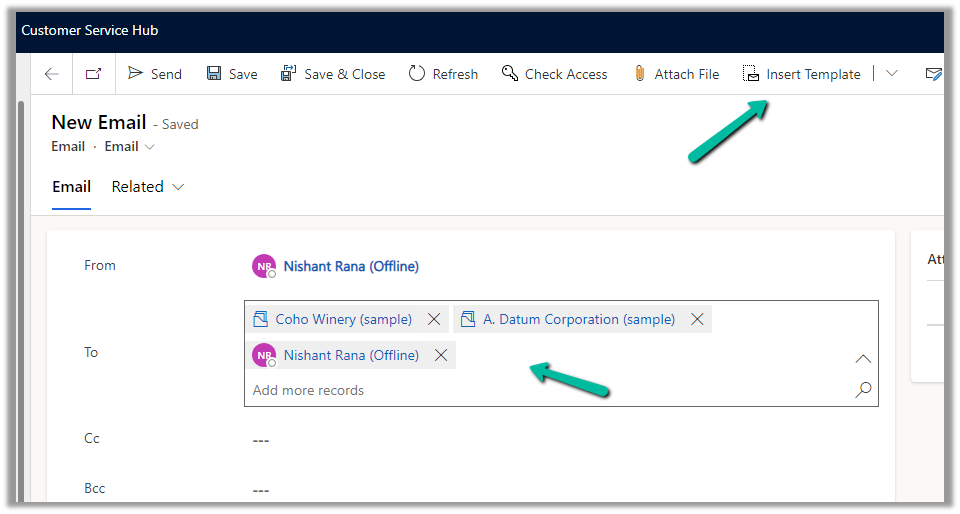
For the below email record, we have a contact, account, and usertype record selected in To (Regarding), click on Insert Template to open the dialog box.
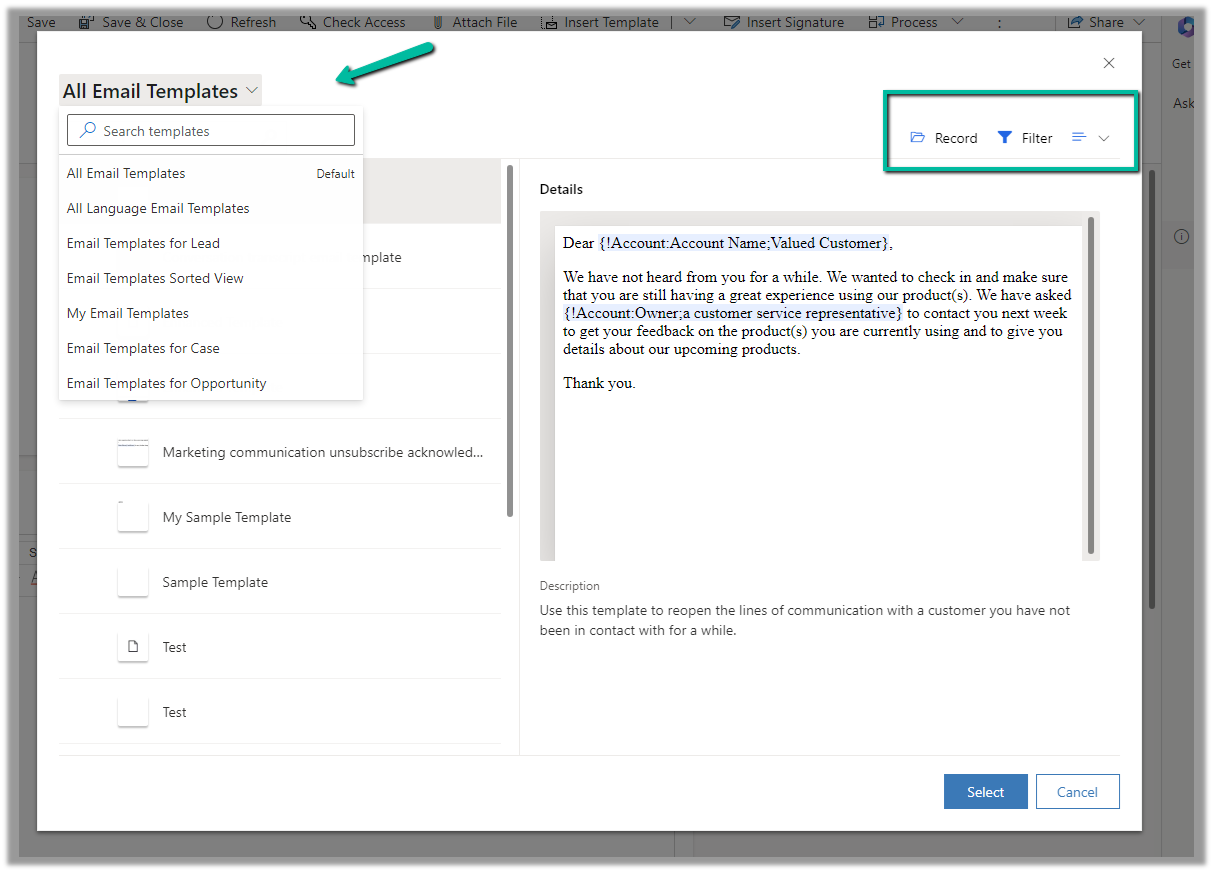
The new dialog box allows selecting the view for filtering the email templates.
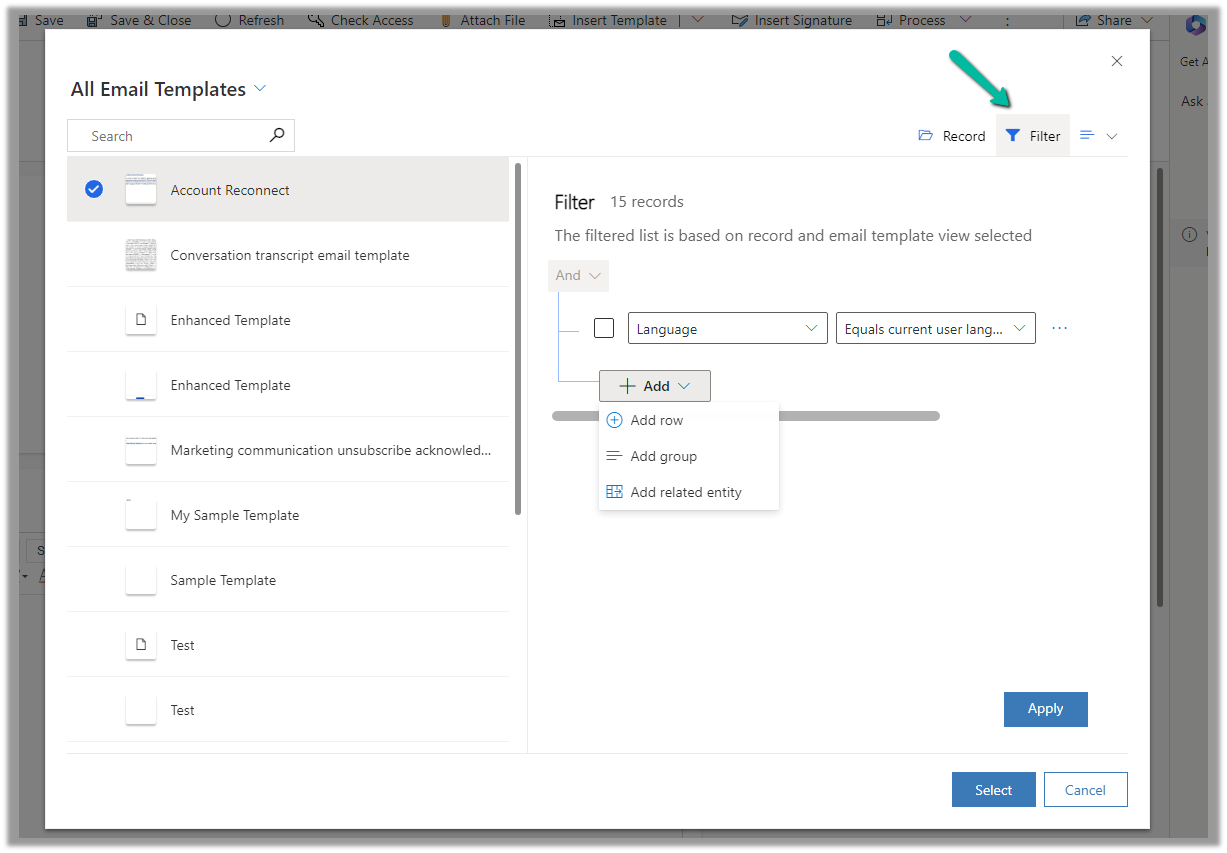
Clicking on Filter shows the filter for the selected view, and allows updating the filter to find the required template.
The Record options allow filtering the views based on the record type specified in the To (Regarding)
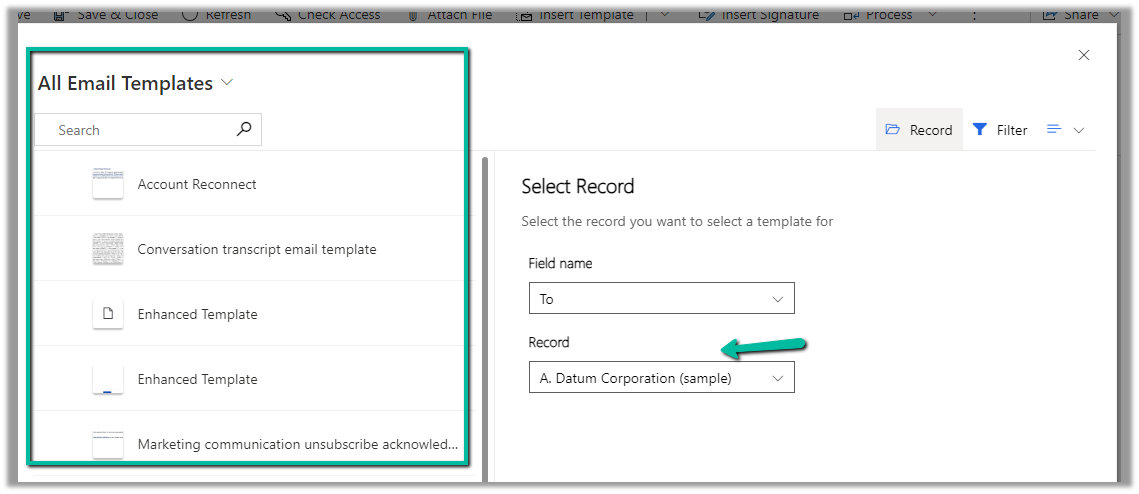
Selecting the A. Datum Corporation (Sample) account record, filters the view to show email templates related to the account.
We can also specify the type of view – either List (default), Grid, or Tiles.
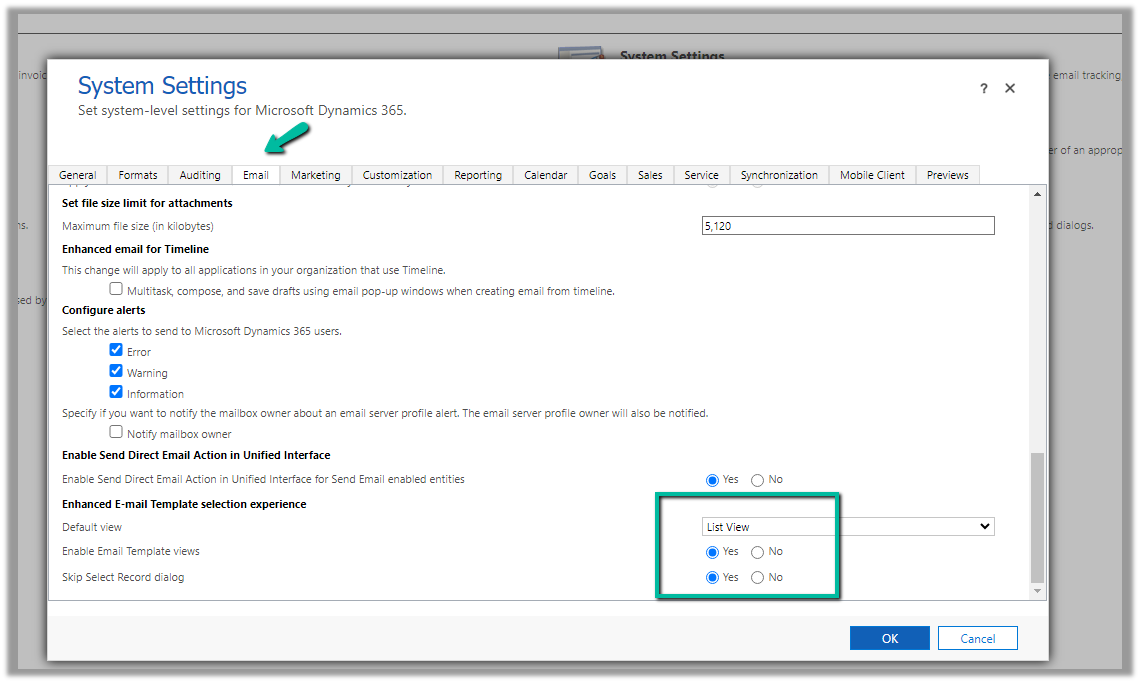
From Advanced Settings >> System Settings >> Email tab, we can control these options i.e. specify the default view, and show and hide for Record and Filter options.
The enhanced email template selection is enabled for default for Customer Service Workspace and Customer Service Hub Apps.
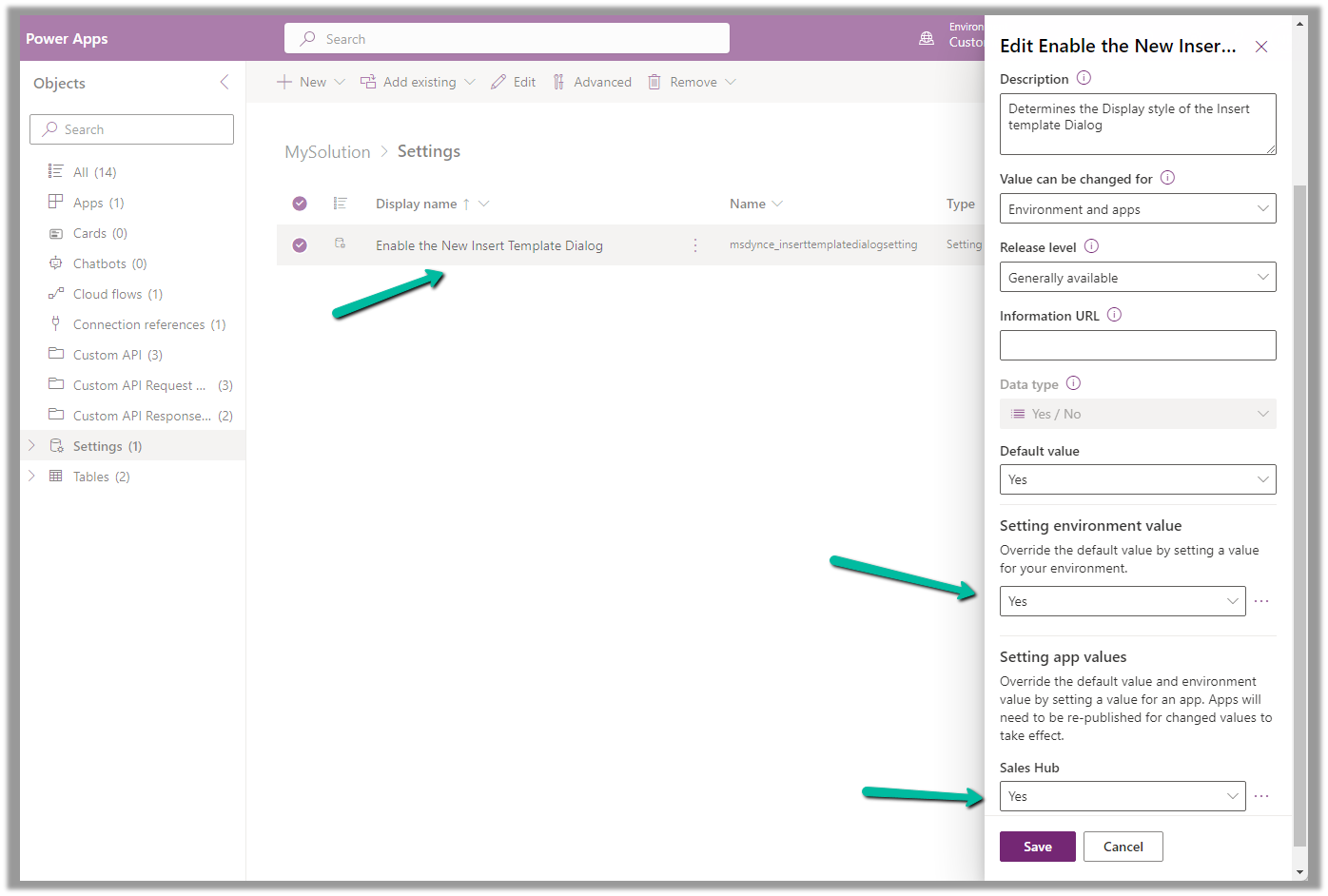
To enable it for other Model-driven apps, add and enable the following setting “Enable the New Insert Template Dialog” in the solution.
Below is how the old Insert Email Template dialog box looks
Below is what our existing or current Email Template editor looks like (Sales Hub >> Personal Settings >> Email templates)
Let us now enable the Enhanced Email Template editor for the App / Environment (it is enabled by default for Customer Service workspace and Customer Service Hub apps)
Create or Open an existing solution, Add existing >> Setting >> Enable the New Email Template Editor
We can set the value as Yes for the Setting environment value to apply it for the environment.
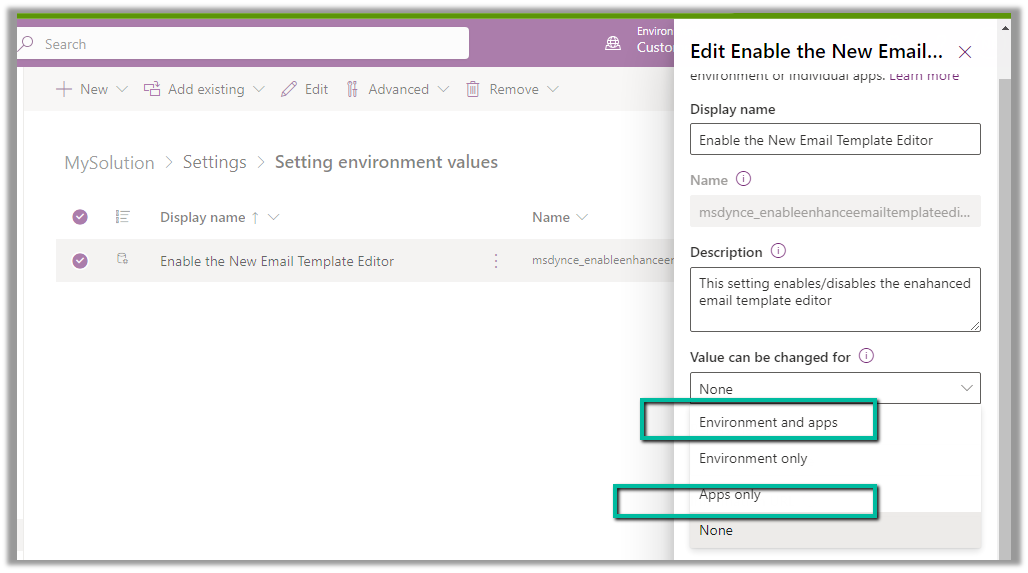
To enable it for a specific app, make sure we have the option “Environment and apps” and “Apps Only” selected for Value can be changed for option.
To specify the app(s) for which we want to enable the new email template editor, we need to add that corresponding app to the solution.
On adding the Sales Hub App, we get the option to set the value for the Sales Hub app, which we have set as Yes.
Publish all customization.
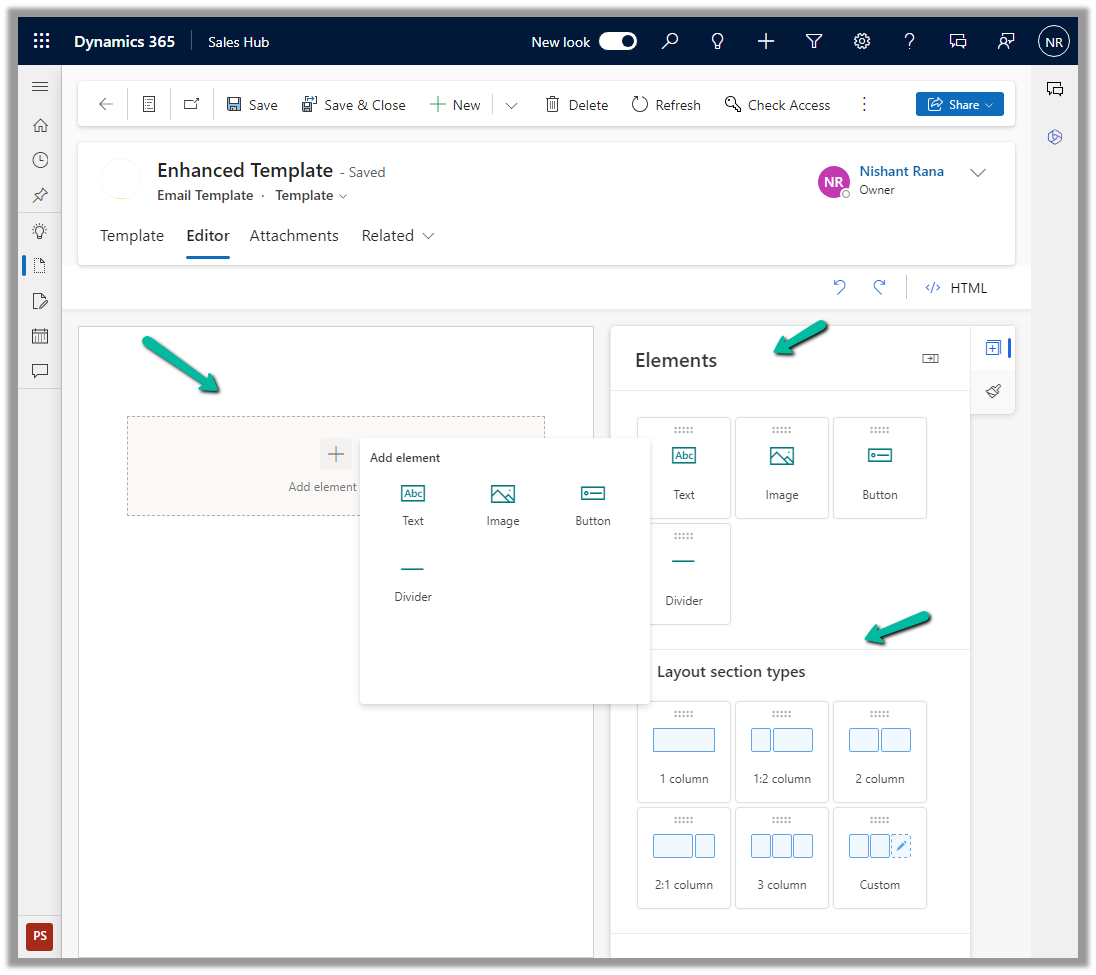
We can now see the new Editor tab added for the new Email Template record inside Sales Hub.
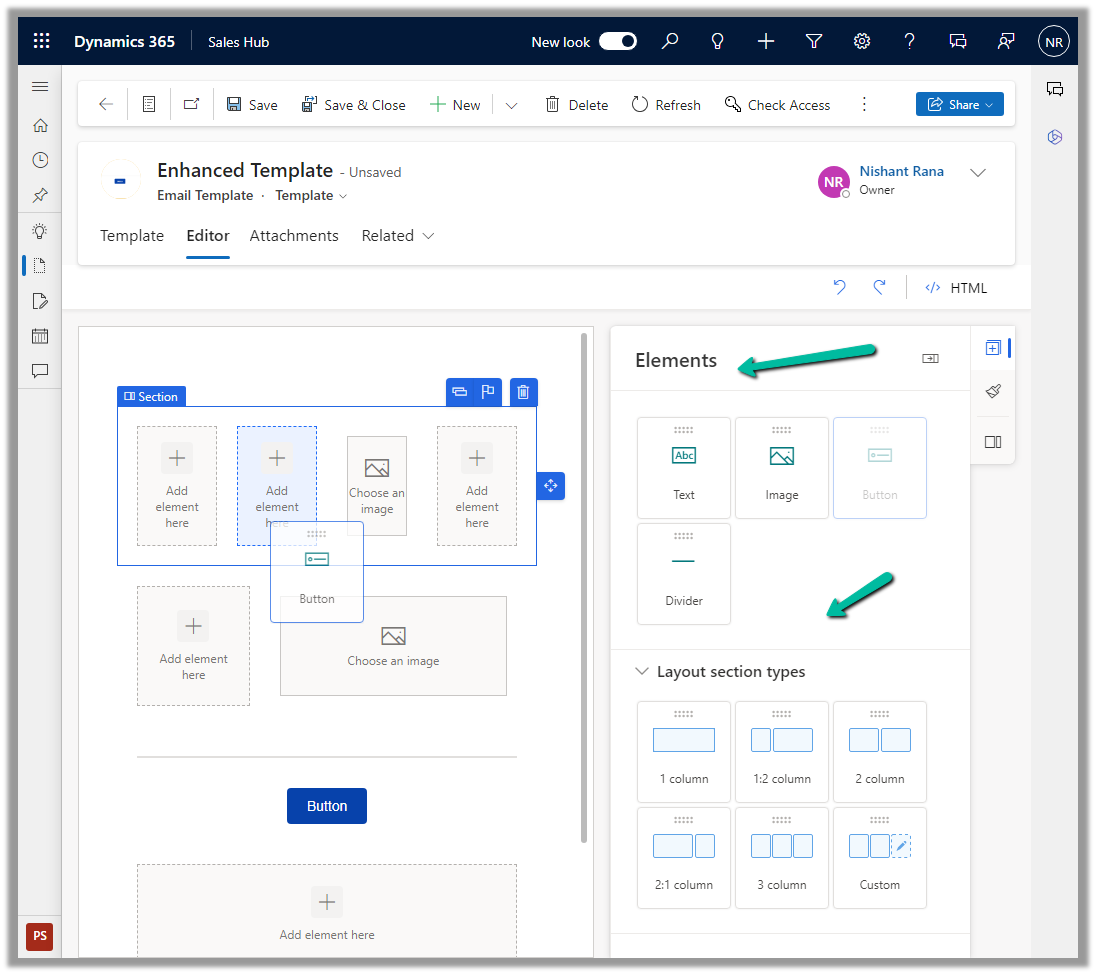
We can drag and drop, and specify properties, of the layout section and elements in the new editor.
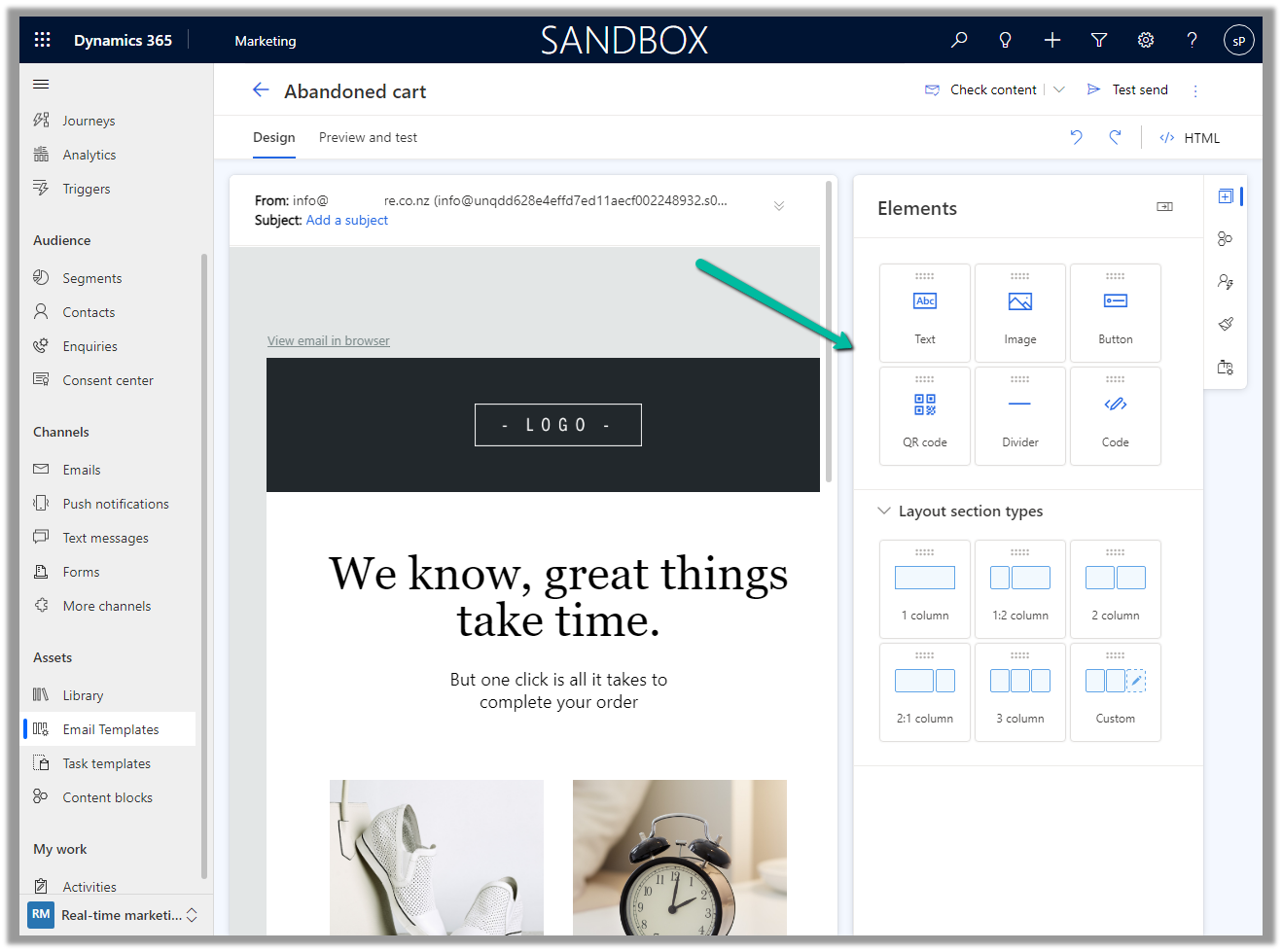
The new email template editor uses the same design as the email editor in Dynamics 365 Marketing, making it more consistent across the different apps in the platform.


















 Nishant Rana's Weblog