How to – Post a JSON body in Swagger


Recently working with an Azure Functions , we had to define its REST Signature using Swagger to be able to use it within PowerApps.

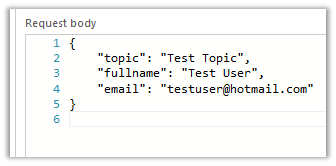
The Azure Function expected the code query parameter basically the apiKey for the function and JSON Body with custom object named Lead having following properties as POST method.

  • topic
  • fullname
  • email

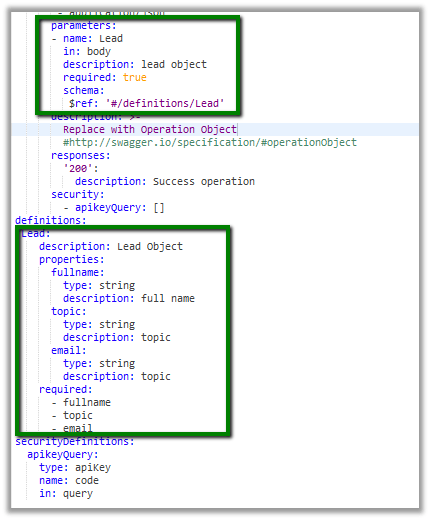
This is how we’d define our Lead Object and pass it as one of the parameters in the body.


swagger: '2.0'
info:
title: mycrmfunctionapp.azurewebsites.net
version: 1.0.0
host: mycrmfunctionapp.azurewebsites.net
basePath: /
schemes:
- https
- http
paths:
/api/MyLeadWebHook:
post:
operationId: /api/MyLeadWebHook/post
produces:
- application/json
consumes:
- application/json
parameters:
- name: Lead
in: body
description: lead object
required: true
schema:
$ref: '#/definitions/Lead'
description: >-
Replace with Operation Object
#http://swagger.io/specification/#operationObject
responses:
'200':
description: Success operation
security:
- apikeyQuery: []
definitions:
Lead:
description: Lead Object
properties:
fullname:
type: string
description: full name
topic:
type: string
description: topic
email:
type: string
description: topic
required:
- fullname
- topic
- email
securityDefinitions:
apikeyQuery:
type: apiKey
name: code
in: query

We can use the Swagger Editor built-in with Azure Functions or http://editor.swagger.io/#/ to edit and test our Swagger.

Hope it helps..

Calling Azure Functions (GenericWebHook-Csharp) from CRM


In our previous post, we created a simple Azure Function using a free account. (1-hour limitation).

https://nishantrana.me/2017/04/26/starting-with-a-simple-hello-world-azure-functions/

In this post, we’d use our trial Azure account to create a Function App for which we will configure Web Hook trigger and it outputs to Queue and Azure Blog Storage.

We will call this Function from Plugin on Post Create of Lead in CRM Online and pass Lead details to it. This detail will be then passed to Queue and a file inside Azure Blog Storage as Output from the Function.

Open the Azure Portal

https://portal.azure.com

Select Function App.

Create the Function App.

Click on + for Functions to create a new Function.

We’d select GenericWebHook-Csharp template here.

This creates a new Function nme MyLeadWebHook and it has mode set to Webhook and type as Generic JSON.

We can define Post as the only allowed method to call this function as shown below.

Update the code for the function by defining the Lead Object and deserialization logic as shown below.

#r is syntax for referencing the library. Here Newtonsoft.Json library is being referenced for deserialization.

Save and Run to check if it has compiled successfully or not. Click on Test tab to test the function by passing the JSON in the request body.

We can see below that our function has run successfully.

This finishes our Web Hook trigger part. Now let us define the Queue Output to it.

Select Integrate and click on New Output.

Select Azure Queue Storage template here.

Name the queue as leadqueue. This will automatically create a queue name leadqueue.

The parameter name here is outputQueueItem. We will update our code to pass the lead details to this parameter.

Before we update the code for our function let us add new output which saves the Lead details to a text file. Click on new output and select Azure Blog Storage.

Here outputBlob is the parameter to which we need to provide the lead details. In the path outcontainer is the name of the container within Blob and rand-guid generates a random guid for the file name. Here we have added the extension .txt.

Now we have our outputs defined, so let us go back to our code for the function and update it to pass values to both the output parameter one for queue and other for the blob.


#r "Newtonsoft.Json"

using System;
using System.Net;
using Newtonsoft.Json;
public class Lead
{
public string Topic { get; set;}
public string FullName { get; set;}
public string Email { get; set;}
}

public static async Task<object> Run(<span class="hiddenSpellError" pre="" data-mce-bogus="1">HttpRequestMessage</span> req, TraceWriter log, </object>
IAsyncCollector<Lead> outputQueueItem, TextWriter outputBlob)
{
log.Info($"Lead Information Recieved");

string jsonContent = await req.Content.ReadAsStringAsync();
var lead = JsonConvert.DeserializeObject<Lead>(jsonContent);

log.Info($"Lead named {lead.Topic} created for {lead.FullName} with email id {lead.Email}");

// add to queue
await outputQueueItem.AddAsync(lead);

// write to a text file in azure blog storage
outputBlob.WriteLine($"Topic: {lead.Topic}");
outputBlob.WriteLine($"Full Name: {lead.FullName}");
outputBlob.WriteLine($"Email: {lead.Email}");

return req.CreateResponse(HttpStatusCode.OK, new { message = "Lead Information Recieved" });
}

To test the code click on Test and select Run

Click on Monitor tab for the Function and select the log created for our test run. We can see the values for the parameters in the invocation details section.

Now let us write a plugin that runs on Post Create of lead and calls this Function App.

First let us get the URL for our function app. Go to Function and click on Get Function URL.

Our Function URL –

The code parameter is the Key that should be passed while calling the above URL.

Keys tab is where we can configure out Keys.

Below is code for our plugin.


using Microsoft.Xrm.Sdk;
using System;
using System.IO;
using System.Net;
using System.Runtime.Serialization.Json;
using System.Text;

namespace MyTestPlugin
{

public class Lead
{
public string Topic { get; set; }
public string FullName { get; set; }
public string Email { get; set; }
}

public class MyPluginClass : IPlugin
{
public void Execute(IServiceProvider serviceProvider)
{
try
{
// Obtain the execution context from the service provider.
IPluginExecutionContext context = (IPluginExecutionContext)serviceProvider.GetService(typeof(IPluginExecutionContext));

// The InputParameters collection contains all the data passed in the message request.
if (context.InputParameters.Contains("Target") && context.InputParameters["Target"] is Entity)
{
// Obtain the target entity from the input parameters.
Entity entity = (Entity)context.InputParameters["Target"];

using (WebClient client = new WebClient())
{
// get the lead details
var myLead = new Lead();
myLead.Topic = entity.Attributes["subject"].ToString();
myLead.FullName = entity.Attributes["fullname"].ToString();
myLead.Email = entity.Attributes["emailaddress1"].ToString();

DataContractJsonSerializer serializer = new DataContractJsonSerializer(typeof(Lead));
MemoryStream memoryStream = new MemoryStream();
serializer.WriteObject(memoryStream, myLead);
var jsonObject = Encoding.Default.GetString(memoryStream.ToArray());

var webClient = new WebClient();
webClient.Headers[HttpRequestHeader.ContentType] = "application/json";

// our function key
var code = "2QYP6xwCswMNmzJDFJdDE65ed1PdNBOj5Wlu4LbSpeSjs/58h1KLbg==";
// the url for our Azure Function
var serviceUrl = "https://mycrmfunctionapp.azurewebsites.net/api/MyLeadWebHook?code=" + code;

// upload the data using Post mehtod
string response = webClient.UploadString(serviceUrl, jsonObject);
}
}
}
catch (Exception ex)
{
throw new InvalidPluginExecutionException(ex.Message);
}
}
}

}

Let us create our lead record in CRM and test our Azure Function.

We can check the Monitor tab for our Function and check the logs and can see the Lead Information added to queue and also a text file created from our output parameters.

Our text file in the container.

Hope it helps..

Starting with a simple Hello “World” Azure Functions


Hi,

In this post we’d have a quick look at the Azure Functions

Azure Functions can be simply defined as – Code and Event. Basically, we’d have an event on which our code will execute. We can create a function pipeline wherein one function acts as a trigger to another function which then triggers the next action passing the corresponding output.

Azure Functions are easy to write, we can write them inside our Azure Portal or can write in them using command line tooling or Visual studio and easily upload them.

They can be easily bind to existing services like SendGrid, OneDrive, DropBox etc.

And the most important aspect is the Pay only for what you use. Azure Functions comes with monthly free grant of 1 million requests and 400,000 GB-s of resource consumption per month.

The easiest way to try our Azure Functions is to go to Azure Functions Portal

https://functions.azure.com/

Click on Try It For Free (this doesn’t require setting up Azure Trial or using our existing Azure Subscription).

However, this trial is just for 1 hour.

We’d select Web Hook + API as our scenario and C# as our language and click on create this function.

It will ask as us to choose an auth provider.

After successful authentication, we are presented with the function editor page

We have the function with the below sample code already configure for us. It basically looks for name parameter in either as query parameter or request body and append Hello to it as response.

Click on Run to test it.

Below we have passed Nishant Rana as the value for the query parameter name.

Clicking on the Get Function URL provides us with the url of this particular Funtion.

We can test it in browser or can use any of the extensions like Postman, Advanced Rest Client etc.

View files shows us all the files

Clicking in Integrate presents us with the option to configure the trigger for the function as well as option to define output for it

We can update our Azure Function to update only the Post request as show below.

We can define an output for this function by clicking on New Output.

As we are using free account we’d see many of the options disabled.

Manage section shows us the Key associated for this function.

It is the same key that is being used in the function url

To add a new function we can click the plus button.

Below are the different Function Template that are available.

Again, we have most of the options disabled as we are using free account.

As a next step, we’d create a free Azure account and create function that does something more meaningful.

Meanwhile –

Hope it helps..

Advertisements

Integrating Bot with Dynamics CRM (OAuth 2.0 Authentication)


Let us continue with our previous posts on understanding and implementing a simple bot that interact with Dynamics CRM using Microsoft Bot Framework

Till now we had hard coded our connection to CRM inside the bot application which was used to create lead records in CRM.

In this post, we will use OAuth2 authentication to connect to CRM Service (Web API).

We’d update our bot to use Sign-In Card. It will launch a web browser (web site which redirects user to authenticate to office 365) where user will enter the credentials and on successful authentication it will get the authentication token which it would then use to interact with CRM.

Here we would be using Web Site deployed in Azure that takes care of all the plumbing part.

We will be using Bot State Service here for saving Bot State. User can save bot state in this bot state service and can retrieve it. So, we would be passing the user id to the web site hosted to the azure and after we get the authentication token on successful authorization, we save this information in the bot in the bot state using SetUserData method. Back in our Bot app we will retrieve this authentication token saved in session state using GetUserData method and use it for interacting with CRM Web API.

Let us first create a ASP.NET Web Application which would be use for redirecting the user to authentication and saves the authentication token to the Bot State Service.

This creates our Web Application.

Add the following Microsoft.Bot.Builder Nuget Package in the project.


Also add a View named Authorize, which we will use are redirect URI for our Dynamics 365 App that will be registered to Azure Active Directory.


Before we start writing the code in our controller, we need to register dynamics 365 app with Azure Active Directory.

Follow the below post for that.

https://nishantrana.me/2016/11/13/register-a-dynamics-365-app-with-azure-active-directory/

Now we have our required values i.e. client id, client key and end point URL

Add the following keys in web.config.


Here Client Id, Client Secret and EndPoint Url are the one we got when we registered our Dynamics 365 App. Here Microsoft App Id and Password are for our Bot Application.

https://dev.botframework.com

Update the HomeController.cs and add below action methods Login and Authorize.

</p>
using Microsoft.Bot.Connector;
using Microsoft.IdentityModel.Clients.ActiveDirectory;
using System;
using System.Configuration;
using System.Threading.Tasks;
using System.Web.Mvc;

namespace AzureAuthWebApplication.Controllers
{
public class HomeController : Controller
{
public ActionResult Index()
{
return View();
}
public ActionResult Login(string userid)
{
// string userid in session
Session["botuserid"] = userid;
// CRM Url
string Resource = "https://nishutrial.crm.dynamics.com";

AuthenticationContext authContext = new AuthenticationContext(ConfigurationManager.AppSettings["Authority"]);
var authUri = authContext.GetAuthorizationRequestUrlAsync(Resource, ConfigurationManager.AppSettings["ClientId"],
new Uri(ConfigurationManager.AppSettings["RedirectUri"]), UserIdentifier.AnyUser, null);
return Redirect(authUri.Result.ToString());
}

public async Task<ActionResult> Authorize(string code)
{
AuthenticationContext authContext = new AuthenticationContext(ConfigurationManager.AppSettings["Authority"]);
var authResult = await authContext.AcquireTokenByAuthorizationCodeAsync(
code, new Uri(ConfigurationManager.AppSettings["RedirectUri"]),
new ClientCredential(ConfigurationManager.AppSettings["ClientId"],
ConfigurationManager.AppSettings["ClientSecret"]));

// Saving token in Bot State
var botCredentials = new MicrosoftAppCredentials(ConfigurationManager.AppSettings["MicrosoftAppId"],
ConfigurationManager.AppSettings["MicrosoftAppPassword"]);
var stateClient = new StateClient(botCredentials);
BotState botState = new BotState(stateClient);
BotData botData = new BotData(eTag: "*");
botData.SetProperty<string>("AccessToken", authResult.AccessToken);

// webchat is the channel id. Make sure it is same in the bot application when we get the user data
await stateClient.BotState.SetUserDataAsync("webchat", Session["botuserid"].ToString(), botData);
ViewBag.Message = "Your Token -" + authResult.AccessToken + " User Id - " + Session["botuserid"].ToString();
return View();
}

public ActionResult About()
{
ViewBag.Message = "Your application description page.";

return View();
}

public ActionResult Contact()
{
ViewBag.Message = "Your contact page.";

return View();
}
}
}
<p style="text-align: justify;">

Publish the Web Application to Azure.

Now let us go back to our Bot Application and update the messagecontroller.cs class.

</p>
using System.Net;
using System.Net.Http;
using System.Threading.Tasks;
using System.Web.Http;
using Microsoft.Bot.Builder.Dialogs;
using Microsoft.Bot.Connector;
using Microsoft.Bot.Builder.FormFlow;
using Bot_Application1.Models;
using System;
using Bot_Application1.Dialogs;
using System.Collections.Generic;
using System.Web;
using System.Net.Http.Headers;
using Newtonsoft.Json;
using Newtonsoft.Json.Linq;

namespace Bot_Application1
{
[BotAuthentication]
public class MessagesController : ApiController
{
/// <summary>
/// POST: api/Messages
/// Receive a message from a user and reply to it
/// </summary>
public async Task<HttpResponseMessage> Post([FromBody]Activity activity)
{
if (activity.Type == ActivityTypes.Message)
{
if (activity.Text.ToUpper() == "LOGIN")
{
ConnectorClient connector = new ConnectorClient(new Uri(activity.ServiceUrl));
Activity replyToConversation = activity.CreateReply();
replyToConversation.Recipient = activity.From;
replyToConversation.Type = "message";
replyToConversation.Attachments = new List<Attachment>();

List<CardAction> cardButtons = new List<CardAction>();
CardAction plButton = new CardAction()
{
// ASP.NET Web Application Hosted in Azure
// Pass the user id
Value = "http://azureauthwebapplication20170421122618.azurewebsites.net/Home/Login?userid=" + HttpUtility.UrlEncode(activity.From.Id),
Type = "signin",
Title = "Connect"
};

cardButtons.Add(plButton);

SigninCard plCard = new SigninCard("Please login to Office 365", new List<CardAction>() { plButton });
Attachment plAttachment = plCard.ToAttachment();
replyToConversation.Attachments.Add(plAttachment);
var reply = await connector.Conversations.SendToConversationAsync(replyToConversation);
}
else if (activity.Text.ToUpper() == "GETUSERS")
{
// Get access token from bot state
ConnectorClient connector = new ConnectorClient(new Uri(activity.ServiceUrl));
StateClient stateClient = activity.GetStateClient();
BotState botState = new BotState(stateClient);
BotData botData = await botState.GetUserDataAsync(activity.ChannelId, activity.From.Id);
string token = botData.GetProperty<string>("AccessToken");

var httpClient = new HttpClient();
httpClient.DefaultRequestHeaders.Add("OData-MaxVersion", "4.0");
httpClient.DefaultRequestHeaders.Add("OData-Version", "4.0");
httpClient.DefaultRequestHeaders.Accept.Add(new MediaTypeWithQualityHeaderValue("application/json"));
httpClient.DefaultRequestHeaders.Authorization = new AuthenticationHeaderValue("Bearer", token);

var retrieveResponse =
await httpClient.GetAsync("https://nishutrial.crm.dynamics.com/api/data/v8.1/systemusers?$select=fullname");
if (retrieveResponse.IsSuccessStatusCode)
{
var jRetrieveResponse =
JObject.Parse(retrieveResponse.Content.ReadAsStringAsync().Result);

dynamic systemUserObject = JsonConvert.DeserializeObject(jRetrieveResponse.ToString());

foreach (var data in systemUserObject.value)
{
Activity jsonReply = activity.CreateReply($"System User = {data.fullname.Value}");
await connector.Conversations.ReplyToActivityAsync(jsonReply);
}
}
else
{
Activity reply = activity.CreateReply("Failed to get users.\n\nPlease type \"login\" before you get users.");
await connector.Conversations.ReplyToActivityAsync(reply);
}
}
else
{
ConnectorClient connector = new ConnectorClient(new Uri(activity.ServiceUrl));
Activity reply = activity.CreateReply("# CRM BOT Instructions \n\nlogin --> Login to Office 365\n\ngetusers --> Get all System Users in CRM");
await connector.Conversations.ReplyToActivityAsync(reply);
}
}
else
{
HandleSystemMessage(activity);
}

var response = Request.CreateResponse(HttpStatusCode.OK);
return response;
}

private IDialog<LeadModel> MakeLuisDialog()
{
return Chain.From(() => new LUISDialog(LeadModel.BuildForm));
}

internal static IDialog<LeadModel> MakeRootDialog()
{
return Chain.From(() => FormDialog.FromForm(LeadModel.BuildForm));
}

private Activity HandleSystemMessage(Activity message)
{
if (message.Type == ActivityTypes.DeleteUserData)
{
// Implement user deletion here
// If we handle user deletion, return a real message
}
else if (message.Type == ActivityTypes.ConversationUpdate)
{
// Handle conversation state changes, like members being added and removed
// Use Activity.MembersAdded and Activity.MembersRemoved and Activity.Action for info
// Not available in all channels
}
else if (message.Type == ActivityTypes.ContactRelationUpdate)
{
// Handle add/remove from contact lists
// Activity.From + Activity.Action represent what happened
}
else if (message.Type == ActivityTypes.Typing)
{
// Handle knowing tha the user is typing
}
else if (message.Type == ActivityTypes.Ping)
{
}

return null;
}
}
}
<p style="text-align: justify;">

Publish the Bot to Azure.

Now let us test the Bot.

Go to – https://dev.botframework.com/bots

Open the Bot and click on Test.

Let us start the Chat.

On typing login the bot presents User with the Sign In Card. Click on Connect.

Sign in with your credentials.

Give permission to the app.

On successful sign-in –

Now type in getusers

It brings us all the System Users full name from our CRM Organization.

The extremely informative posts from which I learned about it

https://blogs.msdn.microsoft.com/tsmatsuz/2016/09/06/microsoft-bot-framework-bot-with-authentication-and-signin-login/

https://debajmecrm.com/2016/02/29/knowhow-how-to-execute-web-api-calls-to-microsoft-dynamics-crm-from-an-external-asp-net-web-application/

and following pluralsight training that helped in understanding OAuth and JWT concept.

https://www.pluralsight.com/courses/oauth2-json-web-tokens-openid-connect-introduction

Hope it helps..

Publishing Bot to Facebook Messenger


Let us continue with our previous posts on using Microsoft Bot Framework for writing a simple bot.

In our previous post, we published the bot app to Azure and also tested using Skype which is already configured.

In this post, we will be deploying the Bot to Facebook Messenger.

Sign in to Bot Developer Framework site

https://dev.botframework.com/

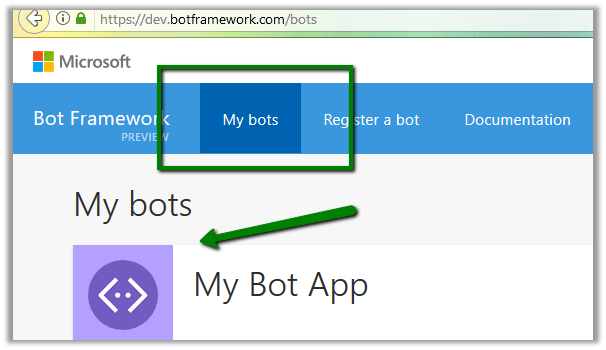
and open the bot application deployed.

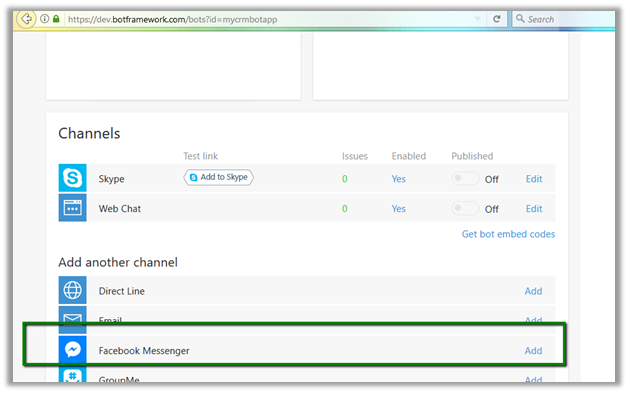
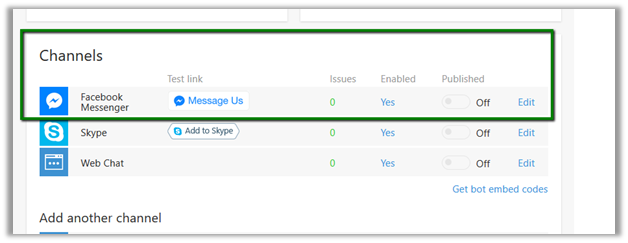
Scroll down and we can see Facebook Messenger as one of the Channel available.

Click on Add.

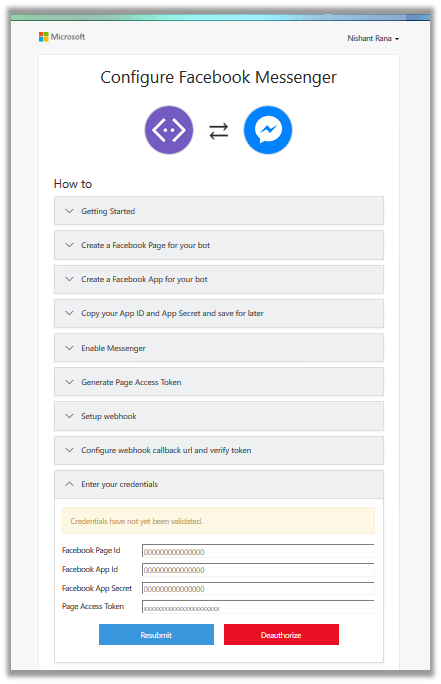
Here we can see the guidelines and all the steps we need to do follow to configure the Facebook messenger

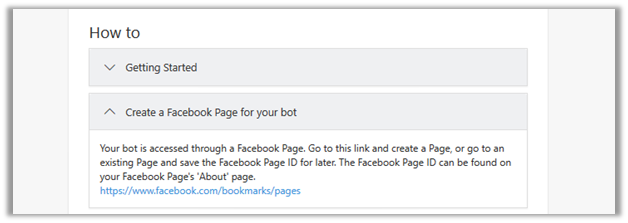
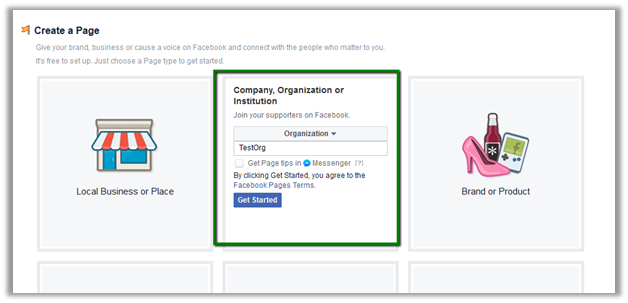
As a first step, we need to create a Facebook page for the bot

Click on the link and create a Facebook page

https://www.facebook.com/bookmarks/pages

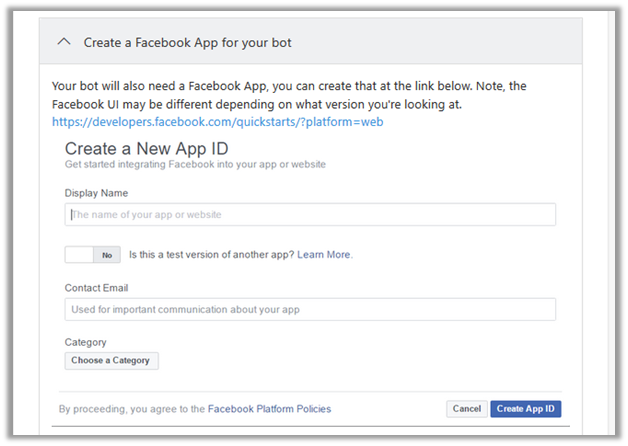
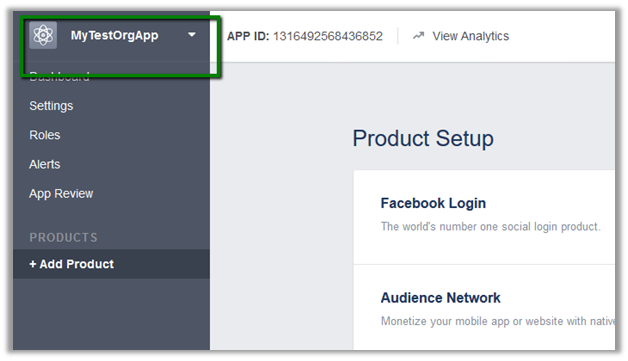
Next step is to create a Facebook App for the bot

Click on the below link to create the Facebook app.

https://developers.facebook.com/quickstarts/?platform=web

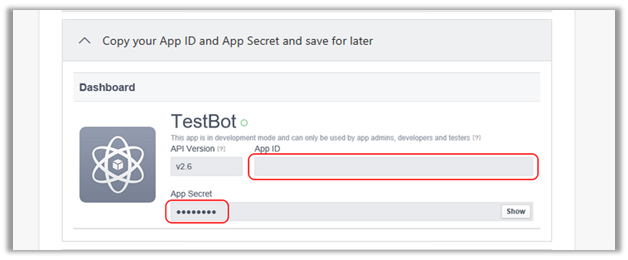
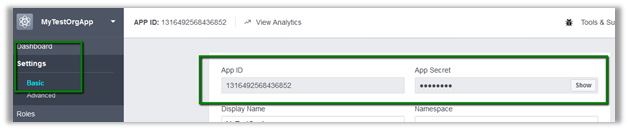
Next step is to copy App ID and App Secret

Go to App Dashboard and copy these values. These values be used in the last step where we need to enter the credentials to authorize the app.

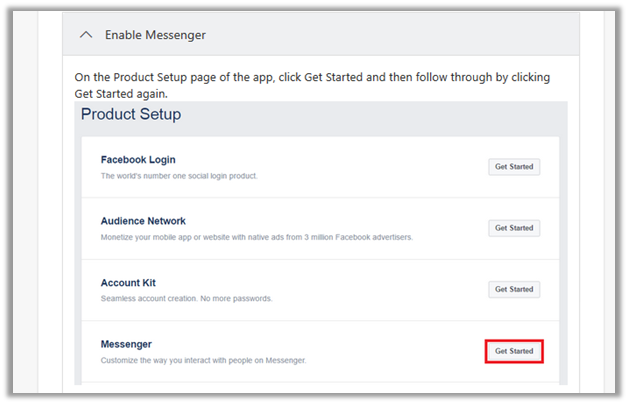
Next step is to enable the Messenger

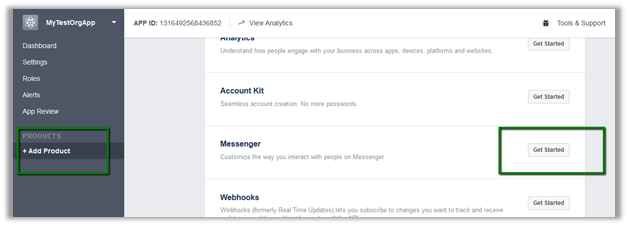
Go to Dashboard and select Add Product.

Click on Get Started for Messenger.

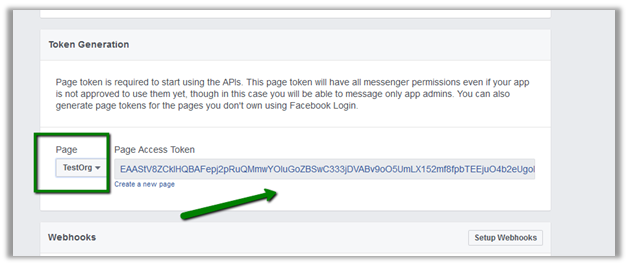
Select the page from the dropdown and copy the token generated.

Next step is to set the Web Hook

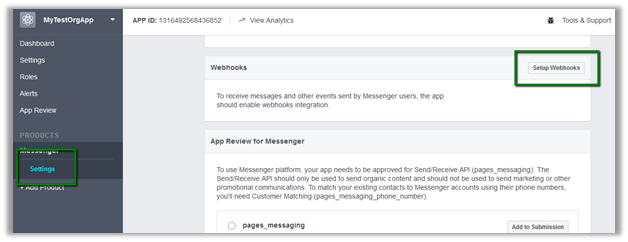
Go to Messenger – Settings in Facebook App Dashboard.

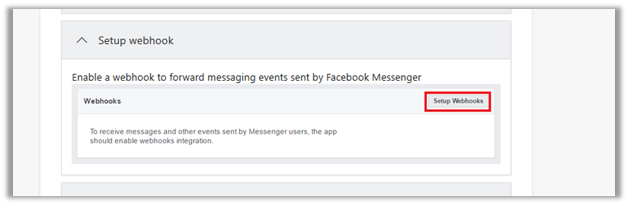
And click on Setup
Webhooks.

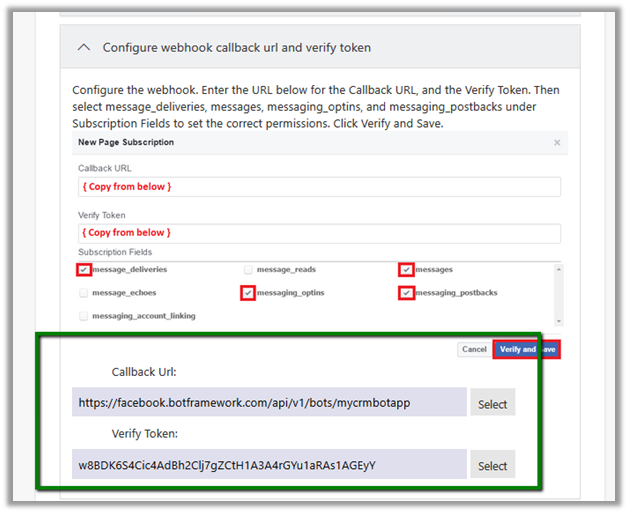
Go back to Configure Facebook Messenger page and copy the url and token from there.

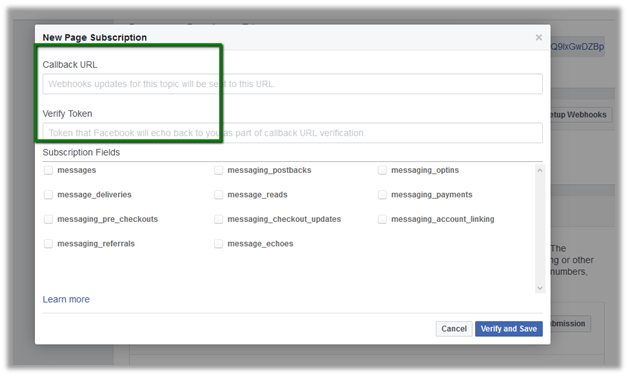
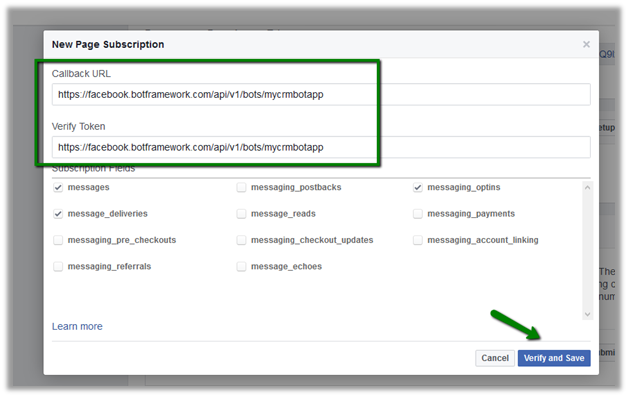
Copy these values and paste it to New Page Subscription. Check the required subscription fields and click on Verify and Save.

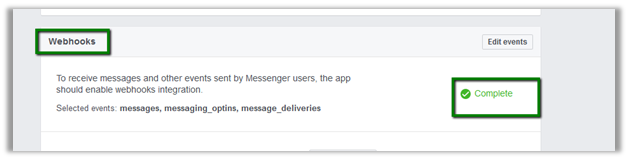
It will show the status as complete on successful verification.

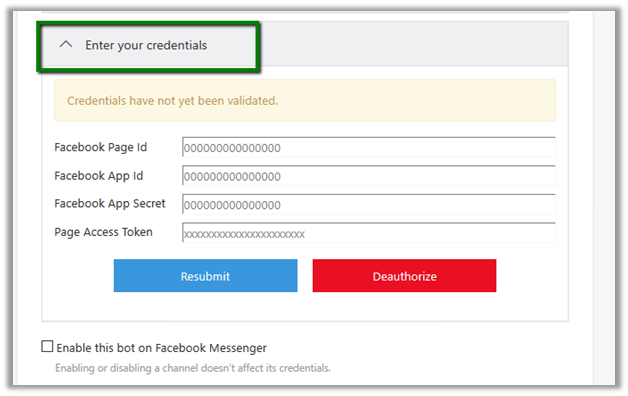
Now as a last step we need to enter our credentials

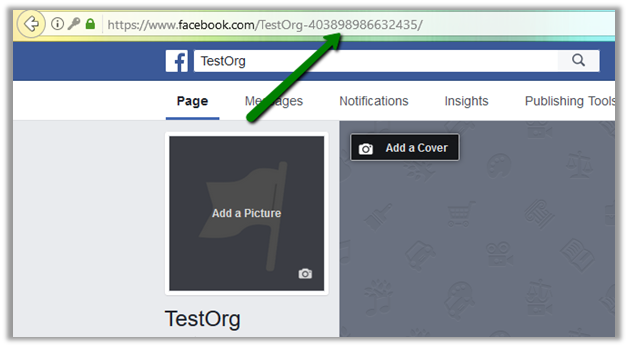
  • Facebook Page Id –

i.e. 403898986632435

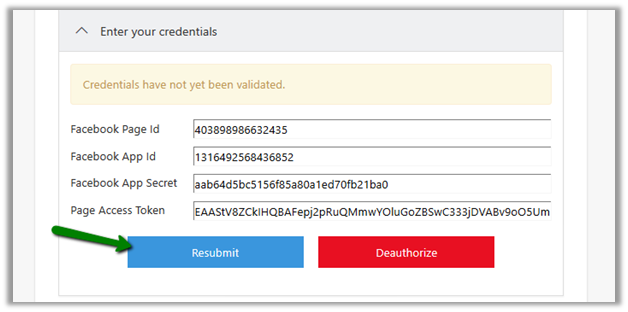
All other values we had already copied earlier. So just passt those values.

And Click on Resubmit.

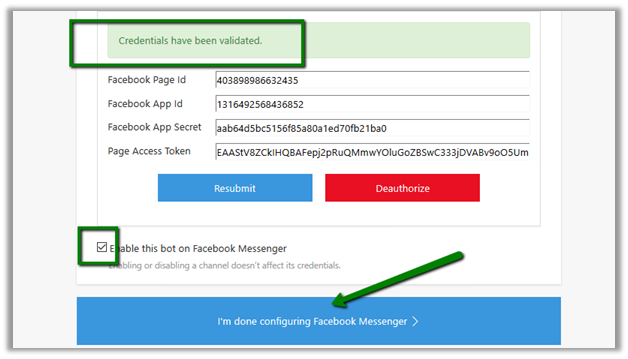
Once the credentials are validated. Click on “I’m done with configuring Facebook Messenger”.

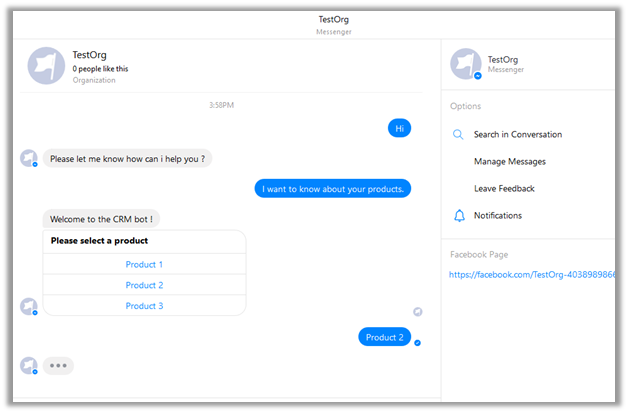
Click on Message Us to start the conversation.

Hope it helps..

Publishing Bot to Azure and adding it to Skype (Microsoft Bot Framework)


Let us continue with our previous posts on using Microsoft Bot Framework to create a simple bot application that creates a lead in CRM.

In this post, we will be publishing our Bot application to Azure and also test it on Skype. Skype is one of the channel already configured for us.

Open the Azure Portal (Create a free trial if you do not have an account)

https://portal.azure.com

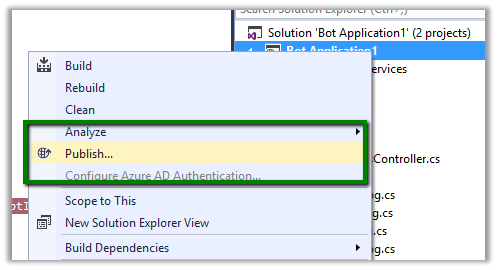
Right click on the application and select Publish.

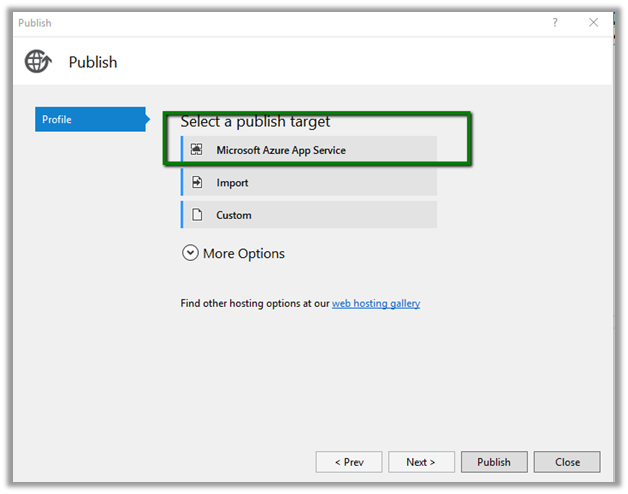
Select Microsoft Azure App Service as the publish target.

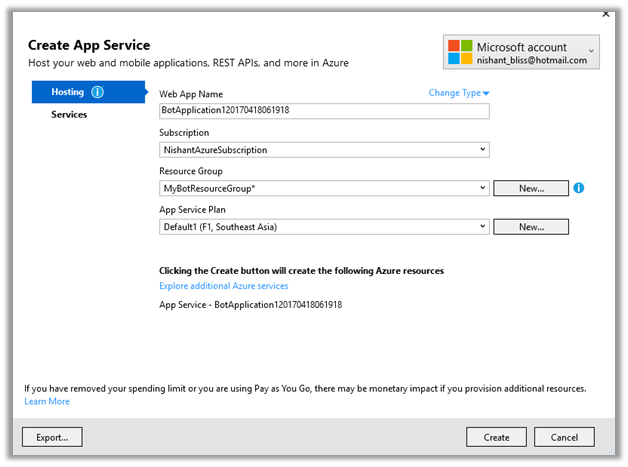
Create the app service

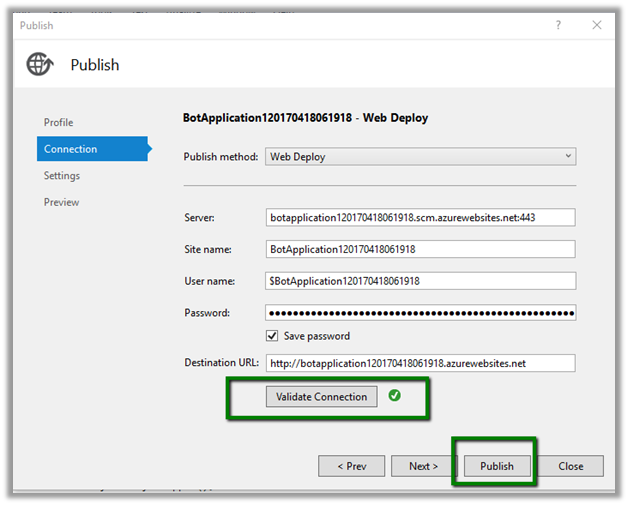
Validate the connection and on successful connection click on Publish.

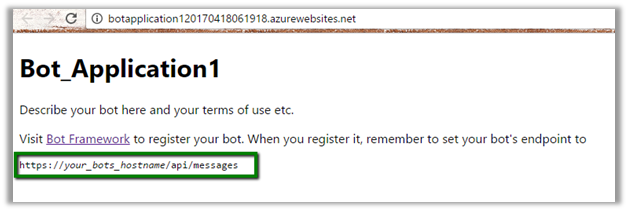
The published Bot Application –

Now to register our bot go to bot framework developer site

https://dev.botframework.com/

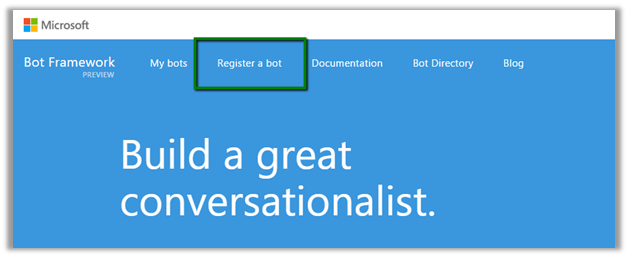
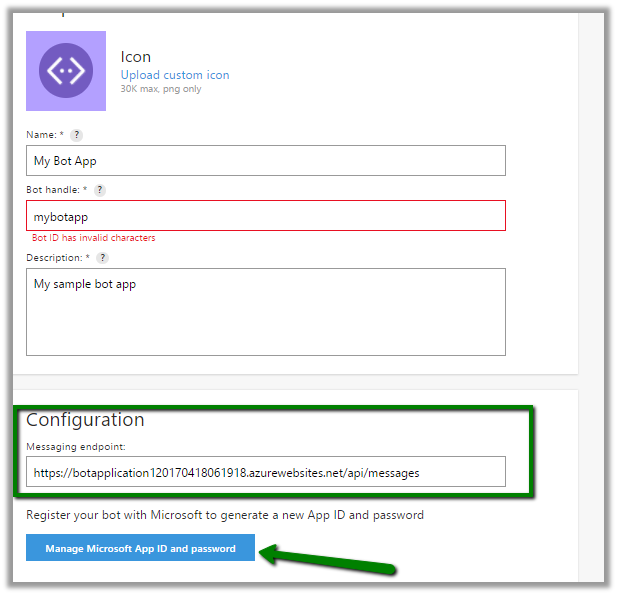
Sign in and Click on Register a bot

Enter all the required details.

Here URL will be the Destination URL of Azure where the Bot Application was published.

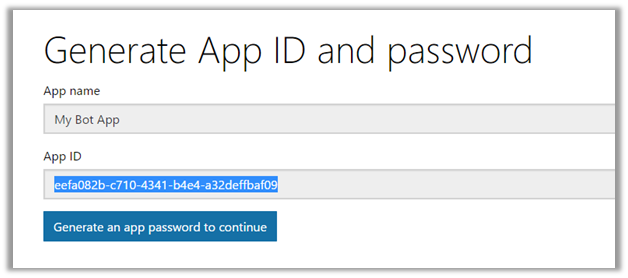
Click on Manage Microsoft App ID and Password

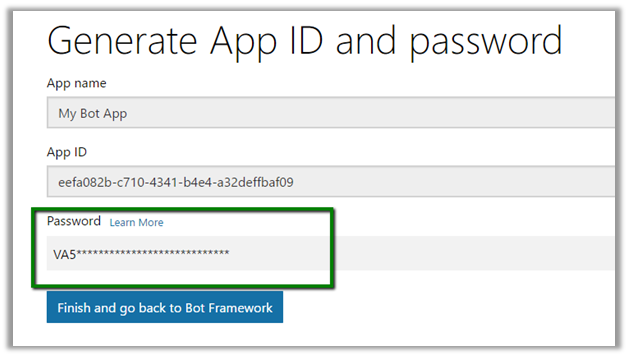
Click on Generate an Microsoft App ID and password.

Save the password and app id which will be used for configuration later.

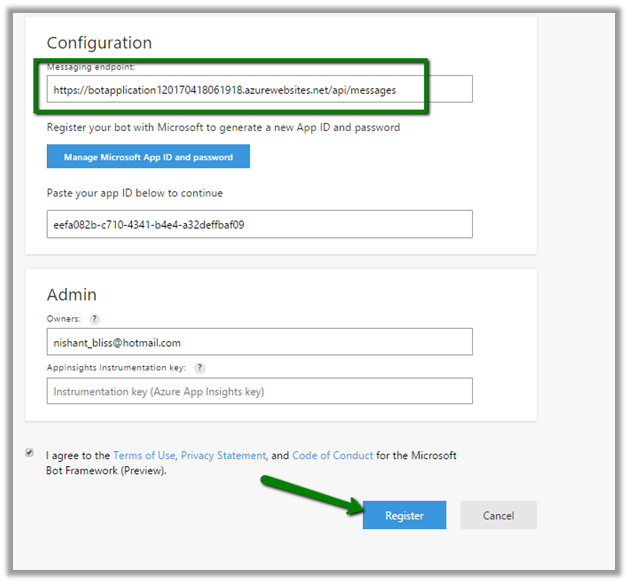
Enter the App Id and click on Register to register the Bot.

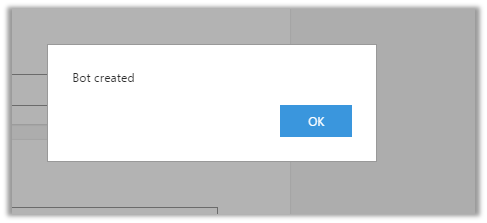
We will get the message “Bot created” on successful registration.

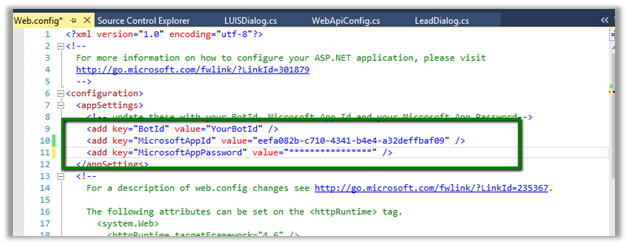
Back in our bot application, open its web.config and specify value for app id and password and republish the app.

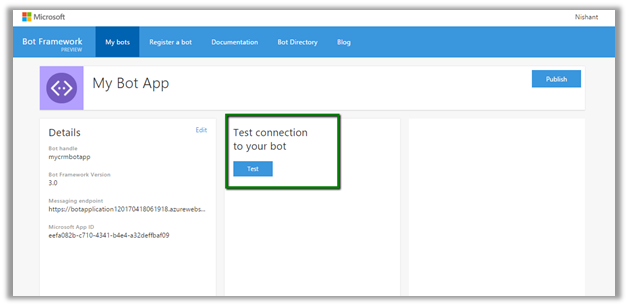
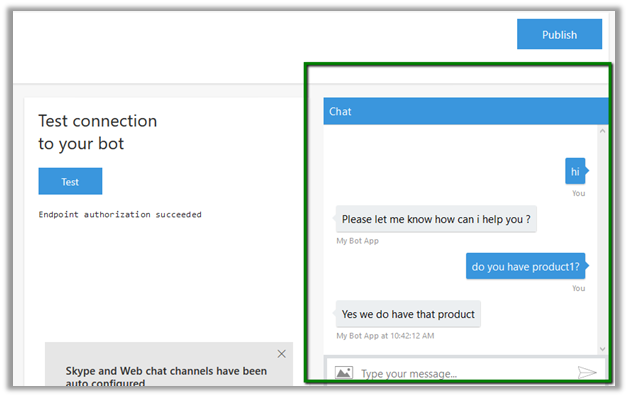
Once it is published successfully, inside our bot we can click on Test to check the connection.

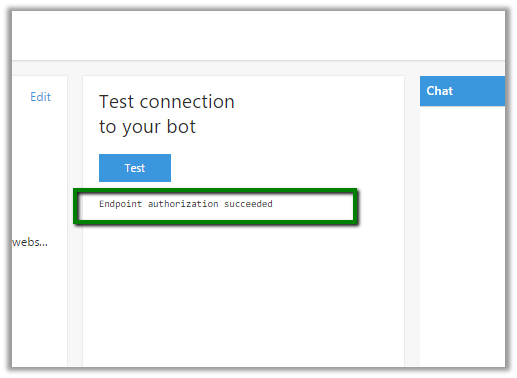
We’d get the message “Endpoint authorization succeeded”.

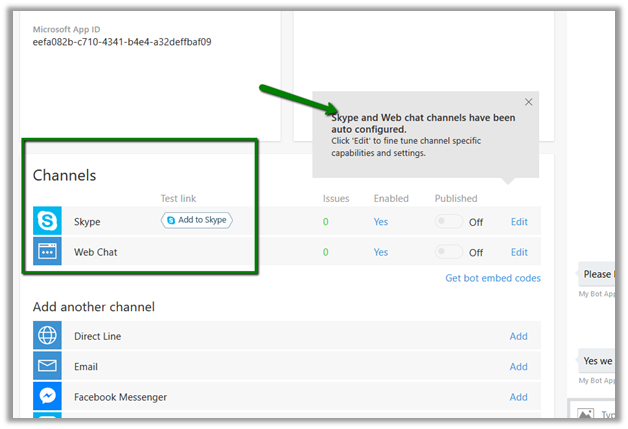
Scrolling down we can see two channels web and skype already configured.

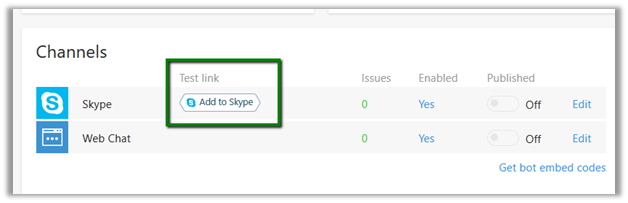
Click on Add to Skype to add the bot as a contact to skype.

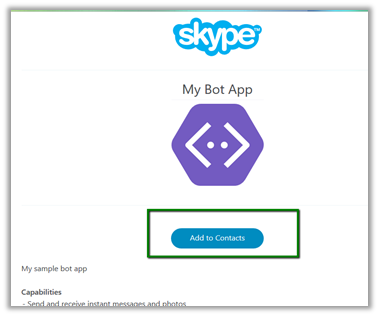
Click on “Add to Contacts”

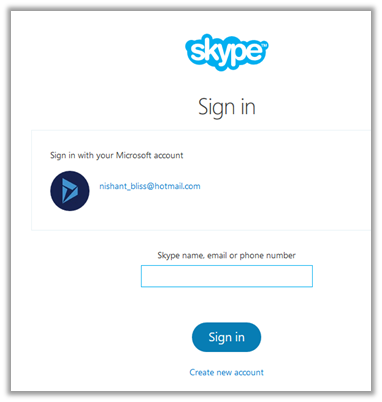
Sign in with your Skype Credentials.

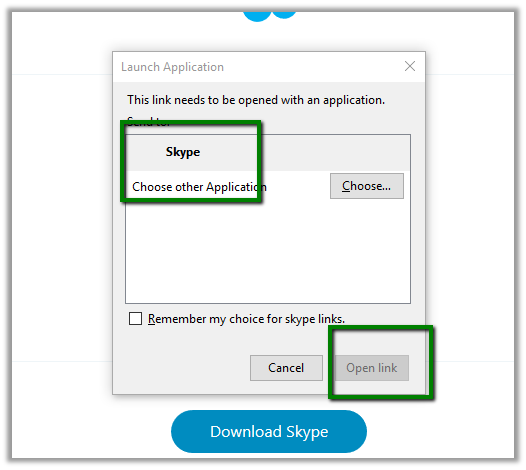
Launch Skype.

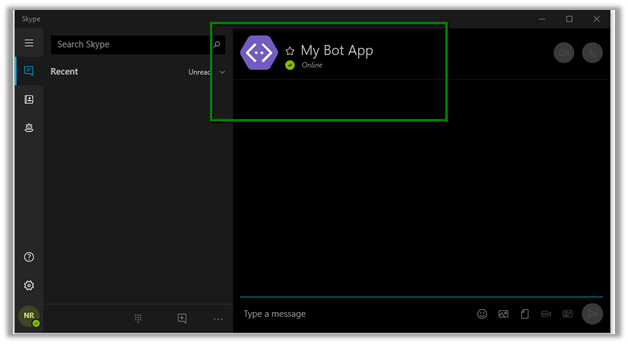
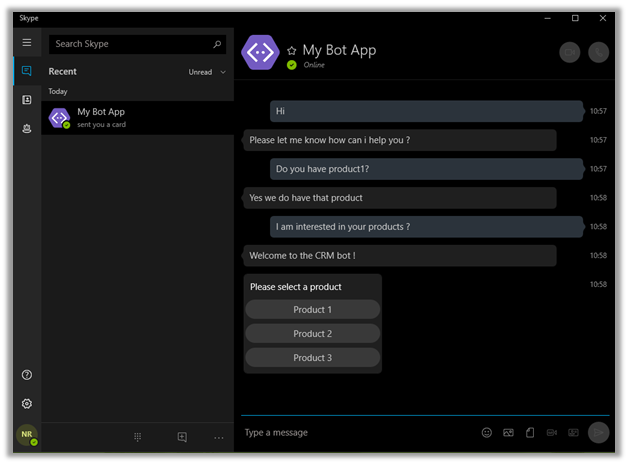
We can see the Bot added to our contacts.

This is how we can easily publish the Bot to azure and add it to Skype.

Hope it helps..