Fixed – Error code: ‘UserNotMemberOfCdsSecurityGroup’. Error Message: ‘The user ‘xyz’ cannot be created in Microsoft Dataverse because the account is not a member of group ‘abc’


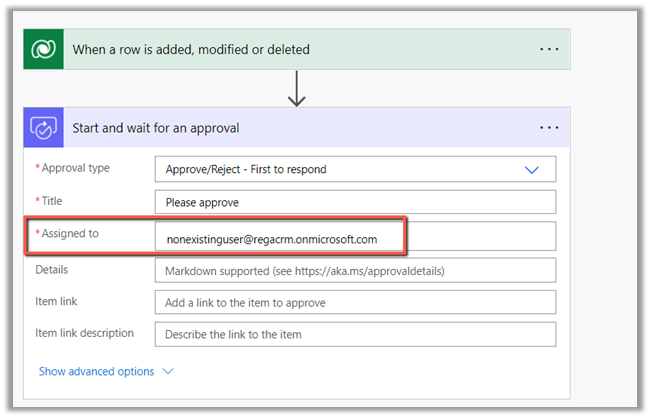
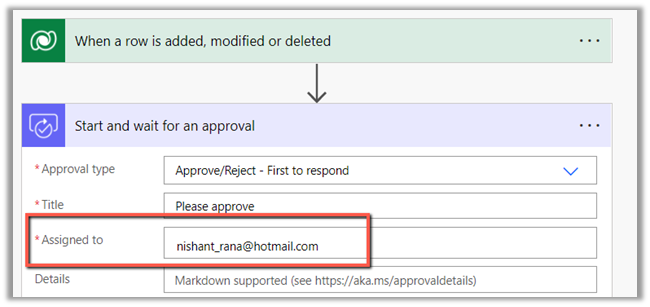
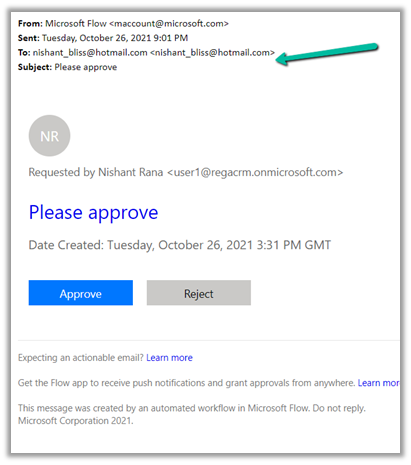
We would get this error within Power Automate Approval Flow if we are using Security Group to control access to Dynamics 365 Environment and are sending Approval to a user who is not a member of that security group.

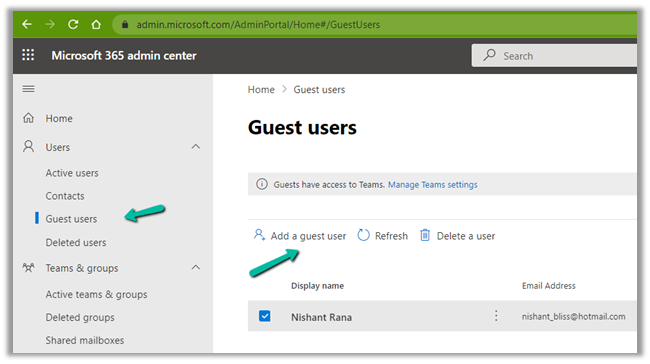
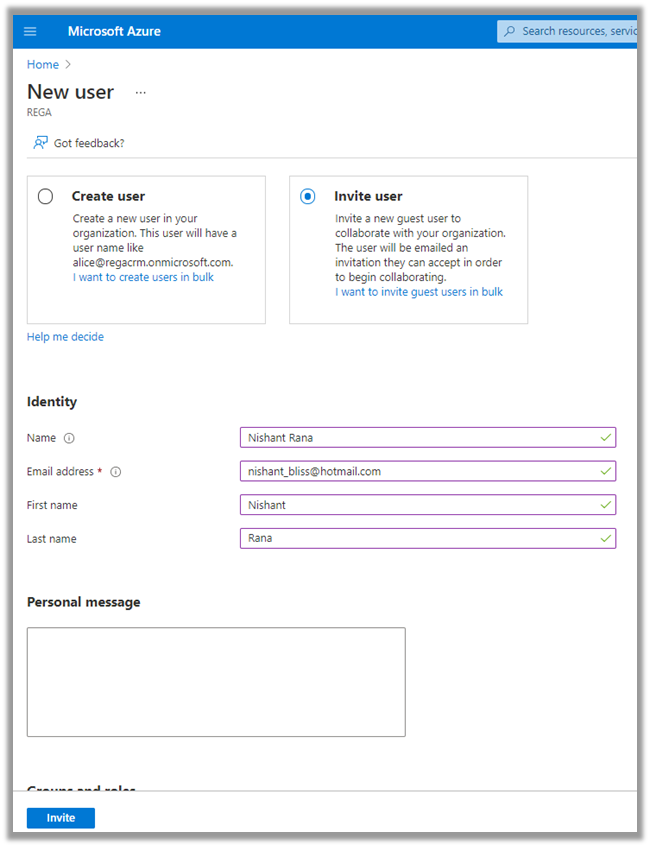
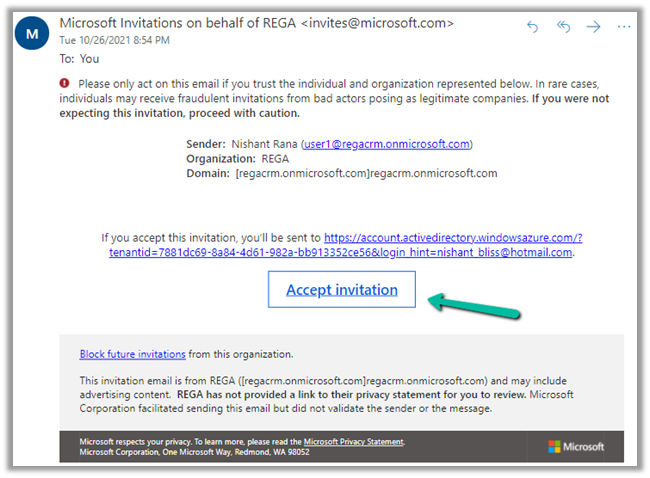
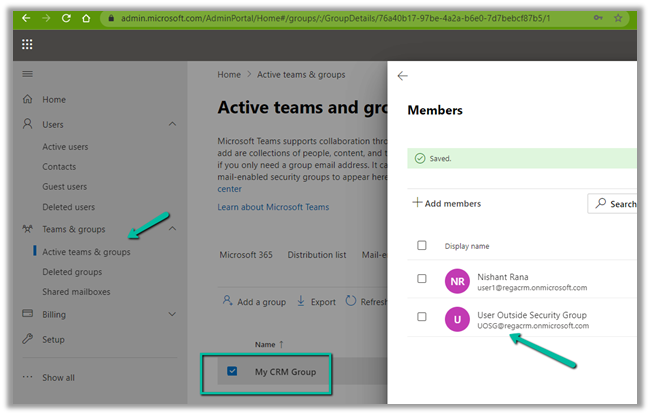
Below is the User within the Tenant but is not member of the My CRM Group Security Group associated with that Environment.

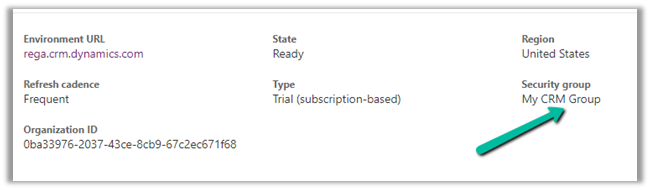
The Security Group – My CRM Group – assigned to Environment against which flow  is created.

So to fix the issue, as the error message indicates, we need to add the user to the Security group.

After adding the user to the Security Group, the flow runs successfully

Also, the User (unlicensed in our case) gets added to CRM with Approvals
User security role as shown below.

Check other posts on Approvals – 

Approvals – Power Automate & Dynamics 365

Hope it helps..


Advertisements

{Power 2021 – Wave 2} Dataverse search 101: The new way to search in Dataverse


deepeshsomani2013's avatarMSDYNAMICSBLOG BY DEEPESH

Microsoft has recently introduced a great feature which is the new cool way to search in Dataverse – Its termed as Dataverse search.

How to enable it?

Production environments: Enabled by default

Non-Production environments: Navigate to Power platform Admin centre and you can enable the setting which is highlighted below:

clip_image002

Tip: Scroll down and don’t forget to hit the Save button on the above screen after enabling it. It will take some time first time you enable this feature(Indexes are being created in the background) – so wait for a while for awesomeness

What tables are enabled by default?

21 in total are enabled by default, here is the list:

Without D365 Apps enabled:

Account (8)
Contact (11)
Goal (19)
Goal Metric (3)
Knowledge Article (56)

With D365 Apps enabled:

Campaign (2)
Campaign Activity (4)
Campaign Response (6)
Case (5)
Competitor (1)
Contract (7)
Invoice (4)
Lead (6)
Marketing List…

View original post 485 more words

Using DataSourceInfo and RecordInfo function for checking permissions for a Dataverse table or record in Canvas App


DataSourceInfo function can be used to check the Table / Entity level permission.

We can check for Create, Read, Edit, and Delete Permission and can disable, hide and show the corresponding create, edit and delete buttons for the users.

  • DataSourceInfo.CreatePermission
  • DataSourceInfo. DeletePermission
  • DataSourceInfo. EditPermission
  • DataSourceInfo. ReadPermission

DataSourceInfo function can also be used to obtain information about a particular column of the data source like Display Name, Max Length, Max Value, Min Length, Required.

https://www.inogic.com/blog/2020/11/how-to-use-datasourceinfo-in-canvas-app/

  • DataSourceInfo.DisplayName
  • DataSourceInfo.MaxLength
  • DataSourceInfo.MaxValue
  • DataSourceInfo.MinValue
  • DataSourceInfo.Required


Similarly, the RecordInfo function can be used to get the information about the record of a Dataverse data source.

We can check for the Read, Edit, and Delete Permission.

  • RecordInfo. ReadPermission
  • RecordInfo. EditPermission
  • RecordInfo.DeletePermission

Hide Show control based on Security Role in Canvas App

Here for our sample Canvas App we have a button and a Gallery  having Data source as Cases

1 

Visible    

Button

If(DataSourceInfo(Cases,DataSourceInfo.ReadPermission), true, false)

2 

Visible   

Edit

If(RecordInfo(Gallery1.Selected, RecordInfo.EditPermission),true, false)

3 

Visible    

Delete

If(RecordInfo(Gallery1.Selected, RecordInfo.DeletePermission),true, false)

Now to test it, we have assigned the below custom security role/rights to another user – Test User 1 (along with Basic User security role)

i.e. Read, Write and Delete permission at the User Level on Case.

We have also shared the Average order shipment time record with Test User 1 assigning him the Write Permission.

Now when Test User 1 will open the Canvas App, the first button will be visible as he has the Read permission on the Case table.

In the gallery only the one record shared will be visible along with the Edit button on the same.

Let us just share one more case record with only Read permission to Test User 1.

We can see the record displayed for Test User 1.

It shows the Edit button for the new record, although we shared the record with the Read permission.

We have the following formula for the Edit button’s OnSelect

Patch(Cases, LookUp(Cases,’Case Number’ = lblCaseNumber.Text), {‘Case Title’:”Sample Title”})

So clicking on Edit for the new record shared ‘Complete overhaul required‘ gives the below Permission error

Now pressing the same edit button for the ‘Average order shipment time’ record will update the record (set title as Sample Title) as it was shared with Write permission with Test User 1.

Get all the details here –

https://docs.microsoft.com/en-us/powerapps/maker/canvas-apps/functions/function-datasourceinfo

https://docs.microsoft.com/en-us/powerapps/maker/canvas-apps/functions/function-recordinfo

Hope it helps..

Advertisements

Use TemplateFill property to highlight selected item in Gallery – Canvas App


To highlight the selected item inside a gallery control, we can use its TemplateFill property.

The default value is

RGBA(0,0,0,0)

Change it to

If(ThisItem.IsSelected,RGBA(114, 189, 125, 1))

The result à

Pick color from – https://rgbacolorpicker.com/

Hope it helps..

Advertisements

Can’t delete billing profile. This is the only billing profile in the billing account- Azure (Trial)


Recently our Azure Subscription using free credit had expired and we wanted to remove the card details associated with the billing.

If we try to Detach it (and if the card is being used as the default payment), it will give us the below message

Cost Management >> Payment Methods > > Detach

There are active or disabled Azure subscriptions on this billing profile. To detach this payment method, cancel and then delete all such subscriptions.​”

And if we trying to delete the billing profile

Cost Management >> Billing profiles


We would get the below message


So first we need to delete the subscription here.

Now again we can only delete the free trial subscription after 3 days of canceling it. So we would have to try deleting the subscription after 3 days.


Trying after 3 days,


will give us the option to delete the subscription


But as we have the resources associated we will have to delete the resources first.


Navigate to All resources and delete the resources first.


After deleting the resources, deleting the subscription will be successful

Let us now try to detach the card again.

This time the Azure Subscription existing message was gone as we had deleted it, however, we were still not able to detach and it was asking to wait until the end of the billing period.


Instead of waiting till the end of the billing period – next we tried the below option

https://docs.microsoft.com/en-us/azure/cost-management-billing/manage/cancel-azure-subscription#how-do-i-delete-my-azure-account


i.e. Deleting the Azure AD Account. (through another admin user’s account)


After successful delete, we can see all the options disabled.


So basically the fastest way to remove your personal information from the Azure Free Trial is to cancel the subscription, delete it and then DELETE the account/user.

Hope it helps..

Advertisements

Updated Solution Explorer (Preview) experience in Dynamics 365


Microsoft recently announced the public preview of the new solution explorer which will eventually be the default experience going forward.

Earlier we could access it by visiting the – https://make.preview.powerapps.com/

In the new experience, we can Enable / Disable the new Solution Explorer by toggling the Solution preview on

The is how the existing solution experience looks like – here we have opened the Default solution.

With the new experience, the solution selected opens up and takes the whole page, with the new left navigation added.

Also, it adds a new Tree style of navigation for Objects.

+New button experience has been updated.

Left is the old experience listing each component and new experience in the right with the options grouped.

The overview section gives the details of the solution like display name, name, package type, etc. with the option to edit the details.

  • The option to run the Solution Checker.
  • Manage Search Index.
  • Recent activities performed.

The history page gives the details of the operations performed on the solution.

If we still need we can switch to classic

Performance improvements through parallel loading (Tree View) and caching (Solution objects, authentication while switching to classic, etc.

Get all the details here

https://powerapps.microsoft.com/en-us/blog/managing-solutions-has-a-new-look-public-preview/

Hope it helps..

Advertisements