Fix- Multiple levels of many-to-one relationship expansion aren’t supported in PowerApps


We would get this error while trying to get the value of a related entity (lookup) through a related entity (lookup) in the current record using the incorrect formula.

For e.g. here Region is a lookup in the Village, which in turn is a lookup in the Product record (ThisItem).

The solution here is to use the LookUp function

Before

After

ThisItem.Village.Region.Name

LookUp(Villages, Village = ThisItem.Village.Village).Region.Name


Search the Villages table, using the GUID of the Village, and fetch the name of the region lookup field in it.

Hope it helps..

Advertisements

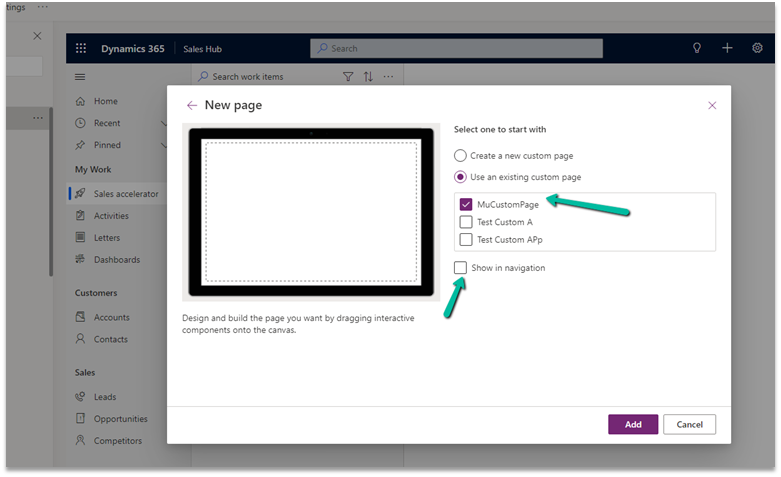
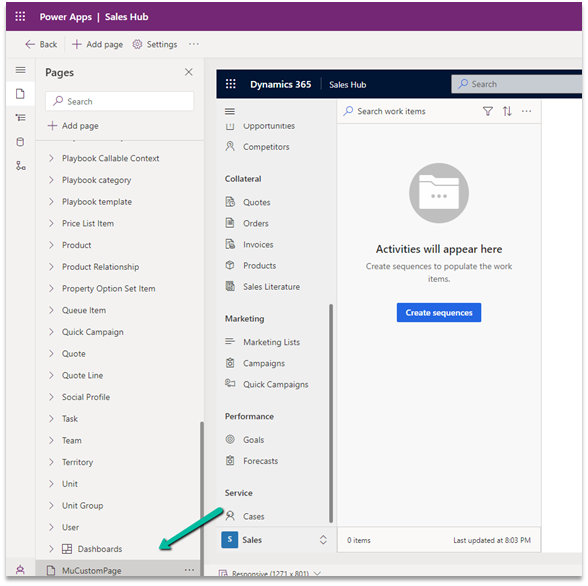
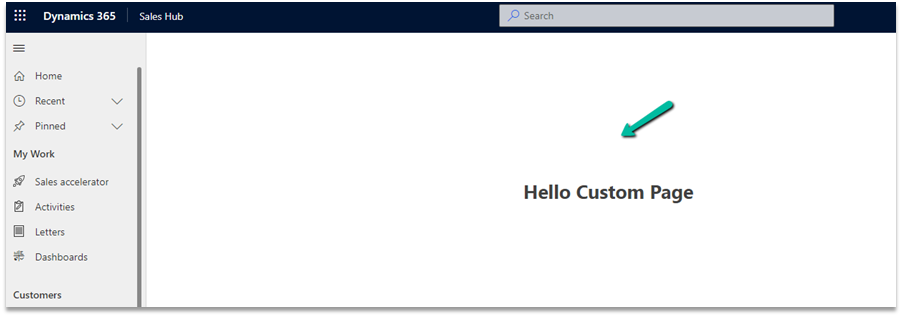
[Step by Step] Model Driven App | Grids | Navigate to custom page on row click


Rajeev Pentyala's avatarRajeev Pentyala – Technical Blog on Power Platform, Azure and AI

By default, performing any of the following grid actions opens the table record:

  • Double-clicking the data row, or selecting the primary column link in the row.
  • Selecting a data row, and then pressing the Enter key.
  • On a touch-enabled device, selecting a data row.

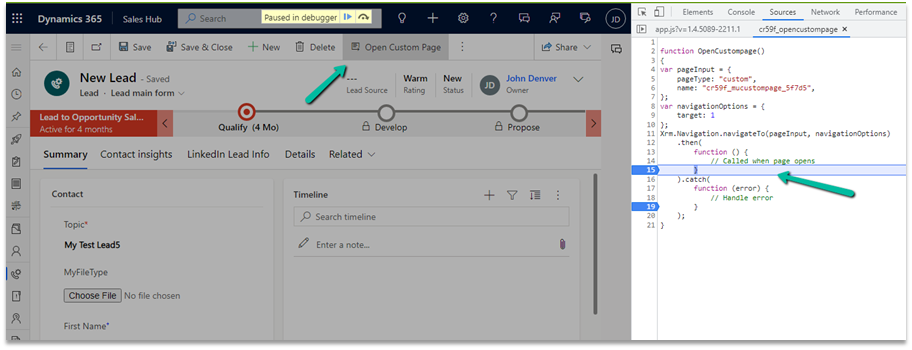
In this article, lets see how to override the default grid click behavior and navigate to a Custom Page. Same approach can be used to navigate to custom URL, show alert etc…

Before jump on to implementing override default behavior, lets understand how the same requirement can be achieved using ribbon button.

Conventional way of achieving this requirement:

Assume that you would want to redirect to custom url (i.e., Google, Bing, etc…) from the Main Grid. One common approach would be:

  • Add a custom jScript function with a desired navigation logic upload as a webresource.
  • Add a ribbon button on grid and map the jScript function.

View original post 535 more words

Create a child record by copying mapping fields data from Parent – Using CRM SDK


Rajeev Pentyala's avatarRajeev Pentyala – Technical Blog on Power Platform, Azure and AI

Let’s take the OOB Account and Contact related entities.

Whenever we click ‘Add New Contact’ button from the ‘Associated view’ of ‘Account’ form, all the mapping fields data would be copied to ‘New Contact’ form.

Account:

account-formNew Contact Form:

create-contact

This is native CRM behavior, to copy the content from Parent to Child record, using the Relationship ‘Mappings’ to avoid the overhead of manual data entry on child record.

account-and-contact-mappings

What If we have to create a Contact from a console application using CRM SDK and achieve the same behavior?  ‘InitializeFromRequest’ is the answer.

Steps to use ‘InitializeFromRequest’:

  • Instantiate the ‘InitializeFromRequest’
  • Set the Target as ‘Contact’
  • Set the ‘EntityMoniker’ as the reference of parent ‘Account’ which you would want to copy the data from
  • Execute the ‘InitializeFromRequest’
  • From the ‘InitializeFromResponse’, read the Contact object with copied data from Account (**Contact would not be created in CRM at this point**)

View original post 121 more words

FluentValidation – build strongly-typed validation rules in .NET


Install the FluentValidation .NET library for validation.

Below is our sample Contact class and its corresponding validator class.

The validator class needs to inherit AbstractValidator<Contact> and define the validation rules in the constructor using the RuleFor method.

Instantiate the validator class, and pass the object to be validated.

Here we have passed incorrect values for all the properties of the contact.

The ValidationResult holds all the validation error details.

Give it a try – https://docs.fluentvalidation.net/en/latest/index.html

Hope it helps..

using FluentValidation;
using FluentValidation.Results;
using System;
using System.Collections.Generic;
using System.Linq;
using System.Text;
using System.Threading.Tasks;

namespace FluentValidator
{
    class Program
    {
        static void Main(string[] args)
        {
            var myContact = new Contact();
            var contactValidator = new ContactValidator();

            myContact.FirstName = "";
            myContact.LastName = "Lei";
            myContact.Email = "aa.gcom";
            myContact.Age = 10;
            myContact.FamilyStatusCode = (FamilyStatusCode)Enum.Parse(typeof(FamilyStatusCode),"5");

            ValidationResult result = contactValidator.Validate(myContact);
        }
    }

    class Contact
    {
        public string FirstName { get; set; }
        public string LastName { get; set; }
        public string Email { get; set; }
        public int Age { get; set; }
        public FamilyStatusCode FamilyStatusCode { get; set; }
    }

    enum FamilyStatusCode
    {
        Single = 1,
        Married = 2,
        Divorced = 3,
        Widowed = 4
    }

    class ContactValidator : AbstractValidator<Contact>
    {
       public ContactValidator()
        {
            // First Name should not be null
            RuleFor(contact => contact.FirstName).NotEmpty();
            // Last Name should not be null and minimum length should be 4
            RuleFor(contact => contact.LastName).NotNull().MinimumLength(4);
            // Email Address Validation
            RuleFor(contact => contact.Email).EmailAddress();
            // Age should be between 18 to 60
            RuleFor(contact => contact.Age).ExclusiveBetween(18, 60);
            // Family Status Code Enum should be a valid value
            RuleFor(contact => contact.FamilyStatusCode).IsInEnum();

        }
    }
}
Advertisements

Refresh button missing on Roll-Up fields in D365 UCI? Quick Tip.


priyeshwagh777's avatarD365 Demystified

As we are transitioning to the Unified Interface, some visual cues are a little misplaced or say, hidden.

If your Roll-up field on the Classic UI appeared like this where you could simply click on refresh and update the Roll-up field

classicRefresh

It doesn’t seem to be the case in terms of UCI-
missinginUCI

It’s Hidden!

So, simply click on the Calculator icon –
clickToReveal
And the Recalculate button will be revealed which updates the value
recalculate
And results into the below in my case –
updatedNote: Toggling the calculator icon will reveal/hide the button.

Hope this quick tip helps!!

View original post

Import from Excel / Import Wizard updates Record Created On (overriddencreatedon) – Dynamics 365


When we are creating new records and need the created on field to take the value provided instead of system generated, we can map it to the Record Created On field during Import from Excel option.

In fact in the Import Data Wizard also, although it doesn’t show the Record Created On field for mapping, we can map to Created On field and the behavior will be same. (and in the case of the Import from Excel in the Grid, we do not get the Created On field for mapping)

Below is the record we have created through Import Data Wizard, and we can see the values of Created on and Record Created On for it.

Read more –

https://debajmecrm.com/override-createdon-modifiedon-createdby-modifiedby-in-dynamics-365-crm-crm-tips-from-the-vault/

https://nishantrana.me/2018/10/16/using-overriddencreatedon-or-record-created-on-field-to-update-created-on-field-in-dynamics-365/

Hope it helps..


Advertisements