Fixed – Value must be a data entity record error in Power Apps


We got the below error while trying to use the Relate function – “Value must be a data entity record”


As the error message clearly states and also if we see the syntax, the Relate function expects a record

Below was our formula for OnSelect, which was throwing the error

Here instead of passing the record, we were passing the table in the Relationship which was the reason for the error.

We changed it to store the ThisItem

And also updated the OnSelect

This fixed the issue for us.

Hope this helps..

Advertisements

Fixed – Custom Page not opening or Page doesn’t exist in this app error in the model-driven app (PowerApps)


Recently we created a custom page to be opened from the Ribbon / Command bar, however, the page was not opening for us, even though the function was running properly.

https://learn.microsoft.com/en-us/power-apps/developer/model-driven-apps/clientapi/navigate-to-custom-page-examples

Here we had created the custom page from within the solution area, so we need to add this custom page to our model-driven app. (The other option is to create the page from the Modern App Designer.)

https://learn.microsoft.com/en-us/power-apps/maker/model-driven-apps/add-page-to-model-app#create-or-edit-a-custom-page

Open the app in the Modern App Designer and click on Add Page

Select Use an exiting custom page, select the page and uncheck the Show in navigation option as we are opening this page from the form.

Publish the app.

This time clicking on Open Custom page command/button on the form successfully opened the custom page for us.

Thanks to Andrew (https://butenko.pro/) for the solution.

Hope it helps..


Advertisements

PowerApp CDS – Multi Select Items in Gallery using Checkbox – Bulk Activate and Deactivate records – Use of Patch vs ForAll


Sachin Bansal's avatarBansal Blogs - Dynamics 365, PowerApps, Microsoft Flows, Power BI

BU1

In my previous blog, I explained how to filter active and inactive records based on value selected in drop down. In this blog we will see how we can select multiple items in Gallery and activate or deactivate bulk records. We will cover below as part of this blog:

  • Add Checkbox control to Gallery list
  • Create a collection and add selected item in collection when checkbox is checked
  • Remove item from collection when checkbox is unchecked
  • Add a button to activate or deactivate selected records
  • Difference between Patch and ForAll functions

I have a simple CDS app which filters active or inactive companies based on value selected in drop down and display them in Gallery list. Let’s add checkbox control in Gallery.

Add Checkbox to Gallery:

  • To add checkbox inside gallery, select first row in Gallery and click on Check Box option in Controls menu under Insert tab

BU2

  • Align…

View original post 553 more words

How-To #6: Display Multi-Select Choices in Power Apps Label


Fausto Capellan Jr's avatarFausto Capellan, Jr

I was recently working on an app to display items from a SharePoint list in a gallery. This list, let’s call it Teachers, has 2 columns: Title and Grade. The Title column is a Single line of text column and the Grade column is a Choice column that allows multiple selections. Displaying the records in a gallery is usually straightforward: you set the Textproperty of each label to the respective column using the following value: ThisItem.ColumnName. This is very easy for my Title column because it is set as follows: ThisItem.Title. You can say, “But wouldn’t you use the same approach for the Grade column?”, but because Choice columns are complex, the approach is different. Let’s walk through that:

You would think that to set the Text property of the label for Grade you can set is as follows: ThisItem.Grade.Value. This does not work…

View original post 254 more words

Fixed – Deployment has failed with the following error: {“code”:”WebhookAadAppAccessCheckCategory”,”message”:”Access check failed for Webhook AAD App with error ‘Subscriber’s client ‘user’… while configuring the Azure Grid Event Subscription – Dynamics 365 Omnichannel Voice


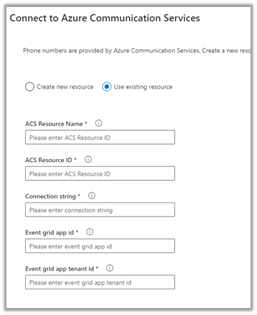
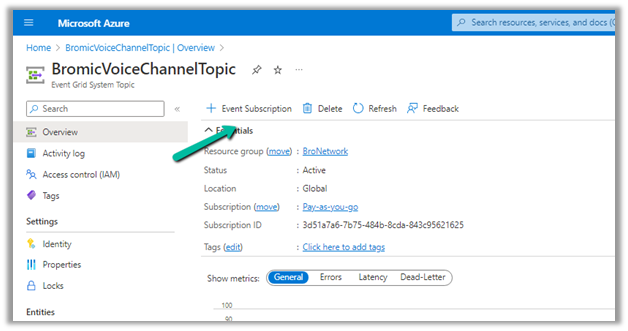
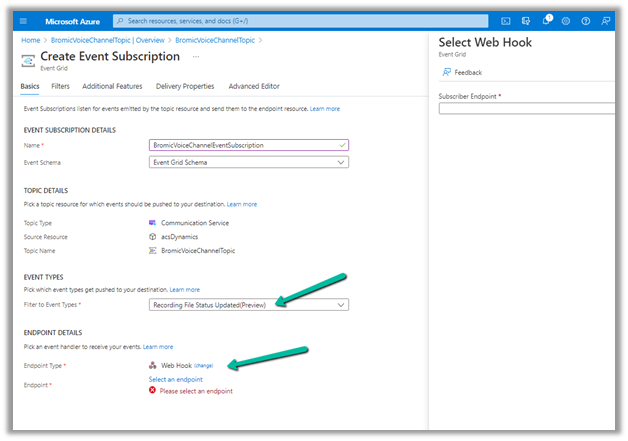
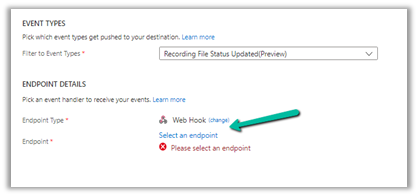
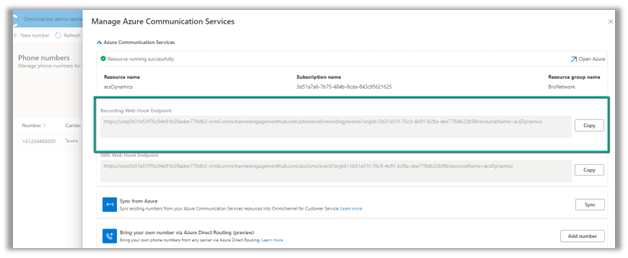
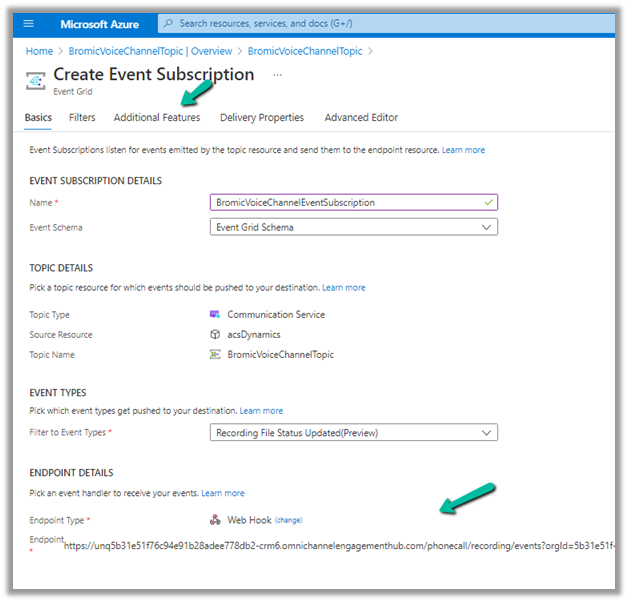
While configuring Azure Grid Event Subscription for enabling Call Recording in Dynamics 365 Omnichannel Voice,

https://learn.microsoft.com/en-us/dynamics365/customer-service/voice-channel-connect-existing-resource?tabs=customerserviceadmincenter#enable-call-recording-and-sms-services

we got the below error –

Deployment has failed with the following error: {“code”:”WebhookAadAppAccessCheckCategory”,”message”:”Access check failed for Webhook AAD App with error ‘Subscriber’s client ‘user’ with object id ‘1fc23e2e-cf5b-49c1-b942-9f2036e8c9cf’ is neither owner of this AAD application 585b1e3f-6685-4e69-a1b7-a880074f12f0 nor have this role AzureEventGridSecureWebhookSubscriber. In addition the role has to be assigned to client ‘user’ with object id ‘1fc23e2e-cf5b-49c1-b942-9f2036e8c9cf’. One of these two conditions has to be met.’. For troublehooting, visit https://aka.ms/essecurewebhook. Activity id:b179f7d4-115b-4d4d-aeee-6046f4181846, timestamp: 12/14/2022 9:52:19 AM (UTC).”}

As the error message suggests, the user who is setting up the Azure Event Grid Subscription has to be added as the owner of the Azure AD Application, with AAD Authentication as shown below.

So we added the user as the owner of that Azure AD app, which fixed the issue for us.

The result –

Success

Hope it helps..

Advertisements

Binding Choice / OptionSet (multiselect) with Combo box in Canvas Apps / Power Apps (DataVerse)


Instead of hardcoding Combo box , we can bind it to the Choice / Option Set field of Dynamics 365 / Dataverse.

Format – Choices(DataSource[@columnname])

Check out the post that explains it – https://debajmecrm.com/how-to-bind-a-multiselect-choice-of-dataverse-to-a-combobox-in-canvas-apps/

Also check out – how to bind and do filter on multiselect combo box – https://youtu.be/5dSk5iOgT68?t=286

To learn about all the properties of Combo box refer – https://www.spguides.com/powerapps-combobox-control/

Hope it helps..

Advertisements