Blog Posts on Voice Channel – Dynamics 365 Omnichannel for Customer Service


Listing down the blog posts on Voice Channel setup and configuration for quick reference

Advertisements

Customize label – Search customer, Search Issue in Conversation form – Omnichannel for Customer Service


To rename the Search Customer and Search Issue labels in the conversation form,

search and open the corresponding RESX Web Resource for customization.

The search term used – “CustomerSummaryLabels.1033”

Open and copy the content

Update the value property accordingly

Before –

To –

Upload and publish the changes.

We can see the labels updated.

Hope it helps..

Advertisements

Integrating PVA with Omnichannel Live Agent


For part 1 –

Advertisements

Fixed – URL was not parsed due to an ODataUnrecognizedPathException or Bad Request – Error in query syntax (Power Automate)


We got the below error while trying to set a lookup field because of the incorrect syntax.

or

The incorrect syntax / formula –

It should be either logicalcollectionname(GUID)

Or logicalcollectionname/GUID

https://nishantrana.me/2022/06/20/fixed-resource-not-found-for-the-segment-in-power-automate/

After setting it correctly, the flow ran successfully.

Hope it helps..

Advertisements

Getting Started – Installation and Setup Kupp Code Analytics


In the previous post, we covered key features and capabilities of Kupp Code Analytics – the powerful Visual Studio Extension for Power Platform and Dynamics 365 Developers.

You can refer to it here

In this blog post, we’d cover the installation and setup of the Kupp Code Analytics extension.

To get the extension, inside Visual Studio Marketplace, we can search for it and download the appropriate extension.

Below we can see that there are 2 versions of the extension available, one for Visual Studio 2022 and the other for Visual Studio 2019.

Visual Studio 2022 – https://marketplace.visualstudio.com/items?itemName=KuppSoftware.kca2022

Visual Studio 2019https://marketplace.visualstudio.com/items?itemName=KuppSoftware.KuppCodeAnalytics2019

We can also install it from inside Visual Studio, navigate to Extension, search for Kupp Code Analytics, and download the extension.

Click on Install / Modify (if already existing) to start/modify the installation.

Below we have successfully installed the extension for Visual Studio 2019.

Next, we need to specify and activate the License

We have 2 types of licenses available for the extension.

Community License (free)– Select type Single, enter the contact details and click on Activate to apply for the community license. Clicking on Activate activates the license instantly.

Enterprise License – This is paid license for the enterprise, that comes with additional features and capabilities not available in the Community license.

We can contact the sales team of Kupp for it – https://kuppsoft.com/contact/

Once added, we can see and manage the license information in Tools >> Options >> Kupp Code Analytics >> License

With Extension Installed, and the license activated, the next step is to configure the tool to connect to our Power Platform / Dynamics 365 Environment.

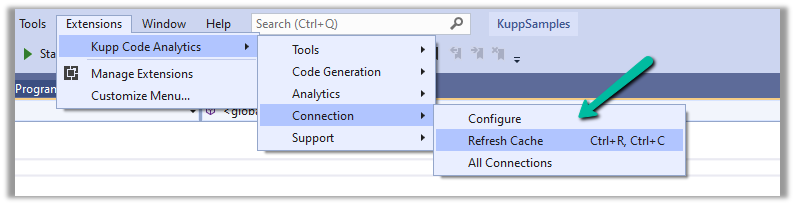
Navigate to Extensions >> Kupp Code Analytics >> Connection >> Configure

Select the appropriate connection or deployment type

Here to connect to Dynamics 365 Online, we keep the Deployment type as O365 and click on Load Organization

This opens the sign-in dialog where we can provide the appropriate account details.

After successful sign-in, we see all the environments populated to which the user has access. Select the environment, we want to connect to.

After selecting the environment, we can click on the Test D365 button and test the connection.

On a successful connection, we will get the success message as shown below.

Clicking on OK will close the connection dialog box, and the tool will start the process of downloading the metadata for the environment connected. The download should be complete in a matter of a few seconds.
This completes the installation and configuration part of the extension. In the next blog post, we’d cover the key features of the extension in detail.

Also don’t forget to check out the other intuitive products developed by Kupp Software GmbH –https://kuppsoft.com/our-products/

Hope it helps..

Advertisements

Fixed – Power Automate flow not getting triggered


We had one flow on the creation of an account record, our flow was running fine, and then we made a few changes to it and saved it, after which it stopped getting triggered.

We could not figure out why it was not getting triggered so eventually we tried changing the Trigger Type to Added or Modified or Deleted, just to see if that will trigger it.

It ran this time on create of account record.

After which we changed it back to Added, the original definition.

And from that point onwards it was getting triggered as expected.

Also make sure if the Admin mode is turned off.

https://learn.microsoft.com/en-us/power-automate/triggers-troubleshoot#verify-if-admin-mode-is-turned-on

Hope it helps..

Advertisements