Fixed – You do not have the necessary privileges to import security roles. Microsoft.Crm.CrmSecurityException: SecLib::CheckPrivilege failed while importing solution in Dynamics 365 CE


Recently after upgrade of our Dynamics 365 CE from 8.2 to 9.1, when the System Administrator tried importing the solution (managed), he got the below error

You do not have the necessary privileges to import security roles. : Microsoft.Crm.CrmSecurityException: SecLib::CheckPrivilege failed. User: e7282250-7d82-e711-80df-1458d0431690, PrivilegeName: prvWriteRole, PrivilegeId: bd123e14-17ba-40f6-8d8b-18f4bffa7e50, Required

The error message is quite weird, first as we have never got this error earlier and here it was System Administrator user who was importing.

We tried importing the solution with the using another System Adminstrator account and it worked for that other user.

Hope it helps..

Advertisements

The workflow cannot be published or unpublished by someone who is not its owner error while importing solution in Dynamics 365 CE


Recently after upgrade of our Dynamics 365 CE from 8.2 to 9.1, when the System Administrator tried importing the solution (managed), he got the below error

The workflow cannot be published or unpublished by someone who is not its owner.

Error while importing workflow {ec05f40d-fd14-46ab-96b3-be1f5b108ef3} type Workflow name Marketing List – Update CT Relationship: The workflow cannot be published or unpublished by someone who is not its owner.

What the error says is that the user who is importing the solution needs to be the owner of the workflow that is there in that solution.

http://gonzaloruizcrm.blogspot.com/2011/05/processesworkflow-ownership-faqs.html

https://stackoverflow.com/questions/17159920/crm-2011-ru13-the-workflow-cannot-be-published-or-unpublished-by-someone-who-is

The thing was that we have never got this issue earlier for that System Admin user and we would have imported the solution at least 10 times earlier as well. This time the only thing different was that it was in the newer version 9.1

Changing the owner of the workflow and assigning it to the one who is importing will fix this issue. However interestingly and as expected when we tried importing the same solution using a different system administrator (again not the owner of the workflow in the target system), the import was successful with warning.

“The original workflow definition has been deactivated and replaced”

Read the below post to understand how workflows are managed internally

https://www.inogic.com/blog/2010/11/workflows-behind-the-scene/

Please share your thoughts, if someone has faced this issue recently and how they managed to fix this?

And what caused the issue to the first system admin and worked for the other.

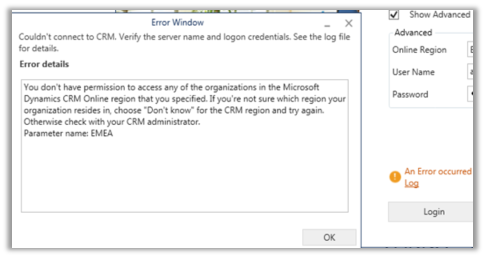
Fixed – You don’t have permission to access any of the organizations in the Microsoft Dynamics CRM Online region that you specified error in USD Client Application


Recently after upgrade to version 9.1 and USD 4.0, some of the users started getting the below error while trying to login into the USD Client Application.

You don’t have permission to access any of the organizations in the Microsoft Dynamics CRM Online region that you specified. If you’re not sure which region your organization resides in, choose “Don’t know” for the CRM region and try again. Otherwise check with your CRM administrator.

They were able to login to Dynamics 365 CE through browser though.

Eventually turned out that few of the sites (url(s)) were getting blocked because of the network policy on the agent’s machine. Allowing those sites resolved the issue.

Hope it helps..

Advertisements

Case: Merged vs. Child Cases


Jeevarajan Kumar's avatarJeevarajan Kumar

We will go back to the basics and see one of the basic features of case entity which is confusing at times to the beginners, Merged Case vs. Child Case. What are they? Why and when to use them?

Merge Case:

What is Merged Case?

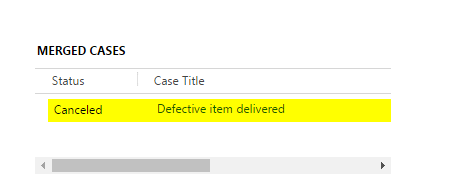
  • When a case is merged, the state of the case is changed to cancelled, and the status is changed to merged. All of the open case activities, emails, and attachments that a case has are now associated with the case it is merged into.
  • When you merge a case that has child cases, those child cases become child cases of the new parent case they get merged into.

How?

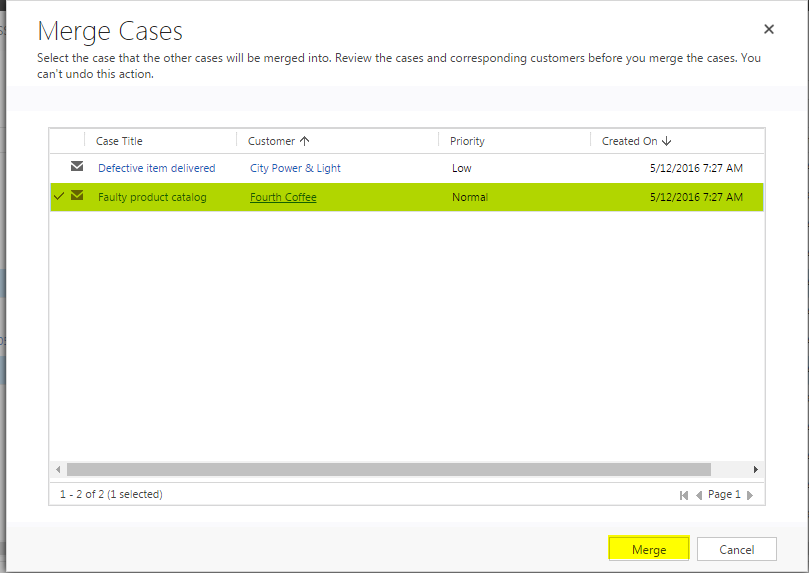
  • Merge case
  • The unselected cases will be marked as canceled and will be mapped under the selected case.

Merged Case

Why and When?

  • There are scenarios where a customer opens multiple cases about the same issue through different support channels…

View original post 237 more words

CrmRecordId and IsNew Output in CRM/CDS Destination Component


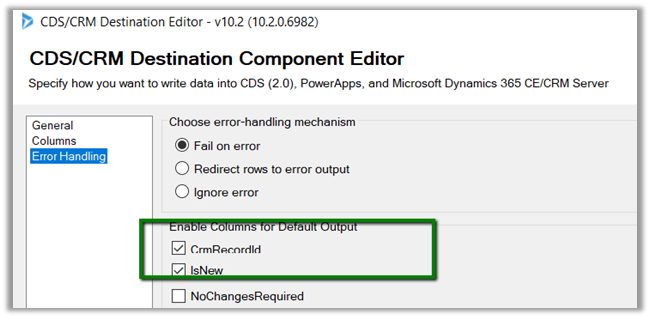
In CRM/CDS Destination Component of SSIS Integration toolkit we can found 2 output column as part of error handling

In case of Create

  • CrmRecordId will have the GUID of the newly created record, which could be used for any further processing
  • IsNew will list whether this is a new record or not.

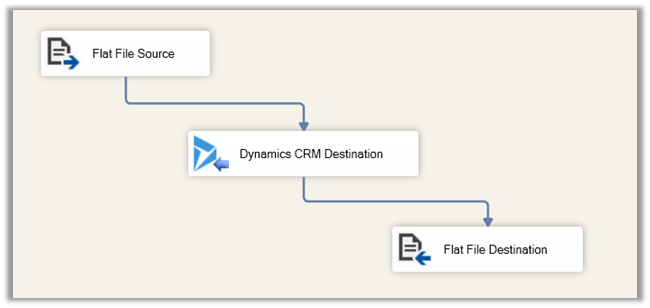
Our package: –

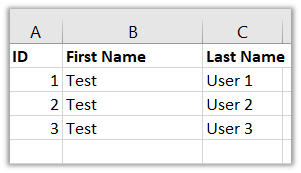
Suppose we have the following record in our source (here ID is the alternate key column used for Upsert)

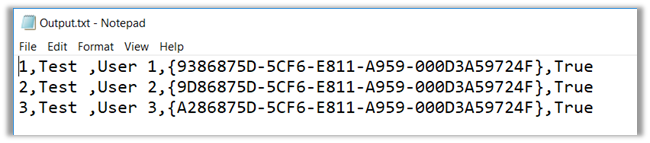
If all the records are new and are created we will get the following output.

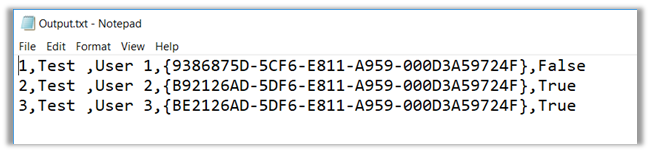
Now if we delete the Test User 2 and Test User 3 record and run the package again, which should now create 2 records and update one record i.e. Test User 1 during Upsert.

The output would be as below

It will return the GUID of the record irrespective of Update or Create and IsNew will specify whether the record is newly created or updated.

Hope it helps..

[D365 CE Online] Debug Async Plug-in using “Persist to Entity” profiler option


Rajeev Pentyala's avatarRajeev Pentyala – Technical Blog on Power Platform, Azure and AI

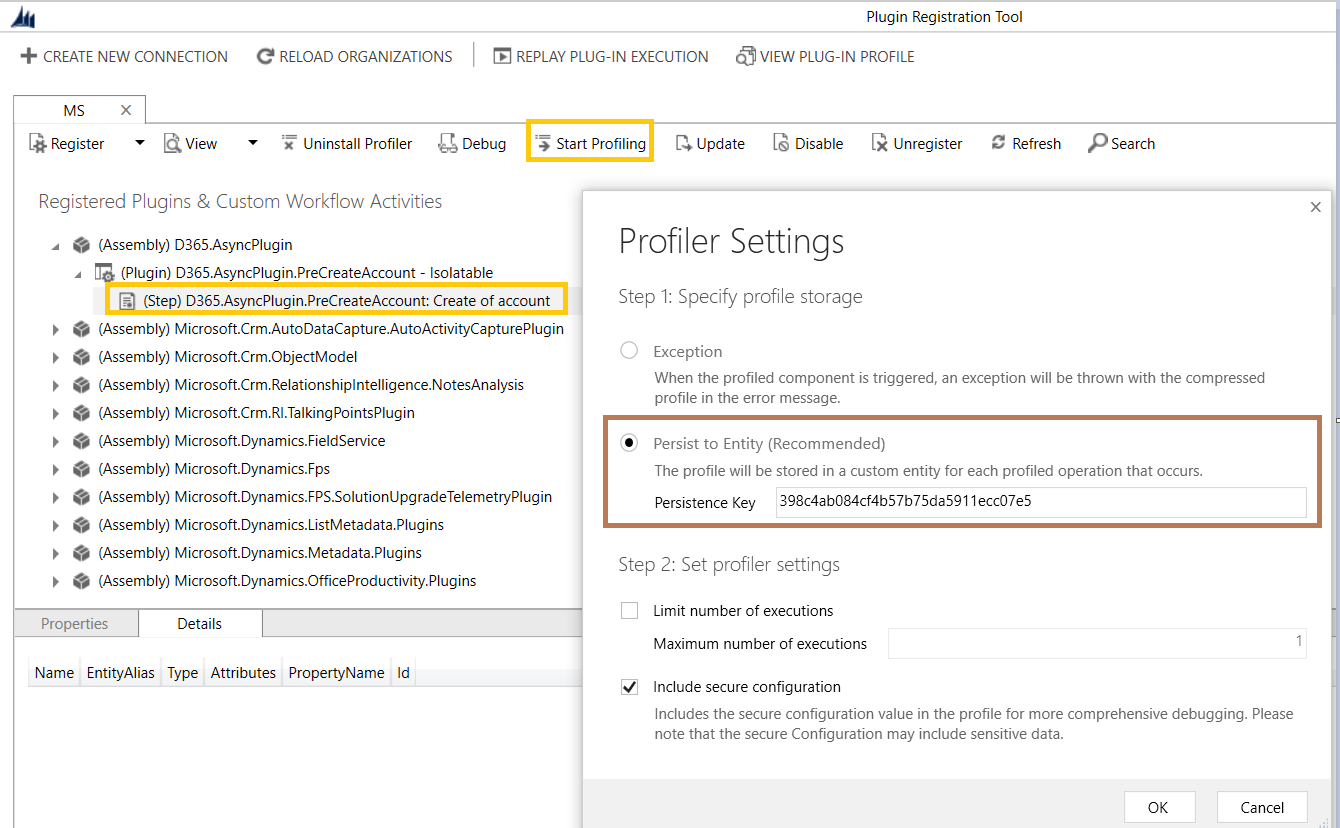
As you are aware, using Plug-in Profiler option we can debug D365 online plug-ins by throwing exception and capturing the Serilaized profile. Refer my previous article

With the ‘Exception’ profiling option, you first need to trigger the event and capture the exception log. For example, if you need to debug “Post Account Create” plug-in, you first need to trigger the event (i.e., Create Account from D365 application) and capture the exception log. This ‘Exception’ option would be apt, if your plug-in registered in Sync mode.

What if your plug-in is Async? Answer is, using “Persist to Entity” profiler option.

Plugin Profile 1

Let’s see how to debug Async Plug-in step by step.

Configuring Profiler in Plugin Registration Tool:

  • Connect to your Dynamics instance using Plug-in registration tool.
  • Click on ‘Install Profiler’ button
  • Register a new plug-in assembly and add an Async step
    • In this article, I registered an Async step on Post…

View original post 197 more words