Author: Nishant Rana
How to – Use AzCopy to sync the local data with Azure Storage
Using the sync command of azcopy, we can keep the local data synchronized with Azure Blob.
https://docs.microsoft.com/en-us/azure/storage/common/storage-ref-azcopy-sync
Suppose below is our storage account named – samplestorageaccountcrm
having the container named – mycrmfilescontainer inside it as shown below.

Below is how the URL for the container will look like
https://samplestorageaccountcrm.blob.core.windows.net/mycrmfilescontainer
i.e. format –
https://[storagename].blob.core.windows.net/[containername]
Let us generate the SAS token for the Storage account with the appropriate permissions..
Navigate to Shared access signature navigation link, specify the permissions and click on Generate SAS and connection string

Copy the generated SAS token and append it to the URL.
Now we are ready to run the AzCopy command to sync the contents of the below folder with the container.


On executing the command within PowerShell, it will scan the files at the source first, followed by the files in the destination, and will copy the files from the source that are not present in the destination.
Sample Run:-

We can see both the files uploaded in the container.

Now if we try to run the same command as the batch .bat file.
https://www.windowscentral.com/how-create-and-run-batch-file-windows-10

We might encounter the below error – “Server failed to authorize the request. Make sure the value of the Authorization header is formed correctly including the signature“

This is because of the special characters within the SAS token – the signature part, that needs to be escaped.
https://bornsql.ca/blog/using-azcopy-with-batch-files-and-task-scheduler/
https://www.robvanderwoude.com/escapechars.php
Here the special character within the sig is replaced with appropriate escape sequences.
E.g. “%” with “%%”

Now updating the .bat file with the updated command allows us to run it successfully.
@ECHO OFF
“D:\azcopy_windows_amd64_10.9.0\azcopy.exe” sync “C:\Intel” “https://samplestorageaccountcrm.blob.core.windows.net/mycrmfilescontainer?sv=2020-02-10&ss=bfqt&srt=sco&sp=rwdlacupx&se=2021-03-09T02:50:19Z&st=2021-03-08T18:50:19Z&spr=https&sig=OKydecj8kMBzi%%2Ff4dwutlHbIvYimQv9FGPQmKwott5w%%3D”
PAUSE

Next, we can run the batch file within the task scheduler.
https://stackoverflow.com/questions/4437701/run-a-batch-file-with-windows-task-scheduler
Hope it helps..
New experience – Power Apps Mobile App- Preview
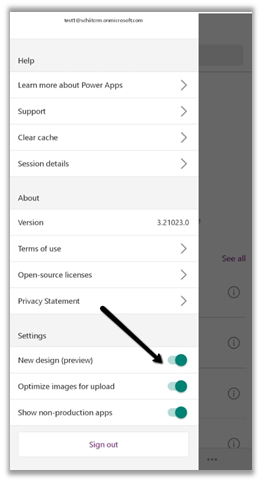
To enable the new experience for the app, navigate to the side menu and toggle on the New design (preview) option.

| Old Experience | New Experience | |
| Home | ![]() |
![]() |
| The home page now shows Favorites and Recent Apps along with a Navigation bar to easily access apps. | ||
| Sorting / Search | ![]() |
![]() |
| Apps can be sorted based on Name and Modified date along with improved search experience. | ||
| Pin, Details, etc. | ![]() |
|
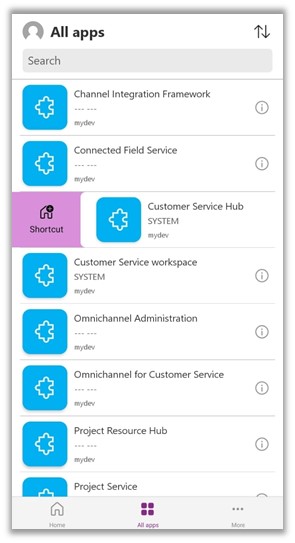
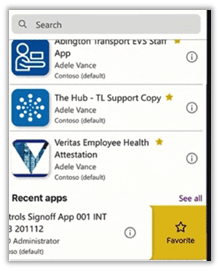
| Swipe gestures are now supported, which allows quickly add a shortcut to the app and mark an app as a favorite. | ||
| Get from Play Store – https://play.google.com/store/apps/details?id=com.microsoft.msapps |
||
| Get from App Store – https://apps.apple.com/us/app/power-apps/id1047318566 |
||
Get all the details here –
Check other posts on Power Apps Mobile App
Push Notification – https://nishantrana.me/2021/02/17/in-app-or-push-notification-model-driven-app-2021-release-wave-1-power-apps-dynamics-365/
Sub-grid and Form tabs improvements – https://nishantrana.me/2020/09/28/sub-grid-and-form-tabs-improvements-in-power-apps-mobile-app/
Hope it helps..
Disable Security Defaults while login into Power Platform / Dynamics 365
Security Defaults provides preconfigured security settings such as MFA – Multi-factor authentication for all users, blocking legacy authentication protocols, etc.
Any tenant created on or after 22nd October 2019, will have this setting enabled for default.

An organization with complex security requirements could disable the security defaults and consider using Conditional Access instead.
Use Azure AD Conditional Access to block user access by device platform (Dynamics 365)
Use Azure AD Conditional Access to block access by country (Dynamics 365)
To disable Security default, login to Azure Portal
Navigate to Azure Active Directory > Properties
https://portal.azure.com/#blade/Microsoft_AAD_IAM/ActiveDirectoryMenuBlade/Properties

Toggle it to No and Save.

Hope it helps..
SSIS: Mapped Network Drives and Accessing remote files on network
In short, avoid using mapped network drives inside your SSIS package for things like file paths, control flow settings, log file locations, etc… Instead use UNC path notations. (serversharedirectory)
Why? Well, if you’re always running an SSIS package by hand using dtexec.exe, or through Business Intelligence Development Studio (BIDS), dtexecui.exe, etc… you don’t really have to worry about this. However, if you’re running the package via a scheduler such as SQL Agent, you’ll run into perceived permission problems, or reports that files cannot be found. The issue with schedulers such as Agent is that they run under a “service account” that does not have access to mapped network drives.
Mapped network drives are set up for your user-session when you log on to a computer. Even if you log in with the same account that the SQL Agent service uses, the service will still not have access to…
View original post 1,101 more words
Search this view capability on Grid in Dynamics 365
Search this view capability which was added in the product with 2020 Release Wave 1, searches on the fields specified in quick find view, but takes into consideration the selected view definition, when performing the search.
This is enabled by default.
Here Search this view will perform the search within the selected view i.e. All Contacts in this case.

The results show 3 records found within the All Contacts view, for the search term “alex”

The same search term returns blank in the case of Inactive contacts is selected.

The same applies to the sub-grids

To turn off this, select Yes for Use quick find view of an entity for searching on grid and sub-grids from General tab of System Settings
After applying the above change, we can see the text renamed to Quick Find within the Search Box.

Searching now, irrespective of the view selected, will perform the search across the records as per the definition of Quick Find view.

More on it
https://docs.microsoft.com/en-us/powerapps/user/grid-filters#use-search-on-a-grid
Also read – Search limit on Quick Find
https://docs.microsoft.com/en-us/powerapps/user/grid-filters#use-search-on-a-grid
Hope it helps..