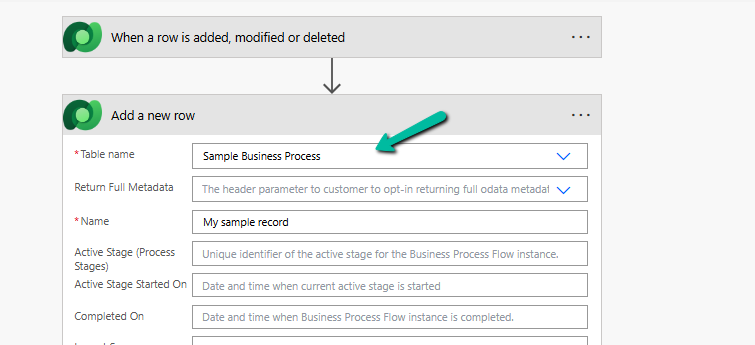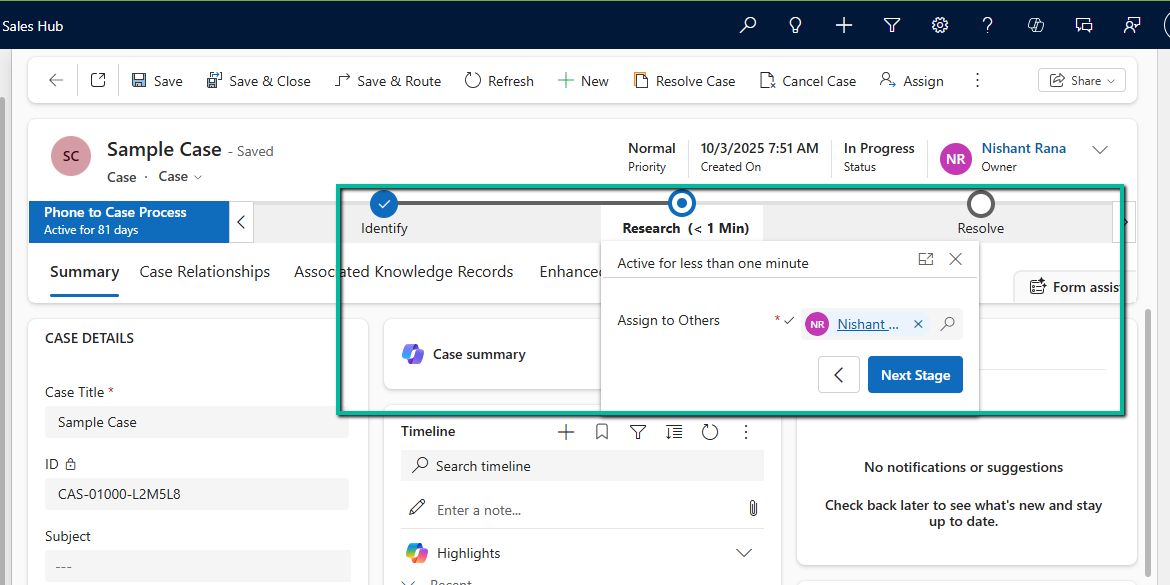
Making a Field Read-Only in Business Process Flow (BPF) – Dataverse / Dynamics 365


A common requirement with Business Process Flows is this: the user must capture all the required details on the form before they are allowed to move to the next stage of the BPF.

The BPF can make individual fields required, but it has no idea about all the other fields sitting on the main form. So how do we make the BPF block the Next Stage button until everything is filled in?

One way is to use JavaScript: register a handler using addOnPreStageChange and call preventDefault() on the event arguments to stop the stage change whenever our conditions are not met. We have covered this approach in an earlier post here.

However, there is one more method to achieve this, where we don’t have to intercept the stage change ourselves and let the BPF do the blocking for us.

In this post we will see how we did it using a Boolean field, kept it read-only in the BPF, and set it through JavaScript.

Scenario

Let us look at it by taking an example of the Opportunity BPF. At the Qualify stage the user has to capture a set of details on the main form (contact, account, budget, and so on) before moving on to Develop.

We want:

  • The user cannot move to the next stage until all the details are captured.
  • The user should not be able to simply tick a box and bypass the check.

The Approach

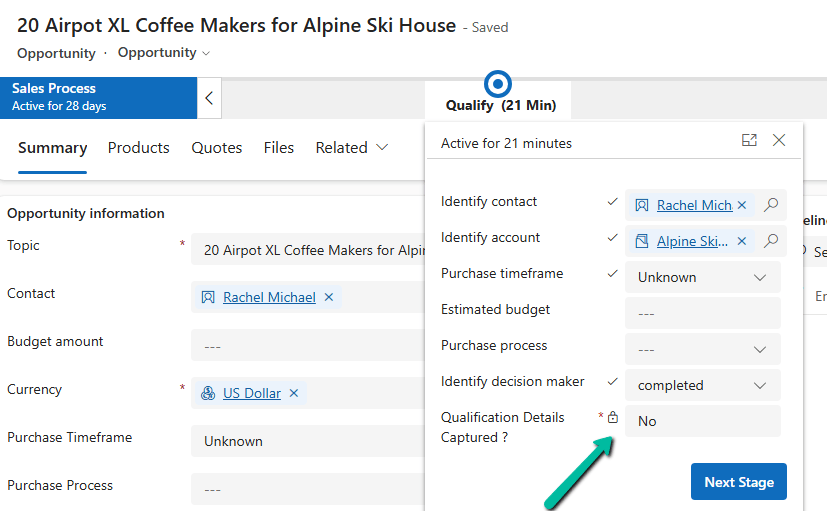
We created a Boolean (Two-Option) field, Qualification Details Captured, with a default value of No, and added it to the Qualify stage of the BPF as a required step.

  • While the value is No, the BPF blocks the stage change and shows “Required fields must be filled in.”
  • Once all the required data is filled in on the form, we can write JavaScript, as per our specific requirement, to set the field to Yes.
  • With the value at Yes, the user can click Next Stage.
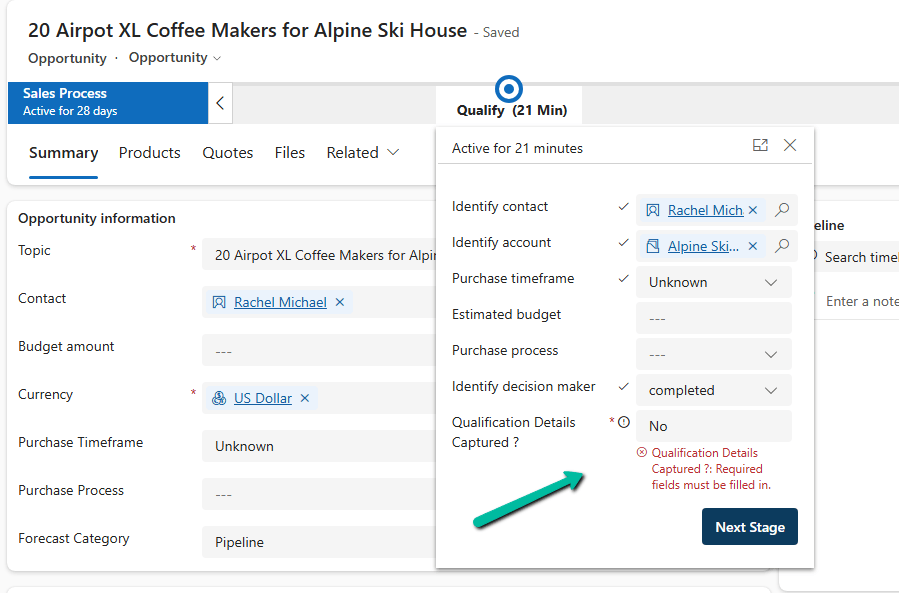
This works because, as we saw in an earlier post, a required Boolean field in a BPF treats only Yes as a valid value, and No is treated as not filled in. Here we are using that behavior to our advantage.

Reference: Boolean Fields in Business Process Flows: Required Field Behavior Explained

Why Make the Field Read-Only?

If the field is editable, the user can just change No to Yes in the BPF flyout and move ahead without filling in anything. That defeats the whole purpose.

The field should be driven by the data, not by the user. So we made it read-only in the BPF, and only the script is allowed to flip the value.

How to Make a Field Read-Only in BPF

The easiest way is through configuration, without any script.

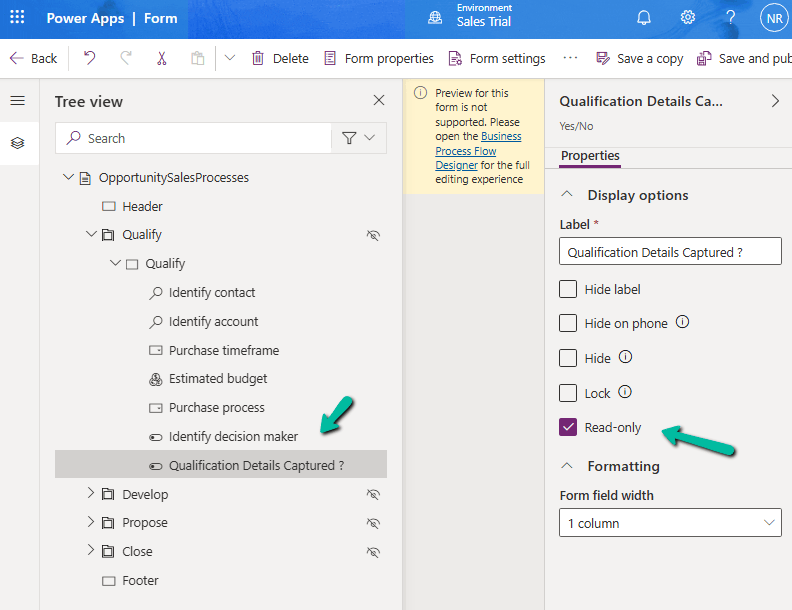
When we create a BPF, Dataverse creates a table for that BPF (named after the BPF). The fields we add to the stages are rendered from the form of this BPF table, so we can control them there like we do for any other column.

  1. Go to Tables, select All (or show all tables), and search for the table with the same name as your BPF.
  2. Open its Forms and select the main form.
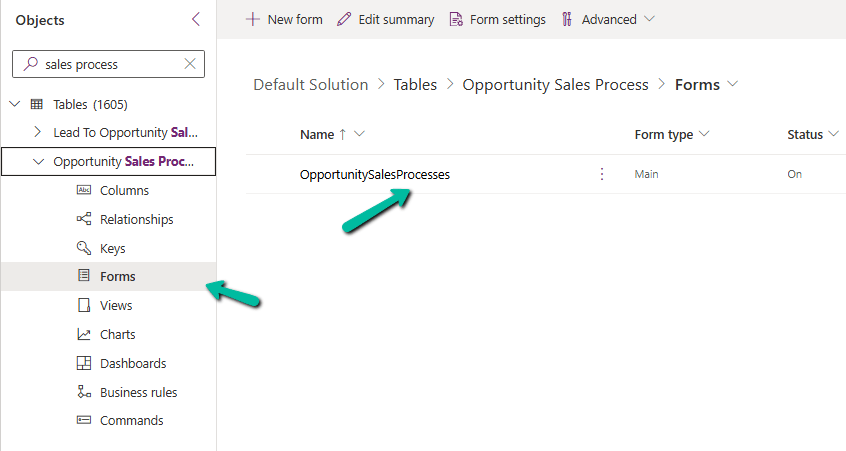
  • Open the Tree view, expand the stage section, and select the field.
  • Under Display options, check Read-only.
  • Save and publish.

Now in the BPF flyout the field is greyed out, and the user cannot change it.
Setting the Value Using JavaScript

Now the field needs to be set to Yes at the right time. For this, we can write JavaScript on the main form as per our specific requirement, which checks that all the required details are captured and then sets the field to Yes.

Until that happens, the field stays at No, and the user will not be able to move to the next stage by clicking Next Stage.

Result

  • Fields are incomplete: flag is No, read-only, and Next Stage is blocked.
  • User fills in all the required details: our JavaScript sets the flag to Yes, and the user can move to the next stage.
  • The user cannot bypass the check by changing the flag manually.

Key Takeaway

To make a field read-only in a BPF, open the form of the BPF table and check Read-only on the field. Combined with a required Boolean field and a little JavaScript, it gives us a simple way to make the BPF wait until all the required data on the form is captured.

Hope it helps..

Advertisements

Business Process Flow Error: “Participating entity record of stage: X is not valid” (0x80040216) (Dynamics 365 / Dataverse)


Scenario

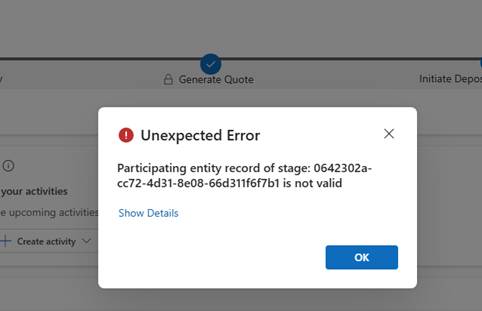
Working on a custom multi-entity Business Process Flow (Opportunity → Quote) recently, we ran into this error while trying to reactivate the process:

The BPF (custom_salesprocess) had already traversed several stages — Generate Opportunity → Qualify → Generate Quote → Initiate Deposit/Bank Guarantee → Sales Completion — before landing on PM Completion, which sits in the “Close” category.

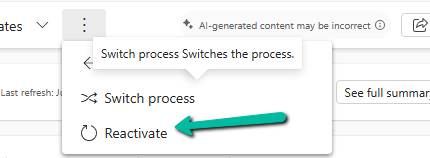
Reactivating the process at that point is where it failed.

In a multi-entity BPF, each stage is bound to a specific entity via processstage.primaryentitytypecode, and the BPF instance record carries a lookup column per non-primary entity used in the flow (e.g. bpf_opportunityid, bpf_quoteid). When a stage tries to activate, Dataverse resolves the “participating entity” for that stage — and if the corresponding lookup on the instance is null, or points to a record that no longer exists (or the user can’t read), we get exactly this error.

Diagnosis

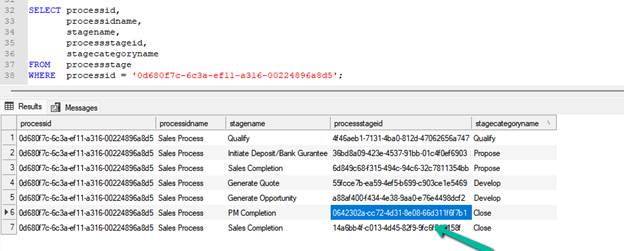
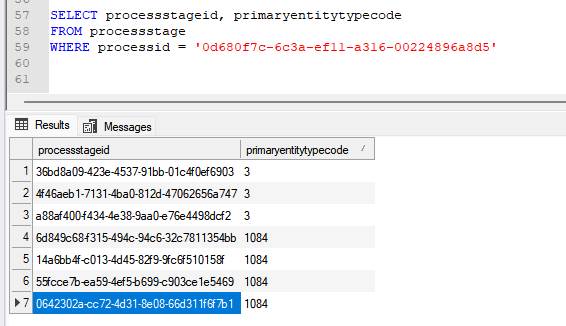
First, we check for the processtageid we got in the error – 0642302a-cc72-4d31-8e08-66d311f6f7b1

SELECT
    processid, 
    stagename,
    processstageid,
    stagecategoryname
FROM processstage
WHERE processid = '0d680f7c-6c3a-ef11-a316-00224896a8d5';

Then we confirm what entity each stage actually maps to using the processid:

PM Completion resolves to Quote (1084) — not Opportunity — which meant the BPF instance needed a valid bpf_quoteid to activate it.

Checked the instance directly:

SELECT * FROM custom_salesprocess WHERE businessprocessflowinstanceid = '682f0586-3660-f111-a826-00224892607c' or bpf_opportunityid = '9e5bdc52-62d4-4773-8d30-fba2089ceba2'

bpf_quoteid and bpf_quoteidname both came back NULL — despite an active Quote already existing against the Opportunity. Something along the way (likely the Quote being created outside the BPF’s native “generate related record” flow) never linked it back.

Fix

A quote existed, so it was a matter of linking it. The preferred route is the related-entity picker on the BPF stage bar in the Opportunity form (safest, goes through supported platform logic). Where that’s not viable, updating the lookup directly works:

UPDATE custom_salesprocess SET    bpf_quoteid = '18cc66e2-9280-f111-ab0f-7c1e528a7a2a' WHERE  businessprocessflowinstanceid = '682f0586-3660-f111-a826-00224892607c';

After the update, the process reactivated cleanly.

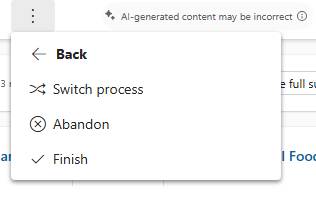
We got the options to Abandon and Finish the flow.

Rules of thumb

  • Multi-entity BPF errors on activation → check the stage’s primaryentitytypecode first. If it’s not the primary entity you’re working from, the instance needs a valid lookup to that other entity.
  • The instance table always carries one lookup column per entity in the flow (bpf_<entity>id) — go straight to that table and check for nulls before looking anywhere else.
  • A null lookup with a record that already exists usually means the record was created outside the BPF’s intended path (manually, via integration, or via a process that bypasses the stage’s native record-generation step) and never got linked back.
  • Before manually setting the lookup, confirm the target record’s statecode/statuscode — a Won/Closed or inactive record may satisfy the lookup but still fail stage entry criteria if a business rule checks for an active state.
  • Prefer the BPF’s own related-entity picker on the form over a direct table update where available — it’s the supported path and won’t skip any platform-side validation.

Key takeaway

“Participating entity record of stage: X is not valid (0x80040216)” on a multi-entity BPF almost always means the stage’s bound entity has no valid linked record on the BPF instance. Trace the stage to its entity via primaryentitytypecode, check the corresponding bpf_<entity>id lookup on the instance, and link a valid, active record.

Reference

Business process flows overview – Microsoft Learn

Advertisements

Multiple Active Business Process Flow Instances for a record in Dynamics 365 / Dataverse


We recently worked on a requirement where we had to sync Business Process Flow (BPF) data between two different Dataverse environments for the Case (Incident) table. At first glance, the requirement looked straightforward — pick the active BPF instance and replicate it. However, while analyzing the source environment, we encountered an interesting and unexpected scenario.

For certain Case records, we found that there were multiple active Business Process Flow instances (of the same BPF) present for the same record.

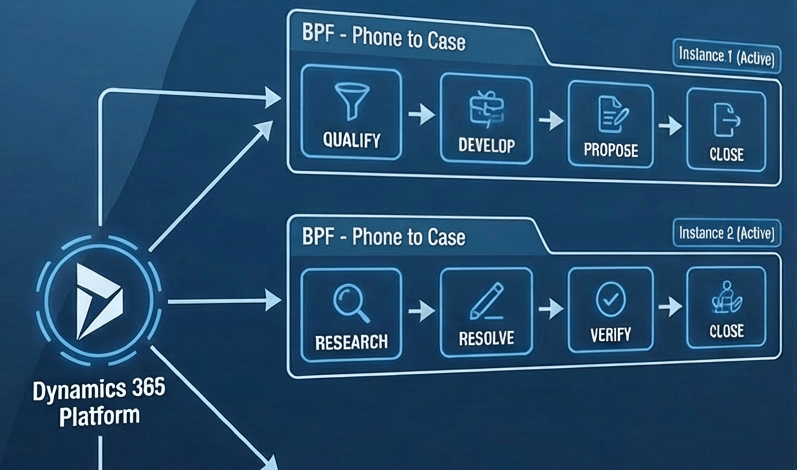
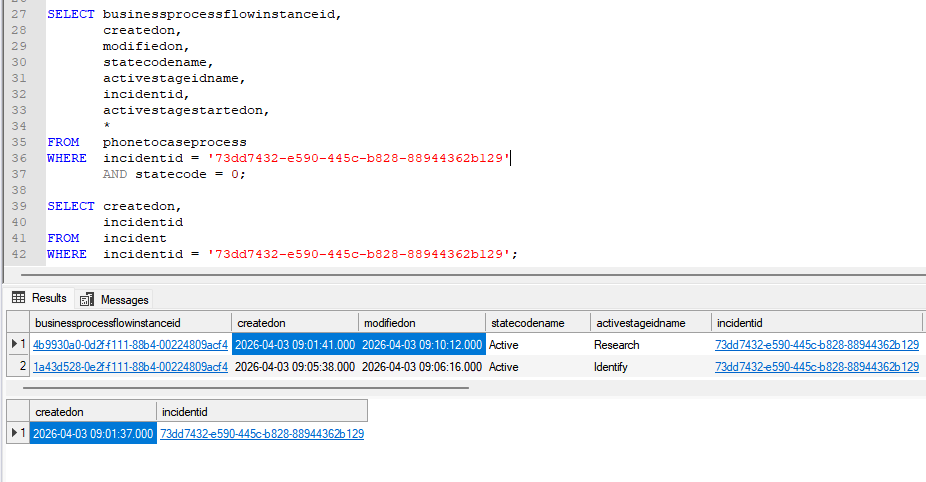
Below is an example where we observed two active BPF instances for the same Case record:

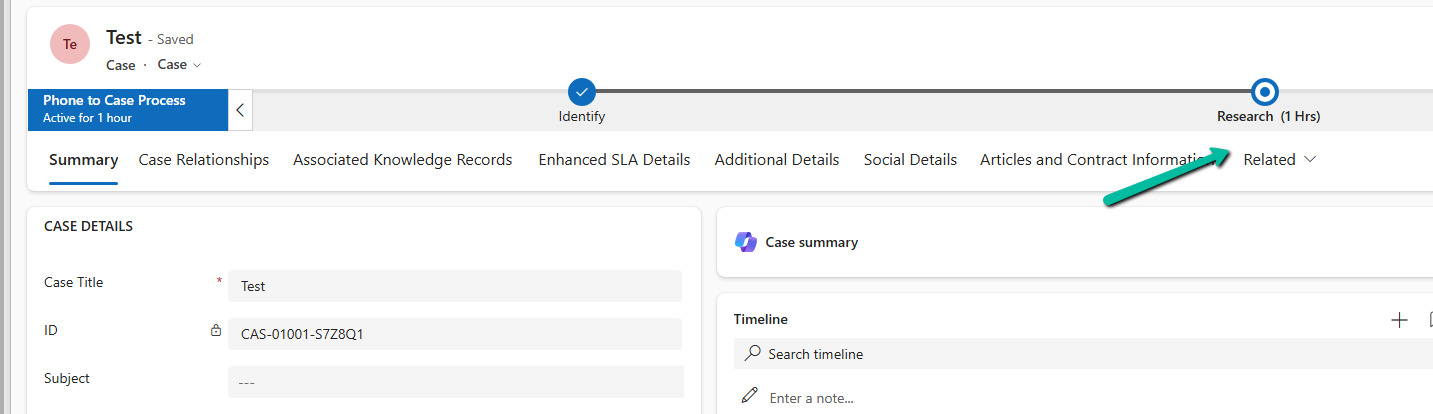
Below is our Case record with Research as the active stage.

As we know, Dataverse is designed to maintain only one active BPF instance per record. So naturally, this raised a question — which one should we consider during synchronization?

On further analysis, we observed a consistent pattern. One BPF instance was typically created at the time when the Case record itself was created. The second instance — usually the one with the most recent Modified On value — corresponded to the latest process applied.

Based on this observation, we decided to use the following approach during synchronization:

For records with multiple active BPF instances, we pick the instance with the most recent Modified On value and ignore the older ones. This ensures that we are syncing the most relevant and currently active business process state.

Naturally, we wanted to understand how such a scenario could even exist, so we tried to replicate it. We attempted to create another BPF instance programmatically using the SDK. The code executed successfully and even returned a GUID; however, interestingly, the GUID was always the same as the already existing active instance.

This behavior clearly indicates that the platform prevents creating duplicate active instances through standard SDK operations.

After further experimentation, we discovered that the only way we were able to create multiple active BPF instances was by directly updating the Incident lookup (incidentid) on an existing BPF instance record. By reassigning the BPF instance from one Case record to another, we effectively bypassed the normal BPF lifecycle validations. This resulted in multiple active BPF instances being associated with the same Case record.

During data migration or synchronization scenarios, it is important to handle such anomalies carefully. In our case, choosing the BPF instance with the latest Modified On value ensured that we always picked the most relevant process state.

Hope it helps..
Advertisements
Advertisements

No Dependencies Shown… But still can’t delete the component? Check Your Cloud Flows (Dataverse / Dynamics 365)


Recently, while performing cleanup in one of our environments, we were removing unused components to reduce clutter and technical debt. As part of this activity, we attempted to delete an old Business Process Flow (BPF) that was no longer required.

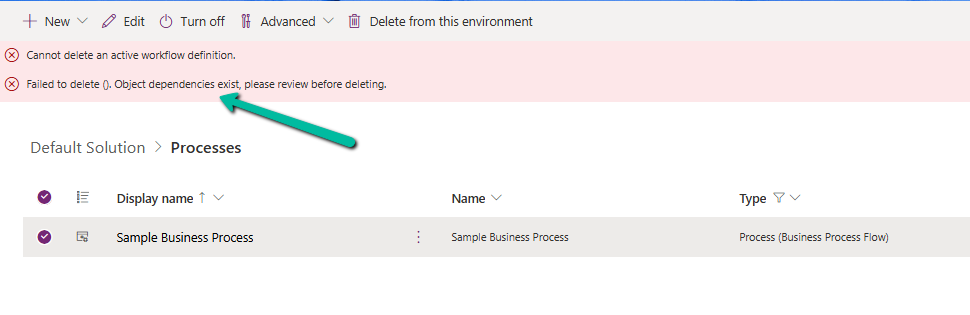
However, when trying to delete the Business Process Flow, we were greeted with the following error message:

Failed to delete (). Object dependencies exist; please review before deleting.

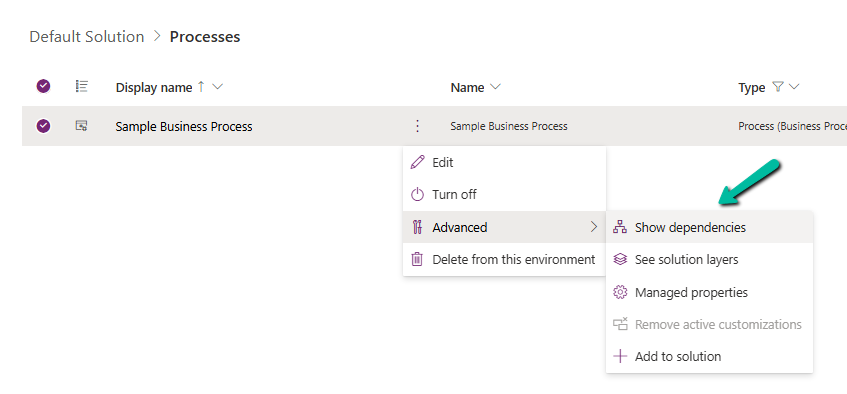
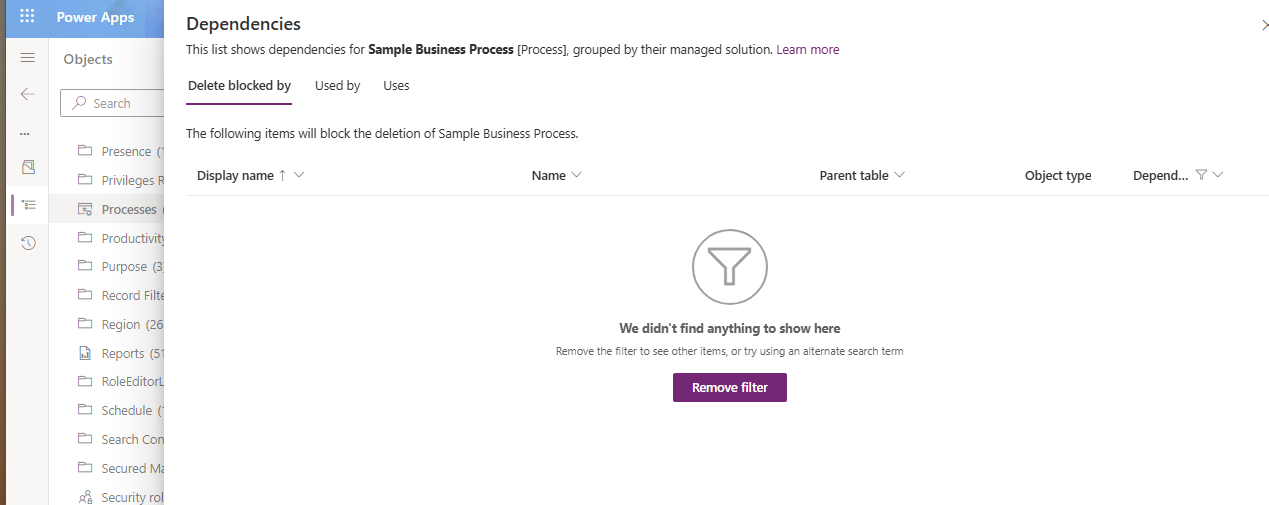
At first glance, this seemed straightforward — if dependencies exist, we just need to review and remove them. But here’s where things became confusing. When we opened the Show Dependencies option for the Business Process Flow, nothing was listed. No forms, no views, no plugins, no workflows — absolutely nothing.

After searching for different components, we finally found one of the cloud flows referring to it. It was creating an instance of the BPF. That reference was enough for Dataverse to block deletion — even though it wasn’t being displayed in the dependency viewer for the component.

Once we identified the cloud flow, we removed the step that was creating the Business Process Flow instance. After saving and publishing the updated flow, we attempted deletion again.

This time — success.

The Business Process Flow was deleted without any issues.

Hope it helps ..

Advertisements

Advancing and Finishing a BPF Using RetrieveProcessInstancesRequest and RetrieveActivePathRequest (Dataverse / Dynamics 365)


In earlier posts, we looked at how to move a Business Process Flow (BPF) stage and finish the process by directly updating the BPF entity instance. In this post, we’ll use RetrieveProcessInstancesRequest and RetrieveActivePathRequest to move a Business Process Flow to its final stage and finish it, using the Phone to Case Process as a reference.

A Business Process Flow defines not just stages, but also valid paths through those stages. Instead of assuming which stage comes next, we can ask Dataverse for the active path of the current process instance. This makes the logic more resilient to future changes, such as reordering stages or adding conditional paths.

By using the active path:

  • We avoid hard-coding stage IDs
  • We ensure the stage we move is to valid for the process
  • We can construct a correct traversed path directly from platform metadata.

Step 1: Retrieve the Active BPF Instance

The first step is to identify the active Business Process Flow instance for the Case. We do this using RetrieveProcessInstancesRequest, which returns all BPF instances associated with the record, ordered based on modifiedon. The most recently modified bpf instance will be the one active in the record.

RetrieveProcessInstancesRequest processInstanceRequest =
    new RetrieveProcessInstancesRequest
    {
        EntityId = caseId,
        EntityLogicalName = "incident"
    };

RetrieveProcessInstancesResponse processInstanceResponse =
    (RetrieveProcessInstancesResponse)orgService.Execute(processInstanceRequest);

Step 2: Retrieve the Active Path and Build the Traversed Path

Instead of guessing stage progression, we retrieve the active path using RetrieveActivePathRequest.

RetrieveActivePathRequest pathReq =
    new RetrieveActivePathRequest { ProcessInstanceId = processInstanceId };

RetrieveActivePathResponse pathResp =
    (RetrieveActivePathResponse)orgService.Execute(pathReq);

The response contains all stages in the active path, in the correct order. From this data, we build the complete traversed path by iterating through every stage returned and collecting their processstageid values.

var traversedPathList = new List<string>();
foreach (var stage in pathResp.ProcessStages.Entities)
{
    traversedPathList.Add(
        ((Guid)stage.Attributes["processstageid"]).ToString()
    );
}

string completeTraversedPath = string.Join(",", traversedPathList);

This approach guarantees that the traversedpath reflects the exact path defined by the process configuration, rather than a manually constructed sequence.

Step 3: Move the BPF to the Final Stage

We then get the last stage’s GUID and use it to update activestageid of the BPF instance along with the traversed path.

Guid finalStageId =
    (Guid)pathResp.ProcessStages.Entities.Last()
        .Attributes["processstageid"];

var updateBpf = new Entity("phonetocaseprocess", processInstanceId)
{
    ["activestageid"] = new EntityReference("processstage", finalStageId),
    ["traversedpath"] = completeTraversedPath
};

orgService.Update(updateBpf);

Step 4: Finish (Deactivate) the Business Process Flow

Reaching the final stage does not automatically complete the process. To mirror the Finish button in the UI, we explicitly mark the BPF instance as inactive and finished.

var finish = new Entity("phonetocaseprocess", processInstanceId)
{
    ["statecode"] = new OptionSetValue(1),   // Inactive
    ["statuscode"] = new OptionSetValue(-1)  // Finished
};

orgService.Update(finish);

After this update, the Business Process Flow appears as Completed in the UI and can no longer be progressed.

Helper method –

public static void MoveBpfToFinalStageAndFinish(
    IOrganizationService service,
    Guid primaryRecordId,
    string primaryEntityLogicalName,
    string bpfSchemaName,
    string expectedBpfName)
{
    // Step 1: Retrieve active BPF instance
    var processInstanceRequest = new RetrieveProcessInstancesRequest
    {
        EntityId = primaryRecordId,
        EntityLogicalName = primaryEntityLogicalName
    };

    var processInstanceResponse =
        (RetrieveProcessInstancesResponse)service.Execute(processInstanceRequest);

    if (!processInstanceResponse.Processes.Entities.Any())
        return;

    var bpfInstance = processInstanceResponse.Processes.Entities.First();
    var processInstanceId = bpfInstance.Id;

    // Optional safety check – ensure correct BPF
    if (!bpfInstance.Attributes.Contains("name") ||
        bpfInstance["name"].ToString() != expectedBpfName)
        return;

    // Step 2: Retrieve active path
    var pathRequest = new RetrieveActivePathRequest
    {
        ProcessInstanceId = processInstanceId
    };

    var pathResponse =
        (RetrieveActivePathResponse)service.Execute(pathRequest);

    if (pathResponse.ProcessStages.Entities.Count == 0)
        return;

    // Step 3: Build traversed path from active path
    var traversedPathList = new List<string>();
    foreach (var stage in pathResponse.ProcessStages.Entities)
    {
        traversedPathList.Add(
            ((Guid)stage["processstageid"]).ToString()
        );
    }

    string traversedPath = string.Join(",", traversedPathList);

    // Final stage = last stage in active path
    Guid finalStageId =
        (Guid)pathResponse.ProcessStages.Entities.Last()["processstageid"];

    // Step 4: Move BPF to final stage
    var updateBpf = new Entity(bpfSchemaName, processInstanceId)
    {
        ["activestageid"] = new EntityReference("processstage", finalStageId),
        ["traversedpath"] = traversedPath
    };

    service.Update(updateBpf);

    // Step 5: Finish (deactivate) the BPF
    var finishBpf = new Entity(bpfSchemaName, processInstanceId)
    {
        ["statecode"] = new OptionSetValue(1),   // Inactive
        ["statuscode"] = new OptionSetValue(2)  // Finished (verify in org)
    };

    service.Update(finishBpf);
}

Get all the details here

Hope it helps..

Advertisements

Finishing (Deactivating) and Reopening a Business Process Flow Using C# Console App (Dataverse / Dynamics 365)


In the previous post, we explored how to move a Business Process Flow (BPF) to the next stage using a console application, with the Phone to Case Process as a working example. Advancing the BPF stage, however, is only part of the lifecycle. Even after the flow reaches its final stage, it remains active until it is explicitly finished. In the Dynamics 365 UI, this is done by clicking the Finish button. In this post, we’ll continue from where the previous one left off and look at how to finish (deactivate) and reactivate the same Phone to Case Business Process Flow programmatically using C#.

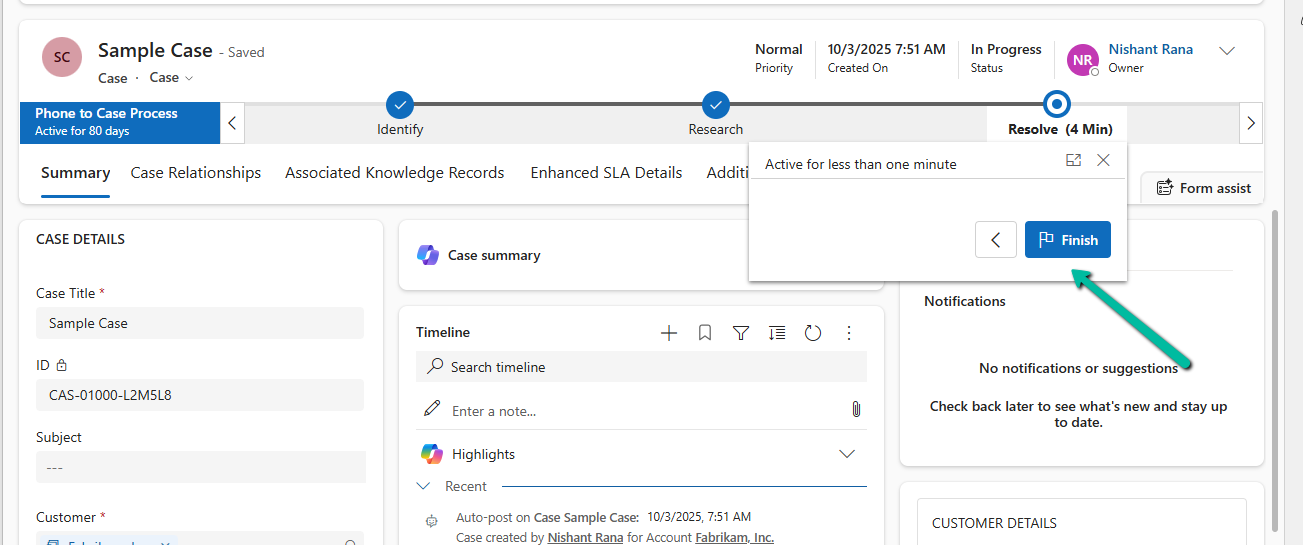
Below we can see the BPF in the last stage Resolve but not yet finished.

Each Business Process Flow is backed by its own Dataverse table. For the Phone to Case Process, this table is phonetocaseprocess. When a Case enters the BPF, a corresponding record is created in this table, representing the BPF instance. This record has its own lifecycle, independent of the Case itself. Finishing a BPF means setting this instance to an Inactive state. Simply moving the BPF to the Resolve stage does not finish the process; the instance remains active until its state is explicitly updated.

var processInstanceId = bpfInstance.Id;
var processEntityLogicalName = "phonetocaseprocess";

// Finish (Deactivate) the BPF
var finishBpf = new Entity(processEntityLogicalName, processInstanceId)
{
    ["statecode"] = new OptionSetValue(1),   // Inactive
    ["statuscode"] = new OptionSetValue(-1)  // Finished (verify value in your org)
};

service.Update(finishBpf);

After this update, the Business Process Flow is marked as Completed in the UI, and the Finish button is no longer available. This mirrors the result of clicking Finish manually.

In certain scenarios—such as testing, data correction, or reprocessing a record—we may need to reactivate a finished Business Process Flow. This can be done by setting the BPF instance back to an Active state.

var reactivateBpf = new Entity(processEntityLogicalName, processInstanceId)
{
    ["statecode"] = new OptionSetValue(0),   // Active
    ["statuscode"] = new OptionSetValue(-1)
};

service.Update(reactivateBpf);

Reusable Helper Method to Move Next, Finish and Reactivate a BPF –

public static void UpdateBpfStageAndState(
    IOrganizationService service,
    string bpfSchemaName,
    string primaryEntityLookupField,
    Guid primaryRecordId,
    Guid targetStageId,
    bool finishBpf = false,
    bool reactivateBpf = false)
{
    // 1. Retrieve the BPF instance
    var query = new QueryExpression(bpfSchemaName)
    {
        ColumnSet = new ColumnSet("activestageid", "traversedpath", "statecode")
    };
    query.Criteria.AddCondition(primaryEntityLookupField, ConditionOperator.Equal, primaryRecordId);

    var instances = service.RetrieveMultiple(query);
    if (!instances.Entities.Any())
        return;

    var bpfInstance = instances.Entities.First();

    // 2. Move the BPF to the target stage
    var updateStage = new Entity(bpfSchemaName, bpfInstance.Id);

    updateStage["activestageid"] =
        new EntityReference("processstage", targetStageId);

    var traversedPath = bpfInstance.GetAttributeValue<string>("traversedpath");
    updateStage["traversedpath"] = string.IsNullOrEmpty(traversedPath)
        ? targetStageId.ToString()
        : $"{traversedPath},{targetStageId}";

    service.Update(updateStage);

    // 3. Finish (Deactivate) the BPF if requested
    if (finishBpf)
    {
        var finish = new Entity(bpfSchemaName, bpfInstance.Id)
        {
            ["statecode"] = new OptionSetValue(1),   // Inactive
            ["statuscode"] = new OptionSetValue(-1)  // Finished (verify in your org)
        };

        service.Update(finish);
    }

    // 4. Reactivate the BPF if requested
    if (reactivateBpf)
    {
        var reactivate = new Entity(bpfSchemaName, bpfInstance.Id)
        {
            ["statecode"] = new OptionSetValue(0),   // Active
            ["statuscode"] = new OptionSetValue(-1)
        };

        service.Update(reactivate);
    }
}

Hope it helps..

Advertisements