
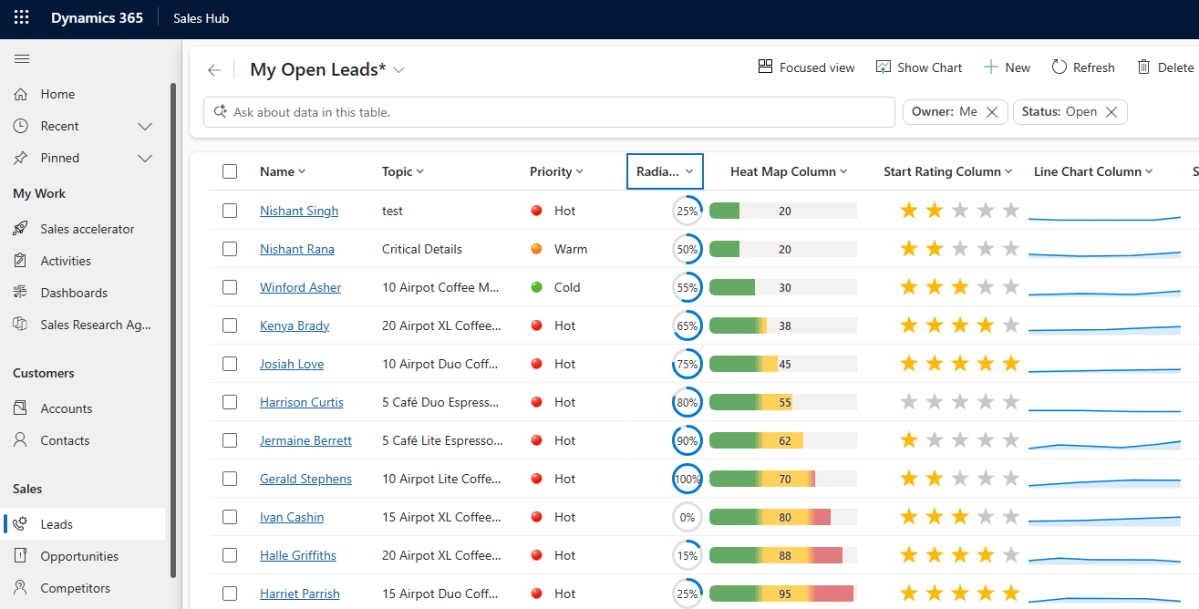
While working with Model-driven apps, sometimes a visual indicator can make a view much easier to scan.
For example, instead of displaying simple text like Priority – Hot, Warm and Cold.
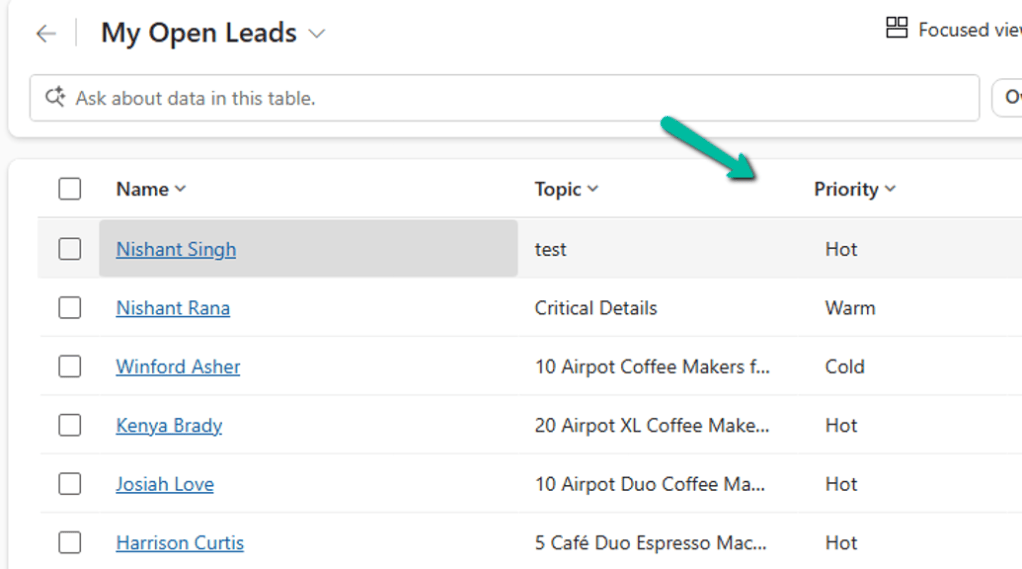
we can display an icon based on the value along with the field value. And we can also display a tooltip when the user hovers over the icon.
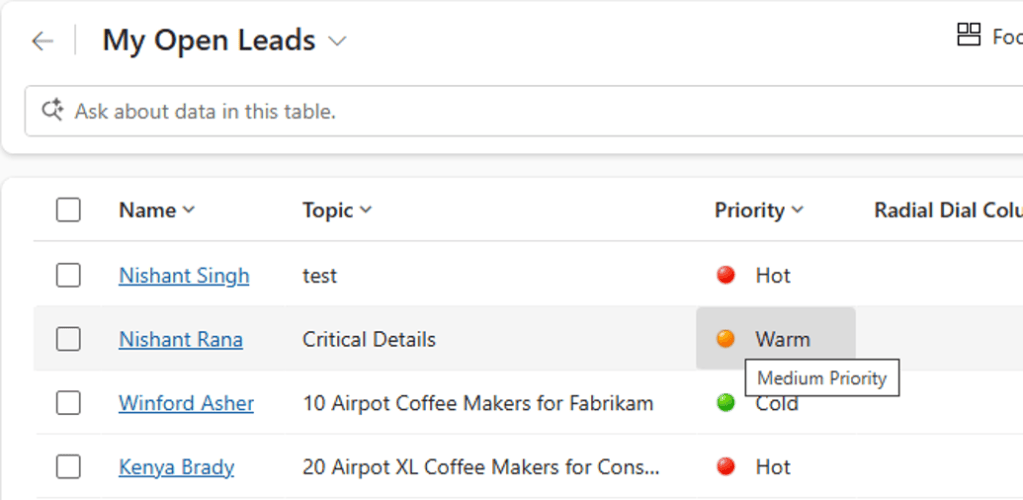
Microsoft Power Apps supports adding custom icons and tooltips to columns in views using image web resources and JavaScript. The JavaScript function determines which image and tooltip should be displayed for each row.
How it works
The JavaScript function receives the row data and the user’s LCID:
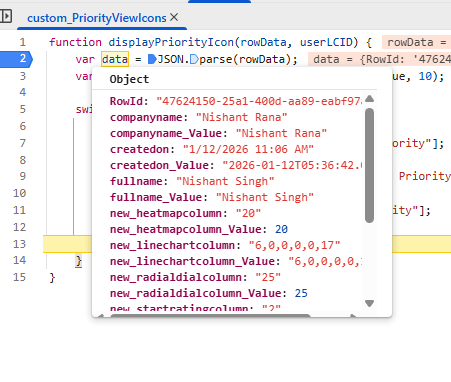
function displayPriorityIcon(rowData, userLCID) {
    var data = JSON.parse(rowData);
    var priority = parseInt(data.prioritycode_Value, 10);

    switch (priority) {
        case 1:
            return ["custom_PriorityHigh", "High Priority"];
        case 2:
            return ["custom_PriorityMedium", "Medium Priority"];
        case 3:
            return ["custom_PriorityLow", "Low Priority"];
        default:
            return ["", ""];
    }
}
The function returns an array containing: [imageName, tooltip]
For example: return [“custom_PriorityHigh”, “High Priority”];
The image names refer to image web resources that we add to the solution.
The userLCID parameter can also be used when tooltip text needs to be localized for different users.
Microsoft recommends using 16 × 16 pixel images for these icons. Also, when working with Choice columns, it is better to use the underlying integer value rather than the label, since labels can be localized.
Configure the view
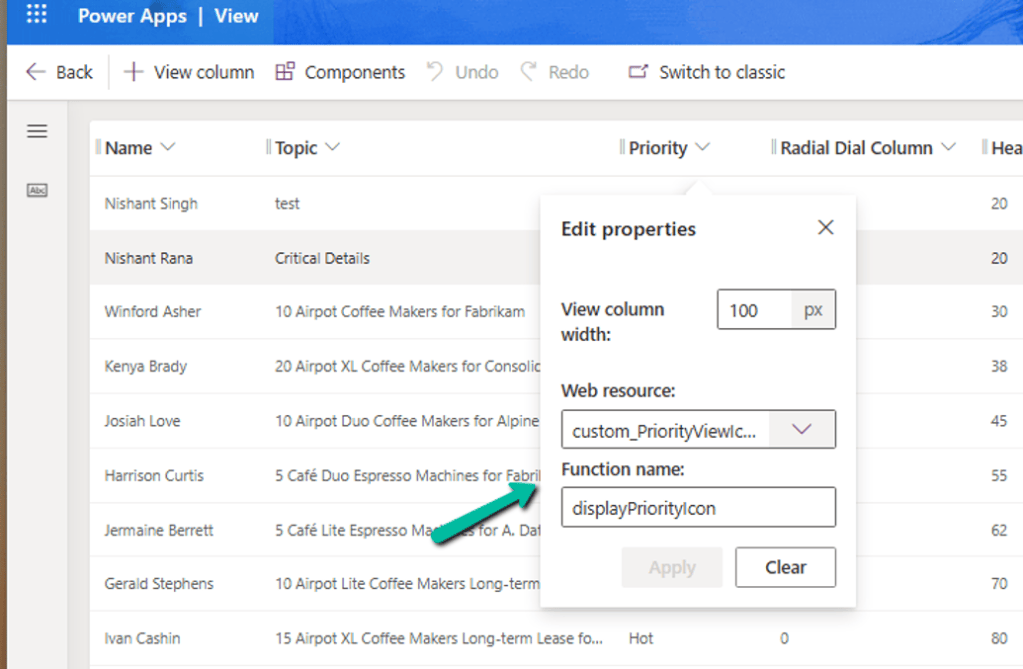
The JavaScript web resource and function are then specified for the column in the view.
Open the view for customization, select Edit Properties for the column
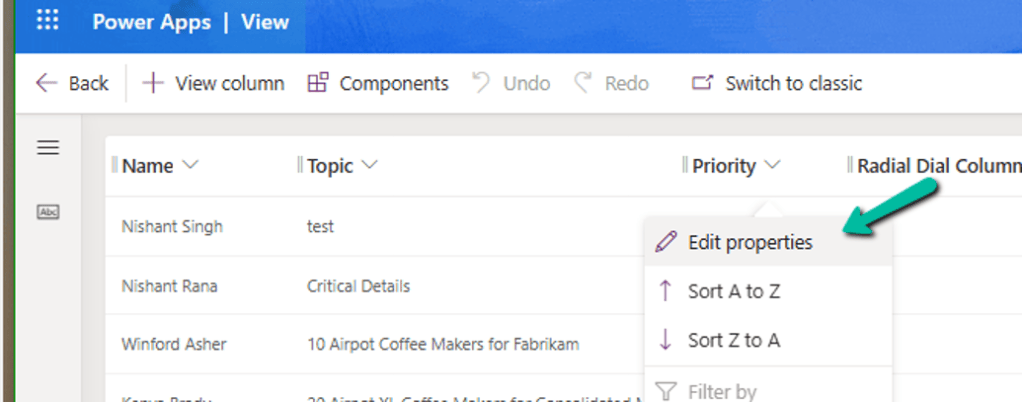
Specify the Web resource and Function Name there.
Once published, the appropriate icon and tooltip are displayed based on the row data.
This can be particularly useful for columns such as:
- Priority
- Risk
- SLA status
- Customer health
- Approval status
- Integration status
The icon provides the visual signal, while the tooltip provides additional context.
A note about Column Visualizations
There is also a newer option available in Power Apps: Custom Column Visualizations for grids and views.
These can render column data as a Heat Map, Line Chart, Radial Dial, or Star Rating, allowing users to compare values visually within a grid.
I covered this feature in more detail in my earlier post: Column Visualizations for Grids / Views (Preview) – Dataverse / Dynamics 365
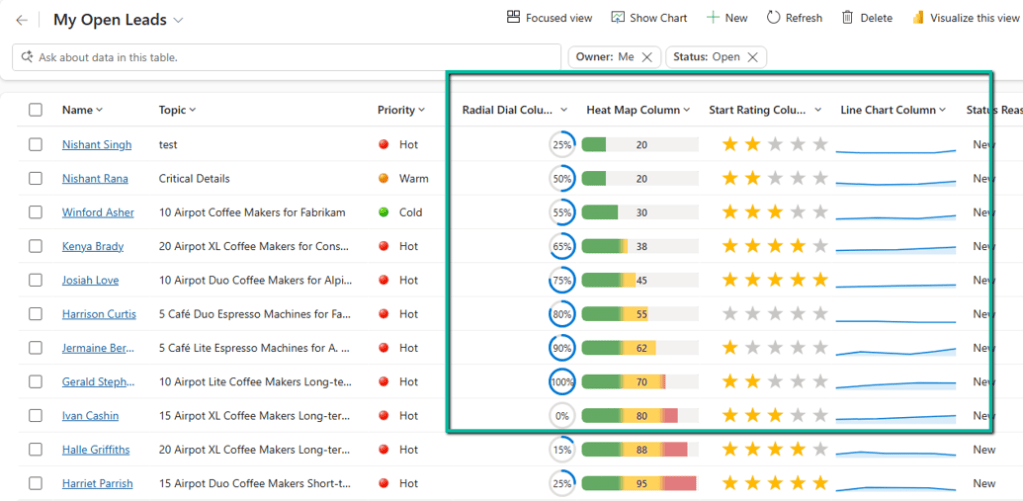
So, if we simply need a small dynamic icon with a tooltip, custom icons are a useful option. If we need a richer visualization of the underlying data, Column Visualizations may be worth considering.
Custom icons are configured per view, whereas the newer Column Visualizations are configured on the column and automatically appear wherever that column is used in grids/views.
Custom icons are configured as part of the view definition, whereas Column Visualizations are configured at the column level.
Custom icons and tooltips are supported for read-only grids. They aren’t supported for editable grids.
Hope it helps ..
Discover more from Nishant Rana's Weblog
Subscribe to get the latest posts sent to your email.
Share It -


