Retrieve All One-to-Many Relationships and Cascade Delete Behavior for a Dataverse Table Using C#


While working on a Dynamics 365 Field Service cleanup, we needed to delete a large number of Work Order records.

Before doing so, we wanted to understand exactly what would happen to the related records.

Not every relationship is configured for Cascade Delete. Many use RemoveLink, which doesn’t delete the child records. Instead, Dataverse updates the lookup field to null by removing the relationship.

This behavior is easy to overlook, but it can have unintended consequences. In our case, several integrations were listening for updates on child tables. Deleting a Work Order could therefore generate a large number of update events on related records, potentially triggering unnecessary integration processing.

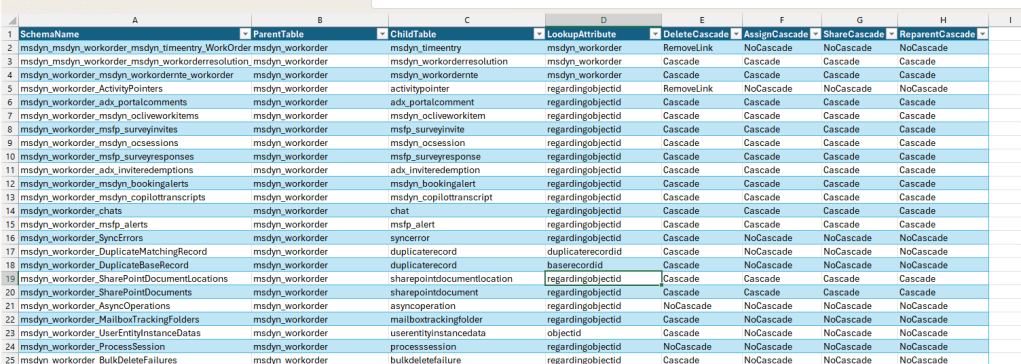
To identify every table referencing msdyn_workorder along with its delete behavior, I wrote a small console application that retrieves the relationship metadata and exports it to a CSV file.

The application uses the RetrieveEntityRequest message to retrieve all one-to-many relationships for a Dataverse table along with their cascade settings.

static void Main(string[] args)
{
    Console.WriteLine("Connecting...");

    string connectionString =
        ConfigurationManager.AppSettings["ConnectionString"];

    var service = new ServiceClient(connectionString);

    if (!service.IsReady)
    {
        Console.WriteLine("Connection Failed");
        Console.WriteLine(service.LastError);
        Console.ReadLine();
        return;
    }

    Console.WriteLine("Connected Successfully");

    var request = new RetrieveEntityRequest
    {
        LogicalName = "msdyn_workorder",
        EntityFilters = EntityFilters.Relationships
    };

    var response =
        (RetrieveEntityResponse)service.Execute(request);

    var relationships = new List<RelationshipInfo>();

    foreach (var relationship in response.EntityMetadata.OneToManyRelationships)
    {
        relationships.Add(new RelationshipInfo
        {
            SchemaName = relationship.SchemaName,
            ParentTable = relationship.ReferencedEntity,
            ChildTable = relationship.ReferencingEntity,
            LookupAttribute = relationship.ReferencingAttribute,
            DeleteCascade = relationship.CascadeConfiguration.Delete.ToString(),
            AssignCascade = relationship.CascadeConfiguration.Assign.ToString(),
            ShareCascade = relationship.CascadeConfiguration.Share.ToString(),
            ReparentCascade = relationship.CascadeConfiguration.Reparent.ToString()
        });
    }

    Console.WriteLine($"Relationships Found: {relationships.Count}");

    foreach (var relationship in relationships)
    {
        Console.WriteLine(
            $"{relationship.ChildTable} | " +
            $"{relationship.LookupAttribute} | " +
            $"{relationship.DeleteCascade}");
    }

    using (var writer = new StreamWriter("WorkOrderRelationships.csv"))
    using (var csv = new CsvWriter(writer, CultureInfo.InvariantCulture))
    {
        csv.WriteRecords(relationships);
    }

    Console.WriteLine("CSV exported successfully.");
}

RelationshipInfo Class

public class RelationshipInfo
{
    public string SchemaName { get; set; }
    public string ParentTable { get; set; }
    public string ChildTable { get; set; }
    public string LookupAttribute { get; set; }
    public string DeleteCascade { get; set; }
    public string AssignCascade { get; set; }
    public string ShareCascade { get; set; }
    public string ReparentCascade { get; set; }
}

The output :
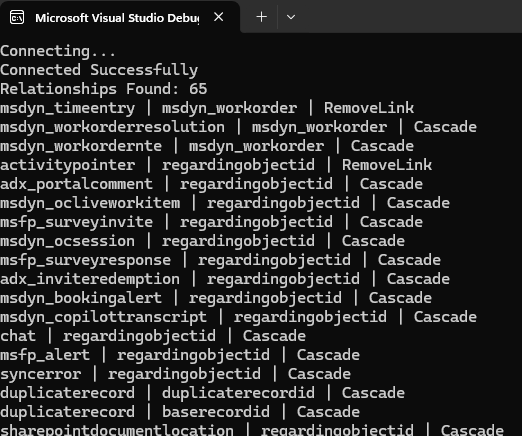
Why is this useful?

This utility can be useful when we need to:

  • Review cascade behavior before performing bulk deletes.
  • Understand which child tables will be deleted, updated, or left unchanged.
  • Identify RemoveLink relationships that generate automatic update events on child records.
  • Validate plugin and integration behavior before data cleanup activities.
  • Export relationship metadata for documentation or analysis.

The code works for any Dataverse table. Simply replace:

LogicalName = “msdyn_workorder”

with the logical name of the table you want to analyze.

In our case, this quick analysis helped us identify child tables that would receive automatic updates due to RemoveLink relationships, allowing us to ensure those updates did not unnecessarily trigger downstream integrations during the cleanup process.

Hope it helps..

Advertisements

Hidden Required Fields Causing “Please ensure all required fields are filled out” Error While Disqualifying a Lead in Dynamics 365 / Dataverse


While working on a Lead Disqualification scenario in Dynamics 365, we ran into a strange issue.

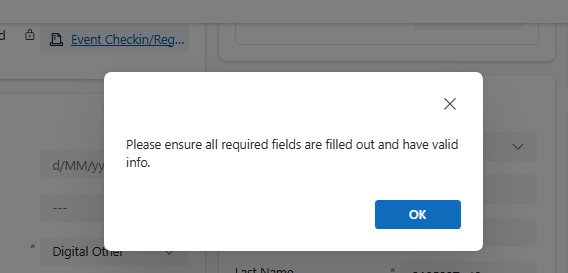
When trying to Disqualify a Lead, Dynamics 365 was showing the generic error message:

“Please ensure all required fields are filled out and have valid info.”

Even more confusing, the form itself was not showing any missing required fields.

This is one of those classic “ghost validation” problems in Dynamics 365 where fields are being marked as required dynamically through JavaScript or Business Rules, even though they are not visible on the form. The message was generic and did not indicate which field was causing the validation failure.

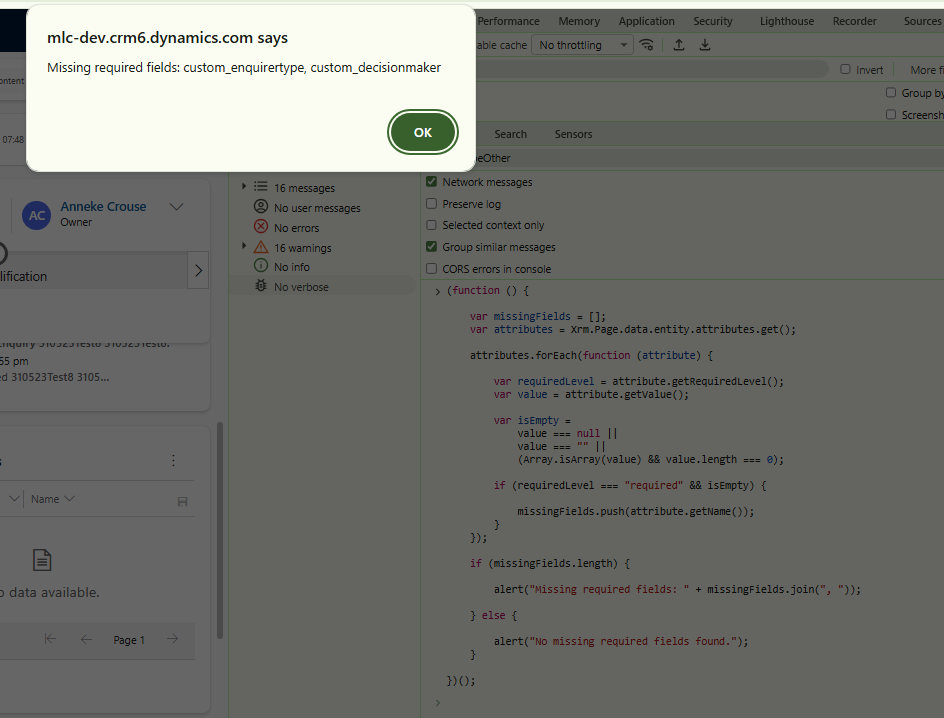
Since the form was not highlighting any required fields, we suspected that some fields were being set as required dynamically in the background. To identify them, we executed the following JavaScript in the browser console.

(function () {
    var missingFields = [];
    var attributes = Xrm.Page.data.entity.attributes.get();
    attributes.forEach(function (attribute) {
        var requiredLevel = attribute.getRequiredLevel();
        var value = attribute.getValue();
        var isEmpty =
            value === null ||
            value === "" ||
            (Array.isArray(value) && value.length === 0);
        if (requiredLevel === "required" && isEmpty) {
            missingFields.push(attribute.getName());
        }
    });
    if (missingFields.length) {
        alert("Missing required fields: " + missingFields.join(", "));
    } else {
        alert("No missing required fields found.");
    }

})();

The script immediately showed the fields that were marked as required internally:

Even though these fields were not visible on the form, they were still configured as required dynamically somewhere in the background.

To fix it – we found and updated the JavaScript method that was setting those fields as required. This is the cleaner and recommended approach.

The other quick fix though not recommended is to reset the fields to non-required on OnLoad/ OnSave/ OnChange.

formContext.getAttribute("custom_enquirytype")
    .setRequiredLevel("none");
formContext.getAttribute("custom_decisionmaker")
    .setRequiredLevel("none");

Sometimes these generic validation popups in Dynamics 365 can be a bit tricky because the actual field causing the issue is not even visible on the form.

Running a quick console script like the one above helped us immediately identify which hidden fields were still marked as required and blocking the Disqualify action

Hope it helps..

Advertisements

Plugin Registration Tool Login with Multi-Factor Authentication (MFA) – Uncheck “Show Advanced”


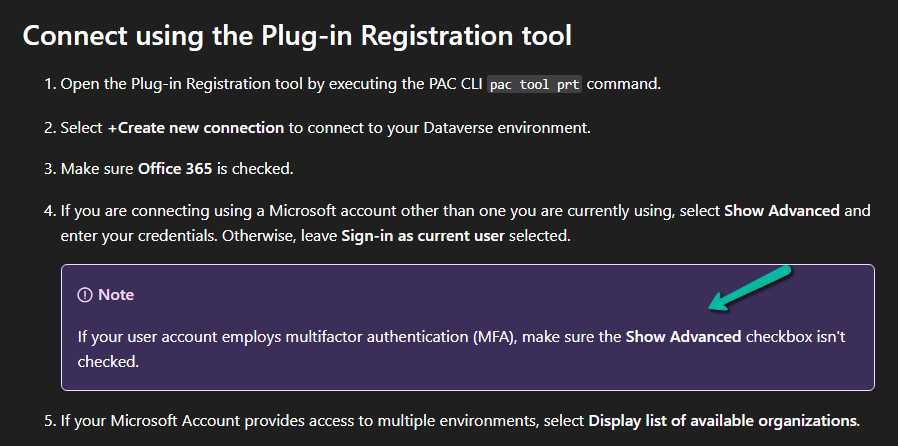
If we’re logging into the Plugin Registration Tool using an account protected with Multi-Factor Authentication (MFA), there’s one small setting that can cause login failures — Show Advanced.

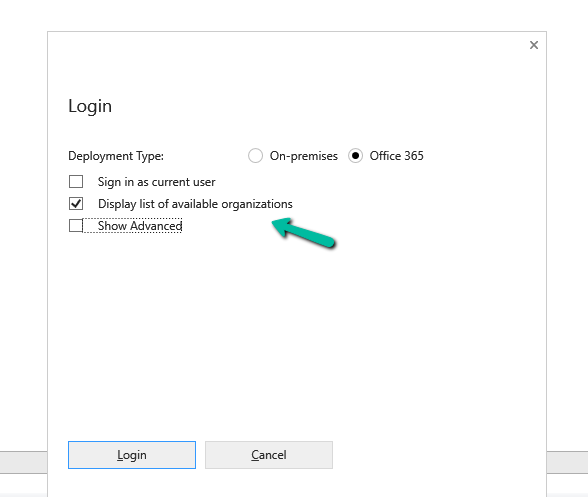
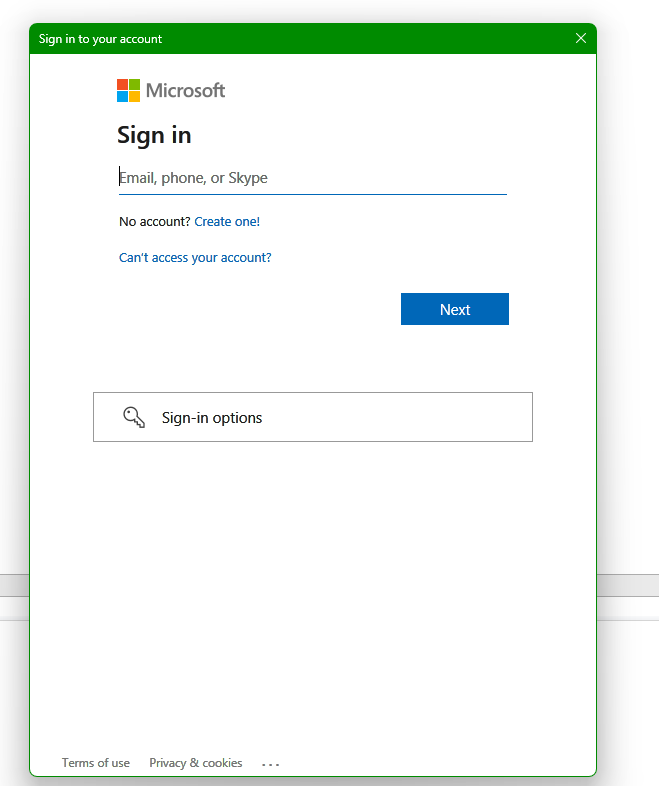
We need to make sure “Show Advanced” is unchecked before clicking Login. When this option is selected, the tool exposes legacy Username and Password fields, which do not support modern Azure AD MFA authentication. Leaving it unchecked forces the tool to open the modern Microsoft login prompt, where we can complete your MFA challenge successfully.

Clicking on Login.

Microsoft also mentions this behavior in the official documentation under the plugin registration tutorial.

Reference:

Microsoft Learn – Register a plug-in

https://learn.microsoft.com/en-us/power-apps/developer/data-platform/tutorial-write-plug-in#register-plug-in

Hope it helps..

Advertisements

Renaming Sitemap Display Name in Dataverse / Dynamics 365


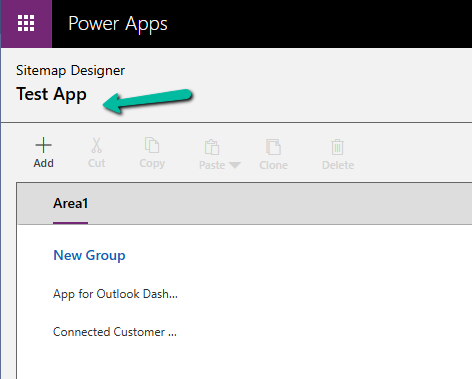
While working with a model-driven app in Dataverse, we needed to change the display name of the sitemap. What made this interesting was that there is no option in the UI to rename the sitemap display name directly.

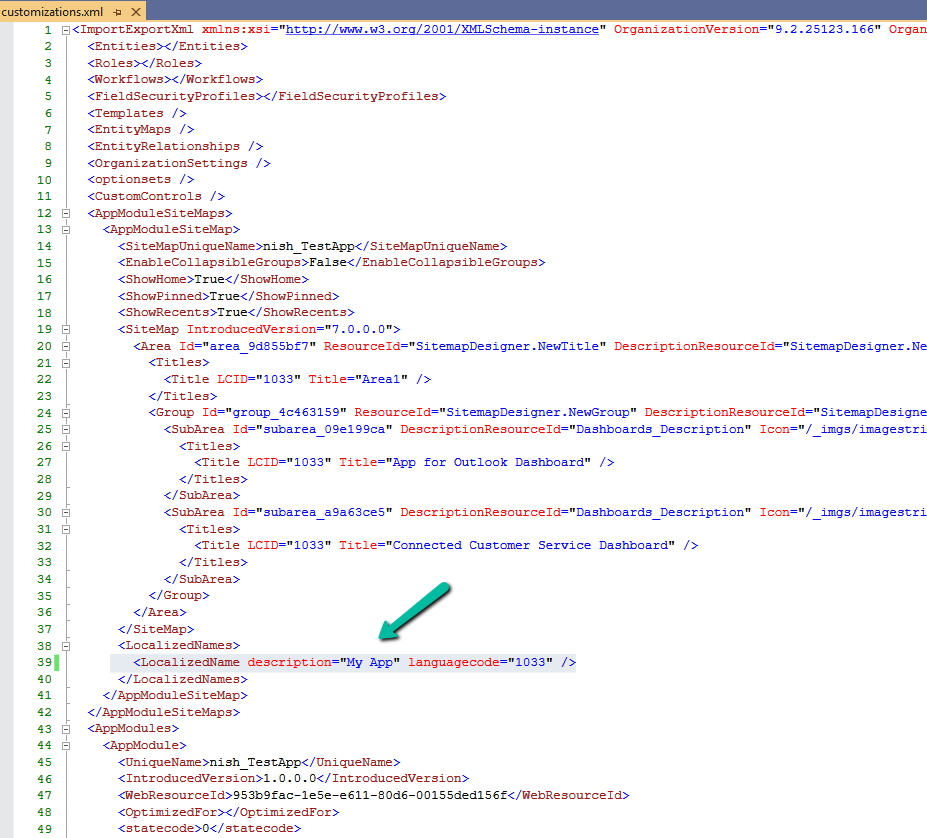
After exploring the UI options and confirming that the sitemap display name cannot be updated there, the only approach that worked was a solution-level change. The solution was to export the solution that contained the sitemap, update the sitemap display name in customizations.xml, and then import and publish the solution again. We exported the solution as unmanaged and extracted the ZIP file. Inside the extracted files, we opened customizations.xml. This file contains the full definition of the app’s sitemap, including its localized display name. Within the XML, the sitemap definition appears under the AppModuleSiteMaps section. A simplified version of the relevant structure looks like this:

The key part here is the LocalizedNames node. This is where the sitemap display name is defined. To rename the sitemap, we updated the value of the description attribute for the required language code.

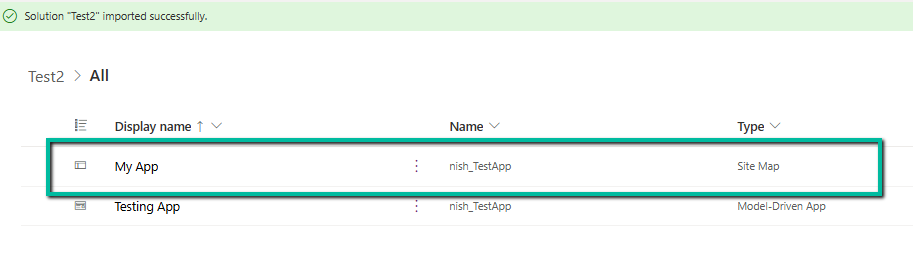
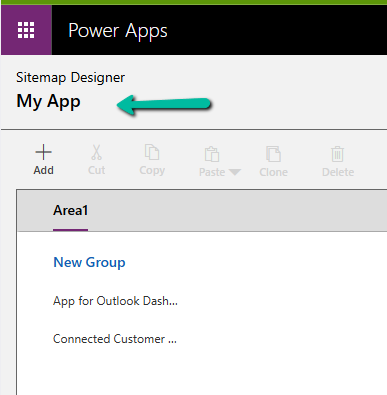
After making this change, we repackaged the solution, imported it back into the environment, and published the customizations. Once the import was completed / published, the sitemap display name reflected the new value everywhere and, importantly, the change persisted.

Hope it helps..

Advertisements

Fixed: Audit History Page Not Loading (Dataverse / Dynamics 365)


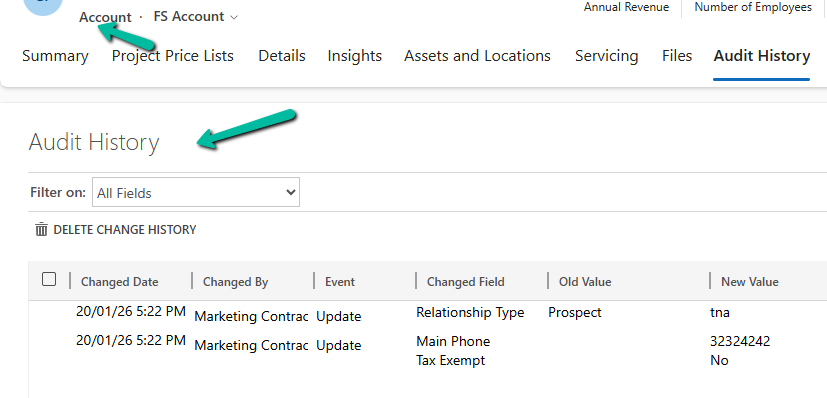
Recently, we ran into an issue where the Audit History page stopped loading on the form. Interestingly, the problem was limited only to the Account forms.

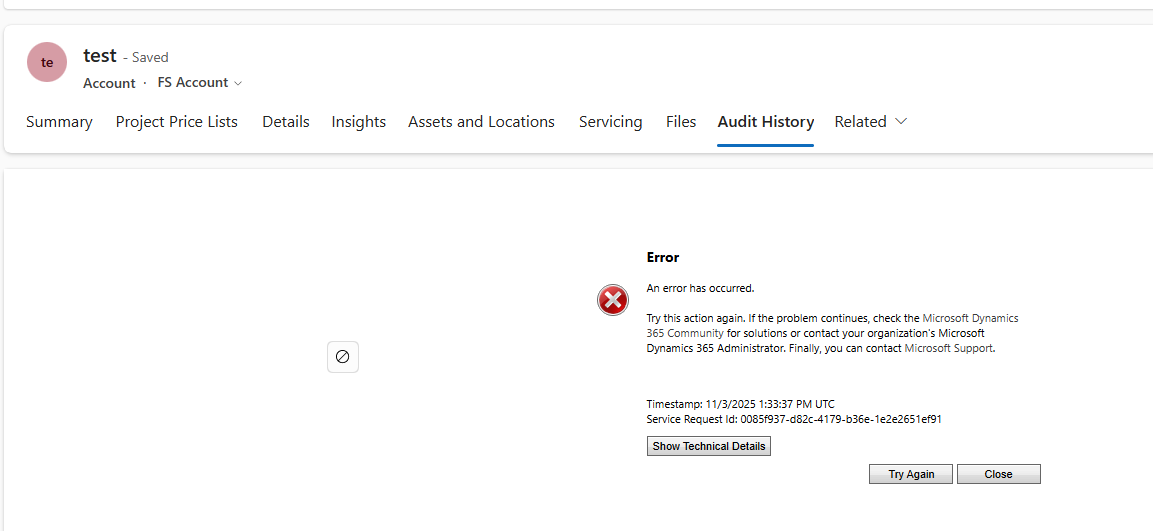
Whenever we tried to open Audit History, we received the generic error below:

An error has occurred.

Try this action again. If the problem continues, check the Microsoft Dynamics 365 Community for solutions or contact your organization’s Microsoft Dynamics 365 Administrator. Finally, you can contact Microsoft Support.

A screenshot of a computer

AI-generated content may be incorrect.

To investigate further, we raised a Microsoft Support ticket. After reviewing the issue, Microsoft informed us that the problem was likely related to a custom control used on the Account form. They shared the Form ID (GUID) along with the control classid F9A8A302-114E-466A-B582-6771B2AE0D92, which corresponds to that custom control.

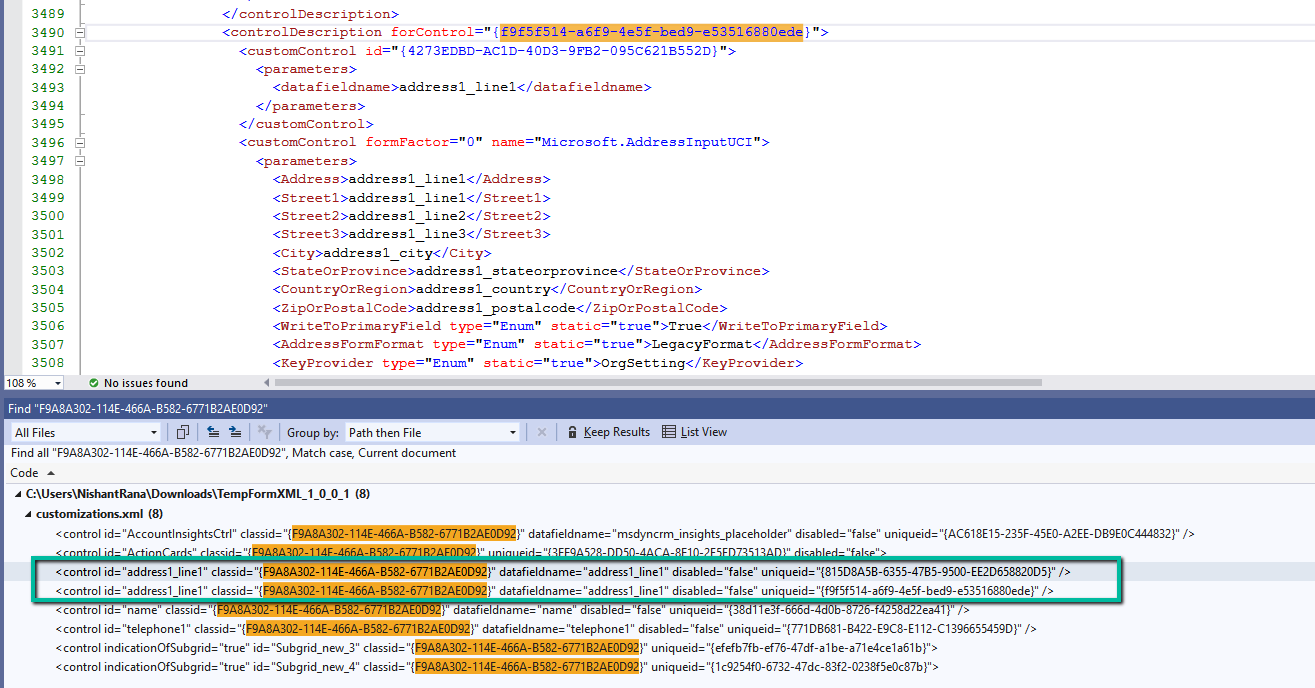
Microsoft asked us to inspect the Form XML of the affected Account form. Specifically, they advised searching for all controls that use the given classid and carefully reviewing the uniqueid property of each control. We were also asked to verify that there were no case mismatches in the GUIDs and that every uniqueid had a matching entry in the controldescription section of the Form XML.

To identify the correct form, we used a SQL4CDS query to retrieve the Form Name and Form ID.

For easier analysis, we created a temporary solution, added the affected Account form to it, exported the solution, and opened the Form XML.

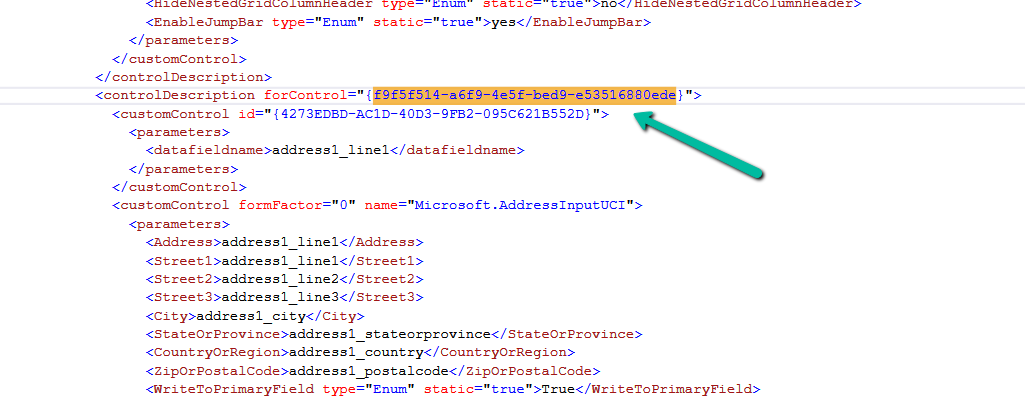
While reviewing the Form XML, we found six instances of the control using the specified classid. For five of these controls, the uniqueid had a corresponding entry in the controldescription section. However, one control was missing this mapping. The problematic uniqueid was 815D8A5B-6355-47B5-9500-EE2D658820D5.

To resolve the issue, we updated this uniqueid to match an existing and valid one already present for the address1_line1 control, which was f9f5f514-a6f9-4e5f-bed9-e53516880ede. After making the change, we zipped the solution, imported it back into the environment, and published the updates.

More on that Address Input Control – https://www.axazure.com/en/how-to-use-the-new-address-input-control-in-model-driven-app

Once the solution was re-imported, the Audit History page started working correctly for Account forms, confirming that the issue was resolved.

This could be helpful if you run into a similar Audit History issue caused by custom controls and Form XML inconsistencies.

Hope it helps..

Advertisements

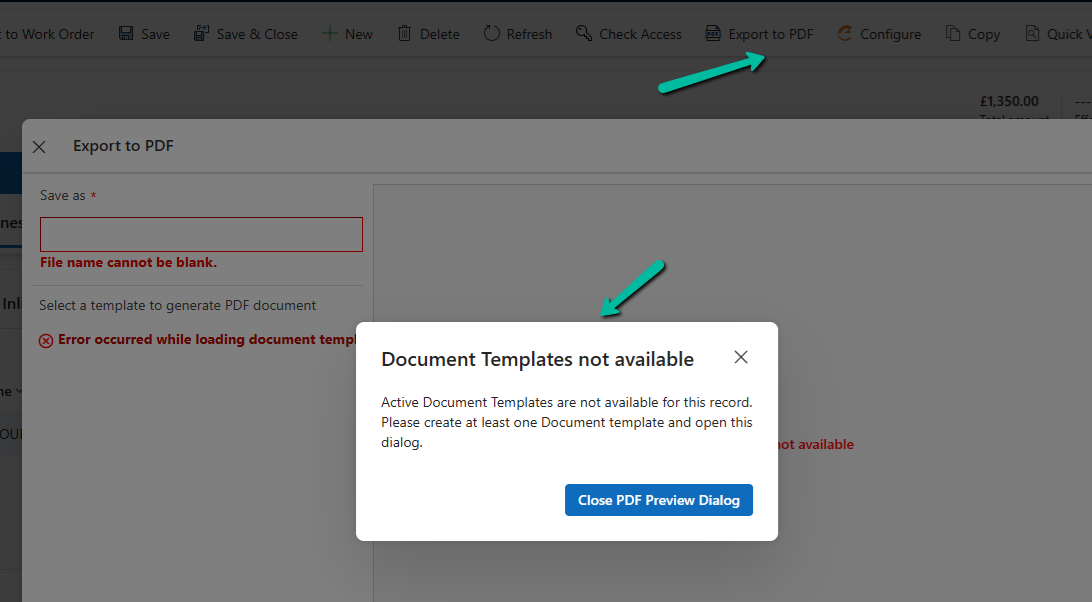
Fixed – Error occurred while loading document template / Error occurred while loading preview error in Dynamics 365


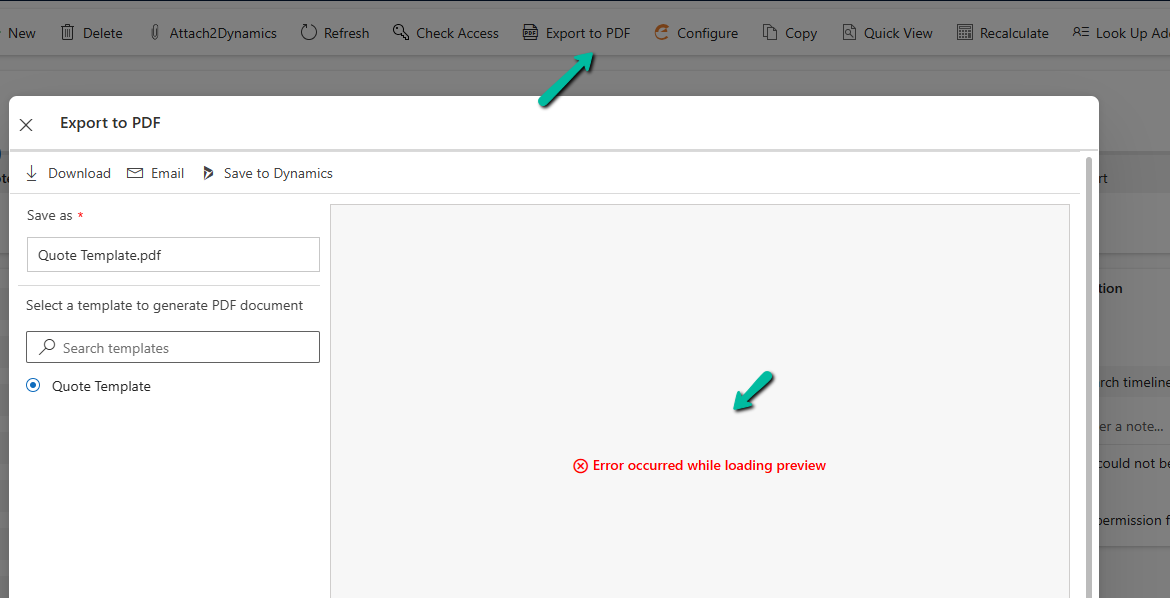
Recently, one of the users reported the following error while trying to generate a PDF for a Quote record in Dynamics 365:

Initially, the Export to PDF option was showing a blank list of templates.

A screenshot of a computer

AI-generated content may be incorrect.

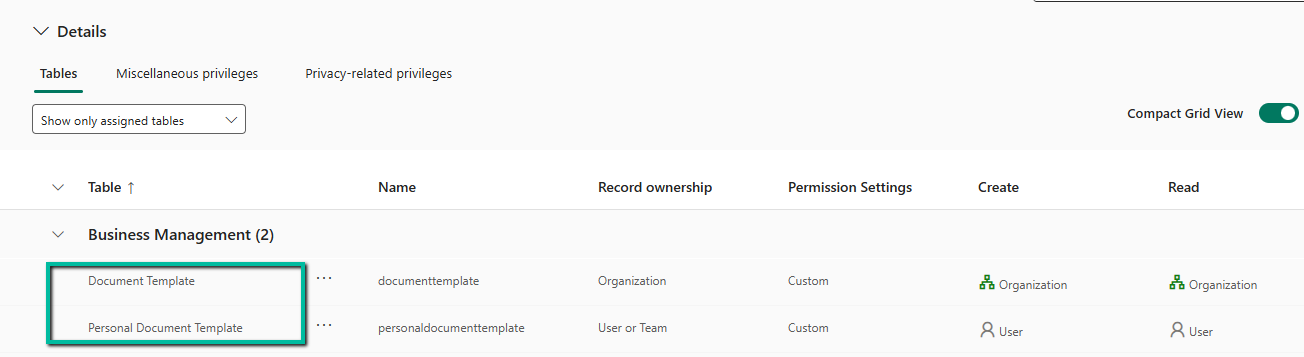
This happened because the user was missing a few essential privileges on the Document Template tables.

To fix the blank template list, we updated the user’s custom security role with the appropriate privileges on the following tables:

  • Document Template
  • Personal Document Template
A screenshot of a computer

AI-generated content may be incorrect.

After adding these, the templates started appearing in the “Export to PDF” dialog.

Even though the templates were now visible, the user still got the following error while trying to preview or export:

A screenshot of a computer

AI-generated content may be incorrect.

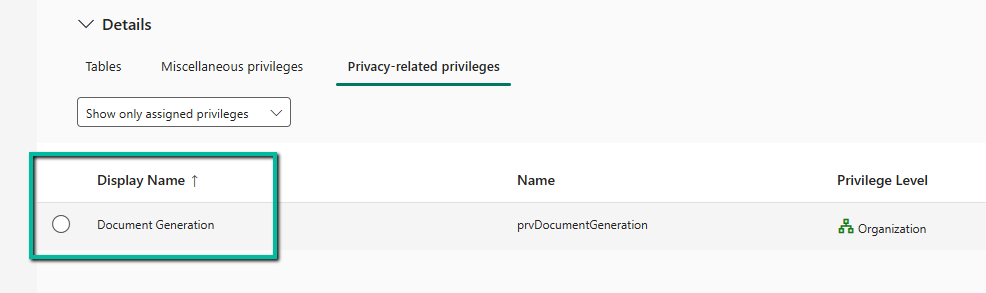
This was due to one missing privilege in the Customization area of the security role.

We added: DocumentGeneration privilege

A screenshot of a computer

AI-generated content may be incorrect.

Once this privilege was granted, the preview and PDF generation started working as expected.

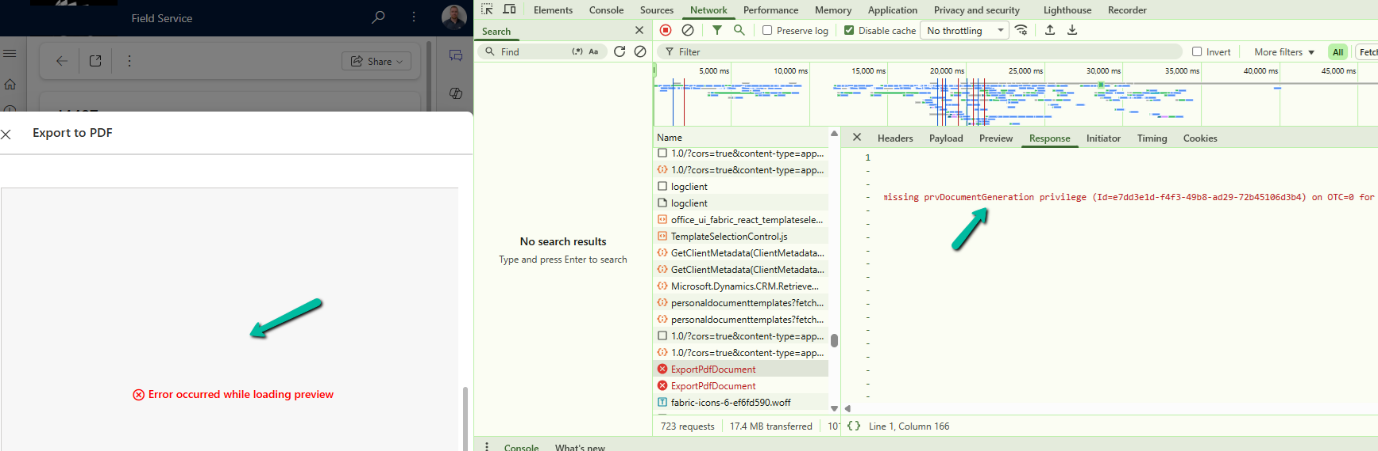
If we are unsure which privilege might be missing in similar situations, a quick way to find out is by using Developer Tools (F12) and monitoring the Network tab while reproducing the error. The failed request, such as ExportPdfDocument, usually reveals the missing privilege directly in its Response section (for example, missing prvDocumentGeneration privilege). This saves time and avoids trial and error when troubleshooting permission issues.

Hope it helps..

Advertisements