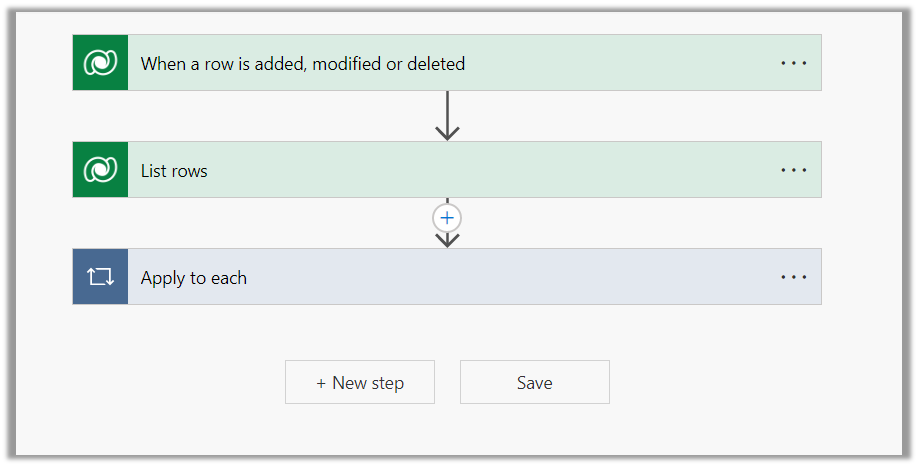
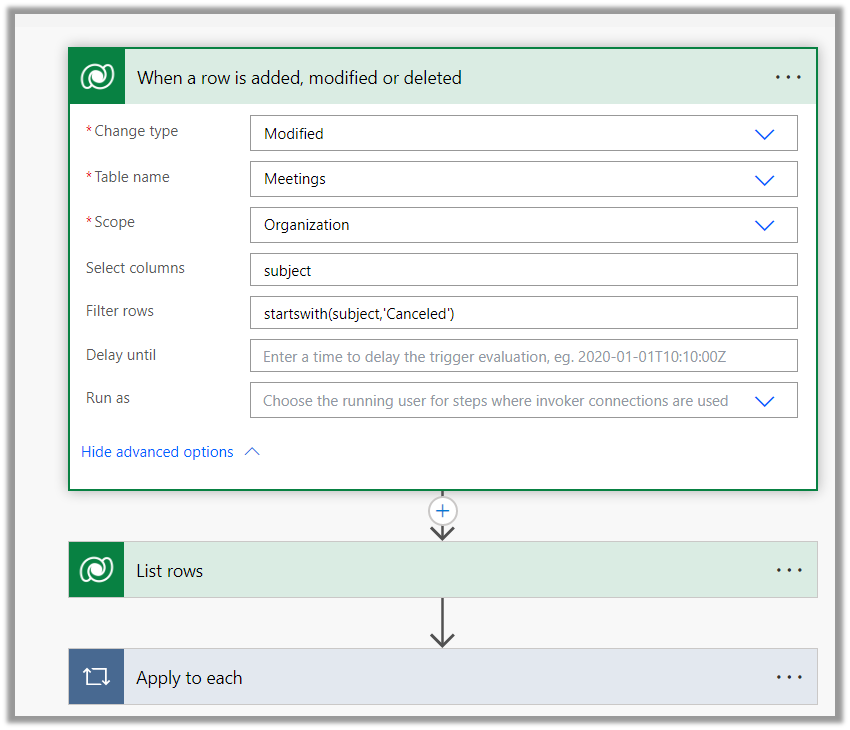
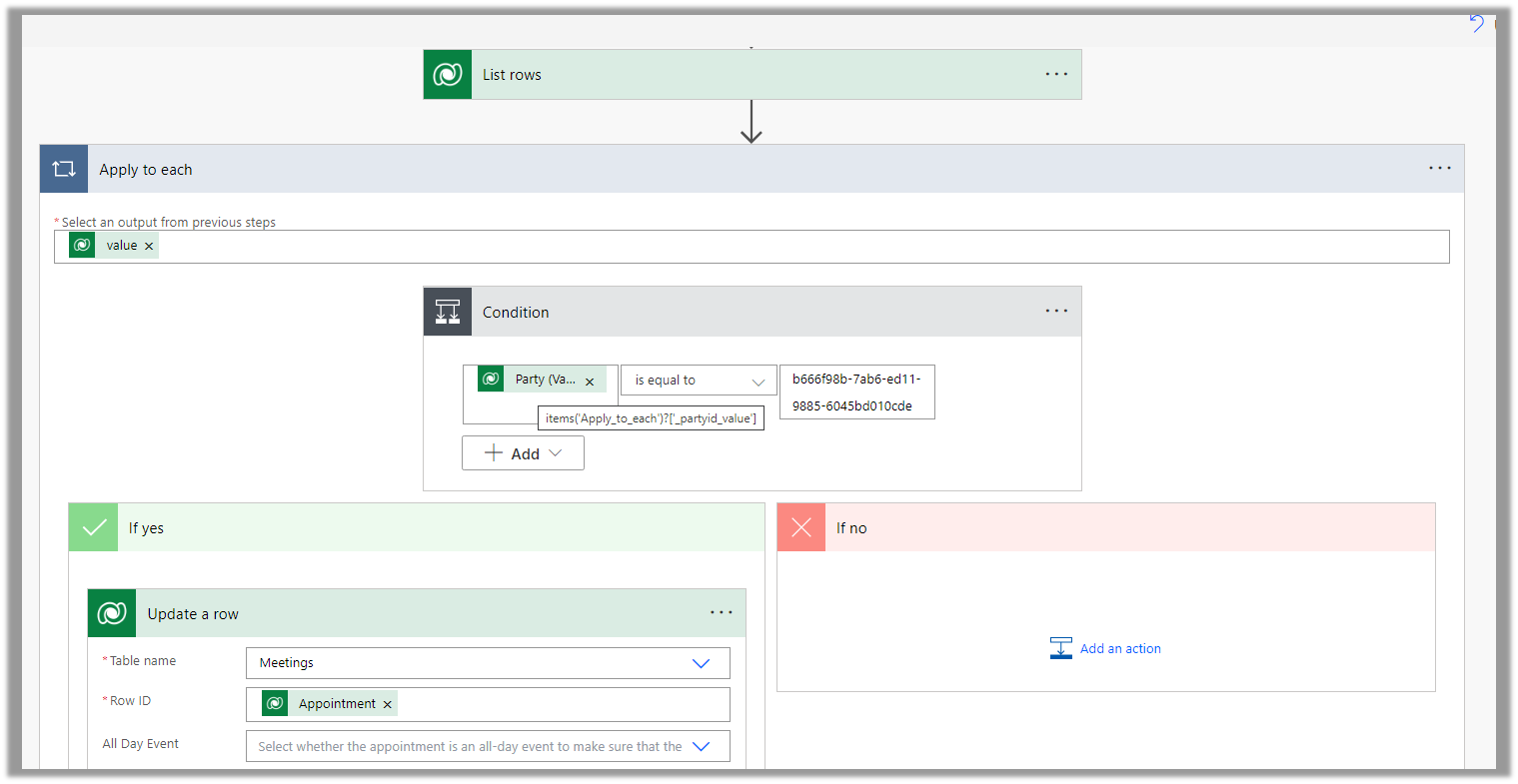
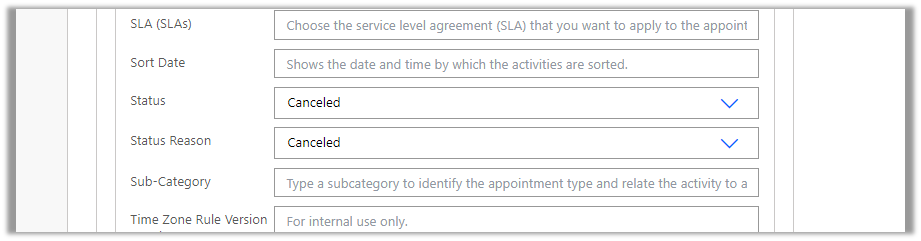
Below is the sample flow we can use to retrieve the Required (requiredattendees) field’s value from the Meeting table (on the update of the record).
Here we are triggering the flow, if there is an update in the subject field of the meeting record.
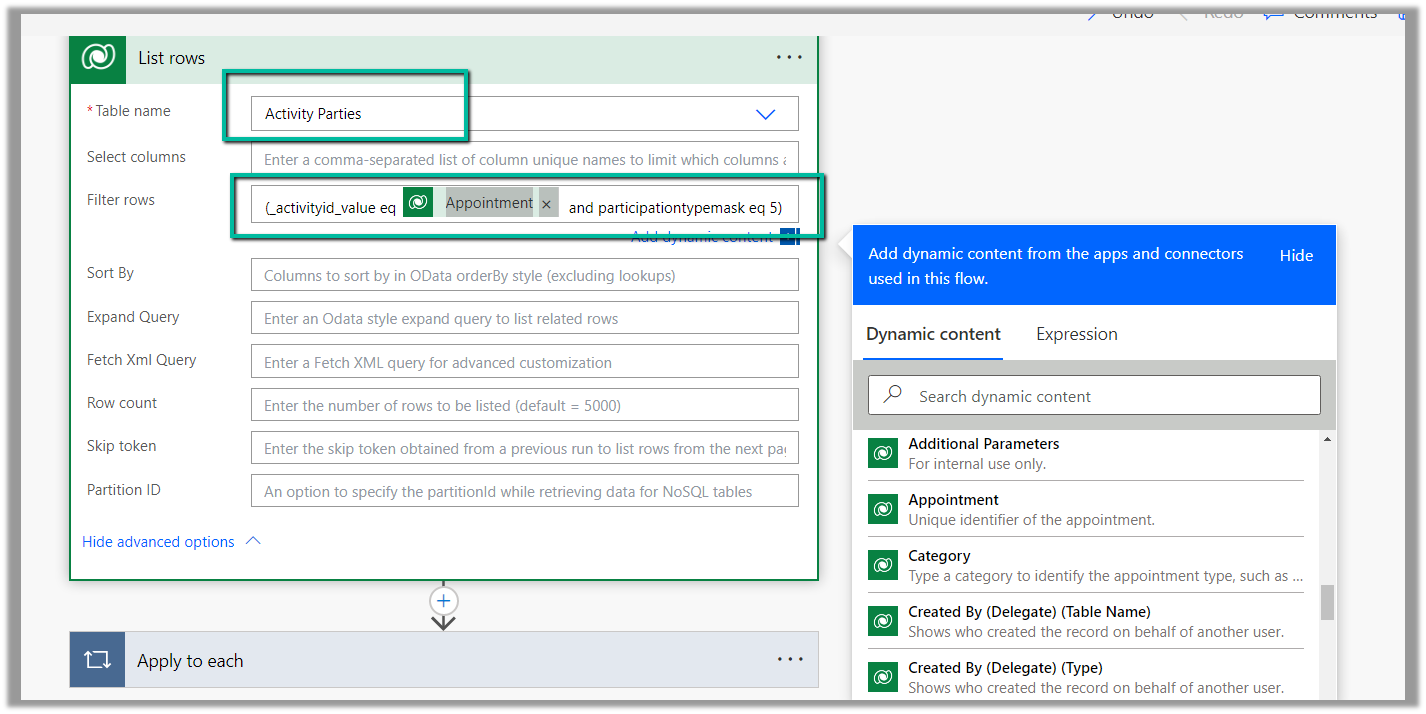
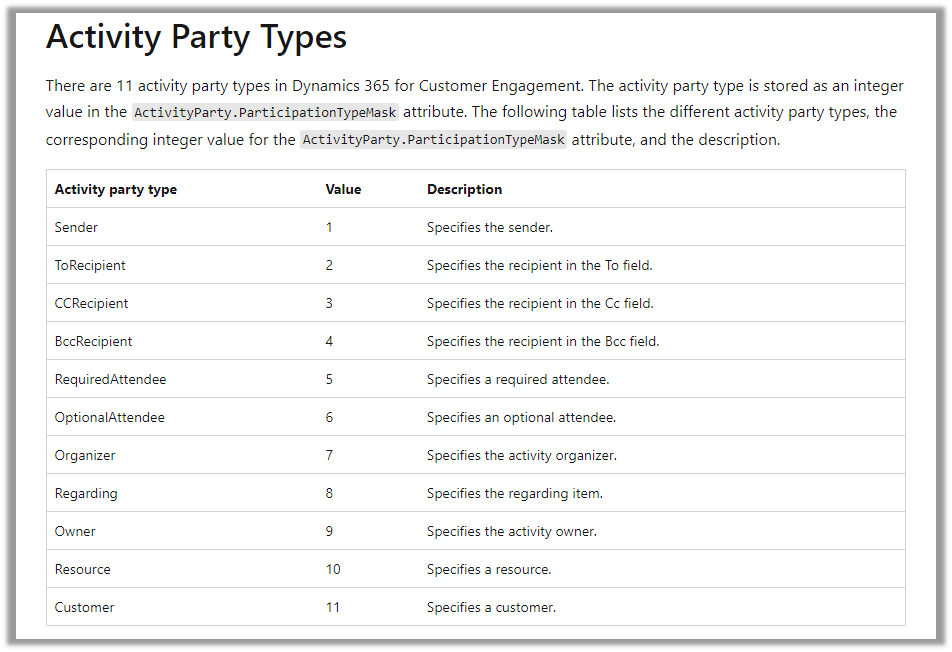
Then using the List rows action we are fetching the Activity Parties record associated using the Appointment’s unique identifier and participation mask as 5.
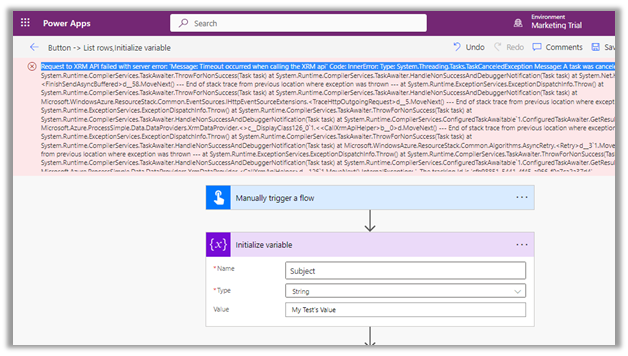
We were getting below Timeout error while trying to save our Power Automate flow.
Request to XRM API failed with server error: ‘Message: Timeout occurred when calling the XRM api’ Code: InnerError: Type: System.Threading.Tasks.TaskCanceledException Message: A task was canceled.
It could be because of some issues at the product end – some outage or server load. It lasted for around 15-20 minutes for us, after which we were able to save and test our flow successfully.
Recently we had a requirement to remove or hide the Approve and Reject buttons from the approval email as we wanted the user to manage it all from the Approval Center.
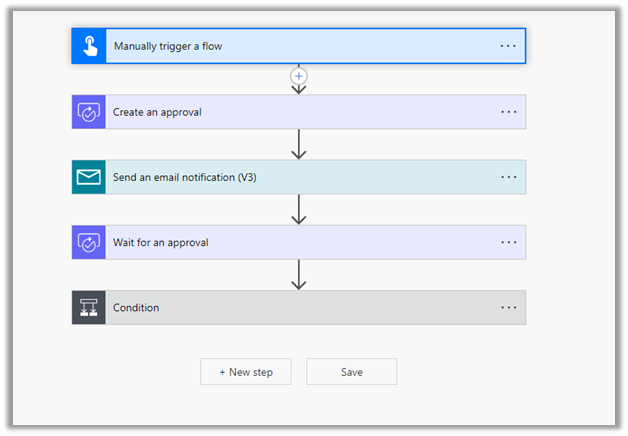
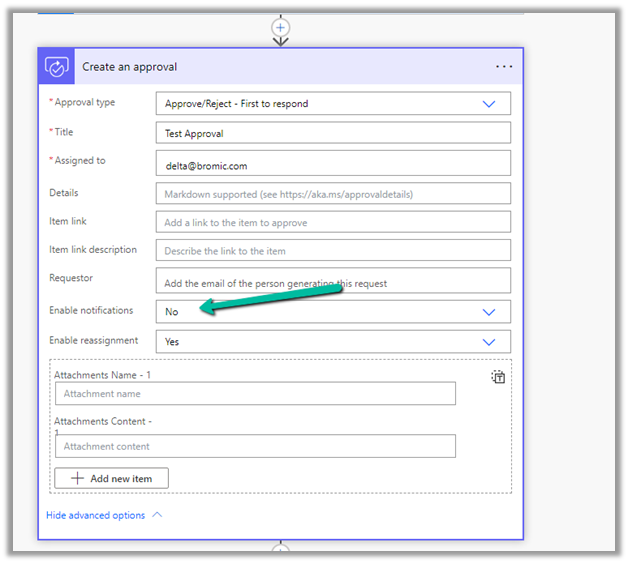
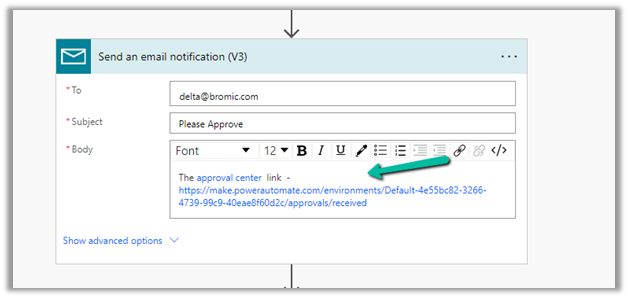
The way we implemented this is by replacing the Start and wait for an approval action with Create an approval, Send email notification and Wait for an approval action.
For Create an approval action, set Enable notifications as No this makes sure no email is sent.
Followed by– in the body, specify Send an email notification the Approval Center link.
Followed by Wait for an approval, specify the Approval ID there.
And the Condition control and the required logic.
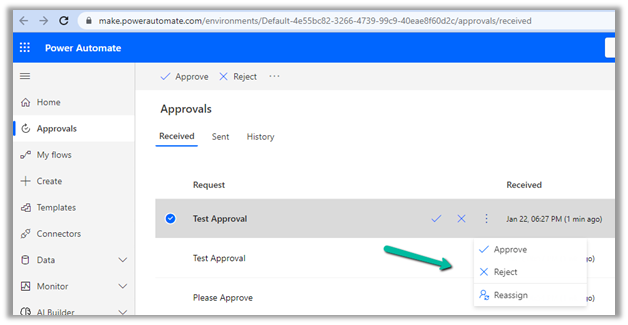
After running the flow, the user will get the email and can click the link to navigate to the Approval center.
The user can then take the required action from within the Approval center.
The flow will wait for the user
Also, check – Implementing approvals with Teams notifications
Recently we were working on Facebook Leads integration with Dynamics 365. Webhook for Leads can be configured to send real-time notifications of the Leads ads changes.
The first step of setting up Webhook requires creating an HTTPS endpoint that can process 2 types of HTTP Requests – Verification and Event notifications.
Here we will see how to configure the Power Automate flow for verification.
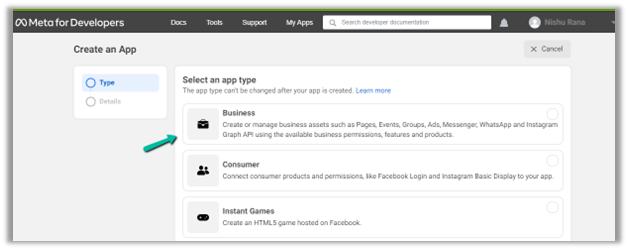
Login to Meta for Developers – Facebook and create an app.
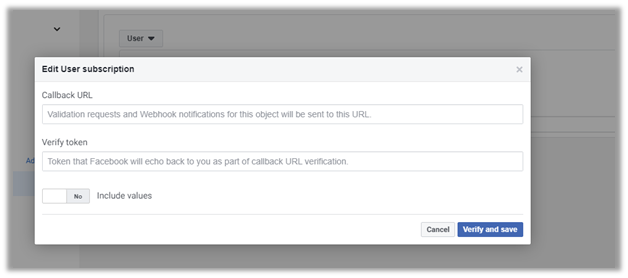
It asks us to specify the Callback URL and Verify token.
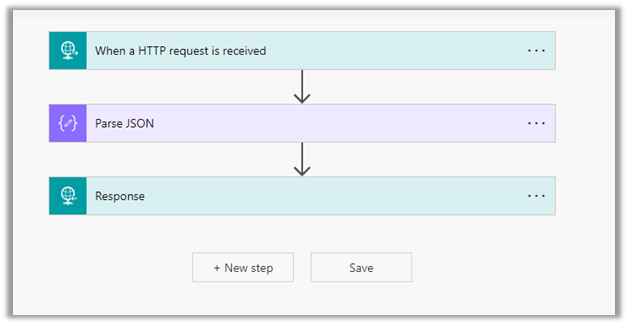
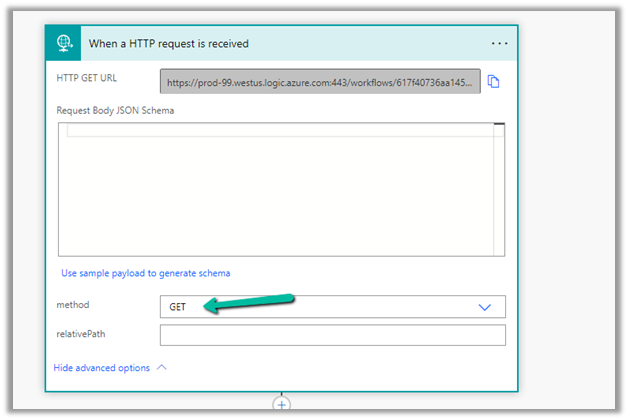
Back in Power Automate create a Flow with Request type Trigger, followed by Parse JSON and Response actions.
For HTTP Request, select GET as the method, as FB will send a GET request to the endpoint URL, with the verification requests included in the endpoint of the URL.
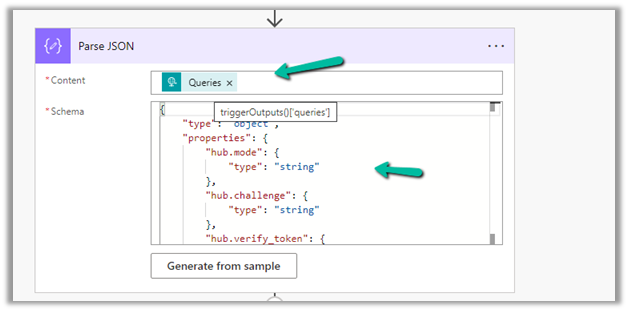
Next, Parse the JSON and specify the Content and Schema
Content –
triggerOutputs()['queries']
Schema –
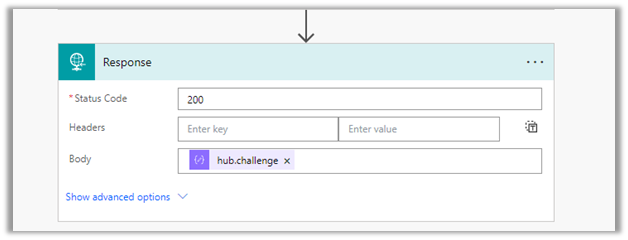
Lastly in Response, set Status Code as 200 and Body as hub.challenge.
Here FB expects the Endpoint to verify the hub.verify_token (which we haven’t set up yet) and respond with hub.challenge value after verification.
Save the Flow, and copy the URL generated for the HTTP Request trigger.
Back in Meta for Developers, in edit user subscription paste the Callback URL and for now in place of token specify any value and click on Verify and Save.
We should now have a Webhook endpoint (Flow) successfully configured
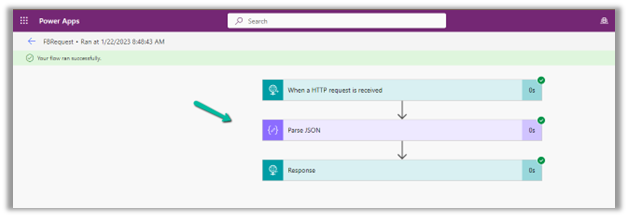
We can also see our Flow ran successfully.
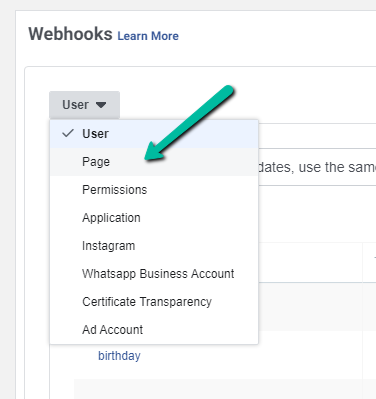
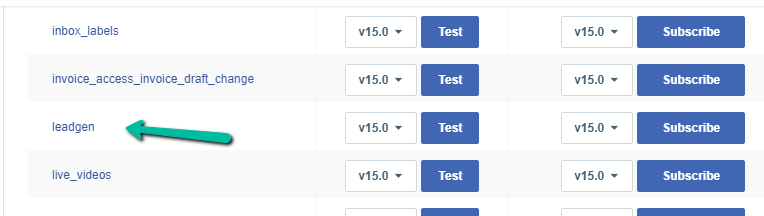
Here in the example we configured the webhook validation for User events, for Facebook Lead we need to configure it for Page, the other options available are Permissions, Application, Instagram etc.
It’s possible to get related records of a relationship when we retrieve a parent record using RelatedEntitiesQuery property in the RetrieveRequest. That means you have to construct the RetrieveRequest not using the Retrieve method from the OrganizationServiceProxy class.
Azure Communication Services uses Azure Event Grid to send real-time event notifications for chat, telephony, video, SMS, and voice calling events.
Azure Event Grid will then route the event messages to the subscribers, one of them being the Azure Application we registered while configuring the Voice channel.
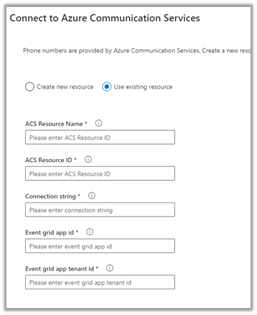
We had specified the Azure App id and tenant id while connecting to ACS from Dynamics 365 as the Event grid app id and Event grid app tenant id.
So first we need to register Azure Event Grid System Topic for our app to listen to Azure Communication Service Events.
Next, we need to subscribe to specific events for call recording, sms, etc by creating Azure Event Grid Subscriptions.
Login to Azure Portal, create a new Event Grid System Topic as shown below
Specify Azure Communication Services as Topic Types and for Resource select the Azure Communication Service resource created earlier.
Create the Event System Grid Topic.
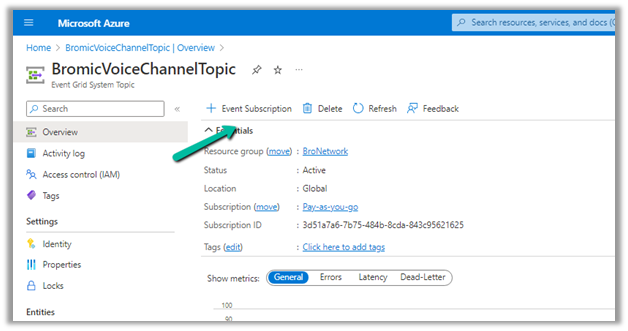
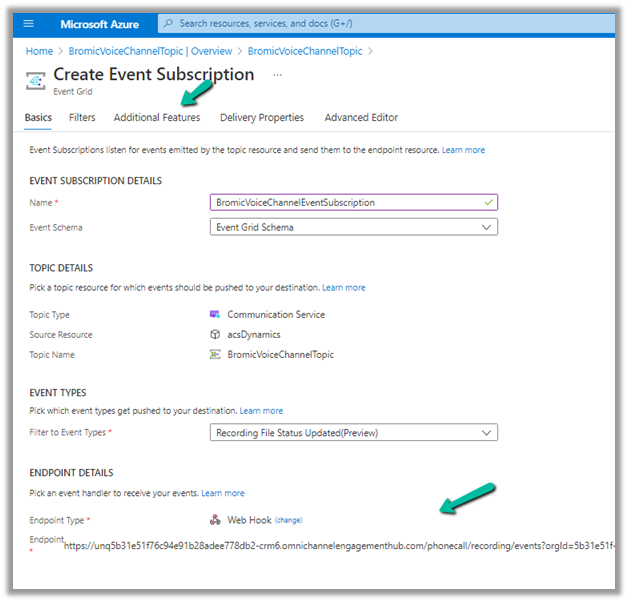
Navigate to the topic created, and next create an Event Subscription there.
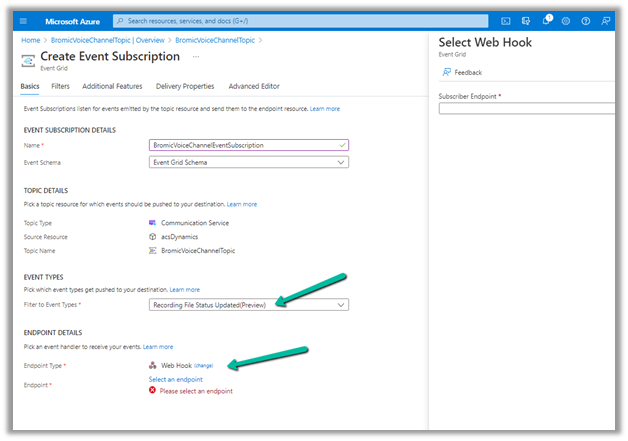
Provide the below details
File to Event Types = Recording File Status Updated
The other event types available are –
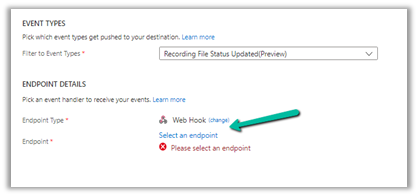
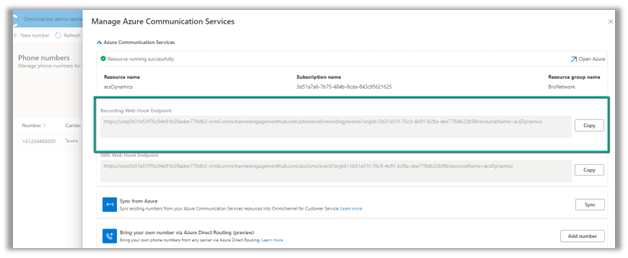
For the webhook’s endpoint, navigate back to the Omnichannel Admin Center,
From the Phone Number >> Advanced Settings copy the WebHook Endpoint URL.
Paste it there and navigate to the Additional features tab.
Check AAD Authentication and specify Tenant ID and AAD Application ID or URI, the same details that were specified while connecting ACS from Dynamics 365 as event grid app id and event grid app tenant id.
Click on Create and we are now done with the required setup.



















 We should now have a Webhook endpoint (Flow) successfully configured










 Nishant Rana's Weblog