Listing down Administration Center URL(s) for quick reference à
https://admin.microsoft.com/Adminportal/Home?source=applauncher#/alladmincenters

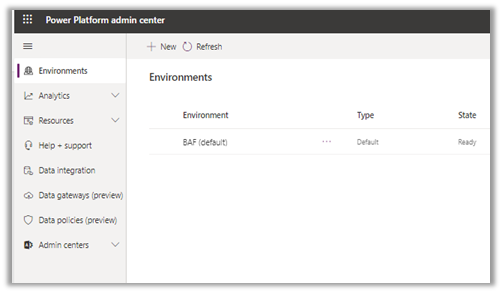


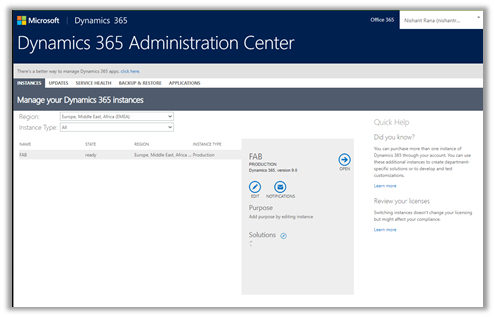
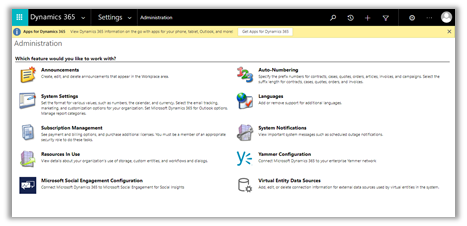


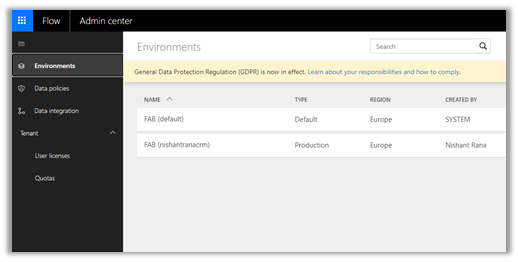


Hope it helps..
Advertisements

Listing down Administration Center URL(s) for quick reference à
https://admin.microsoft.com/Adminportal/Home?source=applauncher#/alladmincenters
Hope it helps..

For one of our projects we are exploring capabilities of Omnichannel.
Below are the steps for provisioning the Omnichannel for Dynamics 365 Customer Service for quick reference.
Posts on Omnichannel for Customer Service (Dynamics 365)
First, we need to make sure we have the Customer Service Hub already installed.

Next, we need to have an active subscription of Chat for Dynamics 365 Customer Service or Dynamics 365 Digital Messaging
The other options
https://docs.microsoft.com/en-us/dynamics365/omnichannel/try-channels
Navigate to Microsoft 365 Admin Center
Select Purchase services
à
Add-ons
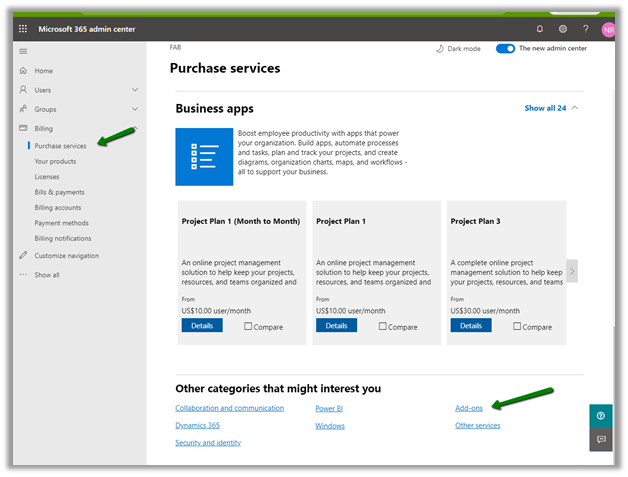
Select Dynamics 365 Customer Service Digital Messaging Add-on trial.

And also assign the add-on license to the users who need to work with Omnichannel Service.

Login to Data access consent URL using the Global Tenant Admin account and give the consent.

We’d be presented with the below message.

Login to Dynamics 365 Administration Center and navigate to Applications Tab and click on manage for Omnichannel for Customer Service.
https://admin.powerplatform.microsoft.com/environments
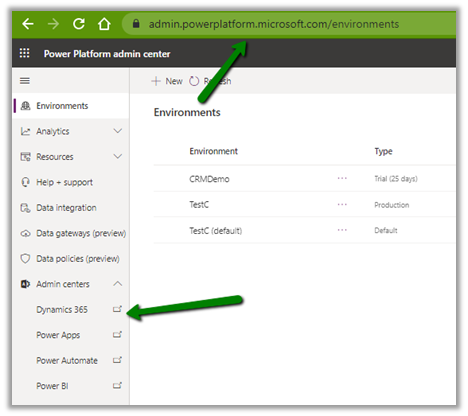
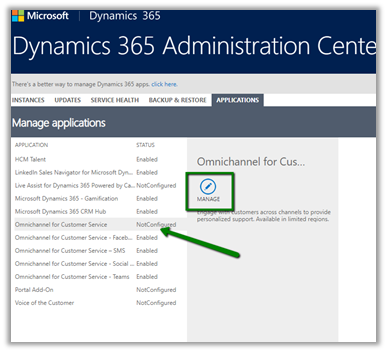
This opens the Manage environment page for Omnichannel.
Click on Add Environment to add the environment.

Here we can select the environment to which we want omnichannel solutions to be configured.

Click on next and we can then add chat as one of the channels.

Click on Next to similarly setup SMS, Social, and Microsoft Teams as the channels.
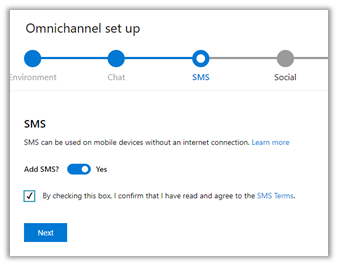


Click on Finish to start the installation.

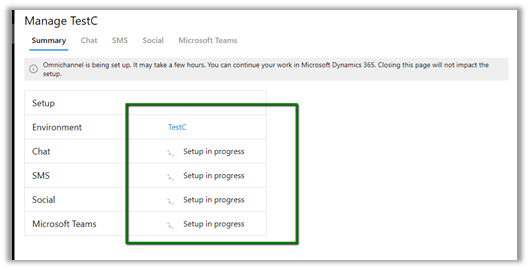
It will show the status as Installed after some time. (took around 1 and half hour in our case)

To manage the channels or delete the omnichannel we can use the same Manage option for Omnichannel for Customer Service in the Applications tab within Dynamics 365 Admin Center.

We can use the Delete button to remove the Omnichannel configuration à

We’d also see the Omnichannel Administration and Omnichannel for Customer Service apps in the list of Dynamics 365 Apps.

Get all the details here
https://docs.microsoft.com/en-us/dynamics365/omnichannel/administrator/omnichannel-provision-license
Hope it helps..

We can specify Status Reason Transitions for Case as well as custom entities. Using the status reason dialog box, we can define (filter) which values are available to be set as next status reason.
Let us take a scenario where we have the following values defined for Status Reason for Active State in a custom entity named Test Entity.
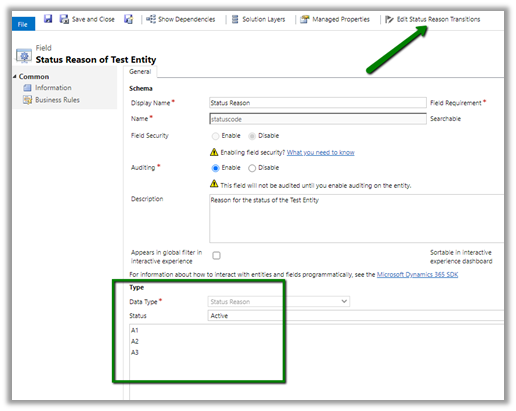
Just to keep it simple we have a just on transition defined i.e. from A1 we can only select A2.

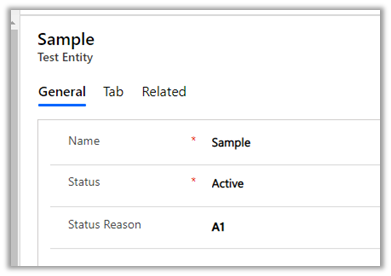
So now when a user creates the Test entity record with A1, the only other option user can select is A2.

Now let us try updating it through backend and set value as A3 for the same record with value A1 as status reason. (Here we have used SQL 4 CDS plugin)
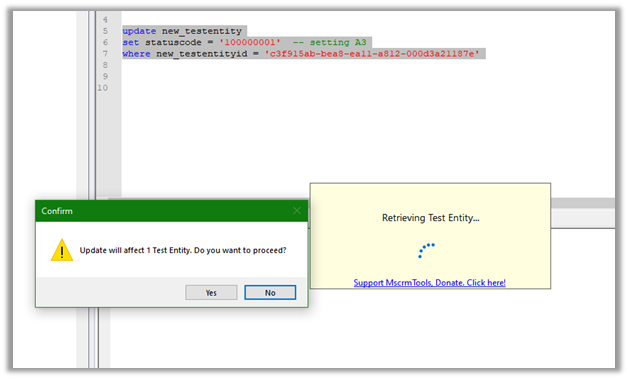
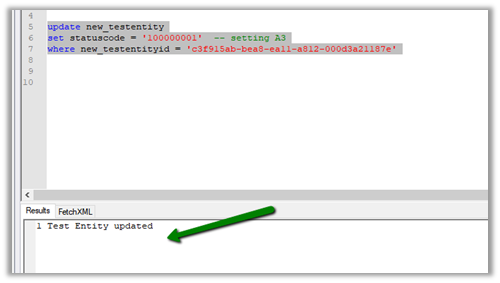
Well, it updates the record with value A3 and doesn’t throw any error.
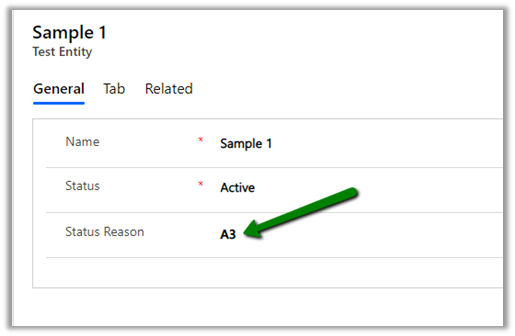
This would make us think that it only works from the client side and will not work from the server side.
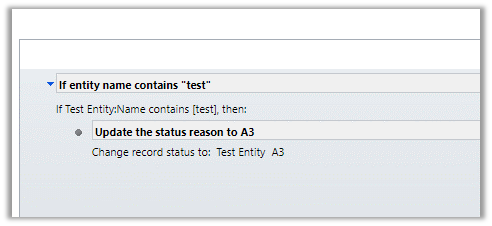
Let us now create a workflow to update the value to A3.
Let us update the subject of the record to trigger the workflow for the below record.
Interestingly we get the error and are not able to set it to A3 as expected.
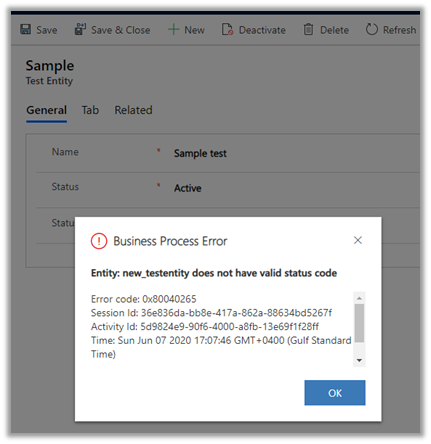
That was with the real-time workflow, for the asynchronous workflow also we get the error.
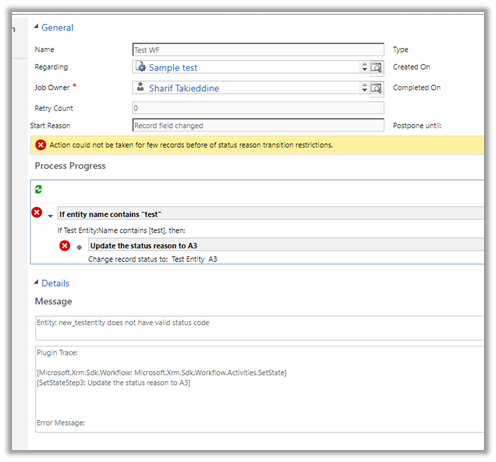
Let us give it one more try and update it through service.

Through the service call, we can update it.

So basically, the State transition rules will work as expected from user interface and workflows, however, through service we are still able to override it, which we need to be aware of before using this feature.
Hope it helps..

Subject entity \ feature has always been an integral part of Dynamics CRM at least since 3.0.
It gives a nice hierarchical way of organising and maintaining information.
To create or update Subject, navigate to Service Management area.
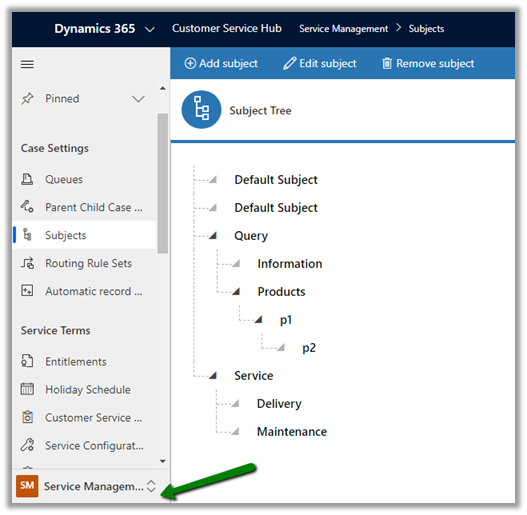
Similar to Subject entity, Category entity was introduced in CRM 2016 Update 1 (Service Pack 1 – On-Premise).
Navigate to Service Management area, to work with Category entity.

We cannot customize Subject. It is available for Case, KB Articles, Product Catalog items and Sales Literature.
We can customize Category Entity.
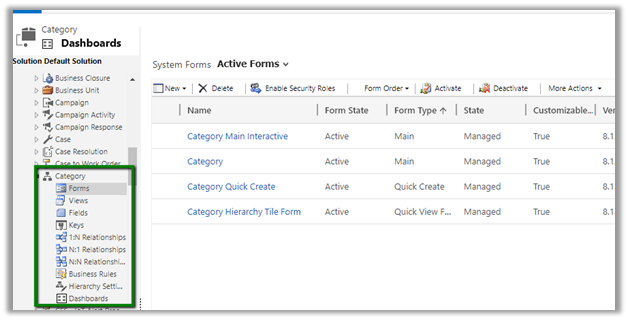
We can create forms, add fields, views, business rules, dashboards etc.
Can create 1 – N relationship from Category to other entities.
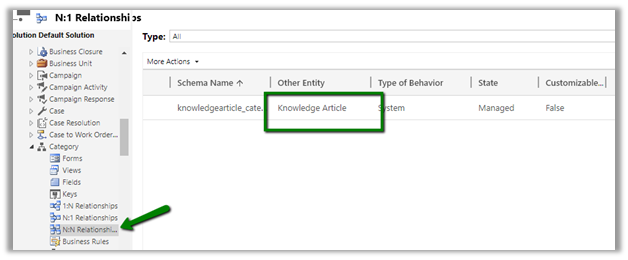
We cannot create N- 1 or N-N relationship.
It has N-N relationship with Knowledge Article entity
User Owned
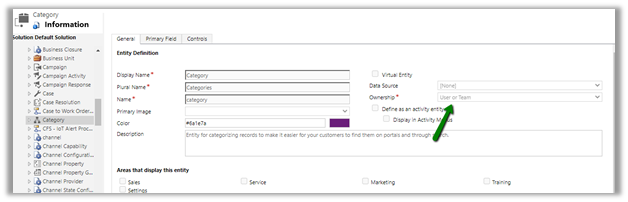
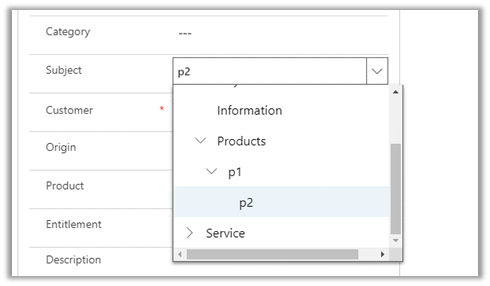
Subject are rendered as tree structure
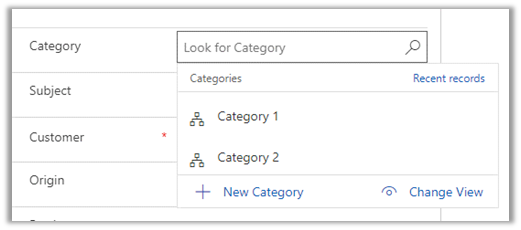
Category are rendered as lookup
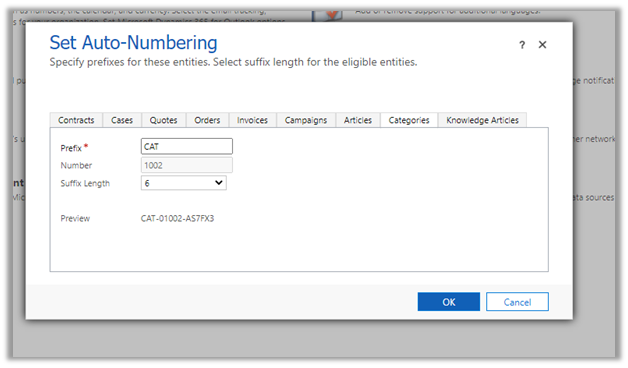
We can also specify Auto-numbering for Categories
Deleting the subject will not delete its child record.
Deleting the category will delete its child record.
We can do it on Categories, not on Subject.
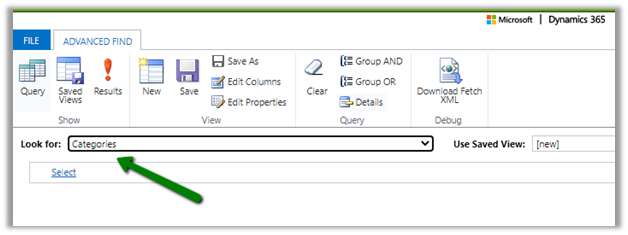
It renders like a lookup
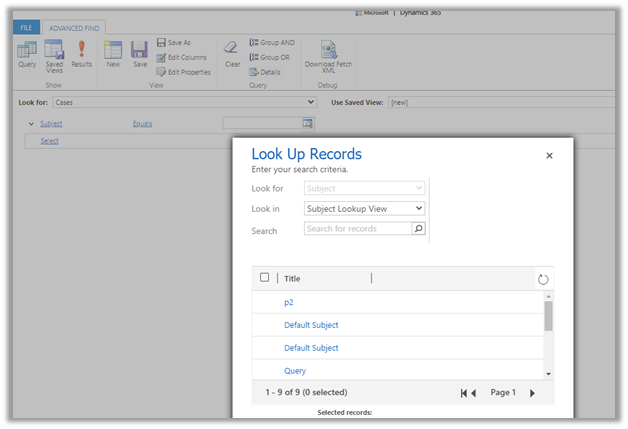
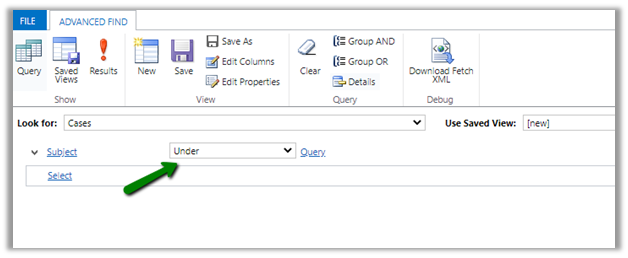
Few considerations while migrating Subject records
Hope it helps..

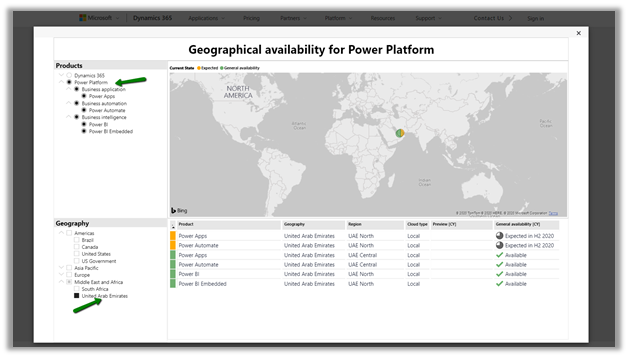
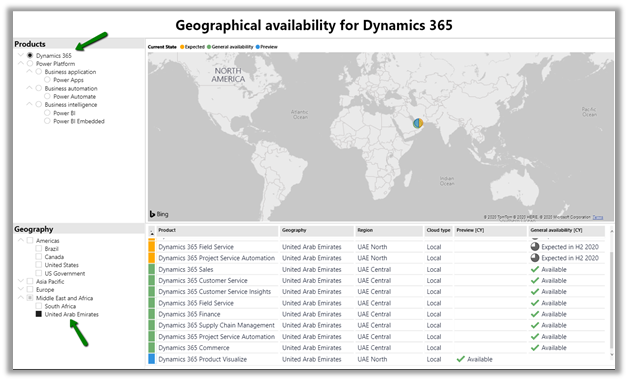
Recently we had to find out what all Dynamics 365 Apps and Power Platform features are available in our UAE region.
To get these details navigate to
https://dynamics.microsoft.com/en-cy/geographic-availability/
and open the report
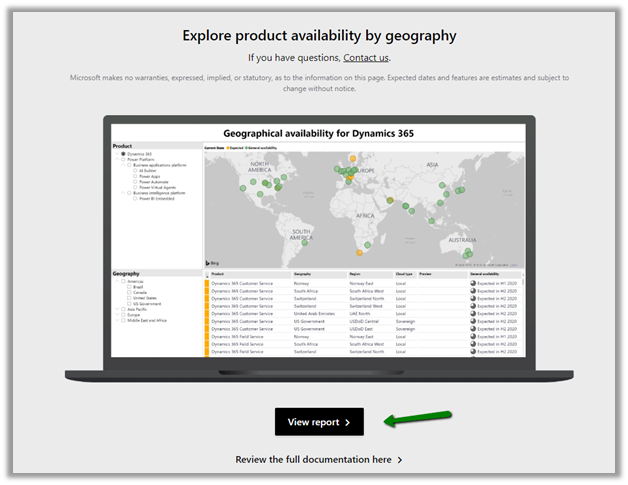
Below are the different Products and Geography available.
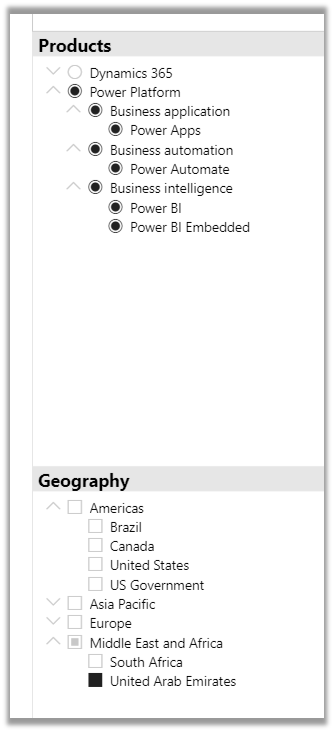
Below is the report filtered for UAE for Power Platform.
For Dynamics 365 App
Hope it helps..

Let us take a scenario, where a data migration package is running, and it either creates or updates (or deletes) a large number of records into Dynamics 365, and we want to get the count of records created/updated/deleted in the last x hour or so.
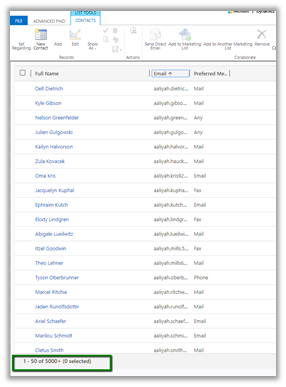
With views, we are limited to just 5000 records.
One option is to write the console app having the required QueryExpression or FetchXML condition using the Dynamics 365 SDK to get the count.
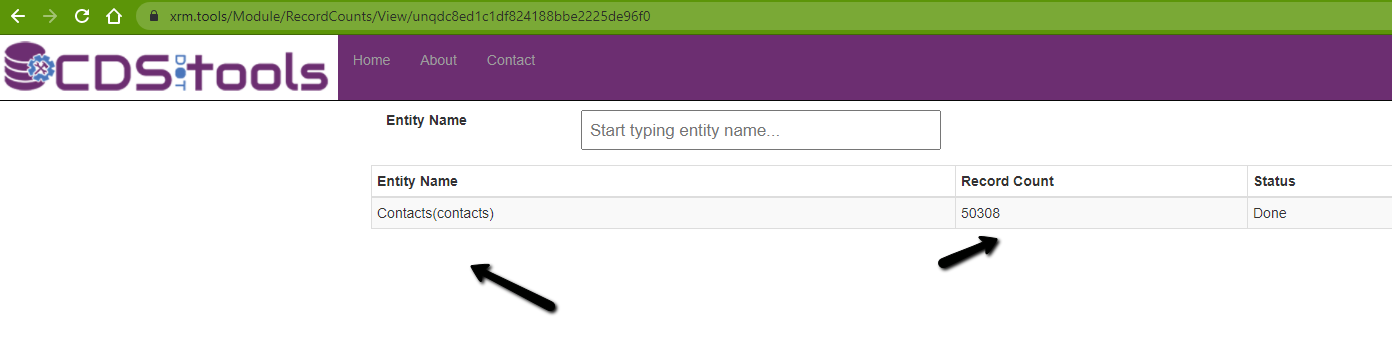
Or use the Record Counts tool of CDS.Tools
https://xrm.tools/RecordCounts
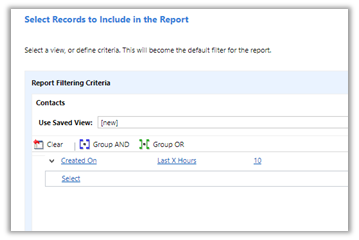
We can also make use of SSRS reports here.
Create a report using the report wizard, specify the criteria
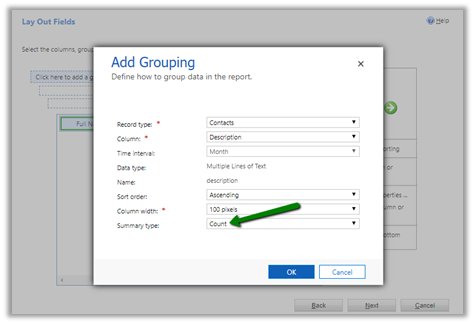
In the LayOut fields window, specify Count as the summary type for grouping.
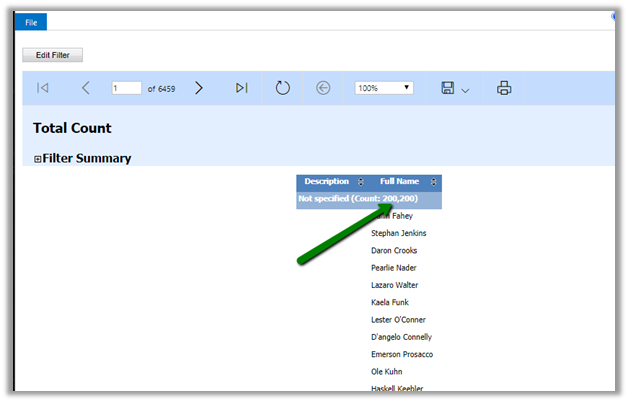
Run the report to get the count.
Another option that we have used the most is to use the FetchXML
Builder plugin to build the query, copy it.
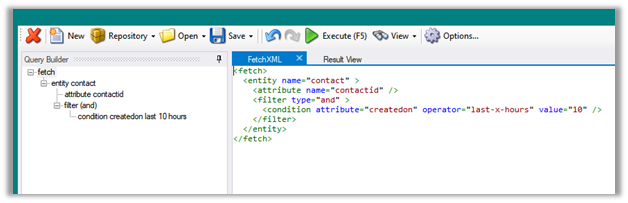
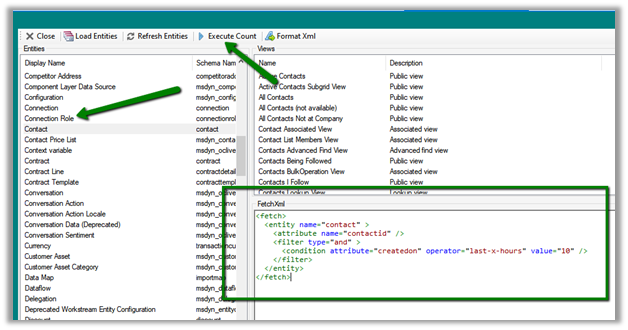
And use it in the FetchXML / View Record Counter plugin of XrmToolBox.
Select the entity, contact, in this case, paste the FetchXML query and click Execute Count.
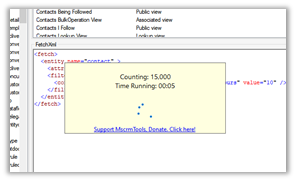
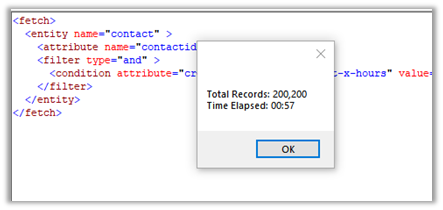
We will get the count.
Along with FetchXML / View Record Counter we can also use
SQL 4 CDS plugin.
Within the FetchXML builder click on Edit in SQL 4 CDS button.
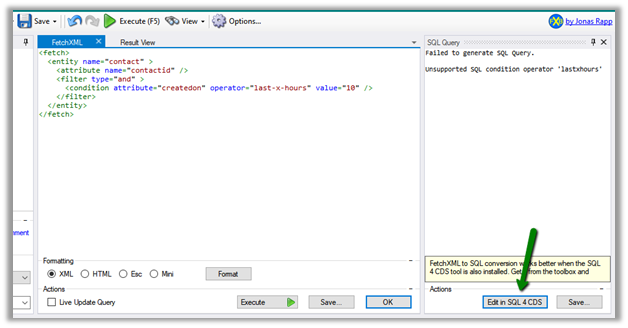
The result
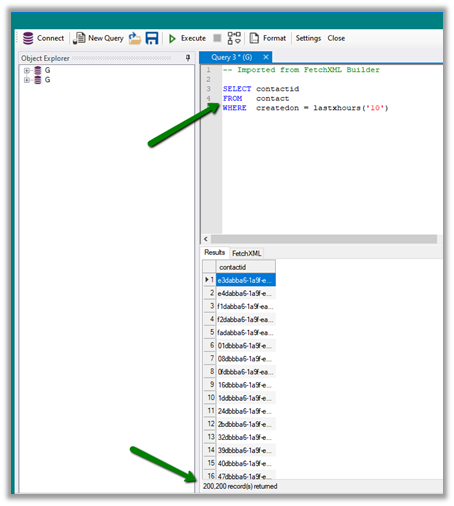
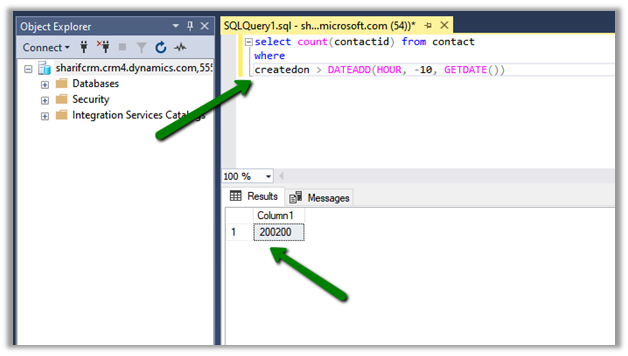
And now with CDS T-SQL endpoint (preview), we can use SQL Server Management Studio as well to directly write the T-SQL instead of fetch xml
https://nishantrana.me/2020/05/21/setting-up-using-sql-to-query-data-in-dynamics-365-preview/
We can also use the CDS T-SQL endpoint within the SQL 4 CDS Plugin.
https://markcarrington.dev/2020/05/24/sql-4-cds-2-1-0-the-t-sql-edition/
What if we want total record count for an Entity?
Apart from all the methods above,
https://www.xrmtoolbox.com/plugins/AndyPopkin.RecordCounter/
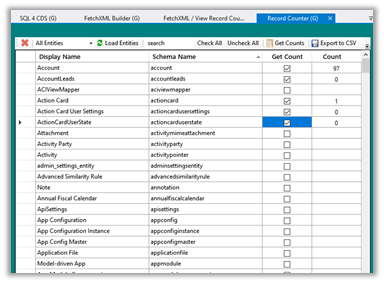
https://dreamingincrm.com/2019/07/22/getting-entity-record-counts/
however, it will fail in case of more than 50000 records
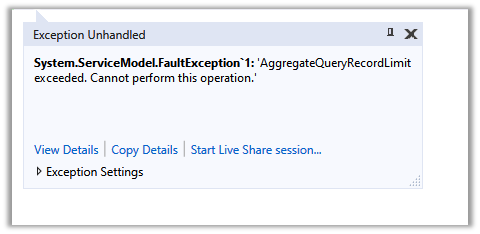
‘AggregateQueryRecordLimit exceeded. Cannot perform this operation.’
To increase the limit (on-premise)- https://nishantrana.me/2012/09/06/aggregatequeryrecordlimit-exceeded-cannot-perform-this-operation/
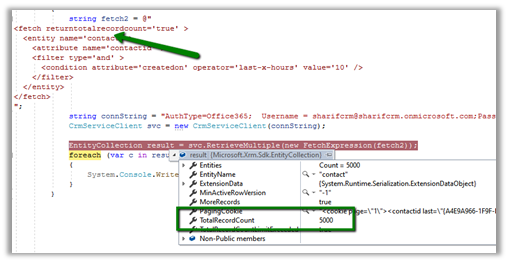
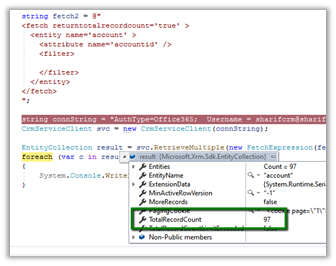
It will be helpful if total records are less than 5000.
Hope it helps..