After a new product launch, companies want their clients/customers to use the product and expect them to share their valuable feedback. Companies often complain that their products do not reach the clients or they do not receive feedback from the client (maybe because their sales rep never made it!).
Well, there can be many reasons for not having the correct data. Be it targeting regions with fewer clients, sales reps never visiting them, or anything else.
How would you improve your product if you do not have the right feedback? If you feel you are unable to track the sales reps’ performance due to a lack of tools, then you must think of integrating your Dynamics CRM with Dynamics 365 Map.
What is Dynamics 365 Map?
Dynamics 365 Map is a plugin that integrates with your Dynamics 365 and displays all the CRM data on the map. It makes data visualization easier. It is developed with the support for Power Apps and integrates well with the CRM.
To have a list of thousands of customers from different regions can be hard to understand. But with a map view, you can easily understand the regions with more sales and the regions that require more marketing campaigns.
This plugin works best for the marketing and sales team. It helps them have correct data to make improved decisions in the future. Also, the data, like appointment duration, appointment notes, etc., which had no proper documentation before, can now be handled well with this map integration.
Reasons Why Your Business Needs Map Integration
There are many more features that make Dynamics 365 map integration a must-have for the marketing and sales department. Let’s go through them one by one:
Route Optimization
Here is the usual process followed by the sales and marketing managers. They hand over the list of client details to the on-field sales representatives. The sales reps visit them one by one and report to their managers at the end of the day.
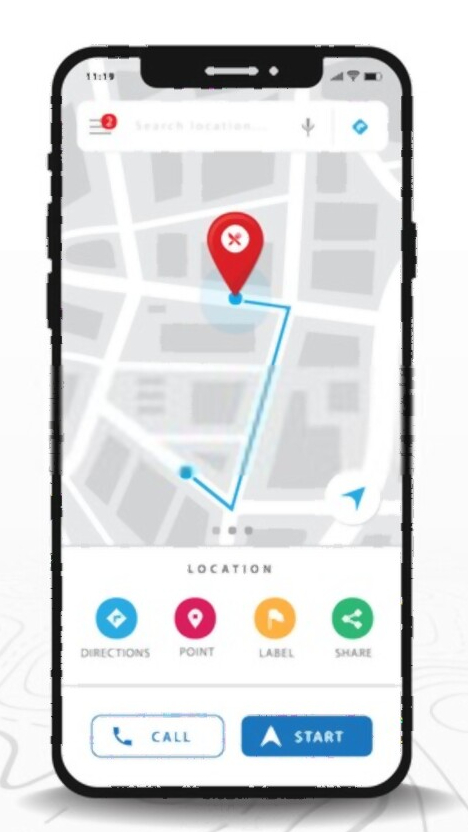
The sales reps spend more time going from one place to another. But with the map integration, they have optimized routes covering all the locations they want to visit. The map calculates the distance, traffic, and other factors like no toll roads, road closures, etc., to avoid delays in reaching the destination.
The sales rep will save time they spend on roads. They can update their status from the phones when they arrive for meetings and after the meeting is over. Also, the managers would have the current location of the sales reps, so if there are any other clients nearby, the sales rep can meet them. It is a smarter way of optimizing their time and effort.
Map Records
Data visualization matters while planning and deciding future strategies. Having a list of all the data can be more confusing. You might have thousands of details of clients and others. When you are planning a strategy based on product, type of clients, day, or month, it would be hard to find clarity on one particular entity.
But after map integration, you can view all the CRM entities on the map. If you wish to run a marketing campaign in a particular region, you can use filters like region and territory and also draw shapes to find the details you wish from that particular region. All the records from the selected region are plotted on a map.
The managers can plot records and assign the task to their team members. With map visualization, it is easy for the managers to assign tasks. If a particular region has more clients, they can add more sales reps to that region to complete the target.
Proximity Search
Your managers might be visiting a client or are out for some other meetings. What if you can find the locations of other clients nearby their current location? Meeting clients can help in developing a good relationship with your business. It can bring in more sales and turn out fruitful for your organization.
The proximity search feature works best for such scenarios. The proximity search feature shows the clients who are near their current location. So, if the reps are out somewhere and they get free from their meeting earlier than expected, they can use this feature to know the locations of other clients. This way, they can make the best use of their time to improve engagement with the clients.
To have a proximity search, the user needs to add a few filters to fetch only the required information. The result would show concentric circles of different diameters based on your chosen distance. The managers can find the locations that work best for them.
CheckIn/CheckOut
Have you ever called your team member who is busy in a meeting with the client? Do you have to wait the whole day to get feedback about the meetings to make future decisions? Do you feel you are not getting true feedback from the clients because there is a possibility that your sales rep never met them?
For a business trying to get reviews on their new products, having no or compromised responses hinders improvement. If this is the case with you, then you must integrate your CRM with the Dynamics map. Because by doing that, you can track the check-ins and check-outs of your sales rep. The sales rep can only check in when they reach the premises of the given location. They would checkout once the meeting is over and then update the reports/discussion on the app.
Thus, you would have records of how long the meeting lasted, along with the reports. With this feature, none of your sales reps can cancel a meeting without you being notified.
Analytics Dashboard
Improvement comes from analyzing. A business can only grow when they have enough data to analyze what is working and what is not. Especially if you’re sending your sales team on the field, data helps plan the future marketing strategy. The reports from the data of the day, week, month, and year can help you analyze. Based on those reports, make changes that require immediate action and strategies that can be changed with time.
The analytics dashboard in the Dynamics map forms reports and allows you to filter different entities and compare them. Business decisions, sales rep performance, sales reports, and all other things are visible on the dashboard, which helps you plan better.
Multiple Language Support
It’s the fact that users find easy-to-use tools that are in a language you are comfortable with. Understanding tools in the language you have only basic proficiency in might stop you from making their best use.
Dynamics 365 Map supports multiple languages. The user can choose the language of their choice. It would ensure they can use the app with all its features.
Point of Interest
Knowing only the location is not enough when you are going to spend your day at some random location. What if someone wants to set up a meeting in a cafe nearby? Or wants to fill up gas at a gas station.
The sales reps can plan better if they know good cafes and restaurants in the location they are visiting. The sales reps spend their whole day on the field, so they need essentials like food, money, fuel, etc. So, with the Point of Interest feature on the Dynamics Map, the sales reps can find gas stations, cafes, ATMs, medical stores, hospitals, mechanics, etc.
The users do not have to use any other app to find the locations, they can simply search with keywords like cafes, gas stations, ATMs, etc. They would have results on their map along with the locations they are working on.
Security Templates
The chances of a security breach increase if all the employees can see the CRM data. The Dynamics Map has security templates with which you can assign different roles to different employees based on their hierarchy and requirements. So, the employee would be able to see information about the clients they are assigned.
You can also customize the actions for a certain group of users. For example, you can give edit rights to senior managers and view rights to sales representatives.
Conclusion
If you are a pharma company, packaged food/drinks manufacturer, or anyone who has on-field sales reps, Dynamics 365 map integration is what your CRM needs. It helps in better planning of the day for sales reps, and with features like route optimization, your team saves both time and fuel. It helps you visualize the data more easily and decide the strategies for the next marketing campaign. The map gives better ideas to target areas for increasing sales. Licensed companies are offering this integration. They often offer customization on products so you can get them customized per your business requirement. They also help with CRM integration and offer support in initial days and lifetime free updates.






















 Nishant Rana's Weblog