In Dynamics 365 and Dataverse, users generally need a Dataverse or Power Apps license to be added to activity recipient fields.
However, there are scenarios where we only want to include someone in an activity without giving them access to the Dynamics 365 application. For example, adding an employee to an email’s To or Cc field, including someone as an appointment attendee, or associating a person with a phone call activity.
Microsoft has introduced a feature (currently in preview) that addresses this requirement: Activities for users without licenses.
With this feature enabled, administrators can allow users who have an active Microsoft Entra ID account in their tenant to be added to activity recipient fields without requiring a Dataverse or Power Apps license.
Let’s look at how it works and how to enable it.
What does this feature do?
By default, Dynamics 365 only allows users with an appropriate Dataverse or Power Apps license to be added to activity recipient fields.
After enabling this feature, users with an active Microsoft Entra ID account can be selected in activity recipient fields, even if they don’t have a Dataverse or Power Apps license.
The feature supports the following activity fields:
- Email: To, Cc, and Bcc.
- Appointment: Required Attendees and Optional Attendees.
- Phone Call: Call From and Call To.
One important distinction: these users can be added as activity recipients, but they don’t get access to Dynamics 365 applications.
Prerequisites
Before enabling this feature, we need to make sure we have the following permissions:
- Microsoft Entra ID: A Privileged Role Administrator is required to grant users read access to the Microsoft Entra ID table.
- Power Platform: A Power Platform Administrator is required to enable the feature in the Power Platform admin center.
Additionally, all users in the tenant need read permission on the Microsoft Entra ID table.
We can provide this permission in either of the following ways:
- Update the existing security roles assigned to users and grant Read permission on the Microsoft Entra ID table.
- Create a custom security role with Read permission on the Microsoft Entra ID table and assign it to all users.
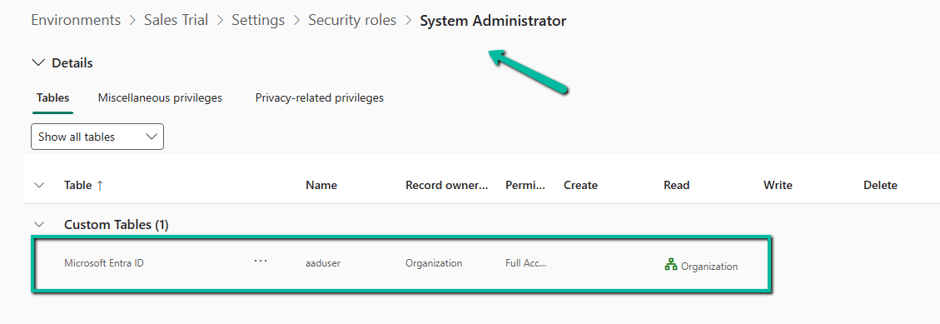
Here we can see that System Administrator role has the Organization level access to the Microsoft Entra ID table.
Enable Activities for users without licenses.
Follow these steps to enable the feature:
Log in to Power Platform Admin Center > Environment > Settings > Product > Features – Locate “Activities for users without licenses” and enable the checkbox – “Add anyone with an Entra ID to an activity’s recipients fields”
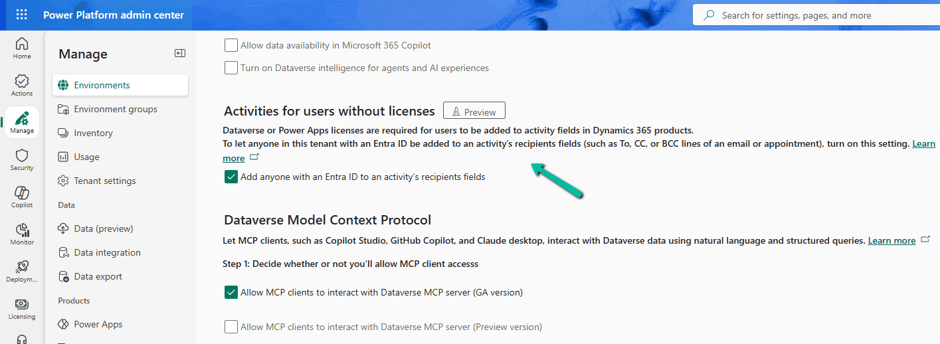
Once enabled, users with an active Microsoft Entra ID account can be selected in the supported activity recipient fields.
How does it work?
The feature uses the Microsoft Entra ID table, which is a virtual Dataverse table that displays the current list of active Microsoft Entra ID users.
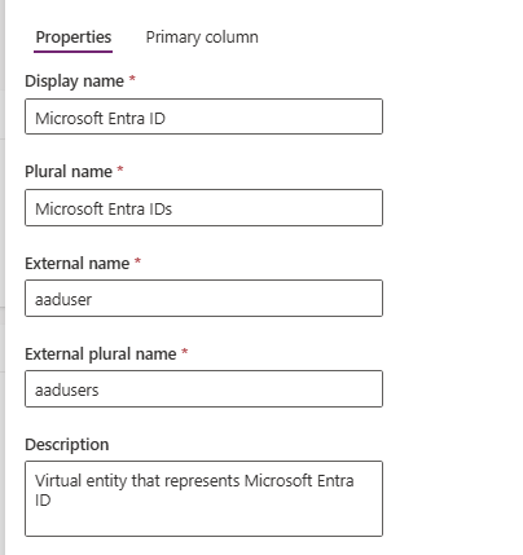
When we search for and select an unlicensed user in an activity recipient field, Dataverse creates a corresponding unlicensed-user record in the environment.
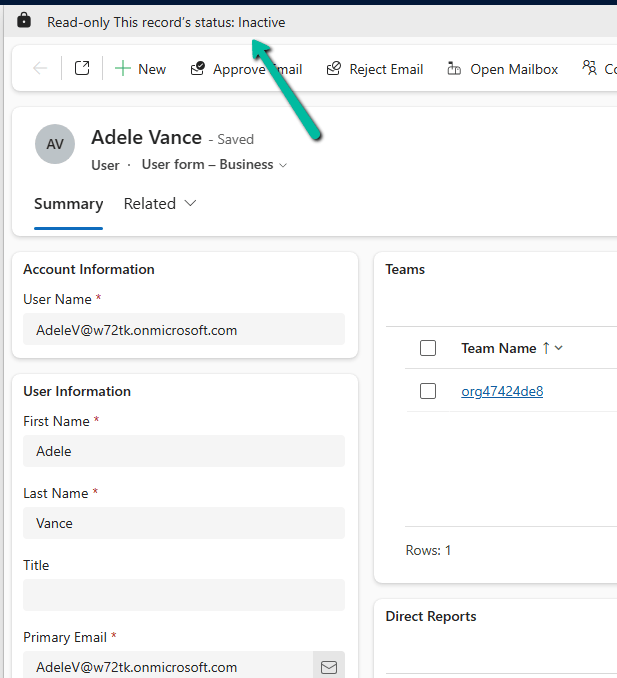
This record is created with a Disabled status.
This is important because the user can now be associated with activities without being provisioned as an active Dynamics 365 application user.
The user can be included in activity recipient fields, but cannot sign in to or run Dynamics 365 applications.
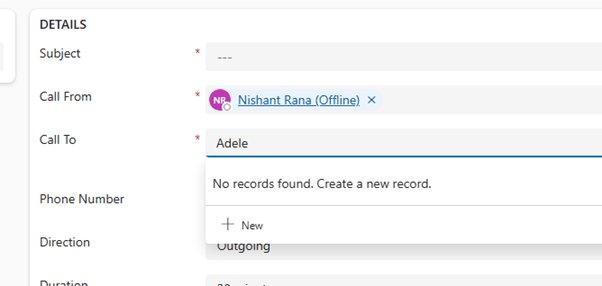
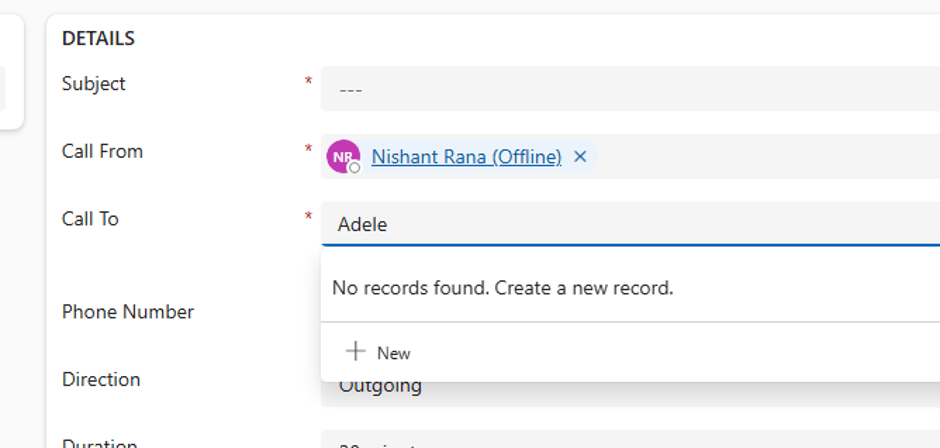
E.g., we have an unlicensed user – Adele Vance – if we search for the user in the Phone Call’s Call To field, it will return “No records found.”
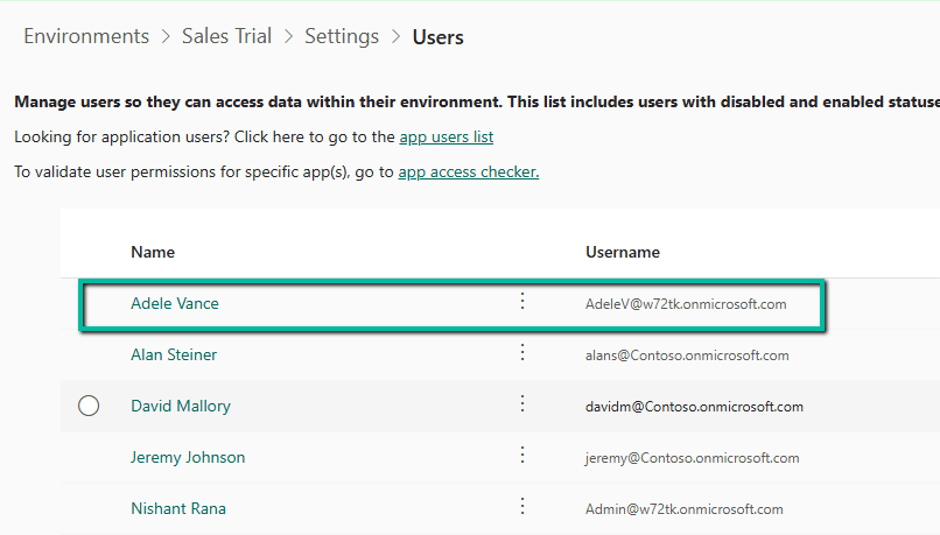
After enabling this feature and providing the user with Read access to the Microsoft Entra ID table (or if the user is a System Administrator, who already has that access), we can see the user listed there.
On creating the Phone call record, we can see the user record created in the Environment.
What happens when the user gets a license later?
Another interesting aspect of this feature is what happens when an unlicensed user is subsequently assigned a license.
Microsoft automatically updates the user to a licensed user.
The user can then access the application based on their assigned security roles and permissions.
More importantly, existing activities associated with that user remain linked to the same user record. There is no need to migrate or convert the user record or update the associated activities.
Conclusion
This feature provides a useful option for organizations that want to include employees in Dynamics 365 activities without assigning them a Dataverse or Power Apps license solely for that purpose.
It is particularly useful for email recipients, appointment attendees, and phone call activities where the person needs to be associated with an activity but doesn’t need access to the Dynamics 365 application.
Reference:
Add users without licenses to activity recipient fields (preview) – Microsoft Learn
Hope it helps..