Bypass execution of specific plugin (step) using BypassBusinessLogicExecutionStepIds parameter – Dynamics 365 / Dataverse


The BypassBusinessLogicExecutionStepIds optional parameter or request header value allows us to bypass a specific plugin step by passing its GUID, irrespective of whether it is synchronous or asynchronous, unlike the other optional parameters – BypassCustomPluginExecution and BypassBusinessLogicExecution that will bypass all the custom synchronous and/ or asynchronous logic (plugins and workflows).

Using BypassCustomPluginExecution and BypassBusinessLogicExecution parameters – https://nishantrana.me/2024/05/21/using-bypassbusinesslogicexecution-parameter-preview-to-bypass-custom-sync-and-async-logic-plugin-and-workflow-dataverse-dynamics-365/

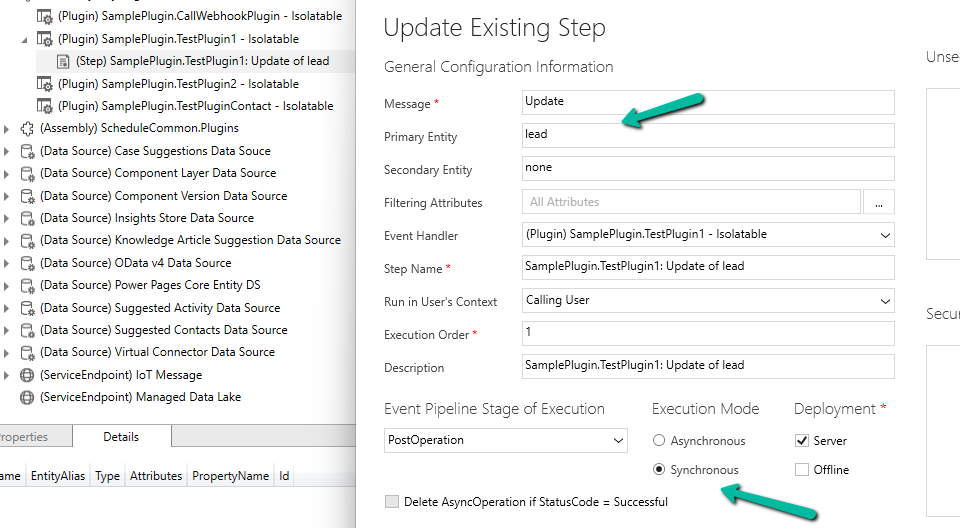
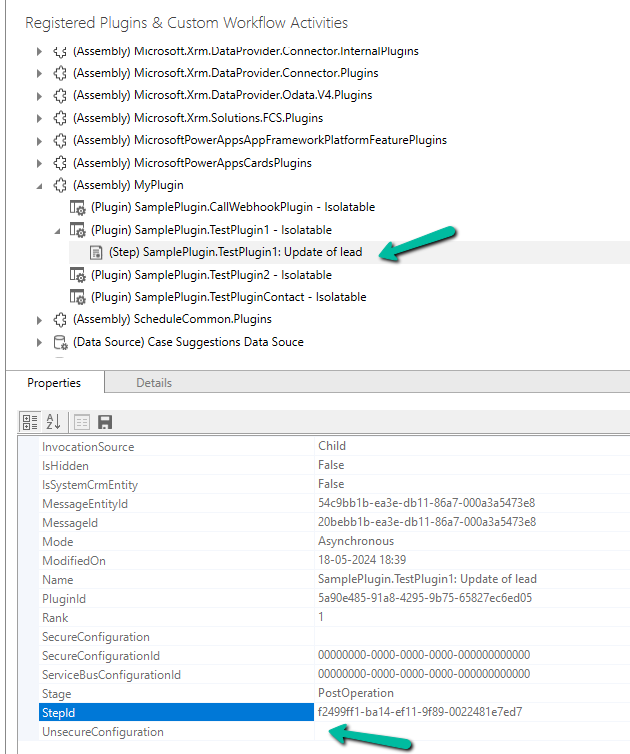
Below we have our plugin registered, that writes to the Plugin Trace log.

A screenshot of a computer program

Description automatically generated

The plugin step is registered on the update of the lead record. We have got the StepId of the plugin step from the Properties window.
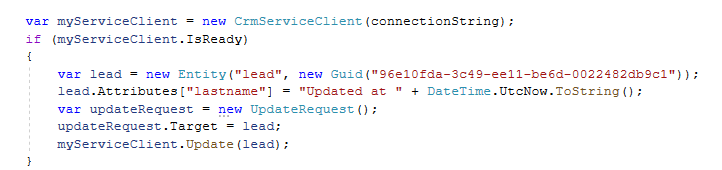
Below is our console app, which updates the lead, triggering the plugin. On running it without the BypassBusinessLogicExecutionStepIds, we can see the trace log parameter record created.

A screenshot of a computer

Description automatically generated

Upon adding the BypassBusinessLogicExecutionStepIds parameter in UpdateRequest, as shown below, the plugin is not triggered and no trace log is created.
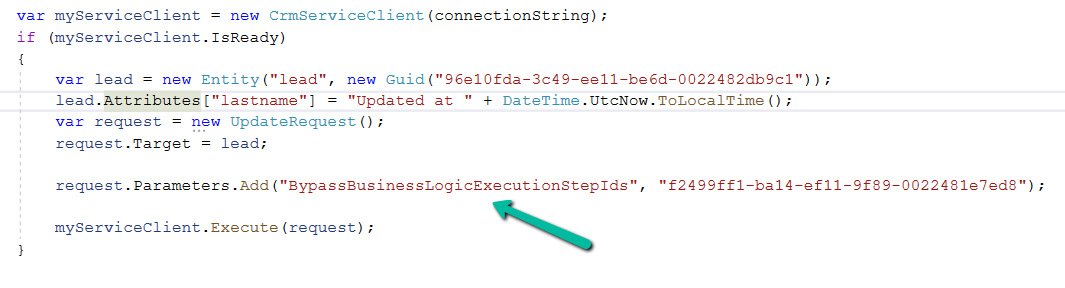
A screen shot of a computer code

Description automatically generated

Also, we can pass multiple Step’s GUID to it

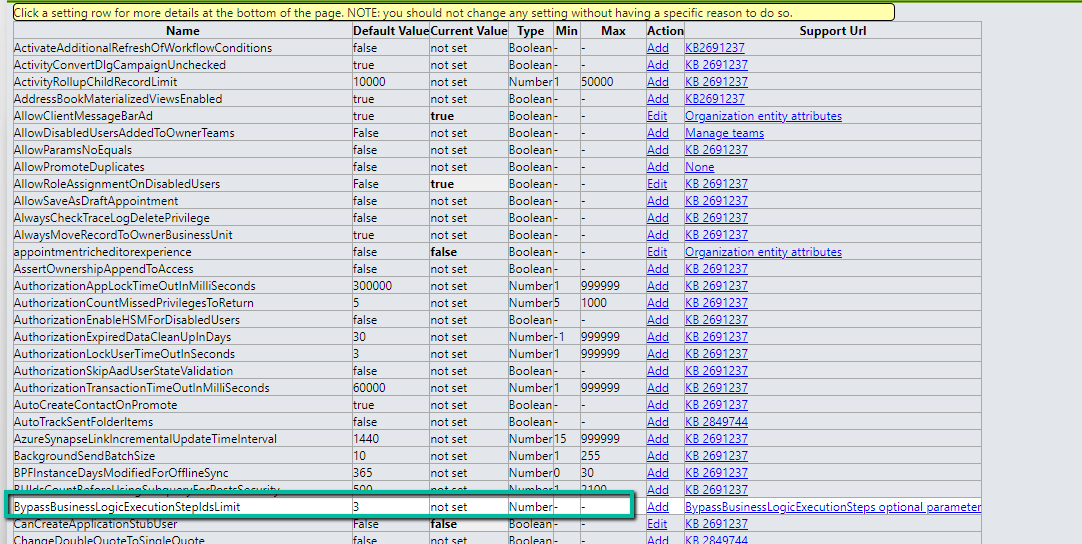
By default, we can maximum of 3 steps to it, which can be defined through BypassBusinessLogicExecutionStepIdsLimit  Organization Settings value.
Get more details

Hope it helps..

Advertisements

Using BypassBusinessLogicExecution Parameter (Preview) to bypass Custom Sync and Async Logic (Plugin and Workflow) – Dataverse / Dynamics 365


Using the new BypassBusinessLogicExecution parameter we can bypass both sync as well as asynchronous custom logic (i.e. sync / async custom plugin and custom workflow registered), unlike the BypassCustomPluginExecution parameter which applied to only the synchronous custom logic.

Let us see it in action with a simple example.

We have the following Plugin registered against the lead table that writes to the Plugin Trace Log.

A screenshot of a computer program

Description automatically generated

We have the Update step (synchronous) registered for the plugin.

A screenshot of a computer

Description automatically generated

Below is our console app that updates one of the lead records triggering the plugin.

A computer screen shot of a program

Description automatically generated

On running it we can see our plugin step triggered and a trace log created.

A screenshot of a computer

Description automatically generated

Now let us use the BypassCustomPluginExecution parameter of Update Request or BypassPluginExecution property of CrmServiceClient.

A computer screen shot of a program

Description automatically generated

This time as expected the plugin is not triggered, so no plugin trace log record was created.

However, if our plugin step is registered in Asynchronous mode, we will have our plugin triggered, even if we are using the BypassCustomPluginExection parameter.

A screenshot of a computer

Description automatically generated
A screenshot of a computer

Description automatically generated

For bypassing the Asynchronous plugin only, or Sync Plugin, or both Async or Sync plugin, we can use the new optional parameter BypassBusinessLogicExecution passing the following values to it

  • CustomSync – to bypass synchronous logic.
  • CustomAsync – to bypass asynchronous logic.
  • CustomSync, CustomAsync – to bypass both Sync and Async logic.

On running the below code, our Plugin Step registered Asynchronously earlier is not triggered, in fact, any Synchronous step also, as we have specified both the CustomSync and CustomAsync.

A screenshot of a computer code

Description automatically generated

Also, any Workflow (Asynchronous or Real-time) registered will not trigger.

In short,

  • BypassBusinessLogicExecution + CustomAsync parameter = Asynchronous workflow/plugin will be bypassed. We will have our Sync Plugin and Real-time workflow getting triggered.
  • BypassBusinessLogicExecution + CustomSync parameter or BypassCustomPluginExecution or BypassPluginExecution = Synchronous workflow/plugin will be bypassed. We will have our Asynchronous Plugin and Real-time workflow getting triggered
  • BypassBusinessLogicExecution + CustomSync + CustomAsync = Both Async / Sync Plugin and Workflow will be bypassed.

A few key points –

  • The user making the request needs to have the prvBypassCustomPlugins privilege.
  • These parameters will not apply to Core Plugin and Workflow included in a solution where Microsoft is the publisher.
  • Power Automate flows are not bypassed using these optional parameters.

Get all the details here

Hope it helps..

Advertisements

Fixed – The plug-in execution failed because no Sandbox Hosts are currently available. Please check that you have a Sandbox server configured and that it is running – Dataverse / Dynamics 365


Recently we were bulk updating our records, which would trigger an asynchronous plugin registered on its update. We were using the wonderful Bulk Data Updater (XrmToolBox) plugin for it. We realized if we are updating too many records at once say e.g. 100 Batch Size (total 5K records to be processed), we are getting below exception.

The plug-in execution failed because no Sandbox Hosts are currently available. Please check that you have a Sandbox server configured and that it is running.System.ServiceModel.FaultException`1[Microsoft.Xrm.Sdk.OrganizationServiceFault]: The plug-in execution failed because no Sandbox Hosts are currently available. Please check that you have a Sandbox server configured and that it is running. Microsoft.Xrm.RemotePlugin.Grpc.ExceptionHandlers.SandboxFabricHostCommunicationException: Error communicating with Sandbox Host

We than updated the Execution settings to process with a Batch Size of 5 with an interval of 60 seconds. This fixed the issue for us.

Also, check –

Hope it helps..

Geofencing unit ‘Mile’ with id: ” cannot be removed – Dynamics 365 Field Service


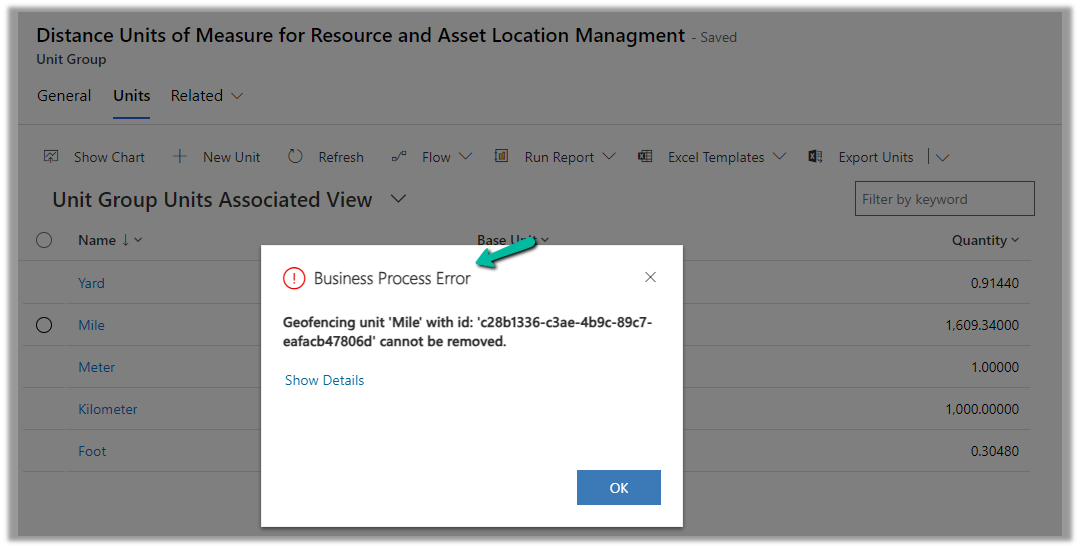
While trying to delete the Unit records related to the “Distance Units of Measure for Resource and Asset Location Management” unit group, we will get the below error

Geofencing unit ‘Mile’ with id: ‘<GUID>’ cannot be removed

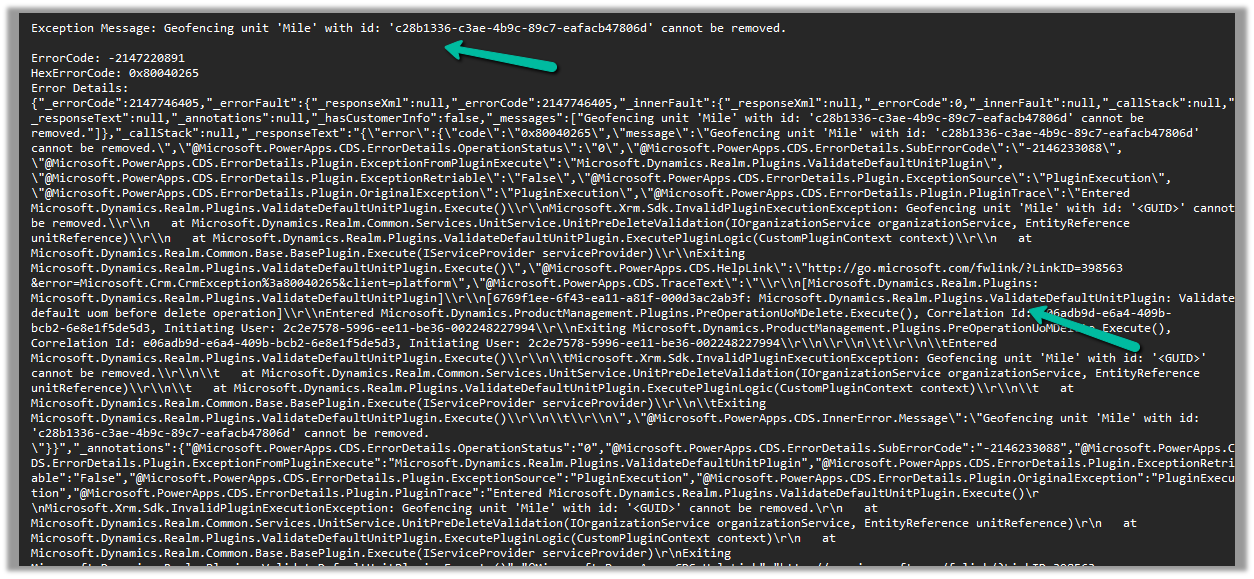
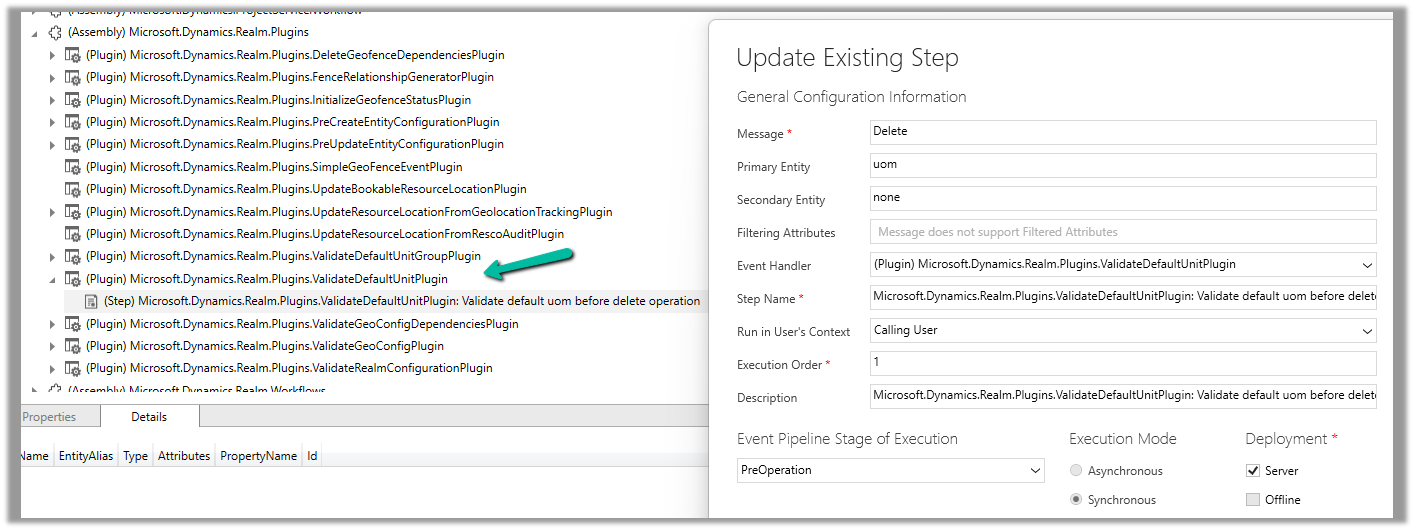
Below is the out of the box plugin that restricts the deletion of the unit

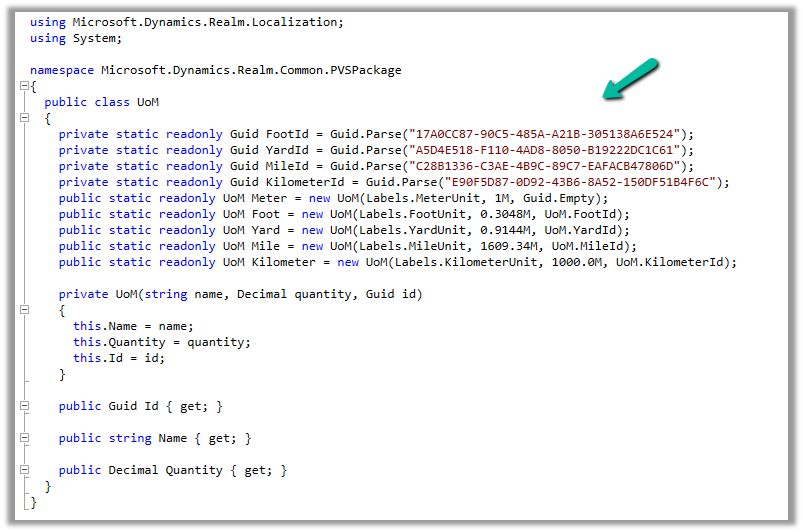
The code for the plugin –

UOM GUIDs –

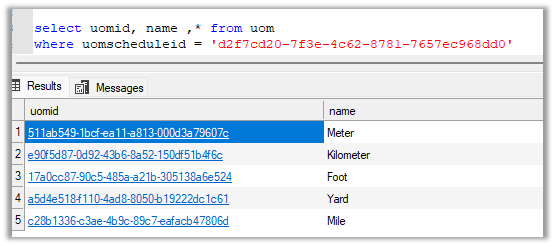
And the GUIDs within the environment –

To know more about Geofencing.

Hope it helps..

Advertisements

ILMerge / Dependent Assemblies in Plugin – System.IO.FileNotFoundException: Could not load file or assembly ‘System.Memory.Data’ – Dynamics 365 / Dataverse


Recently in one of our Plugins, which was using Azure.Storage.Blobs and Azure.Storage.Common libraries to move attachments from notes to Azure Blob Storage suddenly started throwing the below exception. The Plugin had been working fine and had been deployed long back to the production environment.

System.TypeInitializationException: The type initializer for ‘Azure.Response’ threw an exception. —> System.IO.FileNotFoundException: Could not load file or assembly ‘System.Memory.Data, Version=1.0.2.0, Culture=neutral, PublicKeyToken=cc7b13ffcd2ddd51’ or one of its dependencies. The system cannot find the file specified.

We raised the Microsoft Support for it and were informed that the reason for this was there was a platform update over that particular weekend to stop loading the “System.Memory.Data” assembly on the plugin server. And as we hadn’t included that assembly in our package (ILMerge), we started getting the exception.

Also as per Microsoft Docs


So the quick fix at that time was to include (set Copy Local as True) for that System.Memory.Data along with Azure assemblies.

Also now we can look into using Plugin Package to package the dependent assemblies.

Hope it helps..

Advertisements

The plug-in execution failed because the Sandbox Worker process crashed. This is typically due to an error in the plug-in code – Dataverse / Dynamics 365


Recently we got the below exception for one of our plugins.

Message: The plug-in execution failed because the Sandbox Worker process crashed. This is typically due to an error in the plug-in code. Please refer to this document: https://go.microsoft.com/fwlink/?linkid=2189390
Microsoft.Xrm.RemotePlugin.Grpc.ExceptionHandlers.SandboxFabricWorkerCommunicationException: Error communicating with SandboxFabric Worker —> Grpc.Core.RpcException: Status(StatusCode=”DeadlineExceeded”, Detail=”Deadline Exceeded”

If we refer to Microsoft Documentation below seems to be the cause of the issue in our case.

In our scenario, we had a Plugin that was Asynchronous and it was triggered on the Post Update of Work Order Service task. The plugin will fetch all the attachments (to notes associated with inspection attachments > inspection response > work order service task). There were many Service Tasks having more than 20 attachments exceeding 100 mb size total.

We were doing bulk updates which triggered the plugin creating too many requests eventually leading to that error.

Get more details – Error “Sandbox Worker Process Crashed”

Also, check – https://cloudblogs.microsoft.com/dynamics365/it/2017/02/20/microsoft-dynamics-365-online-asynchronous-service-quotas/

Hope it helps..

Advertisements