While working on a LINQ query using early-bound classes in a Dynamics 365 plugin, we encountered a familiar error.
“Could not find an implementation of the query pattern for source type. ‘Where’ not found”
At a glance, everything looked fine. The query was syntactically correct, and the early-bound class was generated properly.
After spending some time, we realized that the error message wasn’t due to the query or the early-bound class itself. It was because we forgot to include the following directive:
using System.Linq;
Without this, C# doesn’t recognize LINQ query methods like Where, Select, or ToList.
Adding this single line at the top of the file resolved the issue immediately, the LINQ query compiled and executed as expected.
Recently, we had to write a small utility—a console application—that would go and update a bunch of existing records in our Dynamics 365 environment. However, we didn’t want any of my custom plugins to trigger during this update. Because the updates were internal, more like data correction / cleanup, and had nothing to do with business rules or processes enforced via plugins. Triggering them would’ve not only been unnecessary but could also lead to unwanted side effects like auto-assignments, email sends, or data syncing. Thankfully, the Dataverse platform provides us with two powerful properties that allow us to selectively bypass plugin execution logic.
BypassCustomPluginExecution – This allows us to bypass all the plugin steps for an operation – create, update, delete, etc.
BypassBusinessLogicExecutionStepIds – If we do not want to skip all the plugin steps, but just a few specific ones, we can use this property.
We have the below sample plugin registered that throws InvalidPluginExecutionException on the update of the lead record.
On updating the record through the console app, we will get the same exception.
To bypass all the plugins that are registered on Update, we can use the BypassCustomPluginExecution property as shown below.
To bypass only the specific plugin steps that are registered on Update, we can use the BypassBusinessLogicExecutionStepIds property as shown below.
One point to remember is these flags do not bypass system plugins or platform logic—only custom plugin steps we’ve registered.
This was a really handy trick in our recent utility and helped us to safely update the records without triggering the plugin. The other options could have been to either temporarily deactivate the plugin step, add certain conditions to the plugin based on calling user, flag/fields on the record etc.
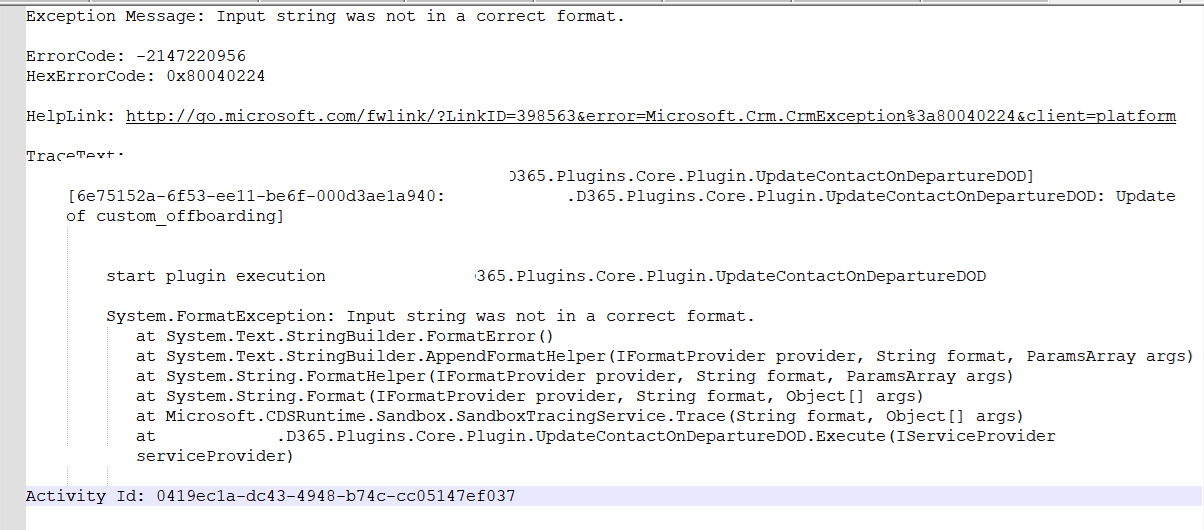
In one of our plugins, we encountered “The specified domain does not exist or cannot be contacted – System.FormatException: Input string was not in a correct format” error. Basically this issue can arise due to incorrect string formatting, unexpected data types, or missing values.
Our initial thought was that it could be because one of the GUID data type fields was null and being used in the Retrieve method.
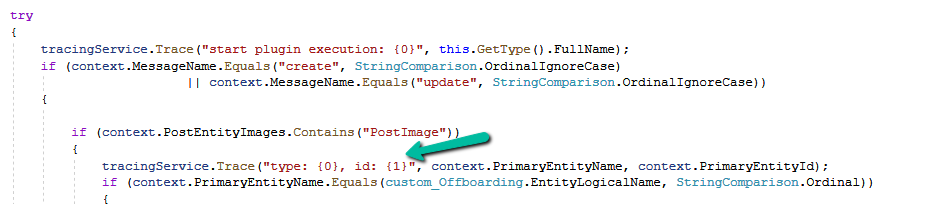
However, it turned out to be because of the following trace statement.
Sample code –
Extra space inside { 1}. The correct syntax is {1} instead of { 1}. We removed the extra space.
In Microsoft Dataverse, calculated columns are a powerful way to derive values dynamically without the need for manual updates. However, one challenge is that plugins do not trigger directly on calculated column changes since these values are computed at runtime and not stored in the database.
Since calculated columns use/depend on other fields, we can register a plugin on the change of those dependent fields. If a calculated column Total Amount is based on Quantity and Unit Price, then we can trigger the plugin on the Update event of Quantity and Unit Price.
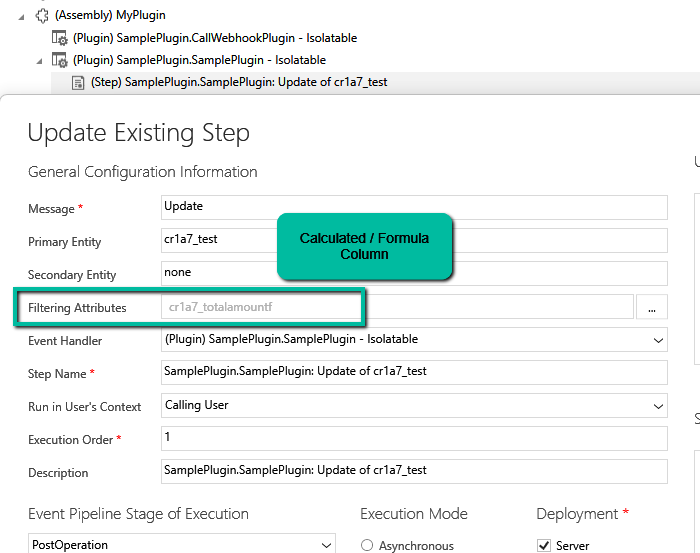
Let us see it in action, we have the below plugin registered in the update event.
On specifying the Formula / Calculated column as a Filtering attribute, our plugin doesn’t get triggered.
Here we updated the Unit Price, which changed the Total Amount, but we do not see any trace log generated.
Now we have updated the filtering attribute to be Quantity and Unit Price the field used by the Calculated column.
We updated both the Quantity and Unit Price and see the log generated i.e. plugin triggered.
The trace log –
While plugins can’t directly trigger on the calculated column changes, this workaround ensures we still get the desired automation.
Recently we observed that our plugin registered on the Delete message of appointment on the PreValidation stage was not getting triggered when we were deleting or updating the occurrence of the Recurring Appointment.
For both of the below operations, our plugin was not getting triggered. The plugin had the logic to delete a few associated records to the appointment record.
Delete operation – This deletes all the existing appointment.
Recurrence Update –This deletes the existing appointment and creates new appointment records based on the new recurrence.
On trying out different things, we saw that the plugin was getting triggered if registered on the PreOperation.
For testing, we registered a sample plugin that throws the InvalidPluginExecutionException and saw it getting triggered in case of PreOpertaion as shown below.
Recently we had a requirement to update the modifiedon date of a few of the records of notes table.
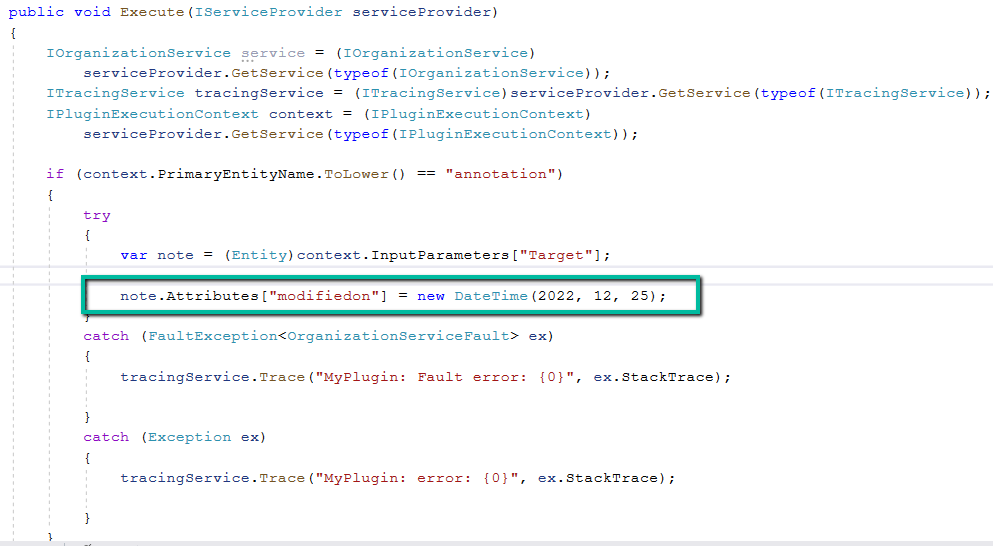
The we can achieve this is by implementing an update plugin on preoperation.
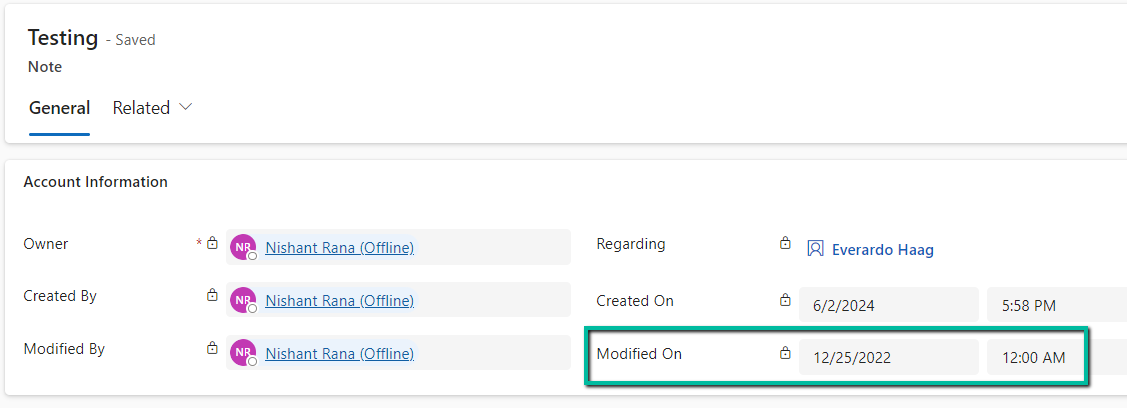
Below is our test record
Below is our plugin on the preoperation update to update the modifiedon date.
On updating the note record, we can see the modifiedon date updated as shown below.
Below are some other records where we have modifiedon updated (test records)
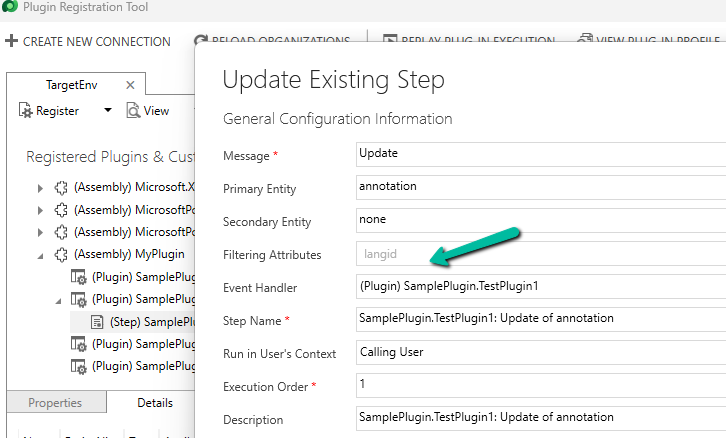
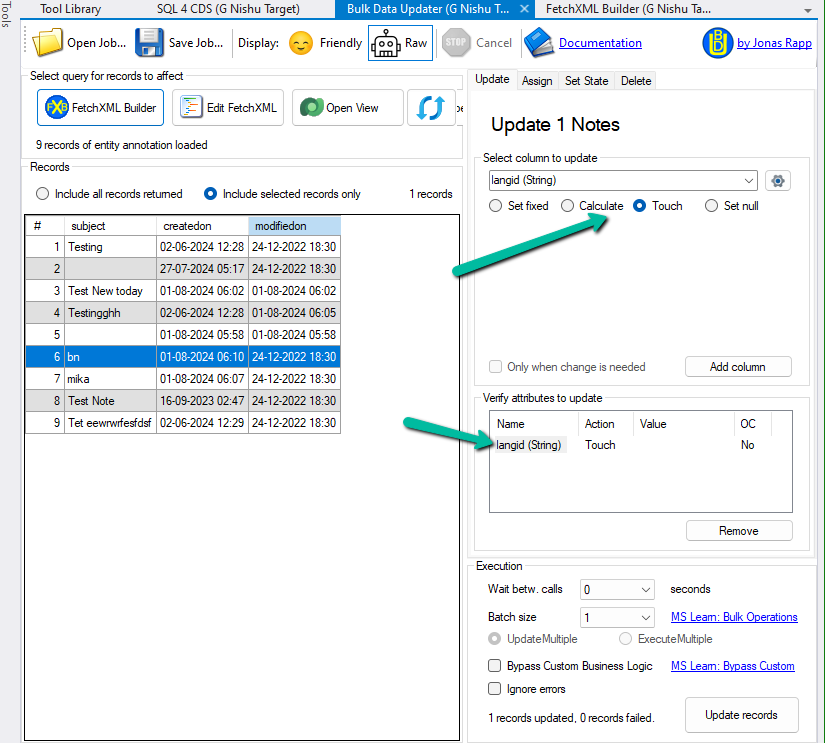
As we had multiple records to be updated on production, eventually we updated the plugin step to be triggered on the update of langid attribute (which won’t be updated by users) and used the awesome XrmToolBox Plugin – Bulk Data Updater to perform touch on langid field. This is to make sure it doesn’t get triggered on the creation or update of any existing records unless explicitly triggered from the Bulk Data Updater for that field and than disabled the plugin.