How to – Delete Components from Managed Solution in Dynamics CRM 2016 without using Holding Solution.


Before the updates that we have received for solution in CRM 2016 the only way to delete components from managed solution was to use Holding Solution.

The following post nicely explains this.

https://blogs.msdn.microsoft.com/devkeydet/2012/05/29/deleting-things-from-a-deployed-crm-2011-managed-solution-package/

Now let us see how we can do this in CRM 2016 without using Holding Solution.

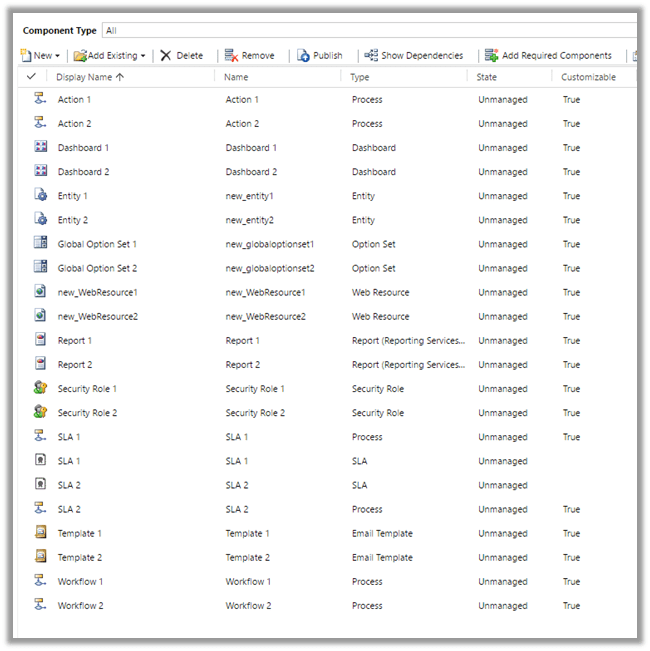
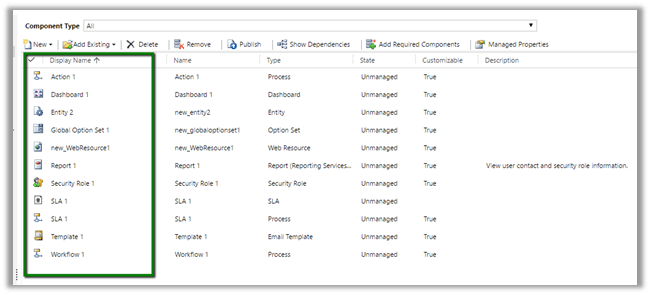
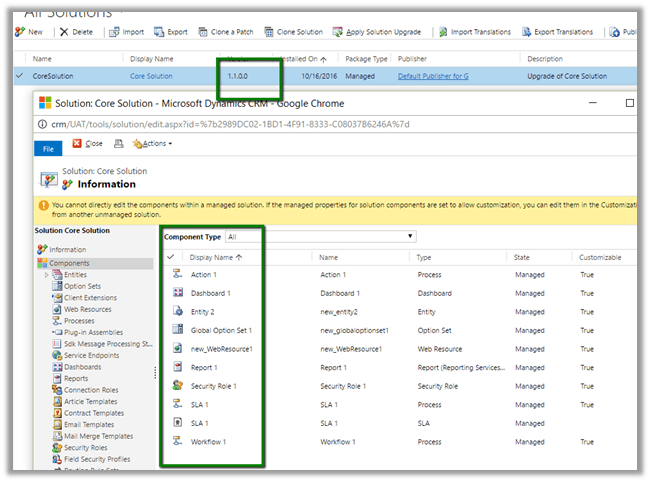
Suppose below is our managed solution that includes 2 Action, 2 Entity, 2 SLA, 2 Workflow.
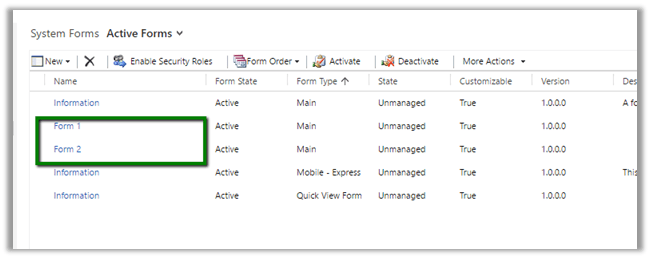
Entity 2 with two forms.
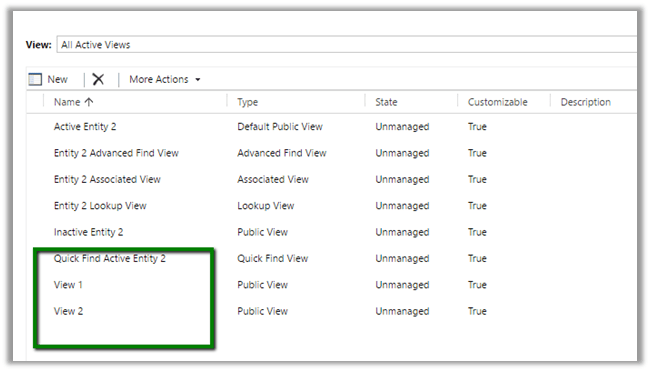
Entity 2 with 2 Views.
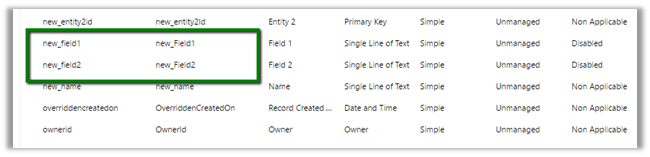
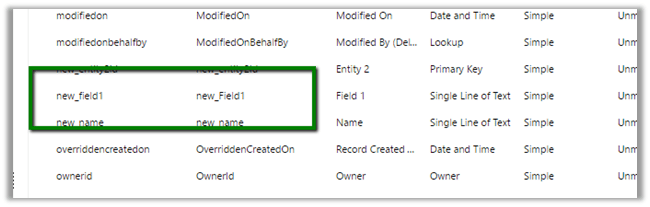
Entity 2 with two Fields.
Now import this solution as managed in destination org.

Now suppose we do not want following components in our Destination org – action 2, dashboard 2, Report 2, Security Role 2, Workflow 2 etc. along with View 2, Field 2 and Form 2 for Entity 2.

We remove some of the components and delete (field, form etc.) from our unmanaged solution (named Core Solution) which we had imported as Managed in our Destination Org.
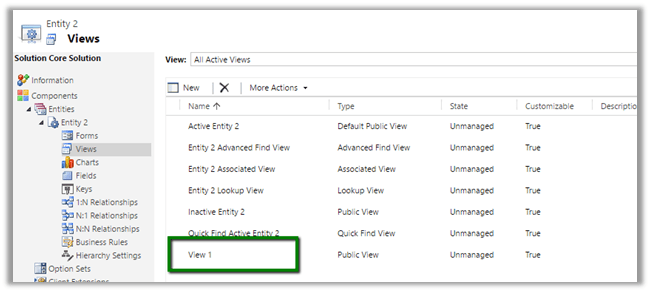
Deleted View 2
Deleted Field 2
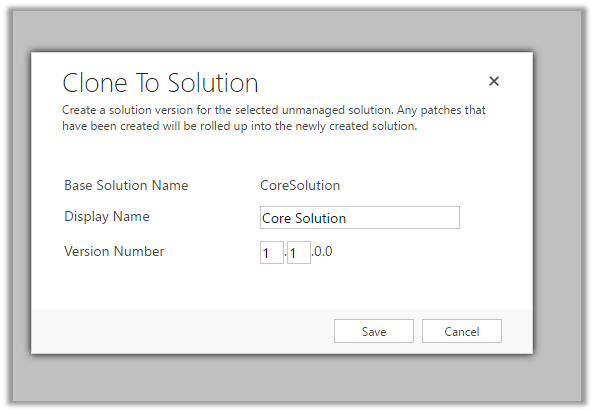
Now click on “Clone to Solution“. (This will increment the version number.)
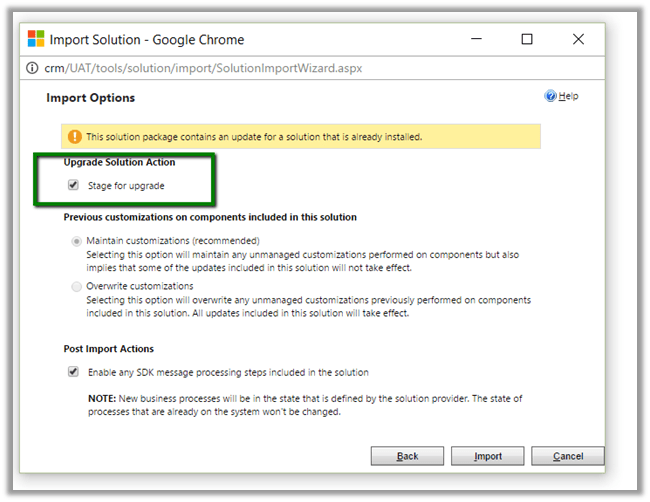
Now import this updated solution to our destination organization, and select “Stage for Upgrade

Click on “Apply Solution Upgrade

This will remove the components from our destination org.
The helpful post

http://www.inogic.com/blog/2016/08/how-to-delete-component-from-managed-solution-in-dynamics-crm-2016/

Hope it helps..

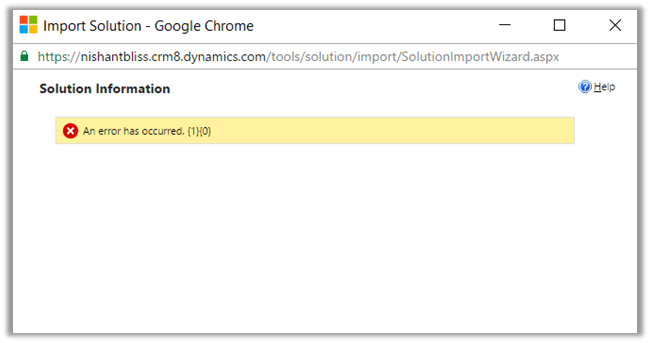
An error has occurred. {1} {0} while Importing Solutoin in CRM 2016 Online.


Hi,

I was getting below error while importing solutoin in my trial CRM 2016 Online Org. I tried with other browser and it was the same case. Infact I created a new trial and tried there but no success.

Without losing hope, tried the same in one of my VM (Windows Server 2012 Standard). It got successfully imported.

So went back to my workstation and cleared browser cache there.

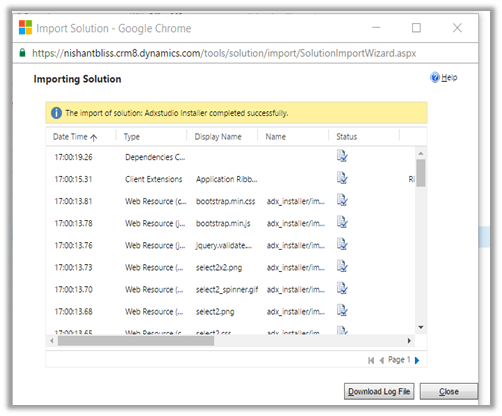
And the Import was Successful.

Hope it helps..
Configure Office 365 Groups in CRM 2016 Online Update 1


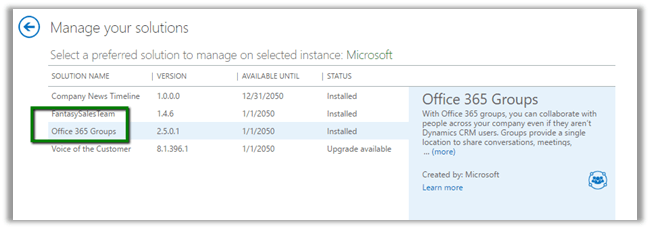
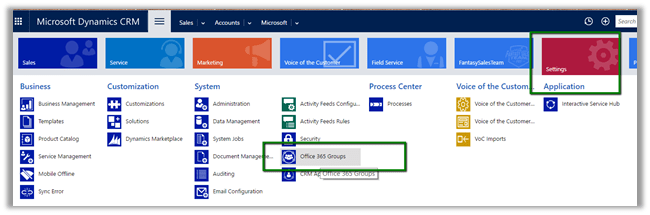
Go to CRM Admin Center à Solutions à Install the Office 365 Groups Solution

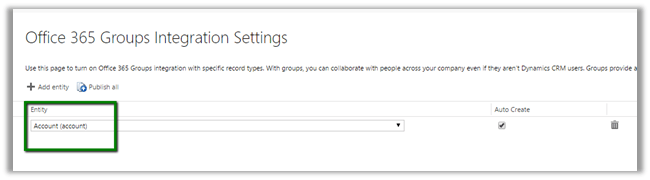
Once installed, go to Settings – Office 365 Groups to configure Entities.

We have enabled it for Account (select entity and Publish All)

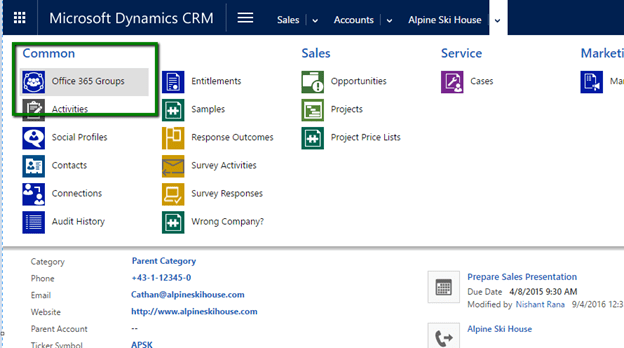
Open the Account Record and navigate to Office 365 Groups.

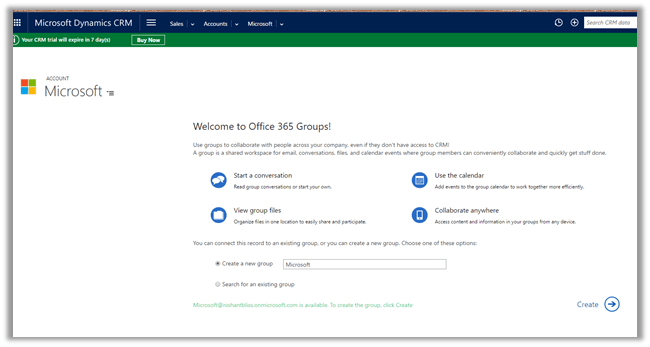
It will auto create a Group or we can specify an existing one.

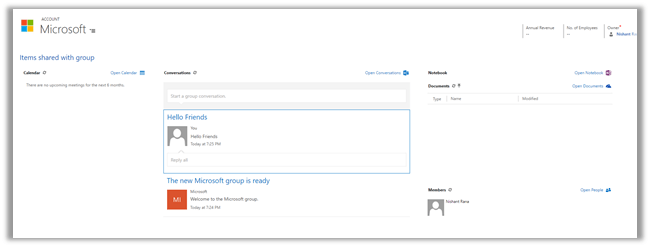
Once configured we can see the Calendar, Conversation, Notebook etc.

Hope it helps..
Configuring Company News Timeline in CRM 2016 Update 1


It is new feature introduced in CRM 2016 Update 1 for CRM Phone and Tablets that delivers news from Bing about the customers and categorize them.

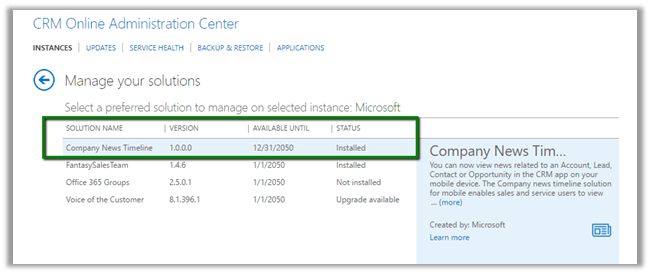
Go to CRM Admin Center à Solutions to install the solution.

Once installed, open your mobile or tablet CRM App and open any of the existing Lead, Contact, Account or Opportunity record.

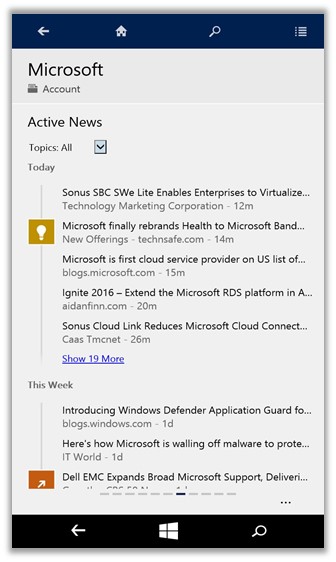
We could see all the news in Activity News.

In CRM App for Windows Phone à

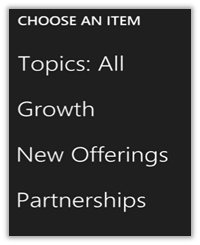
Different categories available

https://www.microsoft.com/en-US/dynamics/crm-customer-center/get-the-company-news-timeline-for-crm-for-phones-and-tablets.aspx

Hope it helps.

Quick Walkthrough – New Form Type – Main Interactive experience and Card in CRM 2016.


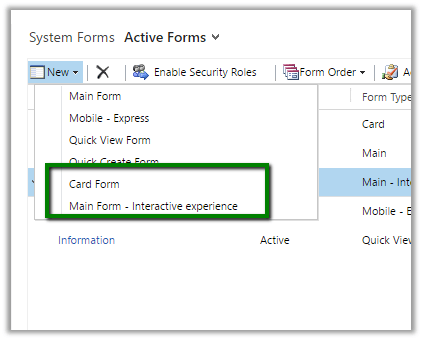
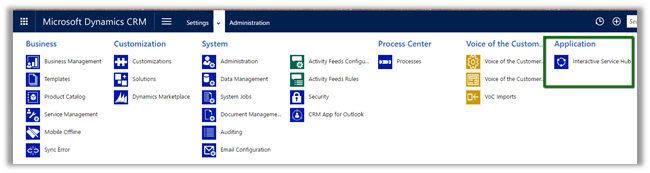
These are the new form types introduced in CRM 2016 as a part of new Interactive Service Hub.

While creating a custom entity we need to check “Enable for Interactive experience” and select “Service” as ‘Area that display this entity’ to make this entity available in Interactive Service Hub.

“Enable for interactive experience” option will auto create 2 new forms of type Card and Main – interactive experience.

Let us use these forms as it is without any change.

Publish the customizations and open the Interactive Service Hub

It will download the changes first.

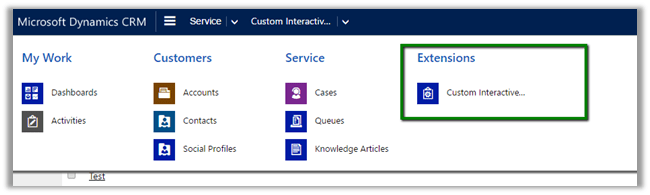
Our Custom Entity in Site Map under Extensions area

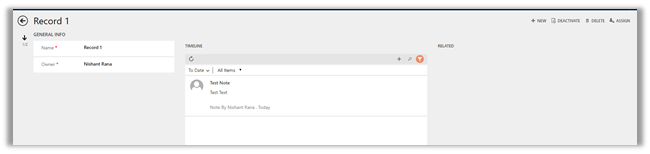
Main Interactive Experience Form

For Card,

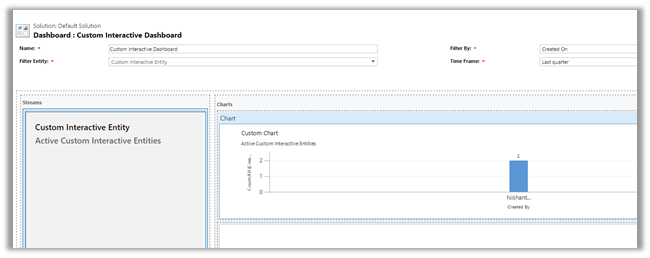
we need to create a custom interactive dashboard and add the stream (view) in it. (add a chart as well)

Publish the changes.

Our custom dashboard for our custom entity with Card form on left and the chart on right.

Hope it helps.

New Features CRM 2016 Online Update 1 – Category Entity.


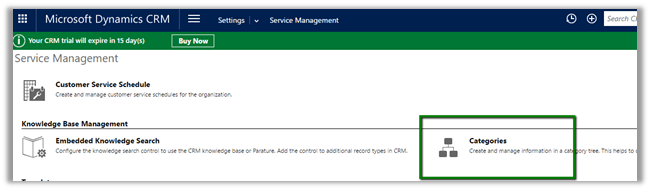
CRM 2016 Online Update 1 introduces new entity called Category.

We can define Parent Category and Child Categories.

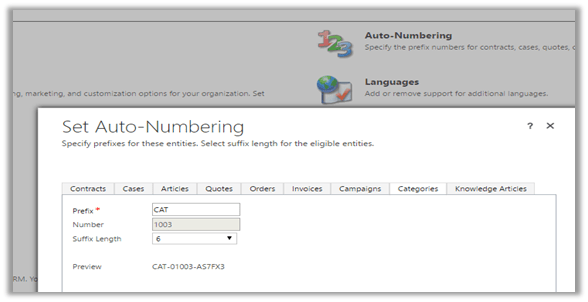
Category Number format can be defined in Auto Number settings.

For Category entity we can create 1 – N relationships with System Entity and Custom Entity and then associate their records with the categories. We cannot create N – 1 and N – N relationships from Category.

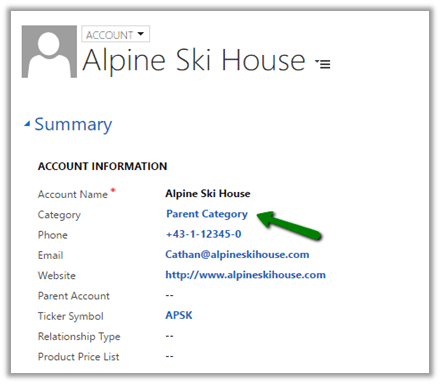
To associate category, I have created a new 1 – N relationship between Category and Account and added the lookup to the Account form.

This way category entity can help in grouping, search and reporting.

More details

https://msdn.microsoft.com/en-us/library/mt728945.aspx

Hope it helps.