Using bootstrap classes and components in Portal (Dynamics 365)


As Portals are based on Bootstrap framework we can make use of classes, components etc. specified as part of the framework in our Portal.

Below we have created a new blank page to which we will add content.

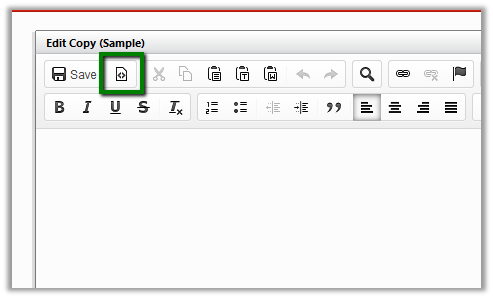
Click on Edit in the content editor.

Click on Edit Source icon.

For reference go to the getbootstrap web site

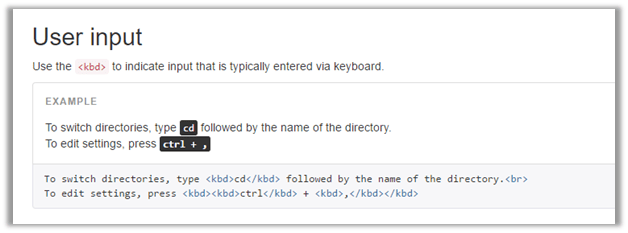
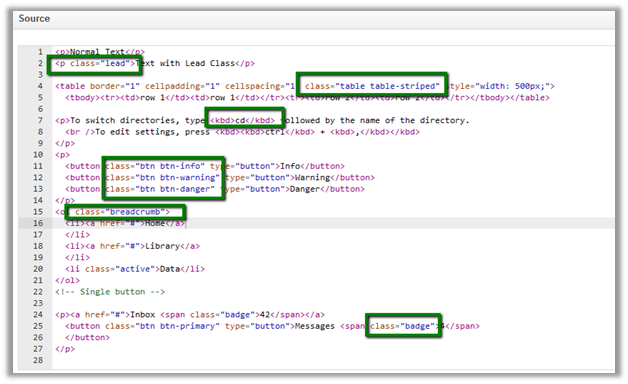
Below are some of the classes that we will add

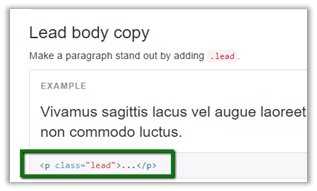
Lead Class –

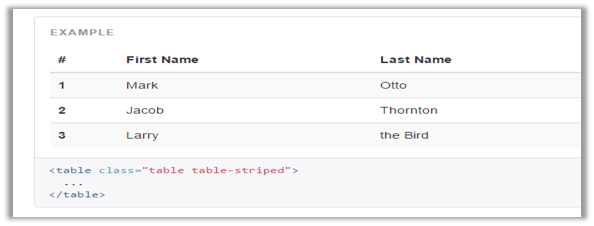
Table table-striped class –

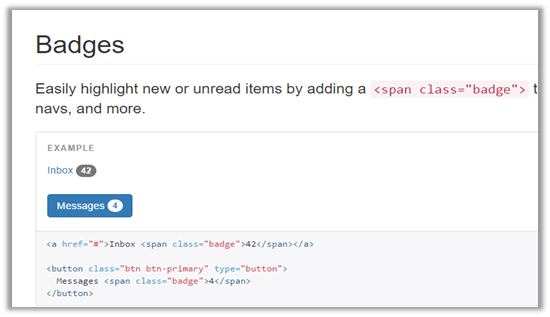
Badges Component

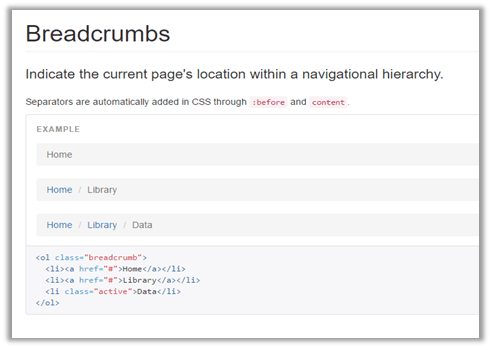
Breadcrumbs

Below is our sample source code

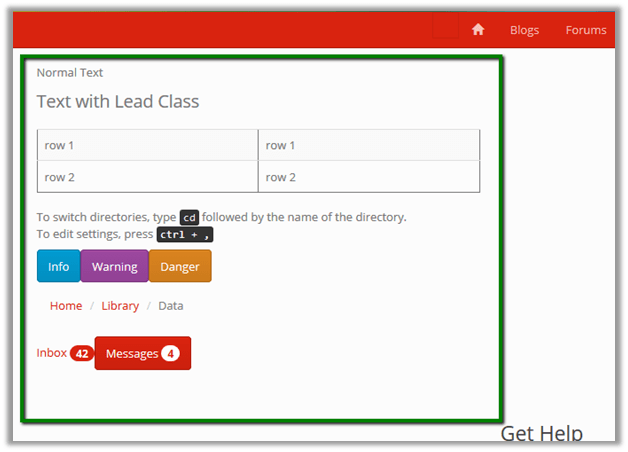
This is how it renders in the page.

Hope it helps..

Applying Theme in Portal in Dynamics 365


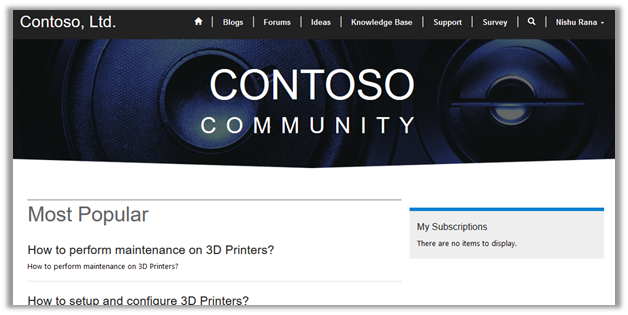
Suppose we have the below portal configured whose theme we would like to change.
As Portal is based on Bootstrap framework, we can apply any of free bootstrap themes to it.

Go to the below site which offers few free themes.

https://bootswatch.com/

Here we have download the Cerulean theme’s bootstrap.min.css file.
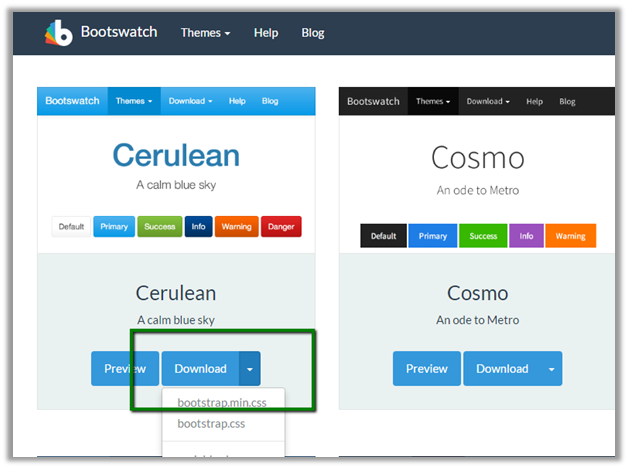
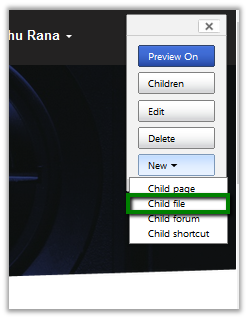
Now inside the portal home page, create a new child file
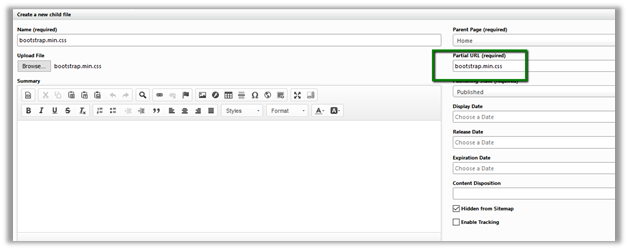
Name the file as bootstap.min.css
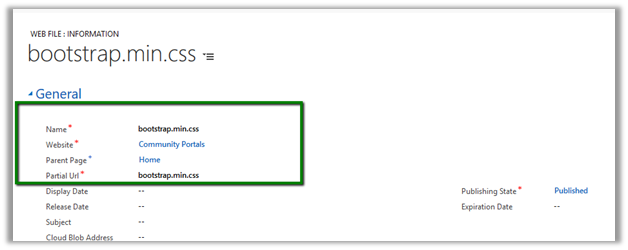
Basically, this creates a web file in CRM that has the bootstrap.min.css file associated as notes attachment to it. (with Home page as the parent page)
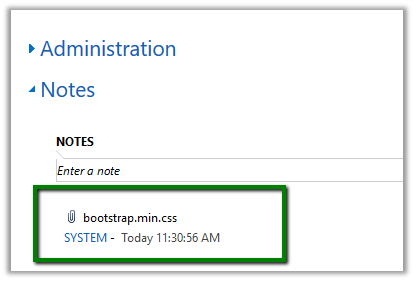
Refresh the portal to see the changes
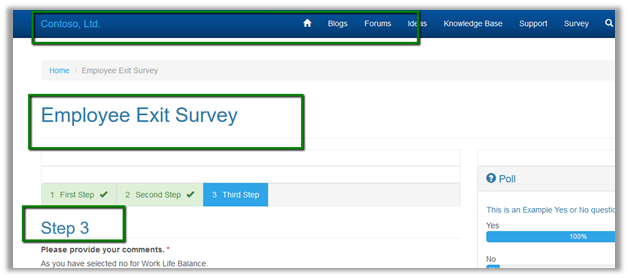
Another way of doing the same is create a new web file or update the bootstrap file attached as attachment to notes in the existing web file.

Download a new theme file.
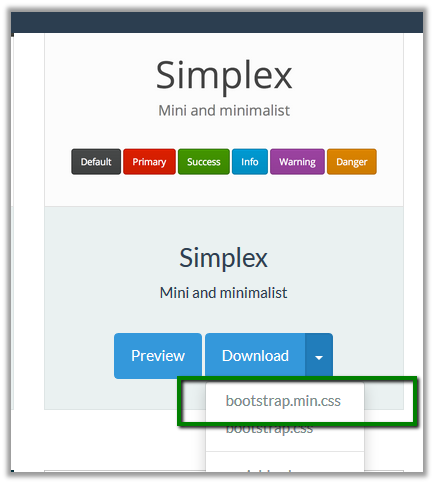
Delete the existing attachment and upload this newly downloaded theme file.
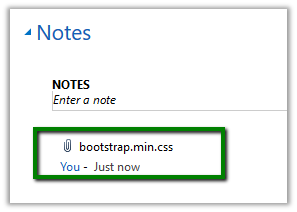
Refresh the portal.
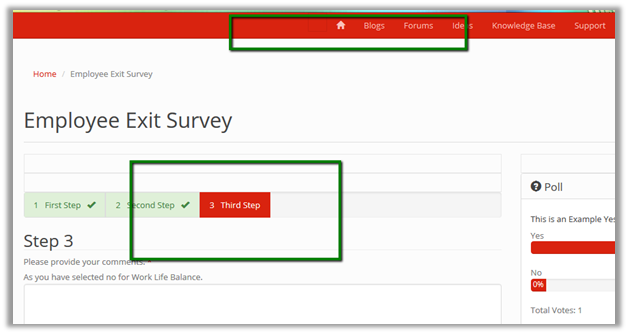
The theme here gets applied to all the child pages of Home. If we want a different theme for any of the child pages, we can repeat the same step.

For e.g. we want a different theme to be applied to Blog and its child pages. For this we will create a new child file, upload the theme file.
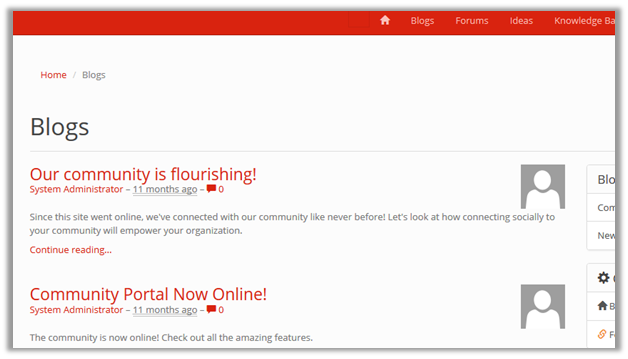
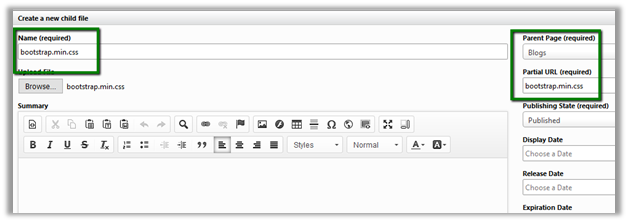
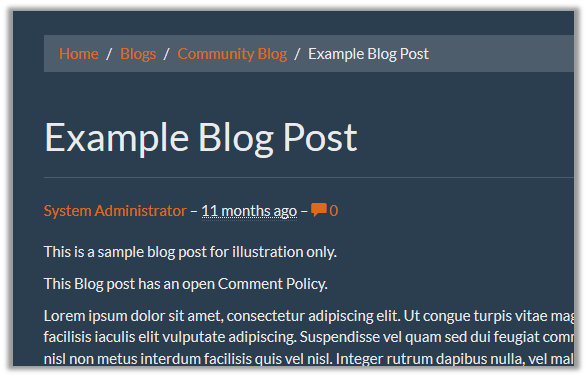
On clicking on any of the child pages of the Blog we can see the new theme applied only to its child page.
Hope it helps..

Advertisements

Managed solution cannot update reports which are not present in solution package. Report 98b86a45-1dbb-e411-b283-d89d6765a2e4 is not part of current solution.


We got this error while trying to import a managed solution to our TEST. The error was because of one error during import we had removed the parent solution from the solution, but we forgot to remove the child report. So this child report during import was trying to update or lookup for the parent report which caused this error.

Removing the child report from the solution and importing it back fixed the issue for us.

Hope it helps..

Invalid Operation: Trying to update an attribute in Live, which is not allowed while importing solution in Dynamics 365


We got this error recently while trying to import a managed solution. As it turned out the we had few OOB reports in our managed solution that was getting imported to TEST.

Removing those OOB reports from the solution, exporting it and importing it again fixed the issue for us and we were able to import the solution successfully.

Helpful post: http://vjcity.blogspot.in/2016/09/trying-to-update-attribute-in-live.html

Hope it helps..

How to – Add hyperlink (and button) in Form Notification in Dynamics 365 (CRM 2016 and earlier)


Recently we were working on a requirement wherein we wanted to add a hyperlink to the Notification that we were showing on the form.

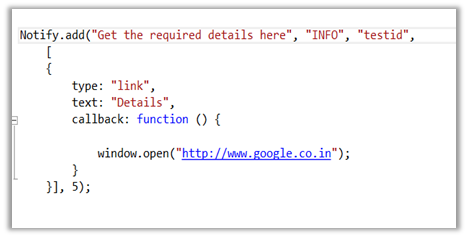
For this we can use the following Jscript library

https://notifyjs.codeplex.com/

The JScript code:

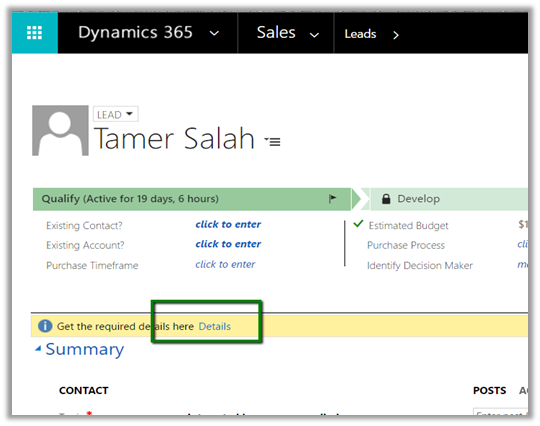
Output:

Clicking on Details opens the page specified in the callback function.

The other option is to show hyperlink within a web resource and putting it inside the form.

https://nishantrana.me/2012/02/09/showing-related-entity-information-in-header-as-hyperlink-crm-2011/

Hope it helps..

Advertisements

“getRequiredLevel is not a function” error while creating a new contact record in Dynamics 365.


We were getting the strange getRequiredLevel is not a function error while creating a new record (in New Form Rendering)

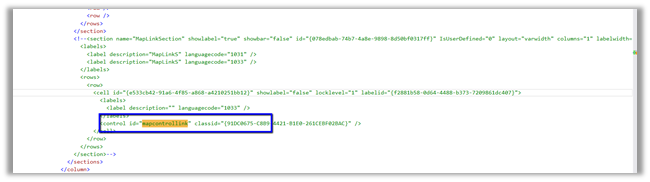
After debugging, we figured out that it was failing for the following field “mapcontrollink”.

We commented out the entire section and imported it back (unsupported). This fixed the issue.

Strangely enough we couldn’t find that field in the Vanilla version, in our case it is the upgraded environment so that could be reason of having that extra field.

Hope it helps..