Fixing Date Shift Issue After Changing DateOnly Field from Time Zone Independent to User Local – Dataverse / Dynamics 365


In our Dataverse environment, we had a field named custom_sampledate configured as a DateOnly type with User Local behavior. At some point, we changed its behavior to Time Zone Independent, assuming it would prevent confusion across time zones.
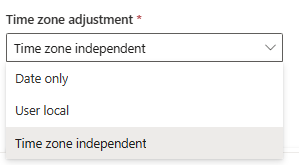
A screenshot of a computer

AI-generated content may be incorrect.

At first glance, everything seemed fine. But over time, users in time zones like New Zealand (NZ) started reporting an issue: for older records created before the change, the dates were now showing up as one day earlier than what they had originally entered.

This was because, when we changed the field’s behavior from User Local to Time Zone Independent, Dataverse stopped interpreting the date based on the user’s local time zone. Instead, it began treating the stored value exactly as-is, which caused trouble for values that were originally entered as User Local, especially from users in forward time zones like NZ.

Dataverse stores DateOnly fields as a datetime behind the scenes, with the time part set to 00:00:00.000. The behavior setting (User Local vs. Time Zone Independent) affects how this raw value is interpreted and displayed. Before the behavior was changed, NZ users (UTC+13/UTC+12) were entering dates into a User Local field. Dataverse automatically converted their local midnight time to UTC when storing it.

For example:

  • A NZ user enters 2025-04-03
  • Dataverse stores it as 2025-04-02 11:00:00 UTC

Later, when the field behavior was switched to Time Zone Independent, that same stored value was no longer adjusted for the user’s time zone. It got displayed as is as 2025-04-02 which was one day earlier than intended.

However, the new records entered after the change didn’t show the issue, because after the behavior was set to Time Zone Independent, any newly entered values were saved and displayed exactly as the user typed them—without conversion.

To correct this mismatch without losing data, we followed the below approach:

  • Created a temporary DateOnly field named custom_sampledate_temp, set to Time Zone Independent behavior.
  • Copied all values from the existing custom_sampledate field into custom_sampledate_temp.
  • Deleted the original custom_sampledate field (after backups).
  • Recreated custom_sampledate with the same schema name, but set it back to User Local behavior.
  • Copied data back from the temp field into the new custom_sampledate field.
  • Deleted the temp field after verification.

Also check for more information – https://temmyraharjo.wordpress.com/2024/05/18/dataverse-update-time-zone-adjustment-from-time-zone-independent-to-user-local-and-date-time-behavior/

Changing a DateOnly field from User Local to Time Zone Independent, might look harmless—but it can cause subtle issues, especially across global teams. We need to careful before we make this change, as apart from UI this could result changing the JavaScript, Cloud Flows and Plugins where we have used that field to reflect correct date.

Hope it helps..

Advertisements
Advertisements

Failed to delete View (View Name). Object dependencies exist, please review before deleting error in Dataverse


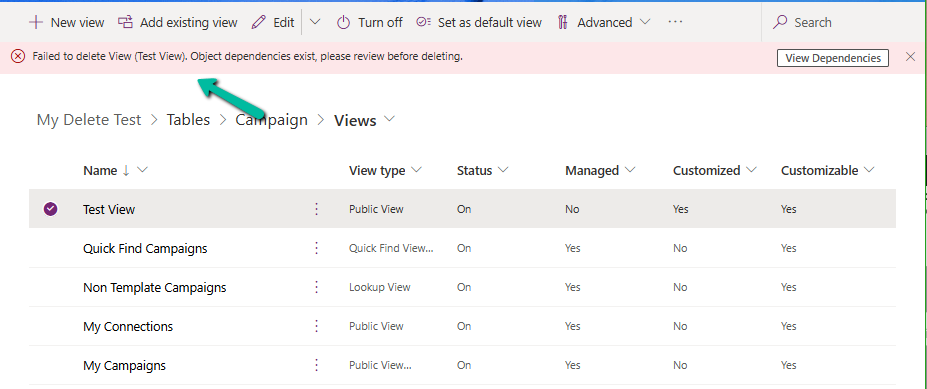
While trying to delete a custom public view (Test View) in Dataverse, we encountered the following error:

“The SavedQuery(<GUID>) component cannot be deleted because it is referenced by 1 other component. For a list of referenced components, use the RetrieveDependenciesForDeleteRequest.”

This usually means that the view we’re trying to delete is still being referenced somewhere else in our environment — and Dataverse is safeguarding against breaking things.

A screenshot of a computer

AI-generated content may be incorrect.

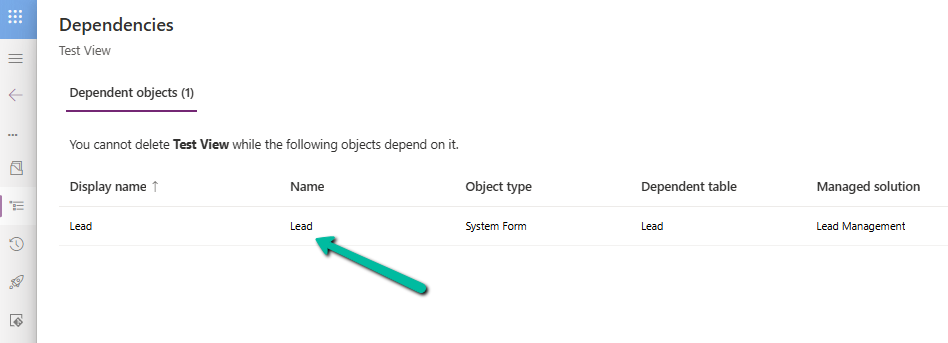
Depedencies was pointing to the Lead form.

A green arrow pointing to a white background

AI-generated content may be incorrect.

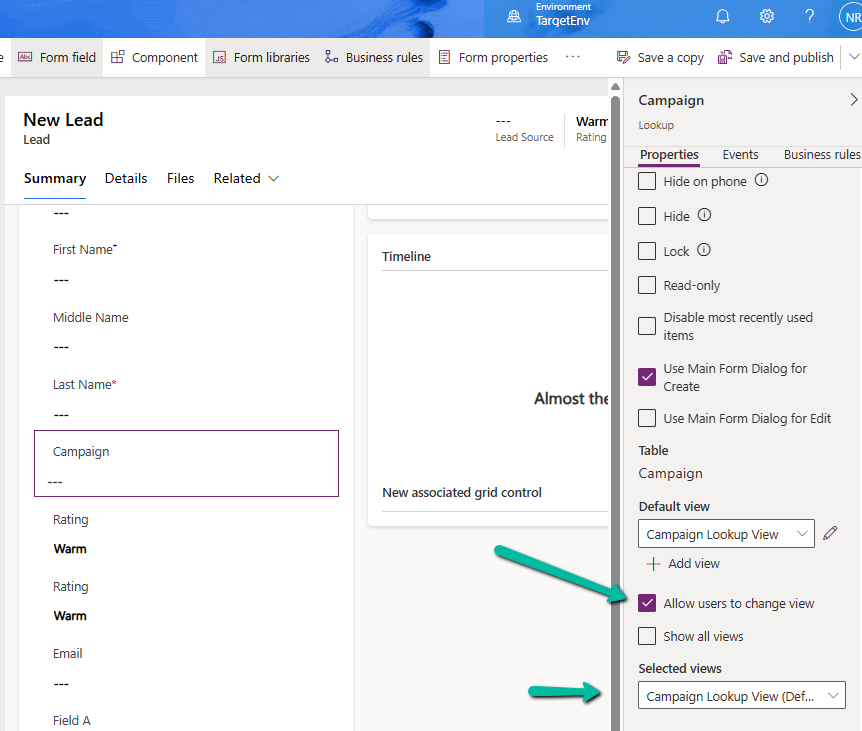
The lead form had the campaign lookup and the test view was one of the selected views in “Allow users to change view”.

This means even if the view wasn’t the default for that lookup, the form still allowed users to switch to it, and that counts as a dependency.

A screenshot of a computer

AI-generated content may be incorrect.
A screenshot of a computer

AI-generated content may be incorrect.

Removing it from the list and publishing the changes allowed us to delete the view.

A screenshot of a computer

AI-generated content may be incorrect.
A screenshot of a computer

AI-generated content may be incorrect.

Note – Also check if it is being used as a Subgrid, if so temporarily remove the subgrid from the form to delete the view and than add the subgrid back.

Hope it helps..

Advertisements

Understanding the Hidden Property for Choice Datatype in Dataverse / Dynamics 365


Dataverse provides a flexible way to manage data through choice (option set) fields. One of the newer enhancements is the Hidden property, which allows administrators to hide specific choice values from selection while retaining them in the system.

To see it in action,

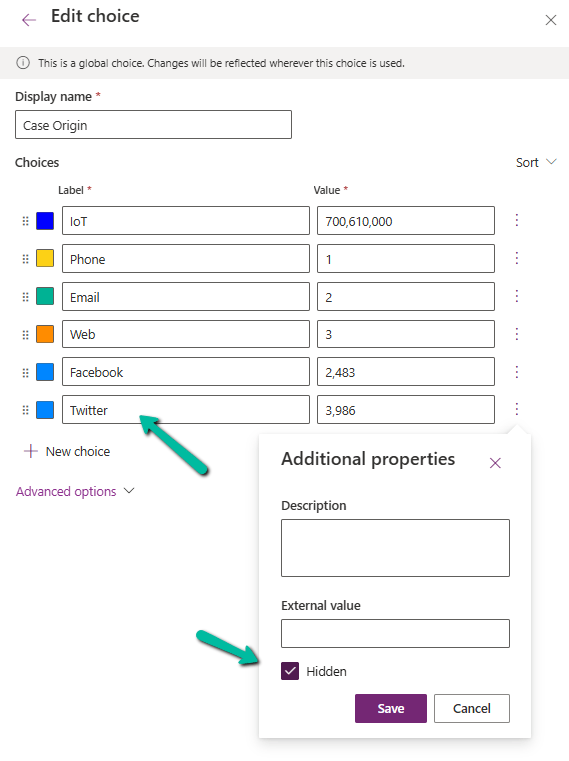
Navigate to Dataverse Table Designer in the Power Apps Maker Portal, and select the Choice (Option Set) field.

Here we have selected the Origin choice field of the Case table.

We have selected the Twitter choice value.

A screenshot of a computer

AI-generated content may be incorrect.

Click on a particular choice value and open Additional Properties, check the Hidden checkbox, and save and publish the changes.

A screenshot of a computer

AI-generated content may be incorrect.

After applying these settings,

  • Hidden choice values will not appear in dropdown lists when users create or update records.
A screenshot of a computer

AI-generated content may be incorrect.

Existing records with hidden values will still display them in forms and views.

A screenshot of a computer

AI-generated content may be incorrect.

We can see the option greyed out for the record having that existing hidden value.

A screenshot of a computer

AI-generated content may be incorrect.
  • Business rules and workflows can still reference hidden values.
  • The hidden choice remains in the metadata and can be retrieved using FetchXML, OData, or SDK queries.
  • Power Automate flows triggered on record updates will still recognize hidden values.

We can use this new feature for the deprecating values that should no longer be used but still need to exist in historical data. Also, we need to communicate changes to users to prevent confusion when certain values disappear from selection lists. And finally, we should consider data migration and cleanup if a value should never be used again.

Thus, the Hidden property for choice fields in Dataverse provides a powerful way for us to manage choice options dynamically without affecting existing records. By leveraging this feature, we can ensure a smoother transition when phasing out obsolete values while maintaining data integrity.

Hope it helps..

Advertisements

Cloud Flows are disabled or turned off after copying a Dataverse Environment ? (Power Automate / Power Platform)


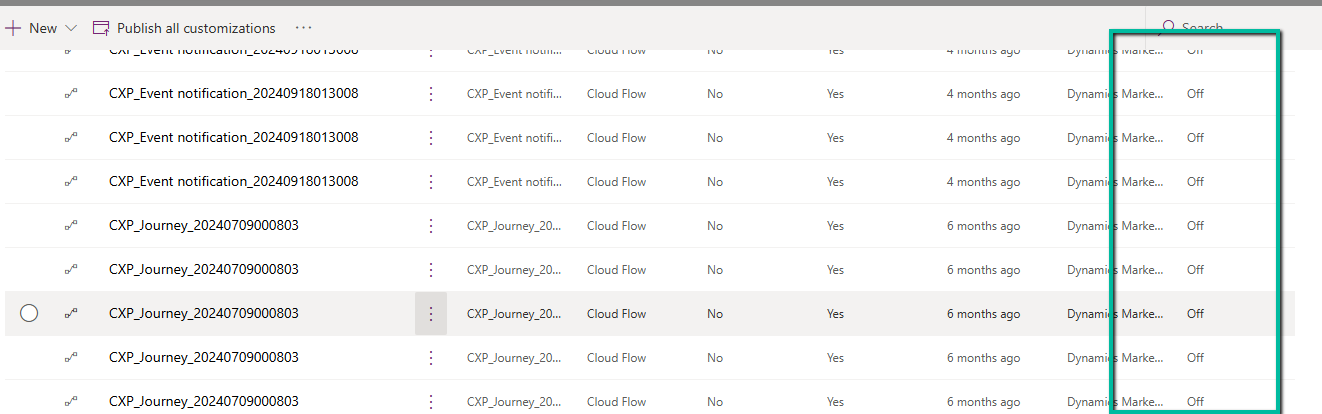
Recently we copied our UAT environment to one of the testing environments. After copying, we saw that all the cloud flows were in Off / Disabled state.

A screenshot of a computer

Description automatically generated

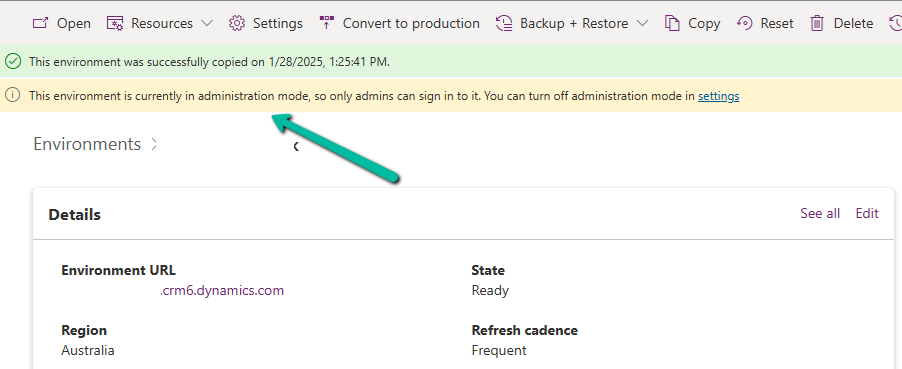
This was because during copy the environment is set in administration mode and background operations are also disabled.

Flows are automatically turned off to prevent –

  • Accidental execution of automation in a copied/test environment
  • Potential integration issues due to different connectors or authentication.
  • Unintended data modifications (e.g., flows interacting with external systems like SharePoint, SQL, or APIs).

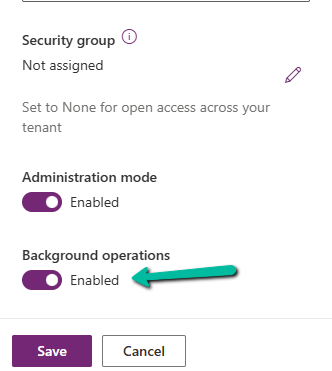
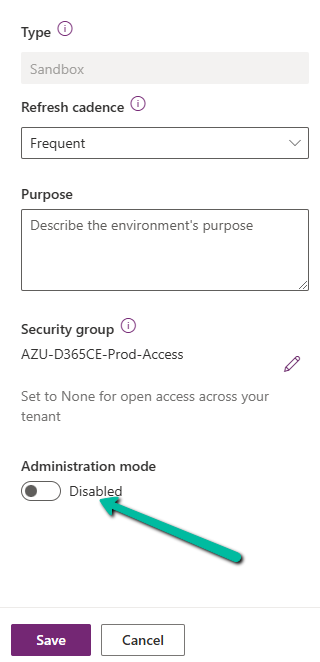
If required, we can disable the administration mode or at least enable the background operations.

A screenshot of a computer

Description automatically generated

However, the flows will not automatically switch On even if we enable either the Administration Mode or Background operations.

Here we need to switch them On manually or use PowerShell scripts or API to do so.

Refer to blog posts for details on it –

PowerShell https://www.syskit.com/blog/managing-microsoft-powerapps-and-flow-like-a-pro-part-3-managing-flows/

Console App / APIhttps://nishantrana.me/2024/06/12/enable-disable-turn-on-turn-off-multiple-cloud-flows-using-code-power-automate/

Additional Considerations –

Connection References: If the flows use connection references (like SharePoint, Dataverse, Outlook, etc.), we need to verify them in Solution > Connection References and update them if necessary.

Environment Variables: If the flows depend on environment variables (e.g., API URLs, credentials), we need to update them the new environment.

Reassign Flow Owners: If the original owner of a flow is missing from the copied environment, we need to assign a new owner.

Lastly, if flows are not behaving correctly, check the callback registration records

https://nishantrana.me/2024/06/11/fixed-flow-not-getting-triggered-callback-registration-power-automate-dataverse/

Get more details around copying the environment.

Hope it helps..

Advertisements

Free up Storage space – ActivityPointerBase and WorkflowLogBase (Dataverse / Dynamics 365)


Had shared the steps we had followed to reduce the storage space for one of our environments which was a copy of production below a few months back –https://nishantrana.me/2023/09/28/free-up-storage-space-dataverse-dynamics-365/

This time we followed more or less the same steps, the main difference was this time we used our favorite XrmToolBox plugin SQL4CDS to perform the delete operations instead of the bulk deletion job.

However, even after deleting all the Activity type records (except one appointment record which was giving some error on deletion), as shown below, the ActivityPointer was still showing 13 GB of space occupied.

select activitytypecodename,activitytypecode, Count(activitytypecode) as Total
from activitypointer
group by activitytypecode, activitytypecodename
order by Total desc

And the same was true for the WorkflowLogBase, we used a bulk deletion job for deleting the system jobs with status as succeeded which deleted around 1200 records, however running the same query in SQL4CDS showed us around 70K records with status as success.

On trying to run the following query it gave us an “Expected non-empty Guid” error and we could not delete the records.

Eventually, we raised the Support Ticket for it, and the team ran the script in the background to delete/reduce the size of the Activity Pointer and Workflow Log table and eventually we were able to reduce the database usage (we also deleted few other table records)

Before –

After –

A close up of a white background

Description automatically generated

Get more details

Hope it helps..

Advertisements

Use JavaScript to enable / disable a field only if the Stage is Active in Business Process Flow – Dynamics 365 / Dataverse


Recently we had a requirement to set some of the fields in our business process flow to be enabled only if that stage is active.

E.g. We want to Identify Sales Team field to be Enabled only if the Propose stage is active, else we want to set it as read-only.

A screenshot of a computer

Description automatically generated

We can use the below JScript to achieve the same.

A screen shot of a computer program

Description automatically generated

Because the Propose stage is Inactive we have Identify Sales Team as read only.

A screenshot of a computer

Description automatically generated

On moving to the Propose stage, we can see the field being enabled back.

A screenshot of a computer

Description automatically generated

The key steps are –

In the onload of the form associate your function/logic to the OnStage change method of the Process object.

formContext.data.process.addOnStageChange(CheckStageAndToggleFieldBPF);

Next, check for the active stage ID.

Here to get the active stage ID, open the business process flow and get its Guid.

A computer screen with a green arrow pointing to a black box

Description automatically generated

Then using the awesome SQL4CDS XrmToolBox plugin get the Guid of the particular stage.

A screenshot of a computer

Description automatically generated
function OnLoad(executionContext)
{
	 var formContext = executionContext.getFormContext();
	 formContext.data.process.addOnStageChange(CheckStageAndToggleFieldBPF);
	 CheckStageAndToggleFieldBPF(executionContext);
}

 function CheckStageAndToggleFieldBPF(executionContext) {

        var formContext = executionContext.getFormContext();     
        var activeStage = formContext.data.process.getActiveStage();
        var activeStageId = activeStage.getId();		
        var stagePropose = "3a275c22-fc45-4e89-97fc-41e5ec578743";
     
        if (activeStageId.toLowerCase() === stagePropose) {          
                formContext.getControl("header_process_identifypursuitteam").setDisabled(false);                 
        }
        else {
            formContext.getControl("header_process_identifypursuitteam").setDisabled(true);
        }       
  }
select processidname,stagename, processstageid  from processstage 
where processid = '919E14D1-6489-4852-ABD0-A63A6ECAAC5D'

Also if we have the same fields used in multiple places / stages in the Business Process Flow, we will have the suffix added to the fields, so we need to refer the field appropriately in our script.

  • header_process_identifypursuitteam
  • header_process_identifypursuitteam_1
  • header_process_identifypursuitteam_2

Also check – https://www.c-sharpcorner.com/blogs/options-for-locking-field-on-business-process-flow

Hope it helps..

Advertisements