Understanding Privilege Check and Shared Access in Dataverse / Dynamics 365


Let us understand this with a simple example.

We have the following 2 custom tables having a 1 – N relationship.

Project (1-n) Artefact.

The relationship behavior is Custom with Cascade All for all the actions except Delete.

User 1 is the System Administrator and Test User 1 has the Field Service Admin role but doesn’t have any roles that give him access to the project or artefact table.

We can see the tables are not showing up for Test User 1 in the app unlike User 1 with the System Admin role.

A screenshot of a computer

Description automatically generated

Now let us assign a custom security role – Test Sharing to test user 1 that gives him Organization Level rights on the Project table.

A screenshot of a computer

Description automatically generated
A screenshot of a computer

Description automatically generated

As expected, Test user 1 now has Projects appearing in the app, and as he doesn’t have any rights on the Artefact table, he cannot see it in the form or the app.

A screenshot of a computer

Description automatically generated

Now user 1 shares the Project 1 record with test user 1. Remember we have set Share as Cascade All in the relationship between Project and Artefact.

But still, because the user doesn’t have any privileges on Artefact, it doesn’t appear for Test User 1 on the form as well as the app.

Now let us update the Test Sharing Role and add Read PermissionsUser Level for the Artefact table.

A screenshot of a computer

Description automatically generated

Now Test User 1 can see the Artefacts in the related records as well as the App.

A screenshot of a computer

Description automatically generated

We can observe 2 things here –

  • Although Test User 1 only has User-level Access to the Artefact, he can still see the Artefact records created by User 1, as the parent Project record is shared with Cascade All–Share in the relationship behavior.
  • And as Test User 1 has only Read access he can only view the artefact records shared.
A screenshot of a computer

Description automatically generated

Here if we update the Test Sharing role to provide Write access at User Level, the user will be able to edit the records.

A screenshot of a computer

Description automatically generated

Also right now if User 1 creates the Project 2 record with the related P2 A2 artefact record, Test User 1 will only have access to the Project 2 record because of Organization Access but not to the P2 A2 artefact record as he has only has the user-level access.

A screenshot of a computer

Description automatically generated

Let us now update the Relationship Behaviour between Project (1-n) Artefact, and set Share to Cascade None.

Let us share the Project 2 record with Test User 1 now through the User 1 account.

A screenshot of a computer

Description automatically generated

As expected even after sharing the Project 2 record, Test User 1 does not have access to the P2 A2 artefact record as we had updated the relationship behavior as Cascade None for Share.

A screenshot of a computer

Description automatically generated

The first check that the user needs to pass is the Privilege Check, which checks if the user has the required privileges for that table before the Shared Access check

A screenshot of a screenshot of a record

Description automatically generated

Also, Check – How access to a record is determined.

Hope it helps..

Advertisements

Using Focused view in Dynamics 365


Focused view in Dynamics 365 that allows users to view and manage all their records in one place, allowing them to be more productive, as they can stay on track and avoid getting sidetracked by switching between multiple screens to find the information they need.

We can enable and disable it for all the records from the Power Platform Admin Center

A screenshot of a computer

Description automatically generated

Let us select the Focused View for the Cases.

A screenshot of a computer

Description automatically generated

Focused View lists all the records of the view, from where we can select the record, and see its details, within the same screen.

A screenshot of a computer

Description automatically generated

We can search, filter, sort, select multiple records, and further customize it.

A screenshot of a computer

Description automatically generated

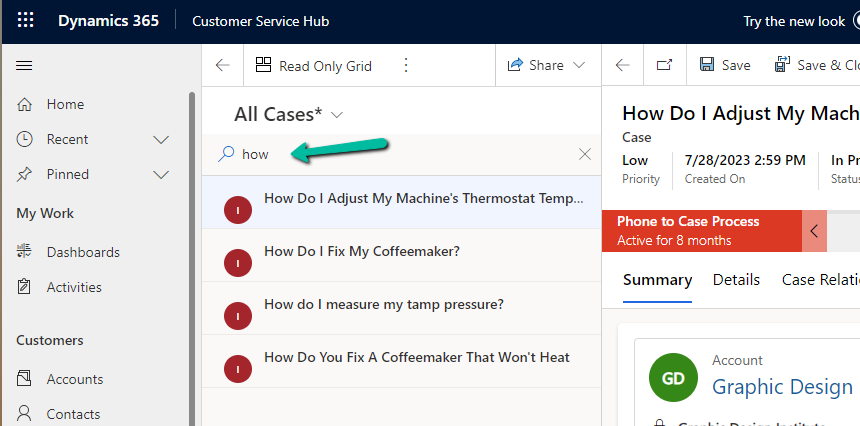
Search –

A screenshot of a computer

Description automatically generated

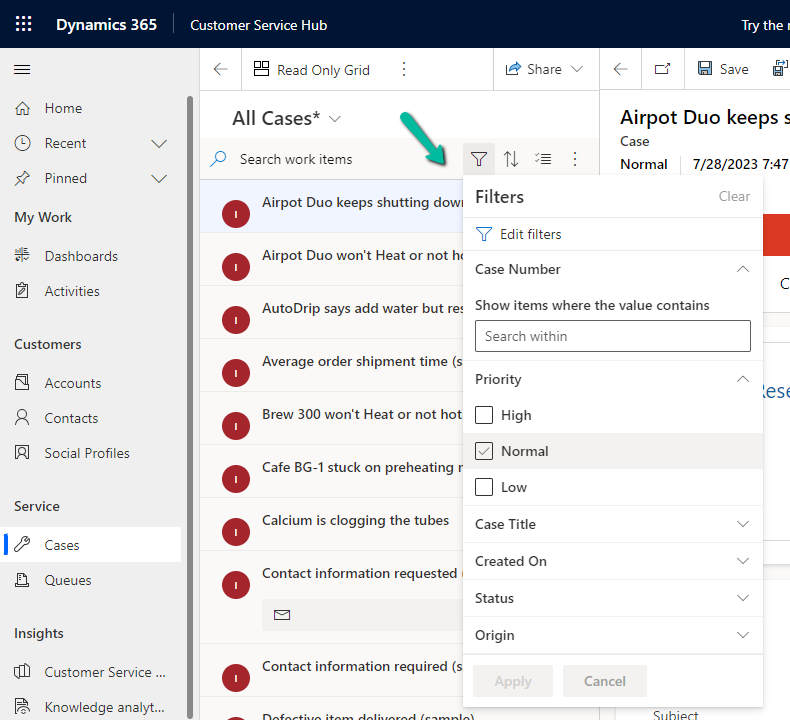
Filter –

A screenshot of a computer

Description automatically generated

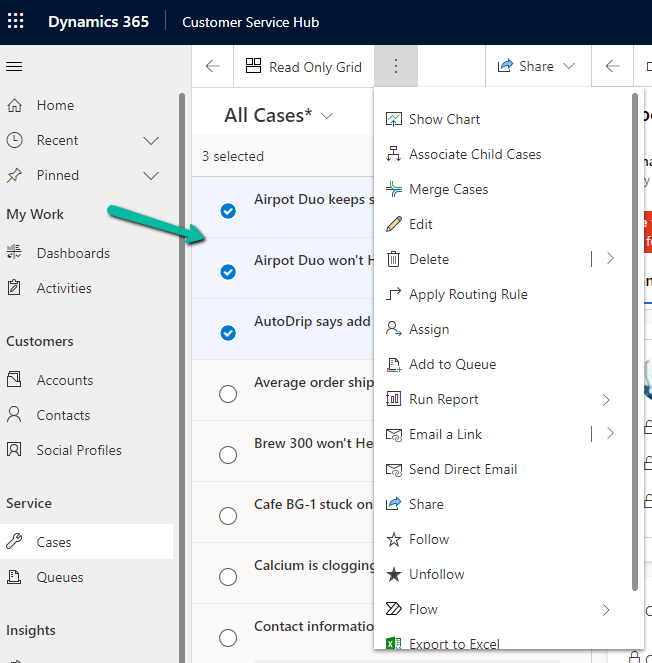
Select multiple records and perform bulk operations –

A screenshot of a computer

Description automatically generated

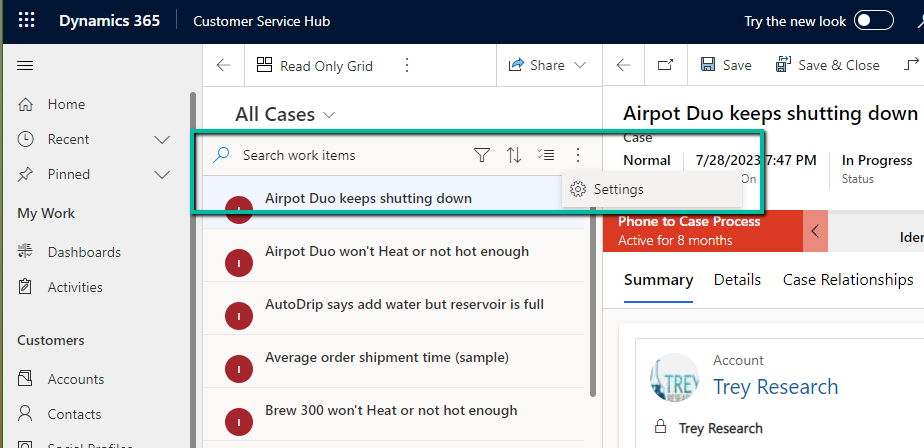
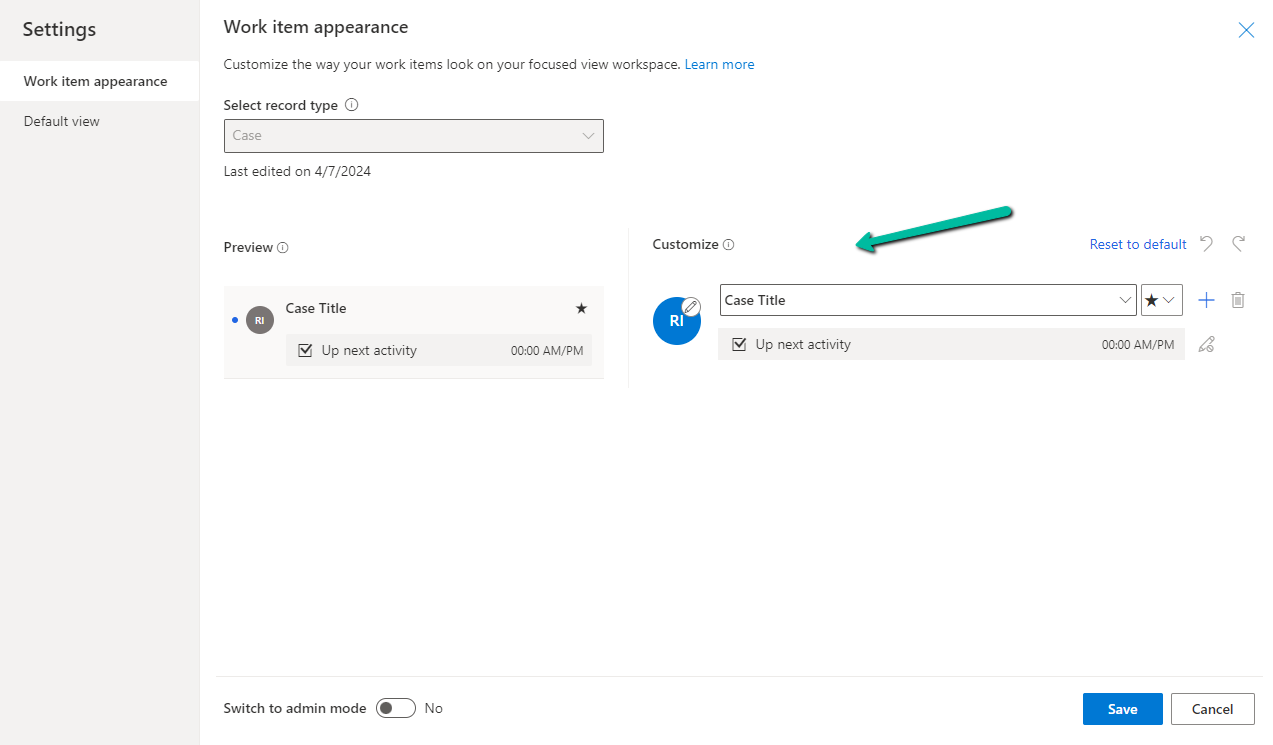
From Settings, we can customize the appearance of it –

A screenshot of a computer

Description automatically generated

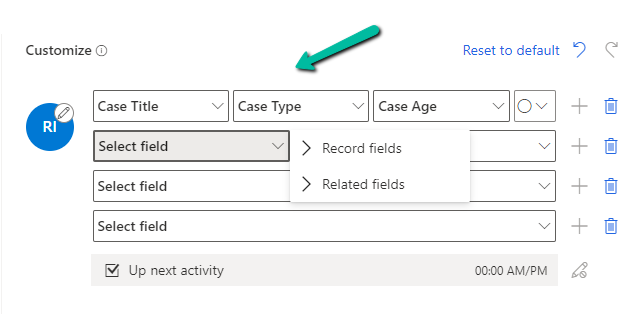
Here we can specify maximum 4 rows and each row can have a maximum of 3 columns added to it, it can be from the same record or the related record.

A screenshot of a computer

Description automatically generated

Here we have updated it as follows

A screenshot of a computer

Description automatically generated

Next, we have admin mode, where we can lock the customization so that users won’t be able to change it.

A screenshot of a computer

Description automatically generated

From the Default View settings, we can specify the tables on which we want focused view as default.

A screenshot of a computer

Description automatically generated

Below we can see the Focused View updated to show Case Title, Case type, Created by, and associated customer’s email address.

A screenshot of a computer

Description automatically generated

Get all the details here

Hope it helps..

Advertisements

Geofencing unit ‘Mile’ with id: ” cannot be removed – Dynamics 365 Field Service


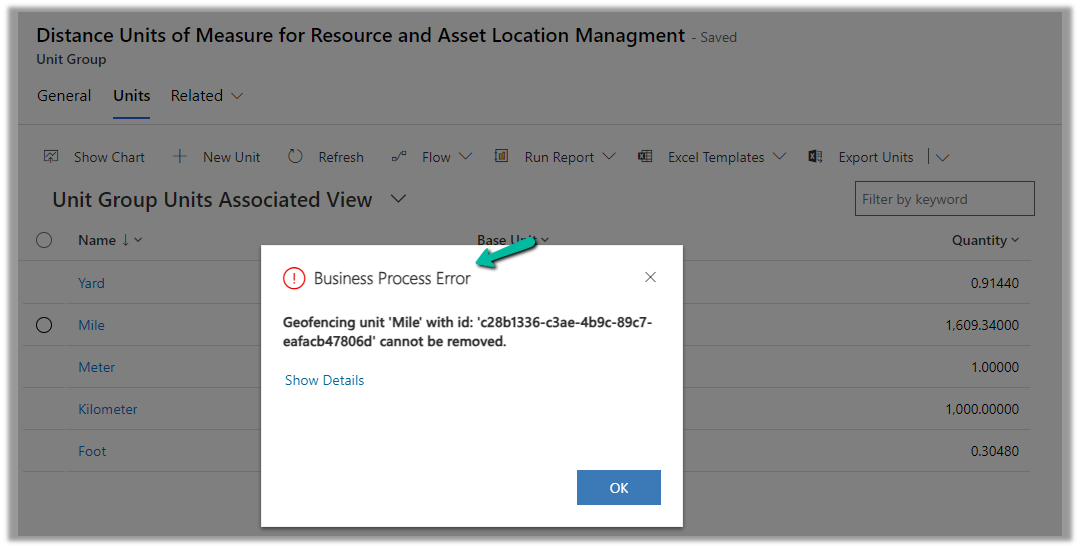
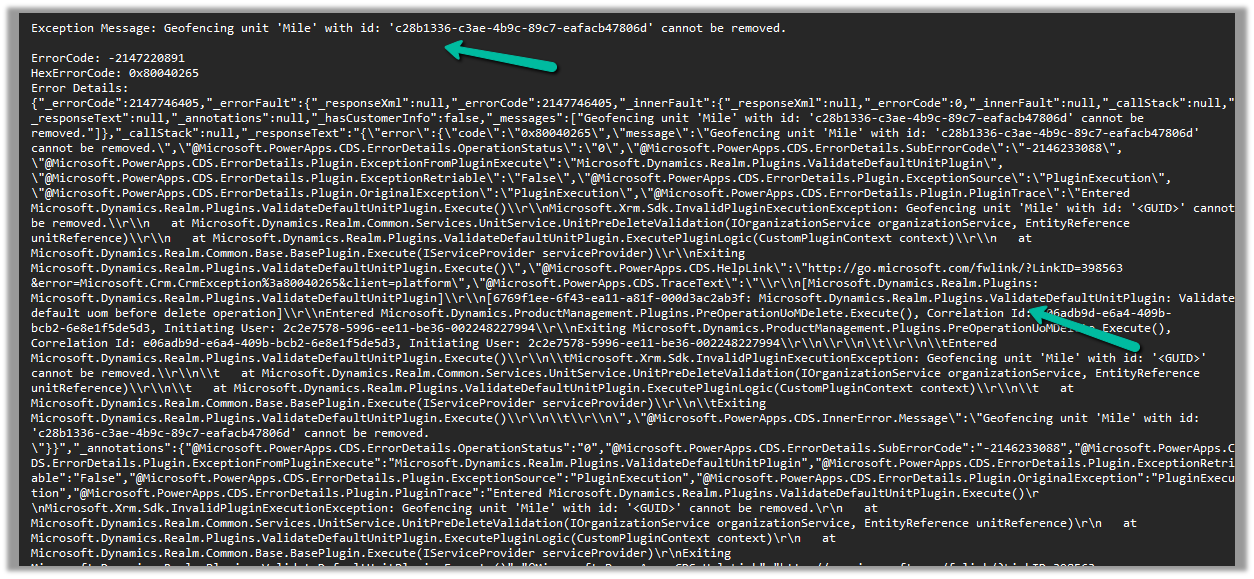
While trying to delete the Unit records related to the “Distance Units of Measure for Resource and Asset Location Management” unit group, we will get the below error

Geofencing unit ‘Mile’ with id: ‘<GUID>’ cannot be removed

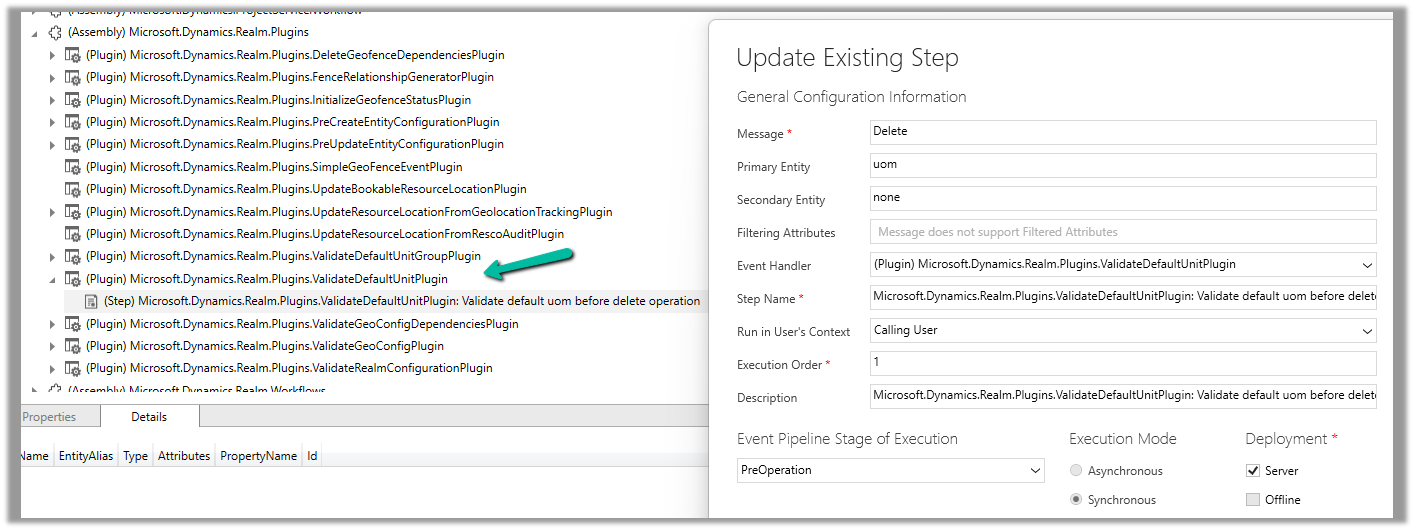
Below is the out of the box plugin that restricts the deletion of the unit

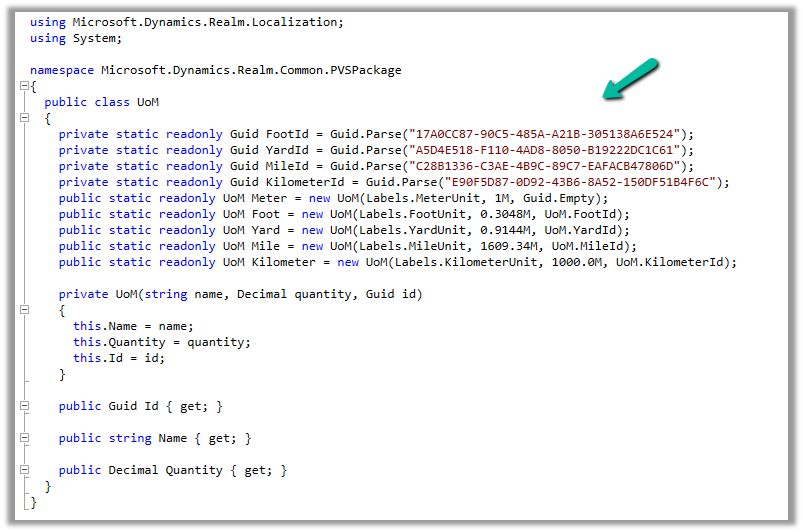
The code for the plugin –

UOM GUIDs –

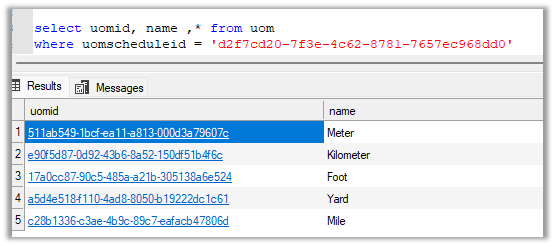
And the GUIDs within the environment –

To know more about Geofencing.

Hope it helps..

Advertisements

Use Sales Copilot to see the leads and opportunities assigned (Dynamics 365)


Using the “Sales Copilot” we can get the list of leads and opportunities assigned to us in the last 15 days.

For this, we can use the “What’s newly assigned to me” prompt

To enable Sales Copilot, Inside Sales Hub, navigate to App Settings >> Copilot (General Settings) and specify the Sales Apps in which we want the Sales Copilot to be enabled.

To see it in action, open the Sales Copilot Help Pane, select the Sparke Icon to open the Prompt Guide, then Ask questions >> What’s newly assigned to me


The result shows the list of leads and opportunities assigned to you in the last 15 days.

We can than select the record and click on Summarize to get the summary or can open the record to see the details.


Hope it helps..

Advertisements

Use Sales Copilot to see the pipeline (Dynamics 365)


Using the “Sales Copilot” we can get the list of opportunities assigned to us.

For this, we can use the “Show my pipeline” prompt

To enable Sales Copilot, Inside Sales Hub, navigate to App Settings >> Copilot (General Settings) and specify the Sales Apps in which we want the Sales Copilot to be enabled.

To see it in action, open the Sales Copilot Help Pane, select the Sparke Icon to open the Prompt Guide, then Get Info >> Show my pipeline

The result shows the opportunities sorted based on the estimated close date.

Clicking on “Show all” opens the corresponding opportunity view.

Hope it helps..

Advertisements

Use Solution Health Hub to troubleshoot issues in Dynamics 365 Apps (Sales, Marketing, Field Service, Customer Service..)


Using Solution Health Hub we can validate the environment’s configuration, which might get modified over time, to get an idea about the state of that environment and detect and resolve any issues. Solution Health Hub enables rules-based validations, which we can run periodically or manually if we encounter any issues. The rules also get triggered automatically when solutions are installed or updated by Microsoft. The rules check if some of the required processes are disabled or owned by a disabled user, if some of the required web resources are missing, if certain plugin steps are not active etc.

Let us open the Solution Health Hub app and see it in action.

We can see the Rule Sets created specific to different areas (app) like Sales, Marketing, Customer Service, etc.

For an environment where Field Service is configured, we can see the following rule sets.

Let us open the Field Service Rule Set and see the rules defined for it.

We can see around 31 rules defined for Field Service

For Sales, we can see around 6 rules.

Around 22 rules for Customer Service.

And around 5 rules for Marketing

To run the Rules, we need to create a new Analysis Job record and select the corresponding Rule Set.

A summary of rule-set executions will be shown in a few seconds. (runs asynchronously)

We can see one of the rules failed.

Opening the record, we can see the details.

Back in our solution, we can see the steps in the disabled state.

Back in our Analysis Job, let us select the failed rule and click on Resolve.

We can see the message “Resolution is completed.” and the rule passed.

Back inside our solution, we can also see the status as On for those steps.

Now let us run an analysis job for Field Service

On opening the record, we can see the user for which the roles are missing.

For Field Service, we can see an out-of-the-box cloud flow that runs at midnight on Saturdays to trigger the analysis job for the Field Service Rule Set.

And sends the In-app notifications.

Now if a rule fails, we can get the in-app notifications, e.g. we had set the Service Account field as optional on the Work Order form.

That caused the below rule to fail.

This also sent the notification in the app.

More details on it – https://powerusers.microsoft.com/t5/Power-Apps-Community-Blog/In-App-Notifications-on-concerns-related-to-Solution-Health-and/ba-p/1287680

Also, for each of the rules, we can see a corresponding Action that holds the logic.

Hope it helps..

Advertisements