Pause and resume enhancements in SLA in Dynamics 365 – 2020 Release Wave 2


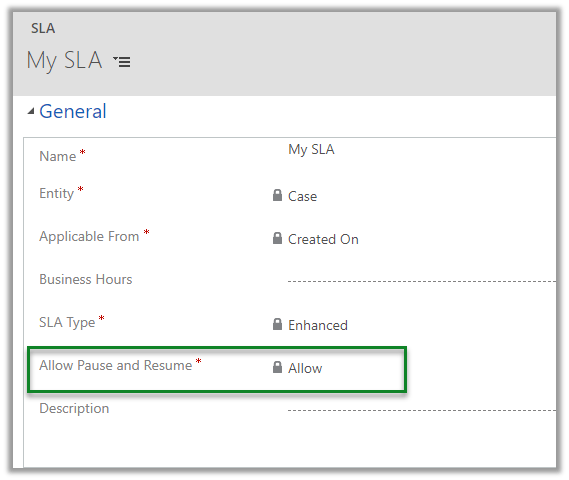
The way we currently configure Pause and Resume for an SLA is by setting the Allow Pause and Resume field to Allow.

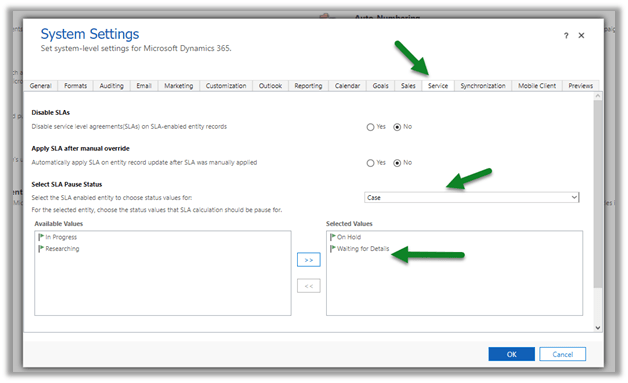
And within the Service Tab of System Settings, we can define the status values on which the SLA calculation should get paused at the entity level.

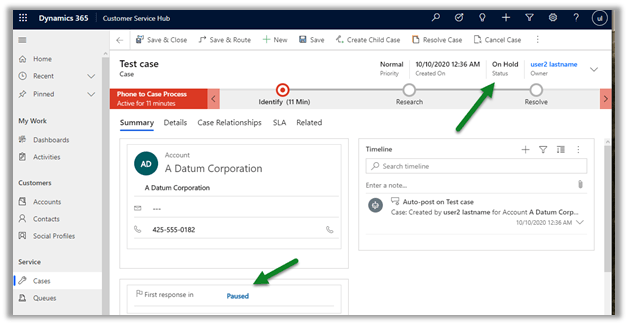
So basically, the SLA will be paused for the case record with status as either On Hold and Waiting for Details as we have defined below.

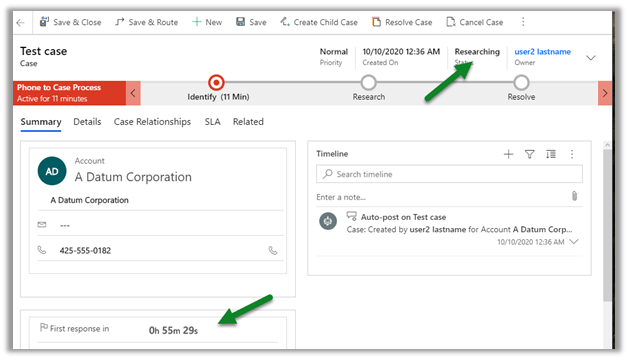
As soon as we change the status to Researching, the timer resumes

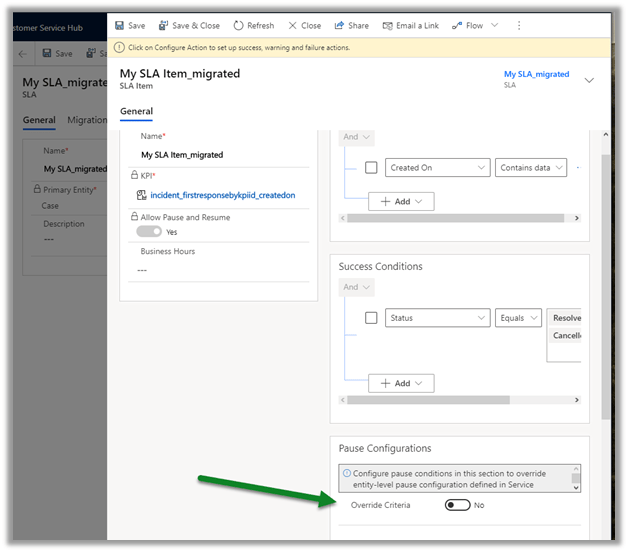
With 2020 Release Wave 2, we can now configure Pause Criteria at the SLA Item level, which overrides the criteria defined at the SLA / Entity level as defined above.

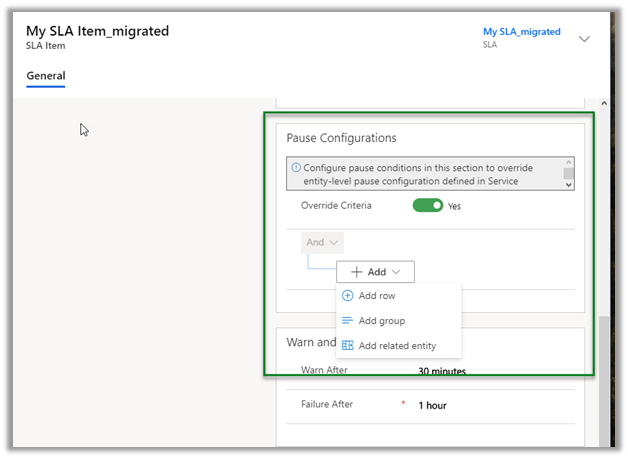
Toggle Override Criteria field

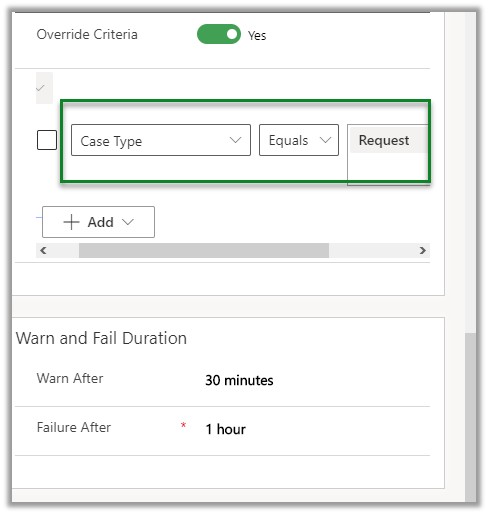
We can define the criteria as shown below using the condition builder.

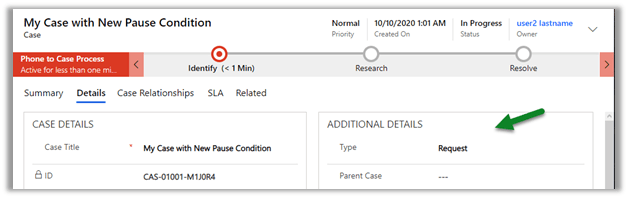
Here we have defined the condition for SLA to be paused in case of case type Request.

Save and activate the SLA.

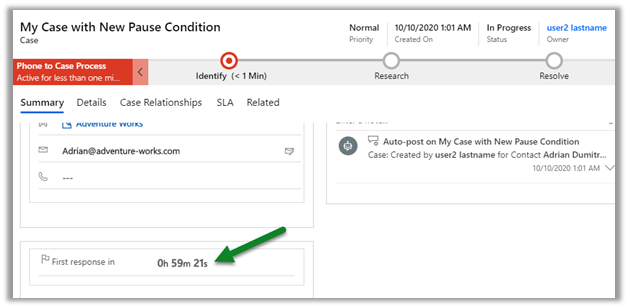
Let us now create a new case to see it in action.

We can see the SLA timer running.

Update the case type to Request and save.

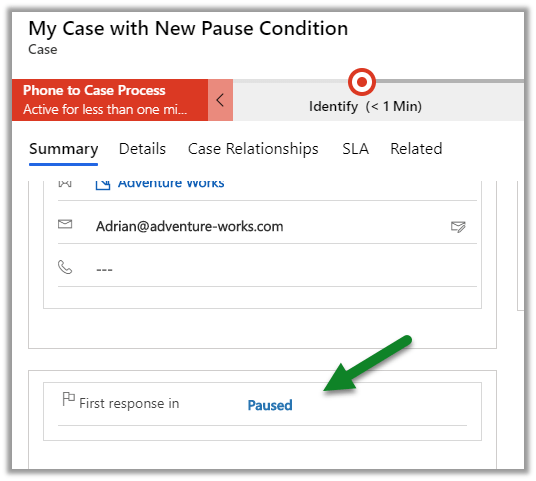
As expected, we can see the SLA paused

Check other blog posts on Release 2020 Wave 2

Hope it helps..

Error – Please unblock each locked file or unlock XrmToolBox.zip before extracting its content


We were getting the below error while trying to run the XrmToolBox.

“One reason can be that at least one file is locked by Windows. Please unblock each locked files or unlock XrmToolBox.zip before extracting its content”

The resolution in our case was to reset the XrmToolBox installation i.e. deleting the content of

C:\users\appData\[loginname]\roaming\MsCrmTools\XrmToolBox

Get the details here

https://www.xrmtoolbox.com/documentation/for-users/reset-xrmtoolbox-installation/

Hope it helps..

Sub grid and form tabs improvements in Power Apps Mobile App


There are couple of improvements in user experience for sub grids and form tab in Power Apps Mobile app.

Check other blog posts on Release 2020 Wave 2

  • Headers are more protruding for sub grid to separate it from rest of the sections of the form.
  • There is also an option (+ New Case – below) to add new record inline for empty sub grids.

  • Commands on sub grid opens as a drawer from the bottom of the screen.

  • Form tabs can be scrolled horizontally and selecting the tab automatically adjusts the header.

Hope it helps..

Use custom browser protocol to launch desktop applications from Dynamics 365


Recently we had a requirement to launch a .NET desktop application installed in the user’s machine from within Dynamics 365 and also pass parameters to it.

One of the ways of implementing is by using the Custom URL Protocol.

Modern browsers and operating systems allow us to implement a custom URL protocol and register an external application to handle it. So when a user clicks  on the link that uses that custom URL Protocol, the browser will open the application that is registered.

Check a few examples here

https://docs.microsoft.com/en-us/windows/uwp/launch-resume/launch-app-with-uri

So, let us start and register our Custom URL Protocol.

Below is the source code for creating a new key


var applicationPath = @"C:\MyParamApp\MyApp\bin\Debug\MyApp.exe";
var KeyTest = Registry.CurrentUser.OpenSubKey("Software", true).OpenSubKey("Classes", true);
RegistryKey key = KeyTest.CreateSubKey("OpenAppP");
key.SetValue("URL Protocol", "OpenAppP");
key.CreateSubKey(@"shell\open\command").SetValue("", "\"" + applicationPath + "\" \"%1\"");

Here OpenAppP is the protocol name and the application path that holds the path of application that we want to execute.

For key.CreateSubKey we have specified %1 for passing the parameter.

If we do not want to pass the parameter then we do not need to append it.

On running the above code, we can see the key added with the value specified

Below is the source code of our console application, basically it reads and writes the parameter in the output window.

Below is our Html page that we will call from within a button on a form from Dynamics 365 and which will open the MyApp.exe in turn.

Here we have published the page in Azure.

The html page on onload will retrieve the id query parameter and append it to the link for the custom protocol

OpenAppP:id

Back in CRM, we have a custom ribbon button named Open Console App added with the following definition.

Url Command Action and Crm Parameter in it to pass the id.

Clicking on the button

as expected, opens the alert along with opening the console app with the parameter passed to it.

Get more details

https://www.vdoo.com/blog/exploiting-custom-protocol-handlers-in-windows

Hope it helps..


Advertisements

App Switcher, Back option and other changes in Dynamics 365 – 2020 Release Wave 2


Below are some of the updates in the product as part of 2020 Release Wave 2.

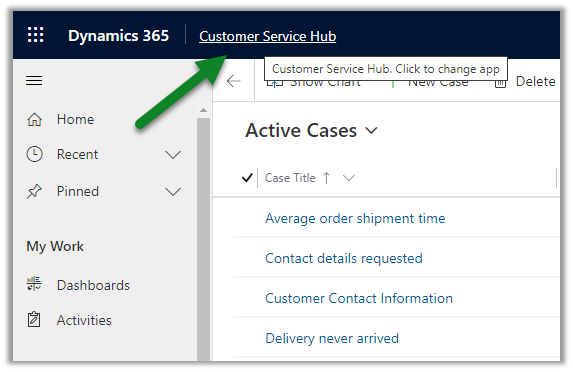
  • To switch between the Dynamics 365 Apps, we need to click on down arrow icon next to Dynamics 365.

With 2020 Release Wave 2, we can click on the app name i.e. which opens up the pop-up windows listing all the apps.

We can search, create a new app, assign roles, filter etc.

Earlier to access the same we had to navigate to Advanced Settings à Apps

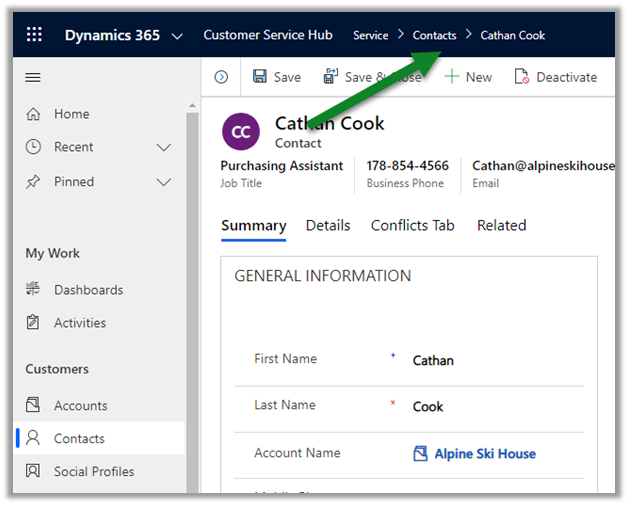
  • Next is the change in the Breadcrumb navigation

Is now seems to be replaced with the back button functionality

  • Also the User Account menu has also been updated earlier,

and now in 2020 Release Wave 2

View account takes user to the My Account page in Office 365

MyAccount

Check other blog posts on Release 2020 Wave 2

Hope it helps..

Queue Item details change in Dynamics 365 – 2020 Release Wave 2


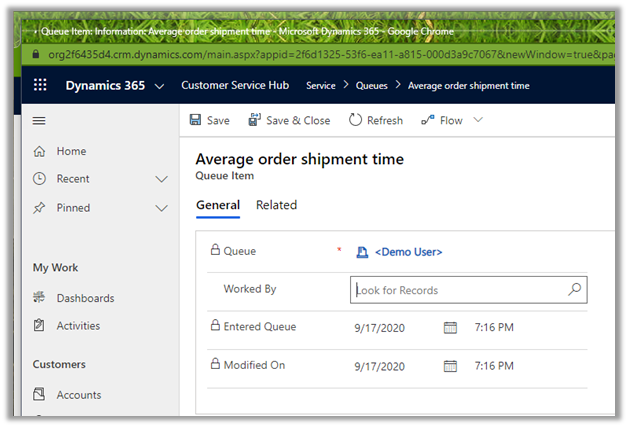
Queue Item details for a Queue Item earlier used to open in a new window.

Thus losing the context

2020 Release Wave 2 provides an immersive experience for the agents, as the queue item details open in the context of the parent window.

Small but nice update for the agents.

Check other blog posts on Release 2020 Wave 2

Refer to below articles to understand more on Queues

MB2-714 (Microsoft Dynamics CRM 2016 Customer Service) : Queue Management

https://www.itaintboring.com/dynamics-crm/working-with-queues-in-dynamics/

https://carldesouza.com/releasing-queue-item-behavior-in-dynamics-365/

Hope it helps..