Installation order for Solutions (Patches) in Dynamics 365 Customer Engagement


Let us take see a simple example of how the installation order of solution and patch works in case of Dynamics 365 CE.

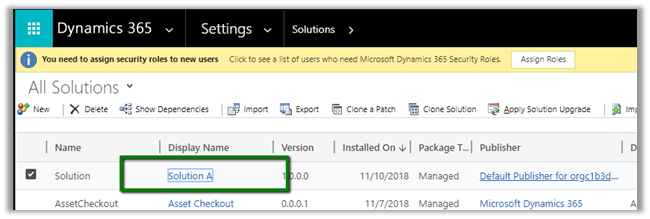
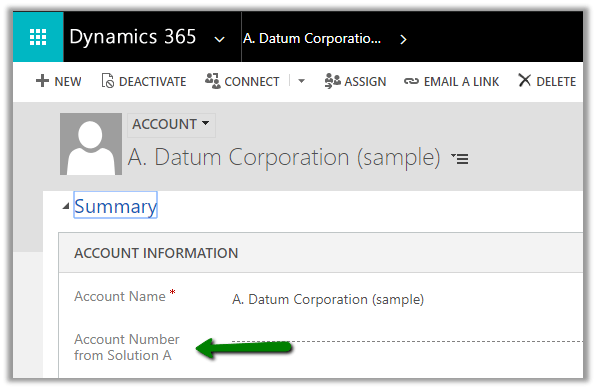
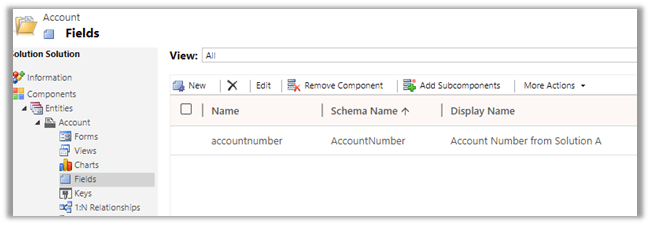
Suppose we have a Solution A with only Account Number field with display name renamed to Account Number from Solution A.

Now this solution is exported as managed and imported into the target environment
Now let us create a new solution which renames this field as “Account Number from Solution B” and then import this as managed in the target environment.
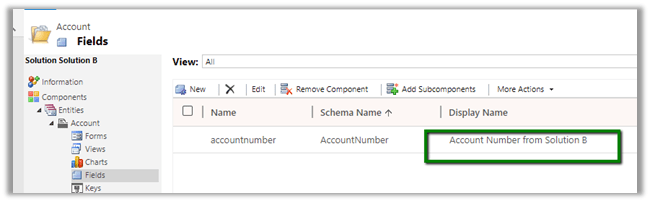
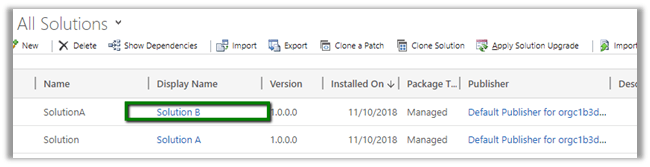
So as expected we’d see the display name renamed to Account Number from B as this solution was installed after the solution A.

Now let us create Patch for the first solution, Solution A and rename the field to Account Number from Solution A Patch and import this patch to Target Environment.
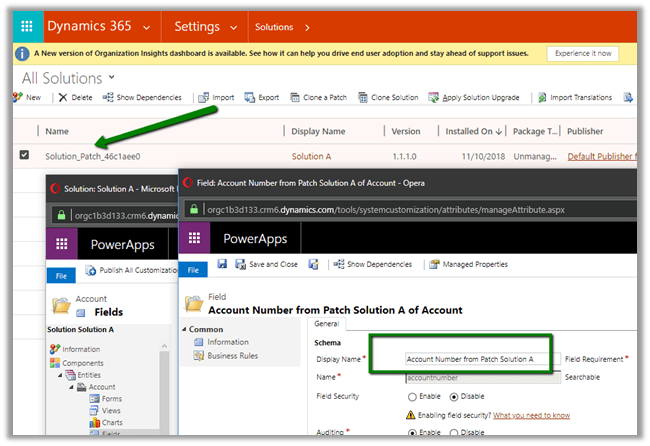
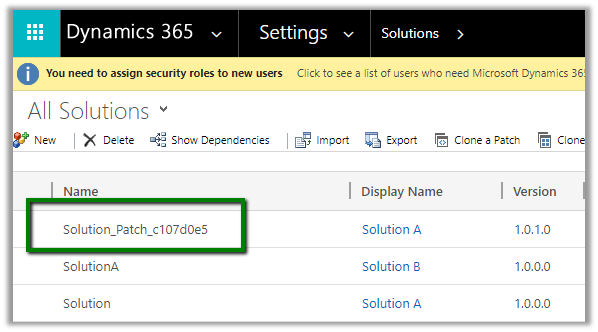
After importing the patch solution in Target Environment
We can open the account record and check for the label of the account number field. Interestingly we will see the value to be “Account Number from Solution B”, which was set by the solution B. So installing our patch for solution A didn’t change it.
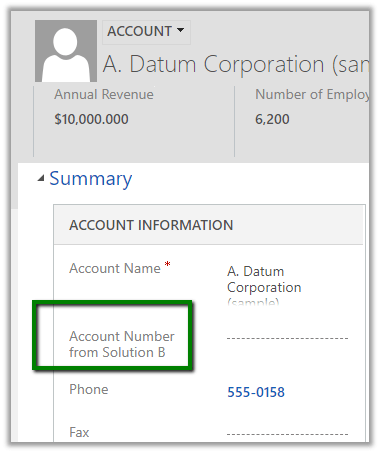
It is because the platform still gives precedence to the installation order of the solution and not patch. Although we had the patch installed for Solution A after import of Solution B, putting a patch didn’t change the label for the account number as it is belonged to the solution that was imported before Solution B.

Hope it helps..

The following managed solution cannot be imported. The publisher name cannot be changed in Dynamics 365 CE


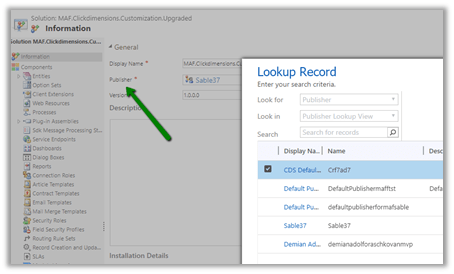
We can change publisher of a solution using Publisher lookup field of the solution in the Information section.

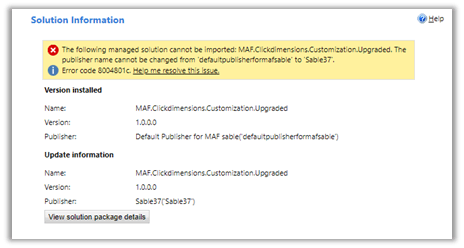
However, if the solution has already been imported in target environment, changing the publisher and trying to import the solution will result in the below error.

Here we try renaming the publisher from “default..” to “sable37”

https://support.microsoft.com/en-ae/help/4463386/the-publisher-name-cannot-be-changed-from-publisher-name-to-other-publ

One way of doing it is to delete the already installed managed solution (if it is feasible) in the target environment and doing the import again.

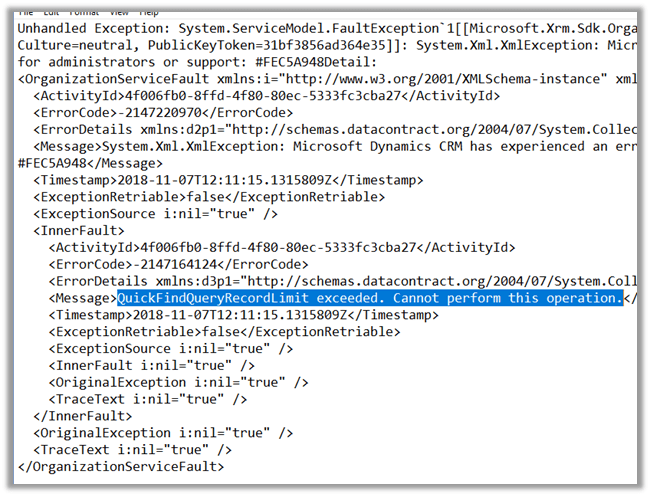
QuickFindQueryRecordLimit exceeded. Cannot perform this operation error in Dynamics 365 CE


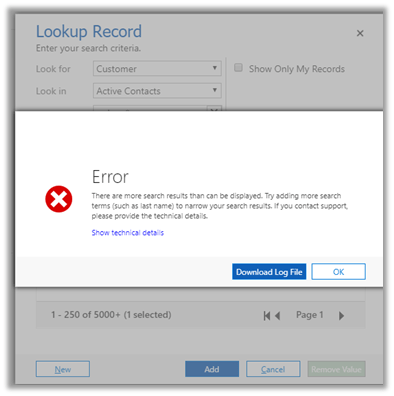
We would get this below error if our search returns more than 10000 records for Quick Find Query.

There are more search results than can be displayed. Try adding more search terms (such as last name) to narrow your search results. If you contact support, please provide the technical details”


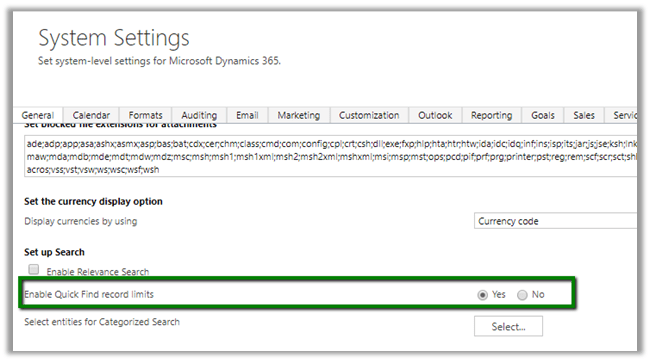
We can fix it by setting Enable Quick Find record limits to No in System Settings à General tab.

More details here

https://www.powerobjects.com/2012/09/19/crm-2011-quick-find-optimization/

Hope it helps..

SiteMapName in the AppModuleSiteMap is null or empty error while importing V9 Solution in Dynamics 365 Customer Engagement


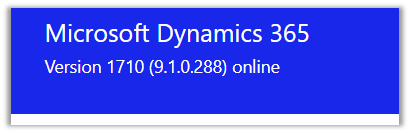
We recently upgraded our Dev and Test environment to V 9.0.

Dev

Test

While importing a solution from Dev to Test which had SiteMap we got the below issue.

“The SiteMapName in the AppModuleSiteMap is null or empty”

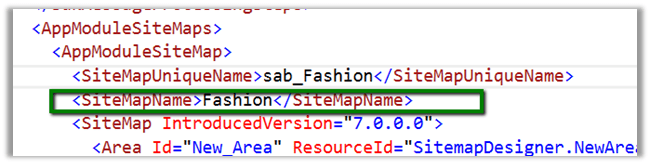
It turns out that the following tags were required and were missing in the Customization.xml

We added that tag and were able to import the solution successfully.

Interestingly if we export the same solution from Test and search for this tag, it is again missing, however, we can see the following XML section added there

This section was not there in dev’s sitemap.

Hope it helps..
Different Updating Instance status during Dynamics 365 Upgrade


The day has come when we had scheduled the upgrade of our Dynamics 365 instance Test Instance(from 8.2 to 9.0).

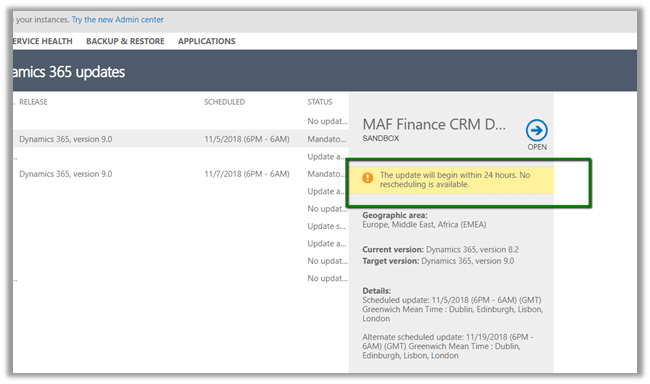
We can see the below message during the scheduled time à “The update will being within 24 hours. No rescheduling is available”.

The following Reschedule Update option will go missing during the scheduled time.

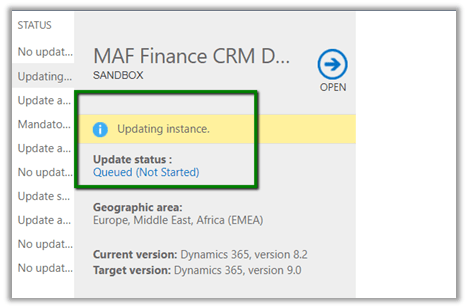
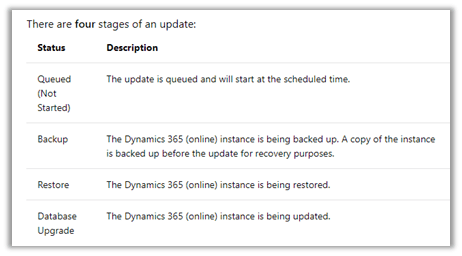
After waiting for few minutes, we see the Update Status as Queue (Not Started)

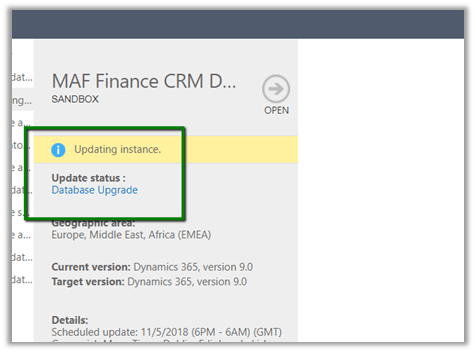
Followed by the status as “Database Upgrade”

In between the Status message will be Backup and Restore.

https://docs.microsoft.com/en-in/dynamics365/customer-engagement/admin/manage-updates#update-status

Then it kept interchanging the status from Updating Instance (with no status) to Updating Instance – Database Upgrade for close to 2.5 hours.

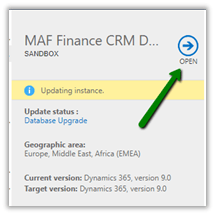
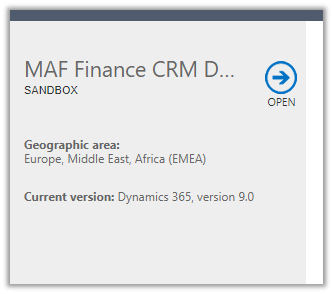
Then although the status was Updating Instance the Open link got enabled after 2.5 hours.

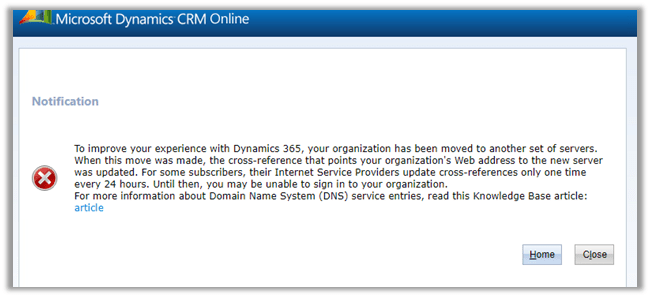
Which opened the following notification

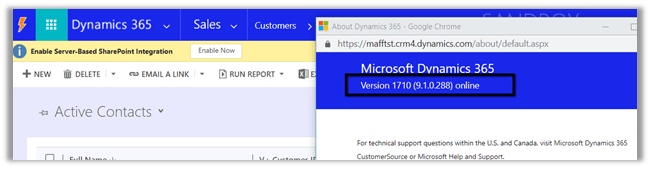
And finally, after 10 minutes or so à

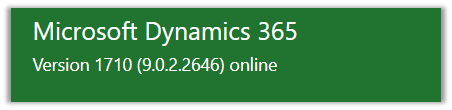
We were all set with version 9.1

In total it took around 3 hours approximately.

Time to enjoy the successful upgrade and explore the new features ..


How to – Use Plugin on Pre-Validation Stage in Dynamics 365 CE


Recently we had a requirement to delete the Account record without deleting the associated Contact records.

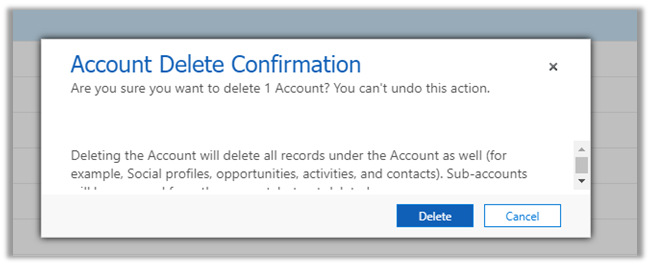
If we try deleting the account record we’d get the following message box

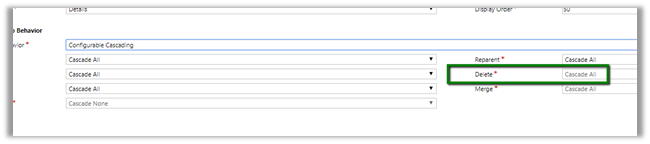
The relationship definition can’t be updated as well to achieve this

So, we wrote a plugin on the pre-validation stage of pre-delete event of Account, which will retrieve and loop through all the child contact records and set its parent customer field as null.

In case of pre-operation the child records were not available.

</p>
<p>public void Execute(IServiceProvider serviceProvider)<br />
{<br />
ITracingService tracingService = (ITracingService)serviceProvider.GetService(typeof(ITracingService));<br />
IPluginExecutionContext pluginContext = (IPluginExecutionContext)serviceProvider.GetService(typeof(IPluginExecutionContext));<br />
IOrganizationServiceFactory serviceFactory = (IOrganizationServiceFactory)serviceProvider.GetService(typeof(IOrganizationServiceFactory));<br />
IOrganizationService organizationService = serviceFactory.CreateOrganizationService(pluginContext.UserId);<br />
EntityReference targetEntity = (EntityReference)pluginContext.InputParameters["Target"];<br />
QueryExpression getContacts = new QueryExpression("contact");<br />
getContacts.Criteria.AddCondition(new ConditionExpression("parentcustomerid", ConditionOperator.Equal, targetEntity.Id));EntityCollection allContacts = organizationService.RetrieveMultiple(getContacts);foreach (Entity contact in allContacts.Entities)<br />
{<br />
Entity contactToBeUpdated = new Entity("contact");<br />
contactToBeUpdated.Id = contact.Id;<br />
contactToBeUpdated.Attributes["parentcustomerid"] = null;<br />
organizationService.Update(contactToBeUpdated);<br />
}}<br />

Another practical scenario

https://www.inogic.com/blog/2017/03/plugin-pre-validation-operation-to-show-an-error-message-as-well-as-log-the-error/

Hope it helps..
Advertisements