Thanks KingswaySoft for coming up with one of the best tools for Data Integration and especially the SSIS Integration Toolkit for Microsoft Dynamics 365..
https://www.kingswaysoft.com/partners/MVPs

Thanks KingswaySoft for coming up with one of the best tools for Data Integration and especially the SSIS Integration Toolkit for Microsoft Dynamics 365..
https://www.kingswaysoft.com/partners/MVPs

We recently had a requirement of multi-level approval in our Project. We thought of evaluating the PowerApproval add-on from Power Objects.
The add-on is powerful, feature-rich and allows us to easily configure our Approval logic and to track it as well.
Let us quickly see the steps to configure it and start using it.
Download the Solution and import it in the organization.
https://www.powerobjects.com/powerpacks/powerapproval/
After successful import, open the configuration page of the PowerApproval Solution and click Try or Subscribe, provide the required details to start using it.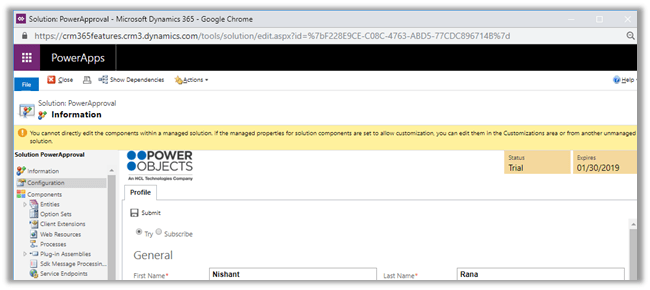
The solution adds the following PowerPack area in the interface and the entities that we would be working with.
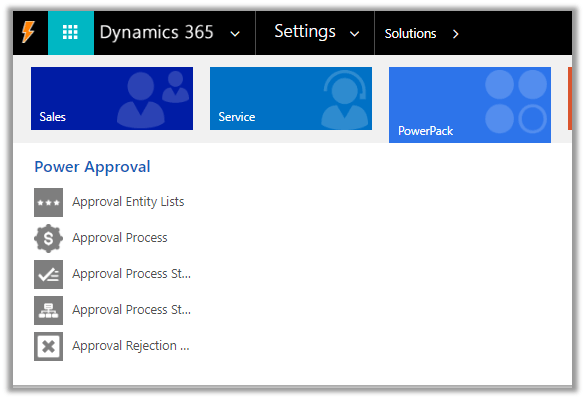
Suppose we want to enable the Approval process for Contract entity of Dynamics 365 CE, so we would open the Approval Entity Lists and create a new record as shown below using the schema name.
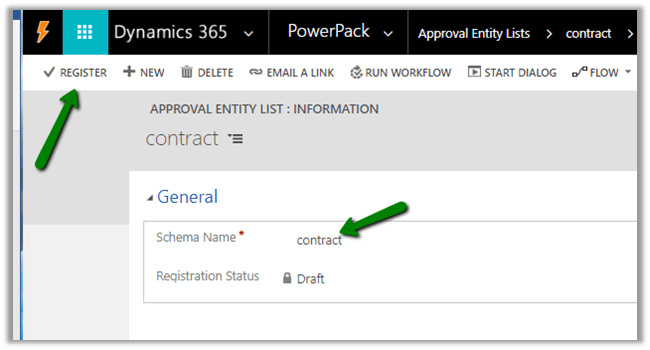
Save the record and click on REGISTER to enable the approval on the contract entity.
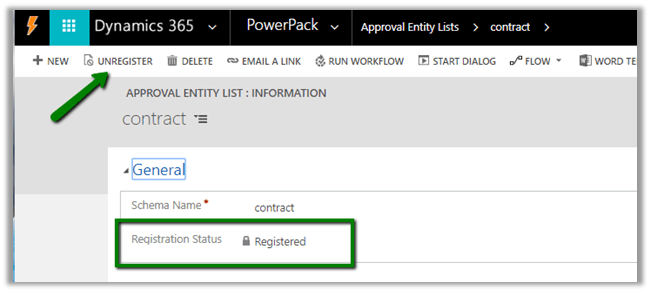
Next, we define the Approval Process by creating the record of that entity and defining it within the Approval Process Step related records.
Here we have created the Approval Process record named My Contract Approval and inside the Approval Process Steps sub-grid, we have added a new record named the First Step.
Step Number as 1 as it is the first step.
Approver type can be either user, team or the manager.
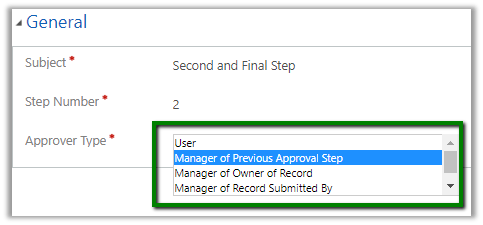
Here we have selected team for the first step.

For the second step, we have defined User – Test User as the approver.

This is how our approval process looks like
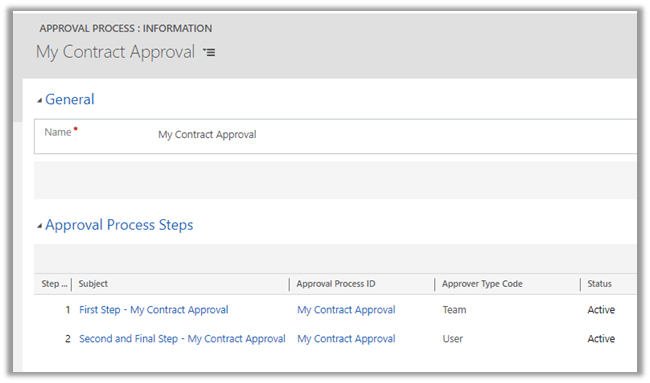
The users need to have the PowerApproval Admin
and PowerApproval User roles (part of PowerApproval solution), to design and work with the Approval process.
Next, we will customize the Contract form to add the PowerApproval web resource. (Insert a tab, and insert the web resource with 20 rows)
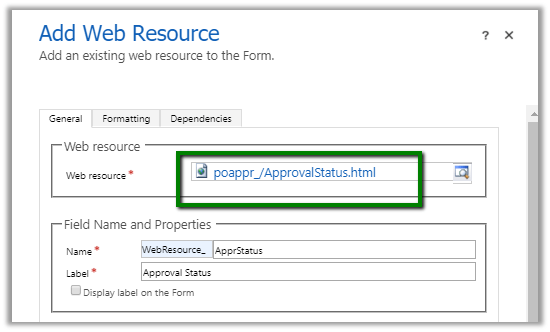
After publishing the changes, let us now create a contract record to see the approval process in action.
In the contract record, select the Approval Process and click on Submit for Approval. (The approval can also be triggered using workflow)
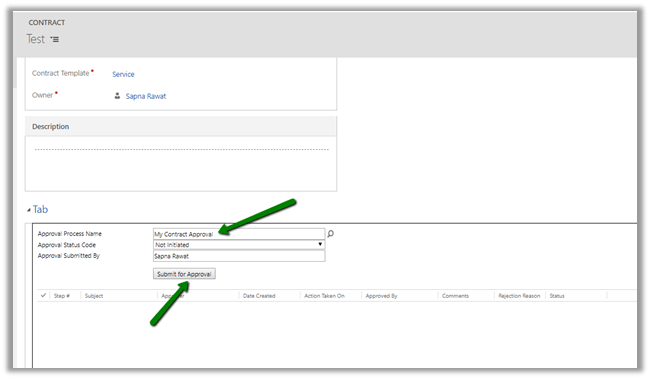
We can see the following update after submission, the field grayed out and status reflecting the current status highlighted in color.
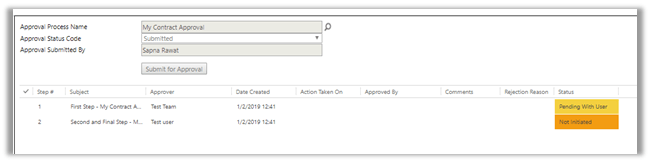
Now let us login with the user who is the part of Test Team.
The user gets the option of Approving and Rejecting it and also to put his comments.

Let us select Approve and click on Submit. This updates the steps with appropriate status.

Now let us login with the Test User who is the final approval. As we can see the field is enabled again for this user and had grayed out for the previous step user.
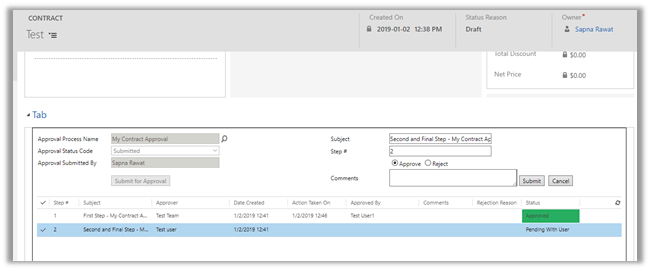
Again, let us select Approve and click on Submit. The web resource refreshes automatically with the current status.
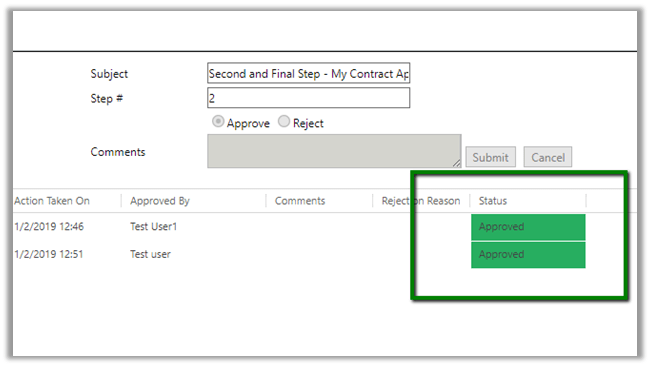
Similarly, we can have a situation where it is rejected in the first step by the approval and it being submitted again by the initiating user and then approved by the user and then in the final step of the approval again rejected. This is properly reflected in the web resource within our contract record.
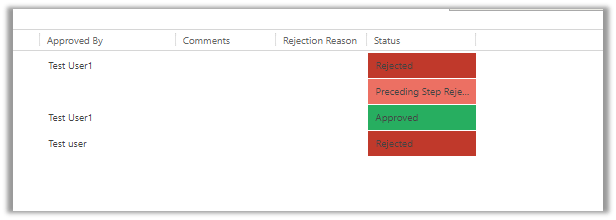
When the final user rejects it in the last step, it cannot be submitted again by the user who initiated it.
Thus we saw how easy it is to configure and start using the approval solution PowerApproval in matter of few minutues.
The user guide à
https://www.powerobjects.com/guides/powerapproval
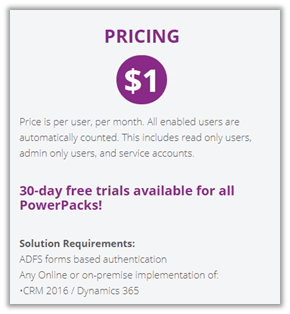
Pricing à
https://www.powerobjects.com/powerpacks/powerapproval/
The other options of implementing it could be by using the Approval Flows (although it won’t be as feature rich)
https://docs.microsoft.com/en-us/flow/modern-approvals
Hope it helps..

The new model-driven form designer (Preview) has some nice features added to it like


The icon also makes it easy to identify the data type of the field.


Few things that we could not found are


Get more details here
As Microsoft mentions it is just a start and they’d keep adding the remaining functionality, let us wait.
Hope it helps..

Similarly to passing the current record as context to the embedded canvas app, we can pass the list of related records as context.
Let us see how it works step by step.
Open the form for customization and insert\edit an existing Sub-Grid control and select Canvas App for the Add Control option.

Select the option Web for the canvas app. Here clicking on Customize will open the PowerApps studio for creating\editing the app.

Here View Name shows All Accounts the Default View selected in the Data Source section of the Display tab of the properties dialog box.
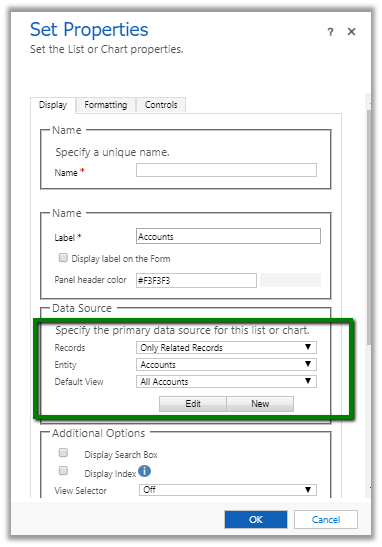
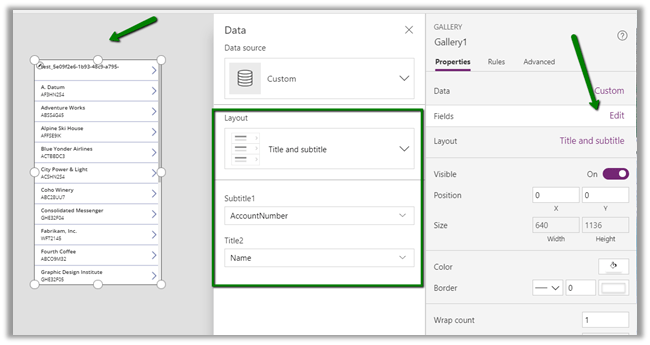
Clicking on Customize opens the PowerApps Studio as shown below. Here ModelDrivenFormIntegration is the special control which provides us the contextual data from our form.

Click on Edit, specify the layout and select from the available fields of the entity for the layout.
Go to App Settings à Advanced Settings and turn on the “Enable app embedding user experience”

Save the app in the Cloud, this will also publish the app.

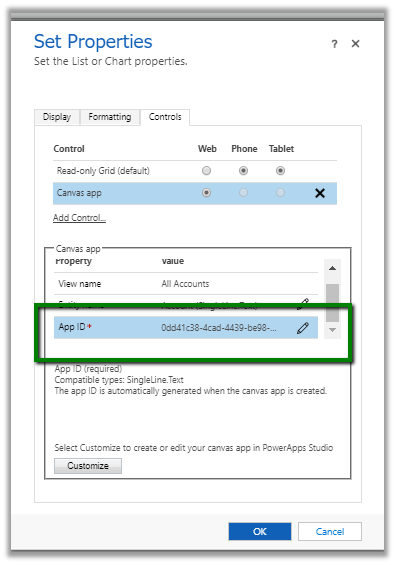
This will auto-generate the App ID and auto-fill it in the Set Properties dialog box of the Sub Grid control.
Save and publish the form.
We can see our canvas app embedded in the Unified client interface as shown below in the right.
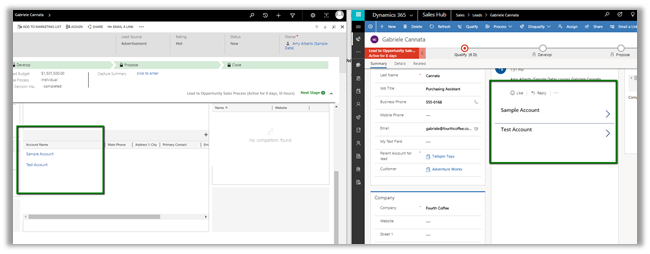
Also à

Hope it helps..

Login to Dynamics 365 CE, open any of the Entity’s form and either pick any of the existing single line of a text field or sub-grid control or add one to the form.
We will use Single Line of Text if we want to pass the current record as context and Sub-Grid if we want to pass the list of related records as context.
In this post, we will first see how to pass the current record as context.
For this let us open Lead form and select Topic field which is a single line of text for customization (Change Properties).
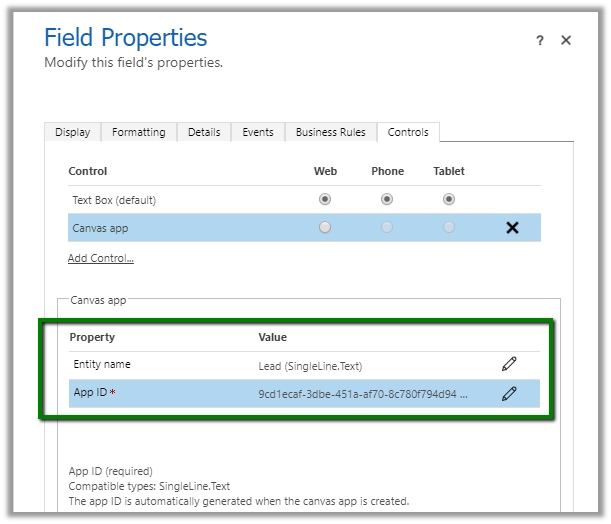
Select Controls tab, and click on Add Control and choose Canvas app.
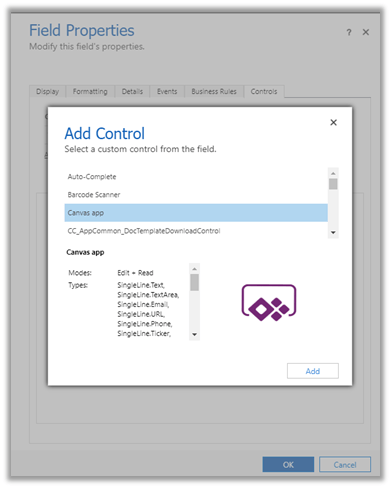
Here Entity name is auto-populated by the selected Entity and although it seems editable, changing it will have no effect.
App ID is auto-generated on creation of canvas app.
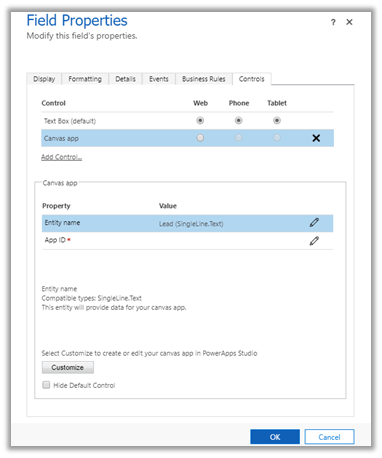
Let us click on Customize to create our canvas app. This opens the PowerApps Studio.
ModelDrivenFormIntegration is the special control which provides us the contextual data from our form.
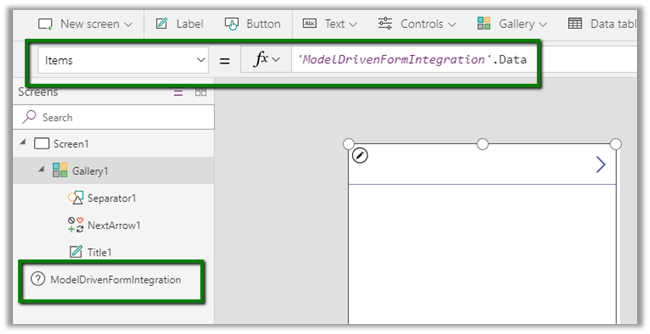
Clicking on Edit for the Fields property for the gallery1 control opens a pane that shows all the fields from our lead entity.
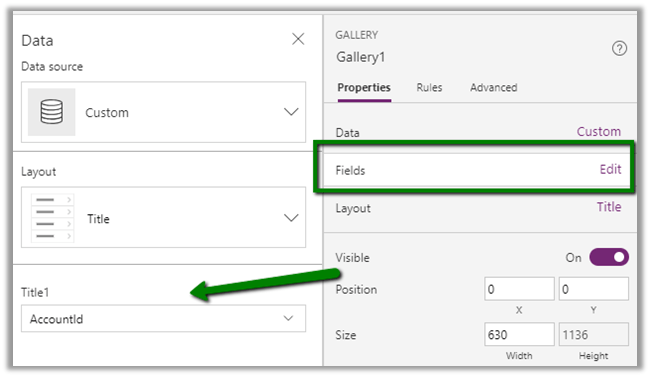
Let us change the Layout to Title, subtitle, and body and set Body1 to the description, Subtitle1 to Fullname and Title2 to Subject.

Now before saving and publishing the app, go to File à App Settings à Advanced Settings
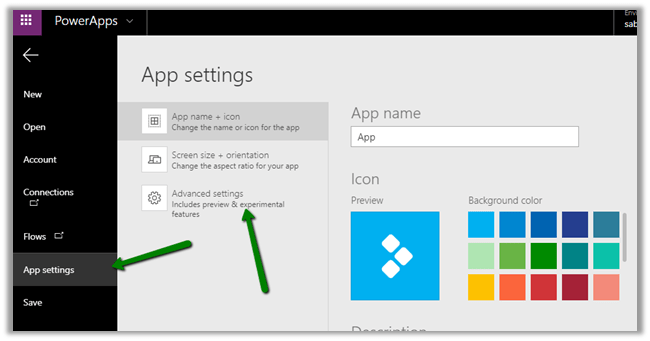
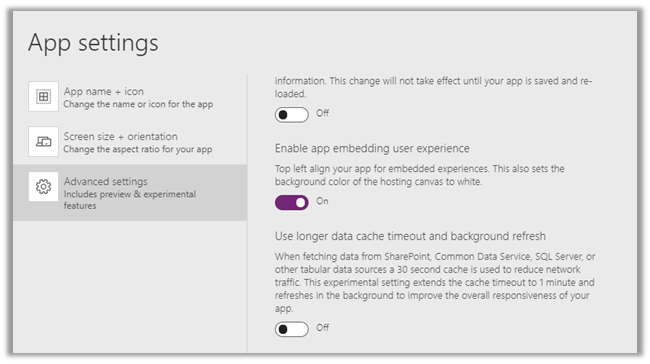
Set Enable app embedding user experience as On.
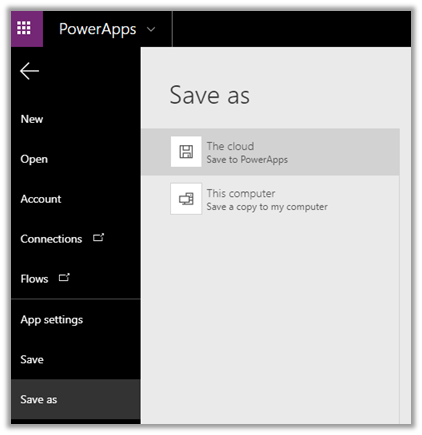
Save the App to the Cloud. This also publishes the app.
Back in our form editor, we can see the App ID auto-populated
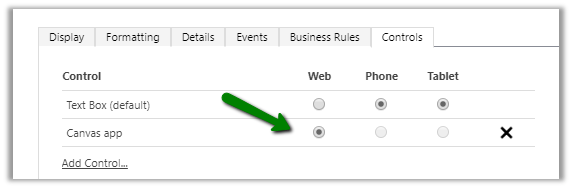
Select Web option for the Canvas App in the Controls Tab.
Click on Ok to close the form, followed by Save and Publish.
We can see the Canvas App in the form in the Unified Client Interface

Although the app doesn’t make much sense, it gives an idea on how to configure things for embedding it within form. This feature really opens up infinite possibilities.
Get all the details here
https://docs.microsoft.com/en-us/powerapps/maker/model-driven-apps/pass-current-embedded-canvas-app
https://docs.microsoft.com/en-us/powerapps/maker/model-driven-apps/embed-canvas-app-in-form
Hope it helps..

Recently we had to delete few records for one of our entities. It was a user owned entity with 1 custom 1 – n relationship with contact having around 190 fields.
It was Dynamics 365 CE Online on version 9.1 and had ExecuteMultiple max limit set to 20. (by raising support ticket with Microsoft)
Batch Size and the Thread settings were used
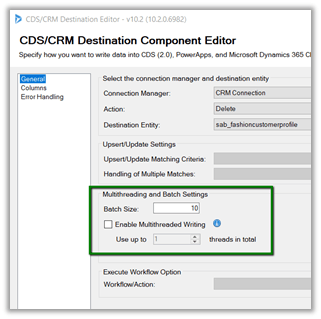
Message – Delete
Sample Batch Size – 10000
The result: –

It seems that total thread between 10 – 15 with batch size 50, 100, 250, 500 gives similar results. Batch size of 50 with 15 threads could result into time out issue
So the optimum would be around 100 batch size with thread between 10 to 15.
Check out the below post as well while using UPSERT
Hope it helps..


