Flow Error – It hasn’t been triggered successfully in the last 28 days (Power Automate / Dataverse)


For one of our flows while testing we realized it was not getting triggered.

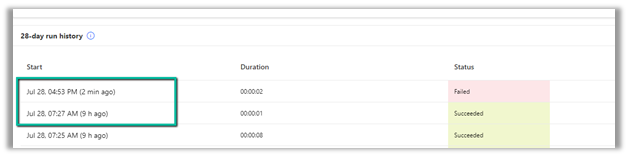
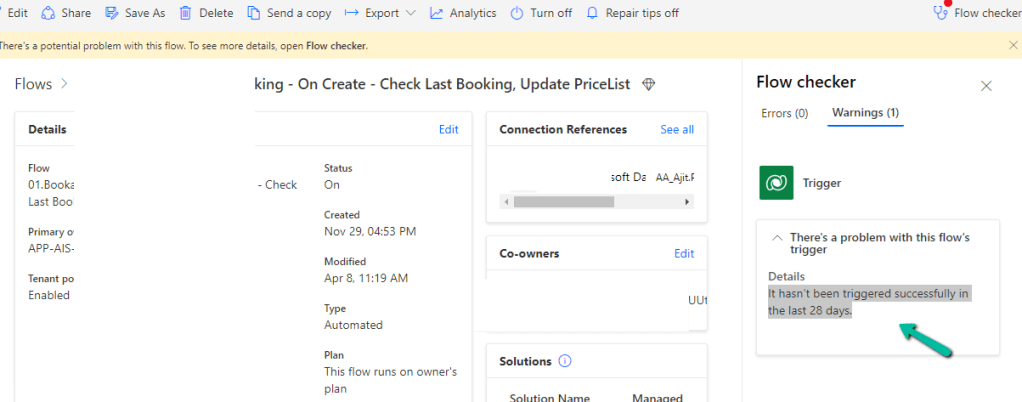
We could see it giving below error –

There’s a problem that needs to be fixed to trigger this flow – It hasn’t been triggered successfully in the last 28 days.
We tried a couple of things and I think either switching it on and off and/or updating the trigger condition and saving it temporarily seems to have fixed the issue. Either of these would have created the correct corresponding Callback registration records.

Also check – https://nishantrana.me/2023/08/08/fixed-power-automate-flow-not-getting-triggered/

https://powerusers.microsoft.com/t5/General-Power-Automate/There-s-a-problem-that-needs-to-be-fixed-to-trigger-this-flow-It/td-p/1128820

Hope it helps..

Advertisements
Fix – Forbidden. There’s a problem with the flow’s trigger. Fix the trigger (Power Automate / Flow / Dataverse)


Recently we got the below error “Forbidden” for one of our flows that was using the Dataverse connection.

After some analysis, we found the root cause of the error.

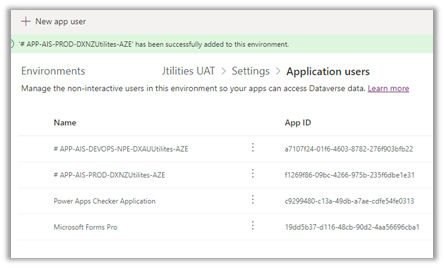
The Dataverse connection reference was created using the Service Principal but it was not added as an Application User (with appropriate security role) in that environment.

Adding the corresponding Application User used for the Dataverse connection fixed the issue for us.

Hope it helps..

Advertisements
Enable / Disable (turn on / turn off) multiple cloud flows – Dataverse


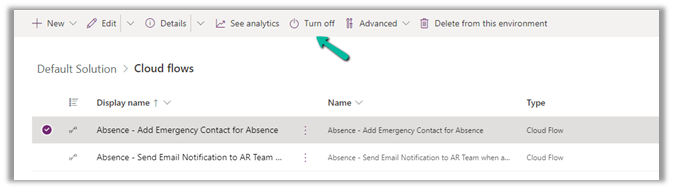
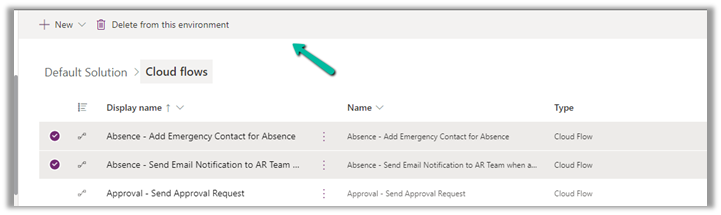
Within the Maker Portal, we can only turn on / turn off one cloud flow at a time.

If we select multiple flows, we do not see that option.

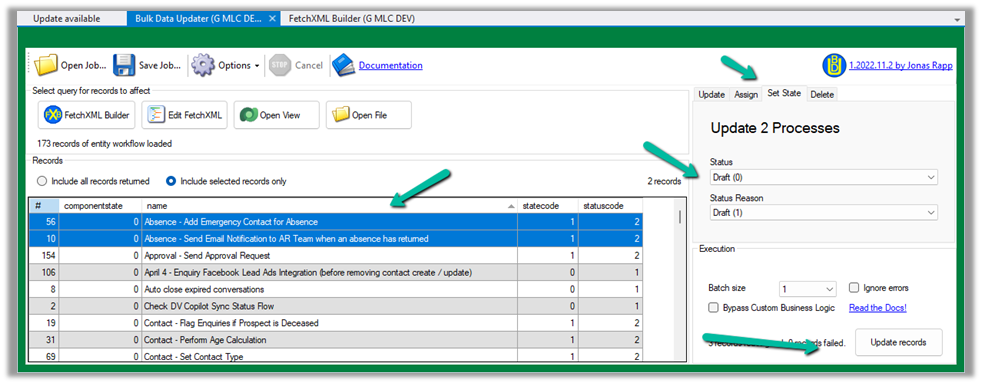
Here we can make use of XrmToolBox’s Bulk Data Update plugin.

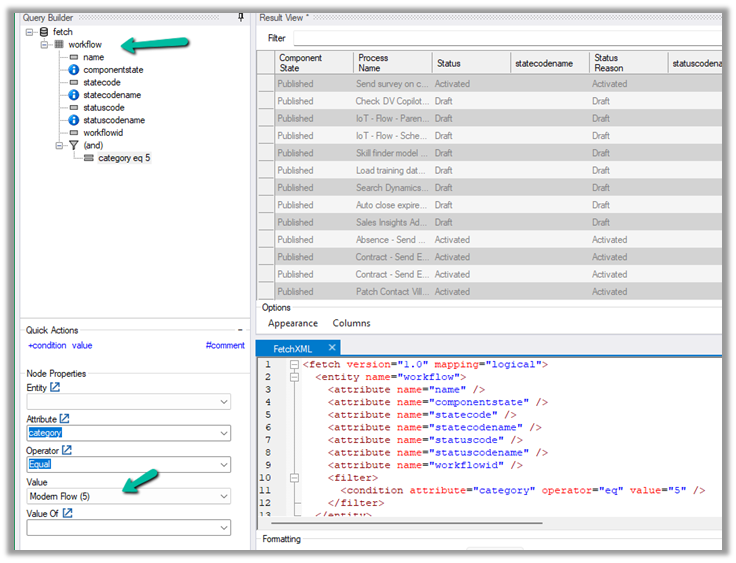
Get the required cloud flows to be disabled from the Workflow table having Category as Modern Flow.

Select the required cloud flows (or all flows returned), navigate to the Set State tab, and set the appropriate Status and click on Update records.

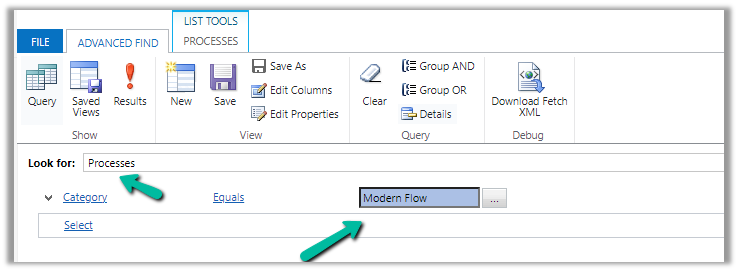
Or, from the Advanced Find also we can look for the Processes with the Category as the Modern Flow

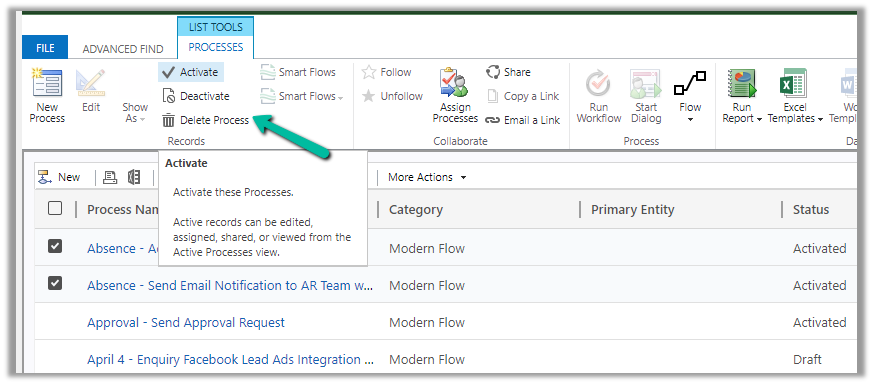
And use Activate and Deactivate options (here for a few flows we faced issues while trying to activate even though we used the proper account for doing so)

Hope it helps..

Advertisements
Fixed – Power Automate flow not getting triggered


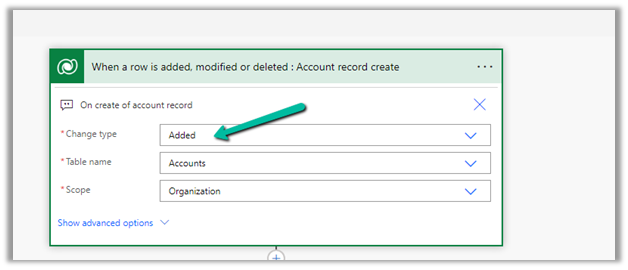
We had one flow on the creation of an account record, our flow was running fine, and then we made a few changes to it and saved it, after which it stopped getting triggered.

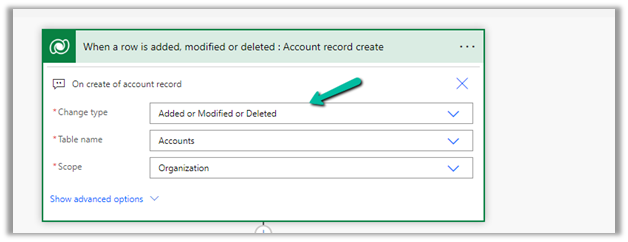
We could not figure out why it was not getting triggered so eventually we tried changing the Trigger Type to Added or Modified or Deleted, just to see if that will trigger it.

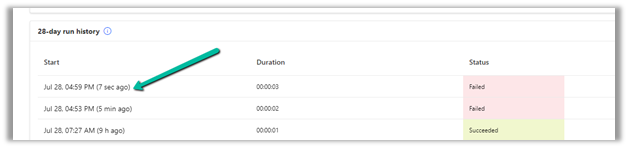
It ran this time on create of account record.

After which we changed it back to Added, the original definition.

And from that point onwards it was getting triggered as expected.

Also make sure if the Admin mode is turned off.

https://learn.microsoft.com/en-us/power-automate/triggers-troubleshoot#verify-if-admin-mode-is-turned-on

Hope it helps..

Advertisements
Get RequiredAttendee (Required) from the Meeting (appointment) table – Power Automate / Dataverse


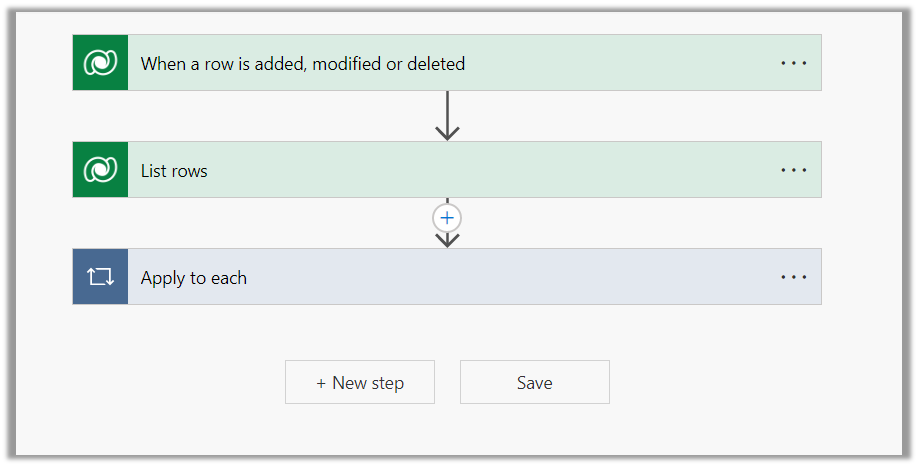
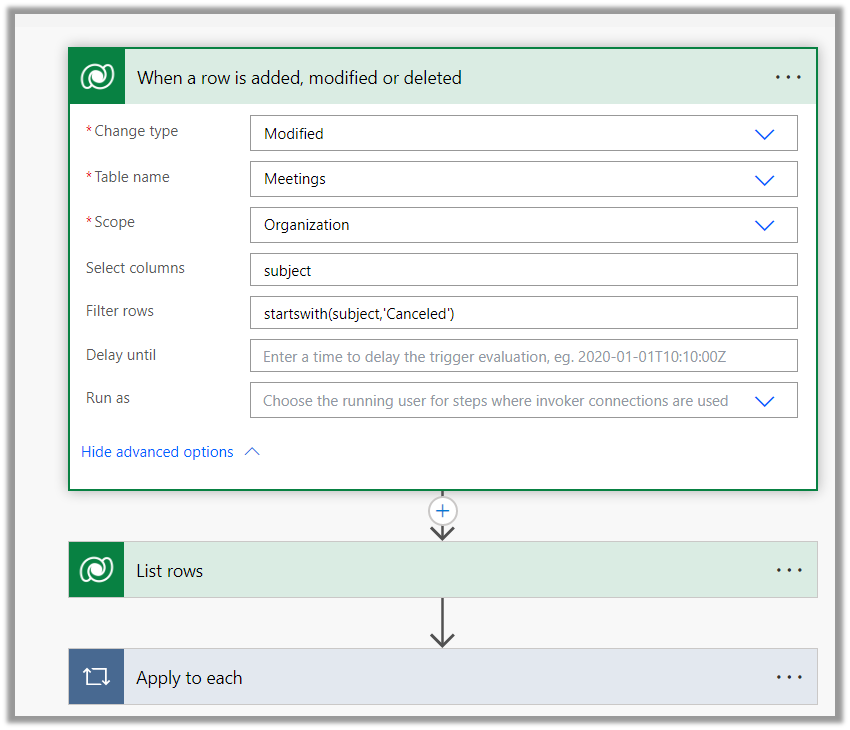
Below is the sample flow we can use to retrieve the Required (requiredattendees) field’s value from the Meeting table (on the update of the record).

Here we are triggering the flow, if there is an update in the subject field of the meeting record.

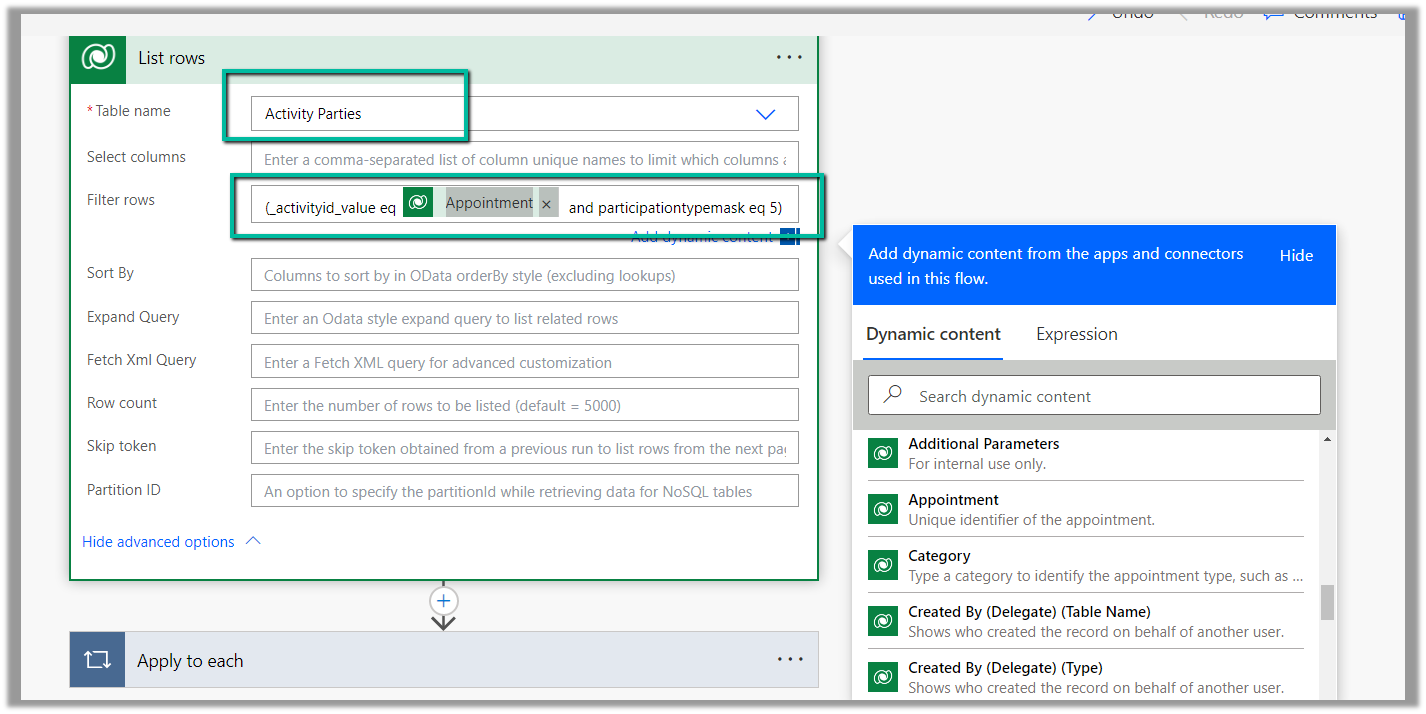
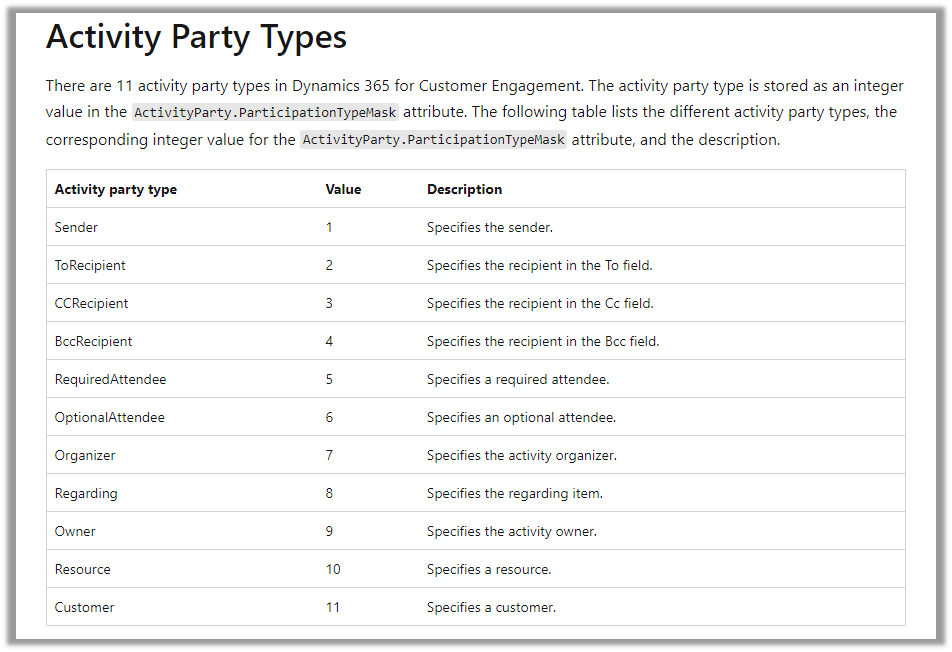
Then using the List rows action we are fetching the Activity Parties record associated using the Appointment’s unique identifier and participation mask as 5.

More on participation type mask

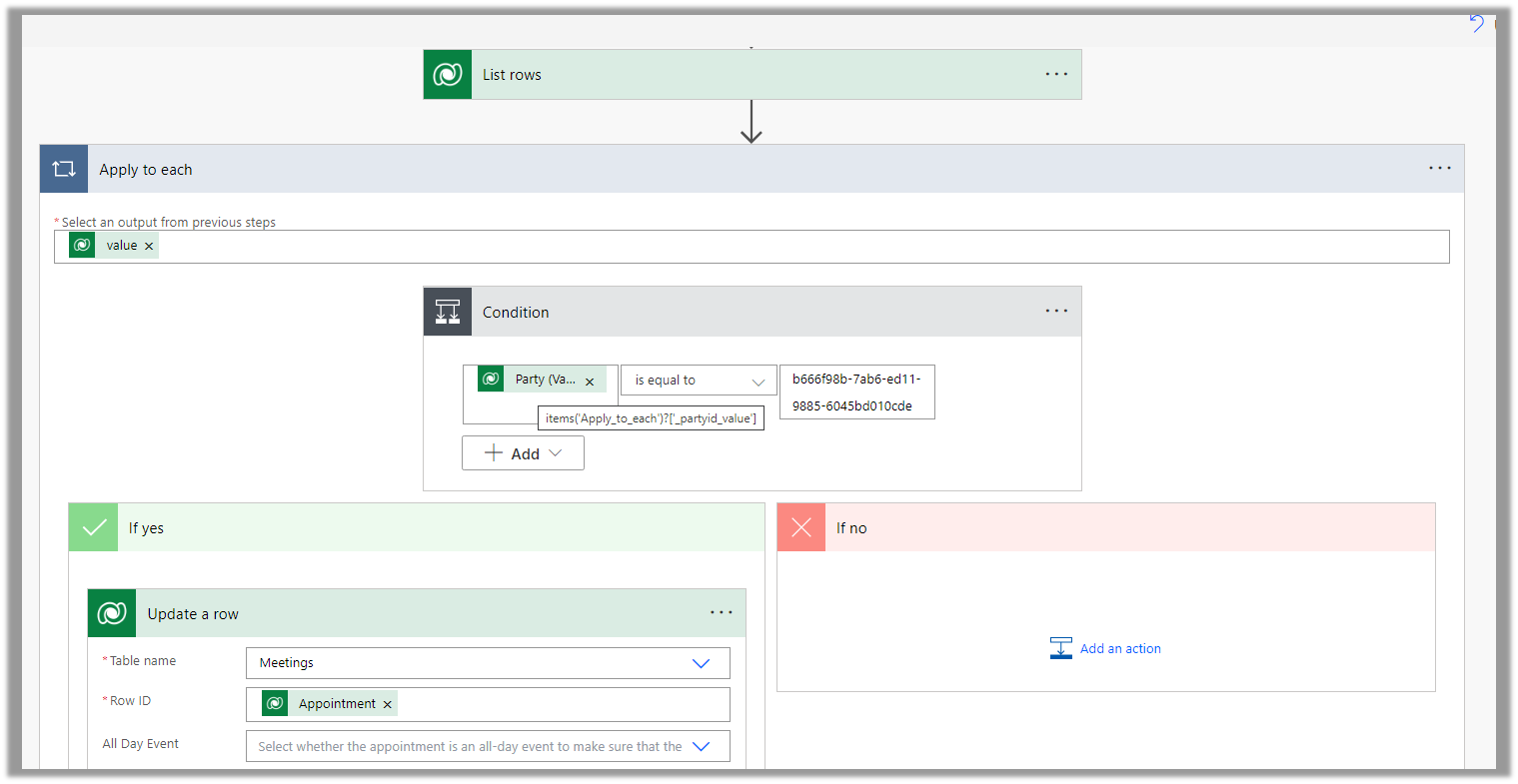
And in the last step, we are checking for all the associated Activity Party GUIDs for a specific GUID and then update the record or cancel the record.

Hope it helps..

Advertisements

Filter rows using contains, startswith and endwith Power Automate – Dataverse


Recently in one of our projects, we were using the Microsoft Bookings App for the users to book an appointment(outlook) and then were syncing this appointment back to Dynamics 365 through the category “Tracked to Dynamics 365” (Server Side Synchronization)

Get more details on it here – https://nishantrana.me/2022/03/22/how-to-synchronize-appointments-between-dynamics-365-and-outlook-using-server-side-synchronization/

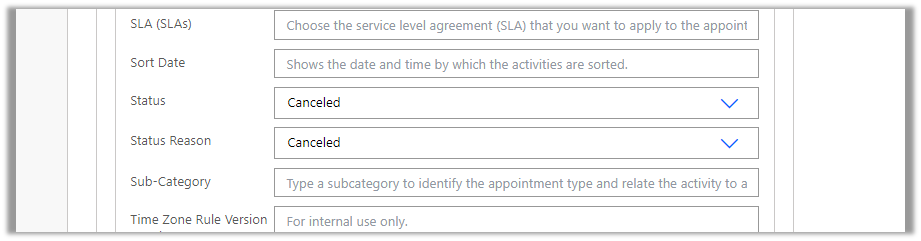
Here if the users were canceling the tracked appointment in Outlook, it will update the subject of the appointment record with the prefix – Canceled but will not cancel the record i.e. update the status of the record.

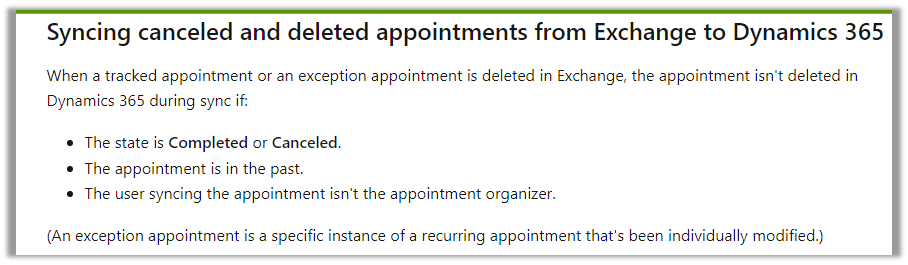
This would happen if the user canceling the appointment is not the organizer.

https://learn.microsoft.com/en-us/power-platform/admin/sync-logic#syncing-canceled-and-deleted-appointments-from-exchange-to-dynamics-365

So here we were implementing a flow to check for updates in the Subject column with the word canceled and then updating the status of the appointment as canceled.

Here we can specify our select columns and filter conditions as follows – contains

Or startswith

https://learn.microsoft.com/en-us/power-apps/developer/data-platform/webapi/query-data-web-api#standard-query-functions

Hope it helps..

Advertisements