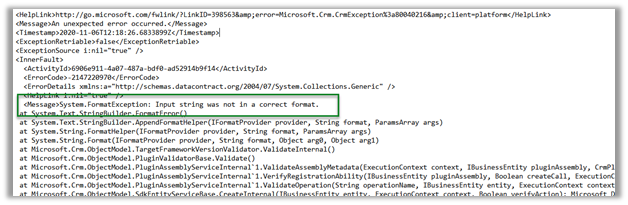
We might get the below error while trying to register a plugin.


Cause –
The plugin project was referring the .NET Framework 4.7.2

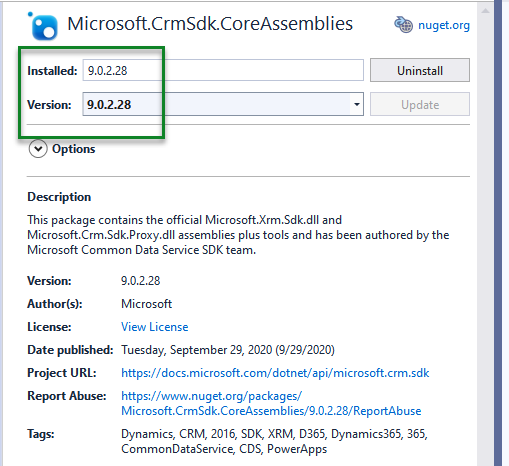
And the latest version of Microsoft.CrmSdk.CoreAssemblies – (Sept 29, 2020)
Resolution –
Changing it to 4.6.2 fixed it.


Details-
Unhandled Exception: System.ServiceModel.FaultException
An unexpected error occurred.
Server stack trace:
at System.ServiceModel.Channels.ServiceChannel.HandleReply(ProxyOperationRuntime operation, ProxyRpc& rpc)
at System.ServiceModel.Channels.ServiceChannel.Call(String action, Boolean oneway, ProxyOperationRuntime operation, Object[] ins, Object[] outs, TimeSpan timeout)
at System.ServiceModel.Channels.ServiceChannelProxy.InvokeService(IMethodCallMessage methodCall, ProxyOperationRuntime operation)
at System.ServiceModel.Channels.ServiceChannelProxy.Invoke(IMessage message)
Exception rethrown at [0]:
at Microsoft.Xrm.Tooling.Connector.CrmServiceClient.Create(Entity entity)
at Xrm.Sdk.PluginRegistration.Forms.PluginRegistrationForm.btnRegister_Click(Object sender, EventArgs e)
Detail:
<OrganizationServiceFault xmlns=”http://schemas.microsoft.com/xrm/2011/Contracts” xmlns:i=”http://www.w3.org/2001/XMLSchema-instance”>
<ActivityId>6906e911-4a07-487a-bdf0-ad52914b9f14</ActivityId>
<ErrorCode>-2147220970</ErrorCode>
<ErrorDetails xmlns:a=”http://schemas.datacontract.org/2004/07/System.Collections.Generic”>
<KeyValuePairOfstringanyType>
<a:key>ApiExceptionSourceKey</a:key>
<a:value i:type=”b:string” xmlns:b=”http://www.w3.org/2001/XMLSchema”>Plugin/Microsoft.Crm.ObjectModel.PluginAssemblyService</a:value>
</KeyValuePairOfstringanyType>
<KeyValuePairOfstringanyType>
<a:key>ApiOriginalExceptionKey</a:key>
<a:value i:type=”b:string” xmlns:b=”http://www.w3.org/2001/XMLSchema”>Microsoft.Crm.CrmException: An unexpected error occurred. —> System.FormatException: Input string was not in a correct format.
at System.Text.StringBuilder.FormatError()
at System.Text.StringBuilder.AppendFormatHelper(IFormatProvider provider, String format, ParamsArray args)
at System.String.FormatHelper(IFormatProvider provider, String format, ParamsArray args)
at System.String.Format(IFormatProvider provider, String format, Object arg0, Object arg1)
at Microsoft.Crm.ObjectModel.TargetFrameworkVersionValidator.ValidateInternal()
at Microsoft.Crm.ObjectModel.PluginValidatorBase.Validate()
at Microsoft.Crm.ObjectModel.PluginAssemblyServiceInternal`1.ValidateAssemblyMetadata(ExecutionContext context, IBusinessEntity pluginAssembly, CrmPluginAssemblyMetadata assemblyMetadata)
at Microsoft.Crm.ObjectModel.PluginAssemblyServiceInternal`1.VerifyRegistrationAbility(IBusinessEntity pluginAssembly, Boolean createCall, ExecutionContext context, CrmPluginAssemblyMetadata assemblyMetadata)
at Microsoft.Crm.ObjectModel.PluginAssemblyServiceInternal`1.ValidateOperation(String operationName, IBusinessEntity entity, ExecutionContext context)
at Microsoft.Crm.ObjectModel.SdkEntityServiceBase.CreateInternal(IBusinessEntity entity, ExecutionContext context, Boolean verifyAction)
— End of inner exception stack trace —
at Microsoft.Crm.Extensibility.VersionedPluginProxyStepBase.Execute(PipelineExecutionContext context)
at Microsoft.Crm.Extensibility.PipelineInstrumentationHelper.Execute(Boolean instrumentationEnabled, String stopwatchName, ExecuteWithInstrumentation action, PipelineExecutionContext context)
at Microsoft.Crm.Extensibility.Pipeline.<>c__DisplayClass5_0.<RunStep>b__0()</a:value>
</KeyValuePairOfstringanyType>
<KeyValuePairOfstringanyType>
<a:key>ApiStepKey</a:key>
<a:value i:type=”b:guid” xmlns:b=”http://schemas.microsoft.com/2003/10/Serialization/”>3ecabb1b-ea3e-db11-86a7-000a3a5473e8</a:value>
</KeyValuePairOfstringanyType>
<KeyValuePairOfstringanyType>
<a:key>ApiDepthKey</a:key>
<a:value i:type=”b:int” xmlns:b=”http://www.w3.org/2001/XMLSchema”>1</a:value>
</KeyValuePairOfstringanyType>
<KeyValuePairOfstringanyType>
<a:key>ApiActivityIdKey</a:key>
<a:value i:type=”b:guid” xmlns:b=”http://schemas.microsoft.com/2003/10/Serialization/”>6906e911-4a07-487a-bdf0-ad52914b9f14</a:value>
</KeyValuePairOfstringanyType>
<KeyValuePairOfstringanyType>
<a:key>ApiPluginSolutionNameKey</a:key>
<a:value i:type=”b:string” xmlns:b=”http://www.w3.org/2001/XMLSchema”>System</a:value>
</KeyValuePairOfstringanyType>
<KeyValuePairOfstringanyType>
<a:key>ApiStepSolutionNameKey</a:key>
<a:value i:type=”b:string” xmlns:b=”http://www.w3.org/2001/XMLSchema”>System</a:value>
</KeyValuePairOfstringanyType>
<KeyValuePairOfstringanyType>
<a:key>ApiExceptionCategory</a:key>
<a:value i:type=”b:string” xmlns:b=”http://www.w3.org/2001/XMLSchema”>SystemFailure</a:value>
</KeyValuePairOfstringanyType>
<KeyValuePairOfstringanyType>
<a:key>ApiExceptionMesageName</a:key>
<a:value i:type=”b:string” xmlns:b=”http://www.w3.org/2001/XMLSchema”>UnExpected</a:value>
</KeyValuePairOfstringanyType>
<KeyValuePairOfstringanyType>
<a:key>ApiExceptionHttpStatusCode</a:key>
<a:value i:type=”b:int” xmlns:b=”http://www.w3.org/2001/XMLSchema”>400</a:value>
</KeyValuePairOfstringanyType>
</ErrorDetails>
Hope it helps..