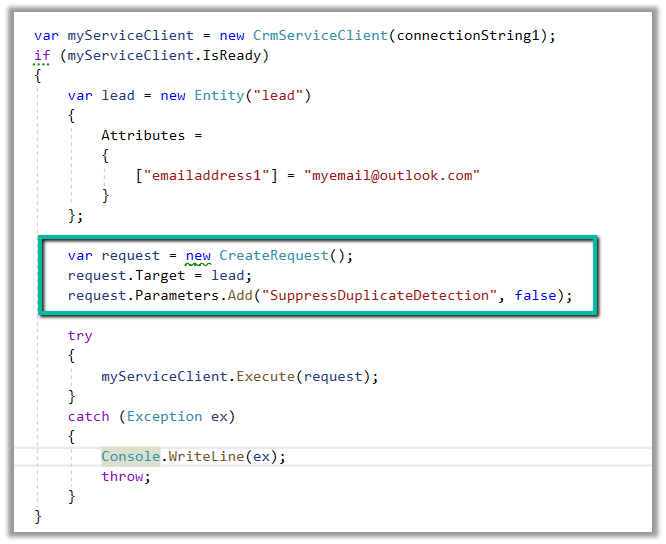
We can make use SuppressDuplicateDetection optional parameter of the Request if we want the configured duplicate detection rules to run and throw an exception while creating or updating the record.
We will use the below out-of-the-box duplicate detection rule, that checks for lead having same email address.
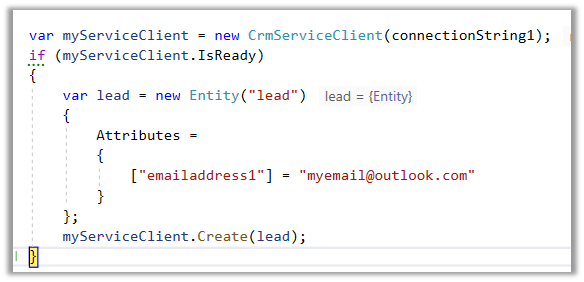
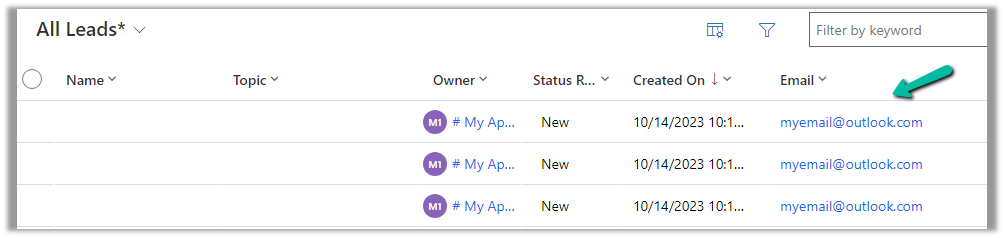
Below is our code and we can see the lead records with the same email address getting created without any exception.
Now we have updated the code to use the SuppressDuplicateDetection optional parameter. We have set it as false.
As expected this time we get the exception.
“The record was not created or updated because a duplicate of the current record already exists.”
With the preferred solution (preview), now we can specify a solution to which all our changes, that are made outside of the context of the unmanaged solution, should get automatically added.
To enable it, navigate to Settings >> Features >> Preferred solution (Preview)
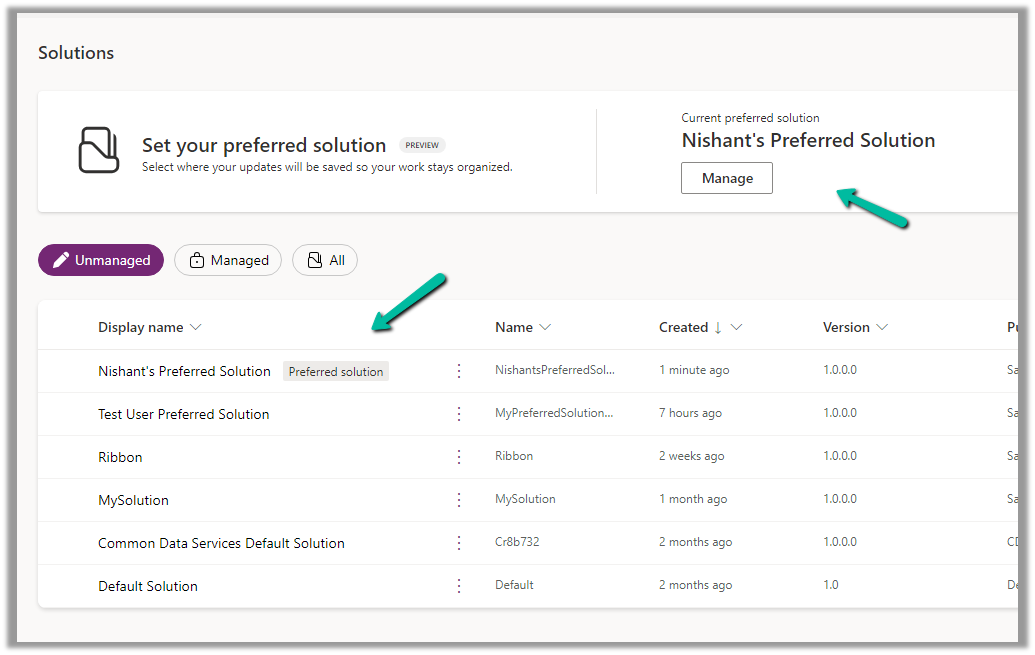
Inside the Maker Portal, now we can see a new section added, asking us to specify the preferred solution, and we can see Common Data Services Default solution set as the preferred solution as default.
We can click on Manage to specify any of the existing unmanaged solutions as the preferred solution or to create a new solution.
Here we have set one of the solutions as the preferred solution.
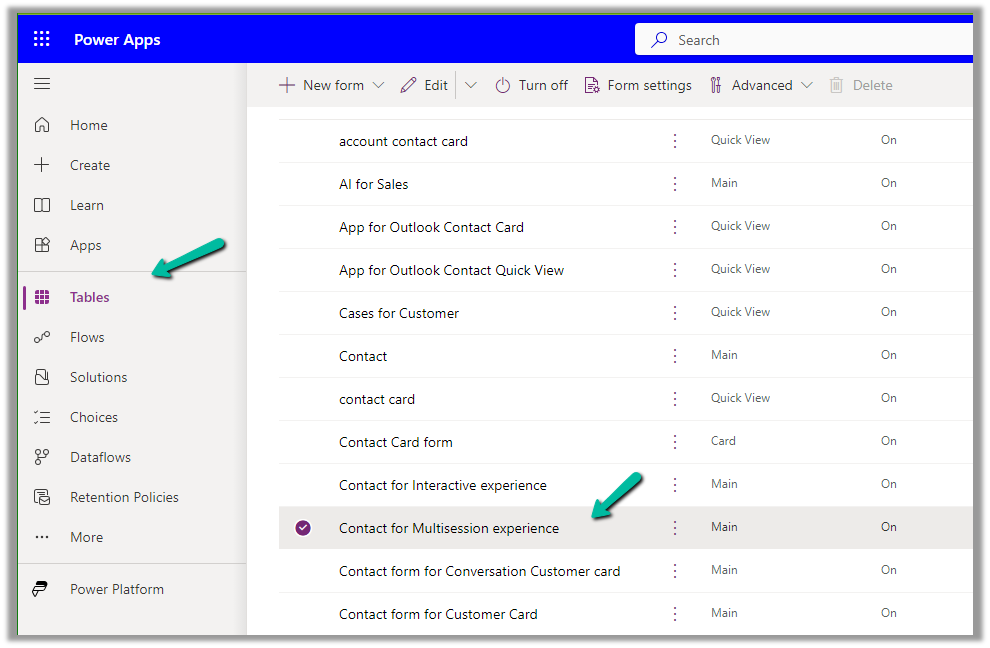
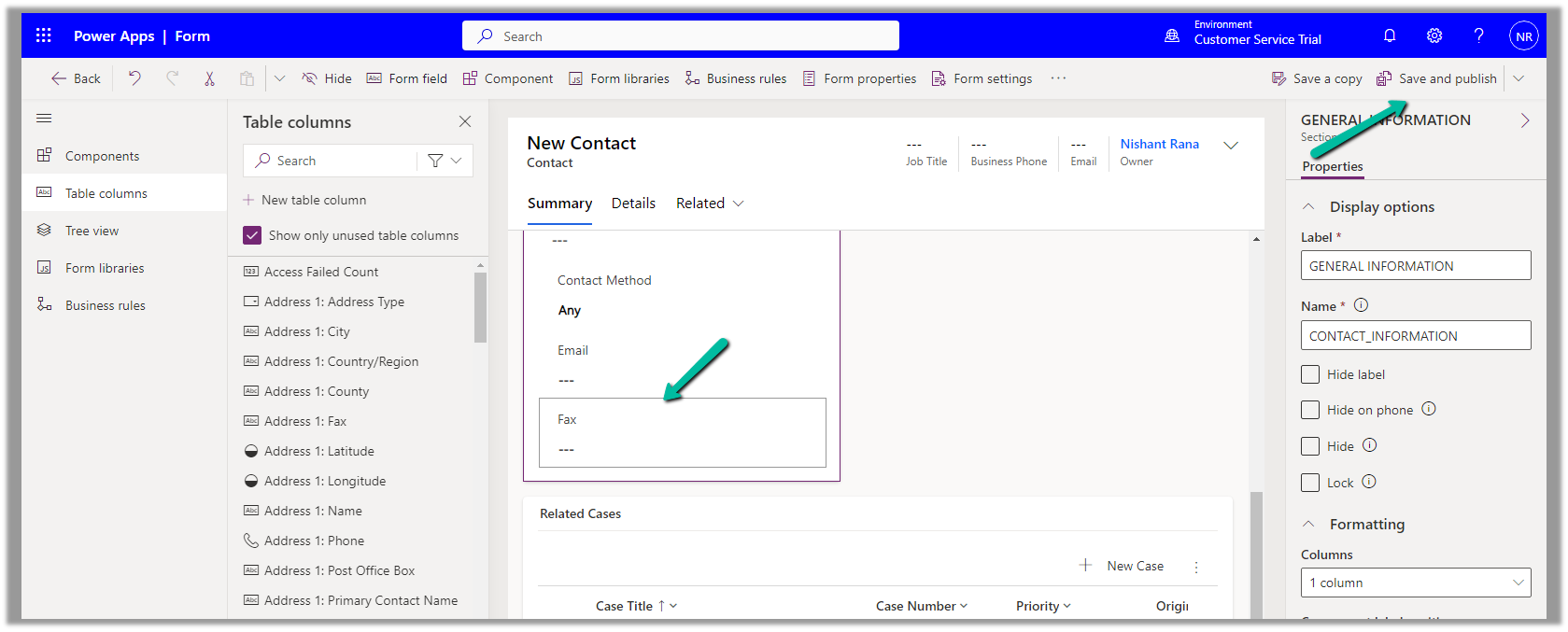
Now let us add an update existing table outside the context of the solution. Here we are updating its form by rearranging some of the fields in it.
We have moved the Fax field to be the last field in that General Information section and have published the changes.
Back in our preferred solution, we can see the form we updated, automatically added.
Similarly, any other changes, i.e. any solution components added or updated, outside the context of the unmanaged solution, will be added to the preferred solution. (apart from changing the Default Solution where all the solution components reside).
Also, other users/makers can specify their preferred solution.
To add the cloud flows or canvas apps, created outside the context of the solution, in the preferred solution, we can enable the below features.
Here we have created this sample flow from outside the solution and also a canvas app.
We can define the Custom API’s binding type as Global, Entity, or Entity Collection. In this post, we can see how a Global and Entity binding type Custom API can be defined, write a corresponding plugin, and then invoke/test through Postman.
We can create Custom API through Plugin Registration Tool, Power Apps, Code, Solution files, and or can use XrmToolBox Plugin – Custom API Manager.
Below we have defined a Custom API name custom_GlobalAPI, with binding type as Global and one Request (input) parameter and Response (output) Property of type string.
Below is how we define the plugin type for it and can access the input and output parameters through context.
To test it we can use the XrmToolBox Custom API Tester plugin as shown below
And from Postman, once we have the access token, we can call the Custom API as shown below.
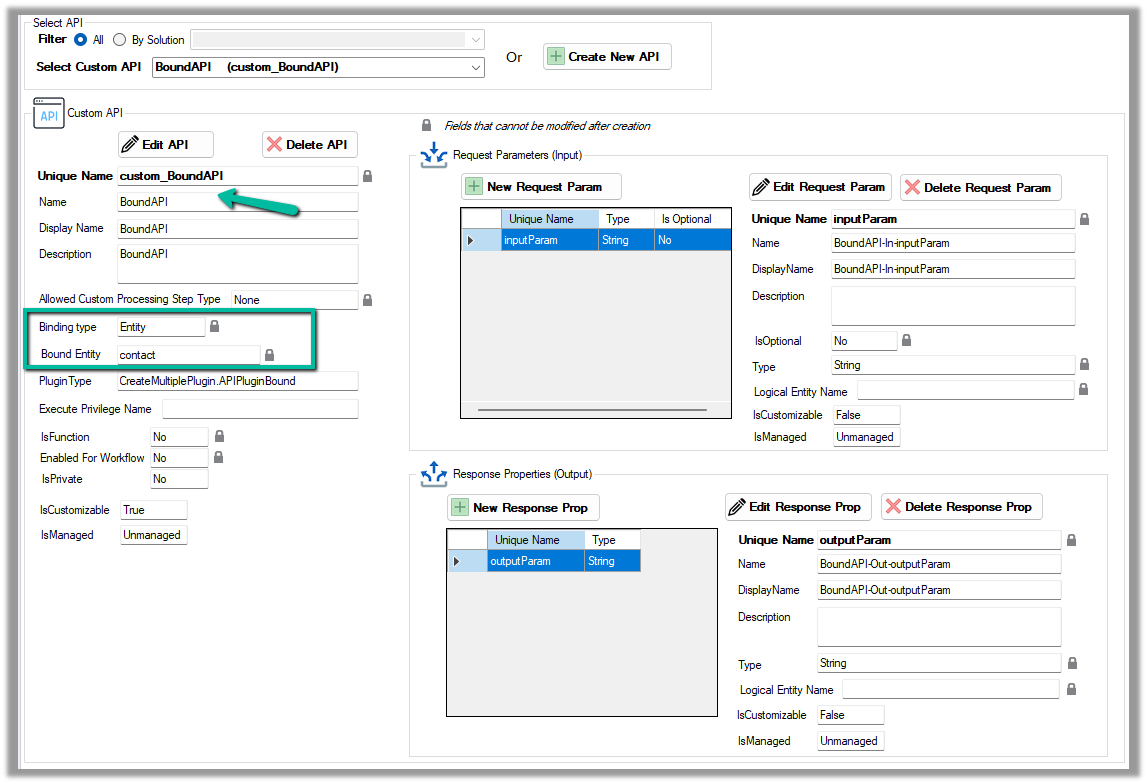
Now for a Bound Custom API, we have the following definition. It is bound to the Contact table and has one input parameter and one output parameter similar to our Global Custom API.
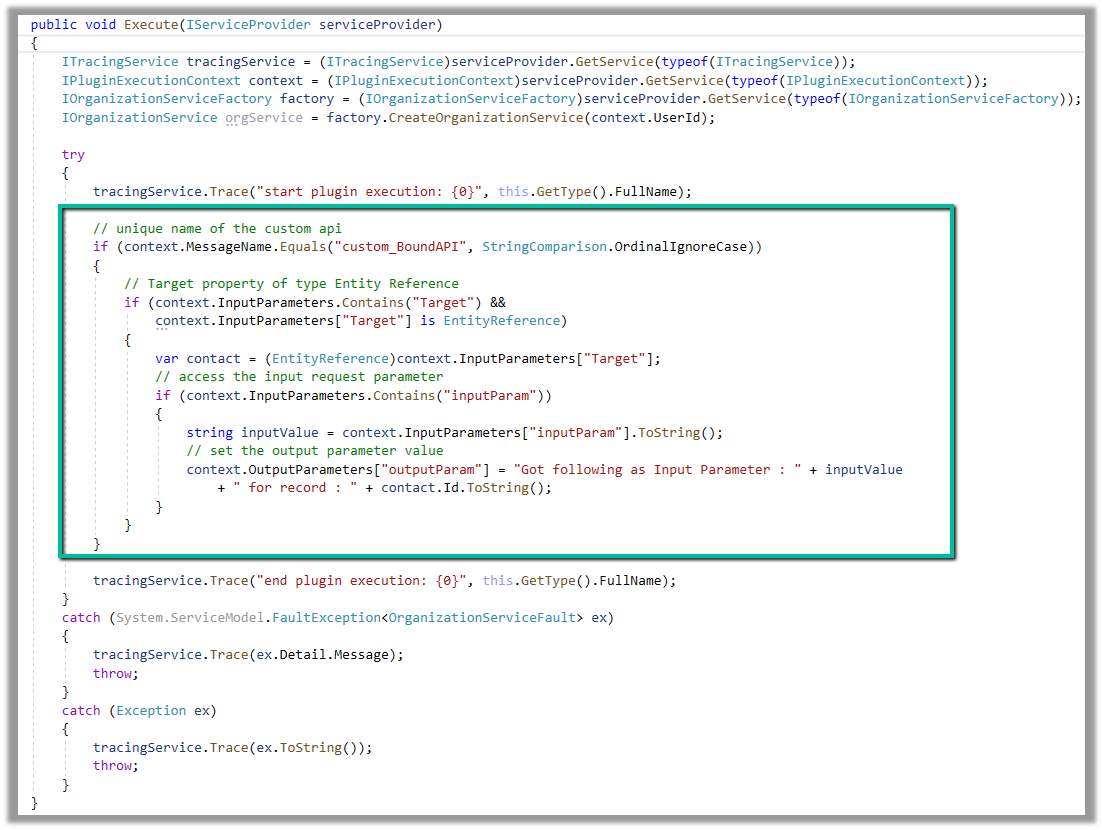
Below is how we define the plugin type for it, and can access the input and output parameters similar to Global Custom API.
However, in the case of binding type Entity, we will have the Request parameter named Target of type Entity Reference for the bound entity added automatically.
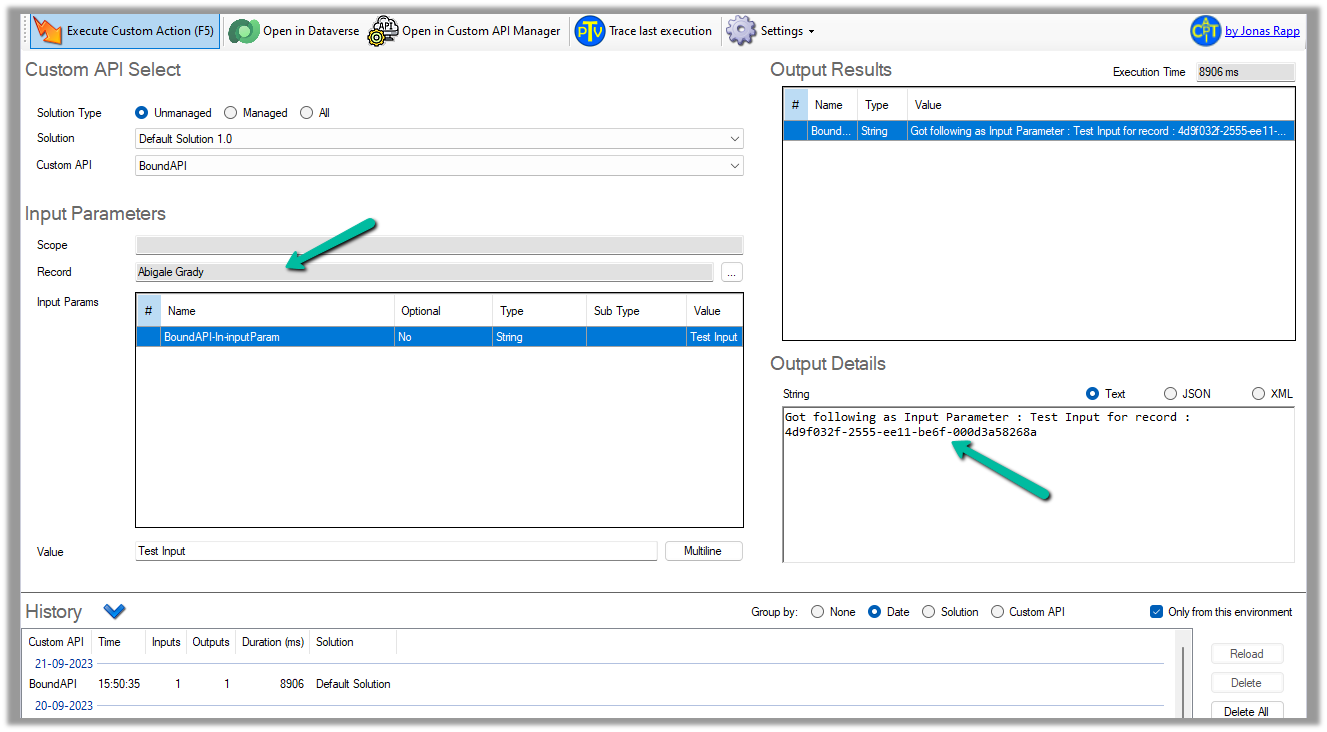
We can test it using the Custom API Tester plugin, however as it is bound type, we need to select/specify the contact record (the table it is bound to), before we can execute it.
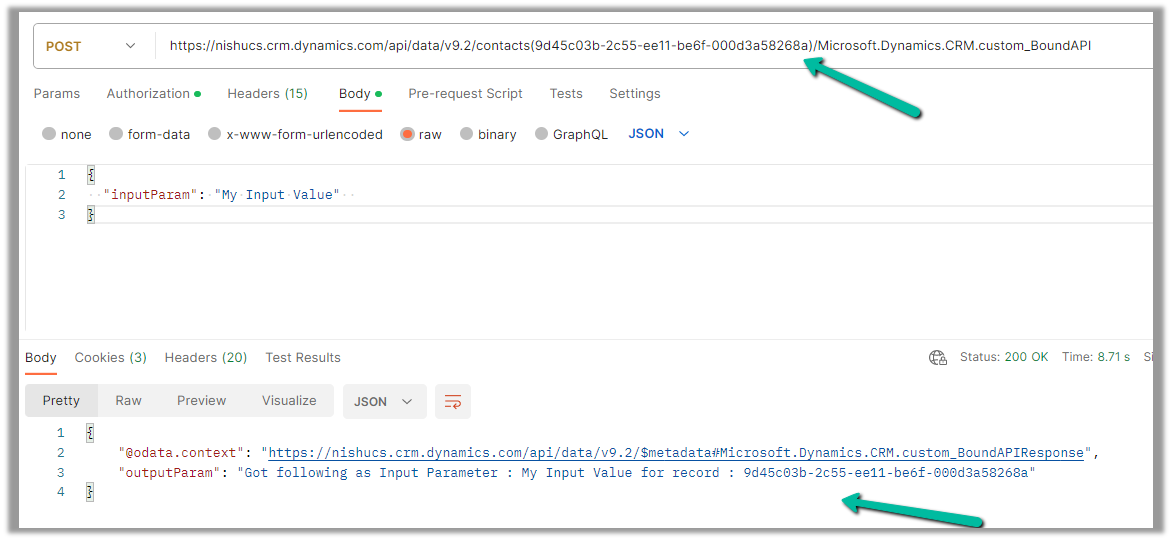
To call it from Postman, we need to use the fully qualified name i.e. Microsoft.Dynamics.CRM.[unique name of the Custom API] unlike Global one.
 public class APIPluginGlobal : IPlugin
    {
        public void Execute(IServiceProvider serviceProvider)
        {
            ITracingService tracingService = (ITracingService)serviceProvider.GetService(typeof(ITracingService));
            IPluginExecutionContext context = (IPluginExecutionContext)serviceProvider.GetService(typeof(IPluginExecutionContext));
            IOrganizationServiceFactory factory = (IOrganizationServiceFactory)serviceProvider.GetService(typeof(IOrganizationServiceFactory));
            IOrganizationService orgService = factory.CreateOrganizationService(context.UserId);

            try
            {
                tracingService.Trace("start plugin execution: {0}", this.GetType().FullName);

                // check for the message name i.e. Unique Name of the Custom API
                if (context.MessageName.Equals("custom_GlobalAPI", StringComparison.OrdinalIgnoreCase))
                {
                    // check for the request parameter in the inputparamters of the context
                    if (context.InputParameters.Contains("inputParam"))
                    {
                        // get the value of the input parameter
                        string inputValue = context.InputParameters["inputParam"].ToString();
                        // set the value of response property through outputparameters
                        context.OutputParameters["outputParam"] = "Got following value as Input : " + inputValue;
                    }
                }

                tracingService.Trace("end plugin execution: {0}", this.GetType().FullName);
            }
            catch (System.ServiceModel.FaultException<OrganizationServiceFault> ex)
            {
                tracingService.Trace(ex.Detail.Message);
                throw;
            }
            catch (Exception ex)
            {
                tracingService.Trace(ex.ToString());
                throw;
            }
        }
    }
public class APIPluginBound : IPlugin
    {
        public void Execute(IServiceProvider serviceProvider)
        {
            ITracingService tracingService = (ITracingService)serviceProvider.GetService(typeof(ITracingService));
            IPluginExecutionContext context = (IPluginExecutionContext)serviceProvider.GetService(typeof(IPluginExecutionContext));
            IOrganizationServiceFactory factory = (IOrganizationServiceFactory)serviceProvider.GetService(typeof(IOrganizationServiceFactory));
            IOrganizationService orgService = factory.CreateOrganizationService(context.UserId);

            try
            {
                tracingService.Trace("start plugin execution: {0}", this.GetType().FullName);

                // unique name of the custom api
                if (context.MessageName.Equals("custom_BoundAPI", StringComparison.OrdinalIgnoreCase))
                {
                    // Target property of type Entity Reference
                    if (context.InputParameters.Contains("Target") &&
                        context.InputParameters["Target"] is EntityReference)
                    {
                        var contact = (EntityReference)context.InputParameters["Target"];
                        // access the input request parameter
                        if (context.InputParameters.Contains("inputParam"))
                        {
                            string inputValue = context.InputParameters["inputParam"].ToString();
                            // set the output parameter value
                            context.OutputParameters["outputParam"] = "Got following as Input Parameter : " + inputValue
                                + " for record : " + contact.Id.ToString();
                        }
                    }
                }

                tracingService.Trace("end plugin execution: {0}", this.GetType().FullName);
            }
            catch (System.ServiceModel.FaultException<OrganizationServiceFault> ex)
            {
                tracingService.Trace(ex.Detail.Message);
                throw;
            }
            catch (Exception ex)
            {
                tracingService.Trace(ex.ToString());
                throw;
            }
        }
    }
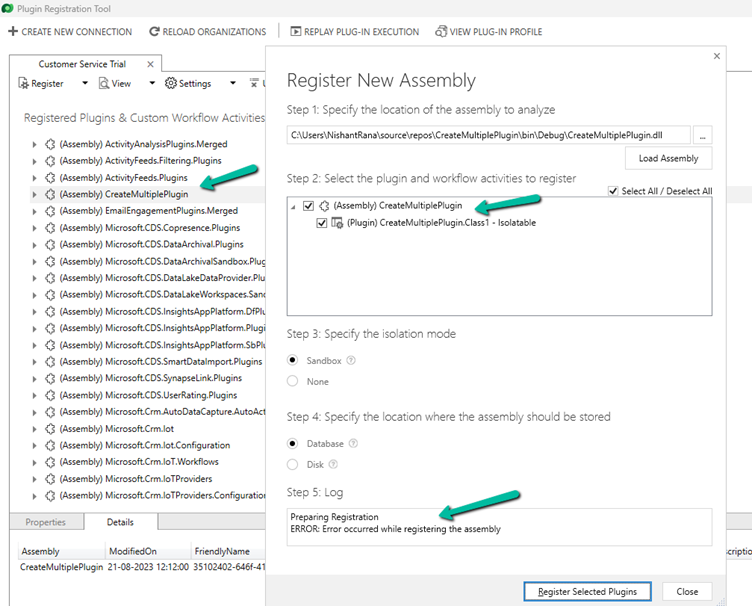
Recently while trying to register the plugin, we got the below error
Microsoft.Crm.CrmException: Plug-in assembly fullnames must be unique (ignoring the version build and revision number). —> Microsoft.Crm.CrmException: Plug-in assembly fullnames must be unique (ignoring the version build and revision number).
It was because we were trying to register the assembly which was already registered in that environment, instead of updating it.
From the notes in the timeline, now we can link an existing note to an existing case, contact, or account record (this will unlink it from the current record) and also create either a new case, contact, or account record.
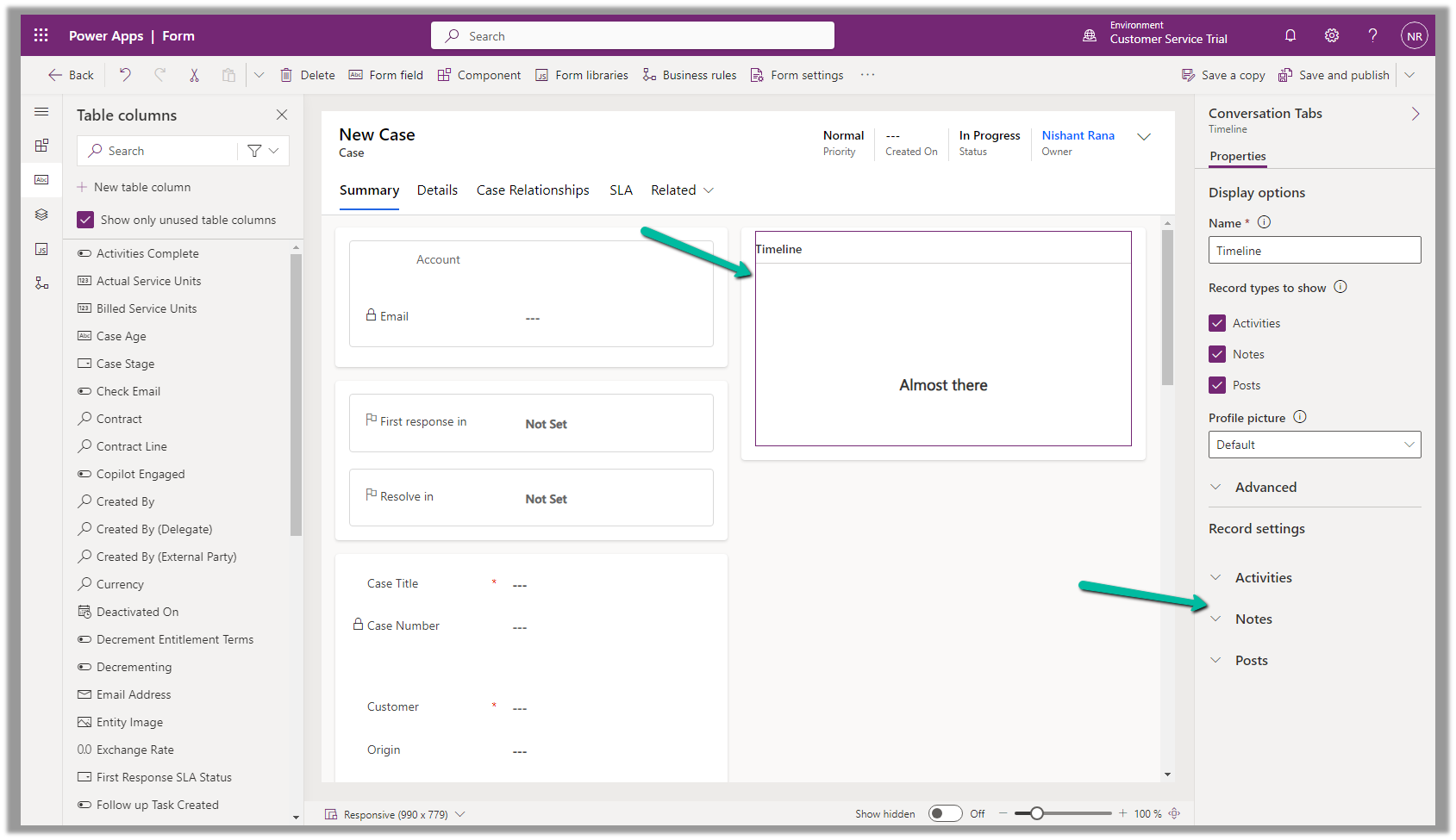
To configure it, open the Notes property of the Timeline section in the form.
Below we can see the different properties we can configure.
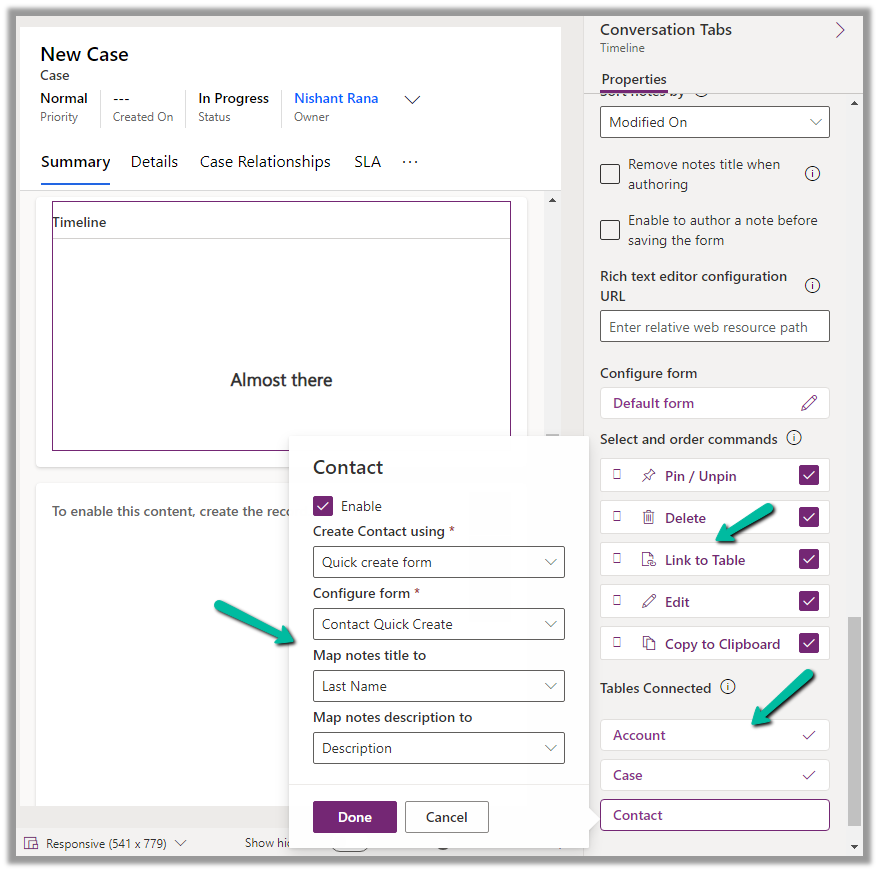
Enable the Link to Table Command
Enable the Tables to be connected.
Here we are enabling the Contact table, and then specfiying the Quick Create Form to be used while creating the new contact record, and also the mapping of the title and description field of the Notes. We have the same configuration for Case and Account.
Save and publish the changes.
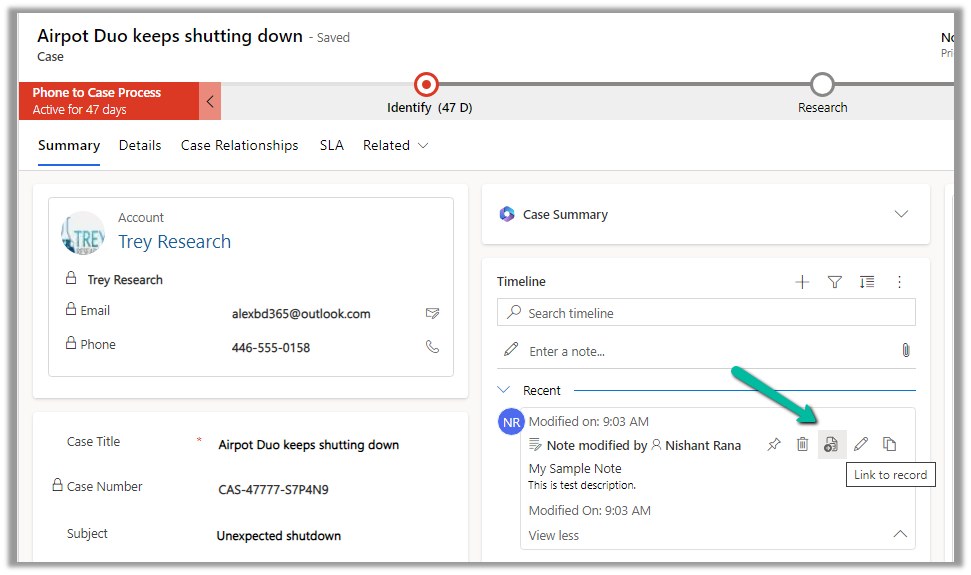
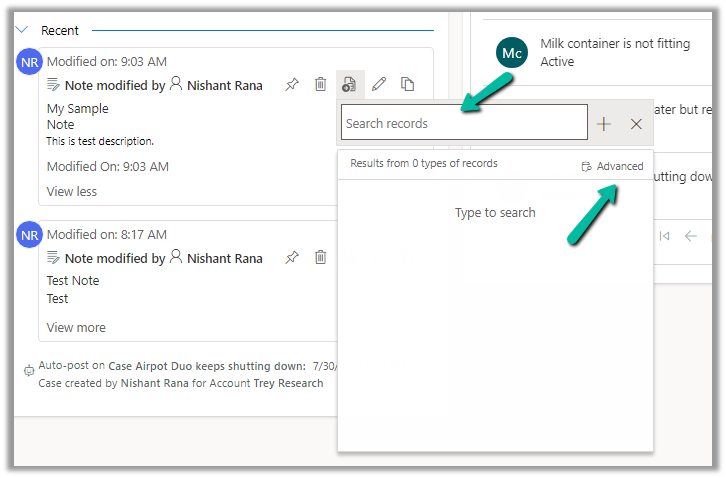
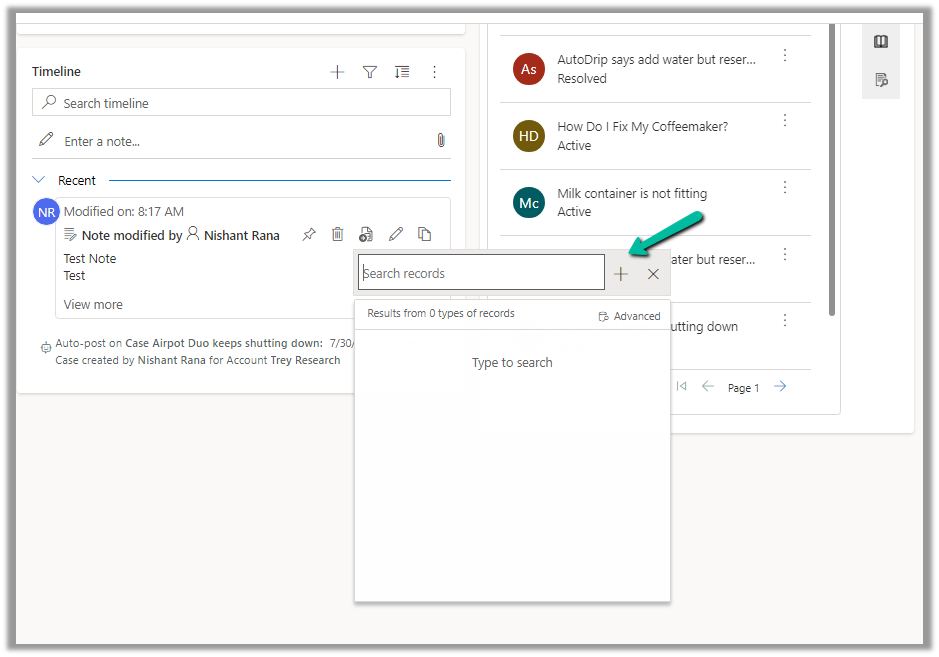
We can now see the option to Link to record for the notes.
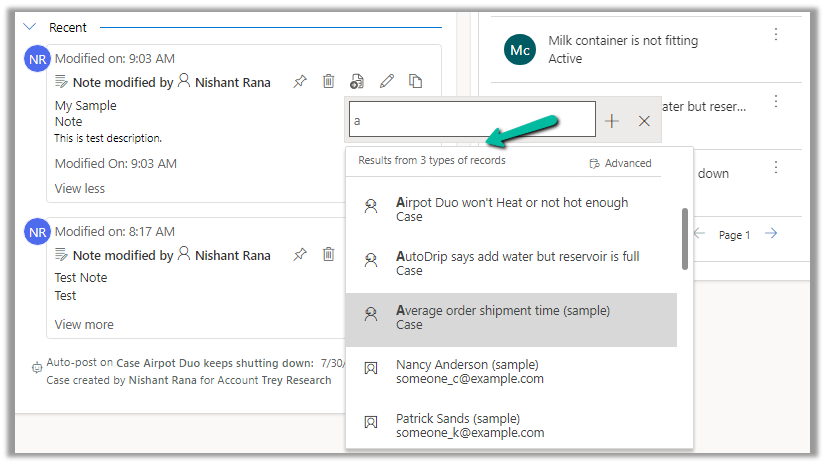
We get the option to search for an existing record (it will show results from tables connected).
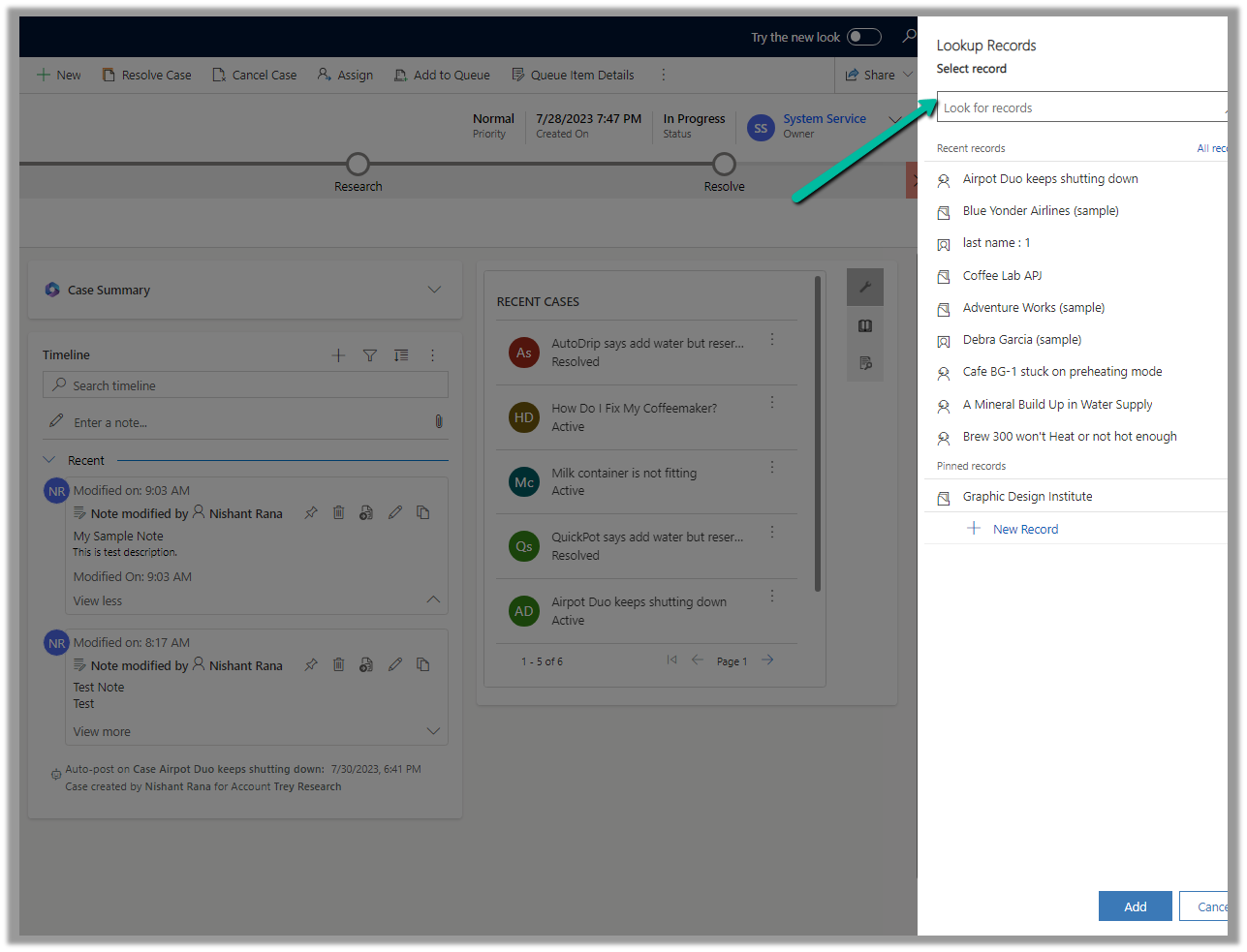
Clicking on Advanced opens the lookup dialog.
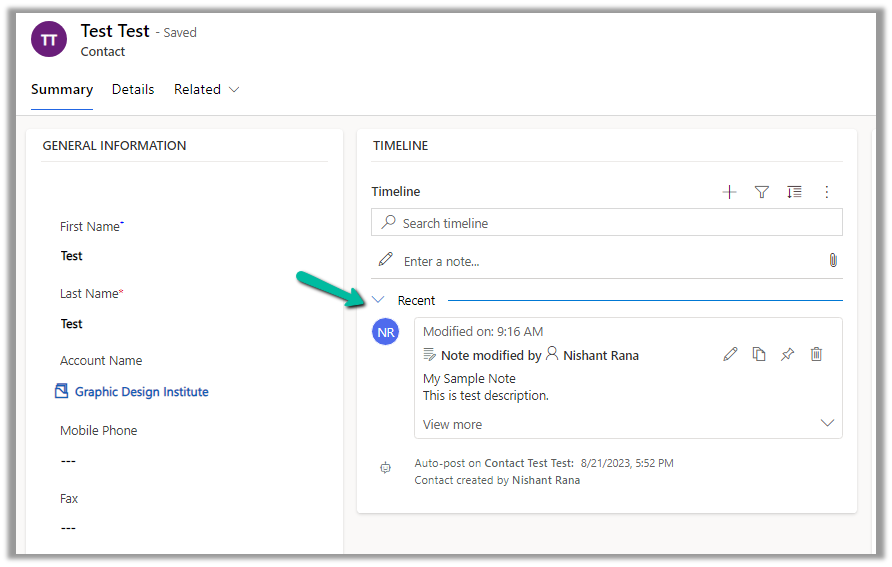
On Associating to an existing record, the notes get linked to the new record and unlinked to the current record.
We can see the notes record associated with the contact record and removed from the existing case record.
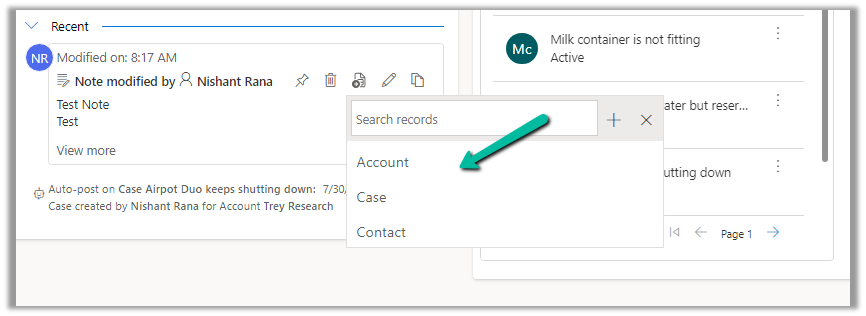
We can also use the plus + sign to create new records of the tables connected from the notes.
Account, Case, and Contact in this case.
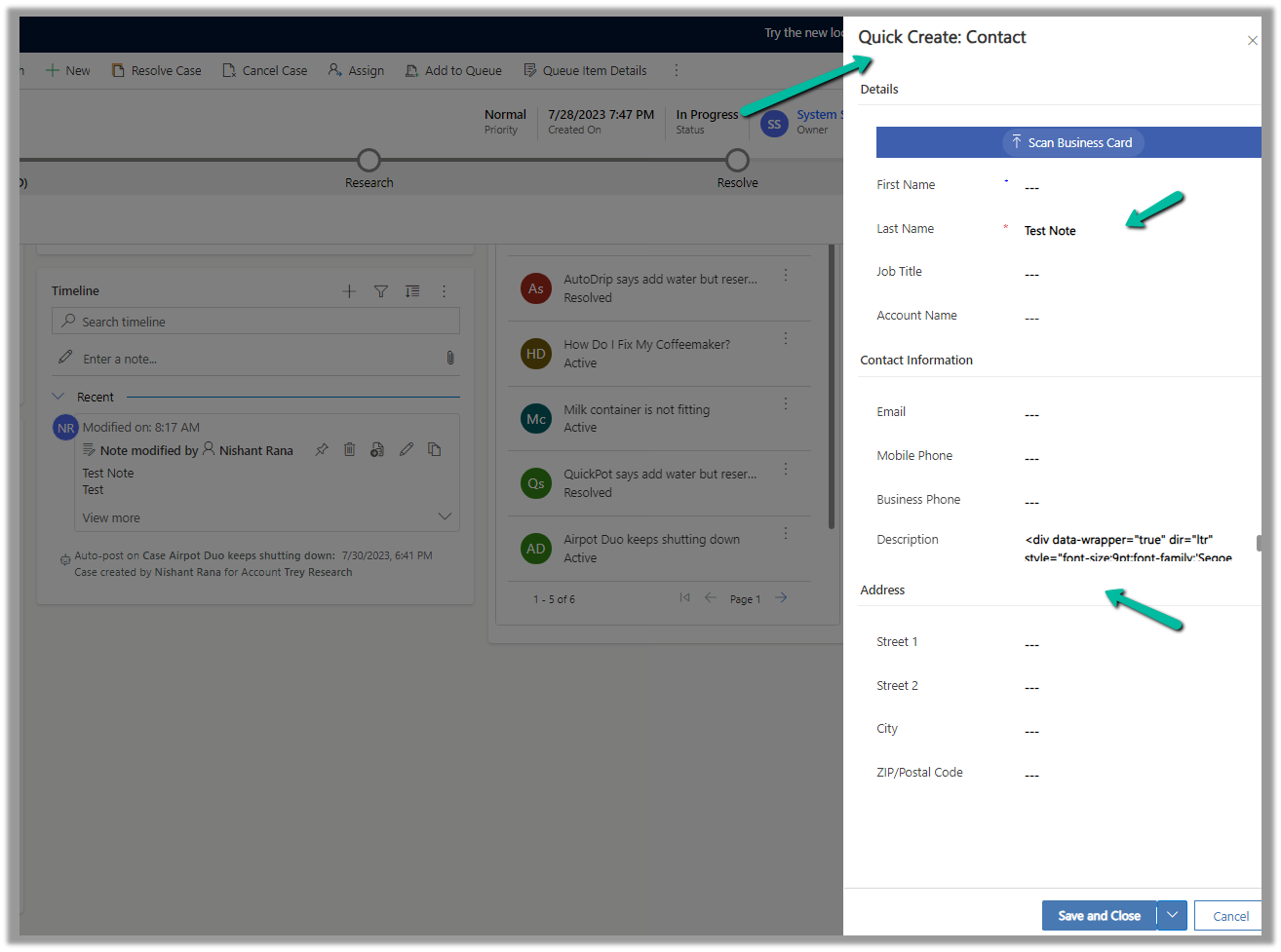
This opens the Quick Create form, with the title and description field of the notes mapped.
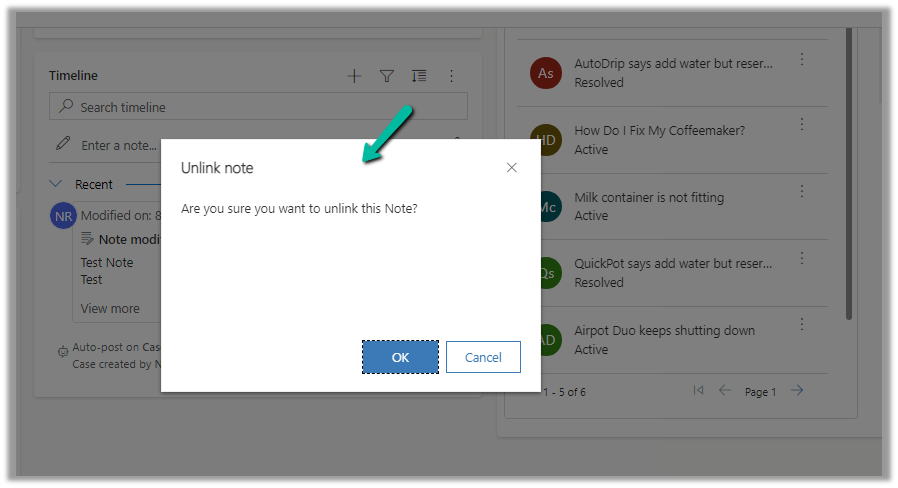
After the new record gets created, we are again presented with the option to Unlink that existing note from the current record.
Below we can see the new record with the note associated with it.






















 Nishant Rana's Weblog