Using the SuppressCallbackRegistrationExpanderJob optional parameter in our Request object, we can bypass the execution of the flows registered against that particular event/trigger.
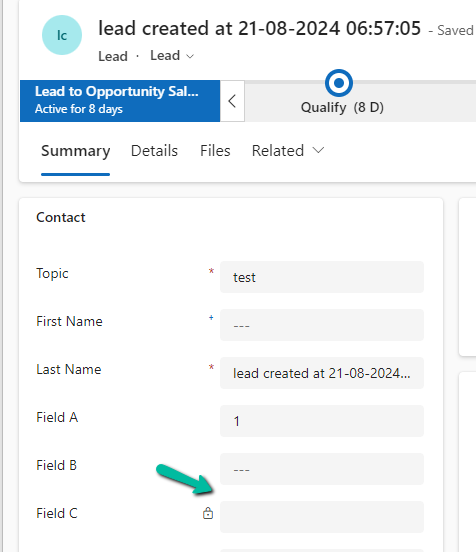
We have a flow registered on the update event of the lead record.
Now let us create a lead record through SDK.
We can see our flow triggered.
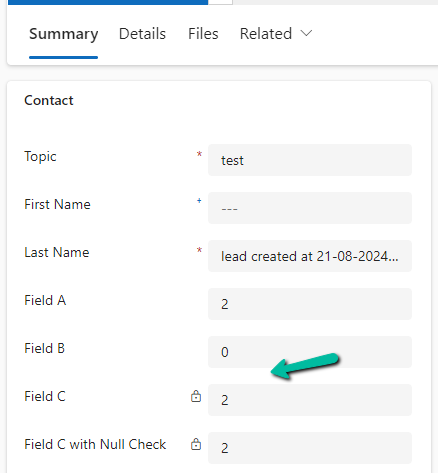
Now let us add the optional parameter SuppressCallbackRegistrationExpanderJob and check
This time as expected our lead record was created but the flow was not triggered.
Below is our sample record for a custom table custom_contract for which we will be creating the folder in SharePoint and associated it with this record using the SharePoint Document Location record. We’d use the same naming pattern that CRM uses i.e. Name + ”_” + ”GUID”
Below we have passed the details of the record along with CrmServiceClient and SharePoint’s client context.
The below code will first check if there is already a SharePoint Document Location created by CRM using ends with GUID condition. If it doesn’t exist, we are using the name field plus GUID of the record to create the folder in SharePoint and then associate using SharePoint Document Location record. Also we have used Regex to make sure we replace the special characters with “-“ similar to what CRM does. We are also checking if the Folder exists with that name in SharePoint before creating one.
Below is the GUID / record we have specified while creating the SharePoint Document Location record, the SharePoint Document location configured for that particular table.
The sample code –
var authManager = new AuthenticationManager(applicationId, certPath, password, domain);
ClientContext clientContext = authManager.GetContext(siteUrl);
var serviceClient = new CrmServiceClient(connection);
if (serviceClient.IsReady == true)
{
var myCRMRecord = serviceClient.Retrieve("custom_contract",
new Guid("f655304e-045b-ef11-bfe2-000d3a9b4e06"), new ColumnSet("custom_name"));
CheckIfShareDocLocationExistElseCreateandAssociate(myCRMRecord, serviceClient, clientContext);
}
private static void CheckIfShareDocLocationExistElseCreateandAssociate(Entity myCrmRecord, CrmServiceClient serviceClient, ClientContext clientContext)
{
var querySharePointDocumentLocation = new QueryExpression("sharepointdocumentlocation");
querySharePointDocumentLocation.ColumnSet.AddColumns("name", "relativeurl", "parentsiteorlocation", "regardingobjectid");
querySharePointDocumentLocation.Criteria.AddCondition("regardingobjectid", ConditionOperator.Equal, myCrmRecord.Id);
querySharePointDocumentLocation.Criteria.AddCondition("relativeurl", ConditionOperator.EndsWith, myCrmRecord.Id);
var result = serviceClient.RetrieveMultiple(querySharePointDocumentLocation);
if (result.Entities.Count == 0)
{
var folderName = myCrmRecord.Attributes["custom_name"].ToString();
// this makes sure we replace the special characters with - similar to what CRM does when autocreating the record.
string regexPattern = @"[~#%&*:<>?/\\{|}.""-]";
string replacement = "-";
folderName = Regex.Replace(folderName, regexPattern, replacement) + "_" + myCrmRecord.Id.ToString().ToUpper();
var folderRelativeURL = "custom_contract/" + folderName;
Web currentWeb = clientContext.Web;
var folderExists = currentWeb.DoesFolderExists(folderRelativeURL);
if (!folderExists)
{
var list = clientContext.Web.Lists.GetByTitle("Documents");
list.RootFolder.Folders.Add(folderRelativeURL);
clientContext.ExecuteQuery();
}
var documentLocation = new Entity("sharepointdocumentlocation");
documentLocation["name"] = "Documents on Default Site 1";
documentLocation["relativeurl"] = folderName;
// specifying the GUID of the SharePoint Document Location configured for that table
documentLocation["parentsiteorlocation"] = new EntityReference("sharepointdocumentlocation", new Guid("cf97e6d8-0b4e-ef11-a317-6045bdd74f46"));
documentLocation["regardingobjectid"] = new EntityReference("custom_contract", myCrmRecord.Id);
serviceClient.Create(documentLocation);
}
}
We were using the below code to create a sharepointdoucmentlocation record through a C# Console App.
private void CreateAssociateSharePointDocumentLocation(string folderName, Guid recordGuid, ServiceClient serviceClient)
{
var documentLocation = new Entity("sharepointdocumentlocation");
documentLocation["name"] = "Documents on Default Site 1";
documentLocation["relativeurl"] = folderName;
documentLocation["parentsiteorlocation"] = new EntityReference("sharepointdocumentlocation", new Guid(parentSiteorLocation));
documentLocation["regardingobjectid"] = new EntityReference("schemanametable", recordGuid);
serviceClient.Create(documentLocation);
}
For folderName we were using the below format, similar to what CRM does, when someone opens the document tab for the record, to create the sharepointdocument location record.
{name} + “_” + {GUID}
However, while creating one particular record we got the below error which was because the name field had “&” in it.
The relative URL contains invalid characters. Please use a different name. Valid relative url names cannot end with the following strings: .aspx, .ashx, .asmx, .svc, cannot begin or end with a dot, cannot contain consecutive dots, and cannot contain any of the following characters: ~ ” # % & * : ? / \ { | }.
As the error message suggests we need to either remove/replace the special characters in the name field before creating the folder in SharePoint and associating it with the SharePoint Document Location record in the CRM.
Below are the different out-of-the-box statecode and statuscode for the Quote table.
Status (statecode)
Status Reason (statuscode)
0 (Draft)
1 (Inprogress)
1 (Active)
2 (Inprogress)
3 (Open)
2 (Won)
4 (Won)
3 (Closed)
5 (Lost)
6 (Canceled)
7 (Revised)
Now if we are trying to migrate Quote records that are in either 2(Won) or 3(Closed) status (statecode), our package will fail and we will get the below error.
{“error”:{“code”:”0x80040233″,”message”:”Quote can’t be closed because it is in Draft state. Only Active Quote can be closed. Please activate the Quote and then try to close it.”}}
-batchresponse_aa072eca-fd15-4067-8f2b-41f7b3dfad1c–
)System.Net.WebException
This is because we cannot directly create the Quote record with the status either Won or Closed.
It will create those records with the status Draft instead.
However we can create Quote records with either Draft or Active status, we will not get the above error.
Now another point to be considered is, if we are moving the quote product record also, is that we cannot associate the quote product to a quote if it is in Active or Closed / Won status, it has to be draft status for the quote product to be associated.
If we try adding / associate Quote Product to either an Active or Closed Quote, we will get the below error –
: The remote server returned an error: (400) Bad Request. (Error Type / Reason: BadRequest, Detailed Message: {“error”:{“code”:”0x80043b09″,”message”:”The detail cannot be updated because the parent is not editable.“}})System.Net.WebException
(Status Reason: BadRequest): The remote server returned an error: (400) Bad Request.”
And as expected with Draft Quote we can associate quote products.
So basically if we are planning to migrate Quote and Quote Product to Dataverse/Dynamics 365
First, move all the Quote with status as Draft (i.e. do not map statecode and statuscode)
Then associate Quote Product to it. (also certain fields are only available for update and not create, you could run update Quote Product package to update those fields)
Next, we can update all the Quote as Active (along with any other fields that are available only for update and not create), and then run another update package to update the actual statecode and statuscode values as now from the Active status we could move to draft or closed status without any issues.
And also please check the CRM Migration Starter Kit for further details and guidance.
Recently while trying to retrieve OptionSet Metadata using our favorite KingswaySoft SSIS Toolkit we got the below error.
Same error for prod also – [CDS Source [2]] Error: An error occurred with the following error message: “KingswaySoft.IntegrationToolkit.DynamicsCrm.CrmServiceException: CRM service call returned an error: An error has occurred when retrieving metadata for CRM entity ‘copilotexamplequestion’: The source argument contains duplicate keys. (SSIS Integration Toolkit for Microsoft Dynamics 365, v23.2.2.32701 – DtsDebugHost, v16.0.5270.0)System.ArgumentException. : The source argument contains duplicate keys.”.
Interestingly we were getting this issue while running the package in the UAT and Production environment, it was working fine for the Dev environment. Also, it was OOB Table and we could compare and see it to be the same across all the environments.
Well, the way we could progress here is to query and get the required details from the stringmap table.
While running an SSIS Package that creates Quote Product records, we got the below error –
CRM service call returned an error: The number of decimal places on quantity needs to be 0 or less
If we see the decimal places seem to be specified properly for the quantity field in the source file as we had other records created properly from the source.
Well this occurs when we try to add Quote Product and specify decimal precision in quantity which is more than what has been specified in the associate product.
Below we can see the decimal supported is 0 for the product associated to the quote product record.
To fix this problem, either we have to increase the decimal supported value or remove decimal precision from the quantity in the quote product based on the product in question.