Stop / Go live Lead Score Model behavior in Dynamics 365 Marketing


Recently we were writing a plugin on the Lead Score table to update the associated lead with Score and the Grade values.

The plugin was on Update of Lead Score (msdyncrm_leadscore_v2) to update lead when the Score Status = Up to date.

The interesting point we observed here was that when we stop the lead scoring model all the associated lead scoring records get deleted, which was kind of different than the usual behavior of related records, where we expect it to get deactivated/disabled.

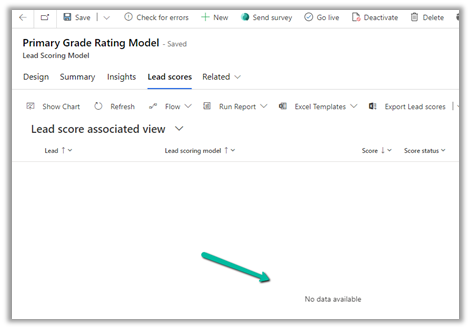
On clicking the Stop button on the lead scoring model all the associated lead score records will get deleted.

All lead score records deleted :-

And now as soon as we Go live, the new lead score records get created back.

It starts the process of creating the records immediately.

Hope it helps..


Advertisements

Notification template in Omnichannel Voice (Dynamics 365 Customer Service)


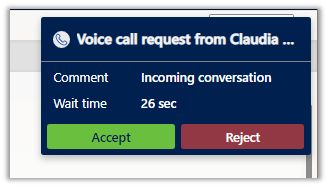
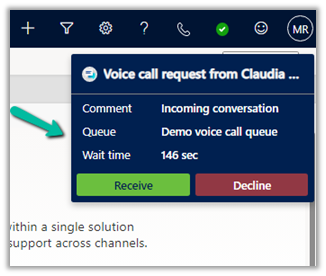
Below is the default notification the agent receives on incoming conversations/calls.

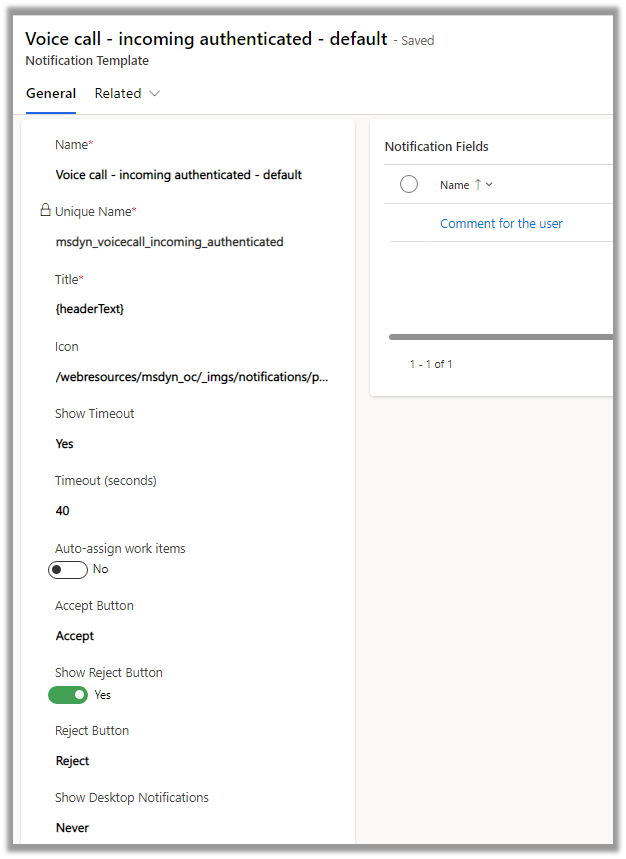
It is defined through the below out-of-the-box template.

Property

Description

Title

To define the title.

Icon

To define the icon.

Show Timeout

Yes / No – to hide/show the timer (timer still runs in the background)

Time (seconds)

For the Phone Call / Voice workstream the maximum value = is 150 seconds.

Auto-assign work items

Auto-assign incoming work item

Accept Button

Specify the text of the Accept Button

Reject Button

To hide or show the button

Show desktop notification

Never / When the app is in the background

Notification Fields

Specify fields to be shown in the notification using Slugs.

To make changes in the notification, we need to create a new notification template as we cannot update the box notification template.

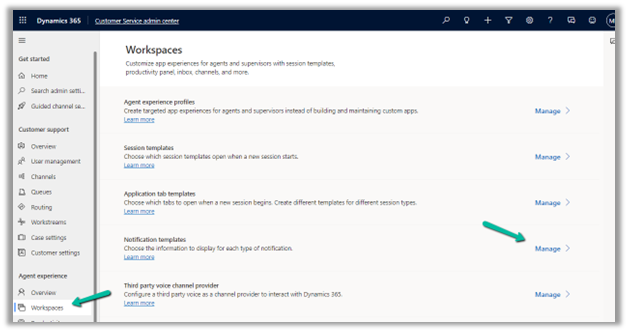
Navigate to Agent Experience >> Workspaces >> Notification Templates (Manage)


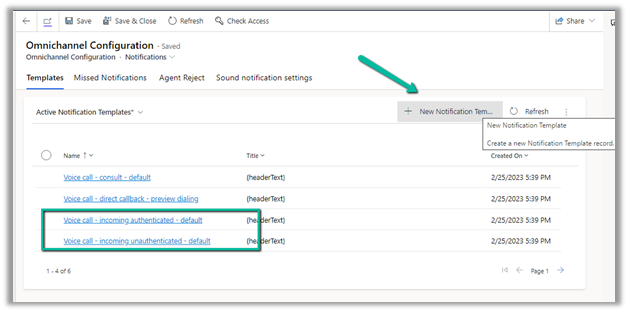
Here we will create a new notification template to be used in place of Voice call – incoming authenticated – default template

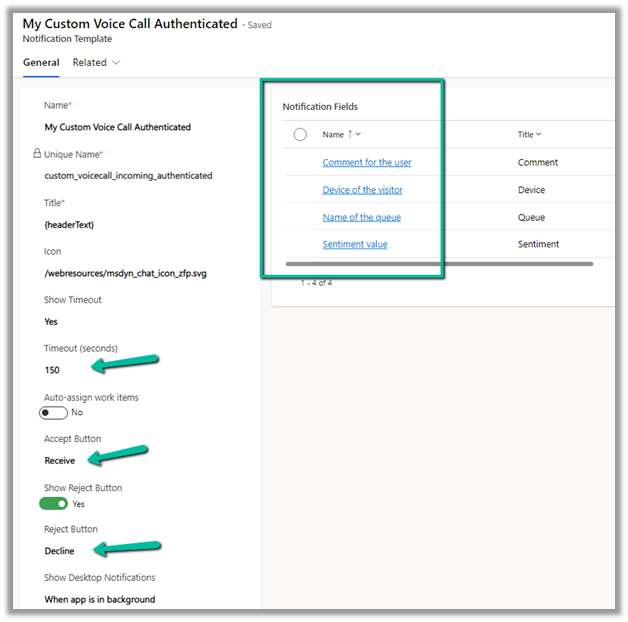
For our custom template, we have made the following changes –

Increased the timeout value, and changed the text for Accept and Reject buttons.

Added notification fields and enabled Desktop notification.

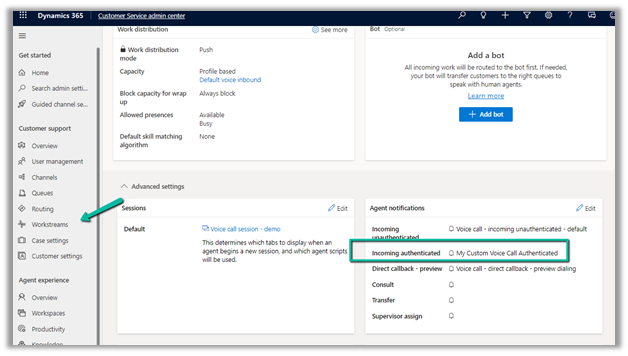
Let us update one of our workstreams to use this custom notification template.

Navigate to Customer Support >> Workstreams – Open the workstream and open the Advanced Settings and update the Incoming Authenticated template in the Agent notifications section.

We can see the changes reflected in the Notification.

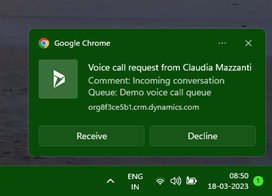
And also in the desktop notification –


Get all the details here-

https://neilparkhurst.com/2020/06/29/omnichannel-for-customer-service-notifications/

Hope it helps..

Advertisements

How to – Configure Voicemail Workstream and Queue – Dynamics 365 Customer Service


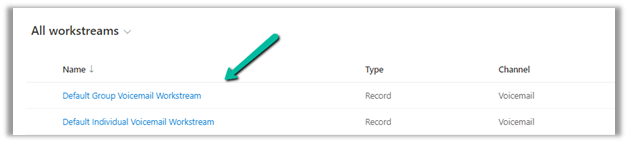
When we configure the Voice demo, we can see 2 workstreams and queues created for Voicemail one for individuals other for voicemail of type group.

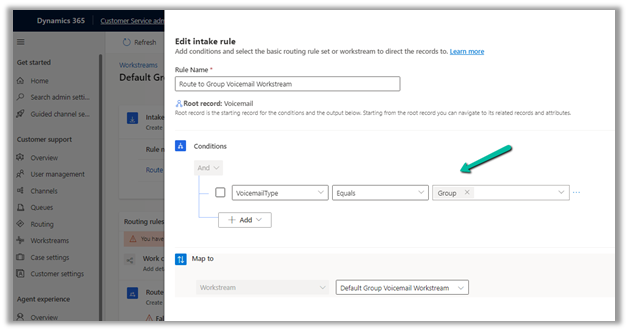
The Default Group Voicemail Workstream has the following intake rule defined.

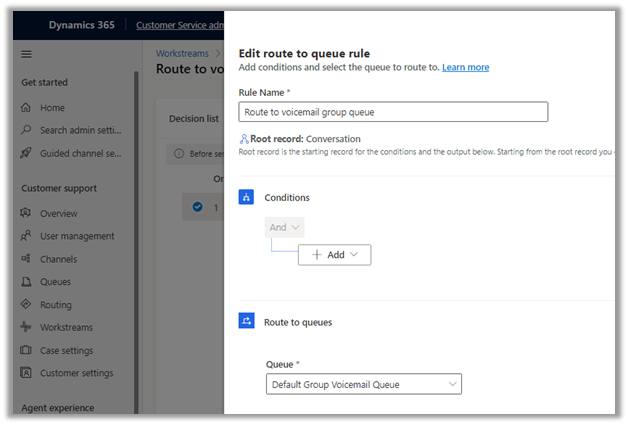
And following Route to Queue Rule

Configuring Voicemail – https://nishantrana.me/2023/02/23/how-to-configure-voicemail-in-omnichannel-voice-channel-dynamics-365-customer-service/

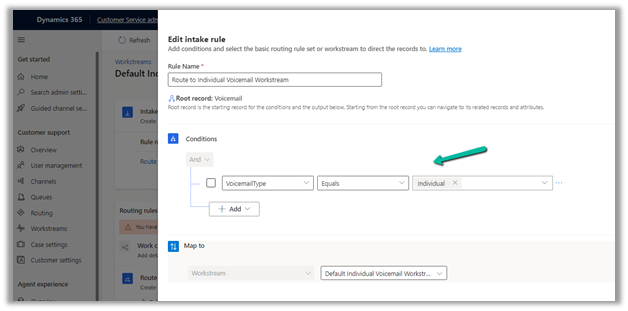
Similarly, Default Individual Voicemail Workstream has the following intake rule

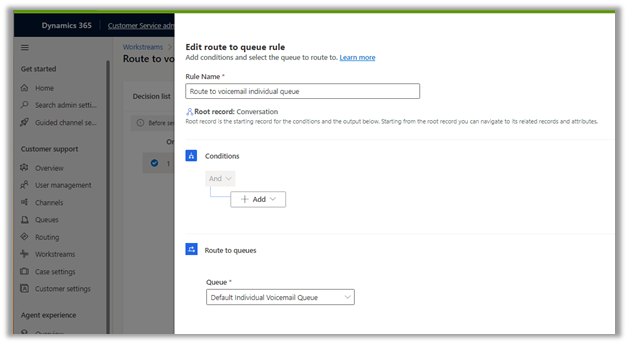
And Route to Queue rule

Now say we want the voicemail of an advanced queue (type – voice) to be routed to its corresponding advanced queue (type – record) instead of the Default Group Voicemail Queue.

Say we have the below Advanced Queue of type Voice used in the Voice Workstream– 


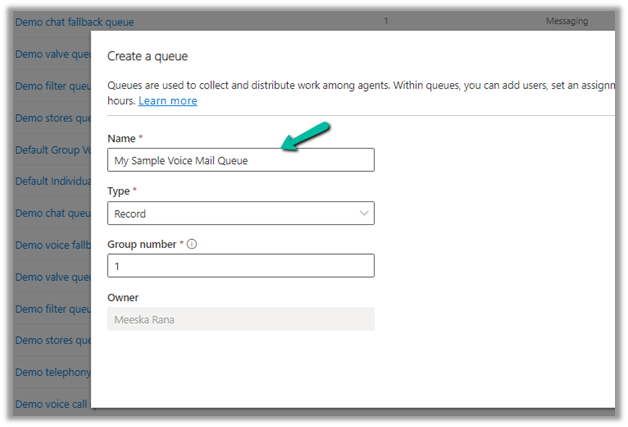
And the below Advanced Queue – My Sample Voice Mail Queue

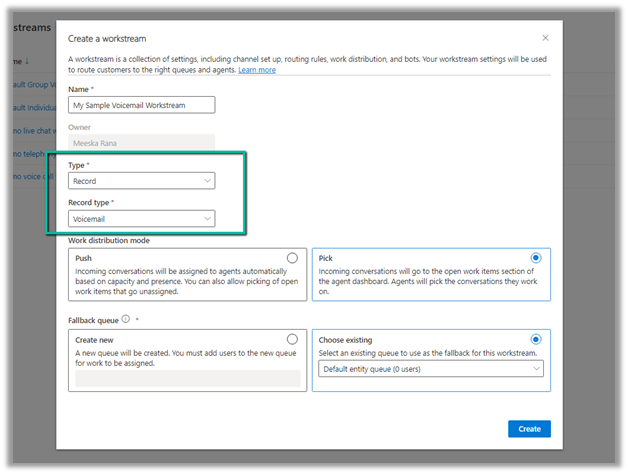
Now let us define the Workstream that will route the voicemail to that queue.

Select Type as Record and Record Type as Voicemail.

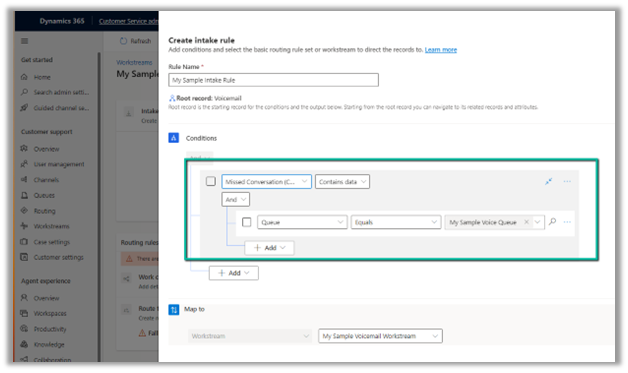
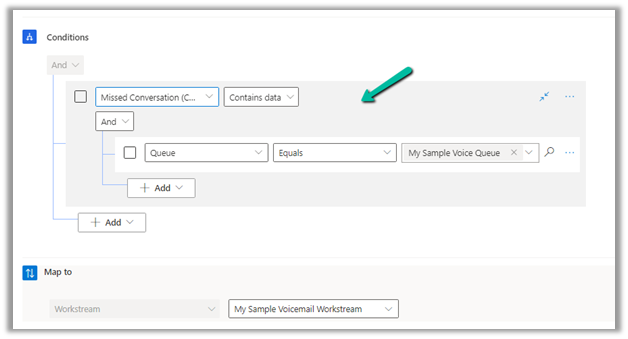
The intake rule checks for the Queue record in the related entity of voice mail – Missed Conversation (Conversation)

So basically any conversation or voicemail generated because of a call to My Sample Voice Queue / Workstream will be routed to its corresponding Voice Mail Queue.

Overflow handlinghttps://nishantrana.me/2023/03/07/understanding-overflow-handling-work-item-limit-exceeds-in-voice-channel-omnichannel-dynamics-365-customer-service/

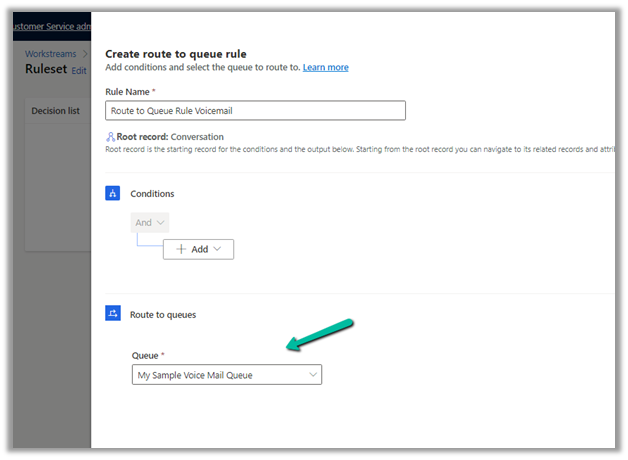
And the intake rule of that workstream to route to the Voicemail Queue created earlier.

Hope it helps..

Advertisements

How to – Enable Desktop notifications when the app is in the background – Dynamics 365 Customer Service (Omnichannel – Voice)


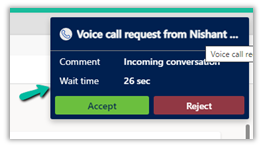
Below is how the notification appears to the agents for the incoming conversation. In case the app is in the background the agent might miss the notification. To avoid this scenario we can enable Desktop notifications.


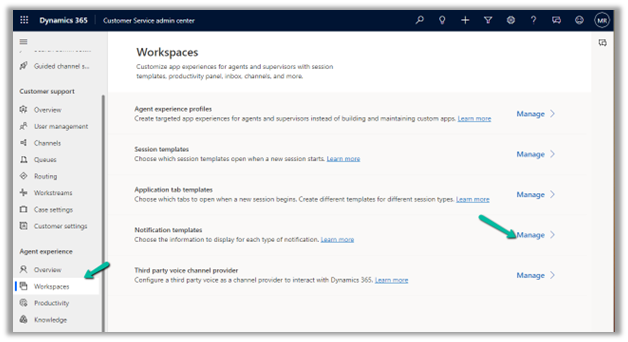
Navigate to Agent Experience >> Workspaces >> Notification Templates (Manage) in the Customer Service Admin center

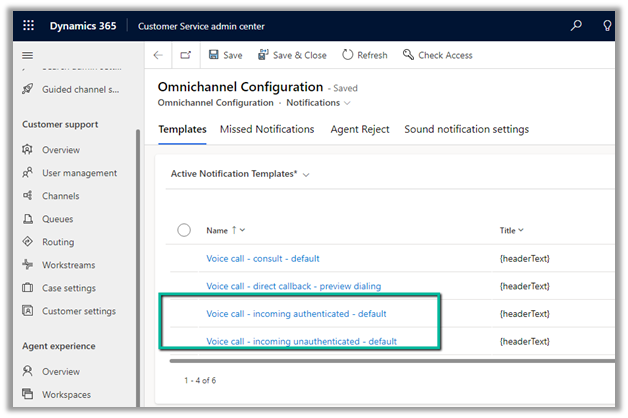
Here we can see the default template – authenticated and unauthenticated for the incoming voicemail. We cannot update these out-of-the-box templates, however, we can refer to these existing templates to create a new template.

Let us open the existing incoming authenticated template.
The Voice call – incoming authenticated – default :-
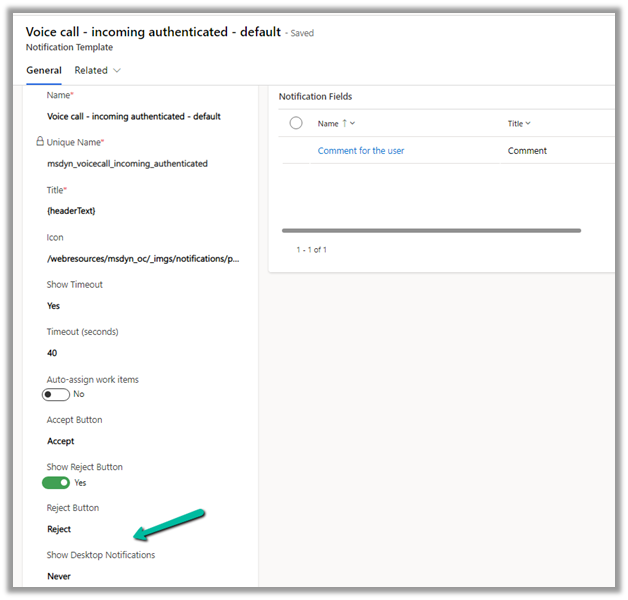
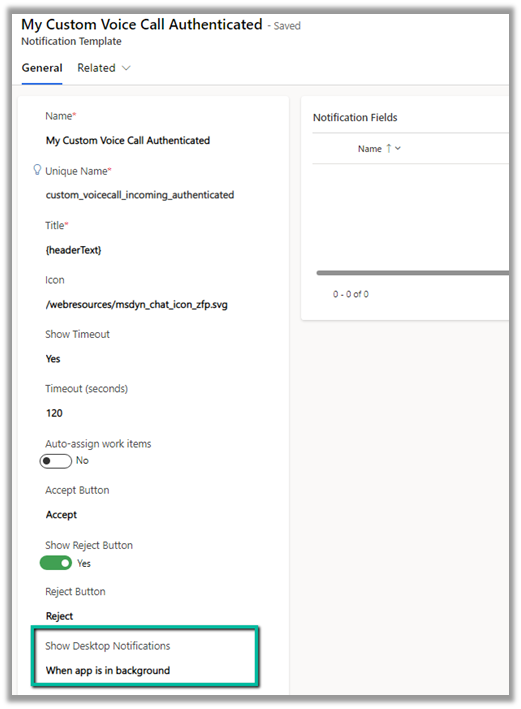
Let us create a new template, referring to the existing template, where we will set the Show Desktop Notifications = When the app is in the background.

Notice we can specify other values such as notification timeout, auto assign work items, show reject button as well as notification fields.

Below is our new notification template.

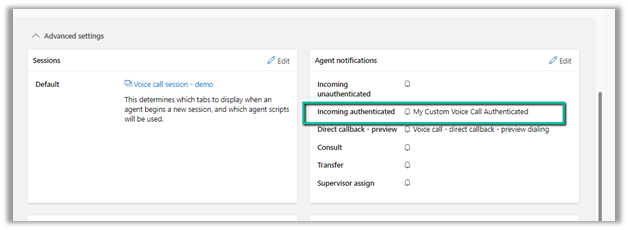
With the template created, navigate to the workstream to which we want to apply this template. In the Agent notification template, specify the custom notification template for the Incoming Authenticated.
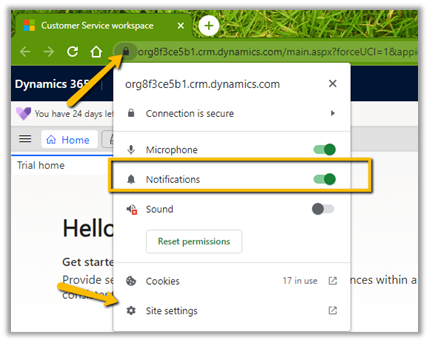
Also, enable Notifications for the app in the browser from Site Settings.
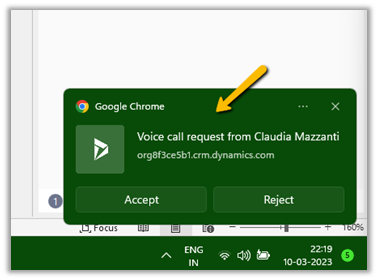
Here we can see the Desktop notification for the agent on the incoming call.
Learn more about it – https://learn.microsoft.com/en-us/dynamics365/app-profile-manager/notification-templates?tabs=customerserviceadmincenter#create-a-notification-template

To enable Sound Notification – https://nishantrana.me/2023/03/08/enable-sound-notifications-in-omnichannel-voice-and-other-channels-dynamics-365-for-customer-service/

Hope it helps..


Advertisements

How to – Set Default value for the combo box in Canvas Apps (Dataverse)


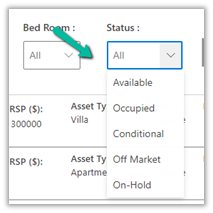
Suppose we have the following Combo Box named Status bind to one of the choice fields of Dataverse.

Items = Asset Status option set field of table Product.

Now if we want Available to be the default selected value for it, we can use the DefaultSelectedItems property of the combo box.

DefaultSelectedItems = Filter(Choices(Products[@’Asset Status’]), Value = ‘Asset Status’.Available)

Also if we want to set the value of the Villages combo box based on the value selected in the Region combo box. The region is a lookup field in the Villages table.

We can update the Items property of the Villages combo box from

Villages (Data Source)

to

If(IsBlank(comboRegion.Selected),Villages, Filter(Villages, Region.Region = comboRegion.Selected.Region))

Hope it helps..
Advertisements

Calculated Column inside Plugin? – Dataverse / Dynamics 365


Recently while working on a plugin, we realized that for a particular column, we were not getting value in the context (on Post Create), the same was the case for Post Update and Post Image.

Also using Retrieve and RetrieveMultipleto fetch its value inside the Plugin didn’t work

Eventually, we realized it was a calculated column, which doesn’t give value inside the Plugin.

If we do RetrieveMultiple and RetrieveMultiple from a console app, outside Plugin, we get the value for that field.

Hope it helps..
 

Advertisements