Wave 2 Gives a New Look to Views


Karan Khosla's avatarKKIT365

Remember the time you needed to add a column to a view but were worried about spoiling the layering of the solutions so ended up using the Advance find to edit columns and create a personal view ?

Well say goodbye to this problem now !! Microsoft has made things so much easier !!

Now you can add column’s on the fly with the column editor !
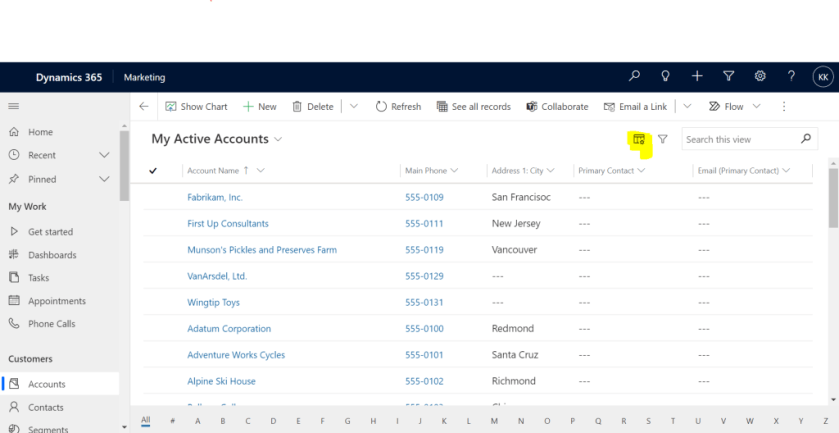
Clicking on this button gives you a list of fields you would want to add as column’s
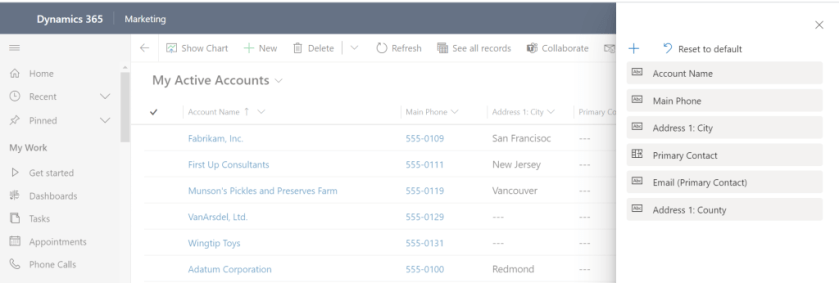
These changes are temporary and reverting to the original view is easy too !! Clicking on reset to default does the trick !

The Second amazing feature that will resolve a lot of confusion is the “Default” tag in views, the views dropdown now tell you which view is default !! Let’s compare the old UI to the New UI

Old ( The default view is…

View original post 138 more words

How to – Get the size of tables in Dataverse / Dynamics 365


Using the Capacity page in the Power Platform Admin Center we can extract the details of size occupied by table (in MB) within a particular environment.

Login to the admin portal and navigate to Capacity

https://admin.powerplatform.microsoft.com/resources/capacity

Select the Dataverse tab and click on Details or in case of trial click on the Trial tab

Here we have selected the details (graph) option for one of the environments.

Select Download all tables option for the Top database capacity use, by table chart


We can see the details within the extracted CSV file.

Get all the details here

https://docs.microsoft.com/en-us/power-platform/admin/capacity-storage#environment-storage-capacity-details

Hope it helps..

Advertisements

Solved- Currently, Dynamics 365 apps can only be enabled for your default region error


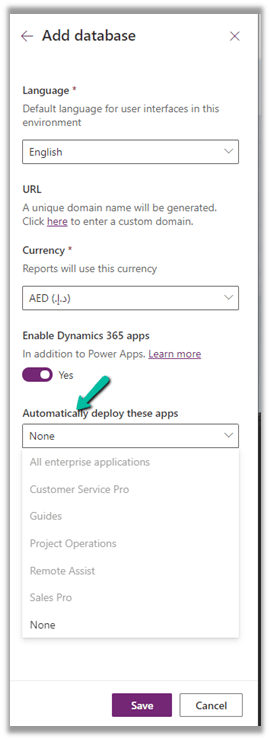
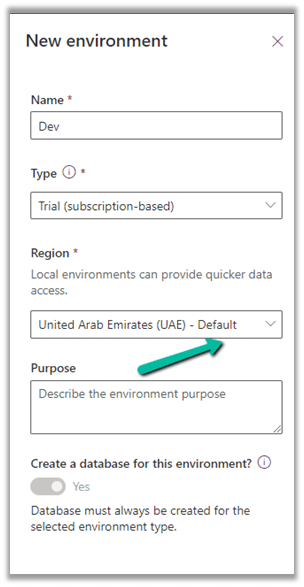
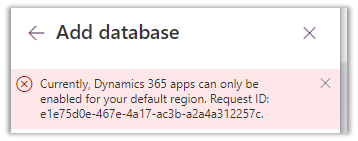
While trying to add a new Trial (subscription-based) on a Dynamics 365 Trial environment, we were getting the below error

Currently, Dynamics 365 apps can only be enabled for your default region

The default region was UAE for the other environments 

Even for the Azure Synapse Link – it was showing the default region as UAE North

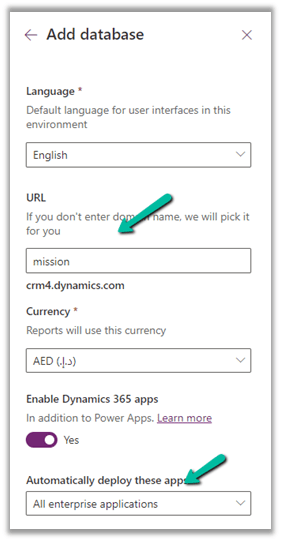
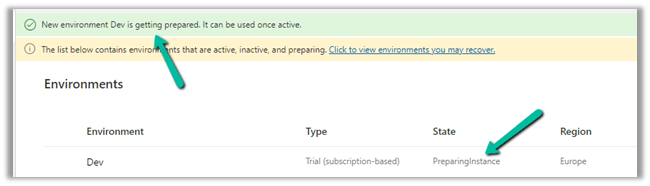
In our case selecting the Region to Europe allowed us to create a Trial (subscription-based).

Get all the details herehttps://docs.microsoft.com/en-us/power-platform/admin/create-environment

https://community.dynamics.com/365/f/dynamics-365-general-forum/395813/dynamics-365-apps-can-only-be-activated-for-your-default-region

Hope it helps..

Advertisements
Advertisements

How to – Optimize Delete operation – Dataverse / Dynamics 365


Recently we had to delete records for one of our entities, and we tried out different combinations of batch sizes and the number of threads with 25000 records as a sample to find the optimum setting.

Below is our sample SSIS Package (uses KingswaySoft Dynamics 365 Tool Kit), it retrieves 25000 record’s GUID (Contact table / entity) and then distributes it equally among 3 different CRM Destination Component running under different users (CRM Connection Managers).

How to – improve data migration performance – SSIS & Azure Data Factory (Dataverse / Dynamics 365)

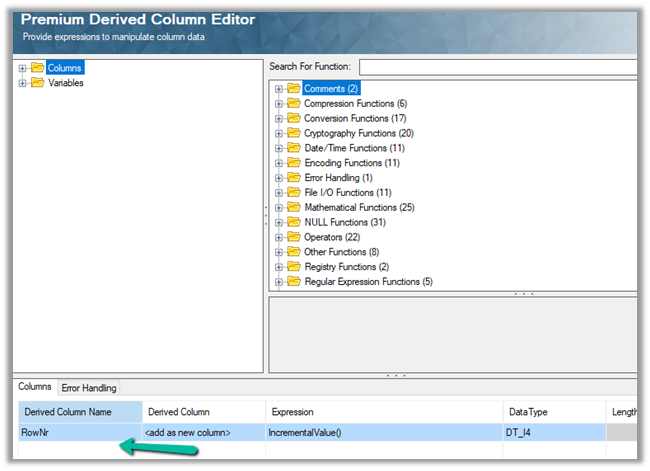
Below is our Premium Derived Column where we have added a new column with expression IncrementValue()

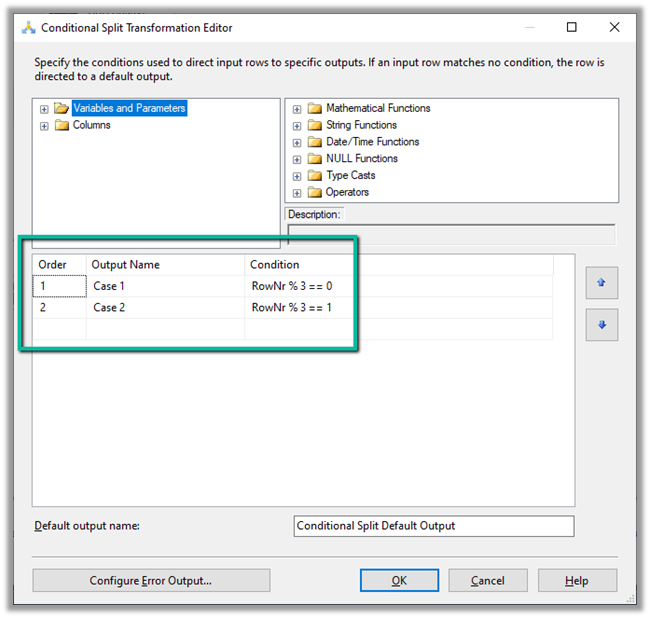
In Conditional Split component, we are then using this new column added to distrubute the output across three CRM Destination Component, each using a different CRM Connection Managers running under different application users.

We first started with 10 batch size and 20 thread followed by different combinations after that à

Below were our findings ->

Records Count Batch Size Thread Parallel Users Elapsed Time
25000 10 20 3 00:15:58.578
25000 10 15 3 00:14:43.734
25000 10 10 3 00:16:06.438
25000 10 5 3 00:23:52.094
25000 10 15 2 00:18.55.012
25000 10 15 1 00:39:15.828
25000 20 30 1 00:39:12.781

As we can see the Batch size 10 and thread around 15 gave us the best performance. However, evert environment / conditions will would be different so we should try out different combinations before finalizing.

SSIS and Microsoft Dynamics 365

Hope it helps..

Advertisements

Approvals in Microsoft Teams / Power Automate


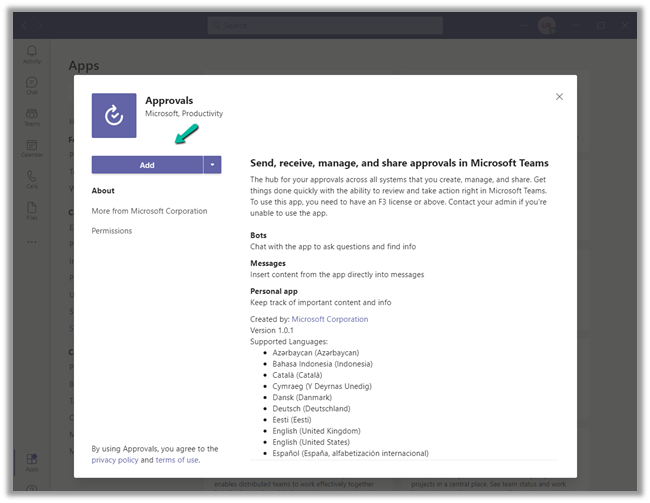
Approvals App for Teams was introduced early this year. To see it in action, let us start by first adding the Approval app in Teams.

Search for the app.

And click on Add.

The Approval app shows all the Approvals Received and Sent within teams, which can be filtered based on status.

We can also select the environment.

We can create a new approval request by clicking on New approval request

For the new Approval request, we can define –

  • Request Type – Basic or eSign (requires Adobe Sign)
  • Name of the Request.
  • Approvers – could be one or more. For more than one approver, we can select Require responses from all the users.
  • Additional Details.

We can add attachments.

It seems we can only add only one attachment.

Custom responses allow us to add our custom responses.

We can add 2 custom responses with a limit of 20 characters as shown below.

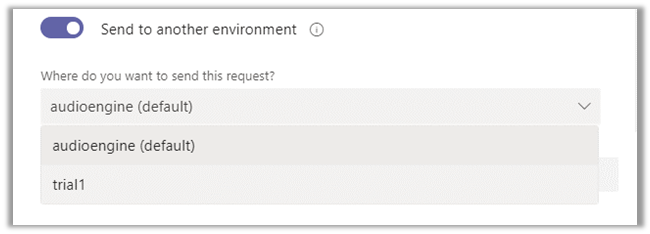
Send to another environment, lets us choose another environment within that tenant.

Now say we have below flow created that sends approval when a case is updated.

On getting triggered, the approver (assigned to) user will receive notification in Teams.

And in the team’s Feed as well as the Approvals app.

The approver can open the request and can take appropriate action.

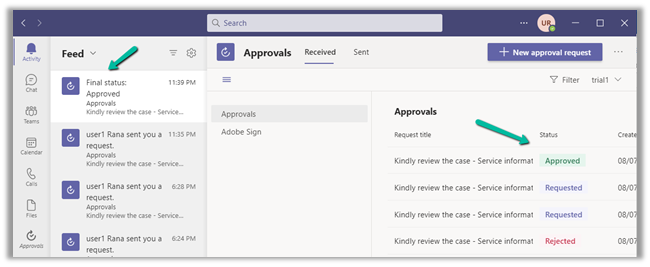
On Submitting the response, say e.g. Approve, notifications are received again with the updated status of the request as shown below.

Check more posts on Approvals in Power Automate

https://nishantrana.me/2020/08/31/approvals-power-automate-dynamics-365/

Hope it helps..

Advertisements

Solved– No function signature for the function with name ‘contains’ matches the specified arguments in Canvas Apps


We were getting the below error while trying to set the Items property of the Gallery control and were using Filters in the formula.

“The requested operation is invalid. Server Response: Sectors failed: No function signature for the function with name ‘contains’ matches the specified arguments. The function signatures considered are: contains(Edm.String Nullable=True, Edm.String Nullable=true).”

We were sure that the formula used was correct.

After trying for a couple of minutes more, we simply saved the app, and later when we again opened the app for edit, the error was no more there.

The same has been mentioned here –

https://powerusers.microsoft.com/t5/Building-Power-Apps/No-function-signature-when-filtering-using/td-p/592218

Hope it helps..

Advertisements

Nishant Rana's Weblog

Everything related to Microsoft .NET Technology

Skip to content ↓