Hi,
listing down all the new privileges for Security Role in our CRM 2011.
The total numbers of tabs are same.
Details, Core Records, Marketing, Sales, Service, Business Management, Service Management, Customization and Custom Entities.
Privileges are now ordered alphabetically.
Core Records Tab
Application File: – Not sure what this refers to. Please post comment if you know. This is what sdk says about it
| ApplicationFile |
ETC – 4707 |
FilteredApplicationFile |
For internal use only |
Connection, Connection Role: – Connection replaces relationship role in CRM 2011. Relationship Role are still there but deprecated.
Check this following post that explains it nicely
http://www.avanadeblog.com/xrm/2010/09/crm-2011-feature-of-the-week-8302010-connections.html
Document Location: – CRM 2011 integrates with SharePoint out of the box. Here the document location refers to the URL of the document library folder associated with a particular entity record.
Follow, Import Source File, Post: – Not very sure about them. Please comment if you know about them.
SharePoint Site: – Refers to the site to which we are integrating CRM 2011.

User Chart and User Dashboard has been wonderfully explained here
http://www.dynamicscrmtrickbag.com/2011/07/15/dynamics-crm-2011-charts-and-dashboards-who-can-see-what/
Interesting thing here is that the chart and dashboard created by user from ribbon interface (i.e. without going to customizations) are not even visible to System Administrator until it is shared with him.
User Entity UI Settings: – If we have multiple forms for our entity, the id of the last viewed form is saved in this setting.
User Entity Instance Data: – Not sure.
Web Wizard, Web Wizard Access Privilege, and Wizard Page: – Not sure
http://www.avanadeblog.com/xrm/2011/06/crm-2011-form-navigation.html
Miscellaneous Privileges:-
View Audit Partitions, Delete Audit Partitions, View Audit History, View Audit Summary,
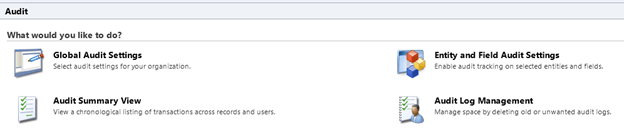
Best explained here:-
http://www.avanadeblog.com/xrm/2010/09/crm-2011-feature-of-the-week-9132010-auditing.html
Manage User Synchronization Filters:-
http://blogs.msdn.com/b/crm/archive/2011/06/02/controlling-user-synchronization-settings.aspx
Marketing Tab:-
Miscellaneous Privileges:-
Configure Internet Marketing Module, User internet marketing module.
It refers to the CRM 2011 online’s Internet Lead Capture feature.
http://www.youtube.com/watch?v=2WNY9DPMY1I
Sales Tab:-
Miscellaneous Privileges:-
Override Opportunity Pricing: – Something similar to Override Invoice, Order Pricing that were there in CRM 4.0
Override Quote Order Invoice Delete : – Not sure.
Service Tab:-
No changes.
Business Management Tab:-
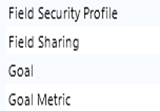
Field Security Profile and Field Sharing
à Refers to the new field level security feature in CRM 2011.
http://www.powerobjects.com/blog/2010/10/08/field-level-security-out-of-box-in-microsoft-dynamics-crm-2011/
http://info.profad.com/bid/64279/Determine-Field-Level-Security-Permissions-in-Microsoft-Dynamics-CRM-2011
Goal and Goal Metric à Refers to Goals that are new to CRM 2011.
http://www.dynamicscrmtrickbag.com/2010/10/30/whats-new-in-crm-2011-webinars-session-3-goals/
Miscellaneous Privileges:-
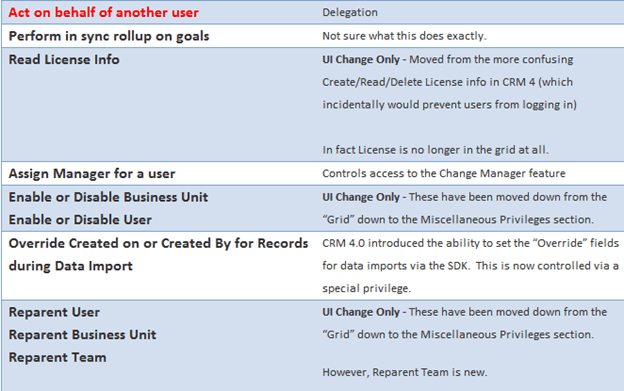
Act on Behalf of Another User, Assign manager for a user, enable or disable business unit, Override Created on or Created by for records during Data Import, Reparent Business Unit, Reparent User, Approve E-mail addresses for Users or Queues, Enable or Disable User, Perform in sync rollups on goals, Read License Info, Reparent Team.
Beautifully explained in this post.
http://www.avanadeblog.com/xrm/2010/09/crm-2011-feature-of-the-week-8232010-role-privilege-improvements.html
Service Management Tab:-
My Work hours not there in CRM 2011.
Miscellaneous Privileges:-
Create, Read, Write, Delete own calendar:-
http://social.microsoft.com/Forums/en/crm/thread/b1d3cce5-fd7d-400c-9212-7fad87428ea3
Customizations Tab:-
Entity Map and Attribute Map: –
http://msdn.microsoft.com/en-us/library/gg334512.aspx
Customizations.
Dialog Sessions: – Refers to new dialog feature in CRM 2011
http://blogs.msdn.com/b/crm/archive/2011/02/02/welcome-to-the-world-of-dialogs-part-1.aspx
Import Job: – Not Sure.
Option Set: – Picklists have been replaced by Option Set in CRM 2011. We can create Global Option Set that is available to all the entities e.g. Country or State List.
http://www.dynamicscrmtrickbag.com/2010/12/02/global-option-sets-in-dynamics-crm-2011/
Plugin Assembly and Plugin Type: – Plugin Type specifies whether it is a plugin assembly or custom workflow activity.
Process: – Might be referring to Workflows and Dialogs.
http://msdn.microsoft.com/en-us/library/gg328264.aspx
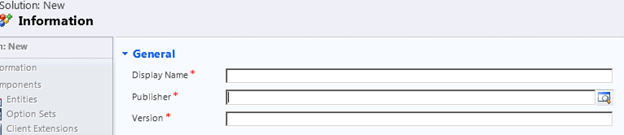
Publisher: – Refers to Publisher of a Solution.
Solution management
http://crmconsultancy.wordpress.com/2011/05/05/solutions-in-crm-2011/
http://ayazahmad.wordpress.com/2011/07/01/solutions-release-management-crm-2011/
View: – Not very sure, might refer to Saved Views created by user using Advance Find window.
http://community.dynamics.com/product/crm/crmtechnical/b/xrm/archive/2011/09/19/boost-collaboration-by-sharing-saved-views-in-crm-online.aspx
Web Resource: –
These are our web resources in CRM 2011

Good introduction here
http://dynamicscrm2011.wordpress.com/2011/05/30/crm-2011-web-resources/
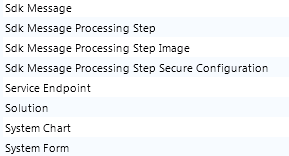
Sdk Message: – An SDK Message defines a message to the Microsoft Dynamics CRM platform. The message represents the operation that the platform is to perform. This entity should be considered read-only. You cannot use this entity to create or update a message in the platform.
Sdk Message Processing Step, Step Image, Step Secure Configuration and Service Endpoint: – Refers to plugin registration entities.
System Chart: – http://www.dynamicscrmtrickbag.com/2011/07/15/dynamics-crm-2011-charts-and-dashboards-who-can-see-what/
System Form :- Sdk Says – “The system form entity is used for organization-owned dashboards and entity forms”
Miscellaneous Privileges:-
Not there in CRM 2011
ISV Extension, Import Customizations, Publish Customization.
Would keep updating this post as I gather some new information.
Hope this helps.