Link and Create a case, contact, and account from a notes record in Timeline– Dynamics 365 / Dataverse


From the notes in the timeline, now we can link an existing note to an existing case, contact, or account record (this will unlink it from the current record) and also create either a new case, contact, or account record.

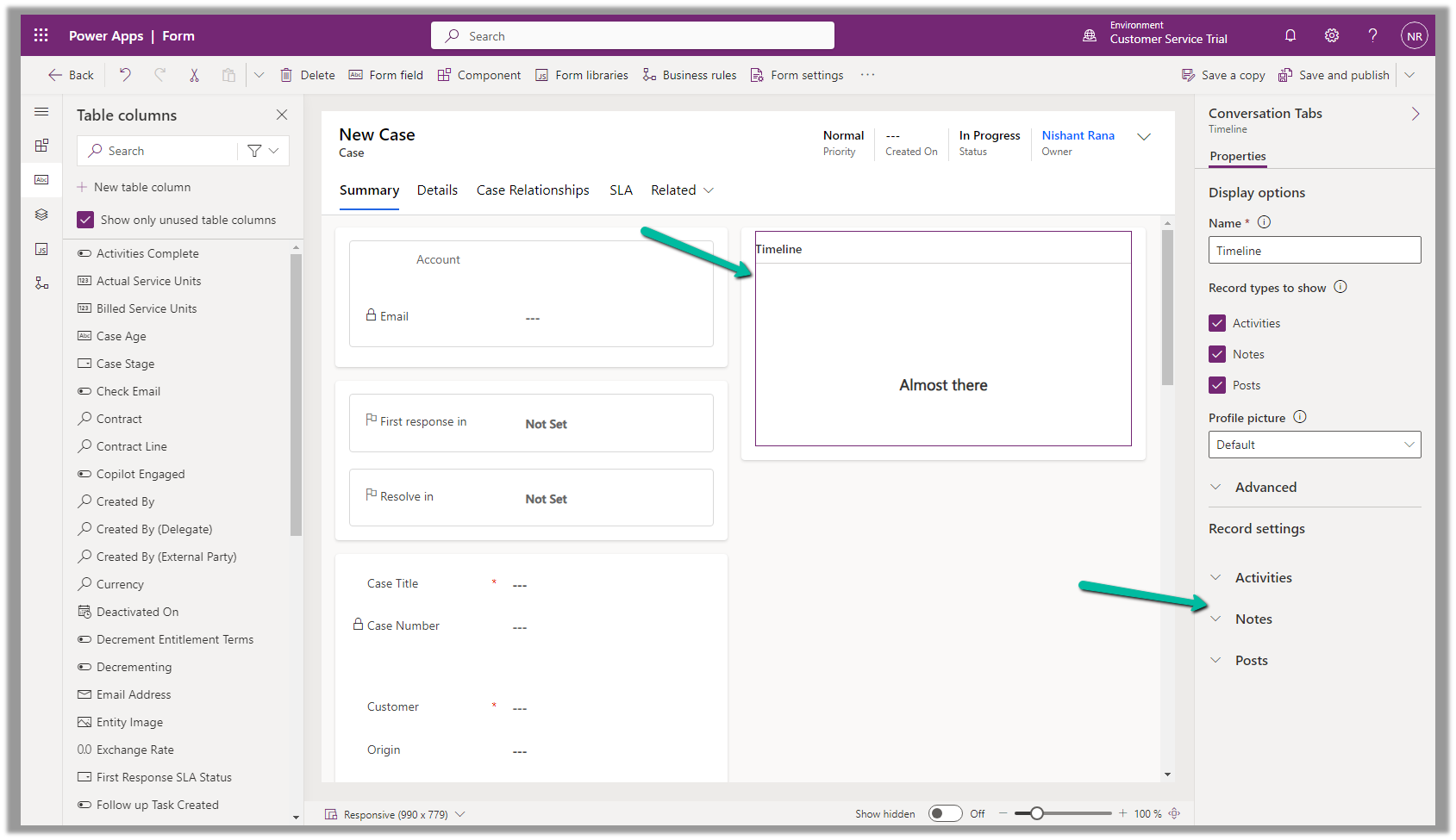
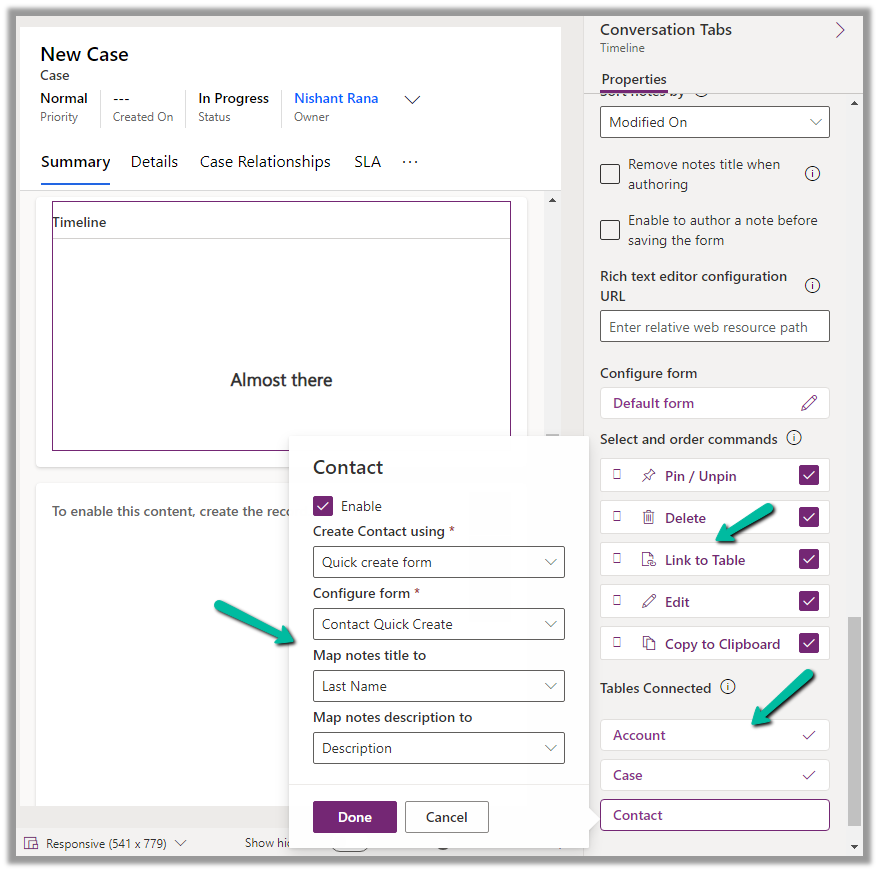
To configure it, open the Notes property of the Timeline section in the form.

Below we can see the different properties we can configure.

  • Enable the Link to Table Command
  • Enable the Tables to be connected.

Here we are enabling the Contact table, and then specfiying the Quick Create Form to be used while creating the new contact record, and also the mapping of the title and description field of the Notes. We have the same configuration for Case and Account.

Save and publish the changes.

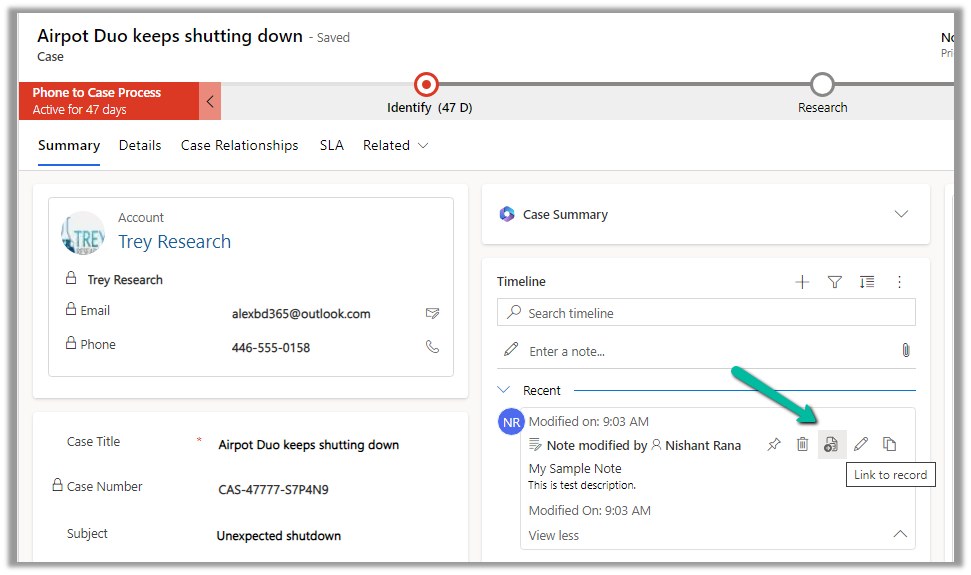
We can now see the option to Link to record for the notes.

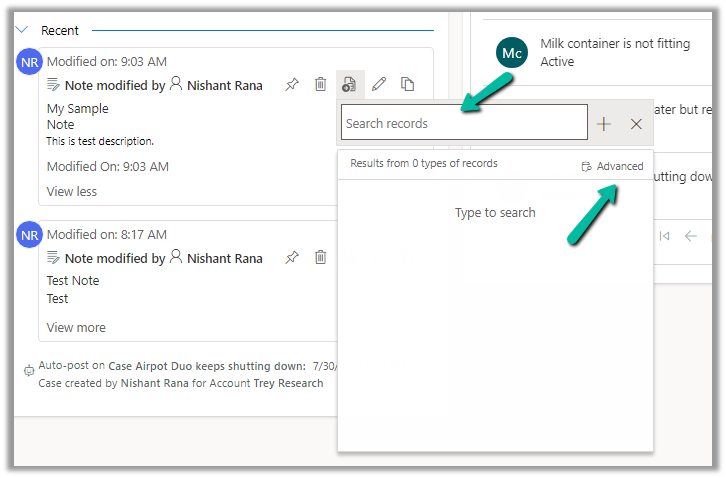
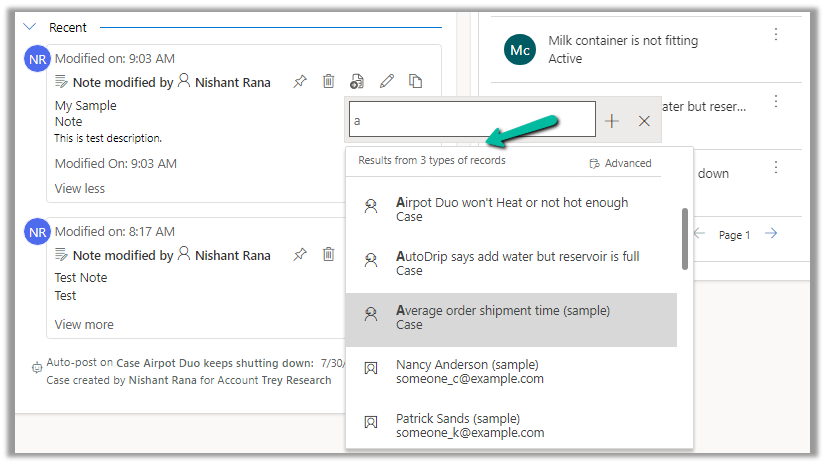
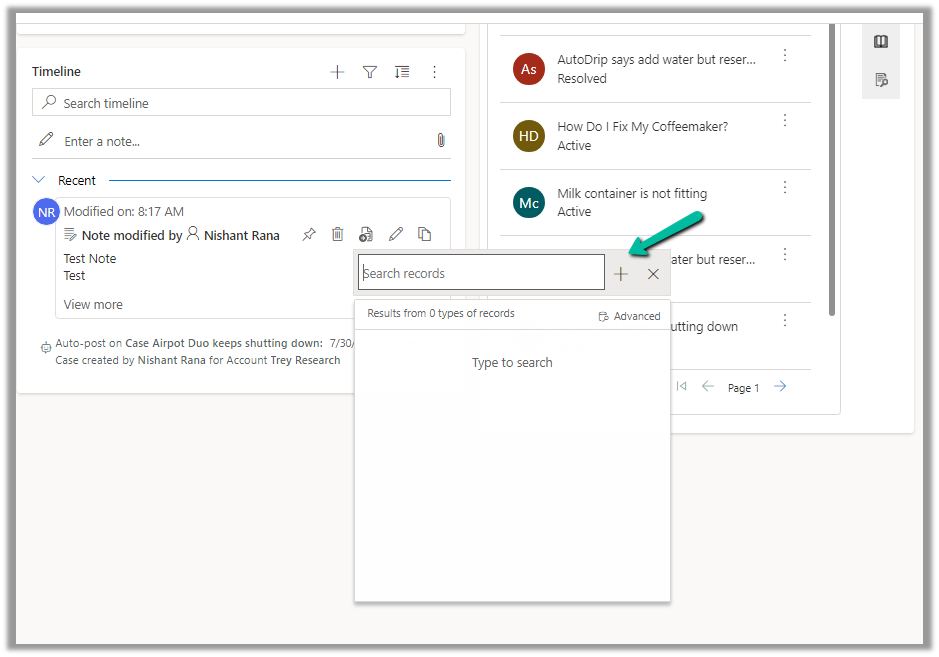
We get the option to search for an existing record (it will show results from tables connected).

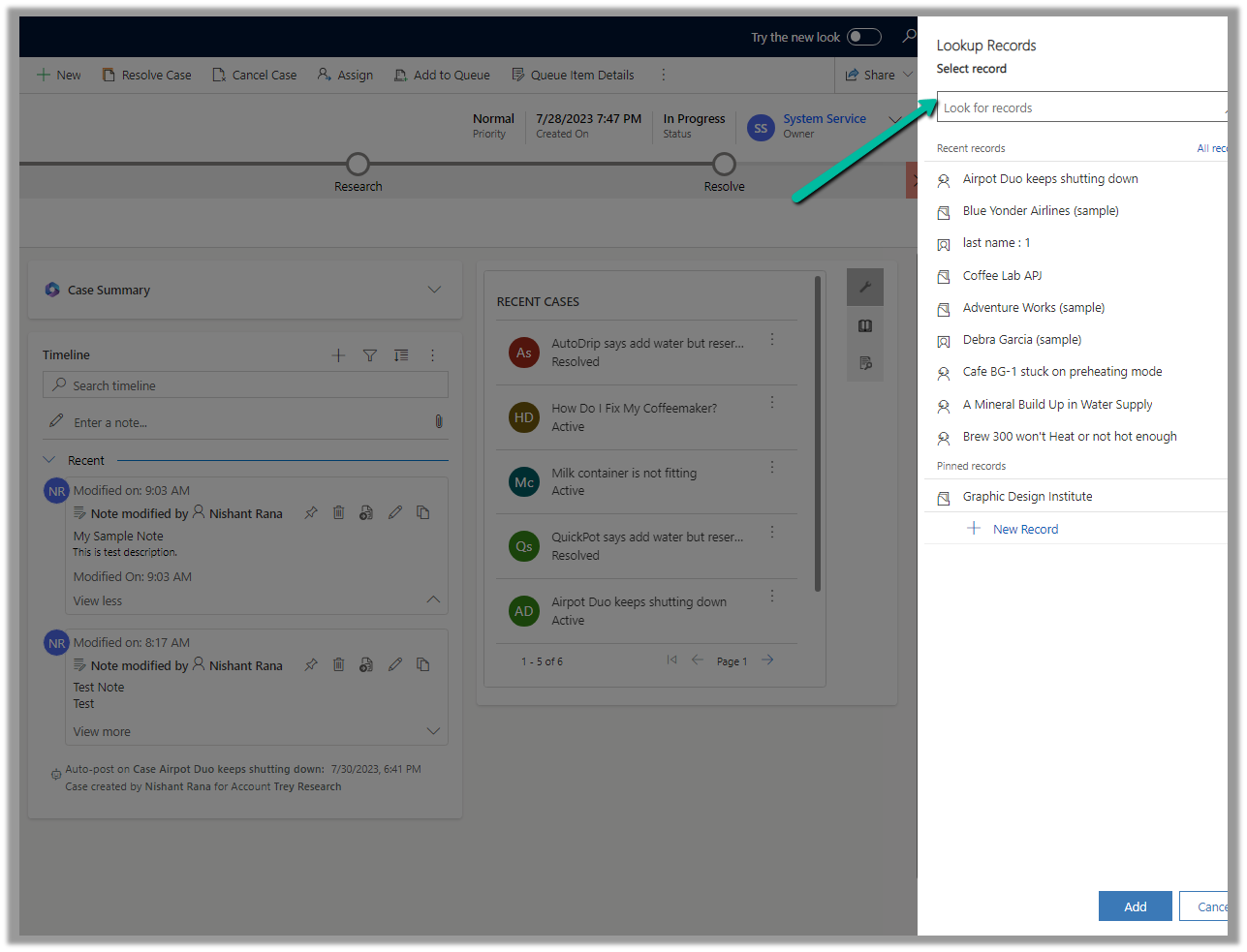
Clicking on Advanced opens the lookup dialog.

On Associating to an existing record, the notes get linked to the new record and unlinked to the current record.

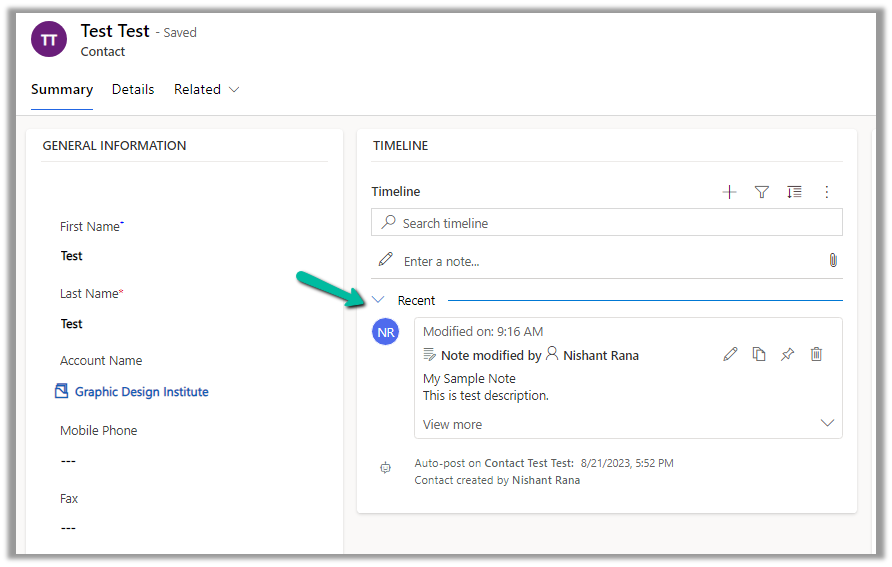
We can see the notes record associated with the contact record and removed from the existing case record.

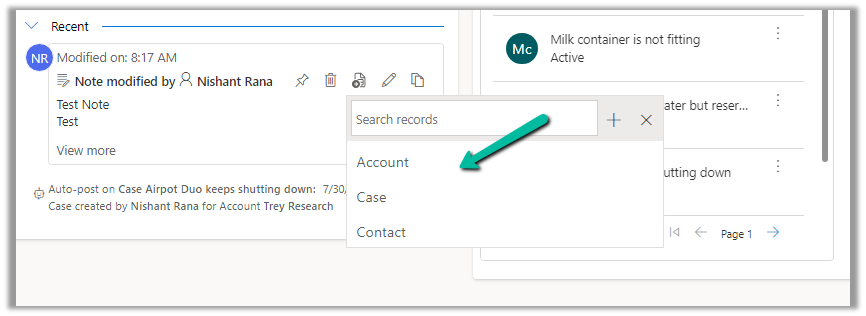
We can also use the plus + sign to create new records of the tables connected from the notes.

Account, Case, and Contact in this case.

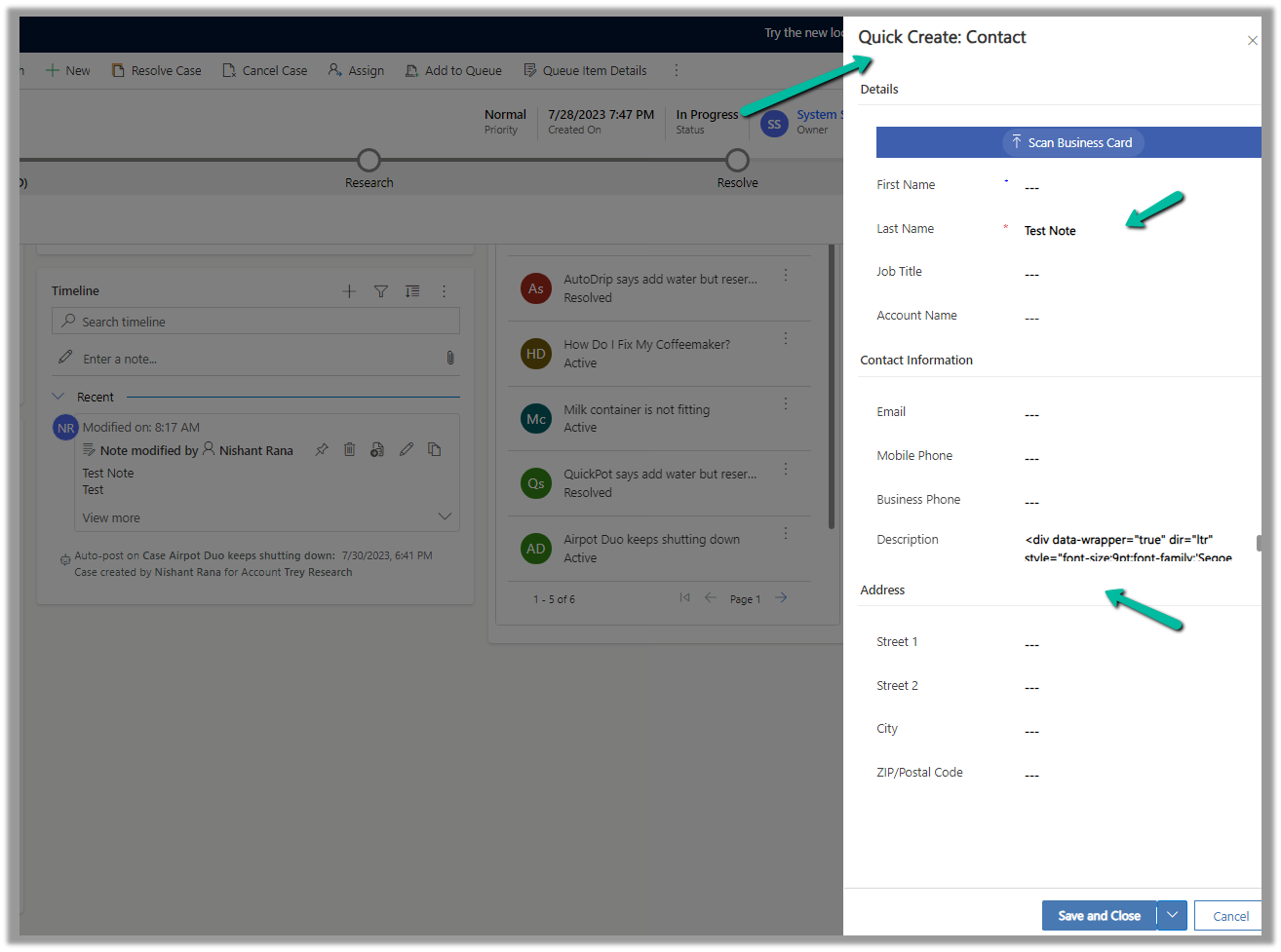
This opens the Quick Create form, with the title and description field of the notes mapped.

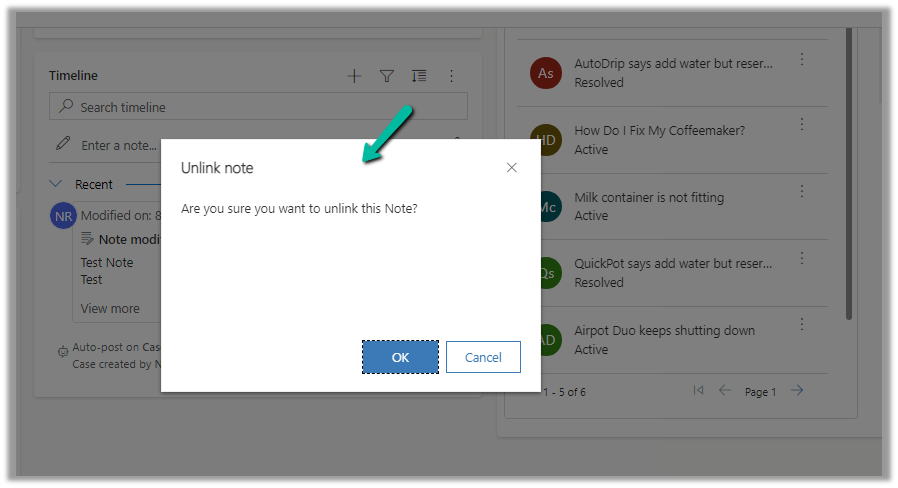
After the new record gets created, we are again presented with the option to Unlink that existing note from the current record.

Below we can see the new record with the note associated with it.

Get all the details here

Hope it helps..

Advertisements

How to – Permanently delete users in the Power Platform (Dataverse / Dynamics 365)


To delete the user from Power Platform, we need to enable the following feature – Delete disabled users.

Before enabling this feature we can see the following Views for the Users.

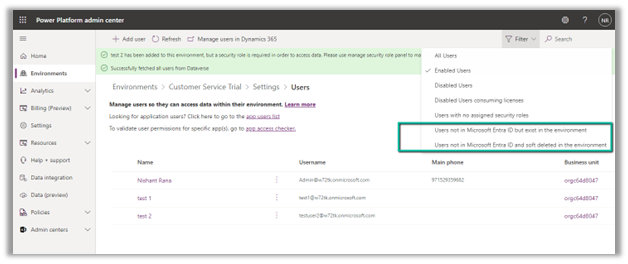
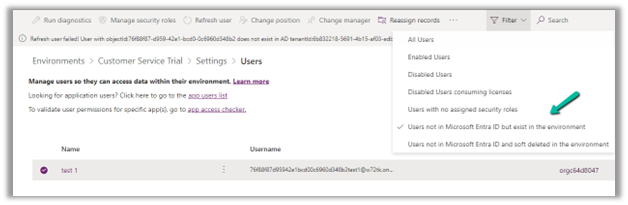
After enabling Delete disabled users, we can see 2 new views added,

  • Users not in Microsoft Entra ID but exist in the environment.
  • Users not in Microsoft Entra ID and soft deleted in the environment.

Also currently we can see 3 users (enabled) in the environment.

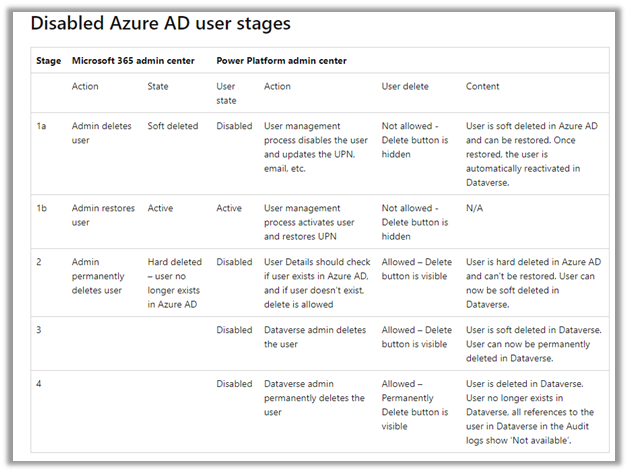
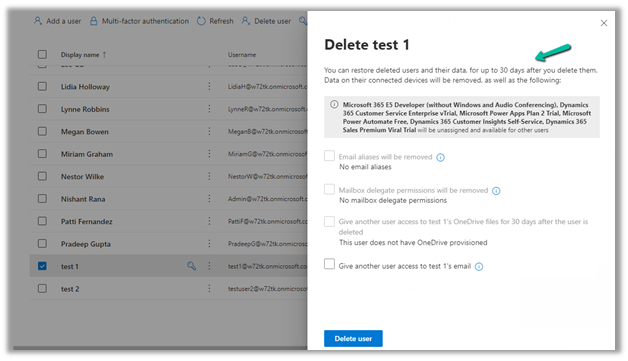
Now let us delete the test 1 user from the Microsoft 365 Admin Center.

The deleted user and its data can be restored up to 30 days (soft delete)

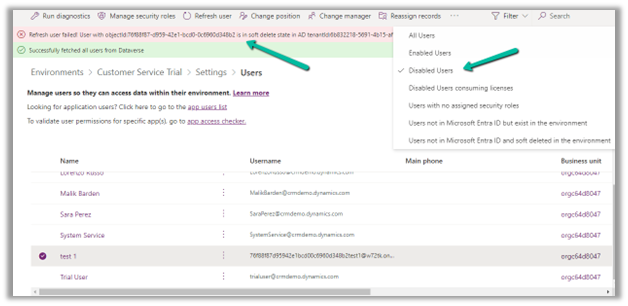
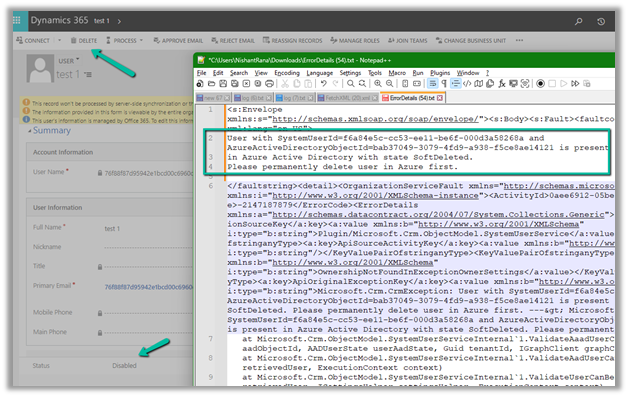
Inside Power Platform Admin Center, we can see the user account being disabled (and soft delete state in AD)

If we try to delete the record, we will get the below error that use is present in AD in the state SoftDeleted. Please permanently delete the user in Azure first.

Let us permanently delete the user in Azure AD.

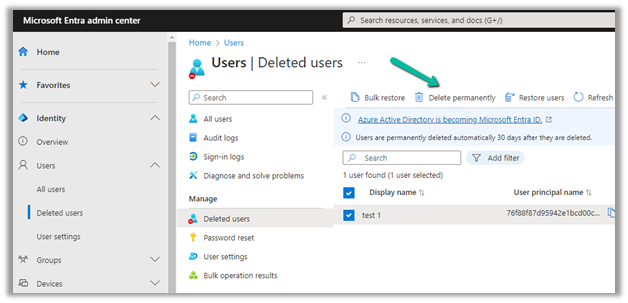
Login to Azure Portal or Microsoft Entra admin center, select Users
>> Deleted Users

Select the user (deleted) and click on Delete Permanently.

On Refreshing the user, we get the message that the user does not exist in the AD, and also user record is now moved to the “Users not in Microsoft Entra ID but exist in the environment” view.

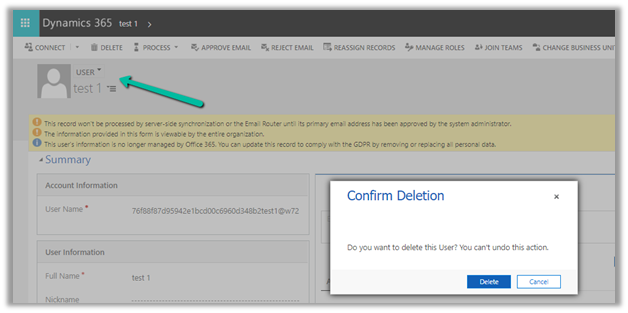
Let us try deleting the user record from CRM now.

This time user records get deleted (soft delete) successfully.

Within the Power Platform Admin Center, we can see the user record moved to “Users not in Microsoft Entra ID and soft deleted in the environment”

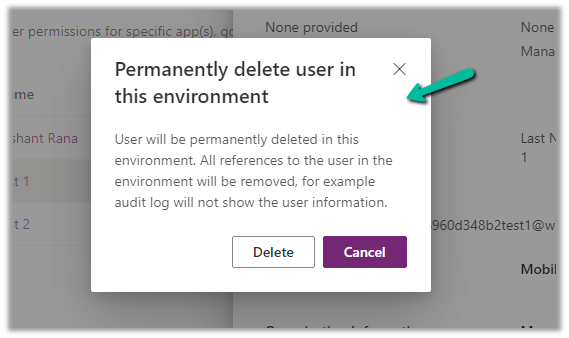
Similar to Azure Active Directory or Microsoft Entra, now we get the option to permanently delete users from the Power Platform Admin Center after soft delete.

Get all the details here

Hope it helps..

Advertisements

Analytics capabilities of Kupp Code Analytics


In the previous posts, we covered the Overview and Key Features of Kupp Code Analytics, the installation and setup process of the extension, and its Intellisense capabilities.

Here we’d have a quick look at the analytics capabilities of the extension.

To enable it, inside Visual Studio, navigate to Tools >> Options >> Kupp Code Analytics >> General or Extensions >> Kupp Code Analytics >> Analytics >> Configure Analytics

Set “Enable C# Code Analyzer” to “True”. Requires Visual Studio to be restarted on change.

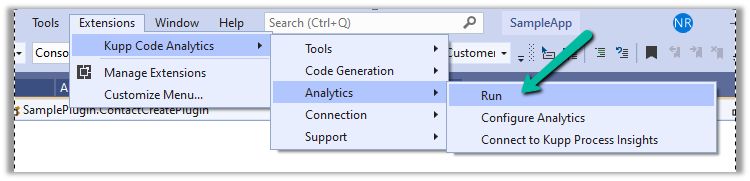
To run the analytics, select Extensions >> Kupp Code Analytics >> Analytics >> Run

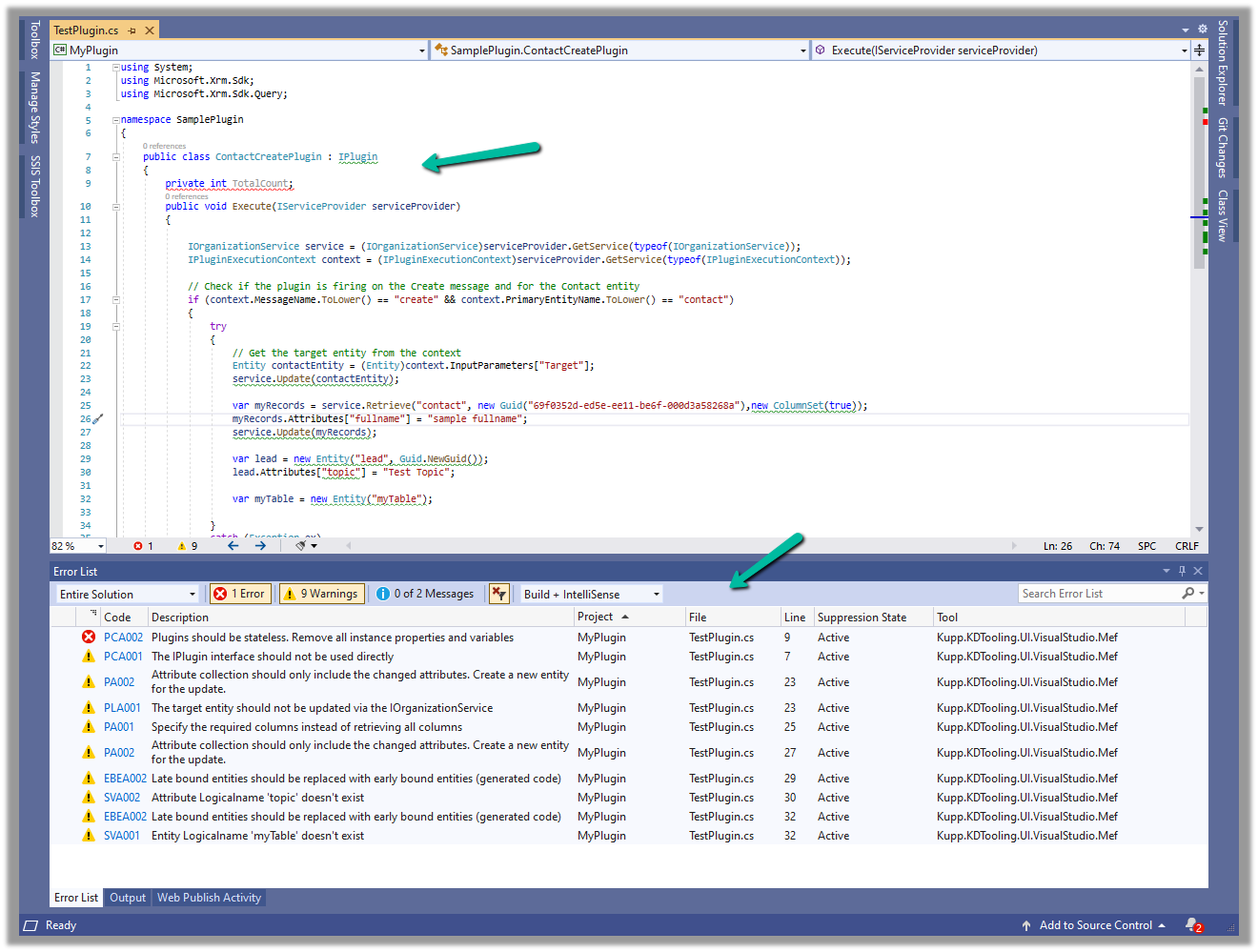
Below we can see the results of running the analytics on our sample plugin class.

Let us see the code analysis rules one be one.

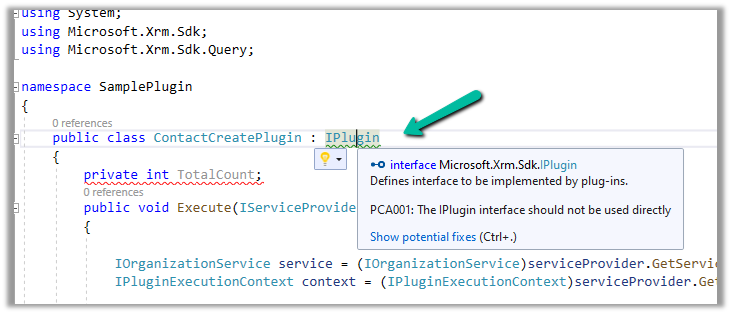
PCA001: The lPlugin interface should not be used directly.

The suggestion is to use a custom base class instead to handle the call delegation, using the context information of the plugin.

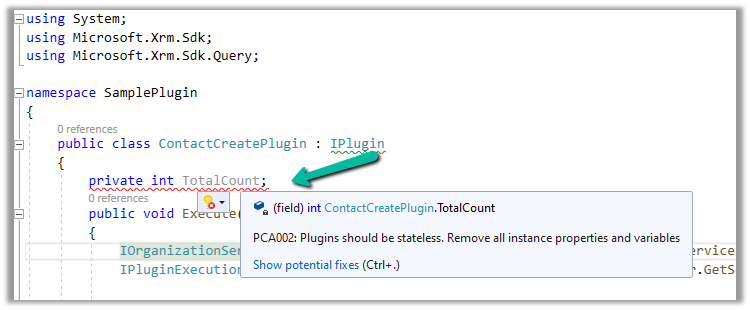
PCA002: Plugins should be stateless. Remove all instances properties and values.

Plugins are instantiated on a per-request basis and handle specific execution contexts. The plugin instances are short-lived and should not be assumed to persist across multiple requests. Also if multiple plugin instances execute especially in the case of bulk operations, it could lead to concurrency issues.

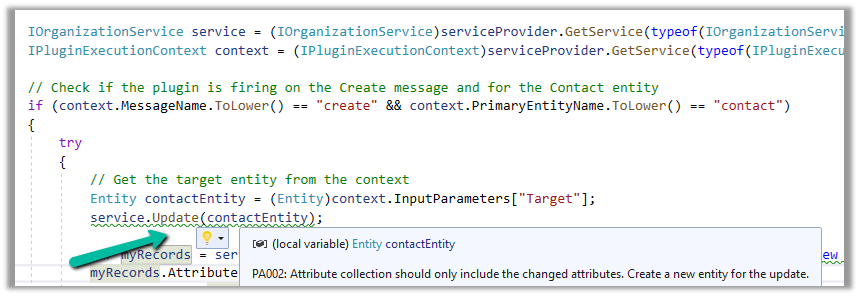
PA002: Attribute collection should only include the changed attributes. Create a new entity for the update

While updating the table or entity, create a new Entity instance and only include those attributes that are changed.

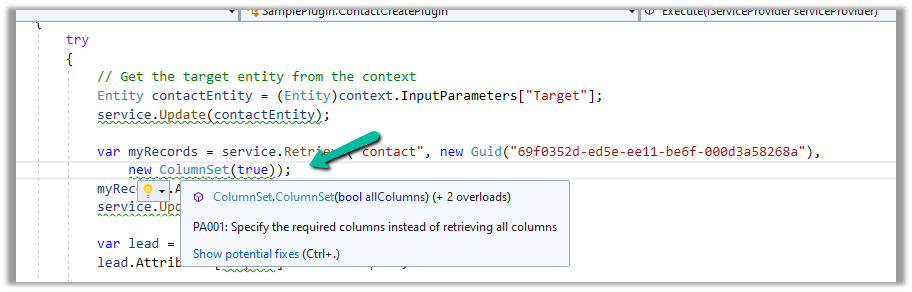
PA001: Specify the required columns instead of retrieving all columns.

Specify the required attributes to be retrieved instead of all columns as this would impact the performance.

EBEA002: Late bound entities should be replaced with early bound entities.

SVA001: Entity Logicalname ‘myTable’ doesn’t exist.

It is suggested to use early bound entities as they provide Type Safety and IntelliSense Support decreasing the likelihood of runtime errors and can enhance productivity through auto-completing and context-aware suggestions.

These were a few of the examples, that show the key capabilities of the extension, for the complete list, please refer to the product documentation

Hope it helps..

Advertisements

Free up storage space – Dataverse / Dynamics 365


Recently for setting up a new environment, we created a new sandbox environment and copied the production environment to it. Next, we had to reduce the storage space occupied by this new environment.

We followed the below steps

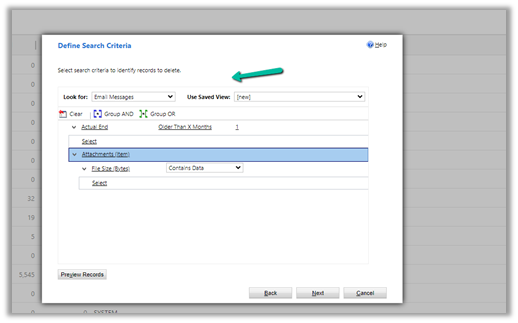
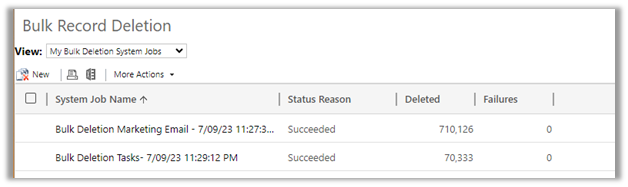
  • Bulk Deletion Job – Delete Email Messages having Attachments older than 1 month.
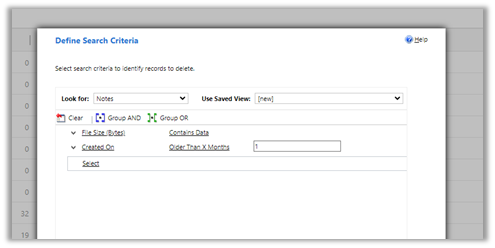
  • Bulk Deletion Job – Delete Notes having attachments older than 1 month.
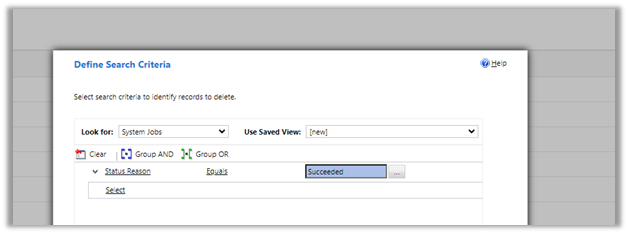
  • Delete System Job with Status as Succeeded.
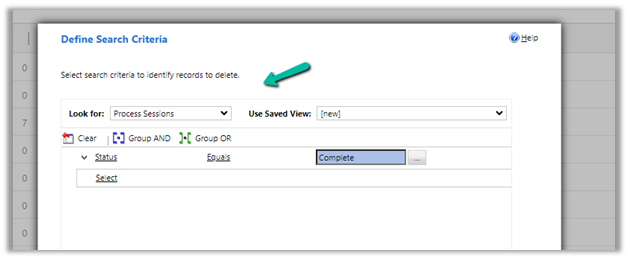
  • Delete Process Session with Status as Complete
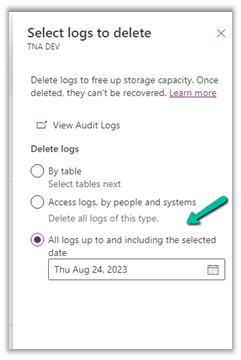
  • For Logs, we deleted Audit Logs
  • Similarly, we can also delete Plugin Trace Logs records.

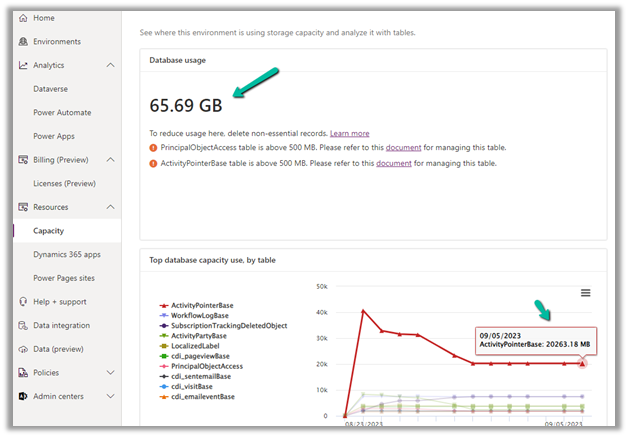
These steps allowed us to decrease the Database Usage from 110 GB to 65 GB.

And File Usage from 315 GB to 16 GB.

Also, check –

Get all the details here –

https://learn.microsoft.com/en-us/power-platform/admin/free-storage-space

Hope it helps..
Advertisements

Cleaning up the ActivityPointBase to free up storage– Dataverse / Dynamics 365


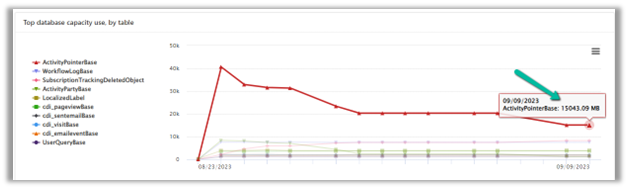
In one of our environments, the ActivityPointBase table was occupying nearly 20 GB. It was earlier 40 GB, and we then deleted email records to bring it down to 20 GB.

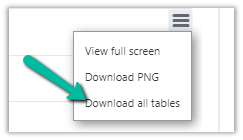
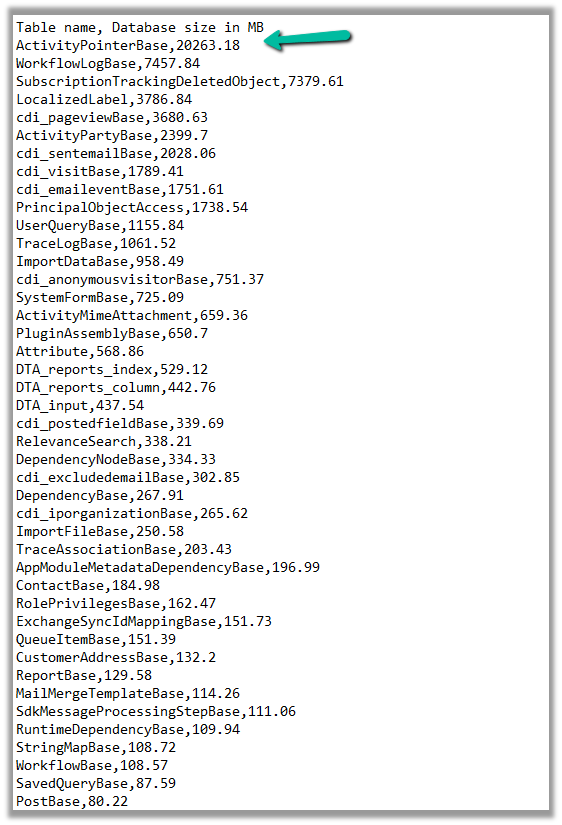
On downloading the table details, we did not get a clear idea of what activity-type table was occupying that much space.

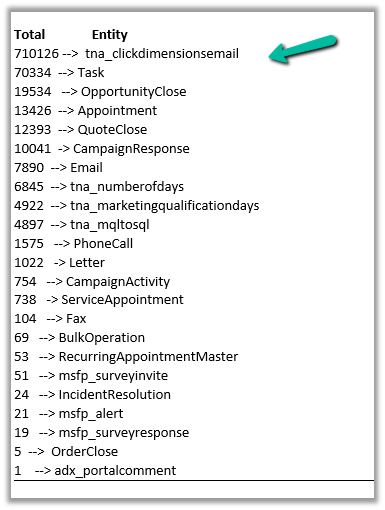
So we raised the Microsoft Support ticket, and they shared with us the breakdown of records occupied by different activity type tables.

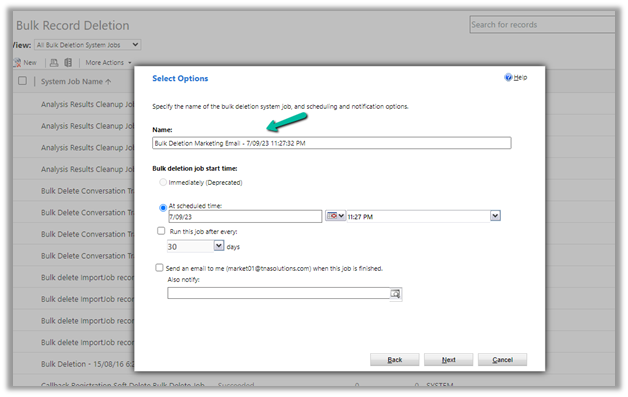
Then we configured our Bulk Deletion Job to delete the corresponding activity type records.

This helped us to bring down the ActivityPointerBase from 20 GB to 15 GB.

https://learn.microsoft.com/en-us/power-platform/admin/capacity-storage

Hope it helps..
Advertisements

Date Time Fields (Date Only and User Local – Behaviour) in Power Automate (Dataverse)


Recently we faced an issue in our flow that was showing a different date that the date entered by the user for a date time field.

Let us look at the below scenario to understand it.

Say we have the below field Date and Time with Time Zone Adjustment as User Local created in CRM / Dataverse.

Now user enters the below value in in the field and saves the record which triggers the flow.

The user’s time zone is set as below

Now in our Power Automate flow, we can see the UTC date for it.

2023-08-27T20:00:00Z

Now to convert to the user’s New Zealand Time Zone we can make use convertTimeZone function here

convertTimeZone(triggerOutputs()?[‘body/cr0e8_mydatetimefield’],’UTC’, ‘New Zealand Standard Time’, ‘MM/dd/yyyy’)

We get the date as expected i.e. 28th

Now let us change the Format of the field to Date Only, and we keep the Time zone adjustment as User Local only.

Let us trigger the flow again. (now we don’t have the time part)

We get the date without time part as expected.

But this time the convertTimeZone
function doesn’t work, as we only have the Date part and it is not in the UTC format.

convertTimeZone(triggerOutputs()?[‘body/cr0e8_mydatetimefield’],’UTC’, ‘New Zealand Standard Time’, ‘MM/dd/yyyy’)


Check this thread that talks about it –

https://powerusers.microsoft.com/t5/Building-Flows/Dataverse-Date-only-field-is-set-1-day-off-from-original-value/td-p/805859

Here one quick fix could be to change the Time zone adjustment to Date Only or Time zone independent for that field(i.e. no time zone conversion).

https://learn.microsoft.com/en-us/power-apps/maker/data-platform/behavior-format-date-time-field#date-and-time-column-behavior-and-format

Now triggering the flow again, we get the below values –

as now there is no time zone conversion for that field.

Hope it helps..
Advertisements