Hide Show Button in Command Bar / Ribbon in Dynamics 365 / Model-Driven App (For Quick Reference)


Open the App in the App Designer, select the Edit Command Bar for the table
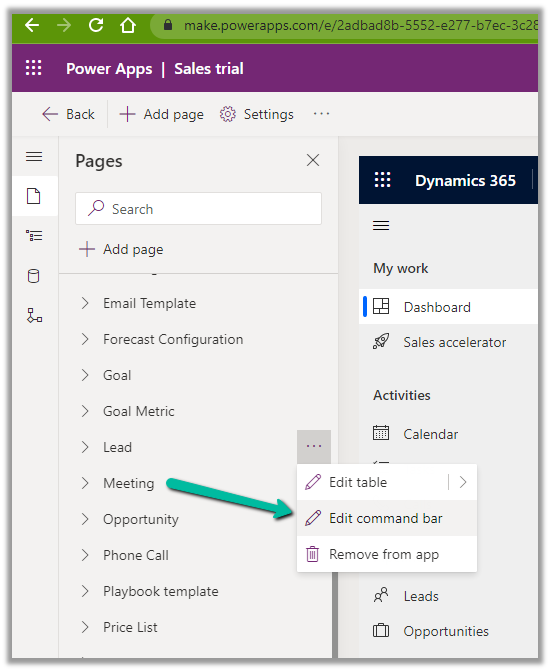
Also, check the limitations of the Command designer, the important one being that the pre-existing classic commands cannot be customized with the new command designer.
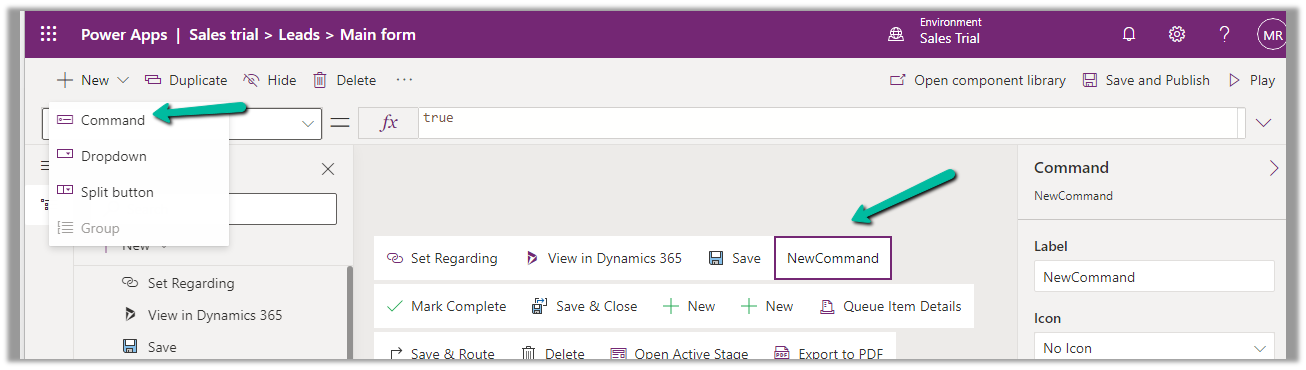
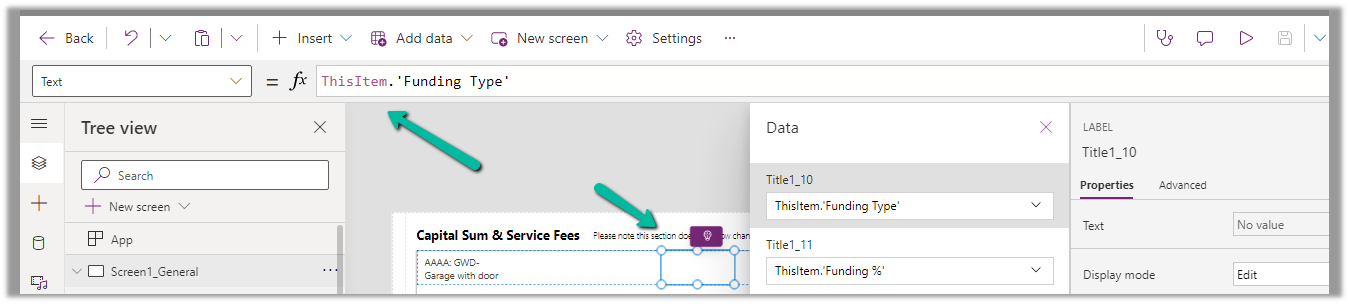
For the new Command added, set its Visible property based on the status of the current selected item/record.

More on Power Fx

Now similarly if we want to show the button only for an existing record by updating the RibbonDiffXML, we can write the following DisplayRule based on FormStateRule
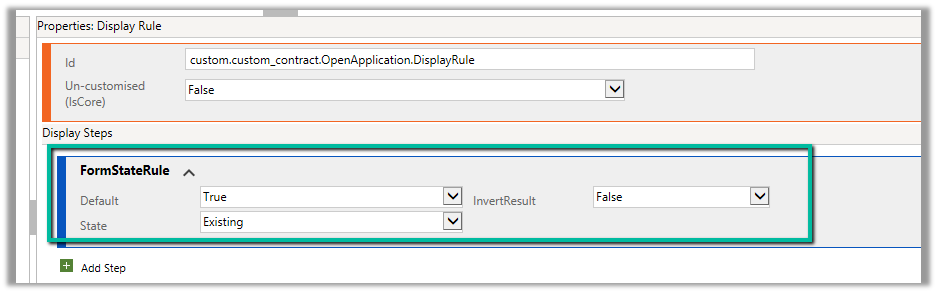


Hope it helps..


Advertisements

Fixed – Invalid data from the network error in the custom page – Power Apps / Dataverse


Recently in one of our custom pages, we were getting the below error

“Invalid data from the network”

We had this setting “Formula-level error management” as On, switching it off was hiding this error on the page.

To fix it we tried removing the fields one by one to figure out the issue. Eventually, we saw the error was going away if we remove one of the option set fields from the gallery or comment it’s formula. Later when we removed and added the field back in the gallery and the error got fixed for us.

The page loading properly without the error –

Hope it helps..


Advertisements

Combo box showing blank values in case of multiple conditions – Canvas App (Dataverse)


Recently while trying to filter combo box Items we were getting the values but it was coming as blank instead of showing the name field.

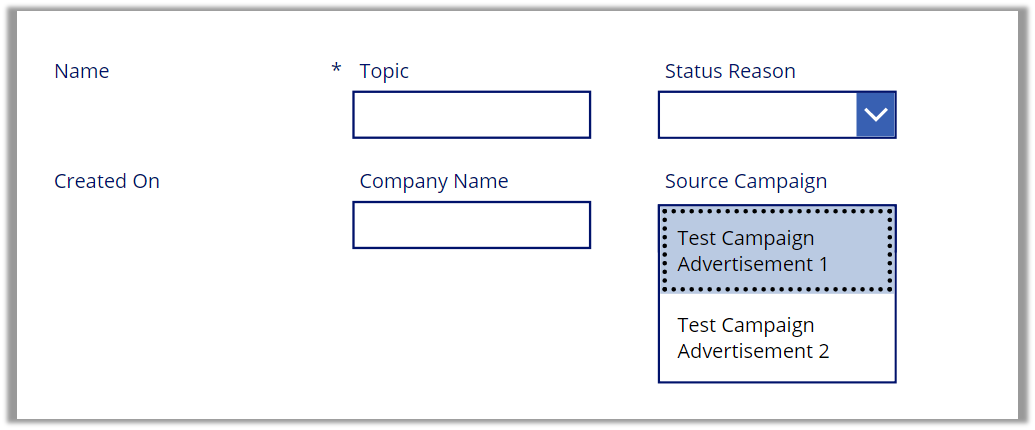
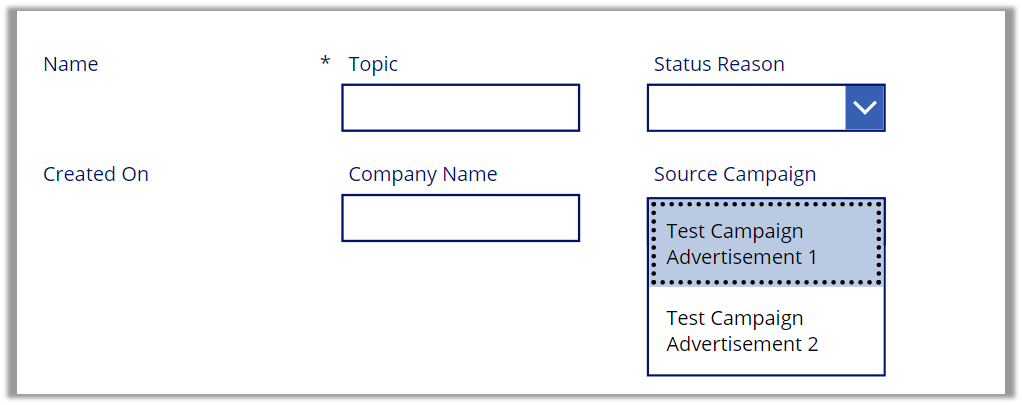
Below is a sample Form – connected to Leads and Source Campaign is the combo box field (lookup to Campaign)

As we can see without applying the filter we can see the name (Display fields) populated.

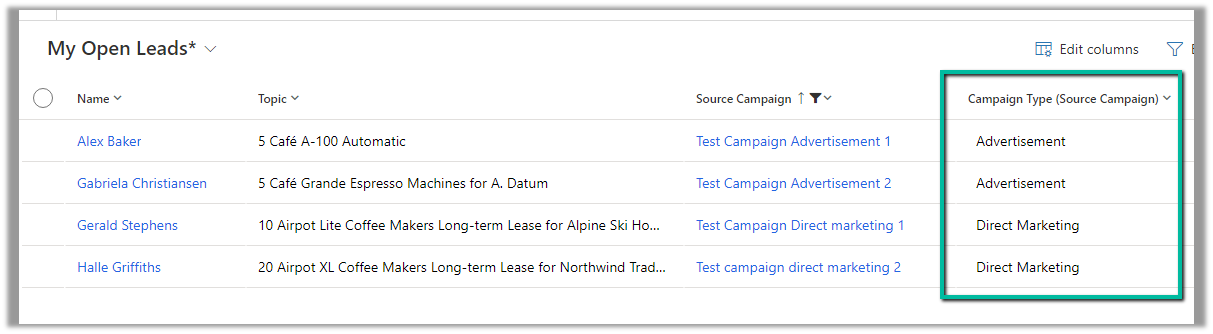
Now let us try to filter it based on the Campaign Type field.

Here we have applied a single filter condition.

We can see the combo box getting filtered correctly.

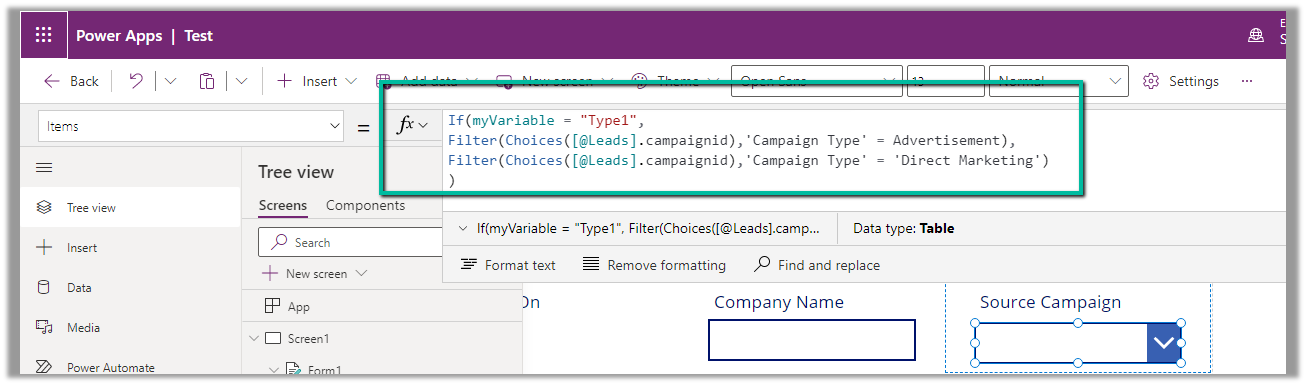
Now we are introducing a variable just to filter it based on condition.

Till now filtering works as expected.

Now let us introduce else condition here.

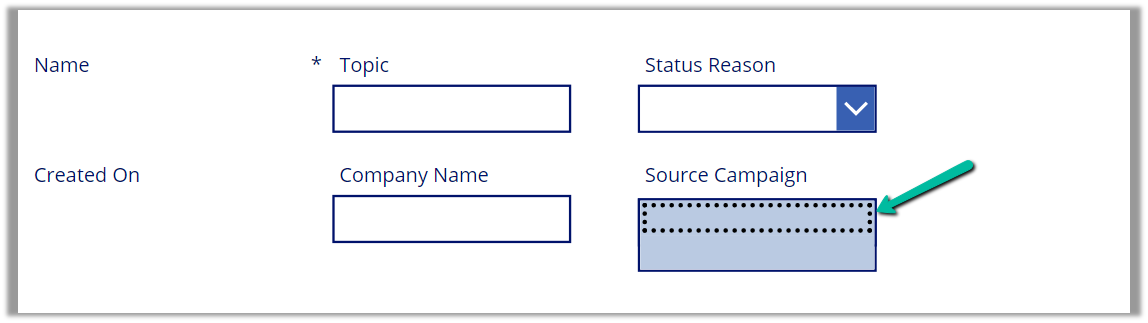
We can see the combo box getting filtered but not showing the name field of the Campaign set as a display field. Through developer tools also, we don’t see the name returned in this case. The same is the case if we use multiple If or Switch in the formula.

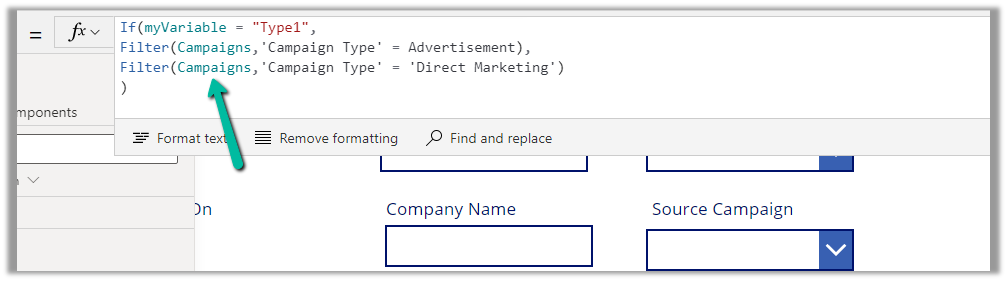
The solution is to filter on Campaigns data source directly, instead of the corresponding Choice field in the Lead.

The result –

Hope it helps..

Advertisements

How to – Create Marketing form submission record through Flow (Power Automate) – Dynamics 365 Marketing


Recently we were exploring the possibility of creating a marketing form submission record through flow/custom code. Here simply creating the marketing form submission record is not enough, for it to be processed by the platform, we need to call the bound action – msdyncrm_UpdateMarketingFormSubmission with Step = Retry. (And it’s all not an officially supported scenario, so be careful)

Below is how the flow looks like

First, we create a form submission record –

After creating the form submission record, we are creating and associating the marketing field submission records with the values that we want to pass for the form – email, first name, and last name in this case.

And then eventually calling the action –msdyncrm_UpdateMarketingFormSubmission to trigger the submission (resubmit) of the form submission record.

On running the flow, we can see the record created with the status as pending.

Within a few seconds, if the input is correct, we can see the status updated as success

and the corresponding contact/lead created or updated.

Hope it helps..

Advertisements

Fixed – Global variables are not allowed in StartScreen (PowerApps / Custom Page)


Recently while working on a custom page we had a requirement to show different screens on the app start based on a choice field in the record. (The custom page was being opened from a button/command on the form)

For the custom page’s App OnStart we were first removing the curly brackets from the recordID parameter passed to set the ContractId variable followed by setting ContractRecord variable using that GUID in the LookUp function.

Below is the JavaScript used to pass the parameters to the custom page (from the command/ribbon button)

Now based on Contract Type optionset field in the Contract record we wanted to show a different screen as the start screen. However, trying to use the Global Variable in the StartScreen function gave us the error – “Global Variables are not allowed in StartScreen”

The solution here was to use the Param recordId to get the record and set the start screen accordingly in the StartScreen instead of ContractRecord global variable.

Also check  – https://debajmecrm.com/how-to-dynamically-show-the-start-screen-of-an-app-in-power-apps-canvas-apps/

Hope it helps..


Advertisements

List Rows, Select Columns, and Lookup field – Power Automate / Dataverse


Suppose we want to retrieve the value of the source campaign lookup of the lead records.

The schema name of Source Campaign is – campaignid

To get its GUID in the Select columns of list rows we can specify it as

_campaignid_value i.e. _lookupschemaname_value

The other option is if we specify the schema name in select columns then we need to use the expand property to get the GUID as well if we want any other attribute values e.g. text/label of the lookup field.


Hope it helps..

Advertisements