How to – use HTTP Action to call DataVerse / Dynamics 365 Web API in Power Automate


Let us take a simple example, to see the steps involved.

Here we will be manually triggering a flow, getting the token, and calling the WhoAmI request in Microsoft Dataverse / Dynamics 365.

This is how our final Flow looks like.

Inside the first HTTP action, we are calling OAuth 2.0 token endpoint v1. We have MyCrmApp registered in Azure AD and have generated the client secret for it.

Also we have created an Application User using the above application details and have given the appropriate security role.

Below is how our HTTP request looks like.


Method

POST

URI

https://login.microsoftonline.com/489f9a0f-1326-42ae-a00c-0dd3cd16e6e9/oauth2/token

Headers


Content-Type

application/x-www-form-urlencoded

Body

grant_type=client_credentials&

client_id=ad7a1cc4-123f-4270-9c11-29eb1686e203&

client_secret=m7.xyzsdfsdfe.jZ0odh-C-85qg70QPfnsI&

resource=https://[orgname].crm.dynamics.com/

Next, we have added the Compose action to get the token from the output of the HTTP request.


Inputs (Expression) = outputs(‘HTTP’).body.access_token

Next, we have added the HTTP action again to calls the WhoAmI request using the above token.

Method

GET

URI

https://trialcrm.api.crm.dynamics.com/api/data/v9.2/WhoAmI

Headers


Content-Type

application/json

Authorization

Bearer [Output of the previous step]

On triggering our Flow succeeds as shown below.

The output of the first HTTP request.

Compose step has the access token

And the final step has the result of the HTTP Get request to WhoAmI

The helpful post –

https://carinaclaesson.com/2019/11/24/using-power-automate-to-trigger-on-create-or-update-in-the-cds-and-make-http-requests-with-oauth-2-0-authentication/

https://sharepointmadeeasy.blogspot.com/2018/02/microsoft-flow-http-rest-api-invalid.html

Hope it helps..

Check other posts on Power Automate

Advertisements

Can we update ‘SYSTEM’ user in Dynamics 365 / Dataverse?


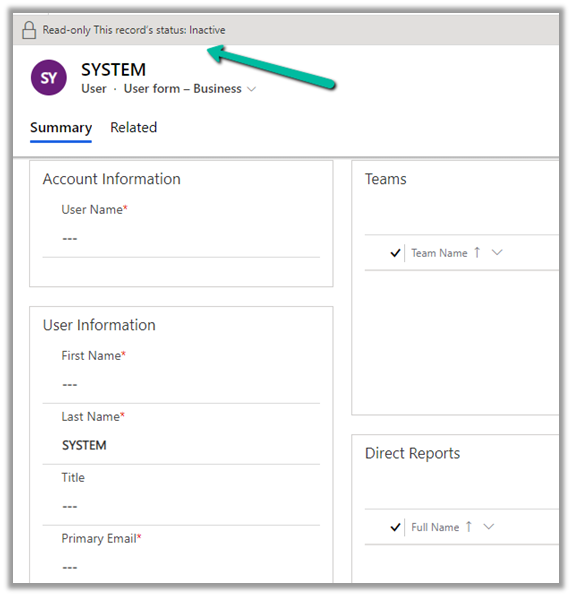
We recently were asked to check the possibility of updating the SYSTEM user specifically the primary email field of it.

https://docs.microsoft.com/en-us/power-platform/admin/system-application-users

Usually, we use SYSTEM user to specify the plugin’s execution context for business requirements that needs elevation of privileges.

And also we can neither update it from the user interface nor it is recommended to update the SYSTEM user.

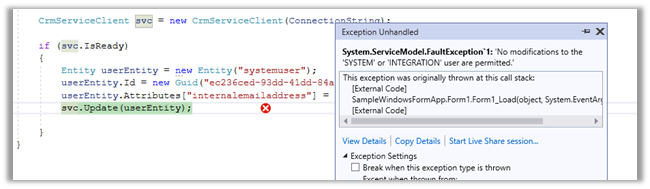
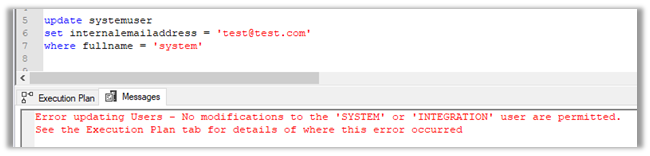
If we try to update the user through code, we’d get the below error message

Error updating Users – No modifications to the ‘SYSTEM’ or ‘INTEGRATION’ user are permitted. [See the Execution Plan tab for details of where this error occurred]


Hope it helps..


Advertisements

Update Personal Options / Personalization Settings using UpdateUserSettingsSystemUser Request – Dynamics 365


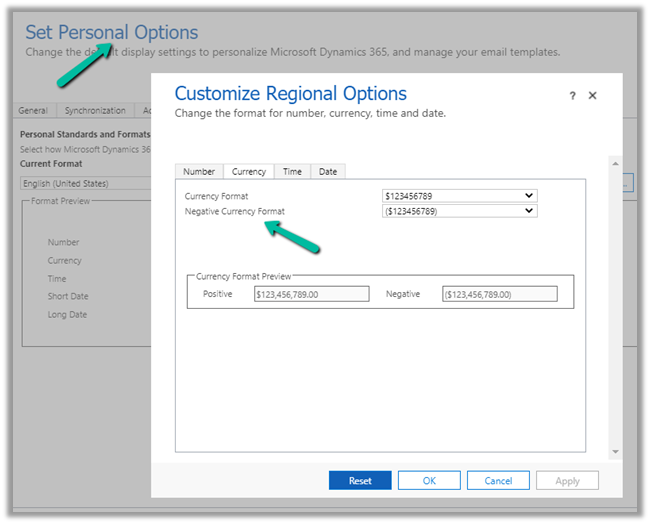
Recently we had a requirement to update the “Negative Currency Format” – Regional Options for all the users.

We could not find this option in our favorite plugin – User Settings Utility.

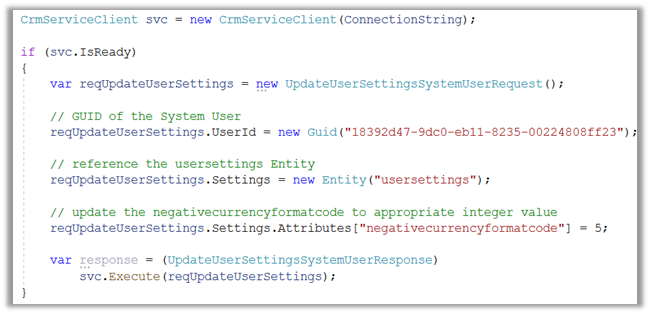
So to programmatically update it we use the below code.

Or using our most favorite plugin – SQL 4 CDS

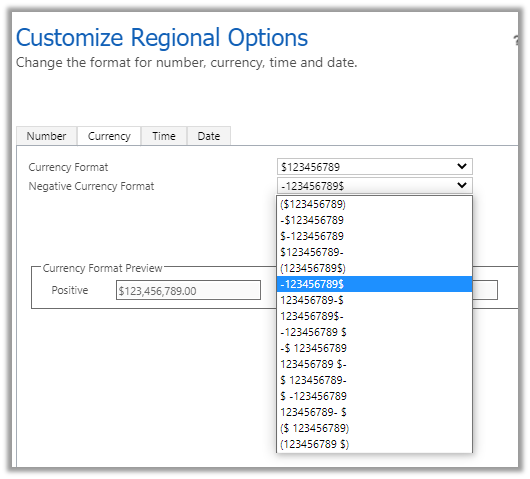
Updating it to the required format – 5

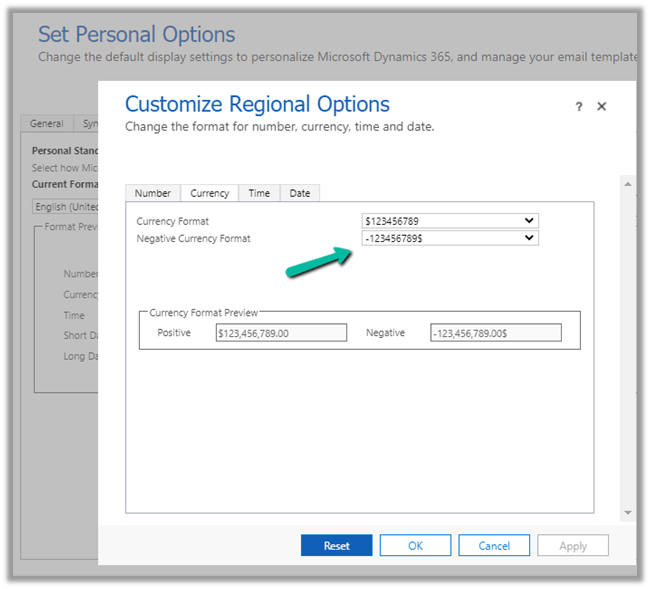
The Result –

Get more details here-

https://docs.microsoft.com/en-us/dynamics365/customer-engagement/web-api/usersettings?view=dynamics-ce-odata-9

Hope it helps..

C# Code –

  CrmServiceClient svc = new CrmServiceClient(ConnectionString);
            
            if (svc.IsReady)
            {
                var reqUpdateUserSettings = new UpdateUserSettingsSystemUserRequest();

                // GUID of the System User
                reqUpdateUserSettings.UserId = new Guid("18392d47-9dc0-eb11-8235-00224808ff23");

                // reference the usersettings Entity
                reqUpdateUserSettings.Settings = new Entity("usersettings");

                // update the negativecurrencyformatcode to appropriate integer value
                reqUpdateUserSettings.Settings.Attributes["negativecurrencyformatcode"] = 5;

                var response = (UpdateUserSettingsSystemUserResponse)
                    svc.Execute(reqUpdateUserSettings);
            }

SQL –

update usersettings 
set negativecurrencyformatcode = 5
where systemuserid = '18392d47-9dc0-eb11-8235-00224808ff23'
Advertisements

How to – Hide and show controls in Canvas App based on security role of the user (Dataverse / Dynamics 365)


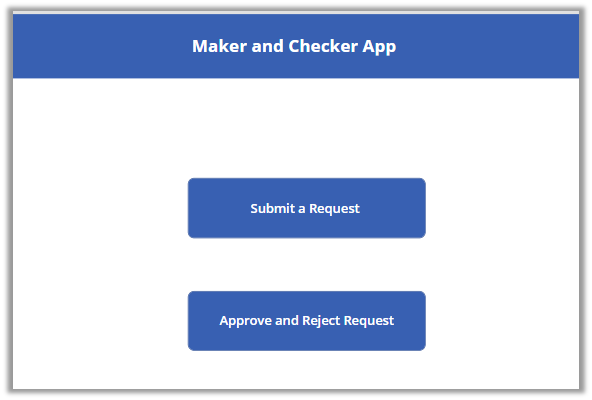
Suppose we have the below Maker and Checker Canvas App, with two button one for raising the request and the other for approving and rejecting the request.

We have below custom security roles created in our Dynamics 365

  • Maker
  • Checker

Here we want Submit a Request button to be visible only to users with Maker security role and the Approve and Reject Request button to users with Checker role.

For this we can write the below formula on Visible property of the button.

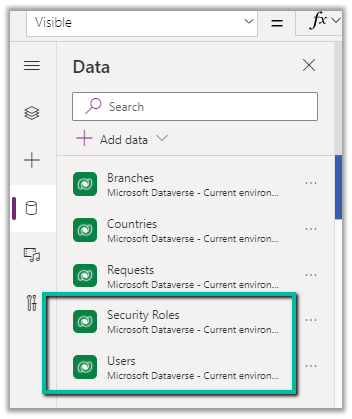
Add the Users and Security Roles data sources first.

If(

LookUp([@’Security Roles’], Name = “Maker”, Role) in Concat(LookUp([@Users], ‘Primary Email’ = User().Email).’Security Roles (systemuserroles_association)’, Role & “;”),

true,

false

)


Based on email address of the user, we are comparing the Maker security role with all the different roles assigned to the user, which we are fetching from systemuserroles_association.

  • User function in Power Apps

https://docs.microsoft.com/en-us/powerapps/maker/canvas-apps/functions/function-user

  • Lookup function in Power Apps

https://docs.microsoft.com/en-us/powerapps/maker/canvas-apps/functions/function-filter-lookup

Hope it helps..

If(LookUp([@'Security Roles'], Name = "Maker", Role) in Concat(LookUp([@Users], 'Primary Email' = User().Email).'Security Roles (systemuserroles_association)', Role & ";"),
true,
false)
Advertisements

Interactive login option in CDS/CRM Connection Manager in KingswaySoft Dynamics 365 Integration Toolkit


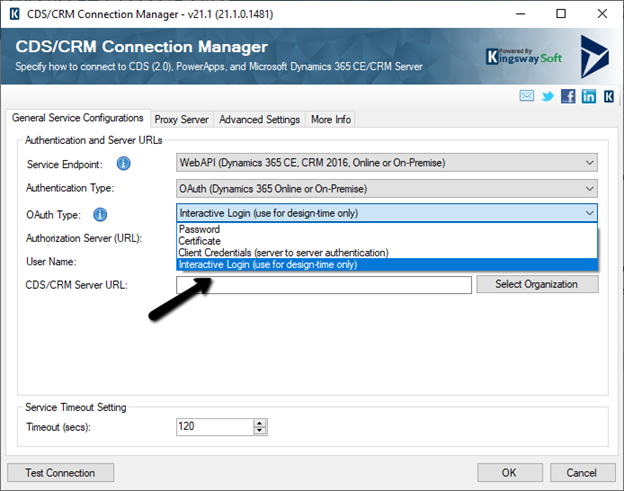
With the new release, the CDS/CRM connection manager adds a new Interactive Login option in the CDS/CRM Connection Manager for Authentication Type as OAuth.

Interactive login allows the user to log in using his account details (to establish the connection with CRM) without the need for registering the application in the Azure Active Directory.

This is supposed to be used only during design time.

Enter User Name and the CDS/CRM URL and click on Test Connection.

The login screen pops up, where we can enter the credentials and sign in.

We’d receive the Test connection succeeded message.

Now we are ready to use the CRM Connection.

Now when we will run the package from within the Visual Studio (SSDT), it will again ask for entering the credentials.

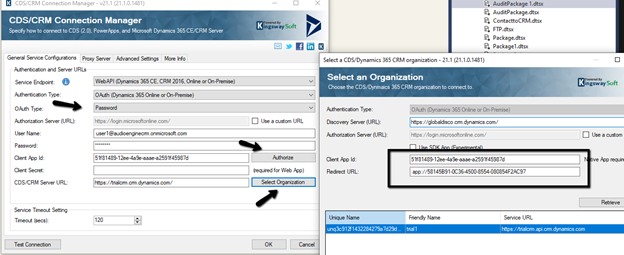
The other option is to use the OAuth Type Password along with default Client App ID and Redirect URL

https://docs.microsoft.com/en-us/powerapps/developer/data-platform/xrm-tooling/use-connection-strings-xrm-tooling-connect

Hope it helps..

Advertisements

Environment History in Power Platform Administration Center


A new feature recently added in the platform is the capability for the Power Platform administrators to see different operations performed in the environment.

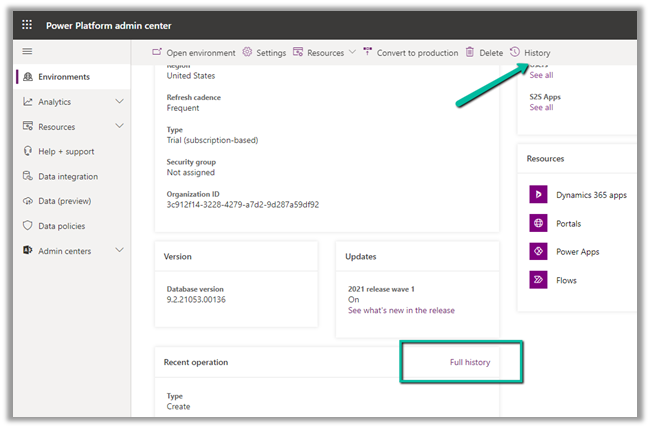
Log in to Admin Center and select an the appropriate environment

Select History or select Full History from the Recent Operation section


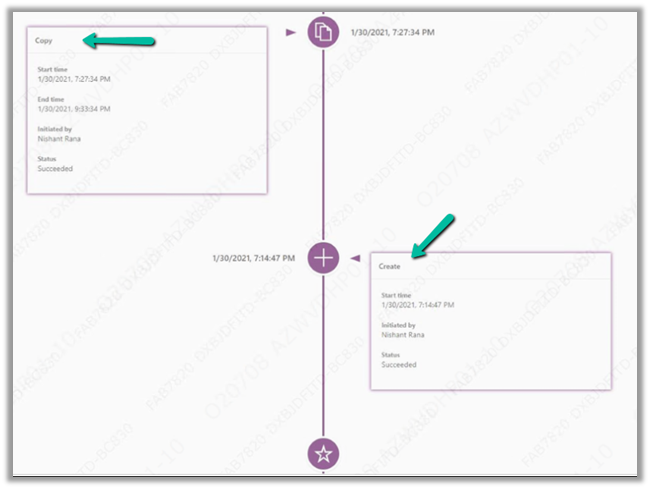
For e.g. we can see the below details listed

  • Create – Start time, Initiated by, Status.
  • Copy – Start time, End time, Initiated By, Status.
  • Edit etc.

Also check out –

Set Custom Message and disable background processes inside the Administration mode for Environment

https://nishantrana.me/2021/05/11/set-custom-message-and-disable-background-processes-inside-the-administration-mode-for-sandbox-and-production-environment-power-platform/

Hope it helps..


Advertisements